



Bluetooth problems on Windows usually come down to a short list of reasons: Bluetooth is turned off, the device you want to pair is not available, Windows has misplaced the driver or service state, or the PC’s Bluetooth hardware is missing or disabled. What you see on your screen will decide the right fix. Either Bluetooth has completely disappeared, a device fails to pair, or it connects but doesn’t work as expected.
This guide applies to Windows 11 and Windows 10 to fix issues involving Bluetooth not pairing, Bluetooth audio issues, missing Bluetooth, and other related problems. Steps and Microsoft support guidance were reviewed on July 12, 2026.
Match the Symptom to the Fix for Bluetooth Problems in Windows 10/11
| What you see | Most likely cause | Cause and Fix |
|---|---|---|
| Bluetooth toggle is off | Bluetooth, Airplane mode, or a laptop radio switch is off | Reason 1 |
| Headphones, mouse, or keyboard do not appear | Accessory is not in pairing mode, is paired elsewhere, or has low power | Reason 2 & Reason 3 |
| Device appears but fails to connect | A stale pairing record or Windows Bluetooth state | Reason 4 |
| Bluetooth is missing from Settings | Driver, hardware detection, firmware, or policy problem | Reason 5 & Reason 7 |
| Bluetooth is connected but there’s no audio | Wrong Windows output device or an audio-driver issue | Reason 9 |
| Bluetooth disconnects, lags, or drops out | Low battery, USB 3 interference, power management, or driver trouble | Reasons 3, 6, and 8 |
Related: Windows 10 & 11 Search Bar Not Working: Reasons & Quick Fixes
1. Bluetooth is Turned Off, Airplane Mode is On, or the Wireless Radio is Disabled
This is the first item to rule out because it takes less than a minute and is common after travel, an accidental press of a keyboard shortcut, a laptop firmware update, or a power state problem.
Re-enable Bluetooth in Windows 11
- Press Windows + A to open Quick Settings.
- Click Bluetooth to turn it on.

- If the Bluetooth icon is not shown there, go to Start > Settings > Bluetooth & devices and turn on Bluetooth.
- Confirm Airplane mode is off in Quick Settings.
Re-enable Bluetooth in Windows 10
- Open Start > Settings > Devices > Bluetooth & other devices.

- Turn on the Bluetooth switch.
- Select Start > Settings > Network & Internet > Airplane mode and make sure Airplane mode is off.
Many laptops also have an Fn key combination, physical wireless switch, or manufacturer utility that can disable the Bluetooth radio. See a key on your laptop keyboard marked with an antenna, airplane, or wireless icon. On some business notebooks, Bluetooth can also be disabled in UEFI/BIOS settings.
Bluetooth might appear in Quick Settings if Windows cannot see its adapter, which is a detection or driver problem, not a missing shortcut. Follow Step 7 to deal with it.
2. Bluetooth Device is Not in Pairing Mode
A Bluetooth device being powered on is not the same thing as being discoverable. Most accessories stay in pairing mode for a short time, and many automatically reconnect to the last phone, tablet, or computer they were paired with before.
Fix Bluetooth Device Not Ready to Pair
- Charge the accessory or replace its batteries.
- Turn off the device, wait a few seconds, then turn it back on.
- Put it into pairing mode following the manufacturer’s instructions.
- Headphones often require you to hold the power or Bluetooth button until the LED flashes.
- Keyboards and mice can have a dedicated pairing button, usually underneath the gadget.
- Temporarily turn Bluetooth off on nearby phones, tablets, consoles, and other PCs, as they might have already snatched the connection and you must first clear the air.
- On the PC, select:
- Windows 11: Settings > Bluetooth & devices > Add device > Bluetooth
- Windows 10: Settings > Devices > Bluetooth & other devices > Add Bluetooth or other device > Bluetooth
- Select the device when it appears.
If it isn’t, Windows 11 also includes a Bluetooth devices discovery setting at Settings > Bluetooth & devices > Devices. Set it to Advanced to show more device types.
Keep the device within a few feet of the PC during pairing. Distance breeds interference. For the best results, perform the initial connection away from USB hubs, wireless routers, and other active wireless hardware.
Many portable rigs operate Wi-Fi and Bluetooth off the same combo chip. If both connections fail at once, check our Windows Wi-Fi troubleshooting guide. If you successfully pair AirPods but the microphone fails, read how to fix AirPods microphone not working.
3. Low Battery, Range, or Wireless Interference Affects the Connection
Bluetooth failures are not always binary. A weak or noisy connection can mimic a driver problem and cause audio skips, mouse stutters, or missed keystrokes.
What to Check
- Fully charge your rechargeable headphones, speakers, mice, and keyboards.
- Replace coin-cell or AA/AAA batteries if the device uses them.
- Bring the accessory near the PC to test for range issues.
- Disconnect unnecessary USB devices near the system.
- If you use a USB Bluetooth adapter, plug it directly into the PC. If that’s not possible, use a short extension cable to distance the adapter from the computer case and USB 3 hardware.
Unshielded USB 3.0 equipment might create interference that frequently cripples Bluetooth signals at close range, leading to sluggish or unresponsive connections.
When you plug a small Bluetooth adapter into the back of your desktop, it gets crowded by metal ports, storage drives, and Wi Fi gear, which is the biggest cause of unreliable mouse and headset performance. You don’t need to do anything, just move the adapter using a short extension cable. It works much better.
4. Existing Pairing Record is Corrupted or Stale
Windows and the device both store pairing data. If these records mismatch, usually because you connected the device to a different PC or phone, the device may list as “Paired” or “Connected” but refuse to work.
Remove the Old Connection and Pair Again
- Open Settings > Bluetooth & devices in Windows 11, or Settings > Devices > Bluetooth & other devices in Windows 10.
- Find the affected device.

- Select the three dots (…) > Remove device in Windows 11, or click on the paired device and choose Remove device in Windows 10.
- Toggle Bluetooth off on the computer for 10 seconds, then turn it back on.
- Restart the gadget and put it back into pairing mode.
- Select Add device on Windows to reconnect.
If your wireless item has been paired and switched between multiple devices, clear its internal pairing memory or reset it only if the manufacturer says to do so. Processes vary by model. Always remove and re-add a device when it’s visible in the list but won’t connect.
Related: Windows PC Won’t Boot: Reasons and 14 Fixes
5. Windows’ Bluetooth Troubleshooter or Bluetooth Service Needs Attention
Windows 11’s current Bluetooth troubleshooter runs through the Get Help app. It scans for configuration and driver errors, then applies the necessary repairs.
Run the Bluetooth Troubleshooter
Windows 11
- Open Start and search for Get Help.
- Open the app.
- Search for or select Bluetooth troubleshooting.
- Follow the prompts and allow it to run diagnostics.

- Alternatively, go to Settings > System > Troubleshoot > Other troubleshooters > Bluetooth and click Run.
Windows 11 will launch the diagnostic window; follow the on-screen prompts. If the tool reports that the radio is disabled, allow it to apply the fix automatically.
Microsoft now recommends Windows 11 users use the automated Bluetooth troubleshooter in Get Help.
Windows 10
On Windows 10, open:
- Start > Settings > Update & Security > Troubleshoot > Additional troubleshooters > Bluetooth > Run the troubleshooter

How to Restart Bluetooth Service in Windows
If your computer detects Bluetooth but won’t pair or discover devices, restart the Bluetooth Support Service.
- Press Windows + R.
- Type
services.mscand press Enter. - Find Bluetooth Support Service.

- Right-click it and select Restart.
- Retry Bluetooth.
If Restart is unavailable, choose Start. Don’t change multiple services or use registry “repair” scripts from the internet.
Do not disable Bluetooth services to improve performance. Bluetooth Support Service is responsible for discovery and pairing tasks, and if disabled, it will cause the very connection problems you’re trying to fix.
6. Bluetooth Driver is Outdated, Damaged, or Incompatible
You’re probably no stranger to the frustration of dealing with a finicky Bluetooth connection on your Windows 10 or 11 machine. Device dropouts, yellow exclamation points in the hardware configuration panel, and error codes like 43 or 10 can be a real pain. More often than you’d think, the culprit behind these issues is a corrupted or outdated Bluetooth driver.
The Bluetooth driver acts as a software layer between Windows and the wireless adapter. If the driver is corrupted, you’ll likely run into problems, and it can happen after a major Windows upgrade, an OEM utility update, or an unexpected shutdown; even a driver update that is not compatible with the adapter can create Bluetooth problems.
If you still have Windows 10, you should know that the final official supported Home and Pro release was 22H2, and Microsoft support for these editions ended on October 14, 2025. The OS will operate as usual, but don’t expect new driver and compatibility fixes to roll out through the normal Windows servicing path.
Update the Bluetooth Driver
- Right-click Start and choose Device Manager.
- Expand Bluetooth.
- Right-click the Bluetooth adapter, which will have names like Intel Wireless Bluetooth, Realtek Bluetooth Adapter, MediaTek Bluetooth Adapter, Qualcomm, or “Bluetooth Radio.”

- Select Update driver > Search automatically for drivers.
- Restart the PC.
If Windows reports that the best driver is already installed, visit the PC manufacturer’s support site and search using the exact laptop or desktop model. For a separately purchased USB adapter, use its company’s official site.
Install the Bluetooth driver designed for your exact Windows edition and hardware, not a generic one from driver download sites.
Check Windows Update and Optional Drivers
In Windows 11:
- Go to Settings > Windows Update.
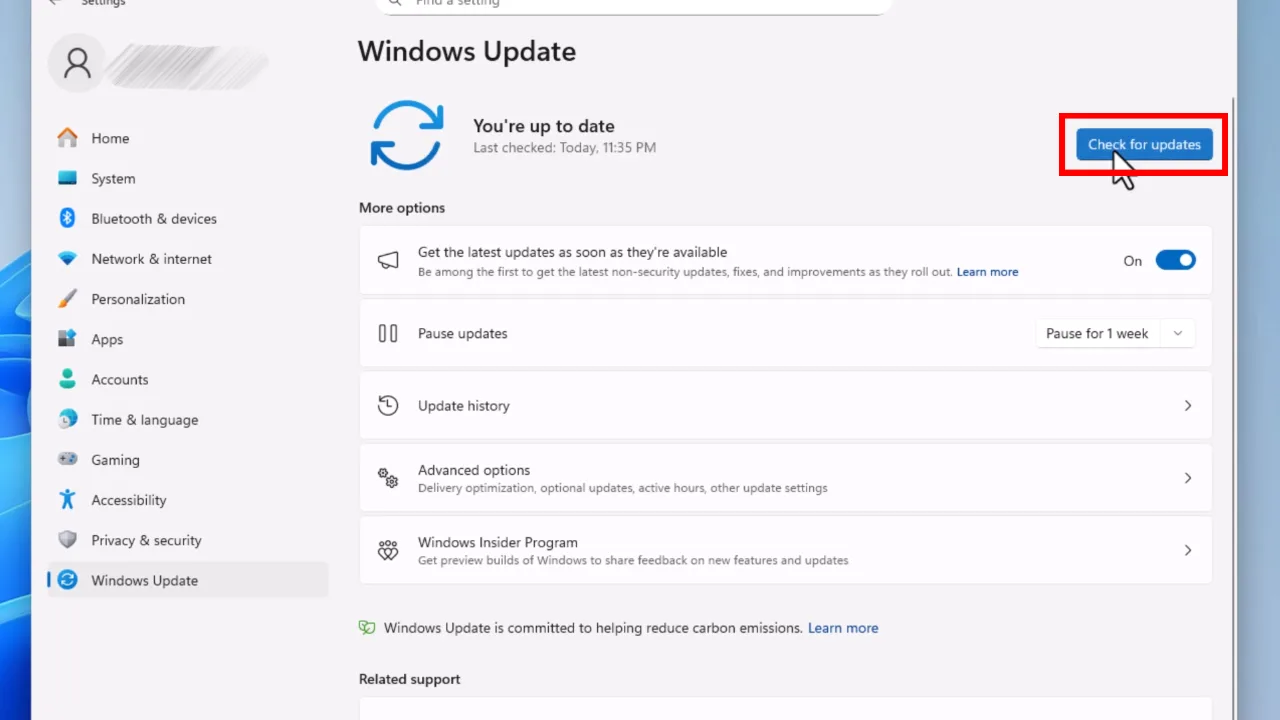
- Select Check for updates.
- Then open Advanced options > Optional updates > Driver updates.
- Only install a Bluetooth or wireless driver if it supports your hardware.

Microsoft says Windows Update can provide recommended drivers and optional relevant updates, but the PC maker might have a new hardware-specific version available.
Related: How to Fix Blue Screen of Death (BSOD) on Windows
On laptops, it’s a good idea to install the manufacturer’s chipset, wireless/Wi-Fi, and Bluetooth drivers in addition to the Bluetooth package when the support page provides them. That’s because combo Wi-Fi/Bluetooth cards often rely on related platform components to work properly.
7. Bluetooth Has Disappeared from Windows or Device Manager
When there is no Bluetooth switch in Settings, you’ll want to check if Windows can even detect the radio:
- Right-click Start > Device Manager.
- Look under Bluetooth.
- Also check:
- Other devices for an unknown device or yellow warning icon
- Network adapters for a combined wireless adapter
- Universal Serial Bus controllers if you use a USB dongle
- Select View > Show hidden devices.
- Select Action > Scan for hardware changes.
See a yellow warning symbol on the Bluetooth adapter? Try updating or reinstalling the driver. If the adapter is greyed out, right-click it and select Enable device (unless the option is available). But if the adapter is completely missing, you’ll need to check your PC’s wireless switch, the BIOS or UEFI settings, the hardware connection, and the manufacturer’s driver package.
Reinstall a Detected Bluetooth Adapter
If you do see the Bluetooth adapter in Device Manager, try reinstalling it.
- In Device Manager, expand Bluetooth.
- Right-click the adapter name.

- Select Uninstall device.
- Restart the PC.
- Windows should reinstall a basic driver. Then install the latest OEM driver if necessary.
Be careful not to delete the driver software unless you’ve already downloaded the correct driver from the manufacturer or you’re sure Windows Update can retrieve it. On an offline PC, deleting the only usable driver can leave you without Bluetooth.
8. Power Management Turns Off the Bluetooth Adapter
By default, the Windows kernel is configured to aggressively depower internal components connected to the PCIe or internal USB expansion buses to save electricity. When your computer enters an idle state, the operating system may shut down the Bluetooth module’s transceiver, and then often fails to wake it up properly afterward.
Adjust the Adapter’s Power Setting
- Open Device Manager (
Win + X -> Device Manager). - Expand the Bluetooth section.
- Right-click your main controller (e.g., Intel Wireless Bluetooth) and select Properties.
- Click on the Power Management tab at the top. If this tab is missing from your system, the hardware configuration defaults control over to the global modern standby states, and you can skip to the next solution.
- Uncheck the box labeled Allow the computer to turn off this device to save power.
- Click OK to apply the changes.
- Expand the Universal Serial Bus controllers section at the bottom of the Device Manager window.

- Right-click every entry labeled USB Root Hub or Generic USB Hub, open Properties, open the Power Management tab, and uncheck the option to turn off the device here as well. It will prevent internal USB controller dropouts from disconnecting the Bluetooth radio.
Further, install the latest chipset, BIOS/UEFI, and wireless drivers supplied by the PC maker. These updates can correct sleep and power-management behavior that’s outside the Bluetooth driver.
If the problem appeared right after a driver update and Device Manager’s Driver tab offers Roll Back Driver, try rolling back.
9. Bluetooth is Connected, But there’s No Sound, Mic is Missing, or the Wrong Device is Used
Connecting via Bluetooth does not automatically make the device the active audio output. Windows might keep sending sound to the internal speakers, a monitor, a USB headset, or whatever device was last used.
Fix Bluetooth Headphones or Speaker Audio
- Turn on the Bluetooth headset or speaker and confirm it shows as connected.
- Select the speaker icon on the taskbar.
- Choose the output-device selector and select the Bluetooth headset or speaker.
- Go to Settings > System > Sound.
- Under Output, select the correct Bluetooth device.
- Under Input, select the headset microphone if you need it for calls.
If you still hear nothing, remove the device from Bluetooth settings and pair it again. Also verify the device’s own volume controls. Microsoft’s recommended first troubleshooting step for this symptom is to ensure the correct Bluetooth audio output is selected in Windows.
During video calls, Windows may change a headset to a call‑focused audio mode when its mic is active. That’s normal for many headphones and can affect audio quality. Select the correct input and output device in the meeting app as well as in Windows.
10. PC, Adapter, Accessory, or Workplace Policy Has Limitations
Not all Bluetooth problems are Windows faults. Older adapters can have limited support for modern device features, and work or school PCs may have restrictions controlled by IT.
Verify Compatibility and Restrictions
- Make sure your PC has functional Bluetooth hardware.
- Check the accessory manufacturer’s requirements, particularly for advanced headset features, game controllers, stylus support, or proprietary pairing apps.
- Update the device’s firmware through the manufacturer’s official app, if the company provides one.
- On a managed work or school device, confirm with IT that Bluetooth isn’t restricted by policy.
- Check UEFI/BIOS wireless settings on laptops where Bluetooth has vanished after a reset or firmware change.
- Test the accessory with a phone or another PC.
- If it fails everywhere, the accessory or its battery is faulty.
- If other Bluetooth gadgets work fine with the computer, the problem lies with the original item or its saved pairing state.
- If no accessory works with the PC, focus on the Windows adapter, driver, or radio hardware.
For desktop computers without integrated Bluetooth, use a reputable USB Bluetooth adapter that explicitly supports your Windows version.
Related: How to Fix Black Screen Issue on Windows 11
Fixes to Avoid
Warning: Avoid “one-click driver updater” tools, registry cleaners, and random driver-download websites.
They mostly install incorrect packages, bundle unwanted software, or make it difficult to identify the real cause. Use Windows Update, the PC manufacturer, or the Bluetooth adapter brand instead.
Also avoid:
- Resetting Windows before checking Device Manager and the OEM driver.
- Repeatedly removing every Bluetooth device when only one unit has trouble.
- Updating BIOS/UEFI just for a minor pairing issue unless the PC maker’s notes mainly address wireless reliability.
- Buying a new adapter before confirming whether the existing one is disabled or missing its driver.
Editorial Note & Testing Methodology
- Tested On: Windows 11 Pro (Build 26200, including the June 2026 KB5095093 Bluetooth update) and Windows 10 Pro (22H2).
- Hardware Used: Intel Wi-Fi 6E AX211, Realtek 8822CE, paired with Apple AirPods, Xbox Wireless Controllers, and generic LE Audio headsets.
- Method: Current navigation paths and recovery actions were cross checked against Microsoft Support documentation. This includes Bluetooth pairing, missing controls, audio output, driver updates, and the Windows 11 Get Help troubleshooter.
- Safety standard: Steps prioritize reversible actions. We start with basic power and pairing checks, move to built-in diagnostics and official driver updates, and finish by reinstalling the adapter. We strictly avoid registry edits and unverified third-party tools.
The Legacy of a Twenty Years Old Stack
Windows Bluetooth fails because the PC ecosystem is a fractured mosaic, while Apple’s hardware is a monolith.
When Apple designs a Mac, it controls the operating system, the motherboard layout, the wireless chip, and the drivers. However, Microsoft operates in a state of perpetual improvisation. It must build an operating system that works on tens of thousands of different hardware configurations. A single computer might combine an AMD processor, an ASUS motherboard, and an Intel wireless chip, all operating on drivers written by different engineering teams years apart.
This fragility is baked into the foundation. Windows still carries legacy code from 2004, when Service Pack 2 for Windows XP first introduced native Bluetooth support. While the Bluetooth Special Interest Group (the standards organization that oversees the technology) has updated the protocol to standard version 5.4, Microsoft stays tethered to the past. It must preserve backward compatibility for hardware manufactured two decades ago.
The result is a digital soufflé. It functions very well when it rises, but is prone to collapsing if you so much as stomp too hard near the kitchen.
Frequently Asked Questions
How do I manually force Windows to find a missing Bluetooth toggle?
If the toggle is gone, the OS does not detect the hardware. First, run the “Power Drain” method (hold the power button for 60 seconds while unplugged) to reset the motherboard states. Then open Device Manager, click the Action menu, and choose Scan for hardware changes. Finally, run services.msc and make sure the Bluetooth Support Service is running.
Does turning off Bluetooth extend my laptop’s battery life?
A little, but usually not enough to notice in daily use unless you stream Bluetooth audio for hours on end. Most notebooks waste more power on screen brightness and CPU load.
Why does my Bluetooth connection stutter when I open a game or use my microphone?
Classic Bluetooth profiles struggle to keep up with the data flow required for games or calls. When you use wireless headphones for audio only, it uses the high-quality A2DP stereo profile. Mic activation forces the system to switch to the Hands-Free (HFP) or Headset (HSP) profile to manage two-way audio, which collapses the stream to a low-quality mono channel and often introduces stutter.
To fix this, open Windows Sound Control Panel. Set a dedicated USB mic or your laptop’s built-in array as the Default Communication Device, which will restrict the headset to the high-quality output profile.
Can antivirus or firewall software block Bluetooth?
Rarely, outright. Most security suites leave the Bluetooth stack alone, but some corporate AV products enforce device‑control policies that can block Bluetooth file transfers or removable‑storage classes. If Bluetooth stopped working after an IT policy applied on a managed laptop, ask your IT team.
Sources
- Microsoft Support: Fix Bluetooth problems in Windows
- Microsoft Support: Troubleshoot Bluetooth not connecting in Windows
- Microsoft Support: Automatically get recommended and updated hardware drivers
- Microsoft Support: Update Bluetooth drivers in Windows
- Microsoft Support: Fix Bluetooth connected but no sound
Did this fix your issue? Let us know. Your feedback helps other readers find the right solution. Great! What solved it for you? We read every response. Email is optional and never shared. Sorry to hear that. What happened? Leave your email and we will personally help you fix it.