





Your Windows PC won’t start, and you need to figure out why. Whether you see a black screen, are stuck in a boot loop, or get cryptic error messages, the fix usually comes down to a handful of usual culprits.
I’ve spent years troubleshooting hardware failures and operating system crashes, and I can tell a dead PC is usually less catastrophic than it seems. It happens when the machine either fails to complete its Power-On Self-Test (POST) or the OS hits a critical roadblock during the handoff. This guide explains every common reason a Windows system won’t boot and how to fix it to bring it back to life.
What Does “Won’t Boot” Actually Mean?
When people say their PC won’t boot or load, they usually mean one of three things:
- No Power: You press the power button but get no response, like no fan sounds, lights, or beeps.
- Powers On But No Display: Fans spin, and lights turn on, but the monitor remains black or displays a “No Signal” message.
- Stuck During Startup – You see the manufacturer’s logo or Windows logo, but then it freezes, displays an error message, or gets trapped in an endless restart loop.
Identify when your computer fails to find the specific break in the startup chain. When Windows boots, the BIOS/UEFI checks and initializes the hardware first. The control then passes to the bootloader, which triggers the Windows kernel and loads drivers and services.
The symptoms reveal exactly where this process stalled. Silence and a black screen with no beeps point to a physical hardware failure during that initial check. If you see the Windows logo freeze, there’s probably a corrupted driver or a kernel error. Text based error codes are helpful because they mean Windows knows what went wrong.
Read: How to Turn Off OneDrive on Windows 11: 7 Methods to Get Rid of It
1. Power Supply and Hardware Issues
Check the obvious first. A loose cable or a flipped switch on the back of the power supply causes more boot failures than a fried motherboard. Verify the power cord sits firmly in both the PSU receptacle and the wall outlet. Try a different outlet to rule out a tripped breaker. Avoid power strips and battery backups (UPS) during this test. Plug the tower directly into the wall to eliminate a faulty surge protector.
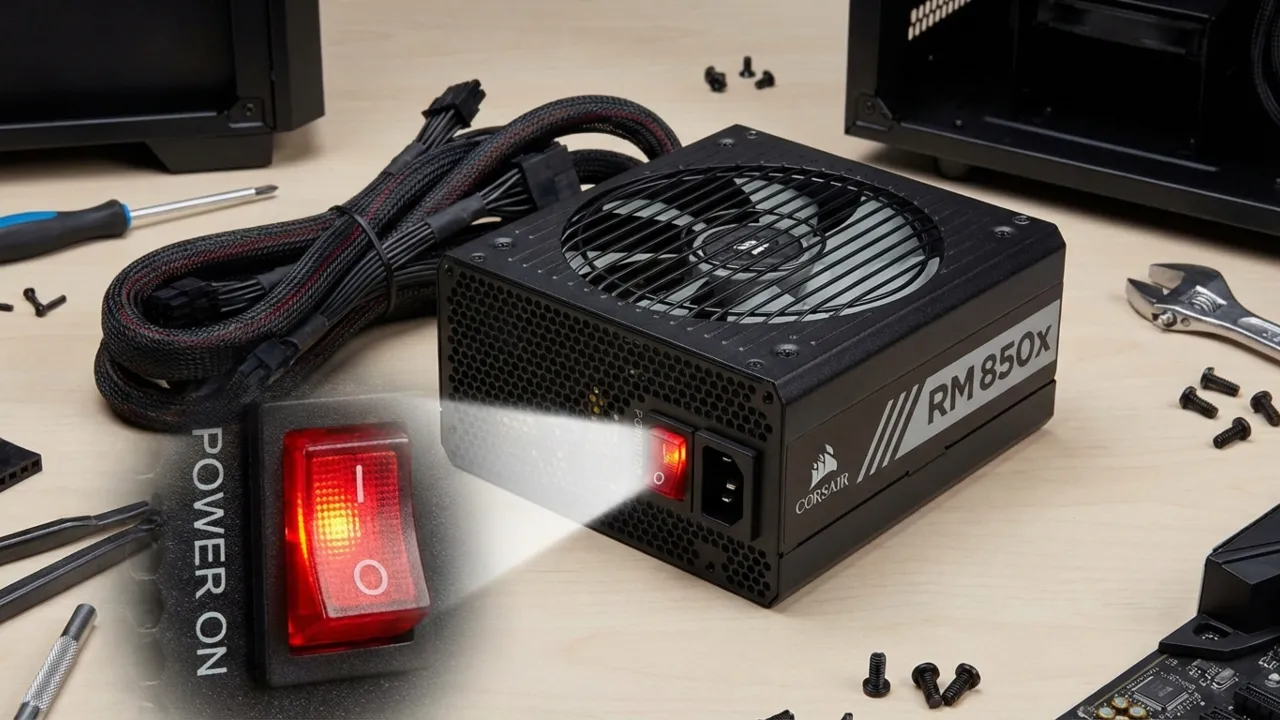
Desktop PCs have a power supply switch on the back. Make sure it’s set to ON. For laptops, plug in the charger and confirm the charging light comes on. If the computer powers on but immediately dies, the power supply has probably failed, or there’s a short circuit on the board. Strip the machine down to the essentials. Remove extra RAM sticks, the graphics card, and expansion cards. Boot with just one stick of memory and an integrated GPU.
Startups overheating force sudden shutdowns, too. Dust buildup on the processor heatsink or stuck case fans triggers thermal protection before Windows even has a chance to load. Open the side panel and blow out the interior with compressed air to make sure every fan spins freely without resistance.
2. No POST — The PC Starts But Shows Nothing
POST (Power-On Self-Test) runs before any operating system loads. If your screen stays completely dark and you never see the motherboard manufacturer’s logo, there’s a hardware problem.
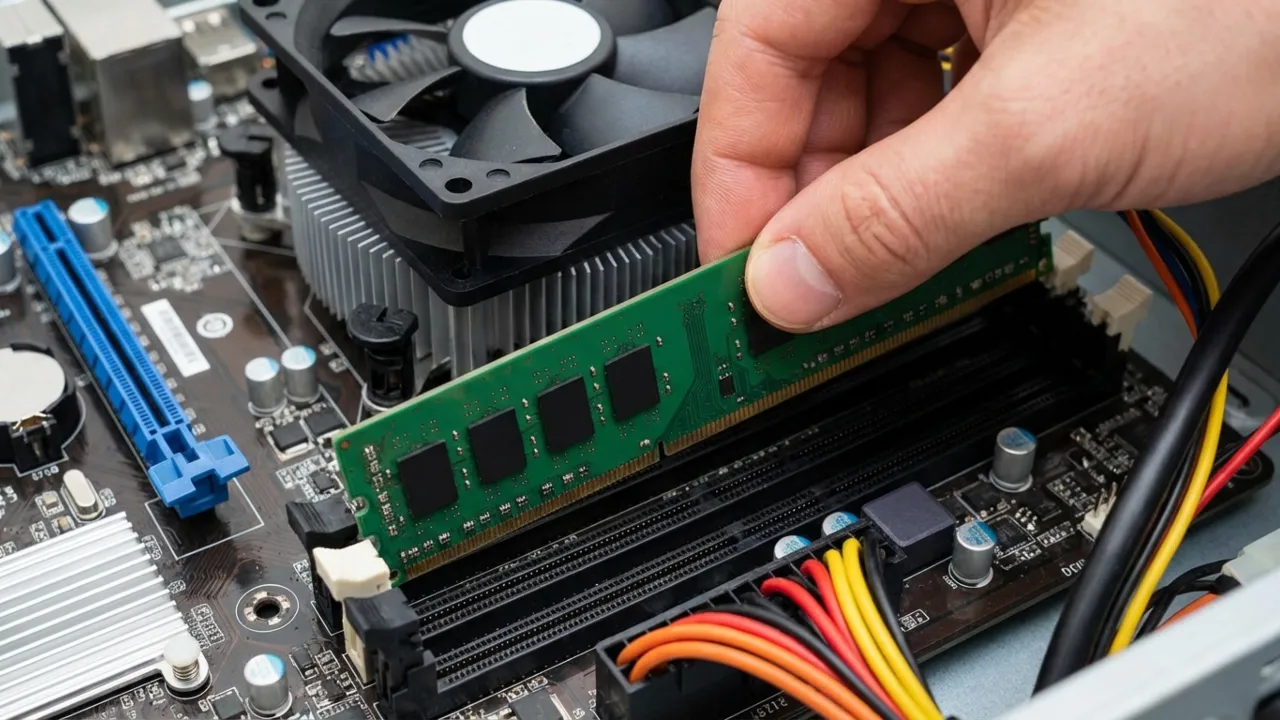
- Your computer needs working memory to start, and RAM problems are among the common boot issues. Memory sticks can wiggle loose if the case gets bumped or if thermal expansion shifts the hardware. Unclip the RAM and press it firmly back into the slot until the plastic tabs click. In case you have two sticks, boot with only one at a time in different slots. Most modern motherboards include a small debug light or a speaker that chirps a specific code to tell exactly which part failed. Consult the manual to understand the blinks or beeps.
- A poorly seated GPU can also cause a blank screen. Reseat your graphics card in the PCIe slot and ensure the power connectors are fully plugged in. If your CPU supports integrated graphics, remove the card and connect the monitor directly to the motherboard’s video output to test.
- CMOS battery failure can prevent POST on old machines. The CMOS battery (a small coin cell on the motherboard) keeps BIOS settings stored when the system is unplugged. When it dies, the BIOS may fail to initialize properly. Open the case, find the CMOS battery, and remove it. Wait about 5 minutes, then put it back in to reset BIOS settings to defaults. Alternatively, many boards have a “Clear CMOS” jumper or button you can use instead. Replacing the battery costs about 5 bucks and takes 2 minutes.
3. Stuck at BIOS/UEFI Screen
Your computer hangs on the manufacturer’s logo or boots into the BIOS settings every single time. It almost always means the system can’t find a bootable drive. Either the boot drive isn’t detected, the boot priority is wrong, or the bootloader is corrupted.
How to Fix: Restart the PC and press the BIOS key—usually Del, F2, F10, or F12—during startup. Once in the BIOS menu, go to the Boot section and set the Windows drive as the priority.
Check drive connections. For desktops, open the case and verify that the SATA data and power cables are secure at the drive and motherboard/PSU ends. M.2 NVMe drives occasionally come loose; press down and confirm the drive sits flat, and the retention screw is tight.
For laptops, check the drive connection only if you are comfortable with partial disassembly. Test the drive in a different SATA port on the mobo to rule out a failed controller. You can also plug the drive into another PC as a secondary disk to see if the hardware still works.
4. Blue Screen of Death (BSOD) on Boot
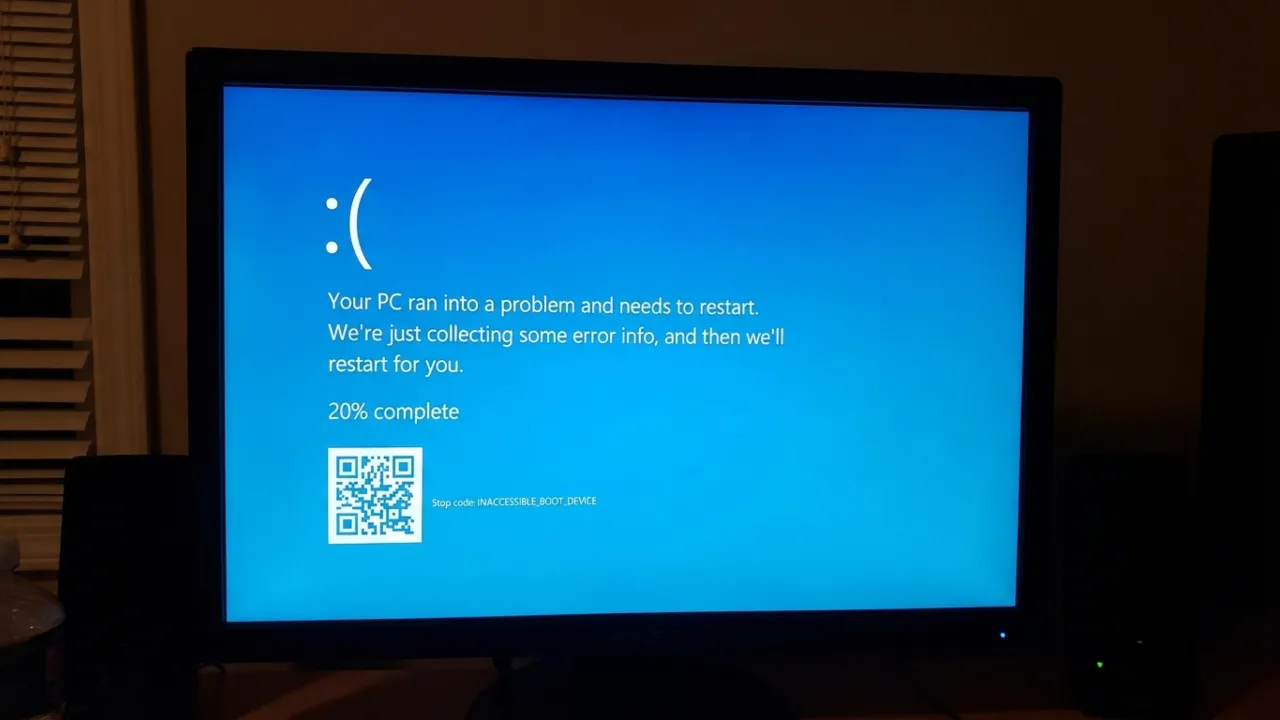
Windows starts to load but crashes into a Blue Screen of Death before you reach the desktop. These errors provide a specific stop code that identifies the culprit. Write it down or photograph it to troubleshoot the exact problem.
- INACCESSIBLE_BOOT_DEVICE: Windows can’t access the partition it needs to start. This is frequently caused by a failed drive, corrupted partition, or a storage driver change following a Windows update.
- CRITICAL_PROCESS_DIED: A core system process crashed on startup, usually due to corrupted system files or a faulty driver.
- DRIVER_IRQL_NOT_LESS_OR_EQUAL: This indicates a specific driver conflict. If this started after you’ve installed a specific piece of hardware or updated a driver, these components are likely the cause.
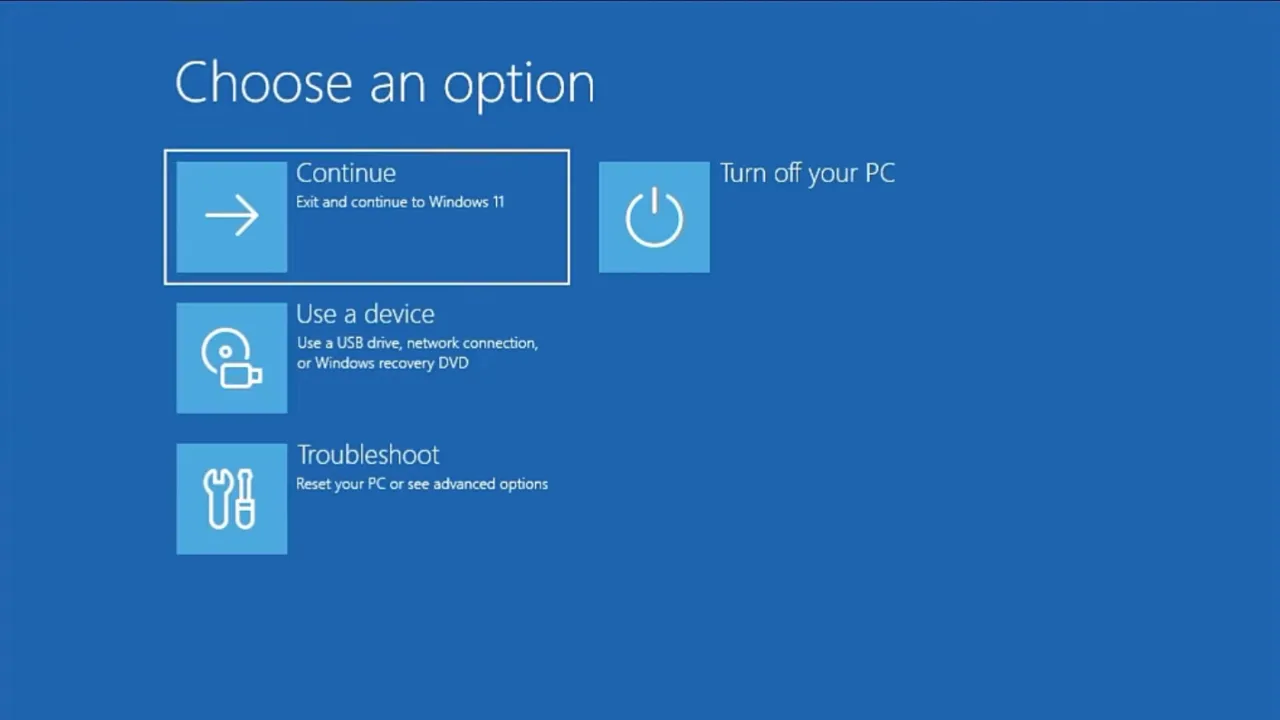
How to Fix: Enter the Windows Recovery Environment. Windows usually opens WinRE after two failed boot attempts. If it doesn’t, turn the PC on and hold the power button to kill it as soon as the logo appears. Do this three times to force WinRE.
[pgallery id=”1″]From Windows Recovery Environment, go to Troubleshoot → Advanced Options → Startup Settings → Restart and press 4 to enable Safe Mode. It loads the OS with only the minimum drivers. If Windows boots in Safe Mode, your hardware is likely fine, but the software is compromised. Open Device Manager and uninstall drivers marked with a yellow exclamation point, or roll back any updates you installed right before the crashes happened.
5. Corrupted or Missing Bootloader
“Bootmgr is missing,” “No bootable device found,” or similar messages mean the bootloader, the software that finds and starts Windows, is damaged or gone. You’ll run into this after improper shutdowns, failed Windows updates, or when you install a second OS that overwrites the boot sector.
[pgallery id=”10″]How to Fix: Do it via Windows installation media, and for that, you need a USB drive with Windows installation files. If you don’t have one, create it on another PC using Microsoft’s official Media Creation Tool. Boot from the USB by setting it as your first boot device in BIOS, select “Repair your computer” rather than installing, then in WinRE, head to Troubleshoot → Advanced Options → Command Prompt.
Run these commands one at a time:
bootrec /fixmbr
bootrec /fixboot
bootrec /scanos
bootrec /rebuildbcd
Restart after every command completes. The tool rebuildbcd finds Windows installation and adds it back to the boot list.
If bootrec /fixboot returns “Access is denied,” the partition is probably formatted as GPT rather than MBR. If that’s the case, run diskpart first in CMD to assign a drive letter to the EFI partition:
diskpart

list disk

select disk 0

list partition

select partition X  (select the EFI partition, usually 100MB)

assign letter=Z

exit
Then run this command: bcdboot C:\Windows /s Z: /f UEFI
6. Windows Update Stuck or Failed
Windows updates often stall or fail. If your screen hangs on the “Getting Windows ready” loading message for over half an hour, hold the power button to force a shutdown. Windows will detect the interrupted update and either complete it or roll it back automatically.
Microsoft updates break sometimes. A failed update leaves your system half installed and unable to boot properly. I’ve seen this countless times with major Windows 10 and 11 updates, where PCs got trapped in restart loops.
[pgallery id=”4″]How to Fix: If the system is unstable after an update, go to Settings → Windows Update → Update history → Uninstall updates and remove the most recent entry. If the PC won’t load to the desktop, go to WinRE and select Troubleshoot → Advanced Options → Uninstall Updates.
[pgallery id=”11″]When updates fail over and over, try the Windows Update troubleshooter at Settings → System → Troubleshoot → Other troubleshooters. Click “Run” next to Windows Update to clear stuck update files. Otherwise, remove the update cache following this:
- Open Command Prompt as Administrator, run
net stop wuauservto pause the update service, delete every file insideC:\Windows\SoftwareDistribution\Download, then runnet start wuauserv. It will force Windows to download a clean version of the update files.
7. Corrupted System Files
Windows may boot to the desktop but crash or behave erratically if core system files are damaged. Power cuts, failing sectors, or malware usually sit behind this corruption.
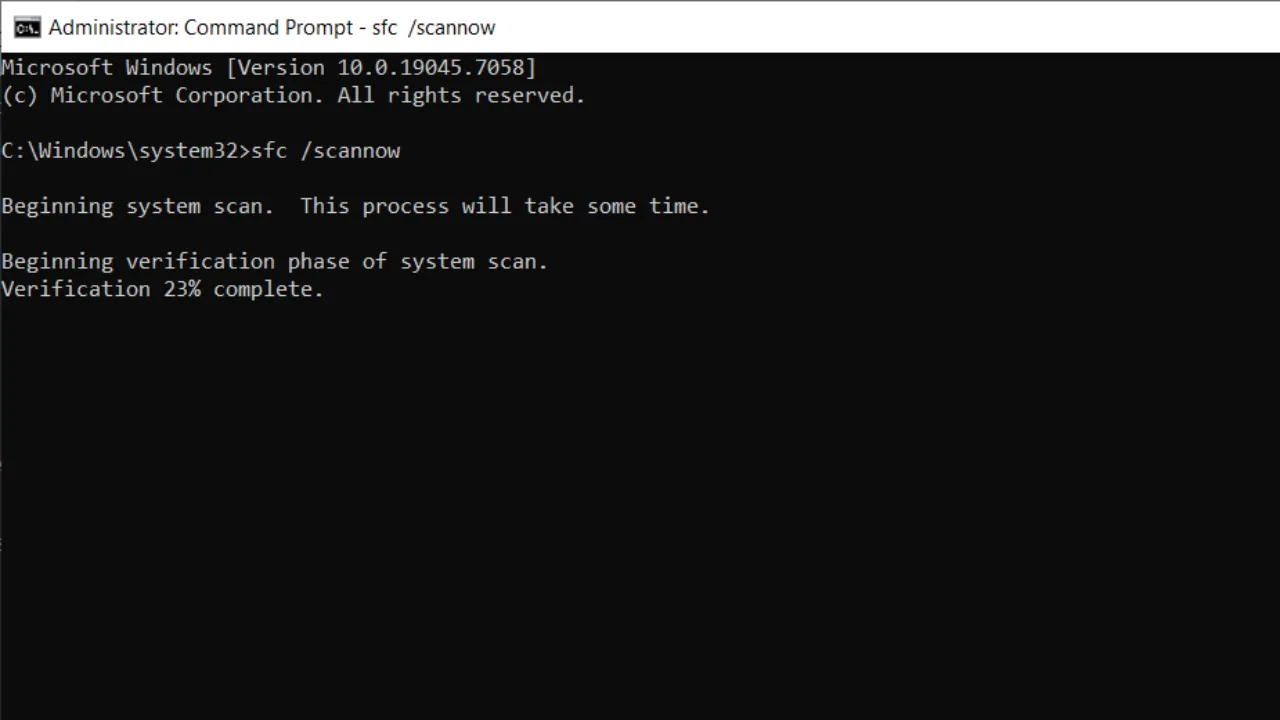
How to Fix: Use the System File Checker (SFC) to find and replace Windows bad files. Open Command Prompt as Administrator and run this command: sfc /scannow. It will scan all protected system files and replace corrupted ones with clean cached copies in around 10–20 minutes. If it finds and fixes issues, restart and check if the problem is resolved.
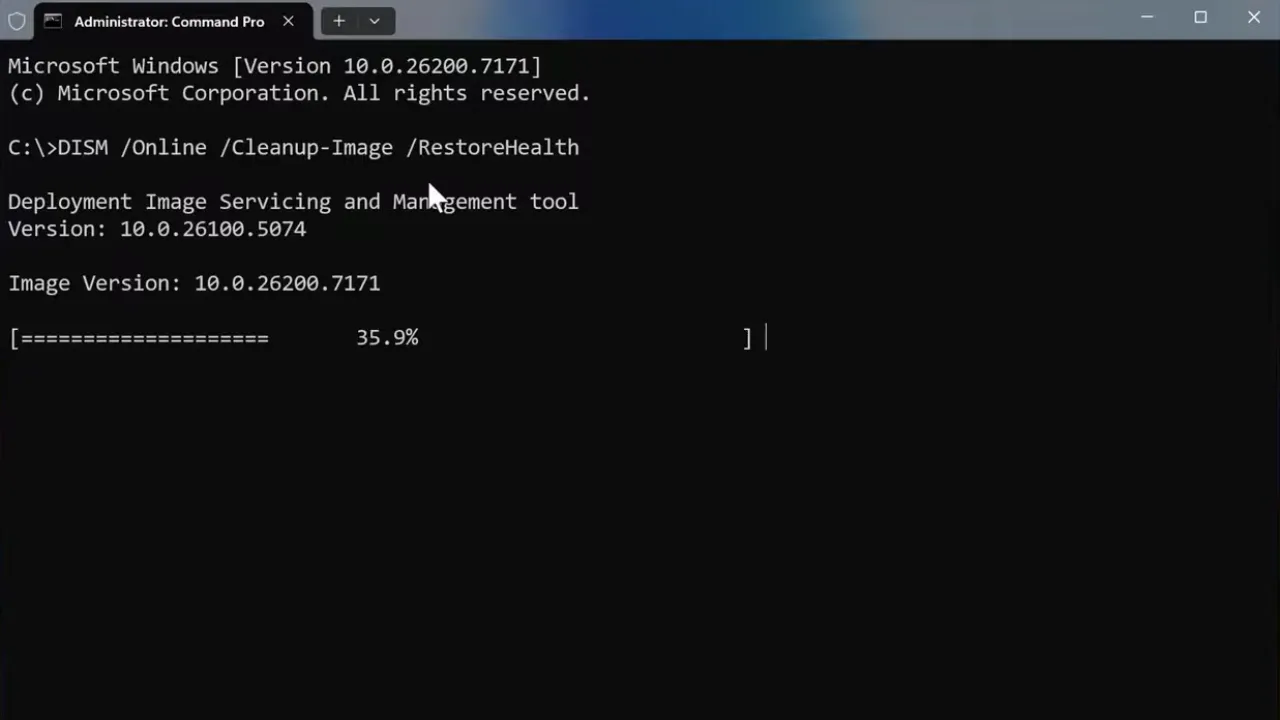
Sometimes SFC fails because the local source image is damaged. In that case, you need to repair the Windows component store first. Run DISM /Online /Cleanup-Image /RestoreHealth to get fresh files from Windows Update. Once DISM finishes, run the sfc /scannow again.
If neither works from inside OS, boot from a Windows USB, go to Command Prompt in WinRE, and run SFC offline with the specific Windows drive: sfc /scannow /offbootdir=C:\ /offwindir=C:\Windows
Read: How to Change DNS Server on Windows and Mac
8. Hard Drive or SSD Failure
Physical hardware failure shows as agonizingly slow boot times, clicking sounds from the drive, frequent read/write errors, or sudden inability to boot. You might see read errors one day and a total failure to boot the next.
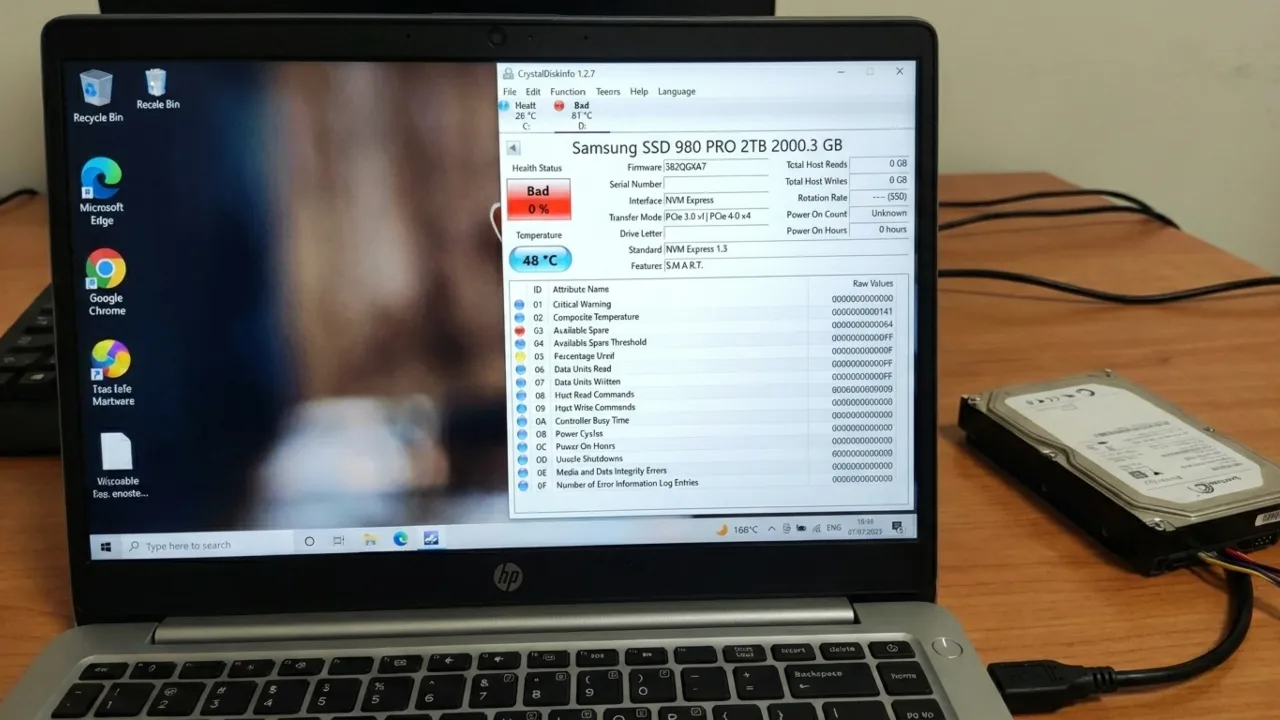
How to Fix: Check the drive’s SMART (Self-Monitoring, Analysis, and Reporting Technology) data. This hardware-level log tracks health metrics like reallocated sectors and spin-up time. Download CrystalDiskInfo (free) on another PC, run it on the suspect drive (connected via USB enclosure if needed), and check the health status. If it shows “Caution” or “Bad,” the drive is physically degrading.
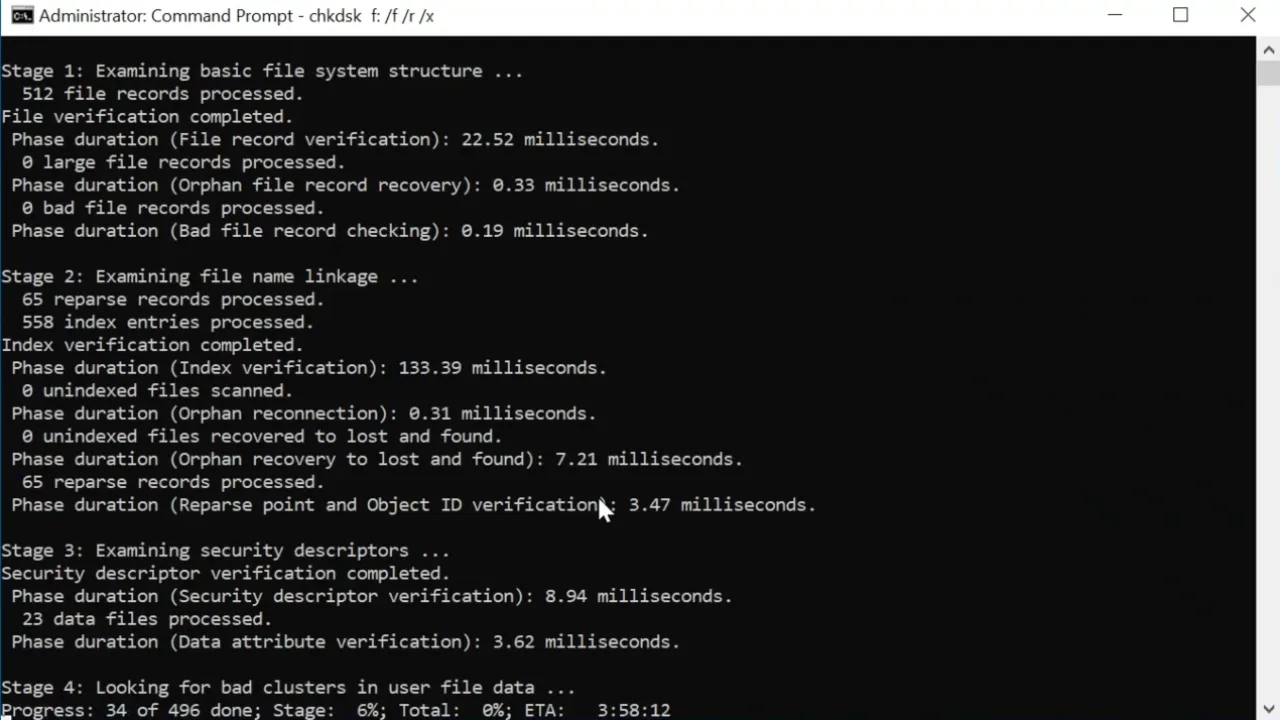
Run chkdsk to find and repair file system errors and bad sectors. From Command Prompt as Administrator: chkdsk C: /f /r /x
The /r flag scans for bad sectors, which can take up to several hours on large drives. It will need to run on the next restart since the system drive can’t be checked while Windows runs. Type Y when asked and reboot.
If the drive has massive bad sectors or shows SMART failures, stop using it for anything important and get your data off immediately. Hard drives with mechanical failures or SSDs with worn out flash memory can’t be fixed with software, and severe NAND errors are just as dead.
9. Fast Startup Creates Boot Issues
Windows Fast Startup is mostly active by default. Rather than performing a full shutdown, the OS saves the kernel session to a hibernation file to speed up the next boot, and that often leads to boot failures when the system loads a stale state, leading to driver errors, unrecognized hardware, or update installation failures.
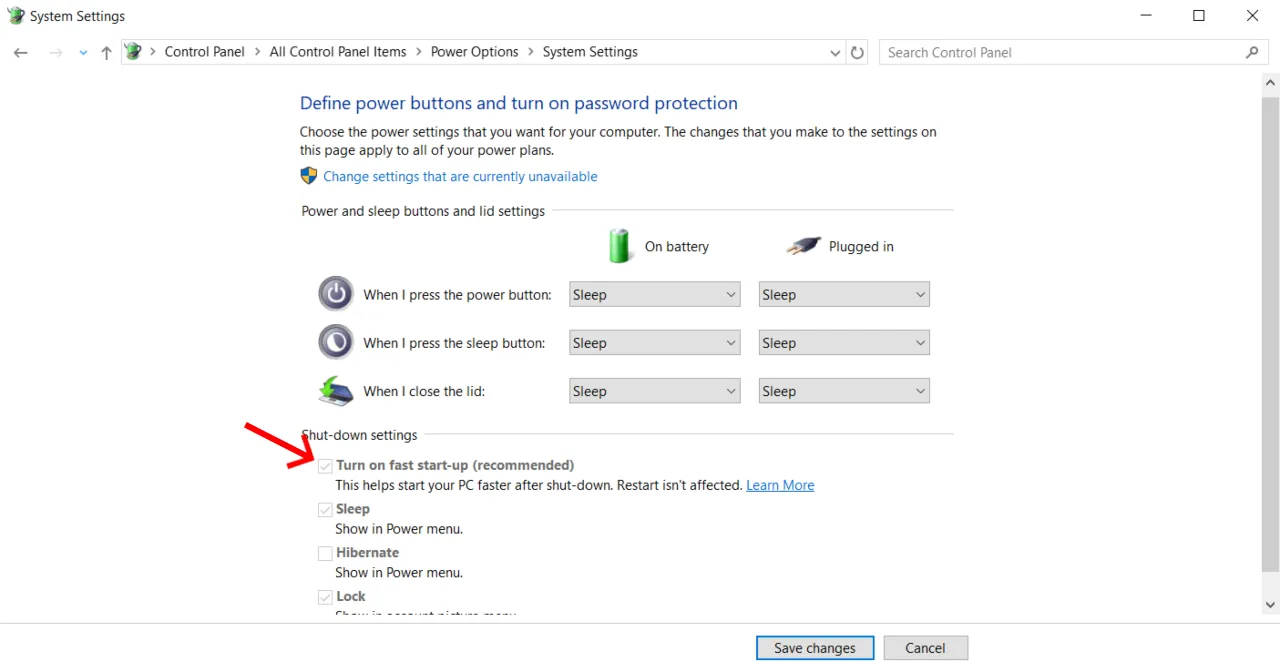
How to Fix: Go to Control Panel > Power Options > Choose what the power buttons do and uncheck “Turn on fast startup.” To do it quickly, run powercfg /h off in a Command Prompt with administrative privileges, which entirely turns off hibernation and disables Fast Startup.
10. Boot Failure Due to Startup Programs and Services
The antivirus programs, system tools, and overclocking apps sometimes block the boot process if they act up or conflict with system services.
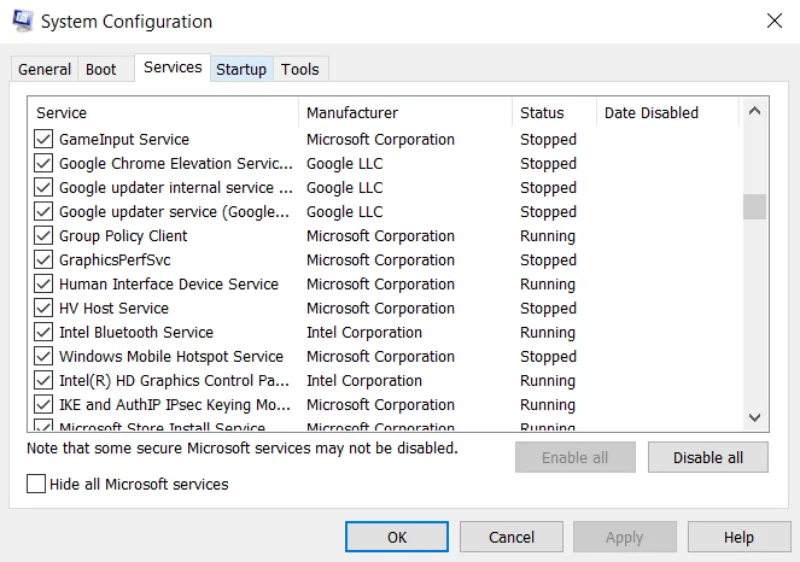
How to Fix: Use Clean Boot to isolate the problem. Press Win + R, type msconfig, and go to the Services tab. Check “Hide all Microsoft services,” click “Disable all,” then go to the Startup tab and open Task Manager to disable all startup items and restart. If PC boots successfully, re-enable services and startup items in small batches until the failure recurs to identify the specific software at fault.
If Windows won’t load, boot into Safe Mode with Networking from the Windows Recovery Environment and follow the same msconfig steps.
11. Incorrect BIOS/UEFI Settings
BIOS or UEFI settings control how the hardware initializes and how the PC finds Windows. If these settings are misconfigured or corrupted after an update, the system might not know where to find Windows or which drive to boot from, and the computer will fail to start.
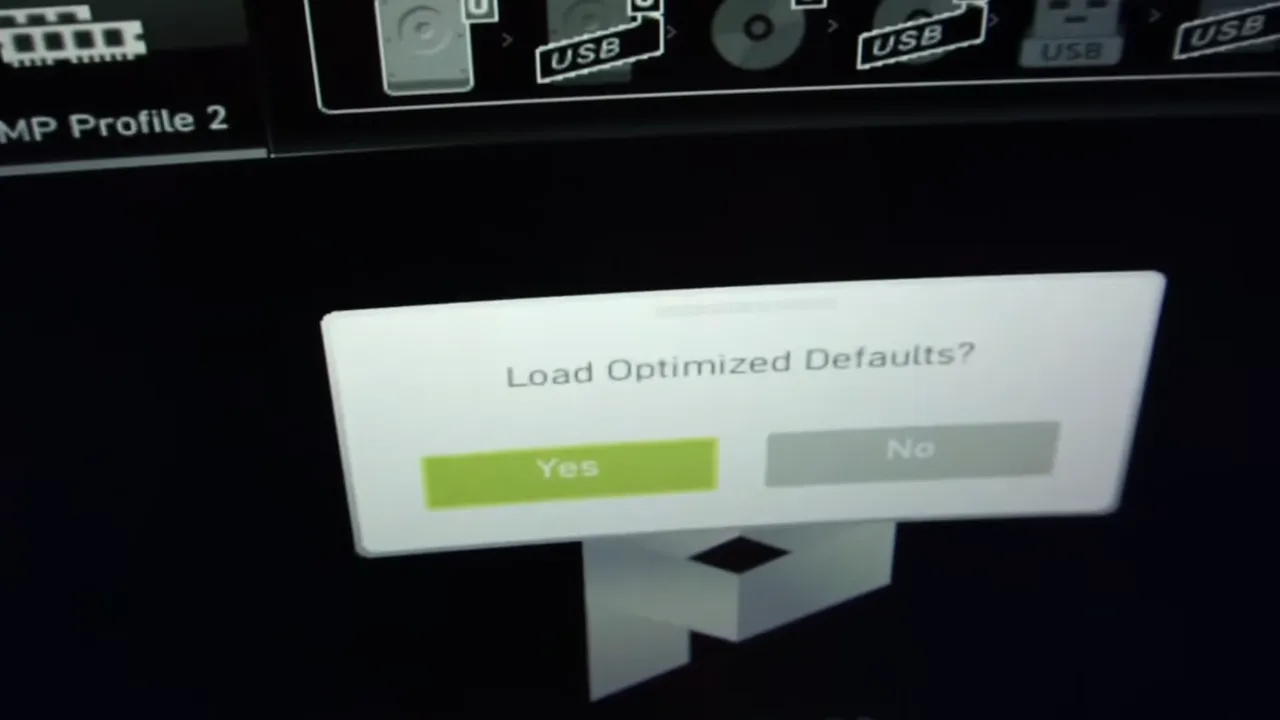
How to Fix: Load optimized defaults. Restart your computer and tap the boot key to enter BIOS. Find a setting labeled “Load Setup Defaults,” “Restore Defaults,” or “Optimized Defaults.” You can usually find this on the exit tab or by pressing F5. This resets the BIOS to its factory state and fixes many startup errors caused by unintended changes in settings.
When a BIOS update fails, some motherboards automatically enter a recovery mode. For others, you must put a specific recovery file on a USB drive. Visit the support page for your manufacturer (such as ASUS, MSI, Gigabyte, or ASRock) to find the exact recovery steps for your model.
Secure Boot and TPM settings can block Windows 11 boot if toggled. If you accidentally disabled TPM 2.0 or turned off Secure Boot, Windows will refuse to start for security reasons. Check the security or boot settings in BIOS to make sure both are active. Keeping these features on is a must for Windows to work right.
12. Perform System Restore to Roll Back
[pgallery id=”12″]System Restore rolls back system files, registry settings, and drivers to a previous state, and it won’t delete personal files. You can access it via WinRE → Troubleshoot → Advanced Options → System Restore. Select a restore point created before the problem began. It usually takes about half an hour and restarts the machine automatically. Note that this only works if restore points were previously created; if none exist, it won’t help.
13. Reset or Reinstall Windows
[pgallery id=”3″]When nothing else works, you must reset or reinstall Windows to get a fresh system back again. To reset the PC, boot into WinRE and select Troubleshoot → Reset this PC. You can either choose “Keep my files,” which reinstalls Windows while preserving your data, or “Remove everything” for a full wipe.
A clean installation via a USB boot drive is the final solution. This wipes the drive and installs a fresh version of Windows. Use this if the current OS installation is too damaged to repair. You must back up your data to an external drive first because this wipe is permanent. It provides a clean slate and ensures no old errors or malware carry over to the new setup.
14. Check RAM with Windows Memory Diagnostic
Faulty RAM leads to random crashes, blue screens, and boot failures that can look like almost any other problem. Rule out hardware before troubleshooting the system.
To run the Windows Memory Diagnostic, press Win + R, typemdsched.exe, and choose the option Restart now and check for problems. The test runs before Windows loads and typically takes 10–30 minutes. If it reports errors, shut down the PC and reseat the RAM modules, as a loose connection can result in false positives. If the errors remain, test each RAM stick individually to figure out the corrupted hardware.
For a more rigorous check, use Memtest86. It runs from a bootable USB drive and does a more thorough job than the built-in Windows diagnostic to catch intermittent faults. Use it if the system continues to crash despite passing the basic test.
When to Seek Professional Repair
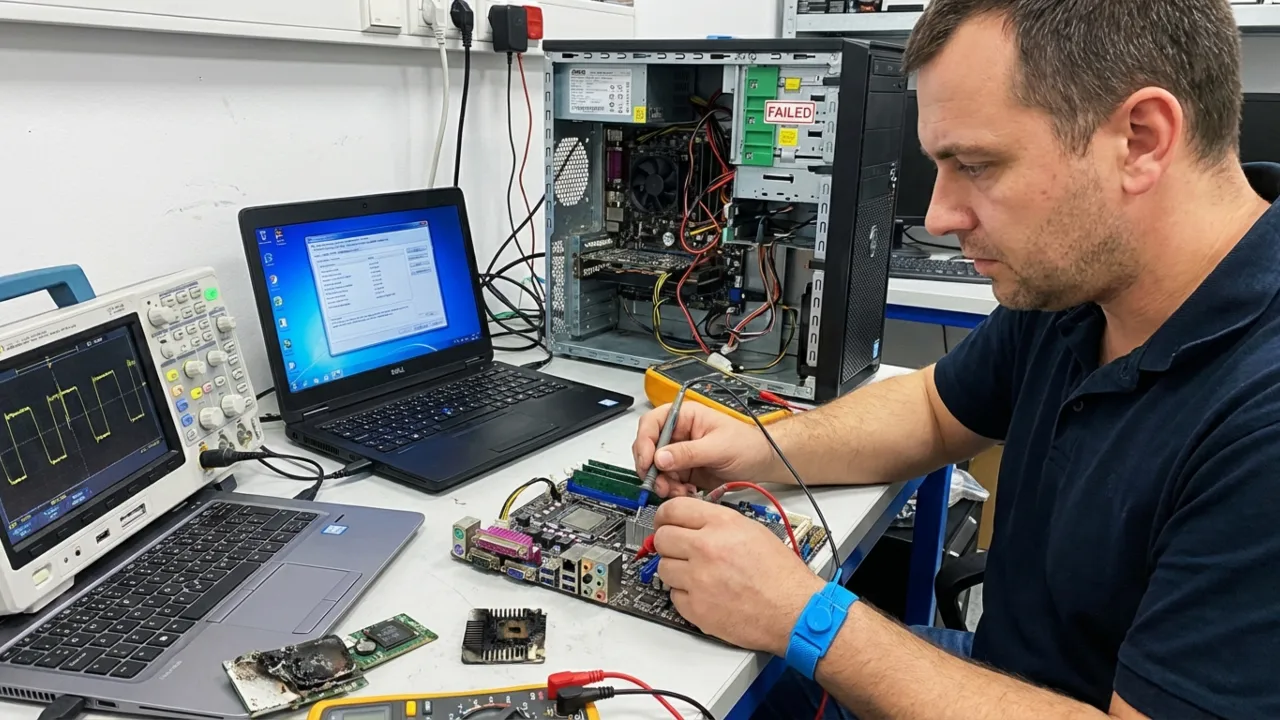
Know when to step away from the workbench and call a technician. Computer hardware is fragile, and some repairs carry risks that outweigh the savings of a DIY approach. Reach out to a professional if you smell burning odors or see scorched hardware parts inside the chassis. These signs point to electrical shorts that could lead to a fire if you keep trying to power on the system.
Listen to your machine. Unusual beep patterns during startup are coded distress signals from the motherboard. If you cannot decode these errors or when you suspect the processor has failed, you need specialized diagnostic tools to confirm the damage.
Data security remains the most common reason to hire an expert. If you have years of photos or critical work documents on a drive that won’t spin up, stop everything. Every failed boot attempt reduces the chances of a successful recovery. Pros use special rooms and software to recover files from busted hardware, so it’s more effective than what you can do at home.
Most power supply issues are affordable and relatively easy to replace. However, a dead board often means the end of a PC’s lifespan. If you’re even slightly uneasy about touching the internal circuitry, hire a computer expert. They have the insurance and experience to work with the delicate parts without static discharge ruining your investment.
How to Prevent Future Boot Problems
- Keep PC Clean: Use compressed air to blow dust out of the case every 3-6 months. Dust builds up on fans and heat sinks, which throttles performance and eventually kills components. A clean PC runs cool and lasts longer.
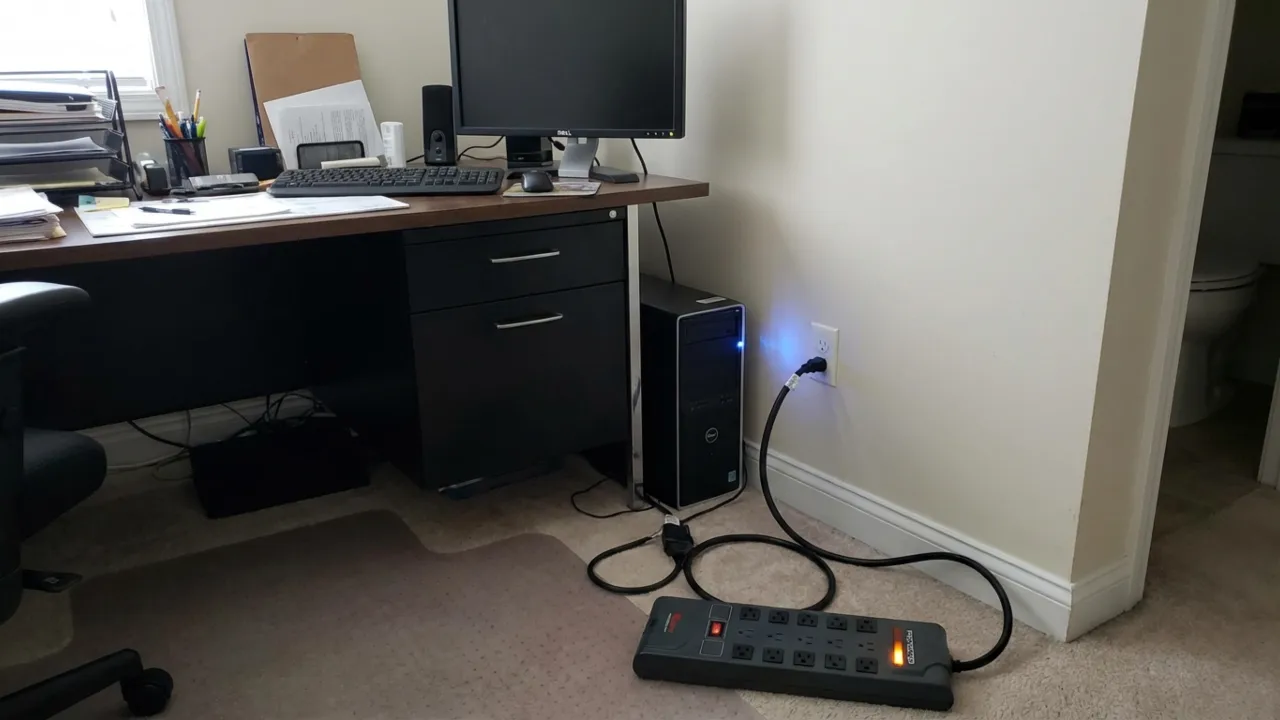
- Use a Surge Protector: Electrical spikes from storms or grid issues can fry components and instantly ruin a motherboard. Spending thirty dollars now protects a machine that likely costs ten times that much.
- Update Drivers and Windows Regularly: Yes, updates sometimes introduce bugs and create problems, but outdated systems have worse issues. Just don’t install updates right before important deadlines—give yourself a buffer day.
- Shut Down Correctly: Don’t simply pull the power cord or hold the power button to turn off the PC unless you absolutely must. Improper shutdowns can corrupt files and damage drives over time.
- Back Up Your Data: This won’t prevent boot problems, but it removes the risk of data loss. Use Windows Backup, cloud storage, or external drives. When your computer won’t boot, and everything important is already safe elsewhere, you can troubleshoot aggressively without fear.
- Monitor Drive Health: Free tools like CrystalDiskInfo check hard drive or SSD health. It reads the internal data of the SSD or hard drive to warn you before a crash happens, and you get plenty of time to clone your data to a new drive.
- Keep BIOS Updated: Motherboard manufacturers release BIOS updates that fix known bugs and improve stability. Check the brand’s support page once or twice a year for new versions.
Boot failures on Windows PC create immediate panic. Most problems involve simple software errors or loose connections that you can fix yourself. Work through the steps calmly, and you will likely get back to work without spending a dime at a repair shop. Even the scarier-sounding technical fixes only require following a few basic commands.
Did this fix your issue?
Let us know. Your feedback helps other readers find the right solution.
Great! What solved it for you?
We read every response. Email is optional and never shared.
Sorry to hear that. What happened?
Leave your email and we will personally help you fix it.