- What Causes Blue Screen Errors on Windows
- Common Windows BSOD Stop Codes
- How to Fix the Windows Blue Screen of Death (BSOD)
- Step 1: Write Down the Stop Code, Remove the Hardware, and Restart
- Step 2: Boot into Safe Mode
- Step 3: Update Windows, and Uninstall Recent Updates & Software
- Step 4: Update, Reinstall, or Roll Back Drivers
- Step 5: Run SFC and DISM to Repair System Files
- Step 6: Run Windows Memory Diagnostic (Test Your RAM)
- Step 7: Check Your Storage Drive
- Step 8: Check Available Disk Space
- Step 9: Scan for Malware
- Step 10: Analyze the Minidump File
- Step 11: Use Driver Verifier to Find a Misbehaving Driver
- Step 12: Use System Restore
- Step 13: Reset or Reinstall Windows
- Step 14: Check BIOS/UEFI Settings
- How to Prevent Blue Screens of Death on Windows
- Frequently Asked Questions (FAQs)
- Can a BSOD damage my PC or cause data loss?
- Why does my PC BSOD only under heavy load?
- Should I worry if the blue screen only happened once?
- Does resetting Windows to factory settings fix BSODs caused by hardware?
- Is it normal to get a BSOD occasionally, or should I never see one?
- Can third-party antivirus software trigger the Blue Screens of Death?
- What is the difference between a BSOD and a hard system freeze?
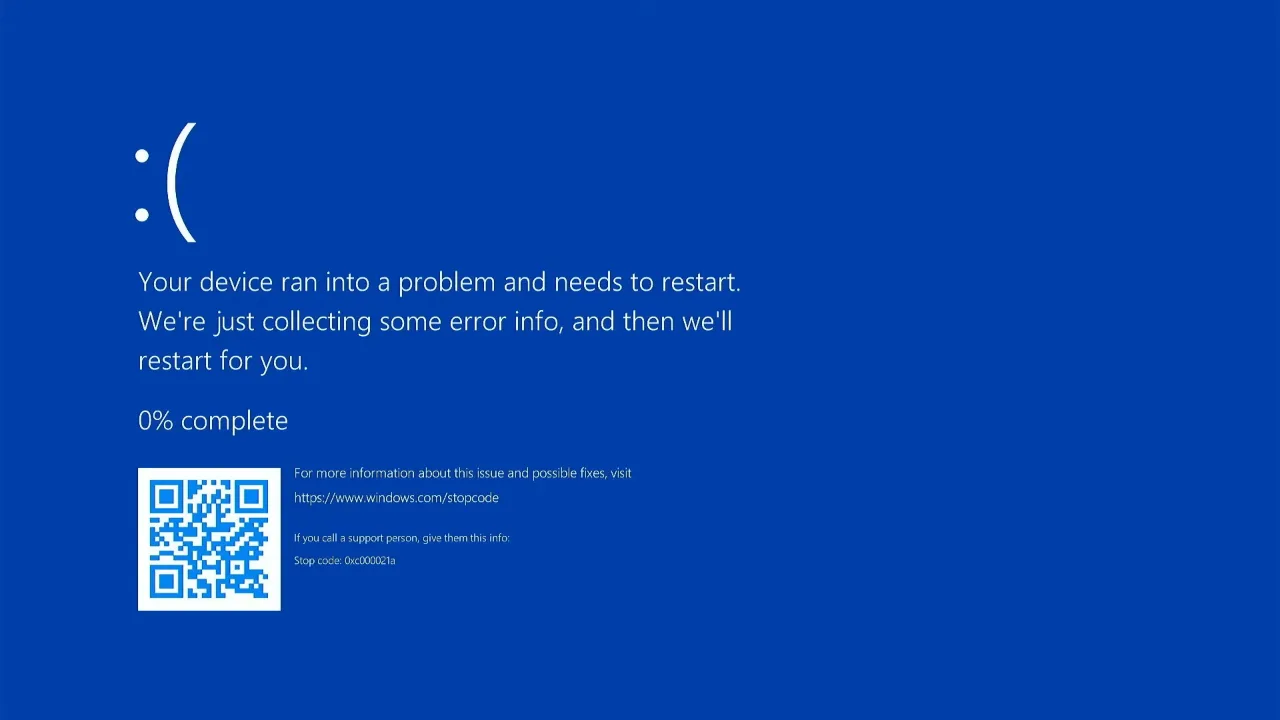
The Blue Screen of Death occurs when Windows hits a critical error it can’t recover from, and it happens at the worst possible moment—mid-project, in the middle of a game, or right after a Windows update. The screen turns blue (or black on new Windows 11 builds), displays a cryptic error message “Your PC ran into a problem and needs to restart” along with a stop code like CRITICAL_PROCESS_DIED or MEMORY_MANAGEMENT, and forces a PC reboot.
Thankfully, most BSODs aren’t as catastrophic as they look and are usually triggered by driver conflicts, faulty hardware, corrupted system files, or bad software. Fixing a BSOD on Windows 10 or Windows 11 requires a systematic approach to isolate and neutralize the root cause. Here’s how to diagnose and fix the Windows Blue Screen errors.
What Causes Blue Screen Errors on Windows
The BSOD can happen when Windows encounters an error severe enough to risk data corruption or hardware damage. To prevent damage, the OS shuts down and forces a restart. These are the common hardware and software issues that can create a Windows BSOD error:
1. Hardware issues:
- Faulty RAM modules
- Overheating components
- Hard drive or SSD failure
- Failing power supplies
- Incompatible hardware peripherals
2. Driver problems:
- Outdated or corrupted device drivers
- Incompatible drivers with the current Windows version
3. Software conflicts:
- Incompatible programs
- Background programs compete for the same resources
- Bugs in third-party software code
- Poorly coded apps
4. Operating system issues:
- Damaged Windows core files
- Corrupted registry entries
5. Windows updates:
- Updates introduce bugs
- Compatibility issues
6. Malware infections:
- Viruses corrupt critical files or exploit vulnerabilities
- Trojans, or other malicious code interfere with kernel processes
7. Overclocking:
- Hardware runs faster than what the manufacturers recommend
8. Disk errors:
- File system corruption or physical bad sectors on the storage drive
9. New hardware:
- Incompatible or improperly installed components
Common Windows BSOD Stop Codes
Windows 10 or 11 displays stop codes at the bottom of the blue screen. These codes help identify what went wrong. You’ll see either descriptive text (like CRITICAL_PROCESS_DIED) or hexadecimal codes (like 0x0000007E). When you face a Blue Screen of Death, it happens with one of these common error messages:
| Stop Code | Error Name | Related Fix Step |
|---|---|---|
0x0000000A | IRQL_NOT_LESS_OR_EQUAL | Update/reinstall drivers (Step 4) |
0x0000001A | MEMORY_MANAGEMENT | Run Memory Diagnostic (Step 6) |
0x0000001E | KMODE_EXCEPTION_NOT_HANDLED | Update/reinstall drivers (Step 4) |
0x00000019 | BAD_POOL_HEADER | Run SFC & DISM + update drivers (Steps 4 & 5) |
0x00000024 | NTFS_FILE_SYSTEM | Run CHKDSK (Step 7) |
0x00000050 | PAGE_FAULT_IN_NONPAGED_AREA | Run Memory Diagnostic (Step 6) |
0x0000004E | PFN_LIST_CORRUPT | Run Memory Diagnostic + CHKDSK (Steps 6 & 7) |
0x00000051 | REGISTRY_ERROR | Run SFC & DISM + System Restore (Steps 5 & 12) |
0x00000074 | BAD_SYSTEM_CONFIG_INFO | Run SFC & DISM + System Restore (Steps 5 & 12) |
0x0000007A | KERNEL_DATA_INPAGE_ERROR | Run CHKDSK + Memory Diagnostic (Steps 6 & 7) |
0x0000007B | INACCESSIBLE_BOOT_DEVICE | Update storage/chipset drivers + check BIOS/UEFI Settings (Step 4 & 14) |
0x0000007E | SYSTEM_THREAD_EXCEPTION_NOT_HANDLED | Update/reinstall drivers (Step 4) |
0x0000003B | SYSTEM_SERVICE_EXCEPTION | Run SFC & DISM + update drivers (Steps 4 & 5) |
0x000000EF | CRITICAL_PROCESS_DIED | Run SFC & DISM + scan for malware (Steps 5 & 9) |
0x0000002E | DATA_BUS_ERROR | Test RAM + check hardware (Step 6) |
0x0000005A | CRITICAL_SERVICE_FAILED | Undo recent changes + update drivers (Steps 3 & 4) |
0x00000023 | FAT_FILE_SYSTEM | Run CHKDSK (Step 7) |
0x0000007C | BUGCODE_NDIS_DRIVER | Update network drivers (Step 4) |
0x0000003F | NO_MORE_SYSTEM_PTES | Use Driver Verifier (Step 11) |
0x00000077 | KERNEL_STACK_INPAGE_ERROR | Run CHKDSK + Memory Diagnostic (Steps 6 & 7) |
How to Fix the Windows Blue Screen of Death (BSOD)
If your computer has encountered a blue screen error, follow these step-by-step instructions to troubleshoot and resolve the problem.
Step 1: Write Down the Stop Code, Remove the Hardware, and Restart
When you face the Blue Screen of Death, pick up your phone and take a photo of the error along with the stop code shown. Some versions also display a QR code you can scan to get directed to Microsoft’s support page for the specific error.
Note: Don’t skip this step. If the BSOD keeps coming back, you’ll need that code to find solutions or get help from tech forums.
After you’ve saved the stop code, shut down the PC, remove the newly installed hardware, including RAM, graphics card, external drive, or printer, then boot up again. Latest hardware can trigger BSODs if it’s incompatible, improperly seated, or has driver conflicts. This includes USB devices, so disconnect everything except keyboard and mouse, then restart. If the error disappears, reconnect devices one at a time to find the culprit.
If the system won’t restart normally, hold the power button until it completely turns off, then power it back on. If it crashes again before you can troubleshoot, proceed to the next Safe Mode method. But before that, also check for overheating parts, particularly the CPU or GPU. Make sure PC’s vents aren’t blocked by dust or cables. If the case feels hot or the fans run constantly, clean the internal components with compressed air to restore airflow.
Step 2: Boot into Safe Mode
Safe Mode loads Windows with only the bare minimum drivers and services required for the system to work, and bypasses almost everything that could be causing the BSOD crash.
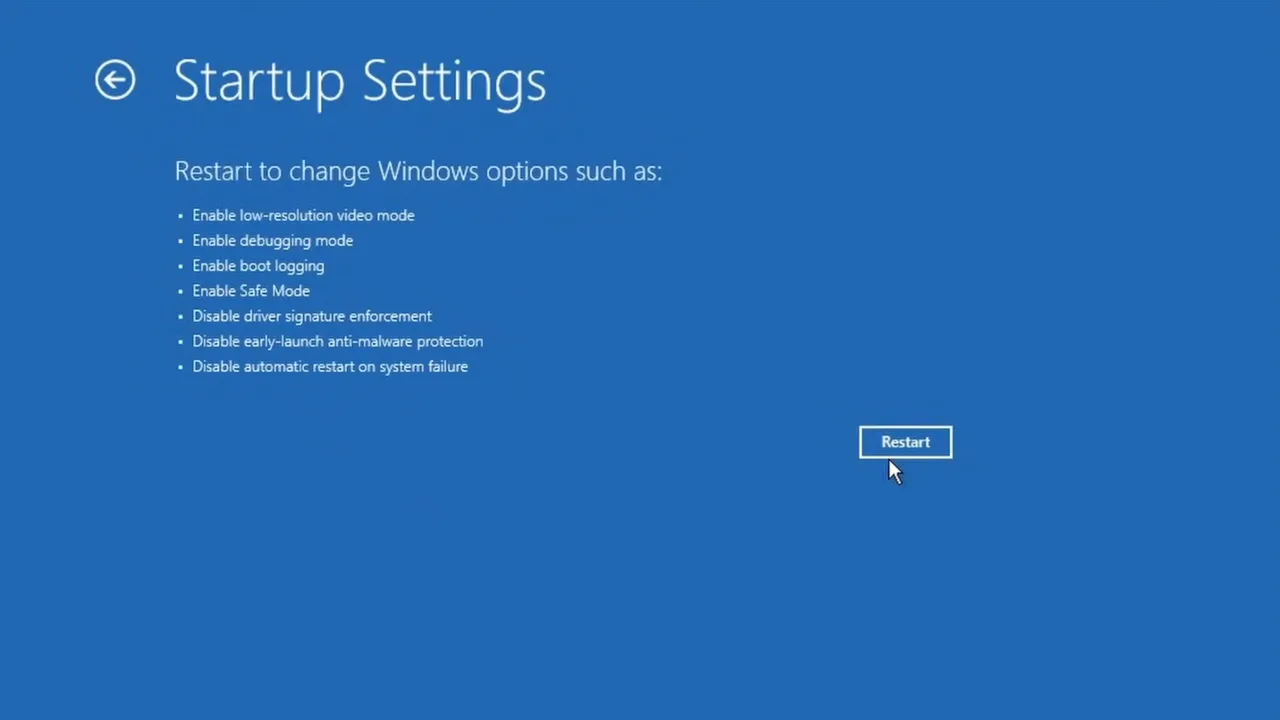
To boot in Safe Mode on Windows 10 or 11, follow these steps:
- Turn on the PC.
- As soon as the Windows logo appears, press and hold the power button for 10 seconds to force a shutdown.
- Repeat this process two more times.
- On the third boot, Windows will enter the Windows Recovery Environment (WinRE).
- Go to Troubleshoot > Advanced options > Startup Settings > Restart.
- After the computer restarts, press 4 or F4 to enter Safe Mode.
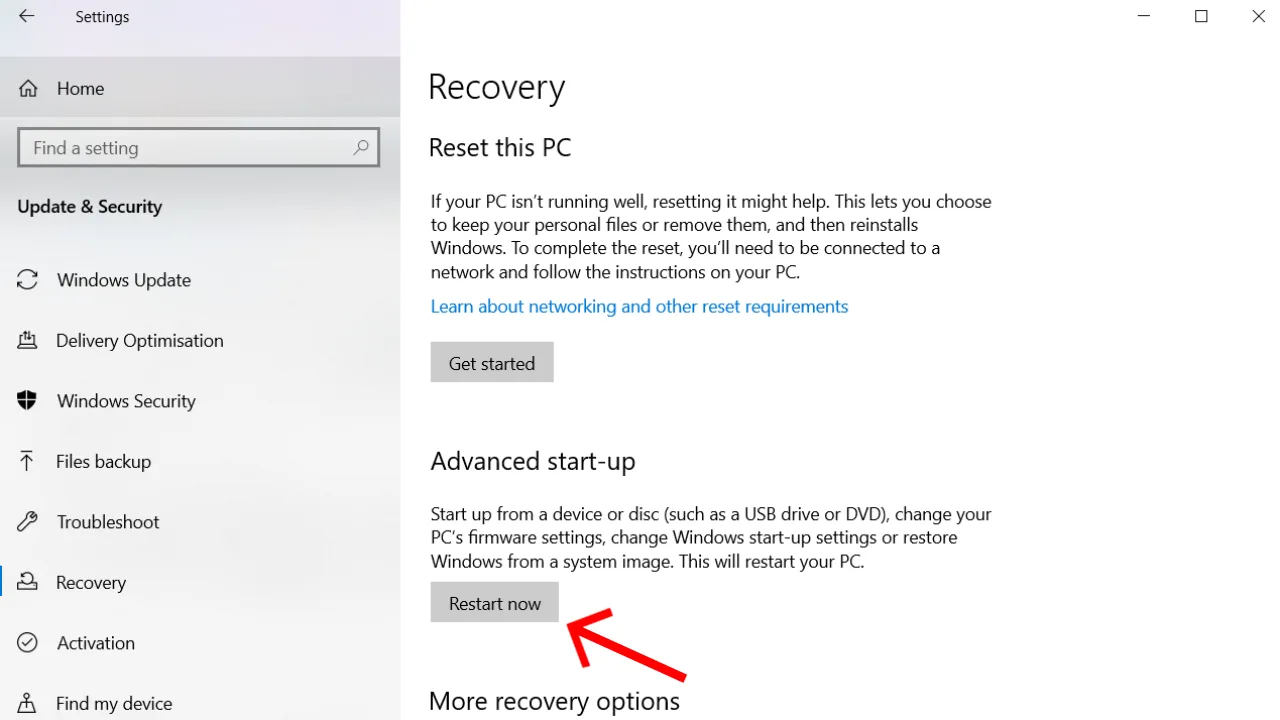
In case Windows boots normally, but you want to enter Safe Mode preemptively:
- Press Windows key + I to open Settings.
- Go to System > Recovery (on Windows 10, it’s Update & Security > Recovery).
- Under Advanced start-up, click Restart now.
- Follow the same Troubleshoot > Advanced options > Startup Settings path to enter Safe Mode.
The Shift + Restart shortcut is the fastest way if you’re already at the login screen or have the Start menu open.
- Click the Power icon in the Start menu (or on the sign-in screen).
- Hold down the Shift key on the keyboard.
- Click Restart while still holding Shift.
The computer will bypass the normal shutdown and open the “Choose an option” blue screen. From there, follow the same path to get to Startup Settings.
Step 3: Update Windows, and Uninstall Recent Updates & Software
When in Safe Mode, your priority should be to update Windows and remove any troublemaker programs that bring instability to the system. Microsoft releases patches to fix bugs, including the ones that cause the Blue Screen of Death.
To check for new Windows updates, follow these steps:
- Press the Windows key, type Settings, and hit Enter to open it.
- Click Windows Update at the very top or select Updates & Security from the settings menu.
- Click Check for updates.
- Download and install if the new updates are available.
- Restart the computer when prompted.
A recently installed program, or Windows update is also frequently the trigger for a sudden BSOD. The system was stable before the installation, and unstable after.
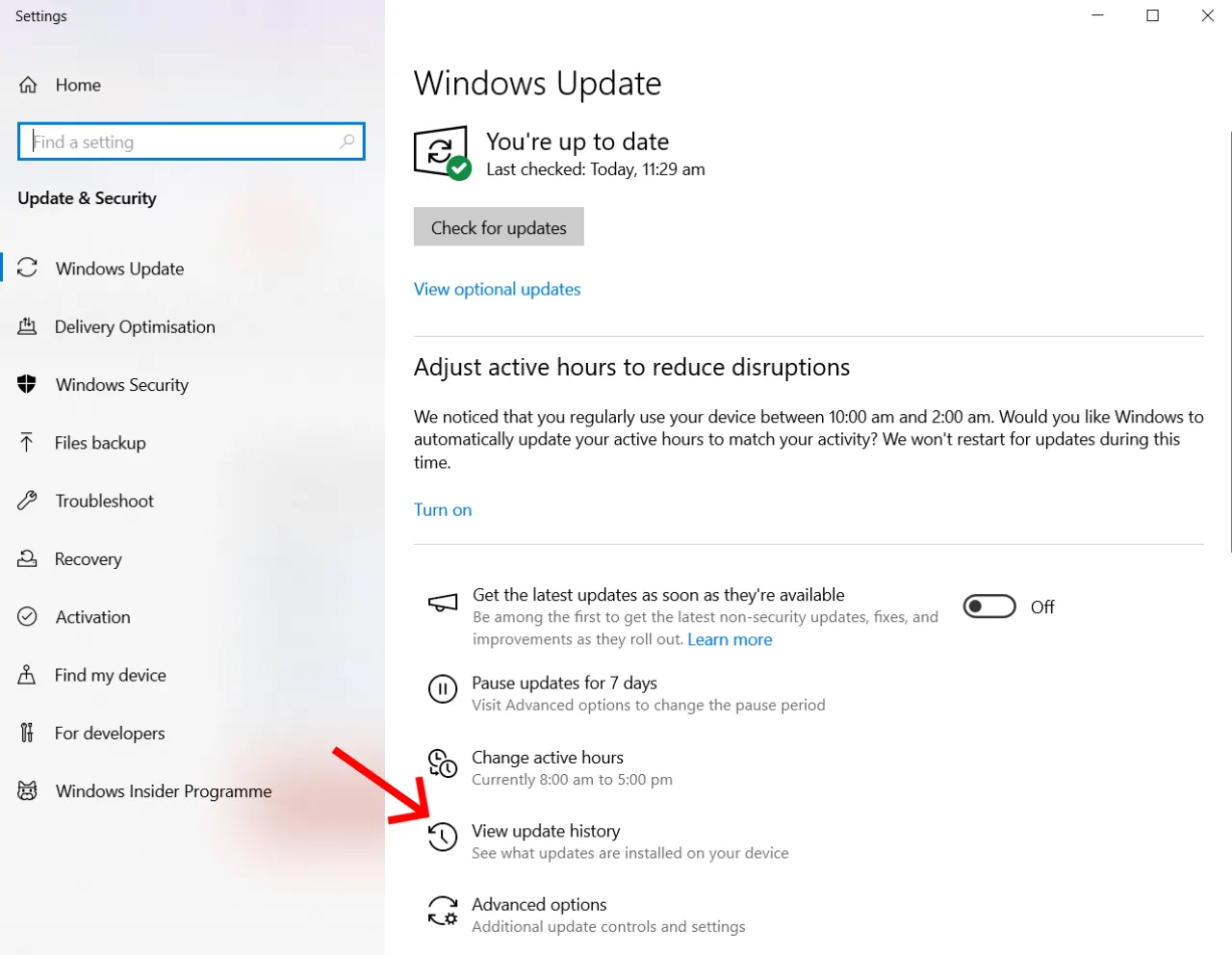
To roll back a recent Windows Update:
- Go to Settings > Windows Update > View Update History > Uninstall Updates.
- Find the most recent update and uninstall it.
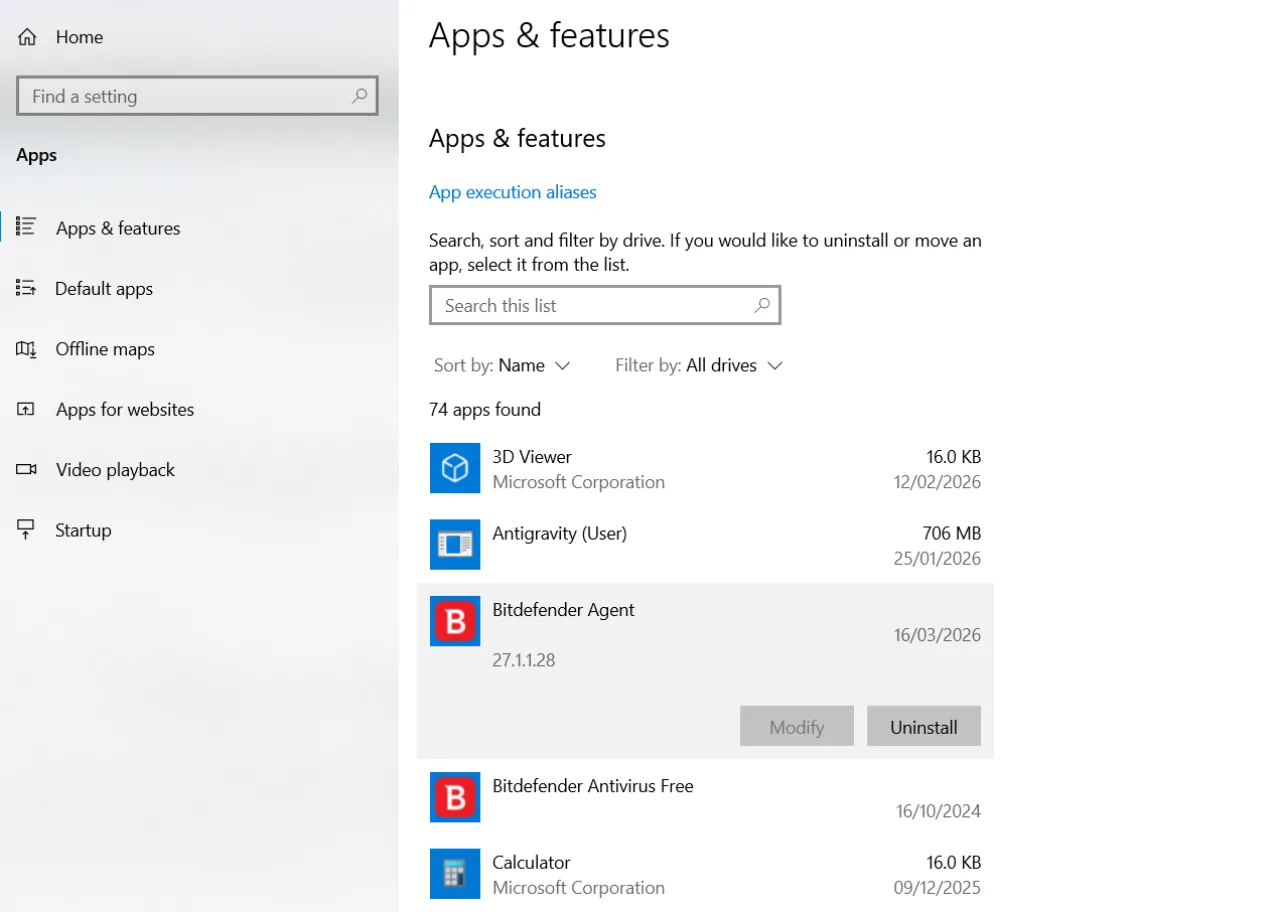
To uninstall a recently added app:
- Press Win + I (to open Settings) > Apps > Installed apps (Apps & features on Windows 10).
- Find the app, click the three-dot menu beside it, and hit Uninstall.
Step 4: Update, Reinstall, or Roll Back Drivers
Outdated, damaged, or incompatible drivers are a leading cause of blue screen errors. Either they’re outdated, or a recent update broke something. Priority targets are GPU, chipset, network adapter, and storage controller drivers.
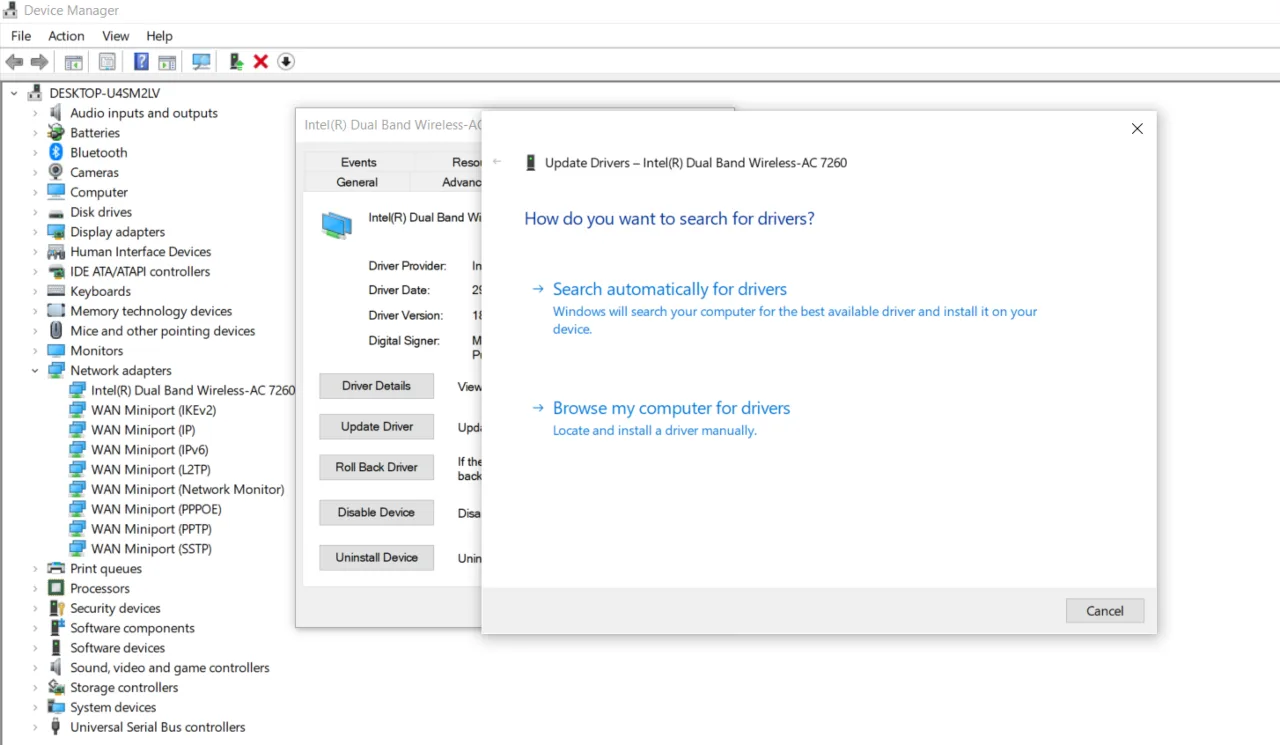
Here is how to update the missing or outdated drivers:
- Right-click the Start button and select Device Manager.
- Look for devices with a yellow exclamation mark (!) that have issues.
- Right-click the device and select Update driver.
- Choose Search automatically for drivers.
- If Windows finds an update, let it install and restart.
For GPU drivers, download the latest versions manually from the manufacturer’s site (NVIDIA, AMD, Intel, etc.) for a clean install. Moreover, use DDU (Display Driver Uninstaller) in Safe Mode to completely remove the old before installing the latest. Partial driver installations left over from previous editions are normal to overlook, which later lead to BSODs.
Note: Update your system’s BIOS/UEFI. An outdated BIOS can create system instability that appears as random blue screens. Check the motherboard manufacturer’s support page for the latest firmware.
Updated drivers improve device performance and security, but buggy updates can trigger Blue Screen of Death errors, such as driver power state failure. If the error code refers to a specific driver, disabling it or rolling back the update usually resolves the conflict. If the reason remains unclear, go back to the old drivers one at a time until the system stabilizes.
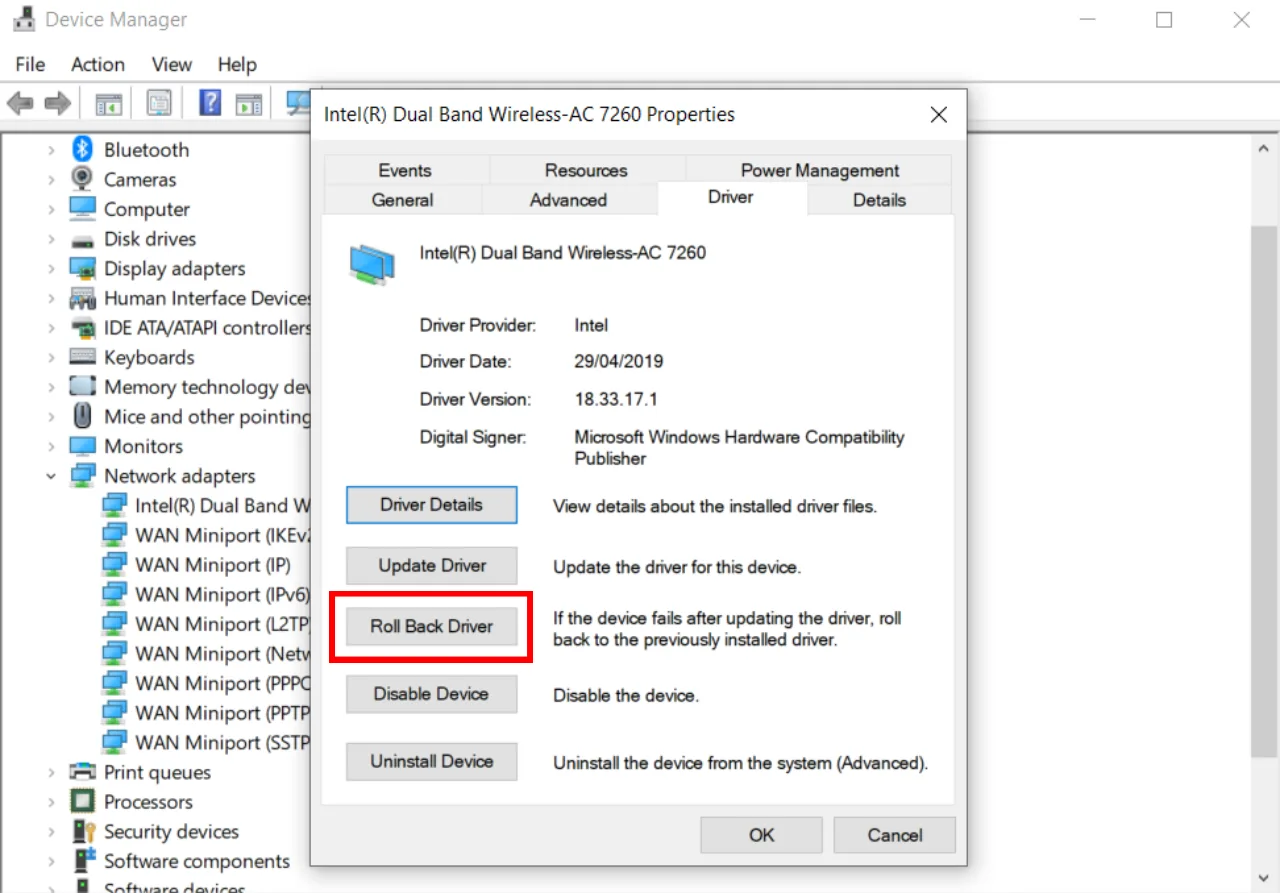
If the system was stable before the installation, and unstable after. Follow these steps to roll back a driver:
- Open Device Manager and find the device that was recently updated.
- Right-click it and select Properties.
- Go to the Driver tab and click Roll Back Driver (if available).
- Restart your PC.
If the Roll Back Driver option is grayed out, the driver has no previous version saved, so you’ll need to download an old version from the manufacturer’s website.
Step 5: Run SFC and DISM to Repair System Files
Corrupt or missing core Windows files can also crash the operating system. The operating system includes built-in command line tools to repair its own architecture. System File Checker (SFC) scans for damaged or missing system files and recovers or replaces them. It can catch corruption that drivers and updates can leave behind.
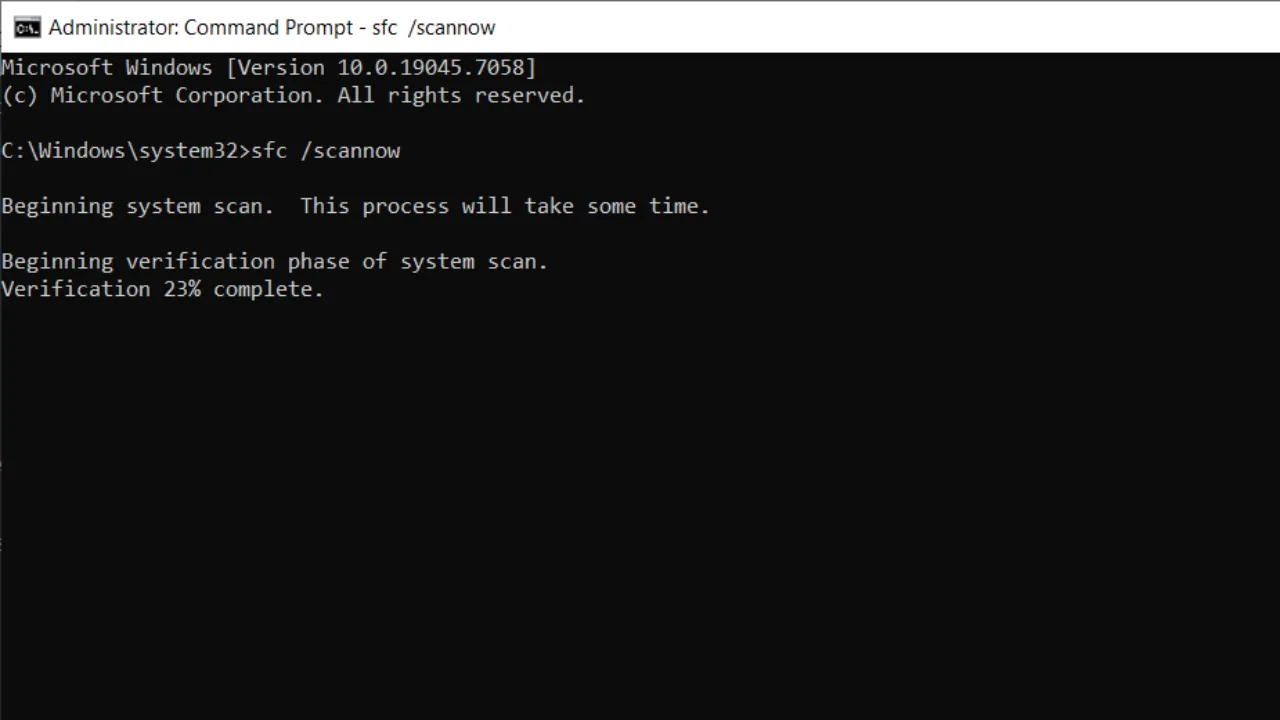
To run SFC:
- Open the Start menu, type cmd, right-click Command Prompt, and select Run as administrator.
- Run the System File Checker:
sfc /scannow. - Press Enter and wait for it to complete—this takes 15-30 minutes.
It will scan the integrity of all protected system files and replace incorrect versions with correct Microsoft editions. Restart the PC after the scan reaches 100%.
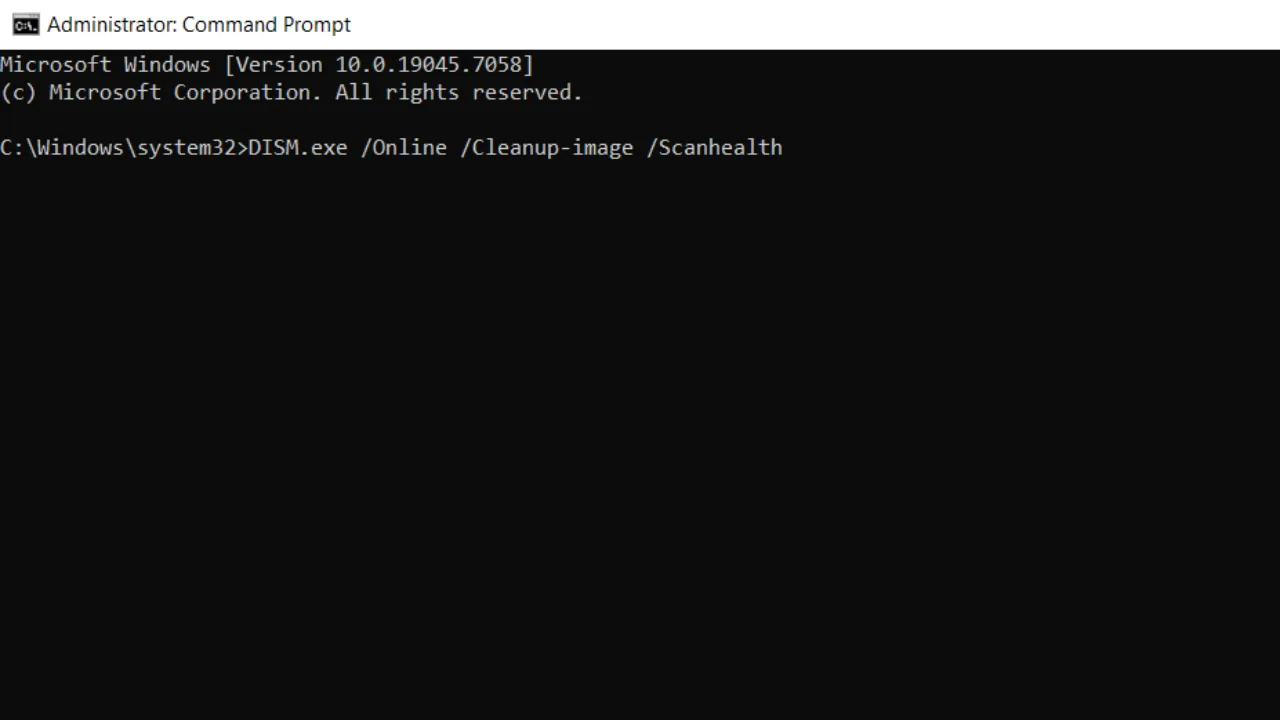
If System File Checker finds issues it can’t fix on its own, run DISM afterward to repair the Windows image:
- Run the Deployment Image Servicing and Management (DISM) tool to repair the Windows image:
DISM.exe /Online /Cleanup-image /ScanhealthorDISM /Online /Cleanup-Image /RestoreHealth
DISM reloads the OS image and can fix things SFC alone can’t. Run both, then restart the computer and run the file checker once more to confirm everything is clean.
Step 6: Run Windows Memory Diagnostic (Test Your RAM)
Faulty or degraded RAM is a common hardware culprit for Blue Screen of Death, especially errors like MEMORY_MANAGEMENT or PAGE_FAULT_IN_NONPAGED_AREA. Windows has its own memory tester, which you can go through to analyze the RAM status:
- Press Win, type Windows Memory Diagnostic, and hit Enter or click to open it.
- Select Restart now and check for problems.
- The PC will reboot into a blue diagnostic screen, run a multi-pass memory test, and report when Windows loads back up.
If errors are found, run the Extended memory test:
- Start the Memory Diagnostic tool again.
- Once PC reboots, instantly press F1 to open Advanced options.
- Go to Test Mix, select Extended, press F10 to start the process, and wait for about 30 minutes.
If memory errors persist, you need to replace the RAM. Remove and reseat the memory modules first, as poor contact can occasionally result in false errors.
Step 7: Check Your Storage Drive
A CHKDSK scan identifies damaged drive sectors, corrupted file systems, and physical disk errors. These issues are frequent causes of BSOD errors, and you’ll see codes like INACCESSIBLE_BOOT_DEVICE or NTFS_FILE_SYSTEM. To verify, run a disk check to catch bad sectors and file system errors.
- Open Command Prompt as Administrator.
- Type:
chkdsk C: /f /rand press Enter. - When prompted, type Y to schedule the scan on the next restart.
- Then reboot, and CHKDSK will now run before Windows starts.
This utility scans the hard drive for system errors and maps out problematic physical sectors so Windows doesn’t read or write to damaged parts of the disk.
Step 8: Check Available Disk Space
Windows needs free space to create swap files and perform system operations. Running low on disk space can cause instability and BSODs, so keep at least 10-15% of the drive free:
- Open File Explorer and click This PC.
- Check how much free space is on the C: drive.
- If it’s low, delete unneeded files or use Disk Cleanup (search for it in Start).
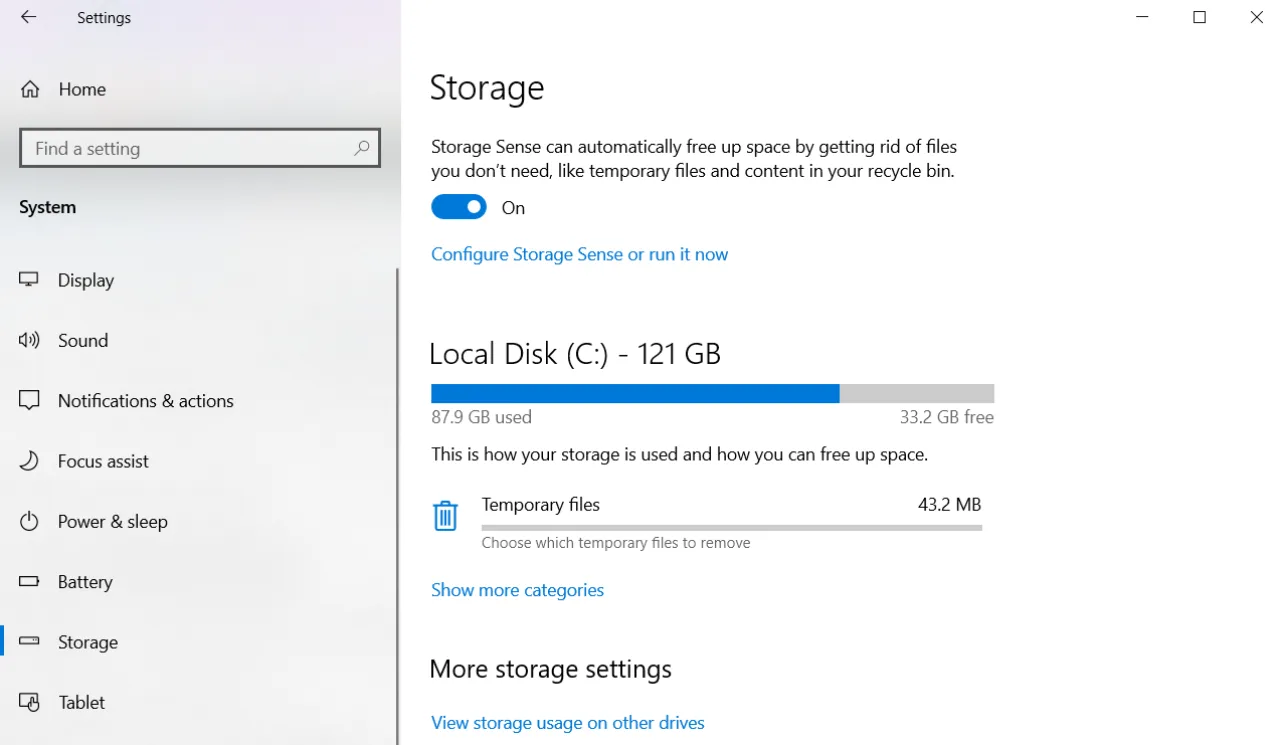
You can also transfer large files to an external drive or upgrade your PC to a larger-capacity SSD to solve the storage problem. Further, go to Settings → System → Storage and turn on Storage Sense to automatically clear temp files on a schedule.
Step 9: Scan for Malware
Viruses and malware conflict with critical system files. They’ll delete them, corrupt them, and leave your system a wreck that can lead to blue screens. Run a full scan with Windows Defender or whatever security tool you trust. Just make sure the definitions are current before you start. Outdated definitions won’t catch new threats. If malware has already affected some system files, run an SFC or DISM scan after you’ve removed the infection to repair whatever damage is left behind.
Step 10: Analyze the Minidump File
Every time Windows crashes, it saves a small log file known as a minidump to C:\Windows\Minidump. These files record the specific drivers or modules that were active when it crashed, which helps to troubleshoot what went wrong.
To read these files, use NirSoft’s BlueScreenView. When opened, it lists all available minidumps and highlights the driver likely responsible for each crash in pink.
For more details, use WinDbg from the Microsoft Store.
- Set the symbol path to Microsoft’s symbol server:
srv*C:\Symbols*https://msdl.microsoft.com/download/symbols - Open the minidump file, and run the command:
!analyze -v - WinDbg provides a verbose analysis, including the names of the responsible driver and module. You can then run
lmvm drivernamefor specific version and vendor information.
Reviewing multiple dumps will help identify patterns. If the same driver appears in every report, you’ve found your culprit.
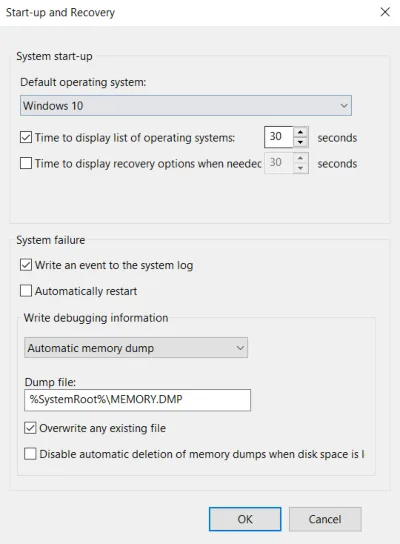
One thing to check: In Advanced System Settings under Startup and Recovery, enable “Write debugging information“, and better turn off “Automatically restart” so future blue screens stay long enough that you can read before the system reboots.
Step 11: Use Driver Verifier to Find a Misbehaving Driver
If minidump analysis doesn’t reveal the problematic driver, Driver Verifier can stress test all third-party drivers at once and force a BSOD as soon as a faulty one is identified.
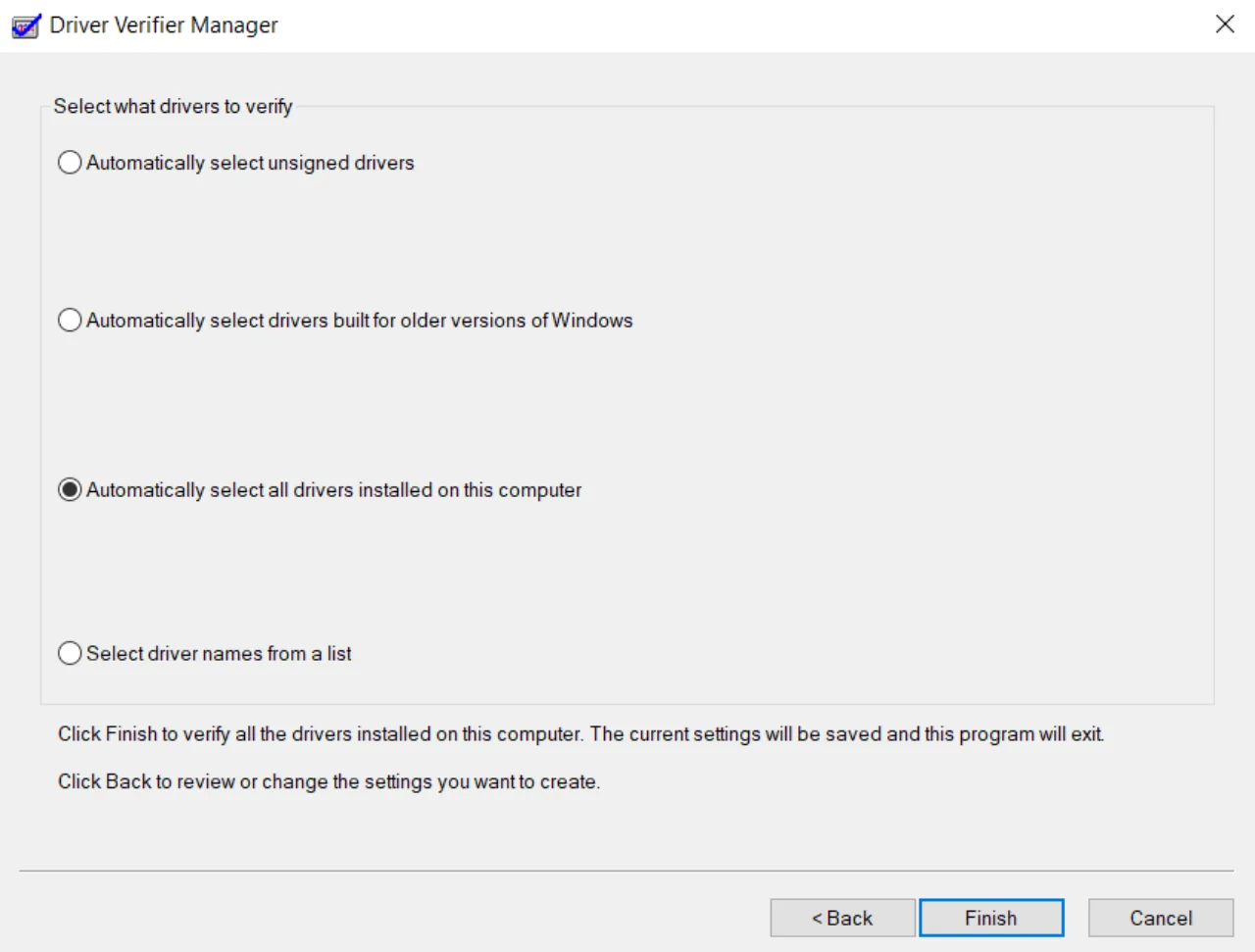
Here’s how to use Driver Verifier:
- Press Win, type
verifier, and open Driver Verifier Manager. - Select Create standard settings → Next → Automatically select all drivers installed on this computer → Finish.
- Restart PC.
If a driver malfunctions, the system will crash, and the generated minidump will name the exact culprit.
Driver Verifier puts a heavy load on the CPU and slows performance. To reduce the impact, drivers should be tested in groups of 10–20 instead of all at once. After you find and fix the bad driver, reopen Driver Verifier and select “Delete existing settings” to disable it.
Step 12: Use System Restore
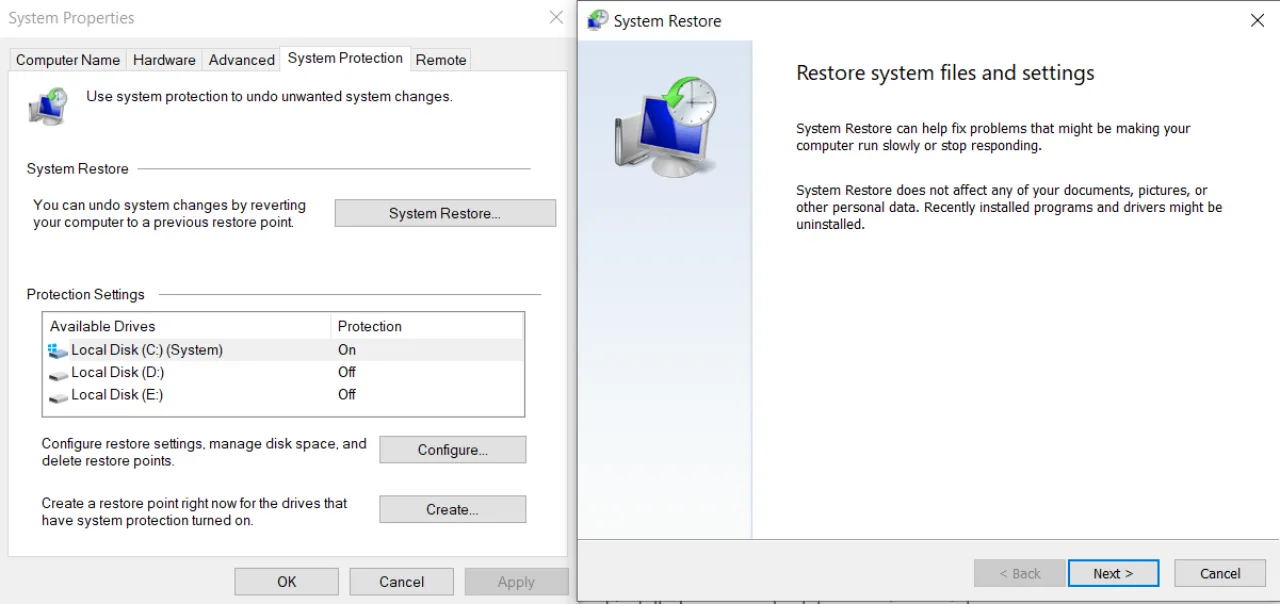
System Restore reverts the entire Windows registry, system files, and installed programs back to a previous point in time when the PC operated fine. Search for Create a restore point in the Windows Search bar and press Enter. Click the System Restore and follow the wizard to select a date and time just prior to when the BSOD issues began. Your PC will restart and restore to that point. This process leaves personal files untouched but removes apps or drivers installed after the selected restore point.
Step 13: Reset or Reinstall Windows
If targeted troubleshooting fails and the corruption is too severe for in-place repairs, perform a full reset to reinstall Windows.
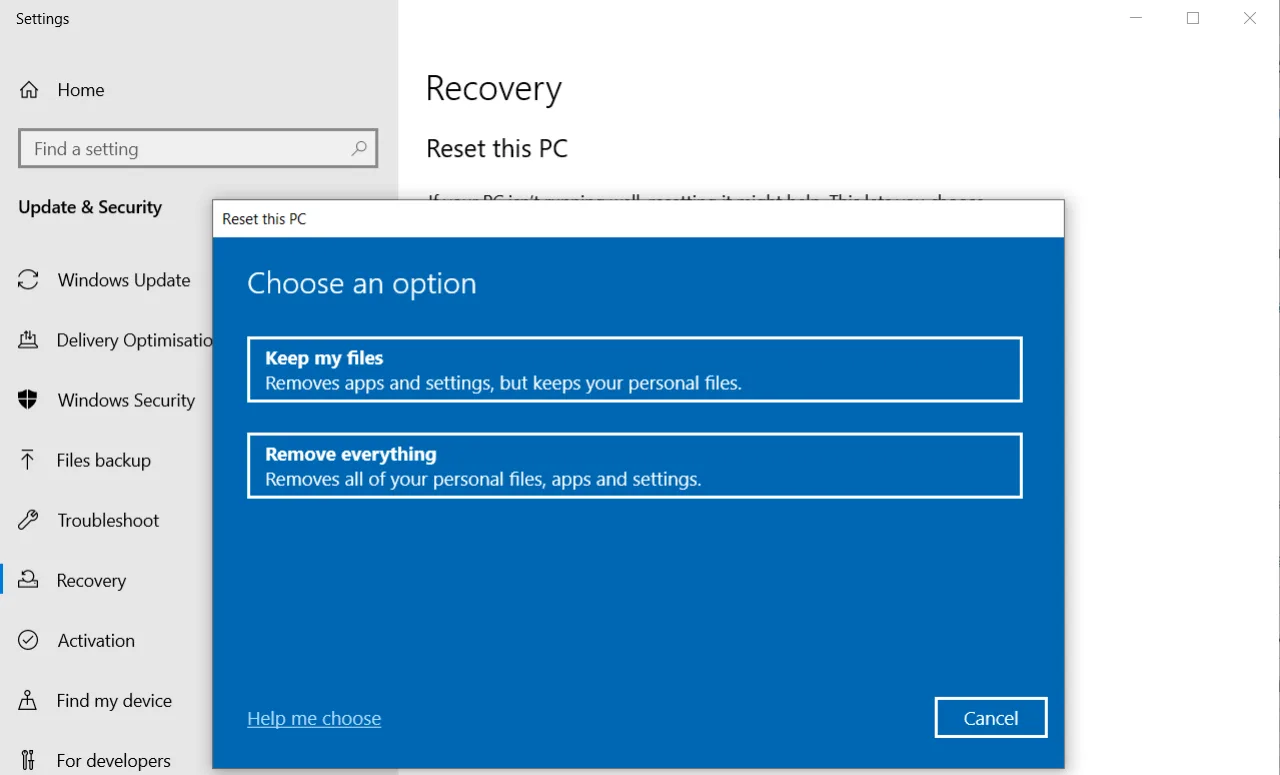
Here’s how you can do that:
- Navigate to Settings > System > Recovery (Windows 11) or Settings > Update & Security > Recovery (Windows 10).
- Under the “Reset this PC” section, click Reset PC.
- Choose Keep my files to preserve personal data, followed by Cloud download to get a fresh, uncorrupted Windows image from Microsoft’s servers.
Alternatively, a clean Windows install erases everything, so back up important files first. You’ll need a Windows installation USB drive (create one on another PC via Microsoft’s Media Creation Tool). Boot from the USB, follow the installation prompts, and choose Custom install to format the drive and start fresh.
If you still face a BSOD even after a fresh Windows install, it’s probably a hardware failure. Time to test or replace components like RAM, hard drive, or motherboard.
Step 14: Check BIOS/UEFI Settings
Incorrect BIOS configs can create boot failures or hardware conflicts. If you encounter INACCESSIBLE_BOOT_DEVICE errors, do that:
- Restart PC and press F2, F12, Delete, or ESC (depends on manufacturer) to enter BIOS.
- Find the SATA Operation or Storage Configuration menu.
- Switch the setting between AHCI and RAID or IDE mode.
- Save changes and exit.
If that doesn’t work, restore BIOS to default settings—there’s usually a Reset to Default or Load Optimized Defaults option in the BIOS menu.
How to Prevent Blue Screens of Death on Windows
- Update GPU, chipset, and storage drivers regularly, but don’t rush to install every driver right after its release. Let the early adopters be your guinea pigs. Give major GPU driver updates at least a week in the wild before you install them.
- Keep Windows updated, but if an update results in crashes, don’t hesitate to roll it back.
- Your system drive needs breathing room. Always keep at least 10 to 15% of free space.
- Use HWiNFO or HWMonitor to check CPU and GPU temperatures under load, as thermal paste eventually dries out, and when it does, the system temps spike.
- Run MemTest86 every now and then, particularly on classic systems, to check for hardware failure.
- Avoid beta software and third-party driver updaters, as these often cause conflicts. And the sketchy driver updater tools you see advertised everywhere? They cause more problems than they solve.
- Back up regularly. A Blue Screen of Death rarely corrupts files, but the underlying cause might.
Frequently Asked Questions (FAQs)
Can a BSOD damage my PC or cause data loss?
A Blue Screen of Death is a protective shutdown, not the cause of damage. However, the underlying issue that creates it can be harmful. For example, overheating that triggers continuous blue screens will eventually degrade the CPU or GPU. Similarly, a failing power supply can damage other hardware parts.
A BSOD doesn’t erase files from the drive, so your documents and programs remain intact. What you will lose is anything stored in RAM that hasn’t been saved to disk, such as unsaved work in documents, unsaved game progress, or data being actively processed. If the system crashes mid-write on a document or database, the file can be lost or corrupted. Regular backups protect against this.
Why does my PC BSOD only under heavy load?
Crashes that only occur under load usually indicate one of three issues: unstable power delivery from a damaged PSU, thermal throttling on a GPU or CPU that becomes critical under consistent load, or an unstable overclock. To find the source, run a stress test with Prime95 for the CPU or FurMark for the GPU while monitoring temperatures and voltages in HWiNFO. If the system crashes within minutes, you’ve confirmed the trigger.
Should I worry if the blue screen only happened once?
A single, isolated crash rarely requires action. Random events like a power fluctuation, a minor background service error, or even an alpha particle flipping a bit in RAM can trigger a forced reboot. If it happens once, restart the system and monitor its performance for a few days. You only need to troubleshoot if the same stop code reappears.
Does resetting Windows to factory settings fix BSODs caused by hardware?
No. A factory reset or clean reinstall only addresses issues with drivers, software, or the operating system. If the reason is a faulty RAM module, failing SSD sectors, or an underpowered PSU, the crashes will happen again after the reinstall. Run hardware diagnostics via MemTest86 for RAM and CrystalDiskInfo for drive health before assuming software is to blame.
Is it normal to get a BSOD occasionally, or should I never see one?
A single blue screen that happens once and never returns is nothing to worry about. Even stable systems can experience a one-off crash due to a temporary software glitch or a momentary driver error. If you see a BSOD only once every few months or once a year, restart and continue as usual. However, if errors occur weekly, daily, or multiple times per session, your system has a fault that needs to be fixed.
Can third-party antivirus software trigger the Blue Screens of Death?
Yes. Security software runs at the kernel level, which gives it direct access to the same low-level Windows processes involved in stop codes. Poorly coded antivirus drivers, especially after a Windows version upgrade, are a known BSOD trigger. If crashes started after you installed or updated Antivirus software, boot into Safe Mode and uninstall it. Use the vendor’s dedicated removal tool rather than the standard Windows Add/Remove Programs menu to ensure all drivers are removed. This is a frequent issue with old versions of Avast, Kaspersky, or McAfee on Windows 11.
What is the difference between a BSOD and a hard system freeze?
A blue screen means Windows detected a critical error, generated a dump file, and executed its emergency shutdown protocol. A hard freeze—where the screen locks, the mouse doesn’t respond, and audio loops into a buzzing sound—means the failure was so sudden that the operating system couldn’t process an error screen. While a BSOD is often software-related, a hard lockup usually points to a problem in the processor, motherboard, or cooling system.
Did this fix your issue?
Let us know. Your feedback helps other readers find the right solution.
Great! What solved it for you?
We read every response. Email is optional and never shared.
Sorry to hear that. What happened when you tried?
Leave your email and we will personally help you fix it.