Before you sell your Apple Watch, give it away, or try to fix a stubborn software glitch, you need to unpair it first. If you skip steps or things go sideways, you might lose your data or leave the device locked for the next owner. Here’s how to unpair Apple Watch either with your iPhone or without it, handle Activation Lock, and what to do if you forget your passcode.
Unpairing Apple Watch from the Watch app on a paired iPhone automatically backs up all data and disables Activation Lock.
Without an iPhone, Apple Watch can be erased from the wrist, which wipes the data but requires your Apple Account password for setup.
If the watch is lost or the iPhone is broken, iCloud’s Find My can erase the watch remotely.
If you forget the passcode, you can factory reset using the watch’s Digital Crown while the Apple Watch is connected to a charger.
Never insert a pin or tool into the small holes on the Apple Watch case. These openings are only for the microphone, speaker, and water-depth sensors on Ultra models, and there’s no physical reset button.
How to Unpair Apple Watch If You Have Your iPhone
It’s recommended to use your iPhone to disconnect the Apple Watch because it backs up your data and removes Activation Lock. Have your Apple Account password and watch passcode ready. The process breaks the connection, eliminates the security lock, and lets you pair the watch to a different Apple Account.
- Keep the Apple Watch and iPhone close together within Bluetooth range.
- Open the Watch app on iPhone.
- Tap the My Watch tab at the bottom, then All Watches in the top-left corner.
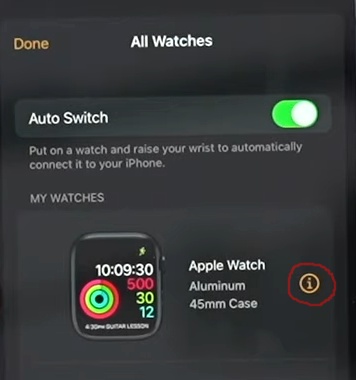
- Tap the small info (i) button next to the watch you want to remove.
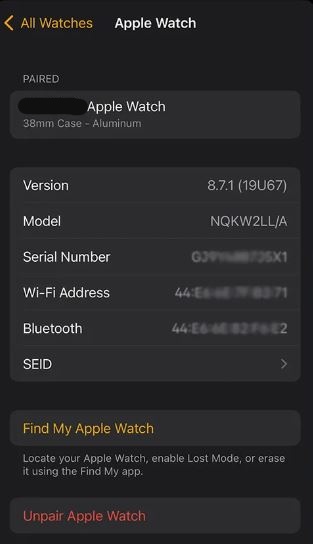
- Tap Unpair Apple Watch at the bottom.
- Tap Unpair [your watch name] again to confirm the choice.
- Enter your Apple Account password when prompted.
- Wait a few moments. Your iPhone will create a backup and then erase the watch from it.
If your Apple Watch has a cellular plan, the system will ask if you want to keep or remove the subscription. Choose to keep it if you are only re-pairing the watch to a new iPhone, and remove it if you plan to sell or gift the watch to a family member or friend. To cancel the monthly billing, contact your carrier support.
Once it’s done, the Apple Watch will restart in setup mode, and you can connect it with a new device or power it down for its next owner.
The backup created during unpairing is stored on your iPhone and syncs to iCloud if you have iCloud Backup enabled. When you pair a new Apple Watch, the system will prompt you to restore your apps, settings, and health data from this backup.
How to Erase Apple Watch If You Don’t Have Your iPhone
If your iPhone is broken, lost, or is out of reach, you can still erase your Apple Watch from the watch’s Settings. But remember this won’t create a backup, and Activation Lock will stay enabled. I’d suggest following this process only when you have to keep the watch or pair it with another iPhone on the same Apple ID.
- On Apple Watch, open the Settings app.
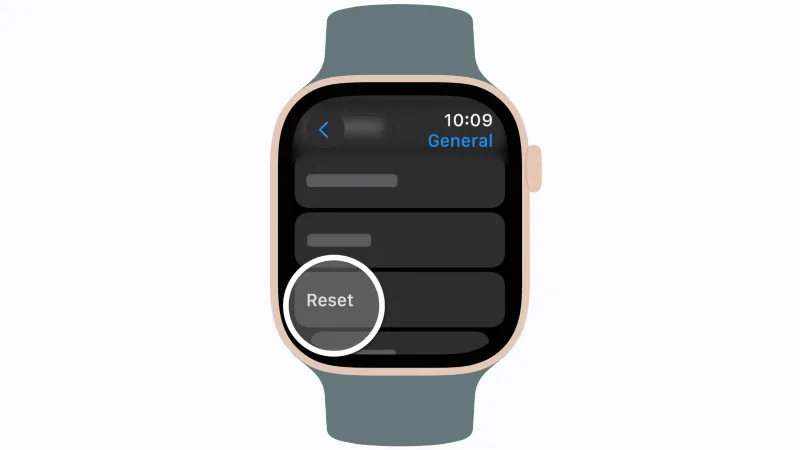
Image Credit: Apple - Tap General, scroll down, and choose Reset.
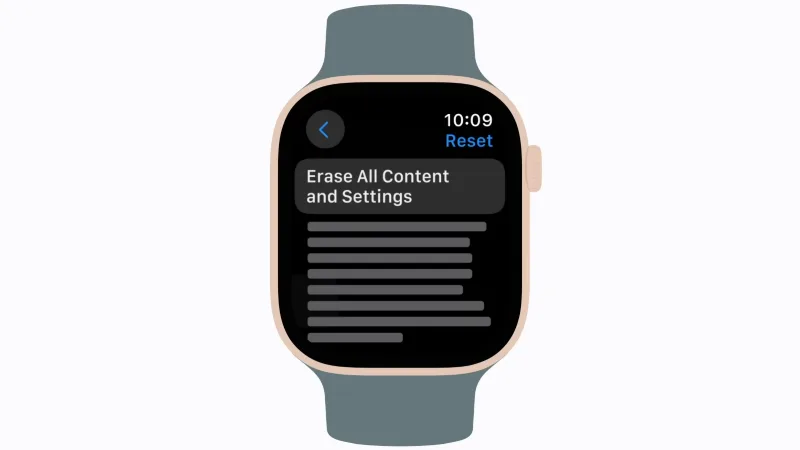
Image Credit: Apple - Select Erase All Content and Settings.
- If it asks, enter your Apple Watch passcode.
- For cellular models, choose Erase All or Erase All & Keep Plan. You can either keep or remove your cellular plan.
- Tap Erase All to finish.
Apple Watch will perform a hard reset and reboot to the initial setup or welcome screen. Because Activation Lock remains active, the original Apple ID email and password will be required before the watch can pair with a new device.
If selling the watch, make sure to sign out of your Apple Account or use the iPhone method later.
How to Erase Apple Watch from iCloud Find
If the watch screen is unresponsive or you don’t have access to either device but have internet access, you can erase the Apple Watch remotely through iCloud’s Find My feature.
- Open a web browser on a computer or phone and go to icloud.com/find.
- Sign in with the Apple Account linked to the watch.
- Click All Devices at the top of the screen.
- Select your Apple Watch from the dropdown list.
- Click Erase This Device and follow the on-screen prompts to finish the process.
This method wipes your Apple Watch but doesn’t remove Activation Lock. The watch will reset the next time it connects to Wi-Fi or cellular.
Also: How to Connect AirPods to MacBook, iPhone, or Android
How to Reset Apple Watch Without the Passcode (or If the Pairing Doesn’t Work)
Forgot your Apple Watch passcode? We all do sometimes, but don’t worry. You can bypass the passcode screen and still reset the Apple Watch. But doing that is not the same as unpairing; Activation Lock will still protect it. That means before the watch can connect with iPhone again, you’ll need the Apple Account credentials used to set it up.
- Attach the magnetic charger to the Apple Watch.
- Press and hold the flat side button until the power icon appears in the top right corner. (On old watchOS versions, you’ll see a Power Off slider instead.)
- Release the side button.
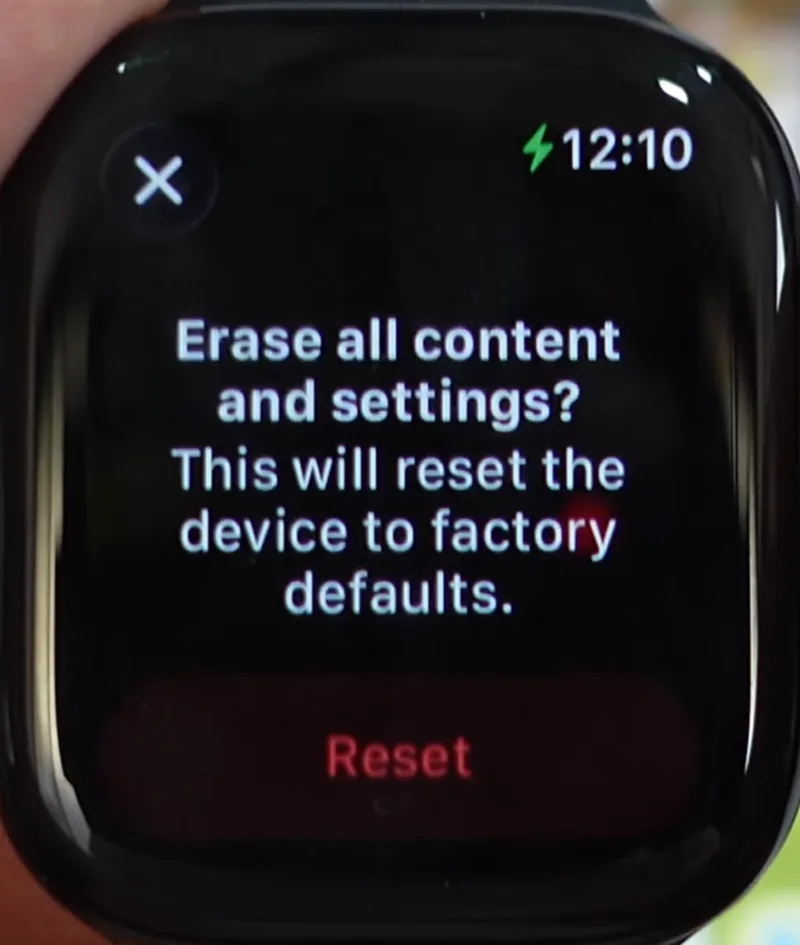
- Press and hold the round Digital Crown until the screen with a red Reset button appears.
- Tap Reset, then tap it once more to confirm.
What is Activation Lock?
Activation Lock is Apple’s anti-theft feature that automatically activates when you pair your Apple Watch with iPhone, and it cannot be bypassed. It links to Apple’s gadgets to prevent unauthorized use of an iPhone, iPad, Mac, or Apple Watch if it is lost or stolen, and makes them useless without the owner’s login info.
The lock engages automatically when Find My is enabled. It binds the devices to the owner’s Apple Account credentials. Once active, the device demands these login details to erase, reactivate, or set up again. No password, no way in.
Also: Can You Connect AirPods to PS4? If Yes, Then How
The feature works even after someone tries to wipe the device. A factory reset, a remote erase, a restore from iTunes — none of it can break the lock. To remove Activation Lock, the original owner must sign out of Find My in Settings, enter their Apple ID password during setup, or remove the device from their iCloud account.
Activation Lock can catch honest buyers in its net, too. Someone who purchases a used Apple device without verifying that the previous owner disabled Find My will find themselves holding a brick. The device cannot be used and is a paperweight with a Retina display.
The lock works on iPhone and iPad, Apple Watch (watchOS 2 and later), Mac (Catalina or later with a T2 security chip or Apple silicon), and Apple Vision Pro. Before selling or giving away your Apple Watch, always unpair it from your iPhone first to remove Activation Lock so the new owner can use it.