





Use Device Manager to disable the “HID-compliant touch screen” driver on Win 10 and 11.
If you have multiple HID entries, you may need to disable each one separately.
The Registry method makes the change permanent, even across Windows updates.
PowerShell is the best way if you control multiple systems or prefer command-line control.
All methods are reversible; you can re-enable the feature any time without a restart.
Windows doesn’t provide a Settings option to disable touchscreen, and that’s baffling given how common touchscreen laptops are. If a ghost‑touch is driving you nuts, the battery is draining, or you prefer a traditional mouse‑and‑keyboard setup like me, the best fix is to turn off the touchscreen in Windows 10 and Windows 11. Although many notebooks and 2-in-1 convertibles lack a hardware switch, the operating system lets you disable it from Device Manager, System Settings, or a PowerShell command.
Why Would You Want to Disable Touchscreen?
It’s a fair question. You paid extra for that touchscreen on your flagship laptop, so why turn it off? Actually, there are plenty of situations where the touch gesture feature does more harm than good.
- Cracked or Damaged Screen: A broken digitizer can generate phantom taps—auto‑clicks, stray typing, cursor jumps—that can make a laptop virtually unusable.
- Ghost Touch Issues: Faulty sensors can register taps even when the screen is untouched; that’s one of the common reasons to disable it.
- Overheating Interference: When the laptop overheats, the touchscreen can go haywire, sending random inputs even during ordinary tasks.
- Kids Touch the Screen: A curious child near the working machine? Deactivating touch keeps your work session from being accidentally derailed.
- Presentations: Unintended taps during a presentation or screen share can cause unexpected cursor moves or accidental clicks in front of an audience.
- Battery Life: The digitizer draws power nonstop. Disable the touchscreen to reduce power consumption and extend battery life when the feature is not in use.
Related: How to Fix Windows Update Error: Reasons for Update Stuck and Easy Solutions
Possible Ways to Turn Off Touchscreen in Windows
How to Enable and Disable Touchscreen on Windows Laptops
Even though the Device Manager method is the most reliable to turn off touch, as it communicates directly with the hardware driver, we’ve also listed another way to do the same:
Method 1: Turn Off via Device Manager (Recommended)
- Press Windows + X to open the Power User menu.
- Click Device Manager from the list. Alternatively, press Windows + S, type Device Manager into the Windows search bar, and select it from the results.
- In Device Manager, scroll down and click the arrow next to Human Interface Devices (HID) to expand that section.
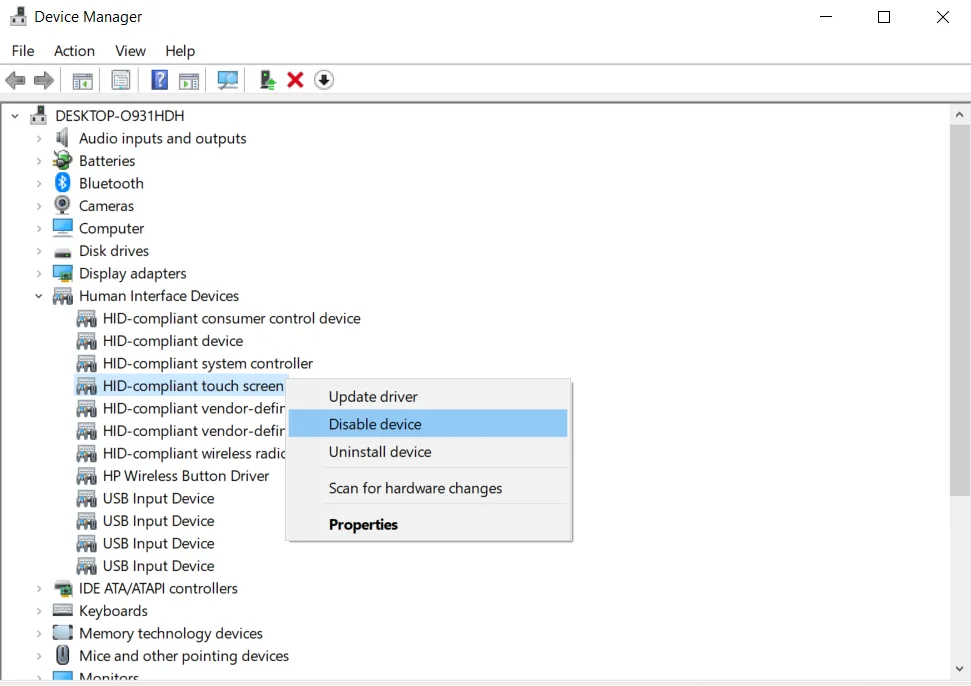
Right-click the HID-compliant touch screen driver to disable it. | Image Credit: Technical Master - See the entry labeled HID-compliant touch screen.
- On some machines, particularly Microsoft Surface devices, it may appear as Surface Touch Screen Device, Surface Touch Communications, or a similar name.
- Right-click the HID-compliant touch screen and select Disable device.
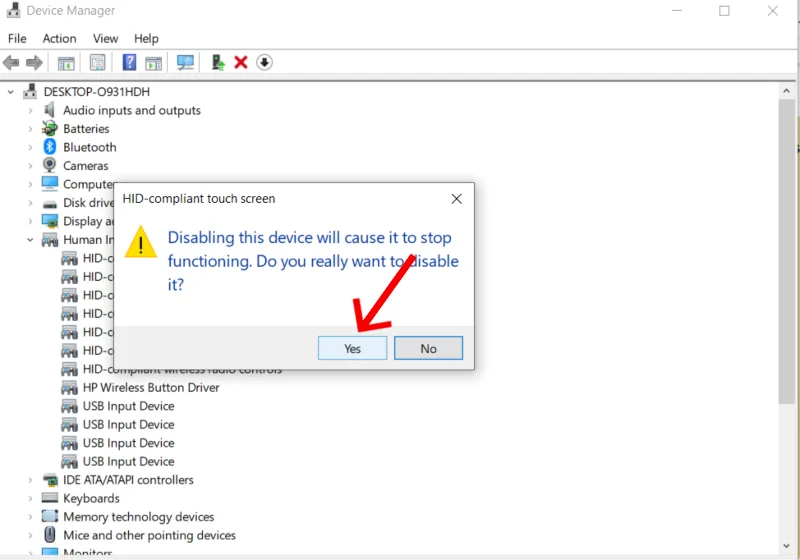
Clicking Yes on the confirmation pop-up window to finalize the touchscreen disable. | Image Credit: Technical Master - A warning box will pop up for confirmation; click Yes.
Once stopped, a small downward arrow icon will appear on the driver entry, confirming it’s off. Your mouse, trackpad, and keyboard will all continue to work exactly as before.
Re-enable Touchscreen from Device Manager
Go back to Device Manager, expand Human Interface Devices, right-click HID-compliant touch screen, and click Enable device.
Related: How to Fix Wi-Fi Connection Issues in Windows 10 & 11
Method 2: Disable Touch Input with PowerShell
PowerShell lets you work from the command line, which is particularly handy when you manage multiple machines or do remote support. Run it with administrator privileges.
- Press Windows + S, type PowerShell.
- Right-click the result and select Run as administrator.
- Click Yes on the UAC prompt.
- Paste the following command and press Enter. It scans for any plug-and-play device with “touch screen” in its name and disables it:
Get-PnpDevice | Where-Object { $_.FriendlyName -like "*touch screen*" } | Disable-PnpDevice -Confirm:$false - After that, touch the screen, which should no longer register inputs. If it does, check the device name in Device Manager and run the specific version below.
If the wildcard command above affects devices you didn’t intend, use the targeted line instead. It matches the driver’s exact friendly name:
Get-PnpDevice -FriendlyName "HID-compliant touch screen" | Disable-PnpDevice -Confirm:$falseFirst, verify the right name with:
Get-PnpDevice | Where-Object { $_.FriendlyName -like "*touch screen*" }Related: How to Uninstall Apps and Programs on Windows
Re-enable from PowerShell
To turn the touchscreen back on, run the same command with Enable-PnpDevice instead:
Get-PnpDevice | Where-Object { $_.FriendlyName -like "*touch screen*" } | Enable-PnpDevice -Confirm:$falseMethod 3: Permanently Disable Using Registry Editor
Editing the Windows Registry incorrectly can lead to system instability. Follow these steps and modify only the key mentioned. If you’re not comfortable, use the Device Manager method.
- Press Windows + R to open the Run dialog.
- Type regedit and press Enter. Click Yes on the UAC prompt.
- Copy and paste the following path directly into the Registry Editor’s address bar and press Enter:
HKEY_CURRENT_USER\Software\Microsoft\Wisp\Touch - In the right-side panel, look for a DWORD entry named TouchGate.
- Double-click it to open the edit dialog.
- Change the Value data field from ‘1‘ to ‘0‘ and click OK.
- Unlike the Device Manager, this change requires a Windows restart to take effect.
On some systems, the TouchGate might not be present. If that’s your case, right-click in the right panel, select New > DWORD (32-bit) Value, name it TouchGate, and set its value to 0. Then restart.
Re-enable via Registry
Go back to the same Registry path, open TouchGate, set the value back to 1, and restart your computer.
Related: How to Disable Driver Signature Enforcement (DSE) in Windows 11
Troubleshooting Common Issues
HID-Compliant Touch Screen is Missing in Device Manager
First, click the View menu in Device Manager and choose Show hidden devices. That entry sometimes disappears after a partial driver uninstall. If it’s still not there, visit your laptop manufacturer’s website and download the latest HID or chipset drivers. A missing entry here usually means the driver was not installed correctly to begin with.
Touchscreen Keeps Re-Enabling After Reboot or Windows Update
Windows Update can force a driver reinstall that reactivates hardware it thinks should be active. The TouchGate Registry value is beneath that layer, so it survives the reinstall. If you’ve tried Method 3 and it still reverts, check your Windows Update settings—an optional driver update might have been auto‑pushed.
Screen Still Responds to Touch After Being Disabled
Head back into Device Manager and take a closer look under Human Interface Devices. Some notebooks list more than one HID-compliant touch screen entry. If the screen is still responding to finger gestures after you’ve disabled the first, right-click and turn off the other entries as well until touch input stops.
Frequently Asked Questions
Will disabling the touchscreen affect the stylus or pen?
Yes, in most cases it will. On devices like Microsoft Surface, the pen and touch inputs share the same HID driver stack, so disabling the touchscreen likely deactivates finger touch and pen input. If you need pen functionality but not others, check Device Manager for a separate “Surface Touch Pen Processor” entry on some models. Enable this while disabling the main touch input.
Will doing that speed up my laptop?
No. You’ll see only minor reductions in background processing and hardware polling. There’s no noticeable performance gain in FPS or app loading times. It’s primarily a fix for hardware malfunctions or user preference.
Can I temporarily turn off touch without opening Device Manager each time?
Yes. Create two small PowerShell scripts (one to disable touch, one to enable it) and save them as .ps1 files. Run either to toggle touch directly outside of Device Manager.