








Wondering, “Why is my computer screen black?” Windows 11 black screen errors frequently stall end-user productivity and delay crucial business operations. The fixes themselves aren’t complicated, though finding the right one is what eats up your time. The issue usually occurs due to botched Windows updates, driver conflicts, application failures, or malware.
- What Can Cause a Windows 11 Black Screen?
- Types of Black Screen of Death Issues
- How to Troubleshoot and Fix a Black Screen on Windows 11
- Boot into WinRE and Safe Mode
- Fix 1: Restart Explorer.exe (Black Screen with Cursor)
- Fix 2: Disable Fast Startup
- Fix 3: Update, Roll Back, or Reinstall Graphics Drivers
- Fix 4: Run SFC and DISM
- Fix 5: Perform Startup Repair & System Restore
- Fix 6: Rebuild the BCD Store
- Fix 7: Uninstall Recent Windows Updates
- Fix 8: Scan and Remove Malware
- Fix 9: Disable Startup Apps
- Fix 10: Reset BIOS/UEFI to Defaults
- Fix 11: Fix Bad Disk Sectors for Errors
- Fix 12: Reset or Reinstall Windows
- Hardware Specific Checks
- Frequently Asked Questions
- Can a BIOS update fix a persistent Windows black screen?
- Why does my Windows 11 screen go black after sleep or hibernate?
- Does overclocking cause black screen of death?
- Why does my second monitor go black randomly on Windows 11?
- Why does my screen go black only when I launch specific games or apps?
- Can a corrupted Windows user profile trigger a black screen?
Windows users often find the Black Screen of Death harder to troubleshoot than a Blue Screen of Death (BSOD) because it won’t show error codes. You may see a cursor on a blank screen, or nothing at all. Either way, the system is dead in the water. To fix black screens on Windows, categorize the symptoms when they appear. Is it before login? After login? Only when you connect external displays? Skip the linear checklist approach and get straight to the troubleshooting step that matches your exact scenario.
What Can Cause a Windows 11 Black Screen?
Black screens on Windows 11 can occasionally get fixed without an obvious reason, though finding a permanent fix usually requires trial and error. To identify the source of the problem, check these common points of failure:
- Windows updates. A faulty or half-finished update is behind most black screen issues. These updates disrupt the boot sequence, leaving your system in limbo.
- Graphics drivers. Outdated, corrupted, or incompatible GPU drivers can prevent the display from rendering.
- Windows Explorer (explorer.exe). If the desktop shell fails to load after login, you’ll see a black screen with only a cursor.
- Boot Configuration Data (BCD). If the BCD store is corrupted, the operating system can’t locate the files needed to start.
- Hardware and Connections. Loose HDMI or DisplayPort cables, unseated graphics cards, or broken monitor ports will stop the video signal dead in its tracks.
- Malware. Infections can create unpredictable system behavior, and a black screen is one of them. They disrupt system processes or block the user interface.
- Fast Startup. This built-in Windows feature attempts to speed up boot times via a hibernation file, but it frequently traps low-level driver bugs in an endless reboot loop.
- Display settings. Misconfigured projection modes, incorrect input sources, or if Windows sends the signal to a monitor that’s not connected anymore. Multiple monitor setups are especially prone to this.
Black screen errors cost you time and can wipe out unsaved work. So troubleshoot and resolve the underlying issue quickly before you lose anything important.
Types of Black Screen of Death Issues
Not all black screens are the same, and matching the fix to the symptom saves a lot of time.
- Black screen with a cursor. Windows successfully loaded the core operating system, but the desktop shell (explorer.exe) failed to launch, or the graphics driver crashed immediately after login. It’s almost always a software problem and is easy to fix.
- Completely blank with no backlight. The monitor receives no video signal. Check the physical hardware, such as a dead cable, a failing GPU, or an unplugged power source. It could be a dead GPU or a display connection issue.
- Black screen after login. You get past the login screen, enter your password, and then darkness. Usually, it’s caused by a corrupted user profile, a crashing startup app, or a graphics driver issue.
- Black screen before login (after the BIOS screen). The manufacturer logo flashes, but the screen goes dark before the login prompt. This indicates a botched boot sequence, corrupted driver loading during startup, or a bad OS update interrupting the load process.
- Laptop screen dark only on battery. The display works fine when plugged into the wall, but dies on battery power. It’s a power management setting gone wrong thanks to aggressive configurations, not a hardware failure. The display brightness on battery power is probably set to zero.
How to Troubleshoot and Fix a Black Screen on Windows 11
Before you move to advanced solutions, run through these fast checks. One of these quick fixes can solve the problem more often than you’d expect:
- Check the obvious first: Is the monitor actually on? Is the brightness cranked all the way down? Some keyboards have a brightness key that’s easy to hit by accident. Tap it a few times and see if brightness returns to normal.
- Wake the graphics driver: Press Win + Ctrl + Shift + B to reset the graphics driver, which forces the GPU driver to restart without reboot. You’ll hear a beep and see a brief flicker if it works. On Microsoft Surface devices, press Volume Up and Volume Down simultaneously three times.
- Cycle display modes: Press Win + P, then tap P and hit Enter. It will cycle through PC screen only, duplicate, extend, and second screen modes. Your display output might be redirected to a monitor that’s turned off, so if the output got switched to a disconnected display, this will fix it.
- Try Ctrl + Alt + Del: If the security screen appears, you’re not completely stuck. Click the power icon in the bottom-right corner to restart normally. You can also open Task Manager from here.
- Check your cables: Unplug and firmly re-seat the display cable at both ends. Try a different cable if you have one, and try a different monitor or TV to rule out a dead display. Laptop users should try an external monitor through HDMI.
- Disconnect unnecessary peripherals: External drives, USB hubs, VR headsets, and other accessories can conflict during boot. Unplug everything except keyboard, mouse, and monitor, then restart.
Boot into WinRE and Safe Mode
Most of the fixes below require either Safe Mode or the Windows Recovery Environment (WinRE). Here’s how to access both.
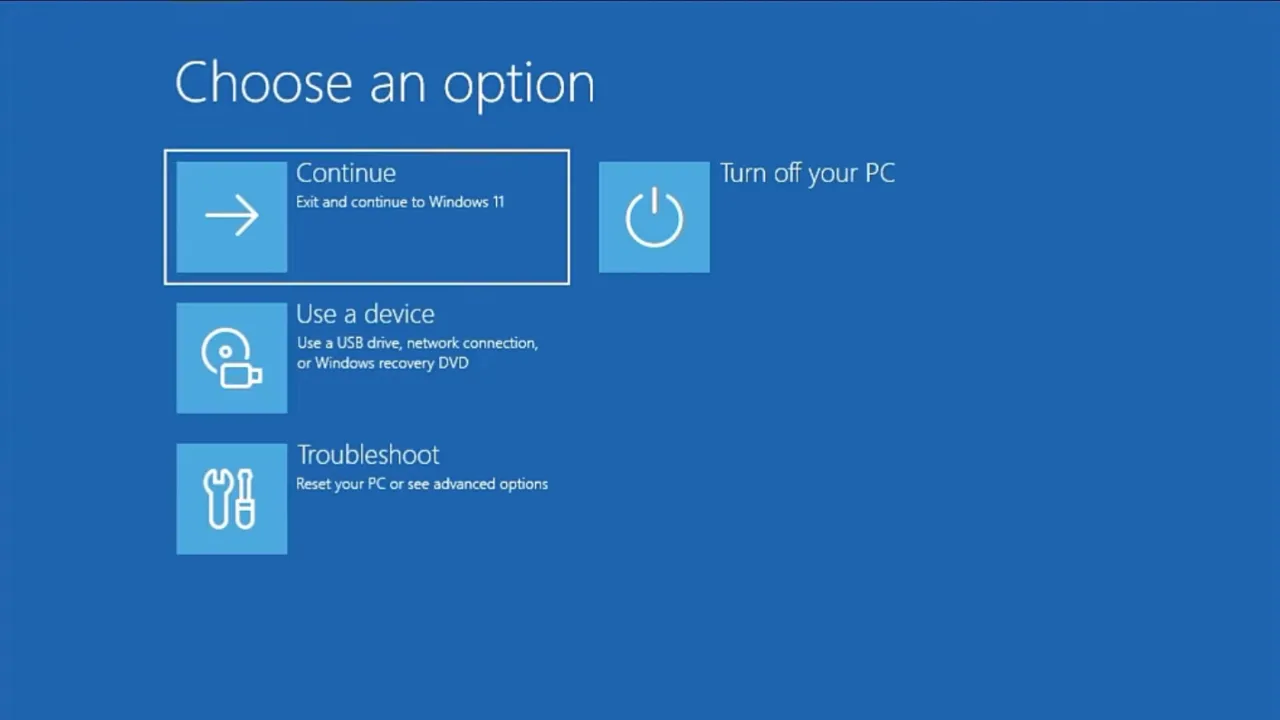
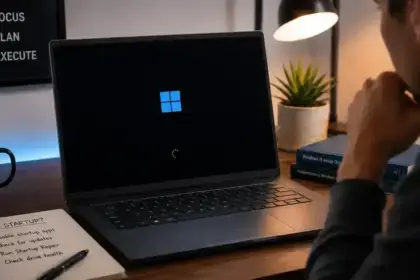
Force WinRE: Turn the PC on, and as soon as Windows starts to load, hold the power button for 10 seconds to force a shutdown. Turn it back on and do this 2–3 more times. After the third forced restart, Windows will automatically launch the WinRE Automatic Repair screen.
[pgallery id=”1″]Boot into Safe Mode from WinRE: Go to Troubleshoot → Advanced options → Startup Settings → Restart. On the next screen, press 4 or F4 for Safe Mode, or 5 or F5 for Safe Mode with Networking (needed if you have to download drivers).
Safe Mode loads Windows with only the bare minimum drivers and no startup programs. If the screen works fine in this mode, the problem is definitely a third-party driver or program, not hardware.
Fix 1: Restart Explorer.exe (Black Screen with Cursor)
If you see a cursor on a black screen after login, Windows has loaded but explorer.exe (the process that runs the desktop, taskbar, and Start menu) failed to start.
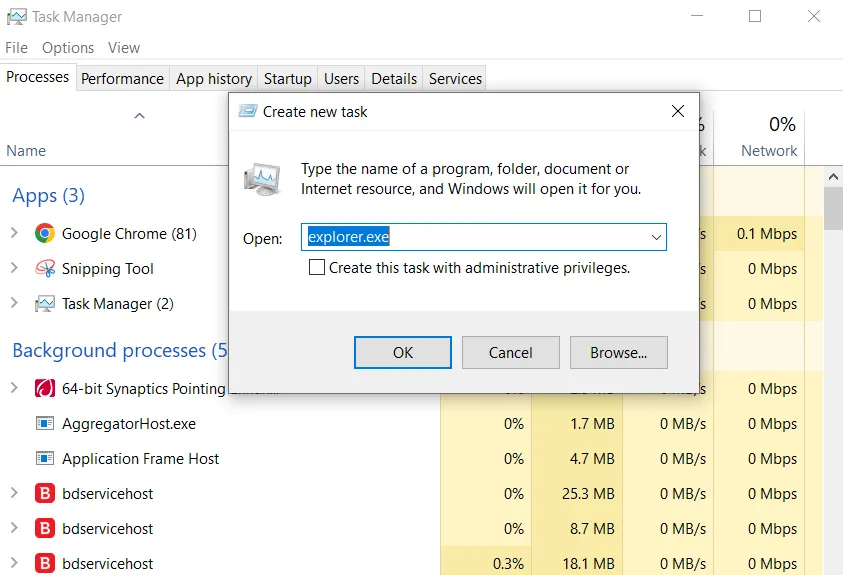
Press Ctrl + Shift + Esc to open Task Manager. If it opens, click File → Run new task, typeexplorer.exe, and press Enter. This should bring up the desktop and taskbar. If that works, but the problem still returns, the issue might be in the Windows Registry.
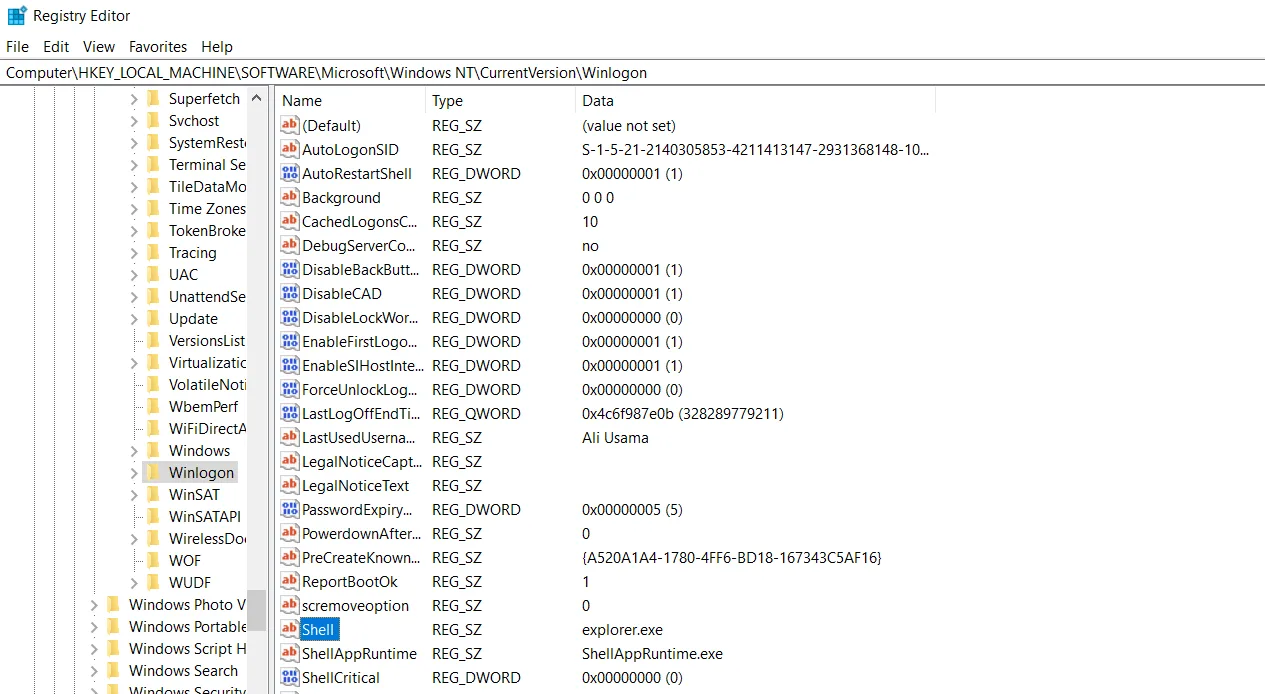
Open the Registry Editor (Win + R → type regedit) and navigate to:
HKEY_LOCAL_MACHINE\SOFTWARE\Microsoft\Windows NT\CurrentVersion\Winlogon
Find the Shell value in the right-hand pane, which should be set to explorer.exe as shown in the figure above. If it’s blank or has a different value, double-click it and change it to explorer.exe. If there’s something unfamiliar listed there, search that filename online, as it could be malware that’s replaced the shell.
Fix 2: Disable Fast Startup
Fast Startup creates more problems than it solves. Your PC never actually shuts down completely. Windows saves the kernel session to a hibernation file called hiberfil.sys and loads from it on the next boot. Sounds good, right? Wrong. This shortcut breaks the full initialization cycle that your BIOS, UEFI firmware, and drivers need. They don’t get their clean start, so it leads to a black screen every time you power on the PC.

Here’s how to disable it:
- Open Control Panel > Hardware and Sound > Power Options > Choose what the power buttons do.
- Click “Change settings that are currently unavailable” at the top.
- Uncheck “Turn on fast start-up (recommended)” and save changes.
To do the same in one go, open Command Prompt as Administrator and run: powercfg -H off
That one command kills the hibernation file, disables Fast Startup, and frees up several gigabytes of hard drive space. On the next boot, Windows will load from a clean state, though the boot time might increase by 3-5 seconds on an SSD. That’s a small price to pay if Fast Startup was messing with the display.
Fix 3: Update, Roll Back, or Reinstall Graphics Drivers
GPU drivers are the reason for most black screens on Windows 11. An outdated driver, a poor update, or a fresh install that went wrong can all trigger this problem, and the driver fix usually gets rid of it.
- Boot the PC into Safe Mode. Choose Safe Mode with Networking if you need to download files.
- Open Device Manager, expand Display adapters, right-click your GPU, and select Properties.
- Go to the Driver tab. If Roll Back Driver is available (not grayed out), click it to revert to the previous working driver version.
- If Roll Back isn’t available, click Uninstall Device and check “Delete the driver software for this device.” Restart your computer, and Windows will automatically install a generic display driver.
Once the display works normally, download the latest driver directly from the NVIDIA, AMD, or Intel website. Don’t rely on Windows Update for graphics drivers. If Device Manager lists both integrated and dedicated graphics, update the integrated driver first.
Fix 4: Run SFC and DISM
Corrupted Windows files cause black screens very often, and your system already has two powerful repair tools that can fix this: SFC and DISM. Run these utilities to scan and restore damaged files. Most times, this permanently removes the black screen of death.
Start with System File Checker first. It checks your system files and replaces anything that’s broken. If that doesn’t work, Deployment Image Servicing and Management (DISM) digs deeper to repair the underlying Windows image.
- Open Command Prompt as Administrator (from Safe Mode, or from WinRE via Troubleshoot → Advanced options → Command Prompt) and run this command first:
sfc /scannow - If SFC finds errors it can’t fix, run DISM to repair the image and then checker command again:
DISM /Online /Cleanup-Image /RestoreHealth, thensfc /scannow - To run this from the WinRE Command Prompt (offline), use this syntax instead:
DISM /Image C:\ /Cleanup-Image /RestoreHealth
Once done with these, restart the computer and see if the error is gone.
Fix 5: Perform Startup Repair & System Restore
If Windows won’t boot at all and you can’t get past the black screen, Startup Repair is the right tool. It scans for and fixes problems with the boot configuration, Master Boot Record, and partition table.
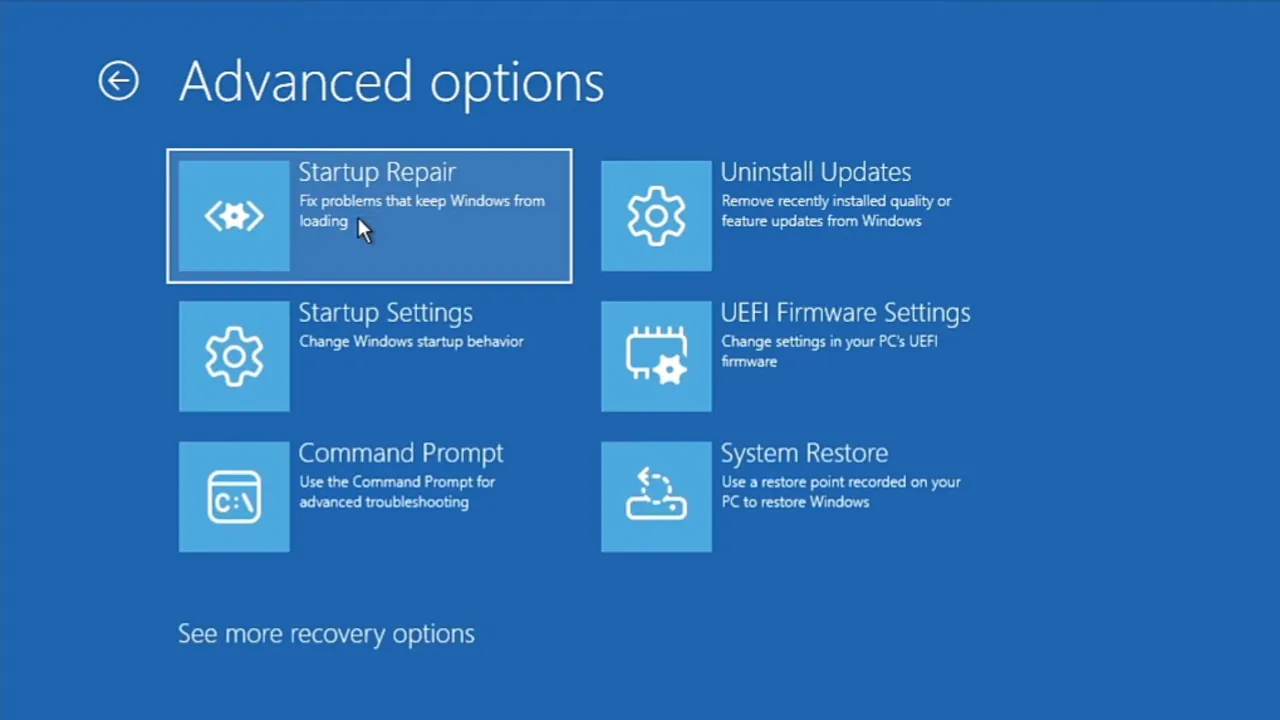
From WinRE: Go to Troubleshoot → Advanced options → Startup Repair. It will run automatically and restart the computer when done.
If Startup Repair can’t fix it, do System Restore, which can return your PC to a previous working state, but only if you created a restore point before things went sideways, and that’s a big if because you need to have enabled System Restore before the error. Most people don’t think about this until it’s too late.
Boot into the Advanced Startup screen, then click Troubleshoot, and select Advanced options > System Restore. You’ll see a list of available restore points. Pick one from when your computer was working fine and continue. The restore process will take a few minutes, and once it’s done, restart the system. Still seeing that black screen of death? Move to the next step to try something else.
Fix 6: Rebuild the BCD Store
On a Windows drive, the MBR (Master Boot Record) stores the Boot Configuration Data (BCD) file that contains all the settings and instructions the operating system needs to boot. If the data gets corrupted or misconfigured, Windows can’t find what it needs to start, and you’ll get a black screen. You can rebuild it from the Command Prompt in WinRE.
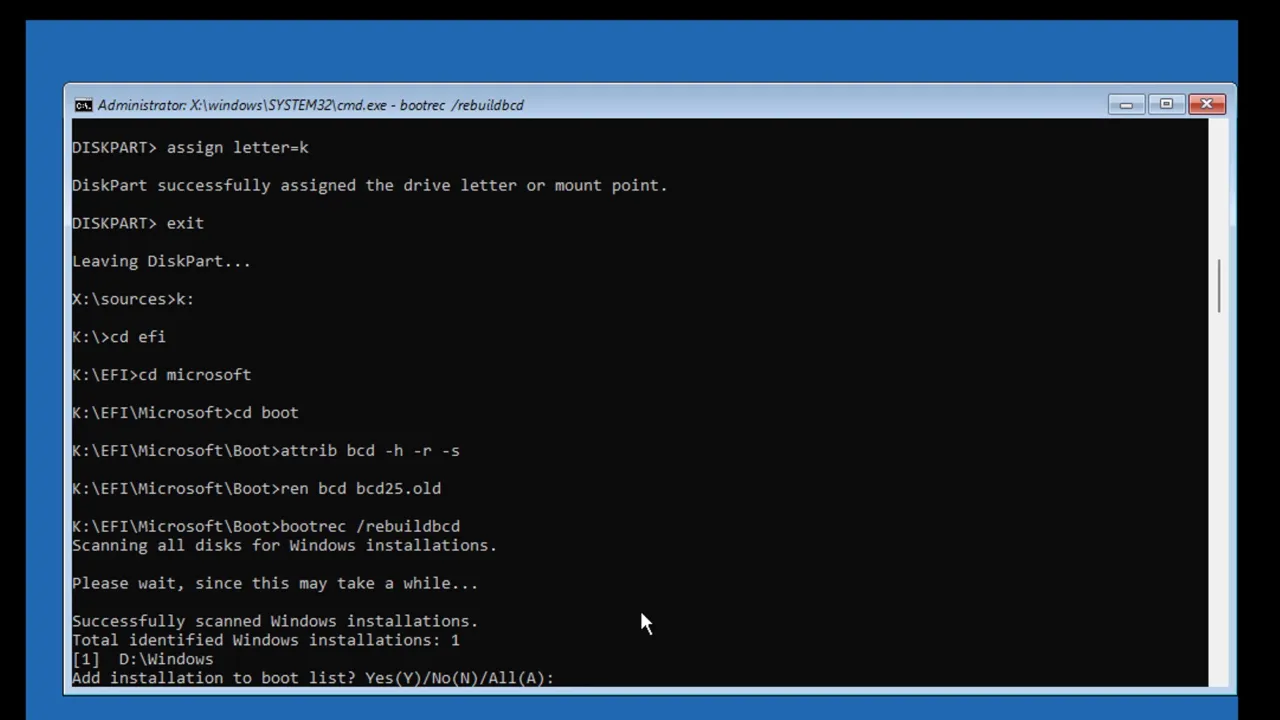
Go to Troubleshoot → Advanced options → Command Prompt and run these commands one at a time:
bootrec /scanos
bootrec /fixmbr
bootrec /fixboot
bootrec /rebuildbcd
The first command scans for Windows installations. The next three will rebuild the Master Boot Record, fix the boot sector, and rebuild the Boot Configuration Data store. Restart after running all four and check if the system boots normally.
Fix 7: Uninstall Recent Windows Updates
[pgallery id=”4″]If the black screen appeared immediately after a Windows update, rolling back that update is the most targeted fix. Updates sometimes break display drivers or boot processes. In Recovery Environment, go to Troubleshoot > Advanced Options > Uninstall Updates. Choose “Uninstall latest quality update“, restart, and check the display.
If the problem stays, repeat the process but select “Uninstall latest feature update” instead. If removing updates fixes the problem, pause Windows updates for a week or two. Microsoft usually releases a corrected update quickly. Conversely, if you have deferred updates for months, installing all pending patches can push the specific bug fix your system needs.
Note: You can’t run Windows Update from inside Safe Mode so you’ll have to boot normally or use WinRE for update-related fixes.
Fix 8: Scan and Remove Malware
Malware can hijack the Windows shell or corrupt system files and intentionally suppress the desktop environment to hide background activities. If you can access Safe Mode with Networking, download and run Malwarebytes or Windows Defender Offline. For completely unbootable systems, create a bootable USB with Kaspersky Rescue Disk or Rufus on another computer. Boot from the USB and run a full system scan to remove any detected threats, then restart normally.
Fix 9: Disable Startup Apps
If the black screen appears after login, and restarting explorer.exe hasn’t fixed it, a startup application might be crashing the shell. Too many startup applications can crash or block the desktop from loading.
To disable these programs, follow these steps:
- Press Ctrl+Alt+Delete and select Task Manager.
- Go to the Startup apps tab (or the Startup tab in old Windows 11 builds).
- Right-click each enabled program and select Disable.
- Restart the PC.
If the black screen won’t happen again, re-enable programs one by one, restart after each to identify which one is causing the trouble.
Fix 10: Reset BIOS/UEFI to Defaults
Sometimes, recent BIOS changes or corrupted settings can prevent proper boot, so a black screen of death shows on Windows 11. If nothing else has worked, reset your BIOS or UEFI to its factory state to clear any misconfigurations.
- In the Advanced Startup menu, go to Troubleshoot > Advanced options > UEFI Firmware Settings. Select Restart to reboot into the BIOS interface.
- Find and select Load Optimized Defaults. Some motherboards label it differently, like Load Setup Defaults or Reset to Default. Check your manufacturer’s documentation if you can’t find it right away.
- Press F10 to save changes and exit.
- Let the computer restart normally.
Set the boot priority to internal SSD or HDD instead of a USB drive or DVD. If the computer attempts to boot from a blank USB drive, the screen will stay black. If the error persists, you’ve at least ruled out BIOS problems and can move on to other solutions.
Fix 11: Fix Bad Disk Sectors for Errors
Bad or damaged sectors on a disk can block access to boot files, force the system to fail, and result in a black screen error. Windows won’t load if the hardware cannot read these files.
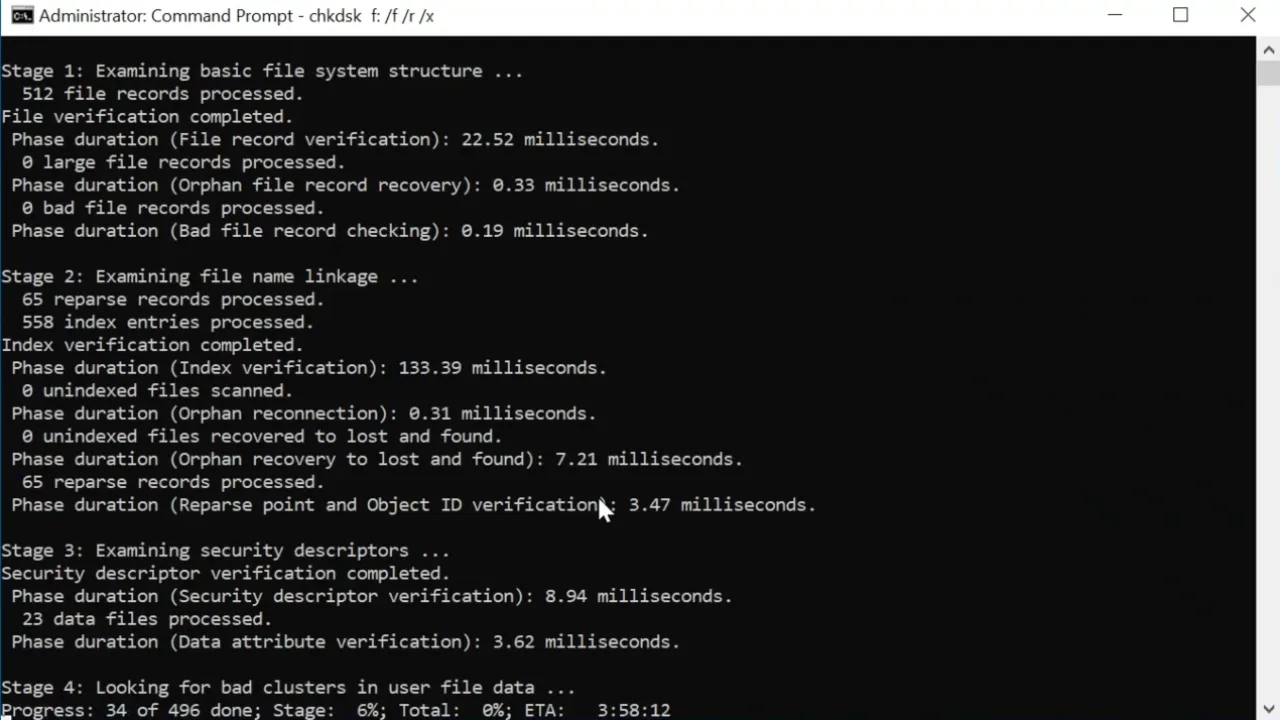
In Recovery Environment, select Troubleshoot > Advanced Options > Command Prompt. Run: chkdsk C: /f /r /x
Replace C: with whatever drive letter contains Windows. The /f fixes errors, /r locates bad sectors and recovers data, and/x forces the volume to dismount first. This will take 30 minutes to several hours, depending on the drive size. If it finds and fixes bad sectors, your drive is failed. Back up everything immediately and replace the drive as soon as possible, as more damaged disk sectors could eventually crash your entire system.
Fix 12: Reset or Reinstall Windows
When every diagnostic step, command prompt repair, and driver rollback fails to restore the video output, the underlying OS is irreparably corrupted.
[pgallery id=”3″]- Reset this PC: From the WinRE menu, select Troubleshoot → Reset this PC. You can choose Keep my files while wiping the system configurations and applications back to factory defaults, or Remove everything for a full data wipe. Next, select Cloud Download if you have reliable internet, or Local Reinstall for an offline process.
- Clean Install: If the reset mechanism is broken, the final option is to use a secondary computer to create a Windows 11 installation USB drive, boot from it, format the C: drive, and perform a completely clean reinstallation of the operating system. If you upgraded from Windows 10 within the last 10 days, you might also get the option to execute an OS rollback. After you boot into a fresh Windows, all apps and settings must be set up again.
Hardware Specific Checks
- Reseat graphics card: Power off completely, open the case, remove the GPU, and firmly reinsert it into the PCIe slot. Make sure the retention clip clicks.
- Test with integrated graphics: If your CPU has integrated graphics, connect your monitor to the motherboard’s video port instead of the GPU. If this works, your dedicated graphics card is faulty.
- Try different RAM sticks: Remove all but one RAM stick and test; swap in different sticks one at a time. Faulty memory can cause boot failures that look like black screens.
- Monitor other displays: Multiple monitors or a connected TV can steal the display output. Disconnect everything except your primary monitor.
- Check the power supply: An underpowered or failing PSU can create display problems under load.
- Listen for POST beep codes during startup: If your motherboard beeps in a pattern, look up that code for your specific motherboard brand.
- Check for overheating: Clean dust from GPU heatsinks and case fans. Overheating cards can crash and produce black screens. Download HWiNFO to monitor temperatures—GPUs should stay below 85°C under load.
For laptops, a black screen that works on an external monitor indicates a failed display panel or a loose ribbon cable, which typically requires professional repair.
Frequently Asked Questions
Can a BIOS update fix a persistent Windows black screen?
Yes, particularly when hardware compatibility is the culprit. Your motherboard firmware controls how your GPU and RAM communicate with Windows during startup. When the board can’t properly read Windows sleep or power states, updating to the latest stable BIOS version often fixes display drops that Windows patches can’t.
Why does my Windows 11 screen go black after sleep or hibernate?
This often happens when a graphics driver fails to resume from a low-power state. Update your GPU driver first. If that doesn’t fix it, go to Power Options → Change plan settings → Change advanced power settings. Under the sleep section, set “Sleep” and “Hibernate” to long intervals or turn them off. Disabling hybrid sleep can also work in some cases.
Does overclocking cause black screen of death?
Unstable overclocks, particularly on the GPU, are a common cause of black screens. If you recently overclocked CPU, GPU, or RAM, revert to stock settings via BIOS. Test the system for 24 hours at default speeds before re-applying overclock profiles in increments.
Why does my second monitor go black randomly on Windows 11?
If only your secondary monitor loses signal, check for a loose or damaged DisplayPort or HDMI cable. The issue may also be caused by a refresh rate mismatch or the GPU struggling with multi-monitor output. Right-click the desktop → Display settings and confirm both monitors use their native resolution and refresh rate. Swap the cable or try a different port on your GPU.
Why does my screen go black only when I launch specific games or apps?
It typically happens due to a conflict with “Full-Screen Optimizations” or a mismatch in HDR (High Dynamic Range) settings. Windows 11 can sometimes fail to negotiate the switch to HDR mode and lose the video signal. Disable HDR in your System Display settings and then launch the app. If the issue remains, right-click the game’s .exe file, go to Properties → Compatibility, and check “Disable full-screen optimizations” to stabilize the video transition.
Can a corrupted Windows user profile trigger a black screen?
It can. When the user profile service can’t read your account configuration files at login, it will stall out before loading the visual desktop interface. To troubleshoot, boot into Safe Mode, open Command Prompt, and create a new local administrator account. If the new account loads the desktop, migrate your files to the new profile.
Did this fix your issue?
Let us know. Your feedback helps other readers find the right solution.
Great! What solved it for you?
We read every response. Email is optional and never shared.
Sorry to hear that. What happened?
Leave your email and we will personally help you fix it.