- What is Phone Hacking?
- How Do Phones Get Hacked
- Malware or Phishing Scams
- Call Forwarding
- Malicious Apps
- Unsecured Public Wi-Fi
- SIM Swapping
- Brute Force Attacks
- Outdated Operating Systems
- Jailbreaking and Rooting
- Spyware
- Cryptominers
- Malicious Charging Cables
- Stingrays and Fake Cell Towers
- How to Know If Your Phone is Hacked or Not: 10 Common Signs
- What Secret Codes to Dial to See if Your Mobile is Hacked
- What to Do If Your Phone is Hacked
- How to Protect Your Phone from Being Hacked
Your phone knows more about you than most people in your life, doesn’t it? It has been entrusted with bank logins, medical records, and private conversations, not to mention your home address saved in multiple apps. This, to put it mildly, makes it a rather attractive target for those with ill intentions. Phone hacking, which used to be a technical thing, is now very common. The tools to do it are widely available, and the worst part is, some attacks don’t even require any technical skill. Many attackers succeed just because the person being targeted had no idea anything went wrong, and it’s something we should all be aware of.
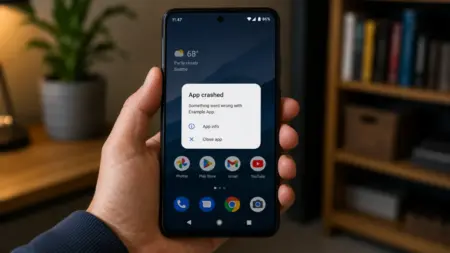
When we talk about phone hacking, you’re probably picturing some big, dramatic alert, right? It rarely looks like that. You’d think there would be an obvious alarm or message telling you that your phone has been hacked, but there’s nothing like that. Instead, what you can get are small clues like battery draining fast, an app keeps crashing, or a small spike in data usage. These specific signs demand close attention.
Cybercriminals deploy advanced, silent tracking tools that bypass standard security measures. Below, you will learn how to check if my phone is hacked through deep system checks and hidden carrier codes that hackers pray you never discover. In this article, we’ll show the steps to expose phone hacks, lock them out, and secure your digital life.
What is Phone Hacking?
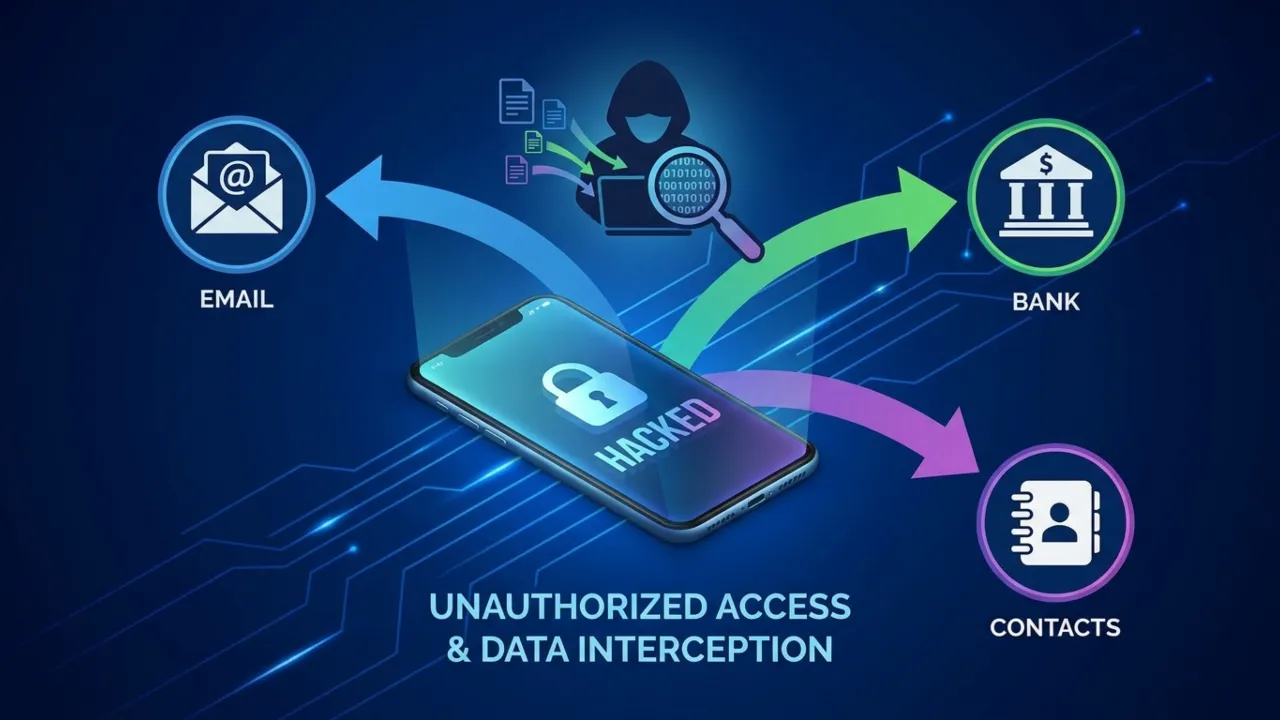
Phone hacking is when anyone accesses a phone or communications without the owner’s consent. This unauthorized access can happen through physical theft, intercepting unsecured connections, or advanced techniques. When someone hacks a phone, they can access your emails, contacts, banking credentials, and personal information.
Cybercriminals take this sensitive information to sell on the dark web, commit identity theft, or make it easy to carry out other cybercrimes. With over 7 billion smartphones used worldwide, we rely on these handheld devices for many personal matters like banking and social media, which makes them a prime target for cyberattackers. It’s awesome how much tech we have at our fingertips, but also a great challenge to stay safe online when we’re glued to our smartphones so much of our daily lives.
Also: How to Fix Internet Connection Issues on Android Devices
How Do Phones Get Hacked
A phone is usually hacked when we’re not as careful as we should be. It’s easy to fall into a hacker’s trap, like a phishing link, or downloading an app from an untrusted source. Hackers are very clever and have all sorts of methods up their sleeves to trick us and get access to our devices without our permission. They use different cyber strategies to deceive and get illegal access.
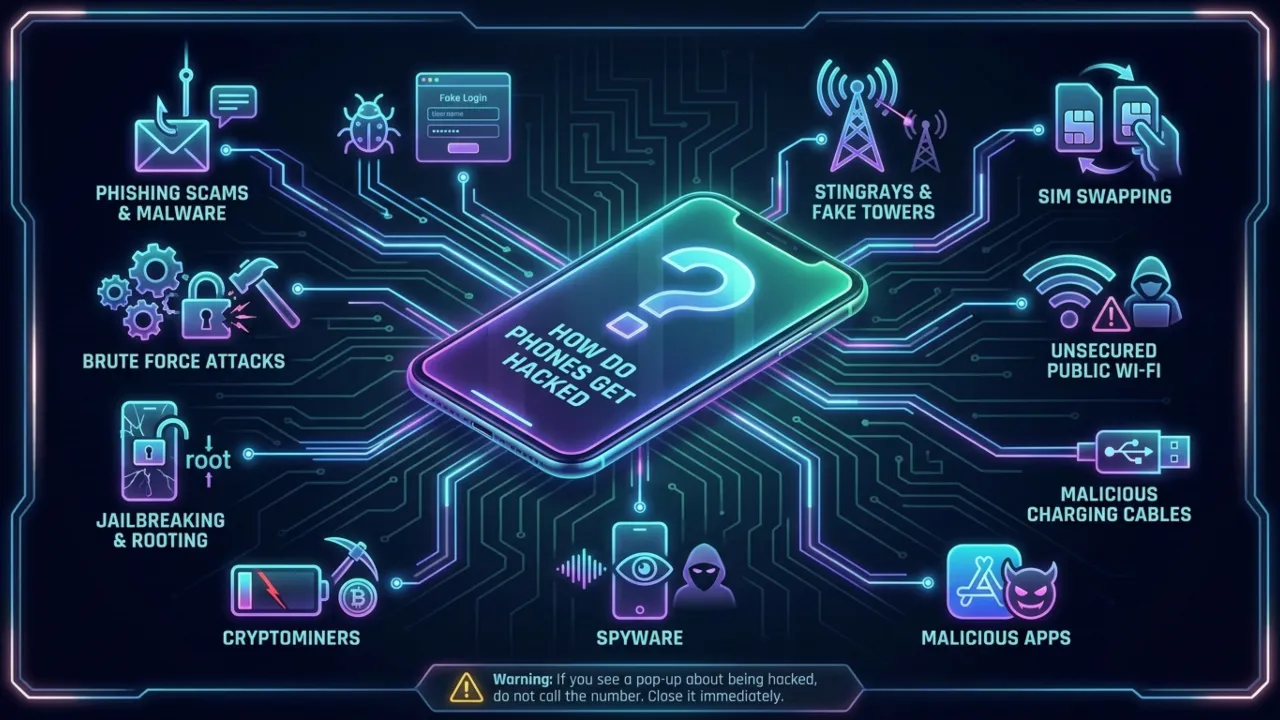
Below are a few of the common methods a cyber attacker can use to hack your mobile phone:
Malware or Phishing Scams
The attacker sends a message, an email, or a text that seems legitimate enough to act on. You click the link, and one of two things happens. Either you land on a fake login page that steals your credentials if entered in fields, or the link sneakily adds a file to your phone that installs malware without any visible prompt. Phishing messages lead to social engineering, where scammers pose as customer service agents to ask for login details. One convincing message is all it takes to trick an innocent guy.
Malicious software disguised as legitimate apps can record everything you type (keyloggers), take control of your device (Trojans), or secretly monitor your activities. This umbrella term includes viruses, adware, spyware, ransomware, and Trojans.
Call Forwarding
Call forwarding manipulation is a frequently overlooked attack vector in which a threat actor, or malware, remotely reconfigures your line settings at the carrier level. With redirection enabled silently, the attacker ensures that all incoming voice traffic and SMS-based two-factor authentication (2FA) codes are intercepted before they reach your device.
This vulnerability is one of the main reasons SMS authentication is considered weak by security professionals because it relies on legacy telephony protocols that lack end-to-end encryption and out-of-band security found in hardware keys or TOTP applications.
Malicious Apps
Threat actors frequently embed malware within seemingly legit apps, such as file managers, QR scanners, or custom keyboards. While these “trojanized” applications are mainly distributed through unvetted third-party app stores, they occasionally bypass the automated screening processes of Google Play and the Apple App Store. Once installed, the app might actually work as advertised while at the same time executing keyloggers or spyware in the background to monitor notifications, exfiltrate stored credentials, and access sensitive banking data.
Unsecured Public Wi-Fi
Unencrypted (with no password) public Wi-Fi networks are a major attack surface. By joining the same network, a hacker can execute a man-in-the-middle (MITM) attack, intercepting or altering data packets in transit between your device and external servers.
A more targeted variation is “evil twin” hotspots—rogue access points configured with legitimate-sounding SSIDs like “Airport Free Wi-Fi” to lure people to connect. Once a device links to these malicious hotspots, the attacker can monitor all unencrypted traffic, harvest credentials, and capture sensitive session data.
SIM Swapping
SIM swapping is incredibly dangerous. A hacker calls your mobile service provider, pretends to be you using all the personal info they have collected from social media or data breaches, and convinces carriers to transfer your number to a different SIM card they own. After that, they receive all your texts and bypass your two-factor authentication security.
People think they’re being highly secure with 2F auth, but it’s not enough if your number is hijacked. The moment the attacker gets control of the contact, your device will go dead, and theirs will start receiving all calls and messages. A great example of just how bad this can be is what happened to Twitter’s CEO, Jack Dorsey, back in 2019. His Twitter account was hacked within a few minutes through his phone number.
Brute Force Attacks
Brute force is the most direct way an attacker tries to get in, and it’s just a case of them guessing password after password until they find the correct one. On your smartphone, they target your lock screen PIN or the accounts you’ve logged in to.
A four-digit PIN has only ten thousand possible combinations, and a clever automated tool can zip through them in seconds if there isn’t a lockout timer to stop it. Short numeric passcodes and recycled passwords from other services are the main factors that make brute force attacks succeed. For defense, use a longer alphanumeric passcode and never reuse the same passwords across accounts.
Outdated Operating Systems
Every time Apple or Google releases a security update, they patch a vulnerability that was either caught by their internal teams or was already being used by hackers. If you have an out-of-date OS, these entry points will still be wide open on your phone. Honestly, it’s a risk because cybercriminals do look for people on outdated software; the tools they need to exploit the old vulnerabilities are already developed and easy for them to find.
Also: How to Share Location on Android: 7 Easy Methods
Jailbreaking and Rooting
Jailbreaking an iPhone or rooting an Android device removes the security restrictions called sandboxing implemented by the manufacturer. While people do this to customize their phones beyond the default limits or install apps not available through official channels, it compromises the device’s integrity. By removing these guardrails, you allow applications to execute code with elevated privileges, which means malware can embed into the system kernel, where it’s nearly impossible to detect or remove.
Furthermore, a rooted or jailbroken state often breaks the chain of trust required for official security updates, leaving the operating system open to publicly known exploits. Beyond the clear security risks, these modifications usually void hardware warranties and can permanently disable features that rely on a secure boot environment, such as mobile payments and enterprise-grade encryption.
Spyware
Spyware is a particularly invasive threat because it operates silently in the background, often without any noticeable impact on battery life or performance. Once active, it can scrape your messages, log keystrokes, access your photos & emails, monitor your real-time location, and even remotely activate the microphone or camera.
In many cases, consumer-grade “stalkerware” is installed by someone with temporary physical access to the device, such as a partner or acquaintance, to monitor private communications. On the high end, powerful tools like Pegasus (developed by the Israeli NSO Group) use zero-click exploits to infect devices with no action required from the target end.
These advanced versions are reserved for high-value targets like journalists or activists, underscoring the vulnerability of modern mobile operating systems. If you suspect stalkerware has been installed on your phone, a full factory reset is the only secure way to ensure the infection is completely purged.
Cryptominers
Cryptomining malware, called cryptojacking, hijacks your device’s hardware to mine cryptocurrency for an attacker without your knowledge or consent. Unlike traditional spyware that hunts for data, this malware targets the system resources, particularly the CPU and GPU, to perform intensive background calculations. Even though the process is invisible, the hardware symptoms are unmistakable: you’ll notice the phone gets hot, the battery depletes fast for no reason, performance drops, and data usage increases.
These miners are distributed through unofficial third-party apps or “drive-by” downloads on malicious websites. While their goal is resource theft rather than data exfiltration, the continuous high-load state can degrade hardware over time. Furthermore, the miner’s presence mostly indicates that the device’s security has been largely compromised, potentially leaving backdoors open for more destructive payloads. Thanks to some hackers, you might also get slammed with a surprise mobile bill.
Malicious Charging Cables
It might look like a standard USB cable, but specialized hardware can be hidden inside that transmits data or installs malware right after you plug it in. In security circles, the O.MG cable is the classic example—it looks no different from a normal charging lead, yet contains a small microcontroller that gives an attacker wireless access to the connected device.
That’s also why public charging stations at airports and hotels can be risky. It’s a technique called juice jacking, where the USB port is compromised to skim data while you’re just trying to top up your phone battery. When you’re out and about, use a standard AC wall outlet with your own adapter, and if you must use a public USB port, get a data blocker or a charge-only cable, as they physically lack the internal pins required to transfer data, so only power can pass.
Stingrays and Fake Cell Towers
Stingrays or IMSI catchers perform digital “bait and switch” traps by masquerading as legitimate cell towers. Your phone is programmed to be a signal snob that regularly searches for the strongest connection. A Stingray exploits this behavior by broadcasting a signal that overpowers local carrier towers, forcing every device in the area to join this fake network. Once your phone is connected, the operator can intercept unencrypted calls, skim text messages, and track your exact location with surgical precision.
Also: Why Won’t My Phone Charge? 12 Ways to Fix Android Charging Issues
Originally developed as law enforcement surveillance tools, the technology has inevitably trickled down to non-state actors and strong hobbyists. Unless you’re a high-profile target like a journalist, executive, or working in a politically sensitive environment, you likely won’t cross paths with one, but it’s a sobering reminder that the “bars” on your mobile gadget don’t always come from who you think they are.
If you see a pop-up on your phone saying your mobile has been hacked and gives you a number to call, close it immediately and don’t act. These are a scam that tries to scare you into calling a fake help line.
How to Know If Your Phone is Hacked or Not: 10 Common Signs
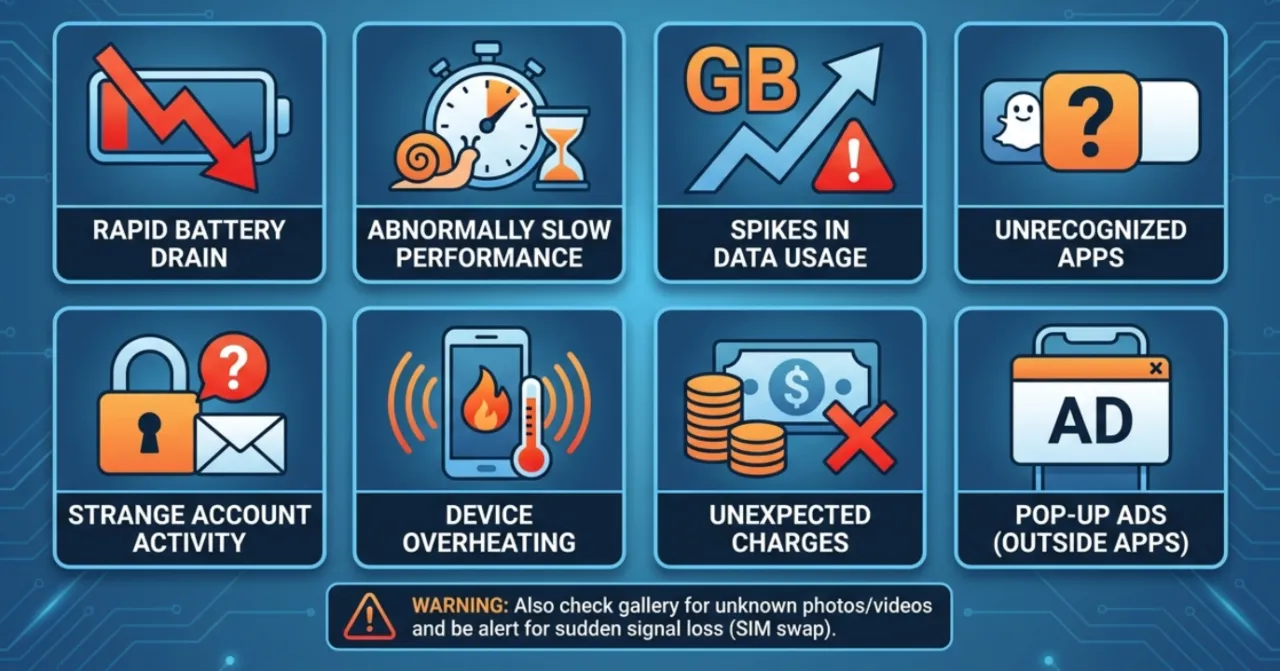
After you’ve seen some weird activity on your phone, the first thing you probably want to know is: How to tell if my phone has been hacked? These are a few indicators that can tell if your mobile is hacked:
- High battery drain: I’ve written detailed troubleshooting guides for Android battery charging issues. I know exactly how a normal battery should behave. If your phone goes from fully charged to completely dead in just a few hours while sitting idle in your pocket, it’s a big warning sign. Someone is likely operating heavy processes in the background.
- Abnormally slow performance: If your phone takes a long time to launch a basic app, drops calls frequently, freezes constantly, or randomly reboots, malware might be consuming most of the processing power and RAM. This is also a sign of full storage, an aging device, or a software bug. The difference is context. If slowness appeared out of nowhere and coincides with other signs on this list, don’t ignore it.
- Spikes in data usage: Hackers need to get your stolen files and photos back to their own remote servers, which is done using your cellular data. Check your usage history for excessive, unexplained data consumption. If an app you barely use is somehow taking GBs of data, it’s something worth investigating.
- Unrecognized apps: If you spot an application in your library that you are certain you didn’t install, it’s a clear sign of compromise. Sometimes, malicious apps install with no name and a blank white square icon.
- Strange account activity: Notice weird logins on your email, changes to your account settings, or unexpected password reset emails? Someone might have swiped your credentials directly from your smartphone.
- Unrecognized texts or calls: Check your call logs. If you see outgoing calls to unknown numbers or text messages you never typed, a hacker might be using your phone to make premium-rate calls on your dime.
- Distorted websites: If the sites you visit every day look strange, feature unusual layouts, or bombard you with aggressive pop-ups, a hacker has likely hijacked your handset and is rerouting your internet traffic through insecure servers.
- Overheating: Keep an eye on your device’s temperature. A malicious program eating system resources can cause your phone to overheat, but this can also happen when you use resource-intensive apps like games or streaming services.Warning
If you suspect someone has unauthorized access to your camera, check the gallery for any photos or videos you don’t remember that you’ve taken in the past.
- Unexpected charges: Financial red flags are a major giveaway. Fleeceware apps can rack up massive data overages and inflate your phone bill with unnecessary fees.
- Pop-up ads outside of apps: Seeing ads on your home screen or outside of a browser is a sign of adware. It’s a malware category that generates ad revenue for the attacker by forcing ads on the screen. Adware is usually less dangerous than other types of malware, but its presence means software was installed on your mobile without your knowledge, which opens the door to dangerous malware.
One sign that’s easy to miss is when your phone suddenly loses cellular signal. If your handset shows no service in an area with normally strong coverage and your carrier reports no network issues, you may be the victim of a SIM swap attack. Your number may have already been transferred to another device. Contact your carrier immediately if that’s what you encountered.
Also: How to Use WhatsApp on Two Phones with the Same Number
What Secret Codes to Dial to See if Your Mobile is Hacked
Scammers can hijack your phone line by manipulating the cellular network to intercept your calls and steal your 2FA texts before they reach your phone screen. You need a specific mobile hack checking number to expose these network-level hacks, and that’s possible using Unstructured Supplementary Service Data (USSD) codes.
Open your standard phone dialer and type these codes to confirm if the phone is hacked or not:
| USSD Code | Disable Code | Works On | What It Checks | Security Relevance | Priority |
|---|---|---|---|---|---|
| *#21# | *#002# | Android, iPhone, GSM networks (AT&T, T-Mobile, etc.) | Unconditional call forwarding. Every call and text to your number is being permanently redirected to another number before your phone rings. The most dangerous forwarding type because it intercepts all communication including 2FA codes 24/7. | Highest. Hackers enable this after a SIM swap or through malware to receive your authentication codes and intercept banking alerts silently. | Critical |
| *#67# | ##67# | Android, iPhone, GSM networks | Conditional forwarding when unanswered. Shows where your calls go when you do not pick them, and displays the exact number they route to. Commonly set to your carrier voicemail by default, but any other number here is suspicious. | High. An unfamiliar forwarding destination means your missed calls and voicemails are being captured by someone else, including 2FA callbacks. | High |
| *#004# | ##004# | Android, iPhone, GSM networks | Complete conditional forwarding summary on one screen. Shows all three conditional scenarios: calls when unanswered, line is busy, and there’s no signal. Each scenario displays its current forwarding number. | High. The fastest single code to audit your full conditional forwarding setup. If you only dial one forwarding check code, make it this one. | High |
| *#002# | N/A | Android, iPhone, GSM networks | Master disable for all carrier-level call forwarding. Cancels every active forwarding rule on your number in one command. This is a remediation tool, not a check. Use it immediately when any forwarding check above reveals a number you did not authorize. | Critical fix. Only cancels carrier-managed forwarding rules. The built-in call forwarding inside your phone settings is a separate system and must be turned off manually. | Critical |
| *#33# | N/A | Android, iPhone, GSM networks | Call barring status. Shows whether restrictions are active on outgoing calls, incoming calls, or both. If barring is active and you never enabled it, someone else has modified your carrier account settings. | Medium. Unexpected active barring you didn’t configure is a sign your carrier account has been accessed without your knowledge. | Medium |
| *#06# | N/A | Android, iPhone, all networks | Displays your IMEI number, the unique 15-digit hardware identifier burned into your device at manufacture. Cannot be changed through software. Your carrier uses this to block the physical hardware from all networks. | Crucial for reporting. Needed for carrier blocking, police reports, and insurance claims. Write it down before you ever need it. | High |
| *#*#4636#*#* | N/A | Android only | Opens the built-in Android testing and diagnostics menu. Displays your IMEI, registered phone number, active network type (2G/3G/4G/5G), data service status, signal strength, and bandwidth. A forced drop to 2G in an area where you normally have 4G or 5G can indicate a stingray device nearby. | Medium. Useful to spot unexpected network type downgrades, unusual data patterns, or mismatched carrier information that could point to active interception. | Medium |
| *3001#12345#* | N/A | iPhone only | Opens iPhone Field Test Mode. Shows carrier name, current network band, bandwidth, Public Land Mobile Network identifier, Type Allocation Code, and your registered phone number. The PLMN and TAC values help verify your phone is connected to a genuine carrier tower rather than a rogue cell device. | <strong>Medium. An unfamiliar carrier name or mismatched network identifiers can indicate your phone is connected to a Stingray or rogue tower intercepting your traffic.</td> | Medium |
| *#197328640# | N/A | Samsung Galaxy only | Opens Samsung’s engineering service menu with deeper network diagnostics than the standard Android testing menu. Includes signal strength, cell tower data, radio frequency band, network type, and connection quality metrics specific to Samsung hardware. | Useful for Samsung users to have a more detailed network-level audit at hand alongside the standard forwarding checks above. | Useful |
These call forwarding codes primarily target GSM networks, which most global carriers use. If you’re on an old CDMA network, usually via Verizon or US Cellular, these codes might not work. In that case, contact your carrier to verify if forwarding rules are active on your account.
Also: How to Turn On Private DNS Mode on Android: Why You Should Use It?
Dialing ##002# only clears carrier-level forwarding; it doesn’t affect the built-in forwarding settings in your phone app, which operate on a separate system. If forwarding remains active after you’ve run the disable code, manually toggle it off in mobile settings. Finally, if *#67# reveals a number you don’t recognize, search it before disabling. Many carriers route voicemail to a number that looks unfamiliar but is their own legitimate system.
You can also turn off call forwarding in your phone settings. On iPhone, go to Settings > Apps > Phone, and turn off Call Forwarding. On Android, open the Phone app, tap the three-dot menu, go to Settings > Calls > Call Forwarding, and disable the Always Forward</strong> option. Do both if you find something suspicious, since the code and the in-app setting can be active independently.
What to Do If Your Phone is Hacked
Time is the primary risk factor. The longer an attacker maintains active access, the greater the risk of account takeover, credential theft, and unauthorized fund transfers. If you found a red flag, a hidden admin app, or a weird forwarding number, you must restrict the attacker immediately. Work through these steps in order:
- Step 1. Cut off internet access immediately. Turn off your Wi-Fi and mobile data immediately, and disable your personal hotspot and Bluetooth. This severs the hacker’s remote access channel to your hardware, stopping any active data theft.
- Step 2. Disable unauthorized call forwarding using the dial codes above to stop the interception of your calls and two-factor authentication codes being sent to your number.
- Step 3. Run a malware scan using your phone’s built-in security tool first. Open the Google Play Store, tap your profile icon in the top right corner, select Play Protect, and tap Scan. Then download a highly reputable anti-malware tool to do a deep scan of internal storage to catch lingering Trojans or spyware.
- Step 4. Go through your installed apps and remove anything suspicious. Check your Device Admin apps first and deactivate unfamiliar entries before trying to uninstall them.
- Step 5. Assume the hacker saw all passwords you typed on the screen. Using a completely different, safe device (like your home laptop), you must change the login credentials for your email, online banking, and social media accounts. Start with a Google or Apple account because these control password resets for everything else.
- Step 6. Contact your mobile carrier and report the situation. Ask them to verify that no SIM swap or port-out request has been made on your account. Ask them to add additional verification requirements before future account changes.
- Step 7. Alert your contacts. Hackers regularly use compromised devices to send fraudulent texts to the victim’s address book. Tell your family and friends to ignore any suspicious messages, links, or requests for money or personal information that come from your number.
- Step 8. Check every financial account you access from your phone for unauthorized transactions. Lock your debit and credit cards for suspicious activity, and contact your bank to flag potential fraud. If you use mobile payment services, treat them as compromised, too.
- Step 9. If you’ve scanned and removed apps, but the malware is still hanging around, do a factory reset. It’s the best way to get rid of anything buried deep in there. Back up your important photos, notes, and contacts to secure cloud storage first. After the reset, do not use an automatic backup to restore apps. Read our guide on how to factory reset an Android device, or follow these Apple instructions for an iPhone.
- Step 10. After the reset, first update your operating system to the latest version, then install whatever you need to. Security patches in updates mostly close a certain exploited vulnerability.
When you set the phone back up after the hard reset, don’t use an automatic cloud backup to restore apps. If you do, you might accidentally reinstall the malware you just removed by a clean wipe. So, download all necessary apps again from the official app store.
How to Protect Your Phone from Being Hacked

While cleaning up a compromised device is a stressful, time-consuming ordeal, staying ahead of threats is far more under control. A few simple security tweaks will make your phone very tough to hack in the future.
- Set a strong lock screen passcode: Physical access is one of the easiest ways to hack a phone. Do not leave your phone unattended on a table. Lock your screen with a complex, alphanumeric password, not just a simple four-digit PIN. Activate biometric security features like facial recognition or a fingerprint scanner.
- Keep your software updated: The annoying system update notifications contain critical security patches. Hackers regularly look for flaws in old operating systems, so install updates as soon as they arrive.
- Use a Password Manager: Don’t reuse the same password for ten different websites. A password manager will generate a strong, highly complex password for every account you own and store it in an encrypted digital vault. When an attacker gets your credentials from one hacked service, the first thing they do is try them on your email, bank, and social networks.
- Turn on 2-Factor Authentication: 2FA requires a secondary verification method like a biometric scan or a code from an authenticator app. Even if a hacker successfully steals your password, they cannot access your account without your physical device. Use an auth app rather than SMS codes wherever possible, since codes can be intercepted through SIM swapping and call forwarding attacks.
- Lock SIM card with a PIN: On Android, go to Settings > Security, then find SIM Card Lock. On iPhone, tap Settings > Cellular > SIM PIN. This means that even if someone physically swaps your SIM card, they won’t be able to use it without the PIN.
- Avoid public Wi-Fi without a VPN: If you must use open Wi-Fi at an airport or coffee shop, use a Virtual Private Network. A VPN encrypts your online activity, making it impossible for hackers on the same network to intercept your browsing data.
- Regularly clear internet cache: Remove browser history, cookies, and cache files at regular intervals to keep your information private and stop sites from tracking you.
- Disable voice assistants on the lock screen: Having Siri or Google Assistant available before phone unlock is convenient, but it’s a security risk. Disable them on your lock screen so an intruder won’t extract information via voice commands.
- Only use official app stores: Never download sketchy applications from unregulated third-party websites. Check user reviews and only stick to the Apple App Store or the Google Play Store.
- Limit app permissions: Go into your phone settings and see what apps are allowed to do. Does the flashlight app really need access to your microphone and GPS location? Revoke unnecessary permissions immediately. Location always active, and microphone/camera access are the high-risk permissions.
- Turn off autofill: Unauthorized access to a mobile device allows attackers to exploit autofill data to acquire sensitive personal information. Credit card details, residential addresses, and other identifiers remain vulnerable through these saved fields. Disable autofill in mobile browser settings to eliminate this security risk.
Whenever possible, use an AC wall outlet instead of a public USB charging port. AC outlets only transmit electrical power, while USB ports can transfer data, which leaves you open to juice jacking. Enable the Find My Device feature on your phone if you’ve not already. Need a way to lock or wipe your phone if it gets lost or stolen? This feature lets you do that.