






Location sharing on Android has come a long way from texting someone your address. It takes under a minute once you know how, but the options are split across different apps and settings based on what you need. You can send a one-off pin, share your live location for a few hours, or set up permanent location sharing with family. They don’t work the same and fit different situations. Here’s every way to share your whereabouts on Android for free and with anyone.
How to Share or Send Location on Android Phones
To share your location with friends, family, or a food rider, you must first enable the device location. Open the notification shade and tap the Location toggle, or go to Settings → Location and turn it on. Until it’s off, no app can access your coordinates.
Then check which apps have location permission. Go to Settings → Location → App permissions and review the list. If Google Maps or another app shows “Denied,” tap it and choose “Allow only while using the app” or “Allow all the time,” depending on what you need.
With that said, let’s discuss every possible way you can use to share location on Android.
Also: Why Does My Phone Get Hot When Charging? Reasons and 11 Quick Fixes
1. Google Maps
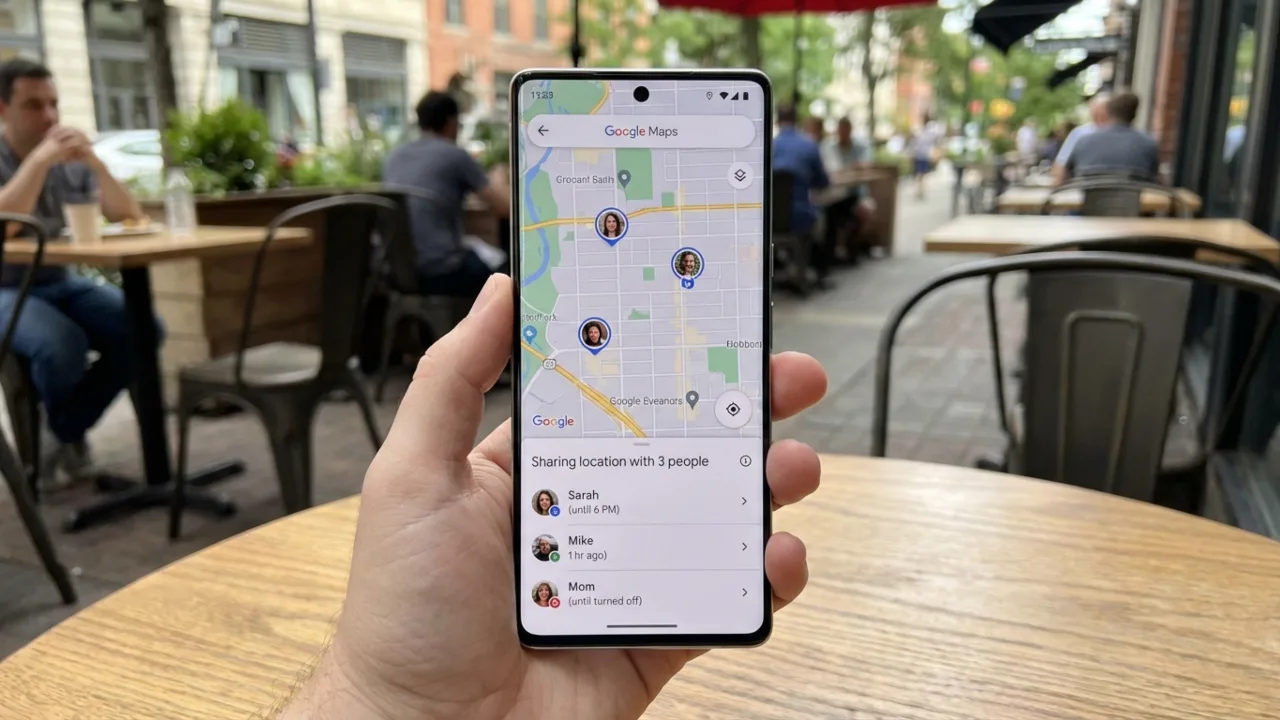
Google Maps is the easiest way to share your location on Android. It’s great because it works for everyone. The person you send your location to doesn’t need an Android phone or the Maps app. When you send a location link, it opens in any web browser without the need for a Google account login. The recipient can track your movement in real time and see your phone’s current battery level on both Android and iOS.
Share real-time location:
Real-time sharing allows others to see your position as you move during travel. It’s handy if you’re on your way to meet someone and don’t want to keep texting updates.
[pgallery id=”15″]Here’s how:
- Open Google Maps.
- Tap your profile picture in the top-right corner.
- Select Location sharing.
- Tap Share location or the blue New share button.
- Choose how long to share: 15 minutes, 1 hour, or Until you turn this off.
- Select who to share with from contacts or tap More to share via other apps. You can send directly to a Google contact or copy the link to send via WhatsApp, SMS, or email, whatever.
The recipient will see your icon moving on their map, and a bar (small indicator) at the bottom confirms sharing is active. You can share with multiple people at once; each person receives a unique link, and you can stop sharing with specific individuals without cutting off everyone else.
Share a static location pin:
If you only need a one-time “I’m here” or “meet me here,” send a pin instead of live tracking. Use this to send a specific meeting point or current position.
- In the Google Maps app, long-press anywhere on the map to drop a pin (or search for a place and tap on it).
- Tap the Share button at the bottom.
- Choose how to send it: Messages, WhatsApp, Gmail, etc.
It will send a static link to that exact spot. The other user will see the location on a map, but doesn’t get live updates if you move.
To see who can currently view your location, open Google Maps, tap your profile picture, then Location sharing. This menu lists everyone currently tracking you. Tap a person to stop sharing with only them, or use Stop all to end it for everyone. The same screen also displays who is sharing their location with you.
2. Google Messages
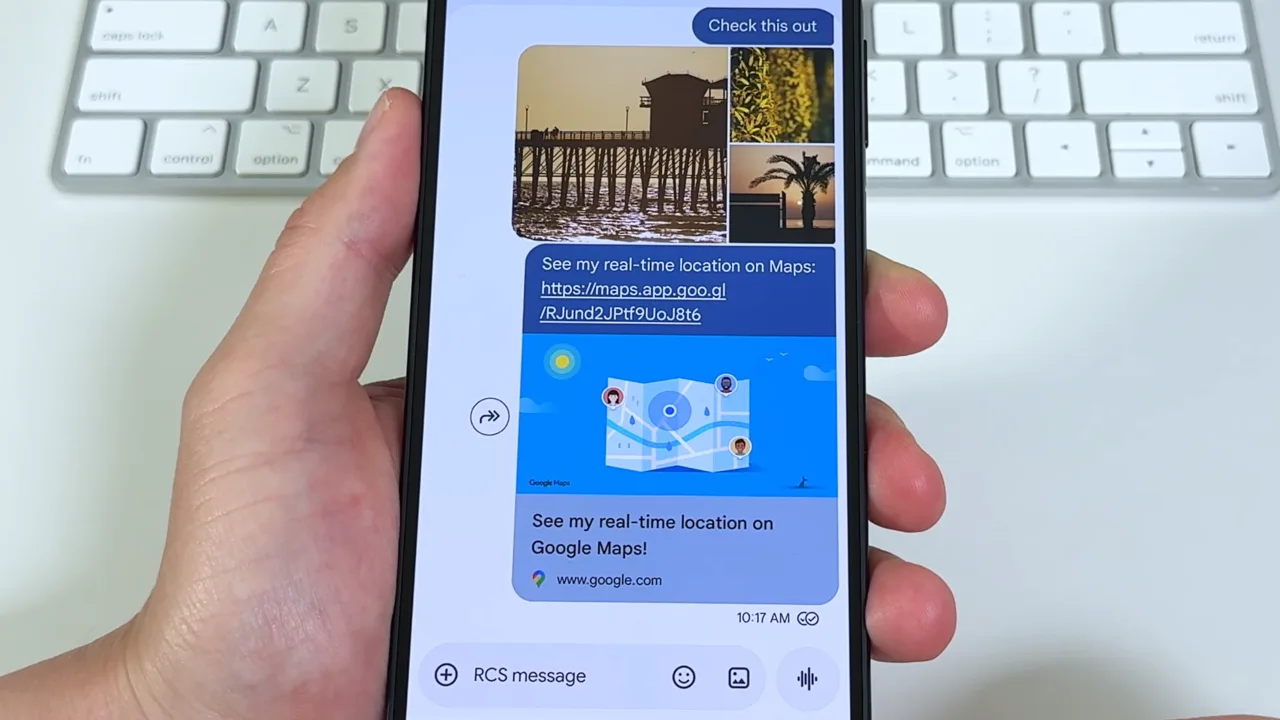
If the person you’re texting is also on Android and both of you have RCS messaging enabled, Google Messages lets you share your location right from the chat.
- Open a conversation in Google Messages.
- Tap the + icon next to the text box.
- Select Location.
- Choose either Send this location for a one-time static map pin or Share your real-time location to give them a live feed.
- Then, tap Send to share an embedded interactive map.
Live location through Messages lasts for one hour by default. The other person sees it as a map right in the chat, not an external link. If the conversation falls back to SMS, the Location option either won’t appear or will send a static Maps link instead.
It can still work for non-Android users. iPhone guys with iMessage will get a link they can open in a browser or in Apple Maps. To end a live session, return to the message thread and tap Stop sharing on the location card.
Also: How to Check Battery Health on Android: 4 Quick Ways
3. WhatsApp
WhatsApp has its own built-in location sharing that works well and doesn’t require Google Maps. You can share the current or live position with other WhatsApp users.
Send a static location:
- Open a chat in WhatsApp.
- Tap the paperclip or + icon in the message box.
- Select Location and choose Send your current location.
Share live location:
[pgallery id=”16″]- Follow the same steps above, but tap Share live location instead.
- Choose the duration: 15 minutes, 1 hour, or 8 hours.
- Add an optional message and hit Send.
You can revoke access at any time in the chat by tapping the red “Stop sharing” button. WhatsApp live location works in both one-on-one and group chats. That makes it useful to coordinate meetups with multiple people at once.
4. Google Family Link or Find My
For permanent location sharing with family, Google gives you two options. Pick the one that will be best for you. Google Family Link is for parents to monitor their kids’ devices. Set it up once, and the parent can see the child’s location in the Family Link app anytime. No repeated “share my location” rituals required. Google’s Find My Device / Trusted contacts (now rolled into Google’s location features) lets adults share location with each other on a permanent basis.
Follow these steps:
- Open Google Maps.
- Tap your profile photo → Location sharing.
- Tap New share and set duration to Until you turn this off.
- Share it with a Google contact.
They accept, and after that you can both see each other in Maps. You can manage or stop it any time from the Location sharing screen. For parents and kids, download Google Family Link, sign in with the parent account, and follow the setup to link the child’s device. Once that’s done, the location will appear automatically.
Also: How to Block Spam and Unwanted Calls on Android
5. Samsung SmartThings
Samsung phones do location sharing through SmartThings and Find My Mobile, separate from Google’s features.
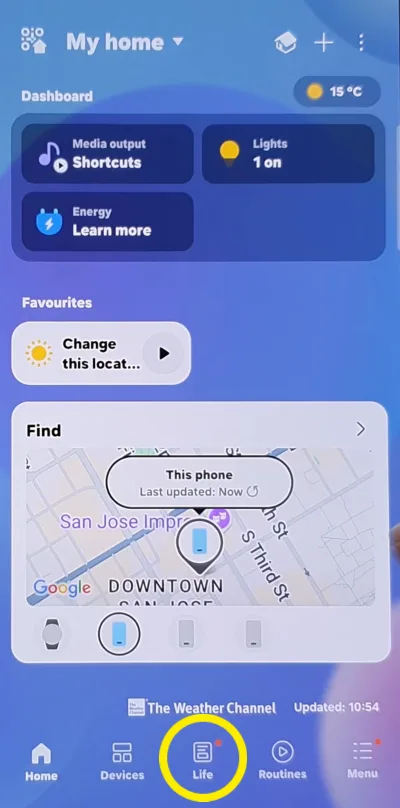
Here’s how to set it up:
- Open the SmartThings app.
- Tap the Life tab at the bottom.
- Select Connected services → Find My Mobile or tap Member location.
- Enter the Samsung account emails to add members.
When they accept, you’ll see each other’s location in SmartThings. Though everyone needs a Samsung account and a Samsung phone, it’s more limited than Google Maps. There’s also a Share location option in the One UI Contacts app. Open a contact, tap the three-dot menu, and choose location sharing. It runs through Samsung’s own services, because of course it does.
6. Google Personal Safety
Google includes the Personal Safety app on modern Android devices particularly for emergencies, late-night transit, or solo travel. It allows trusted contacts to automatically monitor your route, so you don’t have to send manual updates.
[pgallery id=”17″]If you haven’t used Safety Check before:
- Open the Personal Safety app.
- Tap Safety Check on the main screen.
- Select an activity (such as “Walking home”) and set a timer for that trip
- Choose which contacts to notify and tap Start.
If you don’t manually turn off the timer before it ends, the app will send an automatic alert to your chosen contacts, and they’ll get a live map of your exact place.
To share real-time location, tap Emergency sharing during a Safety Check or in the Features tab, then choose Start. Your contacts will receive a text or email with a Google Maps link. At any moment you stop sharing, the app will ask you to confirm you’re safe.
7. Facebook Messenger
Facebook Messenger lets you share both static and live locations in conversations. To do it, open a conversation, tap the plus icon, and select Location. You can then tap the map to send your current position or choose to share your live location. It lasts for 60 minutes and lets the other person track your movement in real time. They don’t need a Facebook account to see it, since the link works in any browser.
Also: Why is My Phone Overheating? Reasons and How to Fix It
Privacy Concerns in Location Sharing
Location sharing is convenient but comes with privacy trade-offs. Here’s what to watch out for to keep your data secure.
- Set time limits for casual contacts. Sharing your location with no limit is often reasonable for family, but risky for acquaintances you don’t know well. Use the “for 1 hour” setting instead of “until you turn this off.”
- Review active shares monthly. It’s easy to forget who you’re sharing your location with. Open the Google Maps location sharing screen to see who can track you and stop any shares that are no longer necessary.
- Use static pins for first meetings. When meeting someone new, send a pin of the specific venue (i.e., coffee shop) rather than a live feed of your movements.
- Disable location history. Google tracks and stores a record of everywhere you go. If that bothers you, you can disable it. In Maps, go to your Profile > Your Timeline > Timeline settings > Location History to turn it off.
- You likely have old apps on the device that can still access your location. Go through the app permissions every few months and remove access for the ones you don’t use anymore.
- Watch battery drain. Sharing your live location constantly runs the phone’s GPS, which eats the battery fast, so keep a charger nearby during extended trips.