





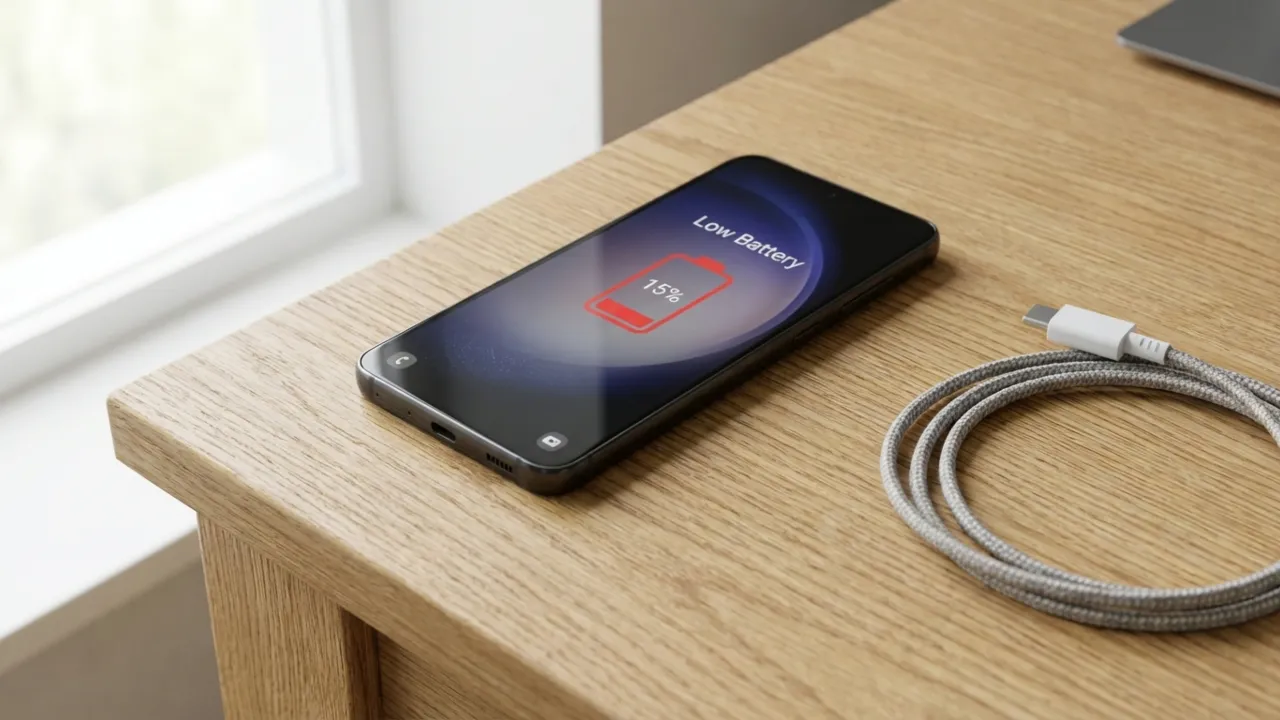

If your Android phone or tablet battery drains very fast, you’re dealing with something most users face at some point. Battery depletion happens for all kinds of reasons, but don’t worry, there are many ways to fix the fast battery draining issue and extend its life.
- Why is My Phone Battery Draining So Fast?
- Is Battery Drain Actually a Problem? Here’s the Reality Check
- How to Make Phone Battery Last Longer: 15 Ways to Fix Android Battery Drain
- 1. Turn Off Always-On Display
- 2. Enable Adaptive Battery
- 3. Turn On Battery Saver Mode
- 4. Adjust Screen Brightness and Reduce Screen Timeout
- 5. Reduce Your Phone’s Refresh Rate
- 6. Replace the Device Battery
- 7. Switch to Dark Mode
- 8. Manage Location Permissions
- 9. Restrict Background App Activity
- 10. Turn Off Wireless Features You Don’t Use
- 11. Keep Software Updated
- 12. Limit Push Notifications and Haptic Feedback
- 13. Turn Off Hey Google
- 14. Delete Unused Accounts and Apps
- 15. Restart Your Phone
- Extra Conditions That Deplete Android Battery
- Frequently Asked Questions
- Why is my Android battery draining overnight?
- Why does my Android battery drain fast in standby mode?
- Does leaving my Android plugged in overnight damage the battery?
- Does fast charging degrade my Android’s battery health faster?
- Does closing apps in the recent apps list save battery?
- Are third-party battery optimizer apps safe to use?
- Will clearing the cache and data help?
- Why does my phone drain fast when I’m using 5G?
- Why does the battery percentage jump or drop suddenly?
Quick fixes to try:
- Turn off Always-On Display and drop the screen refresh rate from 120Hz to 60Hz.
- Reduce brightness, enable adaptive brightness, and set screen timeout to 30 seconds.
- Enable Battery Saver mode and restrict background apps.
- Disable location access for apps that don’t need it frequently.
- Update Android and all installed apps to the latest versions.
Why is My Phone Battery Draining So Fast?
To find out what’s reducing the battery, look at the features that consume the most power. In my years of dealing with everything from budget burners to the latest flagships, I’ve found that the major culprits are often the features manufacturers brag about most. Common causes for Android’s battery draining quickly are:
- Always-On Display. It typically drains 3% to 5% of the battery per hour, which is far more than the 1% to 2% companies claim.
- High screen brightness. Combined with a 120Hz refresh rate, it’s a double drain that adds up fast throughout the day.
- Background apps. Programs like social media, news, and streaming services consistently refresh data even while not in use.
- Background location tracking. Many apps keep GPS active even when they don’t need real-time data.
- Hey Google detection. The feature keeps the microphone active all day, waiting for a wake word you rarely use.
- Weak cell signal. When signal strength is low, the phone increases power to the radio to maintain a connection. Searching for a stable 5G signal is especially demanding and can cause the device to generate excess heat and drain the battery quickly.
- Excessive push notifications. Every alert wakes the screen and triggers a vibration or sound, which increases major power use over time.
- Extreme temperatures. Operating a phone in very hot or cold environments reduces battery strength and accelerates discharge.
- Outdated OS and apps. Old operating systems and apps mostly contain unoptimized code or unpatched bugs that put an unnecessary load on the processor.
- Degraded battery. Lithium-ion batteries lose capacity after two to three years of standard use. Once a battery has physically degraded, software adjustments will not keep the phone powered as long as they once did.
Is Battery Drain Actually a Problem? Here’s the Reality Check
Before adjusting the settings, figure out if your battery drain is normal or a hardware fault. From my testing on a bunch of Android devices, here’s how to tell the difference between normal consumption and a genuine issue.
| Usage Scenario | ✓ Normal Drain | ✗ Problem Drain |
|---|---|---|
| Idle (screen off, phone on the table) | 0.5% to 3% per hour Well-optimized phone with minimal background activity should lose about 1-2% hourly. |
5%+ per hour Something’s running wild in the background |
| Overnight (8 hours of sleep) | 3% to 8% total Phone syncs emails, downloads updates, and performs maintenance tasks |
15%+ overnight You go to bed at 100% and wake up below 85% |
| Screen-on – Light Use (messaging, browsing) | 8% to 15% per hour Scrolling social media, reading articles, texting |
20%+ per hour Screen brightness maxed, 120Hz refresh, or rogue apps |
| Heavy Use (gaming, video recording, GPS) | 15% to 30% per hour Demanding tasks drain the battery quickly |
40%+ per hour Even intensive apps shouldn’t kill battery this fast |
| Full Charge Lifespan | 5 to 8 hours screen-on time New devices with larger batteries: 8-12 hours |
Less than 4 hours Battery degraded or seriously misconfigured |
How to measure drain rate:
- Note the current battery percentage.
- Use your phone normally for 1 hour (or let it sit idle for 1 hour).
- Check the percentage again.
- Calculate: Starting % – Ending % = Your hourly drain rate.
How to Make Phone Battery Last Longer: 15 Ways to Fix Android Battery Drain
If you’ve been wondering, “Why is my phone dying so fast?” this guide has you covered. Here’s how to keep your Android device charged and squeeze every bit of battery performance out of it throughout the day.
Start here if you’re in a hurry: The top 6 fixes below will give you the biggest battery savings (15-30% daily improvement). If you have more time, work through the rest for additional power gains.
Android menus vary by manufacturer (Samsung, Google, OnePlus, Xiaomi, etc.) and software version. If the paths below don’t match your device exactly, use the search function in your Settings app.
To find any setting:
- Open Settings.
- Tap the search icon or bar at the top.
- Type the name of the feature, such as “Battery Saver” or “Always On Display.”
- Tap the result to go to that settings menu.
Some phones lack the search bar. If yours is one of them, check the Display or Battery sections first. Most power settings are found in these two places. Still can’t find what you need? Your phone might not have that feature. Some manufacturers strip out options or rename them completely.
Now let’s fix your battery drain.
1. Turn Off Always-On Display
The Always On Display is a battery killer. Manufacturers claim it only drains 1% or 2% per hour, but real-world use tells a different story. Yes, it’s convenient to see the clock without touching your phone, but you pay for that small luxury with a dead phone by dinner time. It’s the first thing I’ll turn off on any device if I have to minimize its battery drain.
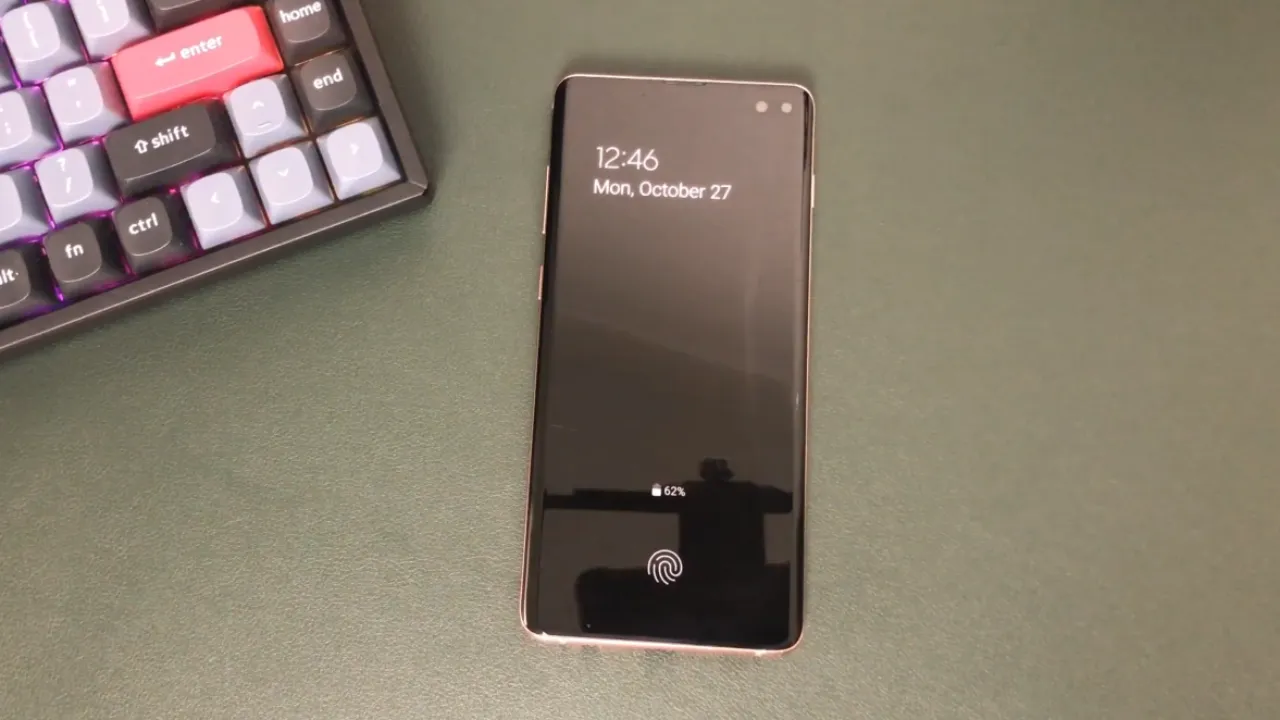
How to disable: Open Settings > search for “Always On Display” or “AOD” > toggle it off.
If the search doesn’t work, check these common locations:
- Settings > Display > Always On Display
- Settings > Lock screen > Always On Display
- Settings > Display > Lock screen > Always show time and info
Next time, the screen will go completely dark when locked. Expect to save 20-30% battery daily by disabling this single feature.
2. Enable Adaptive Battery
Android manages power through the Adaptive Battery that runs in the background, learns your daily habits, and cuts power to apps you rarely open. It’s one of the set-it and forget-it optimization tweaks that makes a solid difference to survive through the day without a charger.
How to enable: Open Settings > search for “Adaptive Battery” > toggle it on.
If the search doesn’t work, check these locations:
- Settings > Battery > Adaptive Battery
- Settings > Battery > Battery optimization > Adaptive Battery
- Settings > Battery > Adaptive preferences
Expect to save 15-25% battery daily as the system learns your patterns and throttles unused apps.
3. Turn On Battery Saver Mode
Every Android phone includes Battery Saver or a similar power-saving mode. When enabled, it throttles performance, limits background processes, pauses location services when the screen is off, delays notifications, and makes other adjustments to extend battery lifespan.
You can find the mode in the Battery Saver menu under Settings > Battery. Toggle it manually or schedule it to activate at a specific battery percentage. Samsung calls this Power Saving Mode, which you can enable in Settings > Battery and device care > Battery. Check the manufacturer’s website if you have a different Android brand, but this feature is almost always in the main Battery menu.
Google Pixel phones offer a similar Extreme Battery Saver. This aggressive version pauses most apps and strips your phone down to bare essentials. Save this for emergencies when your device is down to single battery digits, and you need it to last a few more hours. You can get 20-40% saving on battery with Saver active, based on the use.
4. Adjust Screen Brightness and Reduce Screen Timeout
The screen drains the battery faster than anything else on a phone. Swipe down from the top of the screen to open the quick settings and drag the brightness slider way down, or better, turn on Adaptive brightness and let Android adjust it automatically based on the light around you.
Screen timeout is also crucial, so set it to 30 seconds or one minute maximum. If you set your phone down on a table and it stays lit for 2-5 minutes before the screen turns off, it’s just a waste of power for no good reason.
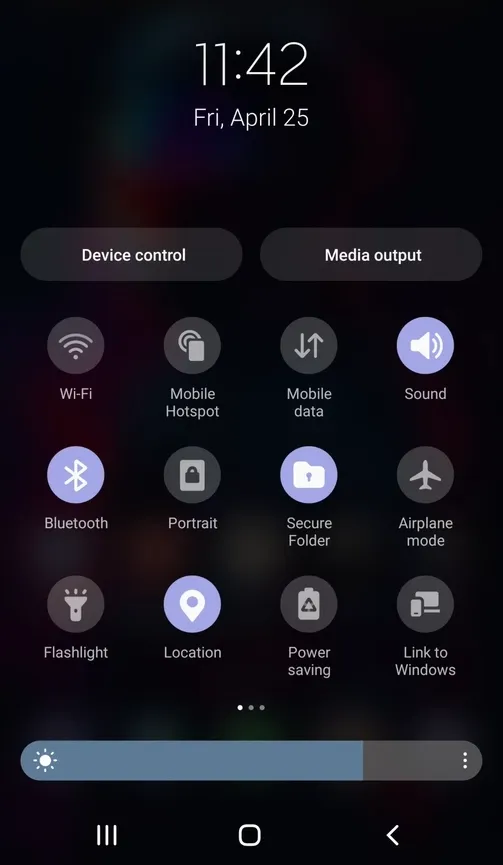
How to adjust brightness:
- Manual control: Swipe down from the top of your screen > drag the brightness slider left (lower).
- Adaptive brightness: Open Settings > search for “Adaptive brightness” or “Auto brightness” > toggle it on.
- For manual path: Go to Settings > Display > Brightness level (adjust slider + enable adaptive/auto brightness).
How to adjust screen timeout: Open Settings > search for “Screen timeout” > select 30 seconds or 1 minute, or go to Settings > Display > Screen timeout.
5. Reduce Your Phone’s Refresh Rate
High refresh rates (90Hz or 120Hz) make everything on the phone look incredibly fluid. However, that smoothness comes at a cost. The display has to work overtime to push all the extra frames, which drains the battery a lot faster than you’d expect. Some days you need the crisp visuals, while others, it’s good if the device can last until bedtime.
Most people leave high refresh rates active throughout without thinking about it. That’s fine if you’re near a charger or have stellar battery life. But when traveling, at a festival, or with a busy day away from power outlets, reducing it to 60Hz can buy you many extra hours. Find the refresh rates option under Settings > Display—Samsung names it “Motion smoothness,” in Pixels, it’s “Smooth Display.” Once you find it, toggle it back to the standard 60Hz.
Read: How to Find Hidden Apps on Android
6. Replace the Device Battery
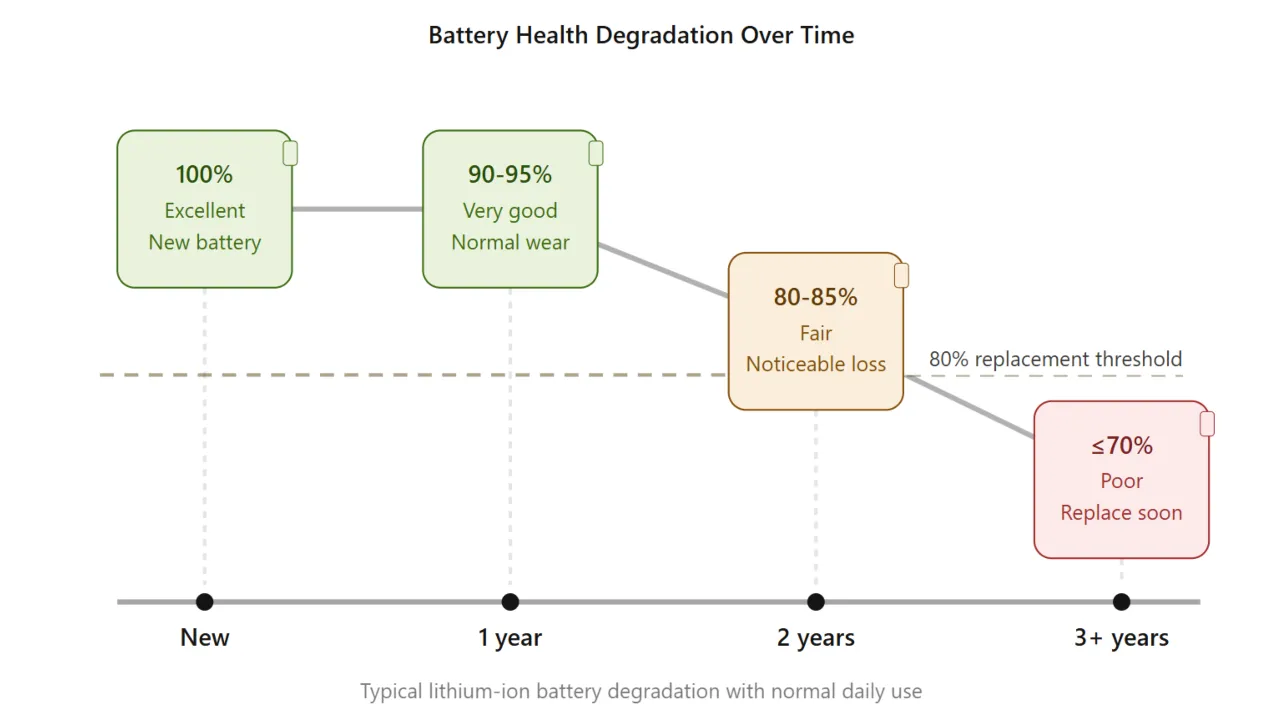
You’ve had your phone for 2 to 3 years, and nothing works? The battery is probably degraded. Lithium batteries lose capacity after hundreds of charge cycles. Most Androids won’t show detailed battery health as iPhones do. Download AccuBattery from Google Play to check battery health. If its strength dropped below 80% of what it used to be, I’d recommend replacing it if your budget allows.
Contact the phone manufacturer or visit an authorized repair shop for replacement. Before paying for a new battery, try a factory reset to rule out software issues, but back up your data first. If your phone also has charging problems, that could indicate a faulty battery or charging port rather than a battery issue. Expect to restore 100% original battery life with a genuine replacement.
7. Switch to Dark Mode
Most modern Android phones (even the cheap ones) now ship with OLED screens instead of old LCD panels. The difference comes down to how they display black. LCDs keep their backlight active all the time, but OLEDs can turn off individual pixels, which is a massive win for battery life if you’re smart about it.
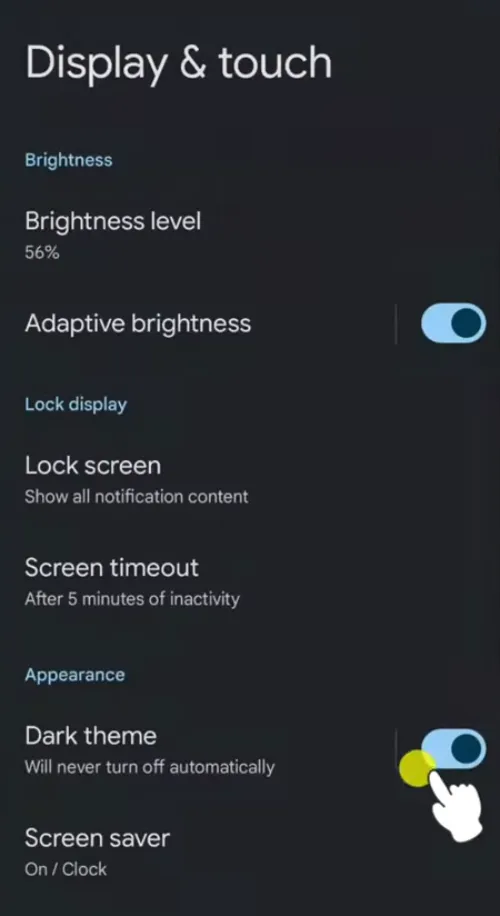
Switch your phone to Dark Theme or Dark Mode and watch what happens. The black areas on your screen will almost completely power down, and it will save battery every second the screen stays on. To set it up, head to Settings, tap Display, and toggle on dark theme.
You can schedule it to turn on at sunset, but better to leave it on all the time. Your battery will thank you, and it’s easier on the eyes anyway. Many apps let you enable dark mode separately, so dig into each app’s preferences and turn it on there as well.
8. Manage Location Permissions
GPS and location service drain battery aggressively, especially when multiple apps use them at once in the background. Maps and navigation need it, and your weather app probably requires it as well. But do all social media apps need to track you 24/7?
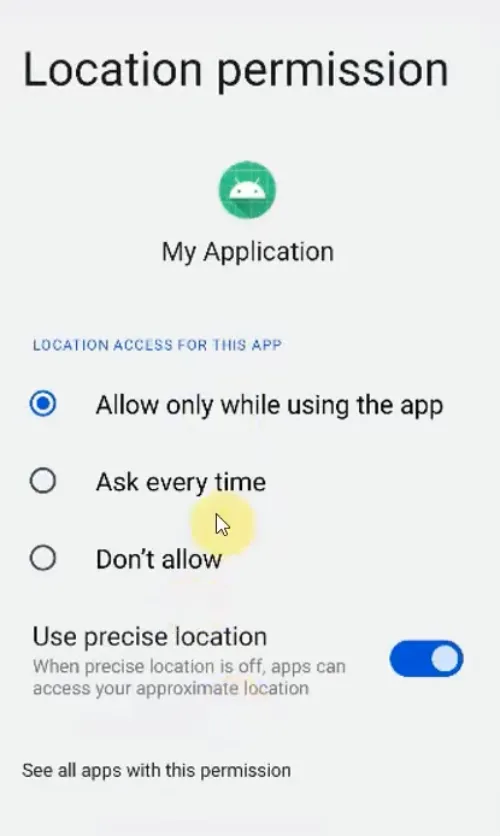
How to adjust: Open Settings > search for “Location” or “App permissions” > tap Location > select each app > change to “Allow only while using the app.”
Without the search, go to:
- Settings > Location > App location permissions or App access to location.
- Settings > Privacy > Permission manager > Location.
- Settings > Apps > Permissions > Location.
Further, search for “Nearby device scanning” (available on Android 12+) and toggle it off unless you normally have to pair Bluetooth accessories. It performs a consistent device search at the cost of battery.
9. Restrict Background App Activity
Apps refresh content, check for updates, and run background processes that deplete the battery and cause the phone to die fast. Here’s how to stop them:
- On a Samsung device, go to Settings > Battery > Background usage limits.
- On a Pixel, go to Settings > Battery > Battery usage by app.
Select any apps with high power draw and switch them to “Restricted” to prevent background activity when the app isn’t open. You will still receive notifications, but the app won’t refresh content or run tasks behind the scenes.
Read: Don’t Use Pattern Lock to Secure Your Android Phone: Here’s Why
10. Turn Off Wireless Features You Don’t Use
Bluetooth, Wi-Fi, and NFC scan for connections when active and burn power. If you aren’t using a specific wireless service, not connected to Bluetooth devices, or making contactless payments, turn it off. Swipe down from the screen’s top to open the quick menu and tap the icons to disable these features. Furthermore, you can flip on Airplane mode when there’s no connection, like overnight or in areas with poor reception.
In low coverage areas, phones use more power to maintain a cellular signal, and it silently murders battery cells. If you have a weak cellular reception but Wi-Fi is available, switch to Wi-Fi calling or enable Airplane mode and then manually turn Wi-Fi back on.
11. Keep Software Updated
Updates contain battery optimizations, bug fixes, and productivity improvements. Outdated software can lead to unnecessary battery drain due to bugs or bad code.
How to update: Open Settings > search for “System update” or “Software update” > tap Check for update or Download and install.
If the search is not available, you’ll find it by one of these:
- Settings > System > System update.
- Settings > Software update.
- Settings > About phone > System updates.
Further, update all installed apps in the Google Play Store by tapping your profile icon and then Manage apps & device > Update all. Developers frequently release patches to fix high power consumption in specific apps.
12. Limit Push Notifications and Haptic Feedback
Every single time your phone buzzes with a notification, a small physical motor spins inside the device. Over a few hundred text messages and news alerts, that mechanical movement eats a lot of battery capacity. Disable push notifications for apps that don’t need immediate attention. Keeping the screen off and the vibration motor quiet does wonders for battery longevity.
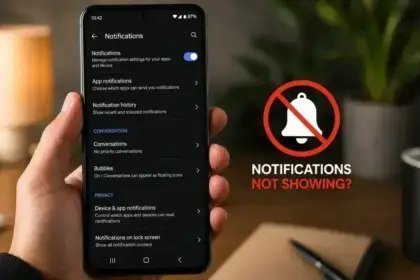
Review notification settings in Settings > Notifications > App notifications and disable them for apps that spam unnecessary alerts. You don’t need breaking news every five minutes or promotional messages from shopping apps.
For keyboard haptics, go to Settings > System > Languages & input > On-screen keyboard > Gboard (or your keyboard app) > Preferences. Turn off “Sound on keypress” and “Haptic feedback on keypress.”
13. Turn Off Hey Google
Open the Google app, tap your profile picture, go to Settings, then Google Assistant, find Hey Google & Voice Match, and switch off Hey Google. Unless you frequently use voice commands, keeping the microphone active for the wake word drains the battery without giving much value. So, it’s better to disable it to reduce background power consumption.
14. Delete Unused Accounts and Apps
People have old social media profiles or email accounts they no longer use, but are still linked to their Android devices. These accounts sync and refresh in the background, which reduces battery life. Remove them and your phone will remain in good shape for at least a couple of years.
To delete an account, open the Settings app. On Samsung devices, go to “Accounts and backup“; on Google Pixel phones, look for “Passwords & accounts.” Review the list of synced accounts, select the one you want to delete, and tap “Remove account.”
While cleaning house, uninstall apps you haven’t opened in months. They hog storage and often run background activities. Long-press app icons on the home screen and select uninstall, or go to Settings > Apps to remove them.
15. Restart Your Phone
A mobile restart clears temporary files and stops frozen processes, and can immediately fix battery drain. To restart your Android, Press and hold the power button until you see the power menu > tap “Restart” or “Reboot“. If your battery began to deplete fast after a specific app installation or software update, restart the device and check if the problem is fixed. If something is the culprit, get rid of it.
Extra Conditions That Deplete Android Battery
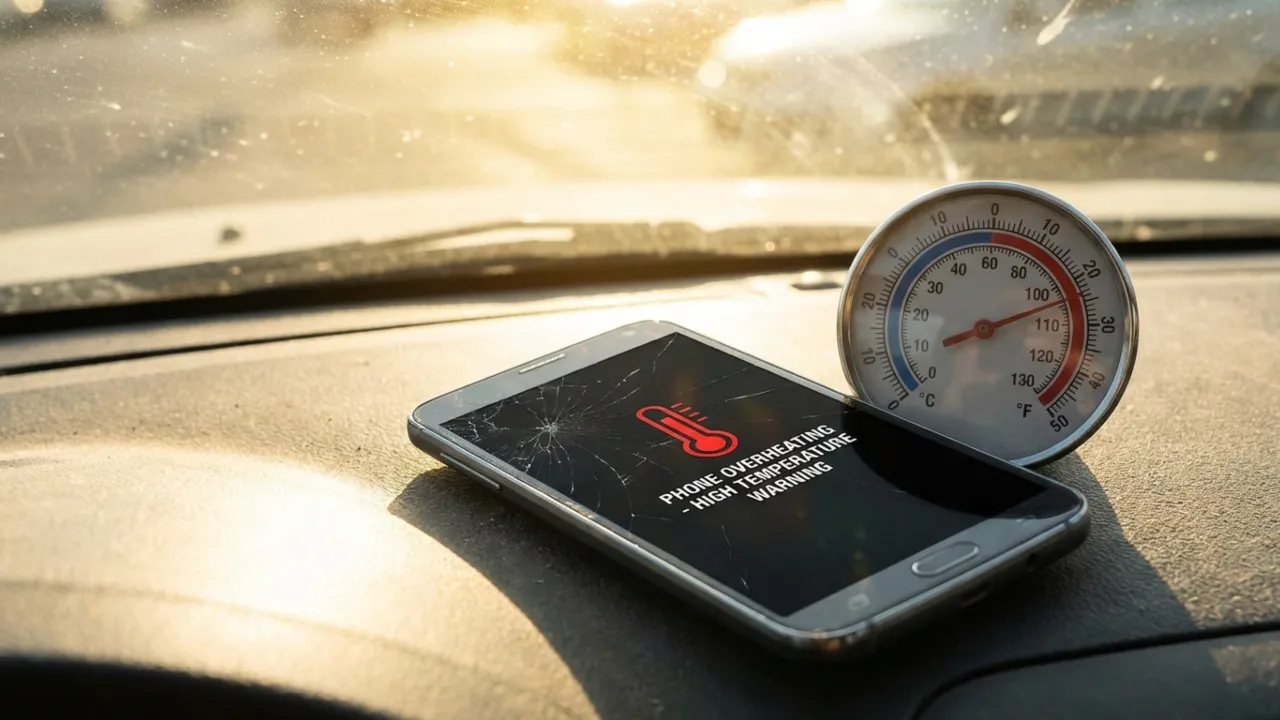
- Hot environments: Keep your phone out of direct sunlight and never leave it in a hot car. Temperatures above 95°F (35°C) cause permanent battery degradation, and it’s not only short term performance drops. The safe operating range is between 32°F and 95°F or 0°C to 35°C.
- Picture-in-Picture mode: Running YouTube or similar apps in PiP keeps part of the display active while the app processes video in the foreground. Disable it when you need to save battery: Go to Settings > Apps > Special app access > Display over other apps.
- Wi-Fi vs. mobile data: Wi-Fi uses less power than cellular mobile data, particularly when the signal is strong. Switch to Wi-Fi whenever available. However, if its signal is weak or unstable, turn it off so the phone stops searching for a connection. For better privacy and potentially faster Internet connection, you should enable Private DNS mode, which reduces unnecessary network overhead.
Frequently Asked Questions
Why is my Android battery draining overnight?
Battery drain during idle periods usually happens when apps sync data, download updates, or access location services. To find the specific cause, check your battery usage settings to see which apps were active while you slept.
Why does my Android battery drain fast in standby mode?
During standby, the device still performs background refreshes, email syncs, cloud backups, and app updates. Apps with “Allow all the time” location permissions also continue to work. Go to Settings > Battery to see which apps used the most power during standby, then restrict background activity for the worst offenders.
Does leaving my Android plugged in overnight damage the battery?
Modern mobile devices feature advanced power management that stops charging once they reach 100%, but if the battery remains at maximum capacity for some hours, it generates micro heat. To minimize wear, use “Adaptive Charging” settings that keep the charge at 80% and finish the last 20% just before your morning alarm.
Does fast charging degrade my Android’s battery health faster?
Heat degrades lithium-ion batteries, and fast charging generates more heat than a slow trickle charge. Although modern thermal management systems do a good job of mitigating damage, high-wattage chargers used over many years can age the battery slightly faster than normal.
Moreover, low quality third-party chargers that don’t match your device’s voltage specifications can lead to inefficient charging and excess heat. It can eventually reduce the battery’s total capacity. Use the original charger or buy a certified alternative from a reputable brand that meets your phone’s specific power requirements. Don’t gamble with a $5 cable from a gas station.
Does closing apps in the recent apps list save battery?
Usually no. Android hibernates background apps so they don’t consume power. Force-closing them often increases the load because the system has to reload every asset from scratch whenever you reopen the app. The exception is apps with active background processes, which you should restrict from Battery settings – no need to manually close.
Are third-party battery optimizer apps safe to use?
No, you must avoid them. Most are counterproductive because they force close background tasks that the system immediately restarts. This cycle eats more power than when the apps were left alone; native built-in Android tools are all you need to optimize battery.
Will clearing the cache and data help?
Clearing an app’s cache can help if corrupted files cause it to malfunction. Go to Settings > Apps, choose the app, open Storage, and then tap Clear cache. On some devices, you can also clear the system cache partition through recovery mode to address broader issues, though the results vary.
Why does my phone drain fast when I’m using 5G?
5G modems require more power to maintain high-speed data streams, particularly in areas with weak signals. The phone has to poll multiple towers or frequently switch frequencies, which generates heat and saps more battery than a stable Wi-Fi or 4G connection.
Why does the battery percentage jump or drop suddenly?
Sudden fluctuations, such as a drop from 40% to 15%, usually indicate calibration issues or degraded cells. When a battery can no longer accurately report its charge level, software fixes rarely work; it usually means the hardware has reached the end of its life and needs replacement.