







An Android phone’s battery degrades over time; that’s normal. After a year or two of daily charge, you’ll probably notice your phone dying faster than it used to. Thankfully, you can check Android battery health to see what’s going on under the hood and how much capacity the Lithium-ion cells have lost.
Unlike iOS, Android lacks a universal, single-tap battery health percentage across all devices, but there are a few ways to dig up this information. Depending on the device manufacturer and software version, here’s how to check your phone’s battery condition.
What is Battery Health
Battery health is a percentage that tells the battery’s current maximum capacity (how much charge it can hold) compared to when it was brand new. If your phone originally had a 4,000 mAh battery and it’s down to 80% health, it can fill about 3,200 mAh juice. So even when you use it the same way, it’ll die sooner.
Lithium-ion batteries are built to retain roughly 80% of their original capacity after 300–500 full charge cycles. Brands have their own threshold for what counts as “good,” but 80% is the standard yardstick. Once the capacity drops below this level, users generally see a decline in daily battery life.
Also: How to Block Spam Calls on Android
How to Check Battery Health on Android from Settings
Most Android phones don’t make battery health easy to find. In the normal Battery settings, you’ll usually only see usage stats and power-saving modes. But some companies add a Battery Health section that shows the current max capacity compared to when the phone was box-packed.
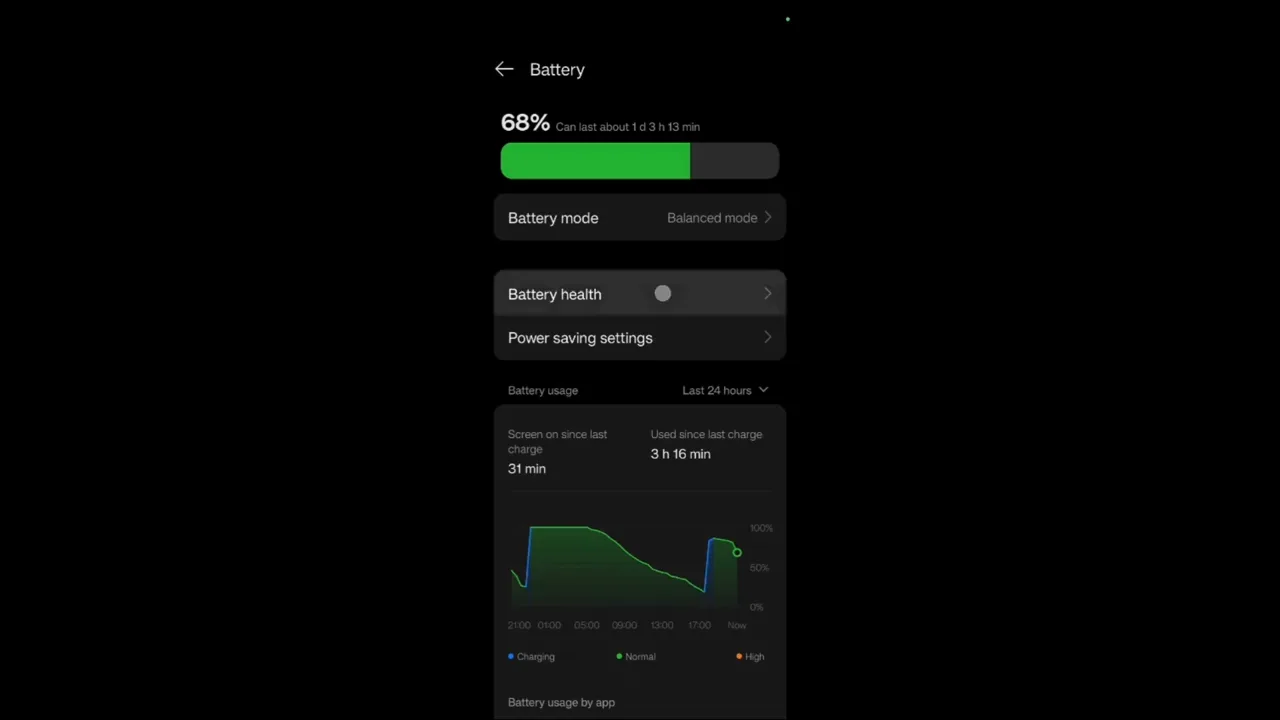
- Open Settings on Android.
- Scroll down and tap Battery (some phones label this “Battery & device care” or “Battery & charging”).
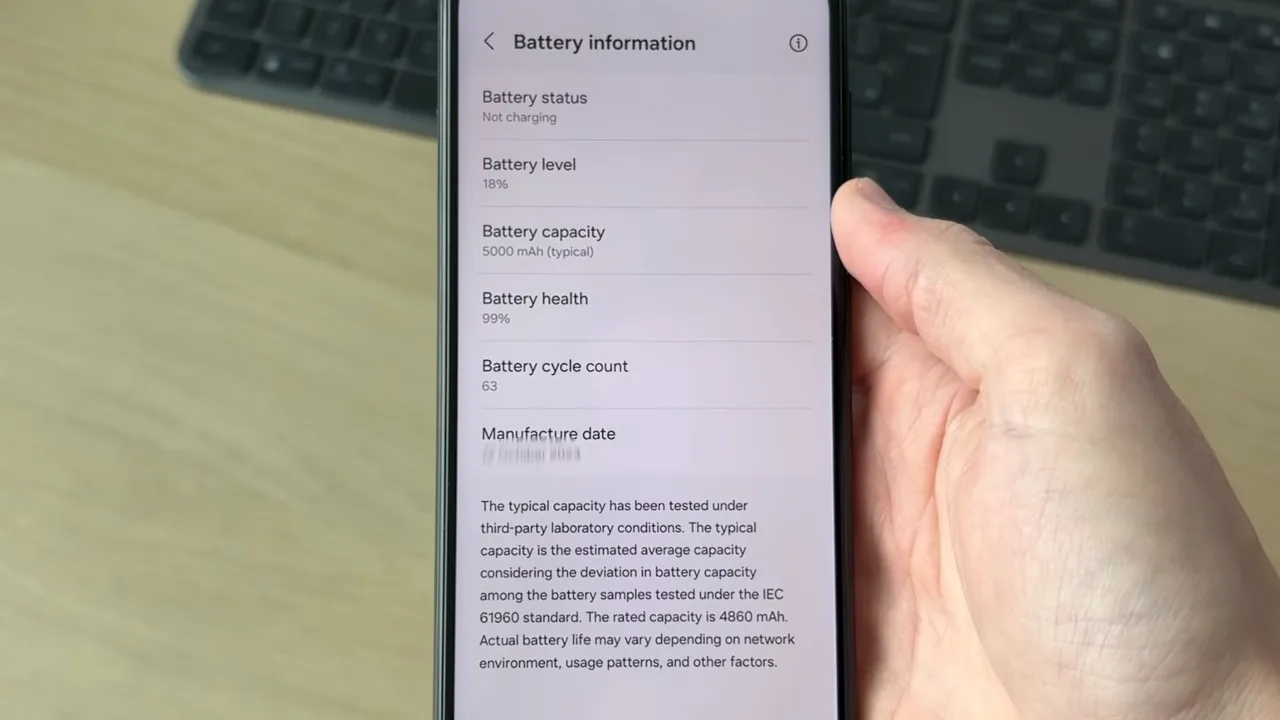
- You can also type Battery health in the Settings search to save the manual navigation. Samsung devices can show this as “Life” either with a rating like “Good” or as a percentage. If it says 95%, that means the battery can keep 95% of its original charge. On Pixel phones with Android 14+, there’s a dedicated Battery health card.
- If the phone doesn’t show health here, check for a sub-menu like Battery information or More settings.
On Android 14 and later, Google introduced a standardized battery health API. If your device is on a recent OS and received the update, you might see health data in Settings → Battery. Use the Battery diagnostics tool to run an automated test. This check identifies hardware faults and confirms if the battery is performing normally or needs instant replacement.
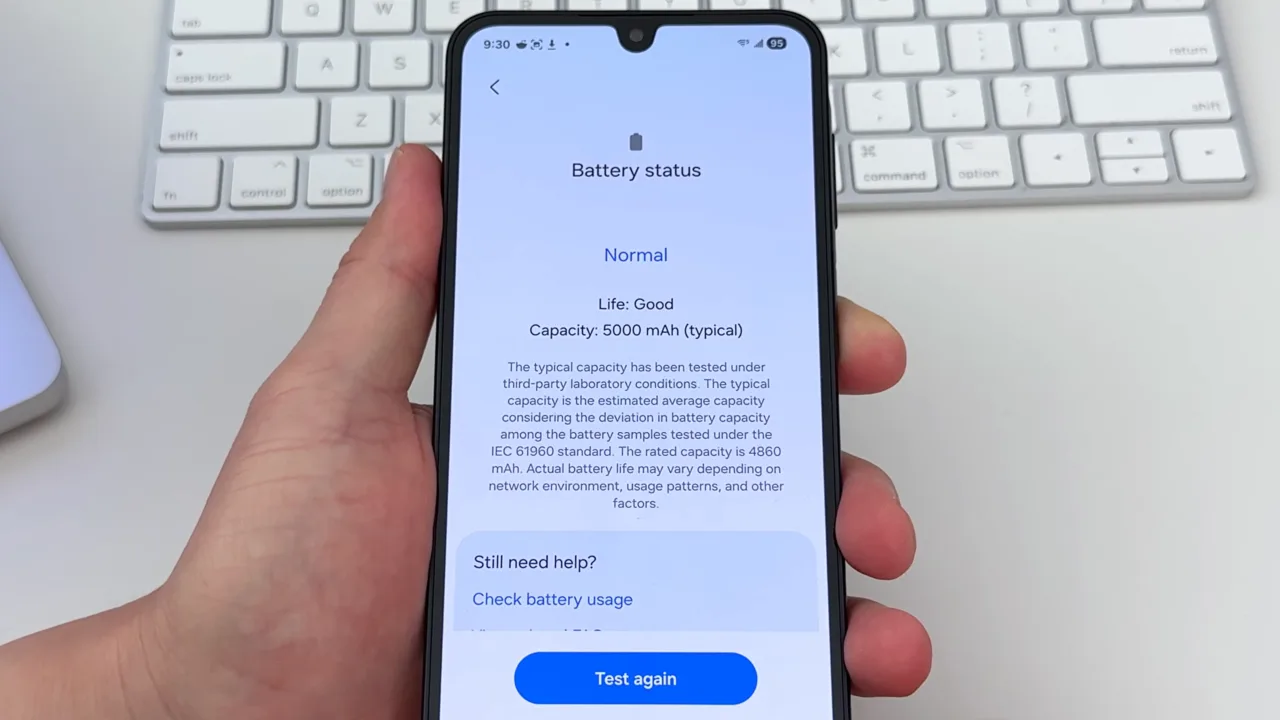
Samsung builds hardware diagnostics into its native apps for Galaxy Devices. To check your battery health:
- Open the Samsung Members app.
- Go to Support at the bottom right of the screen.
- Tap Phone diagnostics, then select Battery Status.
The tool provides a rating, such as “Life: Good” or “Life: Weak,” and shows the battery’s total capacity in milliampere-hours (mAh).
How to Check Android Battery Health with the Hidden Testing Menu
If you can’t find what you want in the usual settings, check out Android’s secret testing menus. They’re designed for technicians, but you can access them on most phones to find the battery health status.
- Open Phone app (the dialer) and type:
*#*#4636#*#* - This code will automatically open a testing menu; no need to tap the call button. If it doesn’t work, try these alternatives:
*#0228#(Samsung)*#*#7780#*#**#0*#(Samsung service menu)
- Once in the diagnosis section, tap Battery information or Battery status and check the fields labeled “Health” and “Battery level.” Further, you can see the voltage and temperature readings.
If typing any code clears the dialer or does nothing, your carrier or phone brand has probably disabled the menu. Some smartphones block these for security, so don’t worry if they don’t work on yours.
In the menu, the battery health field usually states “Good,” “Overheat,” “Dead,” “Over voltage,” “Unspecified failure,” or “Cold.” You won’t see an exact percentage, but “Good” confirms the battery is still under a normal operating range as far as the system is concerned.
Also: How to Hide Photos and Videos on a Samsung Galaxy Phone
How to Check Battery Stats on Android using ADB Commands
If you’re comfortable with a computer, Android Debug Bridge (ADB) can fetch detailed battery information from the Android kernel that’s otherwise hidden. ADB is a developer tool that lets you communicate directly with your phone from a PC.

Here’s how you can use it to find the Android battery status:
- Download Android Platform Tools from the Android developer website.
- Extract the files to a folder on your computer.
- On mobile, go to Settings → About phone and tap Build number 7 times to enable Developer Options.
- Next, open the Developer Options menu and enable USB debugging.
- Connect your phone to the PC with a USB cable.
Open a command prompt or terminal in the Platform Tools folder and type: adb shell dumpsys battery
It will dump all battery data, including current level, voltage, temperature, and charging status. Look for these important things:
- level: Current charge percentage
- voltage: Current voltage (normal is around 3700-4300 mV)
- temperature: Battery temp in Celsius × 10
- health: Battery condition code
For more detailed info, try: adb shell dumpsys batterystats
This will show historical battery usage data, but it’s pretty technical. Check the voltage readings and discharge patterns for any inconsistencies or values outside the normal range.
How to Check Battery Health on Android with Third-Party Apps
If Android’s built-in tools don’t provide enough detail, third-party apps can track long-term degradation data. These apps can access battery APIs and present the data in easy-to-read formats. Below are the good tools I’ve tested and recommend.
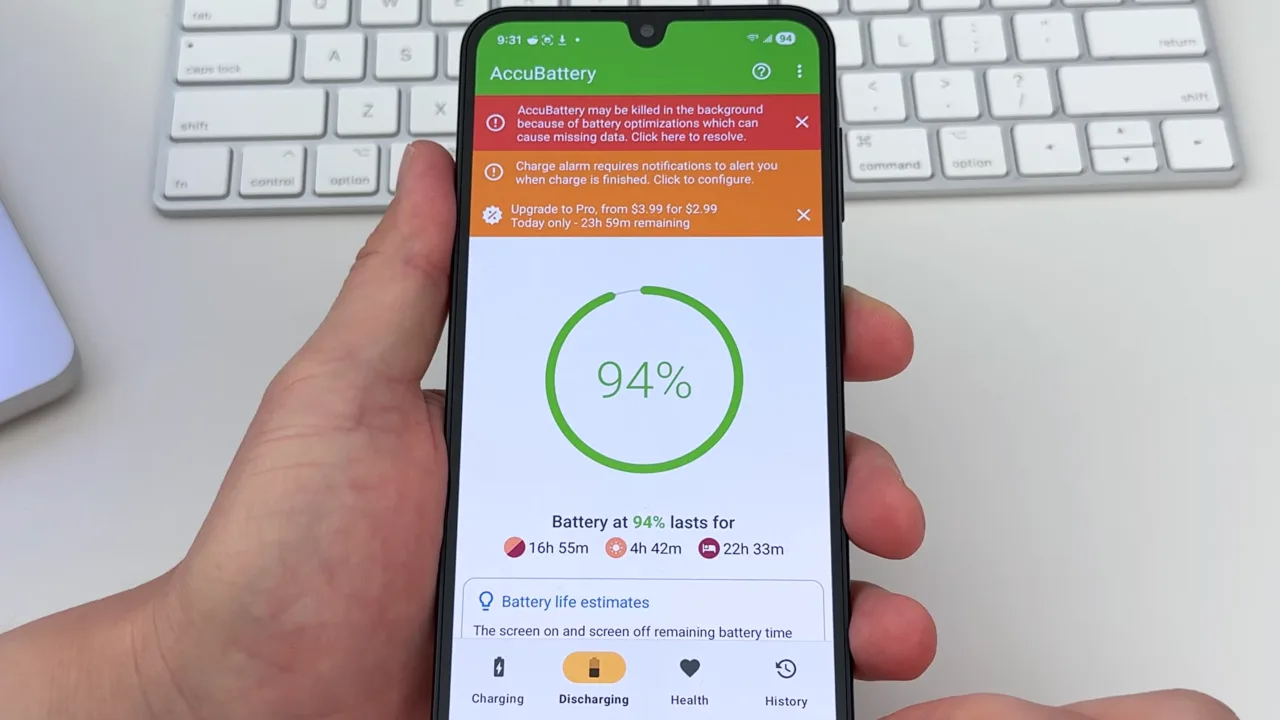
AccuBattery
AccuBattery is the best application to monitor battery details on Android. It tracks charge cycles, voltage, and how your phone drains over time, then uses that to estimate your battery’s actual health.
- Download AccuBattery from the Google Play Store.
- Keep it installed and use your phone normally for at least a week. The app needs to monitor a few full charge/discharge cycles to get a solid baseline.
- After 6–7 days, open the app and tap the Health tab at the bottom.
AccuBattery estimates capacity by measuring how much charge flows in during charging sessions. The Battery Health bar displays a hard percentage; over 80% is generally normal. It also graphs battery wear over time and shows how your charging habits affect long-term lifespan.
Battery Guru
Battery Guru reads battery health data straight from Android’s system APIs and presents it cleanly. And unlike AccuBattery, it doesn’t need multiple charge cycles to give the details. Install it, and find what the system already knows right away. You’ll see battery health, temperature, voltage, charge cycles, and capacity on the main screen.
Ampere
Ampere can also check the real-time current flowing into or out of the cells. You can use it to compare different chargers and cables, or to troubleshoot why your phone is charging slowly. Further, it provides some basic health information.
What to Do When Battery Health is Low
Once the battery health drops below what is considered a “fair” score, you’ve got a few choices. It depends on how old the phone is and how much you care about it.
Get the Battery Replaced
Replace the battery if:
- Health drops below 75-80%.
- The phone shuts down unexpectedly even though there’s still charge left.
- The battery drains a lot faster than it did when the phone was new.
- The device runs hot during normal use.
- The phone is still covered under a manufacturer’s warranty or replacement program.
Battery replacement is almost always worth it for a device that’s less than three years old and otherwise working well. It costs less than a new gadget and can restore performance. Official service centers provide genuine parts and keep your warranty intact. Third-party repair shops cost less, but the quality can be a gamble, so stick to well-reviewed shops that use OEM or high-quality aftermarket cells.
Google, Samsung, and OnePlus all have official battery replacement programs. Check the manufacturer’s site for current prices and if it’s available in your region.
Also: Why Won’t My Phone Charge? 12 Ways to Fix Android Charging Issues
Slow Down the Degradation
Before you replace, a few habits really do help batteries last longer. That’s not folklore. Lithium-ion batteries are well studied, and the results are very consistent. To slow battery degradation, follow these steps to extend its life:
- Keep the charge between 20% and 80%. Batteries face more stress when they are fully drained or kept at a 100% charge. Staying within this middle range uses shallow discharge cycles, which puts less strain on the hardware than full cycles.
- Don’t leave the phone charging overnight. Check the settings for features like Adaptive Charging, Smart Charge, or Battery Protect. These tools pause charging at 80% or delay the final 20% until just before you usually wake up or unplug. This reduces the time the battery spends at high voltage or temperatures.
- Don’t always charge with a high-watt fast charger. It’s fine for a quick juice fill-up, but a standard charger is better for regular top-ups since it produces less heat.
- Use the power adapter and cable provided by the manufacturer or a reputable, certified brand. Uncertified chargers may provide inconsistent voltage or lack the safety standards required to prevent overheating.
- Keep the phone away from direct sunlight and hot cars. High temperatures are the primary cause of chemical degradation in batteries. If the device gets hot while charging—common during gaming or video calls—remove the case to allow heat to dissipate and don’t use heavy apps until it cools down.
- Device makers and Android regularly release updates, many of which include power management fixes and tweaks. When the OS is always up to date, it does a better job of managing the hardware resources.
Enable Battery Optimization Features
Many Android phones have software that can stretch their daily battery life, even if it’s already degraded. You can turn on Battery Saver mode for everyday use, disable the Always-on Display, and limit background app activity under your phone’s battery settings. These changes won’t fix a worn-out battery, but they will buy you more time before you need to plug the adapter.