





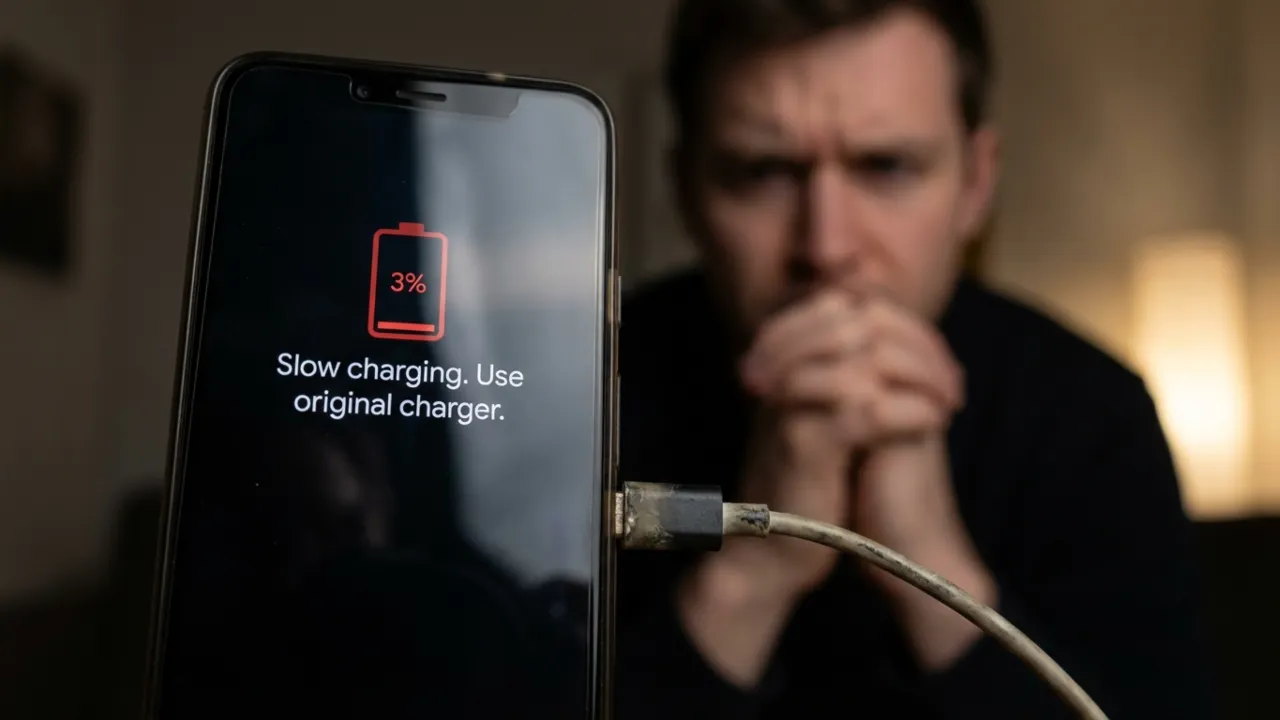

Wondering, “Why is my Android phone charging slowly?” The reason is usually the hardware, settings, or device use while it’s plugged in. While smartphone batteries lose capacity after a year or two, age mostly results in Android battery drain fast, or the battery won’t even charge. Charging delays are more likely due to a wrong power adapter, a dirty port, or background apps consuming power. This guide explains the specific causes of slow Android charging and how to fix them.
- Your Charging Cable is the Problem
- Your Charger (or Power Adapter) isn’t Powerful Enough
- A Dirty Charging Port is Killing Your Connection
- You’re Using a Weak Power Source
- Your Phone is Overheating
- Background Apps are Draining Power During Charge
- Using Your Phone While Charging
- Adaptive Charging or Battery Protection is Capping Speed
- Your Battery is Degraded
- Software Bugs and Pending Updates
- Network Settings Have Issues
- Battery is Physically Damaged
- When to Consider a Factory Reset or Hardware Repair
- Frequently Asked Questions
- What’s the difference between USB Power Delivery and proprietary fast charging protocols?
- Is it safe to use a higher wattage charger than what my phone manufacturer recommends?
- Why does fast charging slow down after 80%?
- Why does my new Android phone charge more slowly than my old one?
- Can a damaged cable harm my phone’s battery even if it still charges?
- How do I recalibrate an Android battery that shows inaccurate percentages?
- Can wireless charging be as fast as wired charging?
Your Charging Cable is the Problem
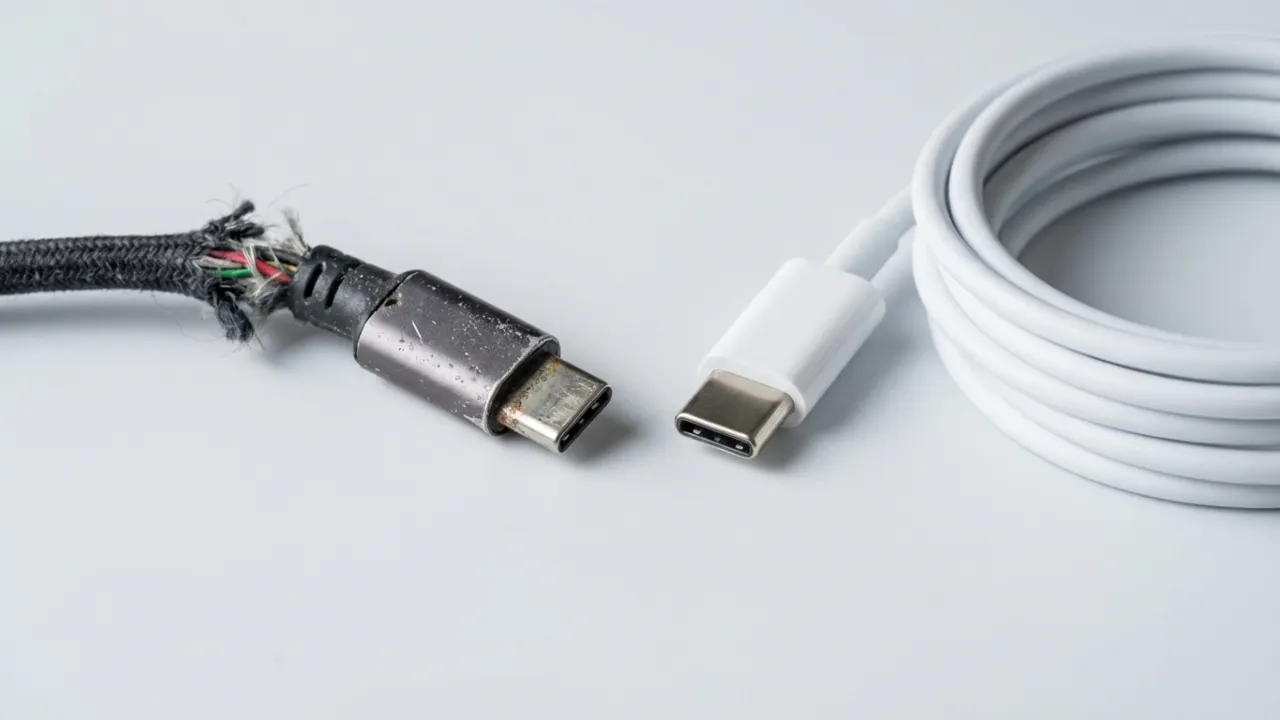
The phone’s charging cable is almost always the weakest link in the chain. After months of bending, twisting, and general abuse, the internal wires fray and lose their ability to carry full power. The cables endure heavy punishment like being stuffed into bags, stepped on, yanked at angles, and coiled and uncoiled hundreds of times. Even if a cable looks fine on the outside, internal wire damage can cause a big drop in power transfer.
A faulty cable is the main reason a smartphone battery charges slowly, especially after being used for a long time. Beyond physical damage, not all USB-C cables are equal. Cheap or generic cables often lack proper power delivery (PD) support, so even if your charger outputs 45W, the cord will become the bottleneck. Get USB-IF certification for USB-C cables. A high wattage rating, at least 60W for USB-C, is another important factor to consider.
Check for physical damage such as exposed wiring, bent connectors, or a loose fit in the charging port. Even small internal breaks you can’t see can reduce charging speed. USB-C cables vary in power capacity; a cheap cable from a gas station may only provide 5 watts while your phone supports 25 watts or more. Stick with cords from the device manufacturer or certified third-party brands that list their power rating.
Fix: Test with a different cable first. If the charging speed improves, replace the old one. Always buy cables that support fast charging and match your phone’s charging standard, like USB-C PD or PPS.
Your Charger (or Power Adapter) isn’t Powerful Enough
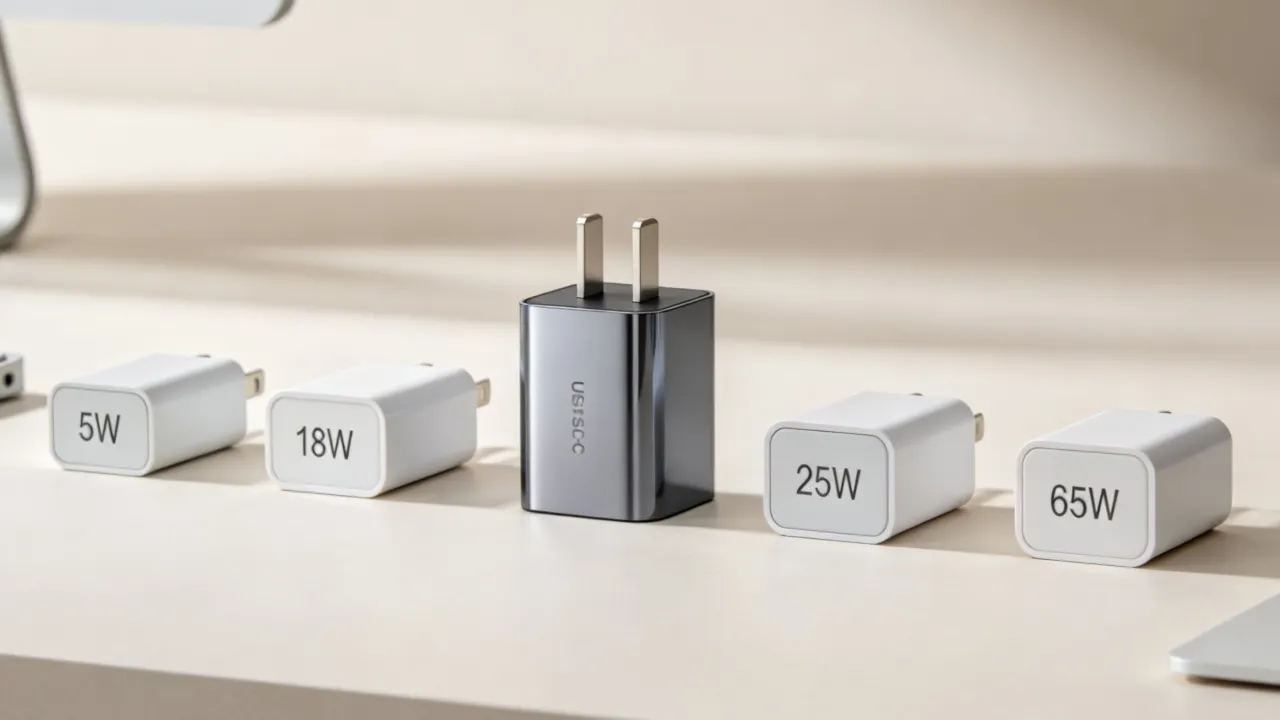
Not all power bricks output the same wattage. Connecting a modern smartphone to an old 5W adapter or a laptop’s standard USB-A port guarantees a slow trickle charge. Even though new devices support 45W, 65W, or more, that only happens if the charger supplies sufficient power.
Fast charging starts around 18W, but many old or generic adapters are limited to 5W or 10W. Since manufacturers no longer include chargers in the box, people often use spare bricks that lack the hardware to control fast charging.
To get the maximum power delivery, use a 20W or higher power adapter and a certified cable. Damaged or low-quality cables often bottleneck the power flow and slow down the process. Wireless chargers face similar restrictions. Third-party pads frequently fail to hit maximum speeds on Samsung or Pixel phones, which often require OEM or certified chargers to achieve their rated wireless capacity.
Fix: Check the fine print on your wall adapter; you need a block that delivers at least 15W to 25W (often labeled 9V/2A or higher) to trigger standard quick charge and ensure it matches or exceeds the phone’s maximum intake. Skip the multi-port hubs or weak car chargers during tests. If wireless charging is slow, switch to a cable to see if the adapter or pad is the problem.
Expected Charging Times:
| Battery Size | Charger Wattage | Expected Time (0-100%) |
|---|---|---|
| 3,000mAh | 18W | 90-120 minutes |
| 4,000mAh | 25W | 60-75 minutes |
| 5,000mAh | 25W | 75-90 minutes |
| 5,000mAh | 45W | 50-60 minutes |
| 5,000mAh | 65W | 40-50 minutes |
A Dirty Charging Port is Killing Your Connection
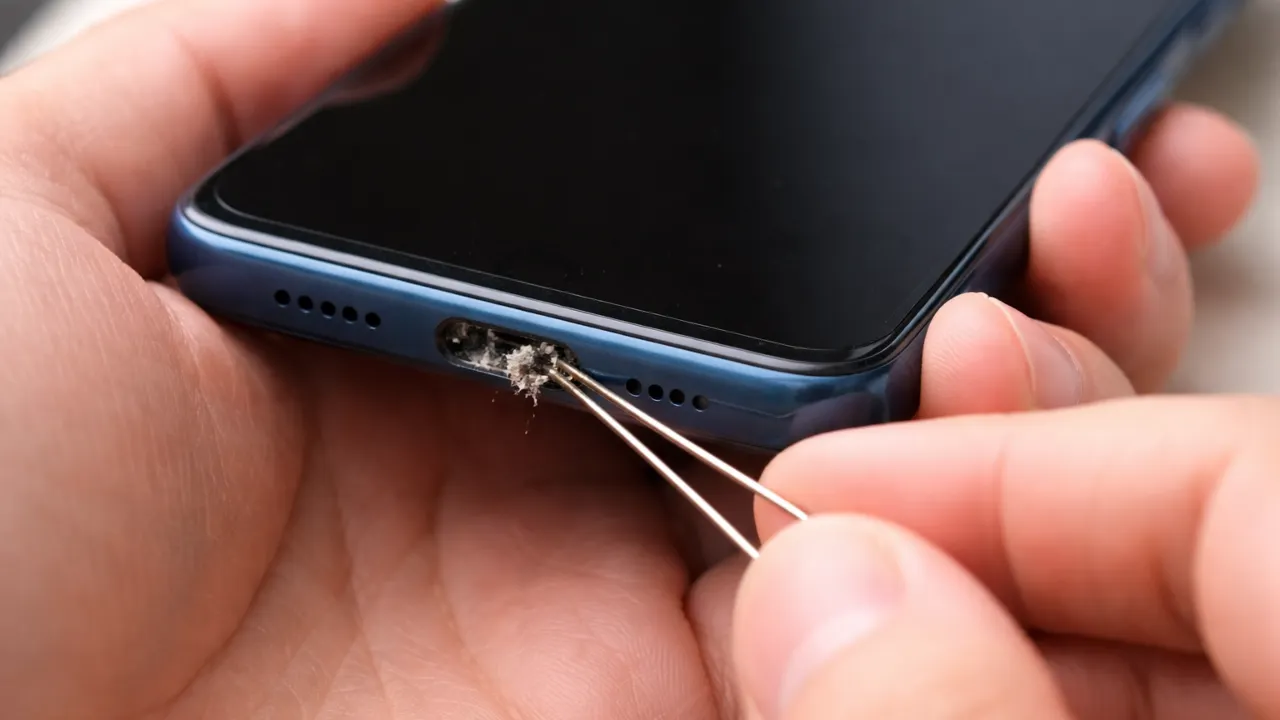
Pocket lint is more destructive than you’d think. Every time you pocket your phone, tiny fibers and dust particles get jammed into the charging port. Over time, this debris creates a physical barrier that prevents the cable from seating properly, blocks the electrical connection, and slows charging.
Before cleaning, power off the phone. Use a wooden toothpick or a dry toothbrush with soft bristles to gently scrape the bottom and sides of the port to dislodge compacted grime. Don’t use metal objects like needles or paperclips, as these can permanently damage the connection pins. If you see green or white crusty buildup, that’s corrosion from liquid damage and may require professional repair.
Fix: Check if the cable sits flush against the phone’s body when plugged in. Any visible gap or wobble suggests the port is either worn or still contains debris. For loose particles, use a can of compressed air to blow out the port. Turn on a flashlight to inspect the interior and ensure every obstruction is gone.
You’re Using a Weak Power Source
Wall outlets deliver more consistent power than laptop USB ports or power banks. Most USB-A ports in computers max out at 5–10 watts, whereas even a basic wall adapter provides 10–15 watts. Car USB ports and old notebook ports are designed for data transfer, not for high-speed charging. If you rely on them, your Android will charge slowly because these sources often can’t deliver the amperage required for a quick juice fill.
Fix: Always charge from a wall outlet with a proper fast-charging adapter. If you must charge via USB, look for USB-C ports labeled for Power Delivery (PD). Public charging stations at airports or cafes might also limit power output to protect their circuits, so use your own charger in a dedicated socket whenever possible.
Your Phone is Overheating
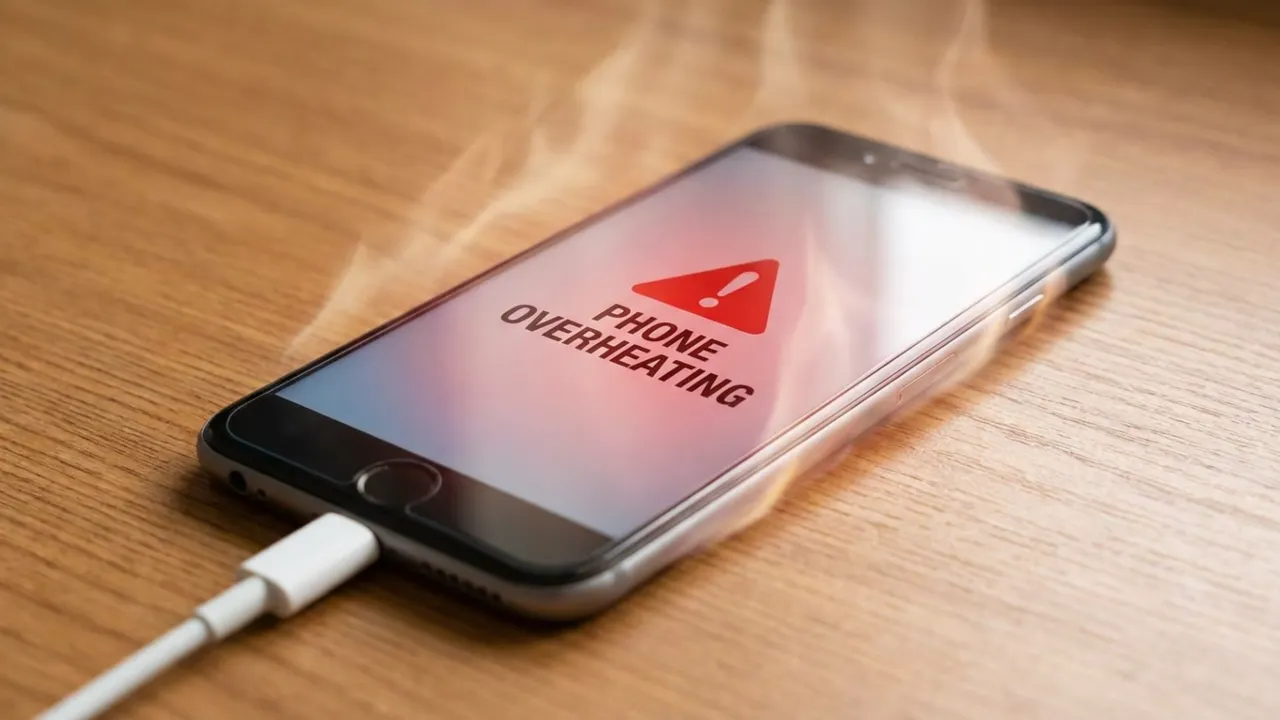
Lithium-ion batteries degrade fast when exposed to heat. To prevent damage, Android phones use thermal management systems (which protect the battery from heat damage) that slow or pause charging as temperatures rise.
Using a phone while it charges increases heat, which triggers these protections, and charging crawls to a halt. Leaving it in direct sunlight makes it worse. So does charging on your bed or couch where heat gets trapped and doesn’t escape. High ambient temperatures in warm climates can also cause the system to throttle charging speeds.
Fix: Charge the device on a hard, flat surface where air can circulate, and keep it away from windows and direct sun. Remove thick cases if the back feels warm, and let an overheated phone cool down for 10–15 minutes before plugging it in again.
Background Apps are Draining Power During Charge
Active background apps and processes consume power that would otherwise go toward charging. If your phone uses 3 watts on background tasks while receiving 10 watts from a charger, only 7 watts will get into the cells.
Software bugs in recent app updates can cause high CPU usage, which generates heat and impacts charging. If the speed suddenly drops, a recent app or system update is likely the culprit. The new version might have resource-intensive features or a bug that unintentionally drains battery.
To identify problematic apps, open the Google Play Store, tap your profile icon, and go to Manage apps & device. Select the Manage tab and sort by Recently updated. Compare this list against the apps listed under Settings → Battery → Battery Usage to find any with high power consumption.
Fix: Force close power hungry apps before you connect the charger. If a recently updated app shows abnormal use, uninstall it or restrict its background activity. Finally, restart the phone to clear temporary background tasks, which mostly restores expected charging speeds.
Using Your Phone While Charging
Scrolling through social media or watching videos while plugged in defeats the purpose. The screen is the biggest power drain on any mobile, and active use can eat more power than the charger provides. When you use the phone while charging, the incoming current must first power the hardware and the display. Only the remaining power goes to the battery, which means long charge times. Gaming and video streaming are the worst offenders of high power consumption.
Fix: Put the phone face down and leave it alone. Need a faster charge? Enable Airplane Mode to kill cellular, Wi-Fi, and Bluetooth radios. You can also enable Battery Saver mode to limit background activity when charging.
Adaptive Charging or Battery Protection is Capping Speed
Many Android devices, including Pixel, Samsung Galaxy, and Xiaomi models, ship with built-in battery protection features that intentionally slow or pause charging to extend the battery’s life.
Google’s Adaptive Charging prevents Pixel phones to reach 100% until shortly before you usually unplug. It learns your charging habits over two weeks. If you plug in at night and leave for work at 8 a.m., the phone will stay partially charged overnight and finish the cycle right before you wake up. Samsung’s Protect Battery feature caps the charge at 85%. While these settings improve long-term health, they can seem to be a fault if you expect a full charge.
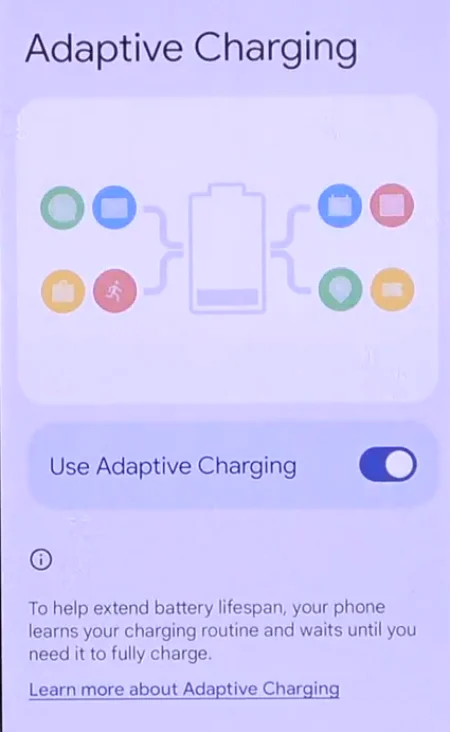
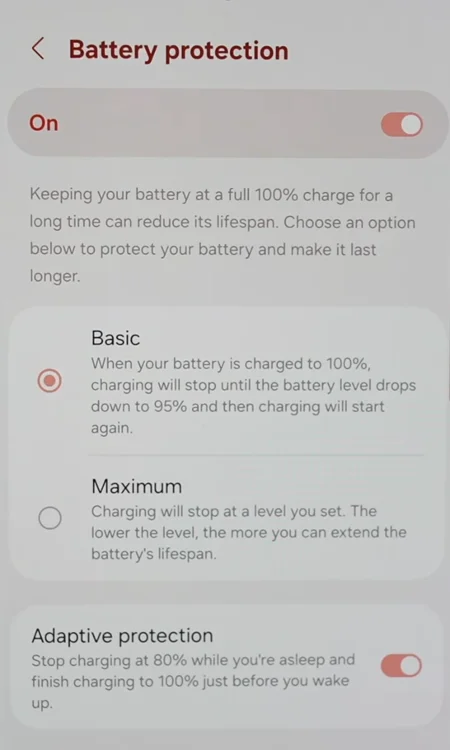
Fix: On a Pixel, go to Settings > Battery > Charging optimization and toggle the feature off. On a Samsung device, navigate to Settings > Battery and device care > Battery > More battery settings and turn off Protect battery. Whatever Android brand you have, open the battery settings and find anything specific to charging limits or optimization.
Your Battery is Degraded
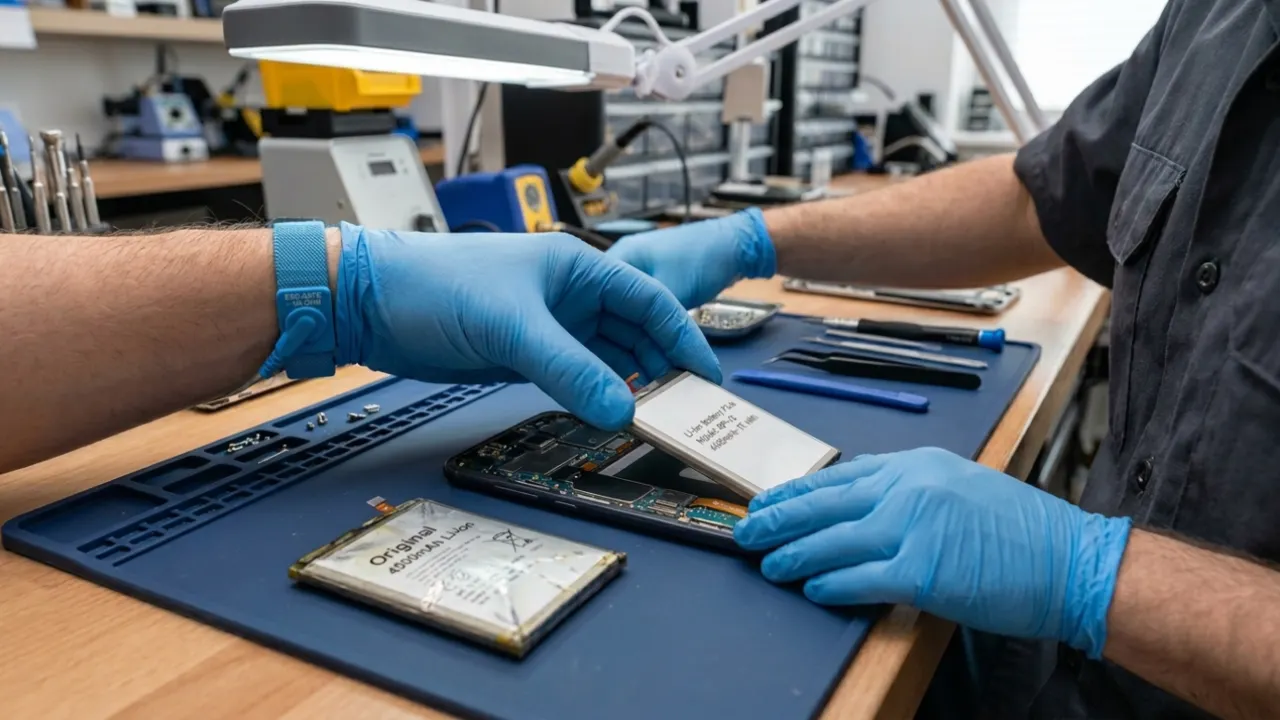
Batteries degrade over time. After 500 to 800 charge cycles (about two years of daily use), the internal resistance of the battery increases. To protect the aging cells, the power management chip limits the charging current. If the device shuts down at 15% or drains quickly after a full charge, the slow charging is a symptom of a dying battery.
Unlike iPhones, most Androids don’t have a native battery health percentage in the settings. Some models intentionally limit charging speed overnight to reduce wear. To check its status, you can dial *#*#4636#*#* on some phones to access a hidden info menu. Alternatively, apps like AccuBattery provide estimated battery wear percentage based on actual charge data over time.
Fix: If your phone is more than two years old and you can’t find another reason for slow charging, battery replacement is the most effective fix. Authorized service centers typically charge between $50 and $100 based on the model. Third-party shops may be cheap, but the quality varies.
Software Bugs and Pending Updates
Android OS and app updates can introduce bugs that interfere with charging or trigger background processes that drain battery while the screen is off. Conversely, some updates include patches meant to improve it. To manage this, keep the operating system and apps up to date. If you notice a lag in charge, restart the device to clear stuck processes and flush the RAM, which often fixes temporary software glitches.
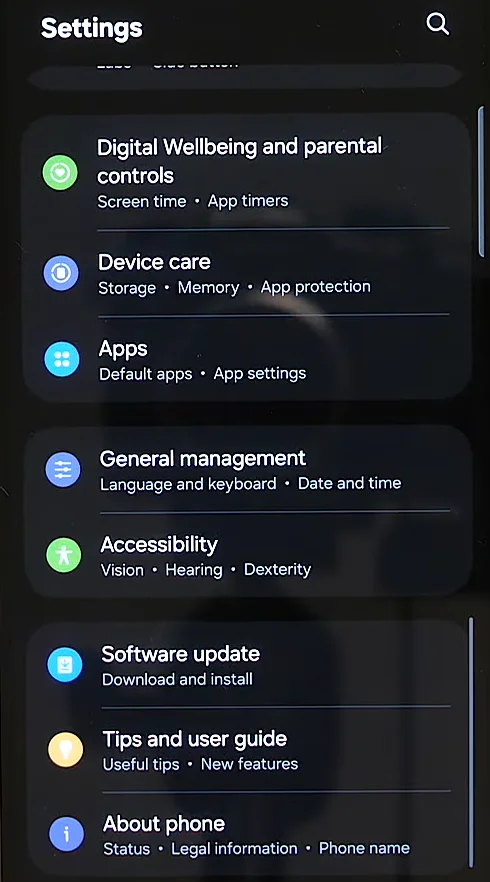
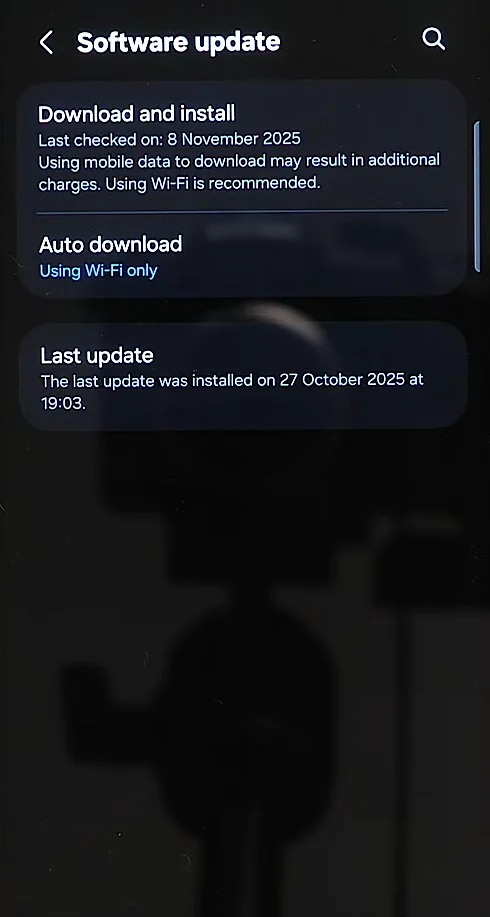
Fix: Check for updates at Settings → System → System update and install any pending. Reboot the device before the next plug-in. If charging went haywire right after you updated something, check the user forums for the device model to see if it’s a known issue.
Network Settings Have Issues
Network connectivity errors can occasionally disrupt battery management and charging profiles that sync via network data.
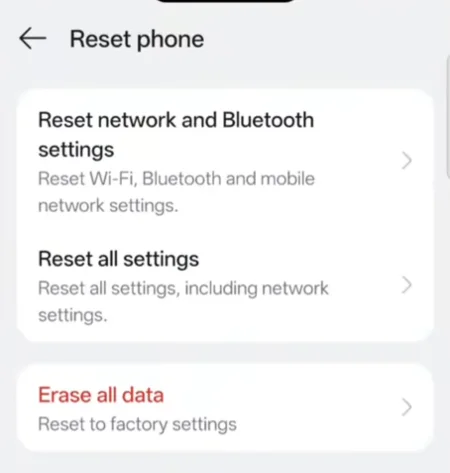
Fix: Go to Settings > System > Reset Options > Reset Wi-Fi, mobile & Bluetooth. It will clear saved network data but keep your files and apps. You will need to re-enter Wi-Fi passwords and re-pair Bluetooth devices. Restart the phone after that and test the charging speed. This solution doesn’t work for everyone, but some users dealing with software conflicts have found it solves their charging problems.
Battery is Physically Damaged
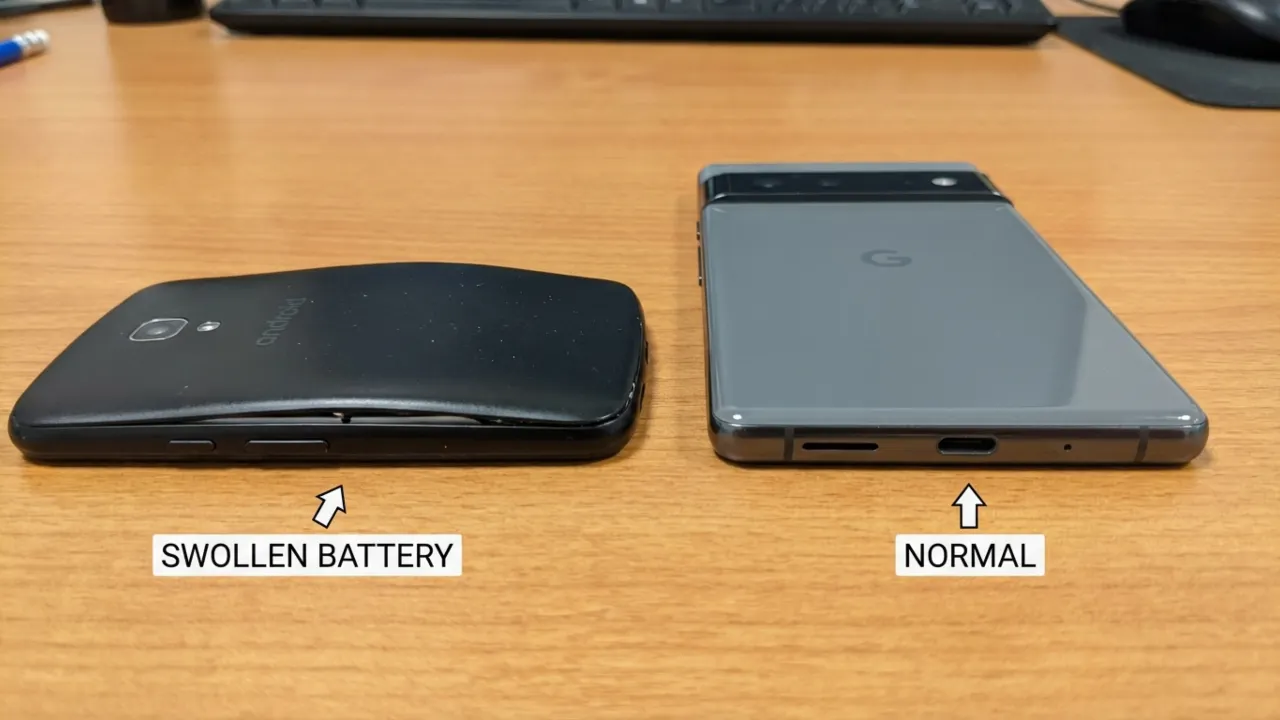
Dropped your phone recently? Internal damage to the charging port, motherboard, or battery will affect the charging pace regardless of external fixes. Signs of hardware failure include a cable that only works at specific angles or one that falls out easily, charging stops and starts randomly, or a loose charging port. Any of them indicates physical port damage that requires professional repair.
Fix: Inspect the device for a swollen battery. If the back cover bulges or the screen lifts from the frame, stop using the phone and don’t plug it in. A swollen battery is a fire hazard and needs instant replacement.
When to Consider a Factory Reset or Hardware Repair
If you have tried all the troubleshooting steps above and your device continues to charge slowly despite using a verified charger, a high-quality cable, and a clean port, you might be dealing with a complex software conflict or a hardware failure.
In such cases, consider performing a factory reset to rule out system conflicts. Since a reset will permanently erase all data on your phone, you must back up all your important data beforehand. Next, read our detailed guide on how to factory reset an Android device.
If the port is physically damaged—bent pins, corrosion, or a loose connection—it requires a hardware repair. Check if your device is still under warranty or covered by insurance. For the models out of warranty, third-party shops can replace USB-C ports at a low cost.
Frequently Asked Questions
What’s the difference between USB Power Delivery and proprietary fast charging protocols?
USB-PD is an open industry standard that negotiates power limits between devices to ensure universal compatibility. Proprietary protocols use custom circuitry in the charger and the phone to reach high amperages. These systems offload heat-generating power management tasks from the device to the wall adapter to keep it cool.
Is it safe to use a higher wattage charger than what my phone manufacturer recommends?
Yes. A device only draws the power it’s designed to handle. If you plug a phone capped at 18W into a 100W laptop charger, it will still only take 18W. The charger and the phone’s power management IC communicate to establish a safe rate, which eliminates the risk of the battery being overcharged.
Why does fast charging slow down after 80%?
Lithium-ion batteries cannot safely accept high current when they are nearly full. From 0-80%, the phone uses maximum power (constant current phase). After 80%, it switches to constant voltage mode and gradually reduces current to prevent overheating and cell damage. This protects against battery swelling and long term degradation. The last 20% can take as long as the first 80% combined.
Why does my new Android phone charge more slowly than my old one?
New phones with larger batteries take longer to fill in absolute terms, even at higher wattages. A 5,000mAh battery charging at 45W can take 60–75 minutes, whereas an old 3,000mAh battery at 18W might reach 100% sooner because the total capacity is small. Some manufacturers also set the latest devices to charge more slowly to limit heat and extend the battery’s lifespan.
Can a damaged cable harm my phone’s battery even if it still charges?
It is rare, but possible. Cables with exposed wiring can deliver inconsistent voltage, causing the battery to cycle fast between charge and discharge, which generates heat and stresses the cells. The big risk is fire, as frayed cables can spark or overheat. If a cable gets hot, has exposed wires, or disconnects repeatedly, replace it. While modern devices have internal protection circuits, it’s unwise to use damaged hardware for safety.
How do I recalibrate an Android battery that shows inaccurate percentages?
Drain the phone completely until it shuts down. Turn it back on and let it shut down again to ensure the battery is entirely depleted. Plug the mobile into an uninterrupted power source and let it charge to 100% without turning the screen on. Once full, power it on. If the indicator drops below 100%, plug it back in until it reaches the maximum again.
Can wireless charging be as fast as wired charging?
Not quite. Most Android phones cap wireless charging at 15 watts. Some brands like OnePlus and Xiaomi push their proprietary systems to 50 or even 80 watts. In comparison, standard wired fast charging usually delivers 25W–65W. Wireless charging also creates more heat, which can lead to thermal throttling and slow charging. Want speed? Stick with a cable. But wireless has gotten much better over the past few years.