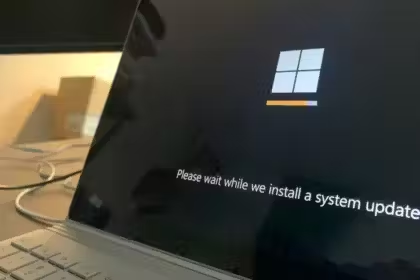



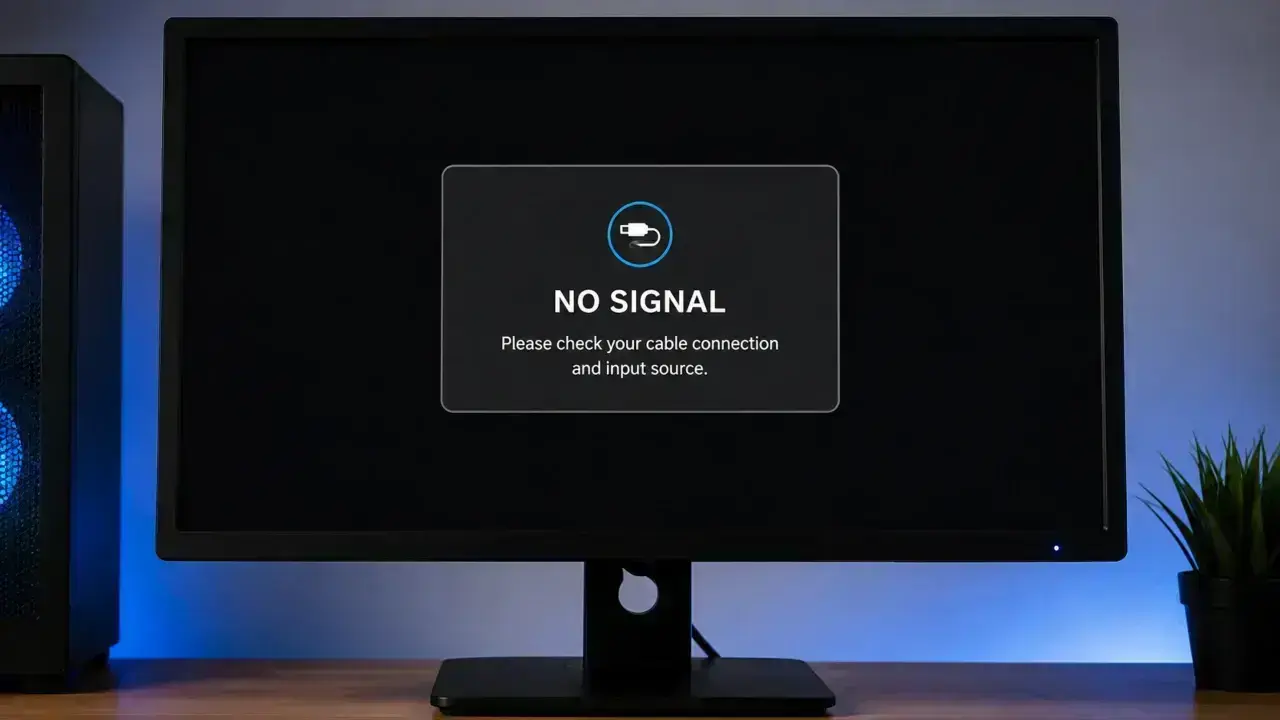

Seeing “No Signal” on your monitor usually means the display is powered on but is not receiving a stable video signal from the computer. The cause can be as simple as the wrong input or a loose cable, but the same message can also appear when Windows, the graphics driver, a dock, a graphics card, or the PC itself is failing to produce video. Read this guide to learn how to troubleshoot a monitor’s no signal issue and easy ways to fix it.
Quick Summary
A No Signal, No HDMI Signal, No DisplayPort Signal, or similar monitor message means the monitor has power but is unable to receive a functional video feed from your device. The usual causes are the wrong monitor input, a loose or faulty cable, the PC using the wrong video port, an adapter or dock limitation, or an underlying GPU driver issue.
Start here: select the correct input on the monitor, reseat both ends of the cable, confirm a desktop cable is connected to the graphics card rather than the motherboard, then test with another cable or display.
Before You Start: 60-Second Checklist
- Confirm the monitor’s power light is on.
- Open the monitor menu and select the same input as the connected cable: HDMI 1, HDMI 2, DisplayPort, USB-C, and so on.
- Check that the cable is firmly seated at both ends.
- On a desktop with a dedicated graphics card, connect the monitor to the GPU ports, usually lower down on the PC’s back.
- Remove docks, splitters, converters, capture devices, and nonessential USB accessories for the first test.
- Use one monitor and one direct cable connection until the picture returns.
What “No Signal” Actually Means
A monitor saying No Signal is different from one with no power. The monitor is working well enough to show its own warning message, but it cannot detect a usable video feed on the selected input.
That narrows the fault to one of four places:
| Where the fault can be | Typical sign | Best first check |
|---|---|---|
| Monitor input or settings | Cable is connected, but the monitor is set to another source. | Select HDMI, DisplayPort, or USB-C manually in the monitor menu. |
| Cable, adapter, or port | Signal appears only when the cable is moved, or not at all. | Try a known-good direct cable and another port. |
| Computer video output | Desktop powers on, but no monitor receives a picture. | Use the dedicated graphics card output; test another monitor. |
| Windows, driver, or display setting | A picture appears during startup but disappears at Windows sign-in or after an update. | Reset the graphics driver, then update or roll back the display driver. |
Recommended Troubleshooting Order
Follow the steps below in sequence. The first checks are quick, reversible, and solve most cases. Driver and internal hardware checks belong near the end because they are only useful after you’ve ruled out the monitor, cable, and correct video output.
Check monitor power and choose the correct input.
Reset the monitor and the computer-to-monitor connection.
Test a different cable, port, or direct connection.
Confirm a desktop monitor is connected to the correct graphics output.
Remove docks, adapters, splitters, and extra peripherals.
Run the monitor’s built-in self-test or test it with another device.
Use Windows display and graphics-driver fixes when the operating system loads.
Check resolution, refresh rate, HDR, and multi-monitor configuration.
Investigate POST, GPU, RAM, or firmware issues when there is no picture before Windows starts.
Arrange professional repair or warranty support after troubleshooting identifies the failed part.
1. Check Monitor Power and Select the Correct Input
A monitor can be powered on and still be looking at the wrong connection. So:
- Press the monitor’s power button and check its power LED.
- Press the Menu, Input, Source, or joystick button on the monitor.
- Select the input that matches the physical cable:
- HDMI cable connected: select HDMI 1, HDMI 2, or the matching HDMI label.
- DisplayPort cable connected: select DisplayPort or DP.
- USB-C cable connected: select USB-C, Type-C, or USB-C Display.
- If the monitor has an Auto Source option, turn it on after confirming the right input works.

Don’t just count on the monitor to pick the right input automatically. Screens with multiple HDMI ports, DisplayPort, USB-C, and built-in KVM switches can get stuck on the wrong source if you’ve recently swapped cables, had a power outage, or updated your firmware.
2. Reset the Monitor and Video Connection
A clean power reset clears a failed HDMI, DisplayPort, USB-C, or dock handshake without affecting Windows settings.
- Turn off the computer and monitor.
- Disconnect the monitor’s power cable from the wall outlet or power strip.
- Disconnect the video cable from both the monitor and PC.
- Wait at least 60 seconds.
- Reconnect the display cable and turn it on first.
- Reconnect the video wire firmly at both ends.
- Power on the computer.
For a laptop, use its original charger during this test. A low power USB-C charger or dock may provide enough power for basic charging but not enough for stable video output and connected devices.
For a Windows PC that operates normally but has lost the display unexpectedly, press:
Windows + Ctrl + Shift + B
It will reset the graphics driver. Windows may beep, and the screen may flicker briefly. Microsoft recommends this shortcut for blank screen and external display issues.
3. Test the Cable, Port, and Connection Type
Video cables fail more often than many people expect, particularly the cords that are tightly bent, used with a monitor arm, frequently moved between devices, or linked through inexpensive adapters.
Reseat and Inspect the Cable
- Disconnect the cable at both ends and reconnect it.
- Check HDMI, DisplayPort, and USB-C plugs for bent pins, damage, looseness, dirt, or a connector that does not sit flush.
- For DisplayPort, press the release latch before removing the connector. Pulling it without releasing the latch can damage the plug or port.
- Do not force a connector that does not align easily.
Use a Known-good Cable
Use a different cable that works fine with another screen and through a direct connection when possible:
- PC HDMI to monitor HDMI
- PC DisplayPort to monitor DisplayPort
- Laptop USB-C to monitor USB-C, only when the laptop USB-C port supports video output
USB-C shape alone does not guarantee video support because some ports support charging and data only. Check the laptop specification, the symbols beside the port, or the manufacturer’s manual for DisplayPort Alt Mode, Thunderbolt, or USB4 display support.
Switch Ports Before You Replace Hardware
Try plugging your cable into a different port on your PC or switching to a different input on your monitor. A failed port can look like a broken cable, so swapping things around is a great way to figure out what’s creating the No Signal issue.
4. Use the Correct Port on a Desktop PC
If your PC has a dedicated NVIDIA, AMD, or Intel Arc graphics card, connect the monitor cable to the ports on the graphics card, not the display ports built into the motherboard.
In a desktop computer, the dedicated card ports are typically oriented horizontally lower down on the rear panel. Conversely, the motherboard’s display ports are commonly clustered near the Ethernet, audio, and USB ports in the upper section of the I/O panel.

After moving the cable to the graphics card, select the matching input on the monitor again. This is a particularly important check on gaming desktops and workstations that have multiple sets of video ports.
Dell and AMD both identify connection to the wrong desktop video output as a common cause of a no-signal display. Refer to the model-specific manual if the system has unusual port placement.
5. Remove Docks, Adapters, Splitters, and Extra Devices
Docks and multiport adapters add another point of failure. They can also have limits for display resolution, refresh rate, USB-C video mode, power delivery, and the number of screens supported.
For a clean test:
- Disconnect the dock, hub, display splitter, capture card, USB graphics adapter, KVM switch, and converter.
- Connect one monitor directly to the computer using one cable.
- Disconnect nonessential USB devices, external drives, VR headsets, and memory cards.
- Start the computer and test the direct connection.

If it works, reconnect devices one at a time. The first device that restores the no signal error is the culprit and the item to update, replace, or configure.
Check the dock manufacturer’s documentation, too. It’s easy to assume they all work the same, but you’ll often find a dock only supports two displays if you’re willing to sacrifice resolution or refresh rate. Further, verify basic HDMI splitters, as they can only mirror a single signal, and you will be stuck with duplicates instead of two independent, extended displays.
6. Check If the Monitor Works
At this stage, isolate the monitor from the computer.
- Turn off the PC.
- Leave the monitor connected to power.
- Disconnect every video cable from the monitor.
- Turn on the monitor.
- Open its on-screen menu.
A working monitor normally shows its menu, logo, or a message such as No Cable Connected or No Signal. Some models also provide a built-in diagnostic or self-test mode in the settings menu. Check your monitor’s manual to see how to run that test.
Next, confirm the monitor state using a different source device and a cable like another computer, laptop, console, or streaming device.
| Test result | What it points to |
|---|---|
| Monitor menu appears and another device displays correctly | The original computer, its output port, graphics driver, dock, or cable is the likely cause. |
| Monitor menu works, but no tested device works with a known-good cable | The monitor input board or its ports may be faulty. Contact the monitor manufacturer. |
| No menu, logo, LED, or warning message | Investigate monitor power, adapter, outlet, or internal hardware. |
7. Fix Windows Display Mode and Graphics Driver Issues
Use this method when the computer boots Windows but the external monitor remains blank, loses signal after sign-in, or stops working after a Windows or graphics driver update. Use the laptop’s screen or another working display to perform these steps.
Choose the Correct Windows Display Mode
Press Windows + P to open the projection panel, then select one of these options:
- Duplicate to show the same picture on both displays.
- Extend to use the monitor as an additional desktop.
- Second screen only to send output only to the external monitor.
When the display arrangement is confused, choose Duplicate first. Once the monitor works, change it to Extend if required.
Ask Windows to Detect the Monitor
- Open Start > Settings > System > Display.
- Expand Multiple displays.
- Select Detect.
If Windows detects the monitor, select it in Display settings and verify that it is not set to disconnect this display.
Update, Roll Back, or Reinstall the Graphics Driver
Driver troubleshooting is recommended when the issue started immediately after a driver or Windows update, or when the monitor shows the PC maker’s logo but loses signal as Windows starts.
- Right-click Start and select Device Manager.
- Expand Display adapters.
- Right-click the graphics adapter and choose Properties.
- Open the Driver tab.
- Select Roll Back Driver when the problem began after an update, and that option is available.
- Otherwise, use Update driver, or download the validated graphics driver from the computer or GPU manufacturer’s official support site.
For laptops, use the laptop maker’s graphics driver first. These notebook brands often customize Intel, NVIDIA, or AMD card drivers for the screen, power management, USB-C ports, and docking hardware in that model.
8. Fix Resolution and Refresh Rate Problems
A monitor may lose signal when Windows or a game switches to a mode the display, cable, adapter, or dock cannot handle. This is most common with high refresh rate gaming monitors, 4K displays, ultrawide panels, HDR, and older adapters.
With a working screen available:
- Open Settings > System > Display.
- Select the affected monitor.
- Set Display resolution to the monitor’s recommended/native resolution.
- Open Advanced display.
- Select a supported Choose a refresh rate setting.
- Temporarily turn off HDR if the issue began after you enabled it.
For troubleshooting, choose a conservative supported refresh rate such as 60 Hz, and when the signal is stable, increase it gradually to the monitor’s rated setting. Check the monitor manual and cable specs before you apply 144 Hz, 165 Hz, 240 Hz, 4K high-refresh modes, or unusual ultrawide resolutions.
If a game causes the monitor to show no signal, reduce the game’s resolution and refresh rate from its settings, disable custom overclocked monitor modes, and see again. A game can request a display mode that works in theory but fails through a particular cable, adapter, dock, or monitor input.
9. What to Do When There is No Picture Before Windows Loads
If you see no manufacturer logo, BIOS/UEFI screen, or Windows login on any monitor, the display settings are not the problem. The issue lies with your hardware startup process.
Follow these steps in order:
- Plug one monitor directly into the primary graphics output using a single cable.
- Remove all nonessential USB gear and storage drives.
- Listen for startup beeps or check your motherboard for debug LEDs that indicate status. Refer to your computer maker’s support guide to interpret LED codes.
- For a desktop with a graphics card, shut it down, unplug it, and confirm that all graphics card power connectors are secure.
- If you are comfortable working inside the PC case and doing so does not void your warranty, make sure the card sits firmly in its PCIe slot. Otherwise, contact professional support.
- Try another video port or a different monitor before deciding the GPU is dead.

Newly built or upgraded PCs might face problems like unseated RAM, outdated BIOS, unsupported CPUs, or faulty parts. Such cases need model-relevant diagnostic instructions from the motherboard or system manufacturer.
10. When to Arrange Professional Repair
When you have already ruled out software issues, you’re likely dealing with faulty hardware. Contact the relevant manufacturer, warranty provider, or a qualified technician if you run into these situations:
- The monitor turns on but won’t display its internal menu or self test screen.
- The monitor fails with different source devices and multiple known good cables.
- Several monitors show no signal from the same computer after direct cable testing.
- The PC has no display before Windows starts and reports POST beeps, diagnostic LEDs, or hardware error codes.
- A port is physically damaged, loose, scorched, or smells like overheating.
- The problem happened after a liquid spill, electrical surge, drop, or damaged cable incident.
Have your monitor and computer model numbers ready before making a call to support. Note the cable type, any specific error messages, if the monitor menu pops up, and what happened when you checked with another cable or device. Sharing these details up front saves everyone time by skipping the basic troubleshooting checks.
Related Device Fixes
Frequently Asked Questions
Why does my monitor say “No Signal” when my PC is turned on?
Why does my USB-C monitor show no signal while the laptop is charging?
Will the monitor’s factory reset fix a no signal message?
Can a monitor have “No Signal” because the PC is asleep?
Sources and Editorial Verification
How this guide was checked: This article was editorially reviewed against current troubleshooting guides from Microsoft and major PC, monitor, and graphics-hardware manufacturers. The procedure intentionally begins with input, cable, and connection checks before proceeding to Windows drivers or internal PC hardware solutions. Steps that vary by monitor, dock, laptop, motherboard, or graphics card are identified as model-specific.
Scope: The guide covers monitors connected by HDMI, DisplayPort, and USB-C to Windows desktops and laptops. It does not replace the device manufacturer’s safety, warranty, firmware, or disassembly instructions.
- Microsoft Support: Troubleshoot external monitor connections in Windows
- Microsoft Support: Troubleshooting blank screens in Windows
- Microsoft Support: How to use multiple monitors in Windows
- Dell Support: Troubleshoot desktop monitor display issues
- HP Support: Monitor is blank
- AMD Support: Troubleshooting common boot failures and no display
- Intel Support: Monitor blank or not recognized after connecting another display
Did this fix your issue? Let us know. Your feedback helps other readers find the right solution. Great! What solved it for you? We read every response. Email is optional and never shared. Sorry to hear that. What happened? Leave your email and we will personally help you fix it.