



Are you wondering, “Why is my laptop or computer fan so loud?” or “How to stop laptop fan noise?” It usually happens to most of us. A loud laptop fan can usually mean the cooling system is responding to heat. It’s a direct response to a heavy workload, obstructed vents, dust accumulation, aggressive power settings, buggy software, or a mechanical failure. Identifying the fix requires paying attention to when the noise starts and what type of noise it is.
Start with the easy checks: place the laptop on a hard surface, close unnecessary programs, and restart it. If the laptop fan stays loud while the machine is idle, makes a grinding or rattling noise, or the laptop gets unusually hot, work through the methods listed below.
Is It Normal for a Laptop Fan to Be Loud?

Yes—under the right conditions. Modern portable computers ship with high-performance processors in chassis often less than an inch thick. When workloads increase, components generate heat, and the cooling system must spin faster to prevent hardware damage.
Nearly every notebook increases fan speed when the processor (CPU) or graphics processor (GPU) is put under heavy load. You may notice this when:
- Playing games
- Editing videos
- Rendering 3D projects
- Compiling software
- AI workloads
- Running virtual machines
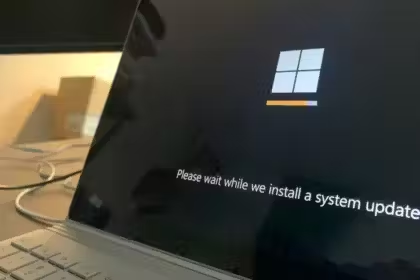
- Installing large Windows updates
- Scanning files with antivirus software
If your fan quiets down after a high workload, the cooling system is most likely working as it should. It ramps up when pushed and returns to a normal pace once the demand drops.
Dell’s troubleshooting documentation confirms that a laptop working through a demanding task is expected to get warm and loud, and that the noise should settle once the task finishes. But if the fan screams when you just browse the web or check email, there’s an issue that deserves attention.
Related: How to Fix Laptop Screen Flickering Issue
First: Identify the Type of Laptop Fan Noise
| What you hear | Most likely cause | What to do |
|---|---|---|
| Strong rushing air / “jet engine” sound | High CPU/GPU load, warm room, blocked vents, dust | Check workload, airflow, and vents |
| Fan gets loud only during games or rendering | Normal cooling response, possibly performance mode | Use a balanced thermal/power mode if performance allows |
| Loud fan while doing nothing | Background task, update, malware, driver/firmware issue, airflow problem | Check Task Manager and restart |
| Rattle, scrape, click, ticking, or grinding | Worn fan bearing or debris touching fan blades | Stop DIY troubleshooting and arrange repair |
| High-pitched electronic buzz that does not change with fan speed | Coil whine, not necessarily the fan | Update firmware; seek support if severe or new |
| Vibration through the chassis | Loose fan, worn bearing, or debris | Service is usually required |
Stop using the system if the fan grinds, scrapes, or stalls. A failed fan leads to laptop overheating, sudden shutdowns, and permanent damage to internal components.
Quick Checklist for a Loud Laptop Fan
- Put the laptop on a hard desk, not fabric.
- Check that every vent is uncovered.
- Restart the laptop.
- Open Task Manager and identify high CPU/GPU processes.
- Close unneeded apps and browser tabs.
- Set Windows and the manufacturer utility to Balanced, Quiet, or Best power efficiency.
- Install pending Windows, BIOS, and manufacturer driver updates.
- Check and gently clean external vents and fans.
- Test with the charger unplugged, and then plug in again.
- Listen for rattling, clicking, scraping, or grinding sounds that call for physical service.
Reasons Why Laptop Fans Make Noise and How to Fix
1. Your Laptop is Doing More Work Than It Seems
A laptop fan becomes loud when the processor or graphics chip draws extra power and generates heat. Common culprits include browser tabs, video calls, cloud syncs, game launchers, background apps, antivirus scans, and Windows updates.
This is the most common answer to “why is my computer fan so loud?” and it’s easy to fix in a few minutes.
Fix: Find and stop the high-usage app
- Press Ctrl + Shift + Esc to open Task Manager in Windows.
- Select Processes.
- Click the CPU, Memory, Disk, or GPU column to sort by usage.
- Check which app is consuming high resources in an idle state.
- Save your work, then close the app. If it’s frozen, select it and choose End task.
- Restart the laptop and check if the fan settles after a few minutes.

On a Mac, open Activity Monitor from Applications > Utilities, then review the CPU tab.
Browser tabs are a frequent offender. Close unused tabs, remove extensions you no longer trust or use, and avoid playing multiple video streams at once.
If a known Windows process is busy right after an update, wait for a while. Updates, search indexing, and security scans can temporarily increase fan speed, but they should return to normal after the background work concludes.
2. Air Vents are Blocked
Most laptops draw cool air through intake vents on the bottom or sides and force warm air out through rear or side exhaust vents. A bed, sofa, blanket, lap, thick rug, or soft laptop sleeve can block these openings, and the machine then has to spin the fan faster to compensate for the trapped heat.
Left unaddressed, the laptop hits a breaking point. It will throttle its performance to survive, or will shut down to save its circuitry. Even a flat desk can be a trap; on some models, the chassis sits flush against the wood, choking the bottom vents. So, keep laptop vents clear as a basic response to excessive fan noise and overheating.
Fix: Improve airflow
- Move the laptop onto a flat, hard surface such as a desk or table.
- Check the underside, sides, and rear for visible ventilation openings.
- Leave a few inches of open space around the exhaust area.
- Remove any papers, dock cables, fabric, or objects placed against the vents.

If you must work from a couch or bed, use a rigid lap desk to bridge the gap between your legs and the chassis. A laptop stand offers similar relief, creating enough clearance to let the intake fans breathe.
Even though a cooling pad is an option, it is not a remedy for a damaged fan or a heatsink choked with dust. First make sure the laptop’s own vents are clean and unobstructed. If they generate loud noise, the problem is deeper than the surface.
Related: How to Fix “No Battery is Detected” on Your Laptop
3. Dust, Pet Hair, or Lint is Restricting the Cooling System
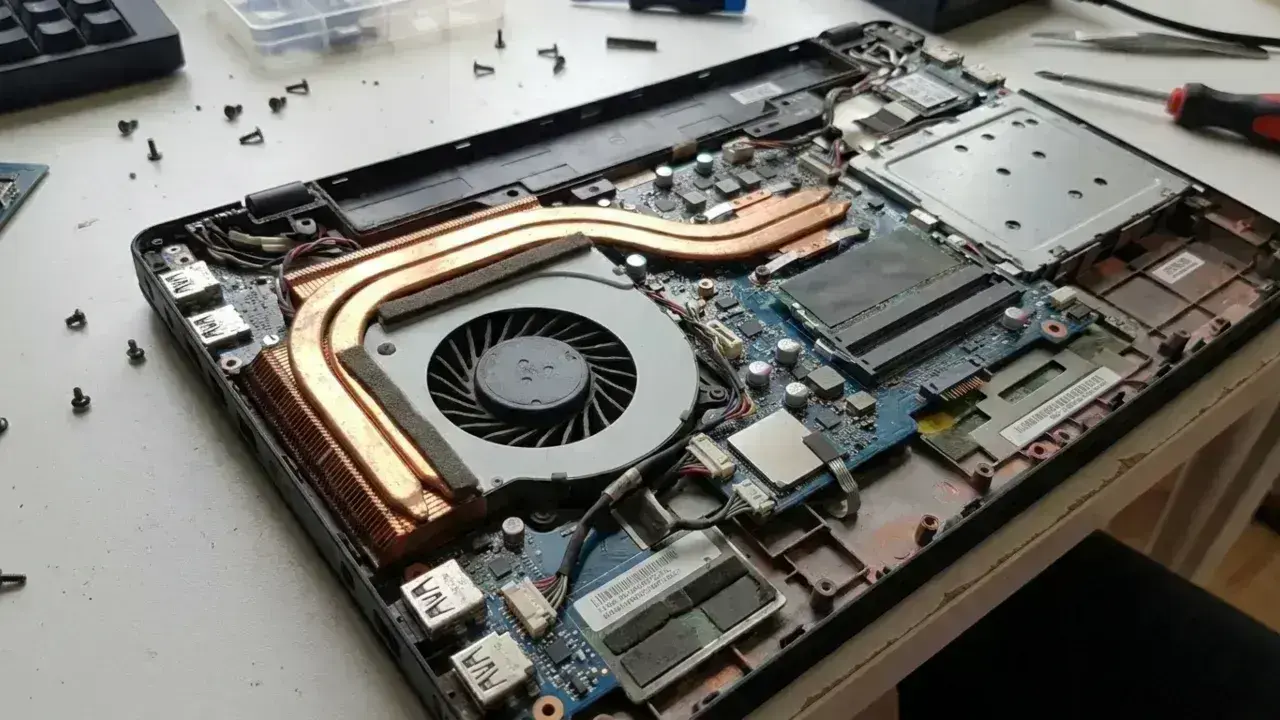
Over months of use, a laptop acts like a small vacuum cleaner. Dust, pet hair, and airborne particulates settle on the fan blades and pack tightly in the tiny gaps of the heatsink fin stack, which forms a literal blanket of insulation. The fan may spin at maximum RPM, but because the air cannot pass through the blocked fins, the heat remains trapped inside. Airflow drops, internal temperatures rise, and the laptop fan runs harder and louder.

Fix: Clean the exterior vents
- Shut down the laptop.
- Disconnect the charger and all accessories.
- Let it cool down.
- Use a soft brush to gently remove dust from exterior vent openings.
- Use short, controlled bursts from an electronics-safe air duster, keeping the can upright.
- Hold the nozzle a short distance away instead of pushing it into the vent.
Don’t use a household vacuum nozzle because the static electricity can fry delicate components. Moreover, do not spray liquid cleaners, lubricants, or water into vents.
Never blast compressed air continuously into a closed system that can push debris deeper into the heatsink or overspin the fan. If the machine needs an internal cleaning, hire a professional. This is especially true for thin laptops, gaming rigs, and any device still under warranty.
Book a repair shop or manufacturer service if:
- The vents look clear but the fan remains loud, and temperatures are high.
- The laptop is many years old and has never been internally cleaned.
- You have pets, or work in a smoky or dusty environment.
- The laptop shuts down, slows to a crawl, or reports thermal warnings.
4. Dried-Out Thermal Paste is Reducing Heat Transfer
Between the reflective die of your CPU/GPU and the copper heat pipes lies a thin layer of thermal interface material (TIM), commonly known as thermal paste. Its job is to fill microscopic air gaps to conduct heat away from the processor.

Over years of use, this paste dries out, cracks, and loses its thermal conductivity. When that happens, heat builds up on the die because it no longer moves into the heatsink as effectively as it should, causing the fan to spin loudly even during minor tasks.
That’s more likely on an old laptop, a heavily used gaming model, or a device that recently underwent a repair involving the heatsink. It’s not the first thing to blame on a new rig. Blocked vents, dust, workload, and power settings are much more common causes of laptop fan noise.
Signs thermal paste may be the problem
- Laptop overheats quickly even after deep cleaning.
- Fans ramp up under modest workloads that used to be quiet.
- Performance drops largely for high-intensity activities.
- Problems began after a repair where the heatsink was removed.
- Manufacturer diagnostics show thermal concerns, but the fan is operating fine.
- Laptop is a few years old, and all simple airflow and software checks have failed.
Fix: Have the cooling assembly serviced
- Complete the earlier checks first: airflow, dust, background processes, power mode, updates, and hardware diagnostics.
- First, confirm if the laptop is still covered by warranty or accidental damage coverage.
- If it has a valid warranty, contact the manufacturer.
- If not, visit a reputable repair shop to inspect the fan, heatsink, thermal paste, and thermal pads.
- Ask the technician to use the correct thermal paste and keep the original pad thicknesses where applicable.
- Test the laptop under the same workload immediately after the service.
Do not treat a repaste as a casual DIY project. Modern laptops may use fragile ribbon cables, captive screws, thermal pads of different thicknesses, liquid metal compounds, or carefully calibrated heatsink pressure. Incorrect paste application, shifted pads, or an unevenly tightened heatsink will often make your thermal issues worse.
5. Performance or Turbo Mode is Active
Many laptops include proprietary thermal profiles labeled Performance, Turbo, Extreme Performance, High Performance, Sport, or something similar. These settings increase CPU and GPU power limits, prioritizing raw speed over acoustics.
While you can use these modes for gaming sessions or intensive rendering, but better to ignore them for email, web browsing, or streaming, as they overwork the machine for no reason.
Fix: Switch to a balanced or quiet profile
Check your manufacturer’s software first:
- Lenovo Vantage
- MyASUS
- Dell Power Manager
- HP app or OMEN Gaming Hub
- AcerSense
- MSI Center
- Alienware Command Center
Select a profile labeled Balanced, Standard, Quiet, Eco, or Optimized. Names vary by model.
For Windows 11:
- Open Settings.
- Go to System > Power & battery.
- Under Power mode, select Balanced or Best power efficiency when you do not need maximum speed.

Lower power modes cut down background noise and use less juice, which means less heat and a much quieter fan.
Use a normal profile for daily tasks and switch to Performance/Turbo only when the workload demands.
Related: How to Free Up Disk Space on Mac
6. Windows, Drivers, or Firmware Has New Updates to Install
BIOS and chipset drivers control the fan curve, the relationship between internal temperature and fan speed. Manufacturers release updates to fix erratic behavior, like fans running at full throttle or failing to slow down. If your BIOS, Intel Dynamic Tuning, or AMD chipset driver is outdated, the fan might stay stuck on an inefficient curve even when temperature is otherwise normal.
Faulty drivers, unfinished updates, firmware bugs, or poorly behaved background services can force the CPU to work harder than necessary and lead to loud fan noise even at idle. Graphics drivers are the usual suspects. A glitch may trigger high GPU activity, excessive power use, or a process that fails to sleep properly after a game or video call.
Fix: Restart, update properly, then retest
[pgallery id=”29″]- Restart the laptop.
- To update Windows, go to Settings > Windows Update and click Check for updates.
- Install the latest graphics, chipset, and power-management drivers from your laptop manufacturer’s support page.
- Check for a BIOS/UEFI or firmware update only on the official site for your exact model.
- After updates, restart and check Task Manager again.
Never force a BIOS update from an unofficial site, and do not interrupt one once it starts. Connect the correct charger, make sure the battery is decently charged, and follow the manufacturer instructions exactly. If BitLocker device encryption is enabled, keep your recovery key available before firmware changes.
Ignore generic “driver updater” tools. They can install incorrect files, bundle bloatware, or overwrite optimized, manufacturer-specific power drivers with generic versions that do not work as well.
7. Malware or Cryptojacking is Keeping the CPU or GPU Busy
Malware and cryptojacking force the processor or graphics card to go full potential. Cryptojacking mainly involves unauthorized software or malicious browser scripts hijacking your hardware to mine cryptocurrency for someone else.

If the fan is loud while the machine is doing very little, you’re likely dealing with background resource theft. Other red flags include fast battery drain, sluggish browser performance, unexplained heat, or processes that reappear immediately after you kill them.
A loud fan doesn’t guarantee a security breach. Windows updates, antivirus scans, and file indexing often create temporary spikes. The difference is whether the high usage is explainable and if it persists after a restart.
Fix: Check for unexplained CPU or GPU activity
- Close all browser windows and unnecessary applications.
- Press Ctrl + Shift + Esc to open Task Manager.
- On the Processes tab, sort by CPU and then by GPU.
- Find a process using high resources with no demanding app open.
- Right-click an unfamiliar process and choose Search online before taking action.
- Restart the laptop. If the same process returns and spikes resource usage again, perform a security scan.
- Open Windows Security from the Start menu.
- Go to Virus & threat protection and run a Quick scan.
- If the issue remains, do a Full scan. Use Microsoft Defender Offline scan in case you suspect malware.
- Remove unfamiliar browser extensions, recently installed “system cleaner” apps, unofficial game tools, pirated software, and unknown startup programs.
For ongoing protection, keep Windows, browsers, and security software updated. CISA says that up-to-date software is your best defense against illicit mining, and the FTC classifies poor device performance as a primary indicator of a cryptojacked system.
Do not download a random “crypto miner remover,” registry cleaner, or driver updater. Stick to Windows Security or verified professional tools. If you suspect your work or school device is compromised, contact the IT department immediately and don’t do anything yourself.
8. Room is Too Warm for Laptop to Stay Cool
A laptop relies on the air around it to regulate internal temperature. When you work in a hot room, direct sunlight, or near a heat source, the intake air starts warm. The cooling system must then spin the fans faster to keep the machine safe.
A reasonable fan in a cool office might roar during the summer or in a stuffy (poorly ventilated) room. Microsoft confirms that warmer environments force Surface notebook fans to run more frequently and at higher speeds, regardless of workload.

Fix: Change the environment
- Move the laptop out of direct sun.
- Keep it away from heaters, radiators, and warm exhaust from other equipment.
- Use it on a hard, open surface.
- Reduce demanding work until the room cools down.
- Shut it down and let it return to room temperature if it’s extremely hot.
Do not put the laptop in a refrigerator, freezer, or near an air-conditioning vent, which might introduce condensation. Rapid temperature changes and moisture can damage electronics.
9. A Game, App, or External Display is Pushing the GPU Hard
High frame rates, maxed-out graphics settings, ray tracing, and high-resolution external monitors force the dedicated GPU to work at capacity. This happens just as easily with browser-based games, 3D design software, AI-assisted creative tools, and video editors.

Fix: Reduce unnecessary GPU load
- Cap the frame rate in the game or card’s app.
- Dial back the most demanding settings, mainly resolution, shadows, ray tracing, render scale, and anti-aliasing.
- Close unnecessary game launchers and overlays.
- Disconnect external high resolution or high refresh rate displays to see if they are causing the strain.
- Set your laptop to a Balanced thermal profile for less demanding tasks.
A loud fan during an intense game is not necessarily a fault. You should only be concerned if the noise remains constant during basic processes, or when you notice severe performance throttling, repeated shutdowns, or unusually hot surfaces.
10. Worn Fan Bearings or a Damaged Fan Need Replacement
If you are confused about why your laptop fan is so loud and making a grinding noise, the mechanical bearing has failed. Most laptop fans use sleeve bearings or fluid dynamic bearings. Over time, the internal lubricant dries out, or the bearing warps due to heat and gravity. The fan blade tilts off its axis, scraping against the metal housing.
Unlike normal airflow noise, bearing problems produce a unique mechanical sound: ticking, rattling, scraping, chirping, grinding, or a vibration you can feel through the machine’s bottom cover. The pitch may change as you tilt the laptop or as the fan speed rises and falls.

Fix: Confirm the noise and replace the fan assembly
- Shut down the laptop and unplug the charger.
- Place it on a hard surface and restart it only long enough to identify the noise.
- Listen for clicking, scraping, grinding, or vibration during startup and under load.
- Run your manufacturer’s built-in diagnostics, if available.
- Record a short video of the sound, including the laptop’s model or service tag.
- Arrange manufacturer service or repair shop replacement of the fan assembly.
- Ask the technician to check for dust buildup, a loose heatsink, damaged fan blades, and degraded thermal materials while the unit is open.
Never spray lubricant into the vent or onto the fan. Most units are sealed; oil collects dust, migrates to sensitive components, and offers no lasting benefit.
Always replace the fan with the specific assembly designed for your exact notebook model. Generic fans, mismatched connectors, incorrect voltage ratings, or a physically similar part with the wrong mounting pattern can trigger hardware errors or cause permanent damage.
Note that buzzing might indicate coil whine, an electronic sound from power components rather than the fan. This noise often shifts when you scroll, move the mouse, or change the graphics load. ASUS and Lenovo explain that coil whine can occur in modern high-power electronics and isn’t necessarily a hardware defect, though a sudden or severe new noise is worth documenting for support.
What Not to Do
- Do not block vents with tape, foam, fabric, or a “soundproofing” cover.
- Do not disable the fan in firmware or use aggressive unofficial fan-control tools. The fan protects the CPU, GPU, battery area, and other components.
- Do not force the fan blades to spin with a vacuum or high-pressure air.
- Do not apply oil or lubricant through the vent.
- Do not replace thermal paste casually on a modern thin laptop. It can void warranty coverage, tear fragile cables, or cause poor heatsink contact if reassembled incorrectly.
- Do not rely on temperature monitoring apps alone. They can help identify a trend, but fan behavior and safe temperature limits are specific to every model build.
How We Tested
This troubleshooting order reflects standard repair triage used in PC support: first rule out workload, airflow, power settings, and software; then check for physical contamination and mechanical failure. Recommendations were cross-checked against current support guidance from Microsoft, Apple, Dell, HP, Lenovo, ASUS, and Intel as of July 10, 2026.
The approach is intentionally low-risk: it starts with reversible settings and external checks. If opening the laptop risks the warranty, the battery, or the hardware, we direct the user to manufacturer diagnostics or professional repair instead.
Frequently Asked Questions
Why is my laptop fan so loud when I turn it on?
That’s a standard hardware behavior known as a POST (Power-On Self-Test). When the motherboard first receives power, it sends 100% voltage to the fan headers to verify the blades are functional and free of obstructions. It should spin down to slow speed within 3-5 seconds.
Why does my laptop make noise even when asleep or closed?
Windows “Modern Standby” (S0ix) is the usual culprit. Instead of a true sleep mode, Windows keeps the network connected to download updates and sync emails. If a process hangs, the CPU gets warm while the laptop is closed, causing the fans to move inside your bag. To fix this, change power settings to “Hibernate” instead of “Sleep”.
Is the fan noise dangerous?
The sound itself isn’t harmful; it just means the cooling system is protecting your processor. However, continuous noise signals severe thermal stress. If the laptop shuts down unexpectedly, it has reached its critical TjMax (Thermal Junction Maximum) temperature. Continued exposure to these levels will degrade the silicon lifespan over time.
Why does the fan speed up particularly when I plug in the charger?
When your laptop runs on wall power, the operating system shifts to a high-performance profile. The CPU and GPU fetch more watts and increase clock speed because they no longer need to conserve battery life. Furthermore, the lithium-ion battery’s charging generates heat within the chassis. This combination of more computing power and charging heat naturally forces the cooling fan to work harder.
Can I use software to slow down the laptop fan?
Tools like Mac Fan Control or SpeedFan allow manual override of fan curves. Don’t do it. Forcibly silencing a fan while the CPU is hot will cause severe thermal throttling (your computer will become incredibly slow) and risks catastrophic hardware failure. Always fix the heat source first rather than suppressing the cooling system.
Official Sources
- Microsoft: Change the power mode for your Windows PC
- Microsoft: Fan behavior and fan noise in a Surface device
- Dell: How to troubleshoot fan issues
- HP: Fan is noisy and spins constantly
- Lenovo: Fan runs at a higher than expected speed
- ASUS: Troubleshooting overheating and fan issues
- Apple: About fans and fan noise in Apple products
- Intel: Overheating symptoms and troubleshooting
Did this fix your issue?
Let us know. Your feedback helps other readers find the right solution.
Great! What solved it for you?
We read every response. Email is optional and never shared.
Sorry to hear that. What happened?
Leave your email and we will personally help you fix it.