




A slow computer wears you down in small cuts: the spinning cursor, the app that needs a minute to open, the fan that roars while you read a webpage. Most PC slowdowns trace back to a short list of causes, and you can fix nearly all of them without spending money. This guide shows how to speed up your computer on Windows 11 and Windows 10, in the order I recommend, with the safest and most effective fixes first, advanced troubleshooting & hardware changes at the end.
All diagnostic and troubleshooting steps discussed in this guide were verified across production installations of Windows 11 (23H2/24H2) and Windows 10 (22H2). We benchmarked cold boot durations, memory allocation, and CPU usage across multiple hardware tiers—entry-level SATA-SSD laptop, NVMe desktop workstation, and older mechanical HDD configurations to measure real-world latency reductions and resource reclamation.
Microsoft ended regular Windows 10 support on October 14, 2025. Tuning the system will make it fast, but it won’t patch security holes. Eligible Windows 10 PCs can receive security patches through Microsoft’s Extended Security Updates (ESU) program, which the company extended to October 12, 2027. Open Settings > Update & Security > Windows Update to see the enrollment option and the end date shown for your PC. If the hardware is solid enough and meets the requirements, I’d recommend that you move to Windows 11.
- How to fix slow computer problems
- Step 1: Restart your computer and close unused apps
- Step 2: Install Windows updates and driver fixes
- Step 3: Disable startup programs
- Step 4: Scan for malware and viruses
- Step 5: Remove bloatware and unwanted software
- Step 6: Free up space on your hard drive or SSD
- Step 7: Stop apps running in the background
- Step 8: Set power mode to best performance
- Step 9: Adjust visual effects
- Step 10: Optimize your drive
- Step 11: Make Microsoft Edge and your browser lighter
- Step 12: Tame OneDrive and Windows Search
- Step 13: Speed up a laptop: heat and battery
- Step 14: Upgrade your hardware
- Step 15: System Restore and Reset this PC
- Windows tips: what not to do
- FAQs
How to Fix Slow Computer Problems
Guessing wastes time. In Task Manager, you can find what is eating your system resources within seconds. Press Ctrl + Shift + Esc, open the Performance section (the Performance tab in Windows 10), and watch CPU, Memory, and Disk for a minute while the PC is idle. Then switch to Processes and click the CPU, Memory, and Disk column headers to sort. The programs currently running at the top are your suspects.
| What Task Manager Shows | Likely Cause | What to Try |
|---|---|---|
| Memory above roughly 80% with a few apps open | Too many programs, or not enough RAM | Steps 1, 3, 14 |
| Disk stuck near 100% on a hard drive | Slow mechanical drive, heavy updates or indexing | Steps 2, 6, 10, 12, 14 |
| High CPU while nothing is open | Background tasks or malware | Steps 4, 7 |
| Normal readings, but a slow boot | Too many startup items | Step 3 |
| Drive almost full | No room for temporary files and updates | Step 6 |
On Windows 11, you can also right click a demanding third-party app in Task Manager and choose Efficiency mode. It will lower its priority so the rest of the system continues to respond. Leave Windows’ own processes alone.
Step 1: Restart Your Computer and Close Unused Apps
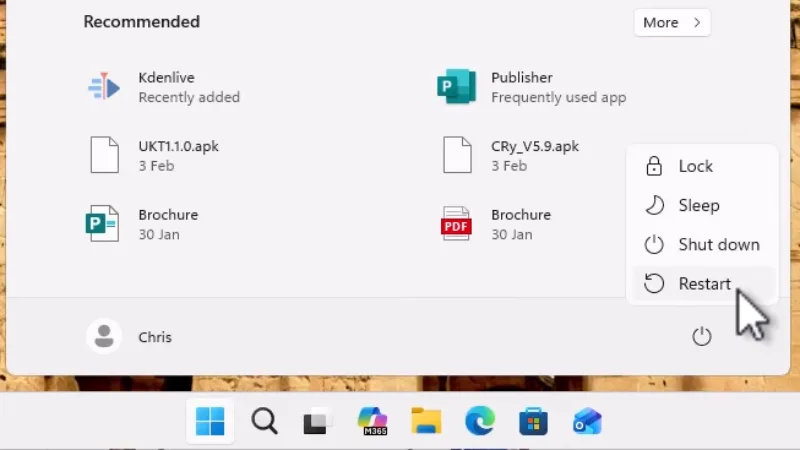
A restart seems too basic to matter, yet it clears stuck processes, frees memory, and finishes pending updates. A reboot can quickly speed things up on a computer that has been awake for days. Do Restart rather than Shut down: with Fast Startup enabled, a shutdown saves part of the system state to disk and brings it back at the next boot, so problems can survive.
- Save your work and close the apps you are done with.
- Select Start > Power > Restart.
- After signing in, open only the programs and browser tabs you need to work right now.
Step 2: Install Windows Updates and Driver Fixes
Monthly Windows updates include stability and performance fixes. Outdated drivers for the graphics card, storage, or chipset cause stuttering that no cleanup tool can fix, so keep Windows and drivers up to date.
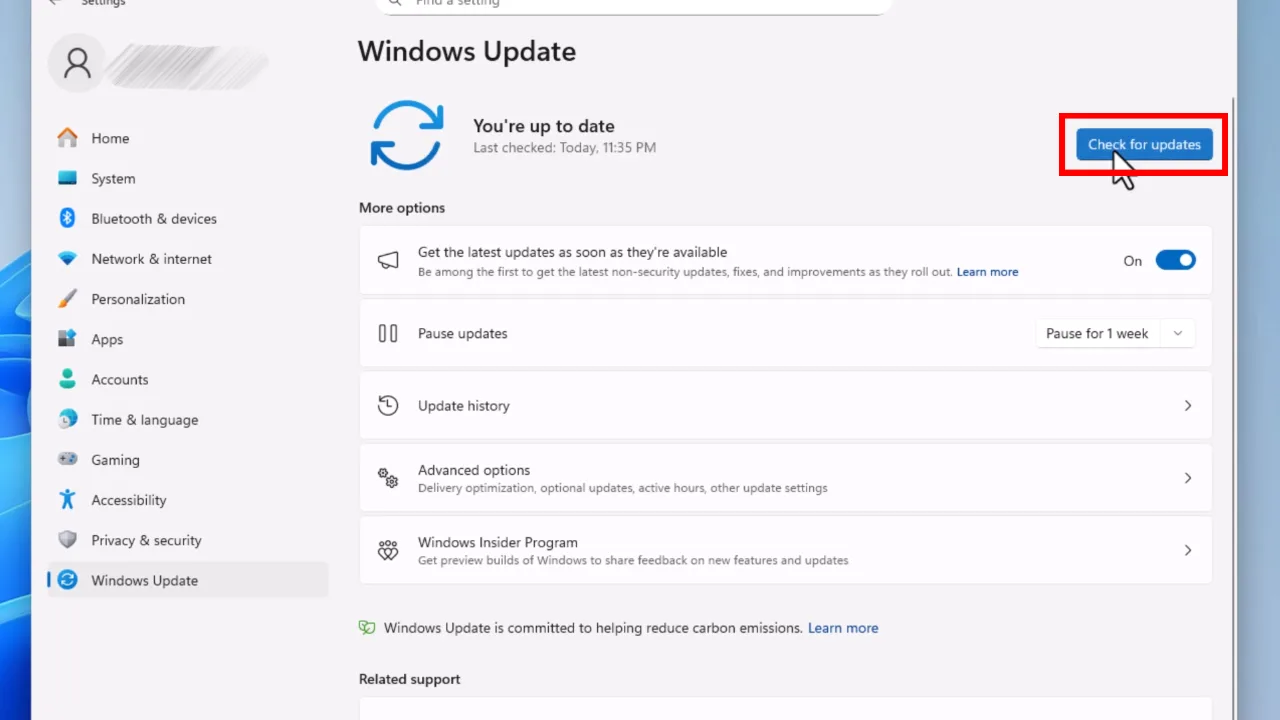
- On Windows 11: Open Settings > Windows Update > Check for updates. On Windows 10: Go to Settings > Update & Security > Windows Update.
- Download and install all available updates, then restart.
- Open Advanced options > Optional updates (Windows 11) or View optional updates (Windows 10) and install driver updates listed there.
- For graphics, download the latest driver from the official driver pages of NVIDIA, AMD, or Intel. Laptop owners should also check the manufacturer’s support page for chipset, storage, and BIOS updates.
Step 3: Disable Startup Programs That Slow Down Boot Times
Plenty of apps configure themselves to launch automatically at Windows startup, and each one steals memory and disk activity before you’ve even started what you want to do. This is the best cure for long or slow boot times.
- Windows 11: Go to Settings > Apps > Startup, sort by Startup impact, and switch off unnecessary apps.
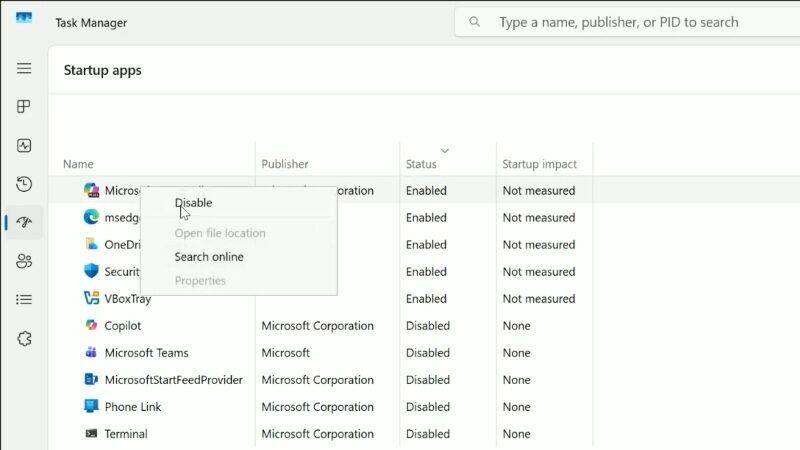
- Windows 10: Press Ctrl + Shift + Esc to open Task Manager, go to the Startup tab, right click an app, and choose Disable. (Windows 11’s Task Manager has the same list under Startup apps.)
- Restart the computer and check the difference.
Good candidates to disable at startup include chat clients, game launchers, cloud storage tools you rarely use, printer helper apps, updaters, and media players. Keep your security software and hardware drivers (audio, touchpad, graphics control panels). Unsure about an entry? Search its name first. Items marked High in the impact column are the priority to disable, as they have the most impact on PC performance, and the Last BIOS time figure at the top of the list shows how long the firmware spends before Windows loads.
Step 4: Scan for Malware and Viruses
Malware often mines crypto in the background, injects ads, or runs hidden processes that slow down your computer. Windows includes a capable antivirus, Windows Defender (now Microsoft Defender Antivirus) in the Windows Security app. A single virus scan costs you nothing.
- Windows 11: Click Settings > Privacy & security > Windows Security > Virus & threat protection. Windows 10: Go to Settings > Update & Security > Windows Security > Virus & threat protection.
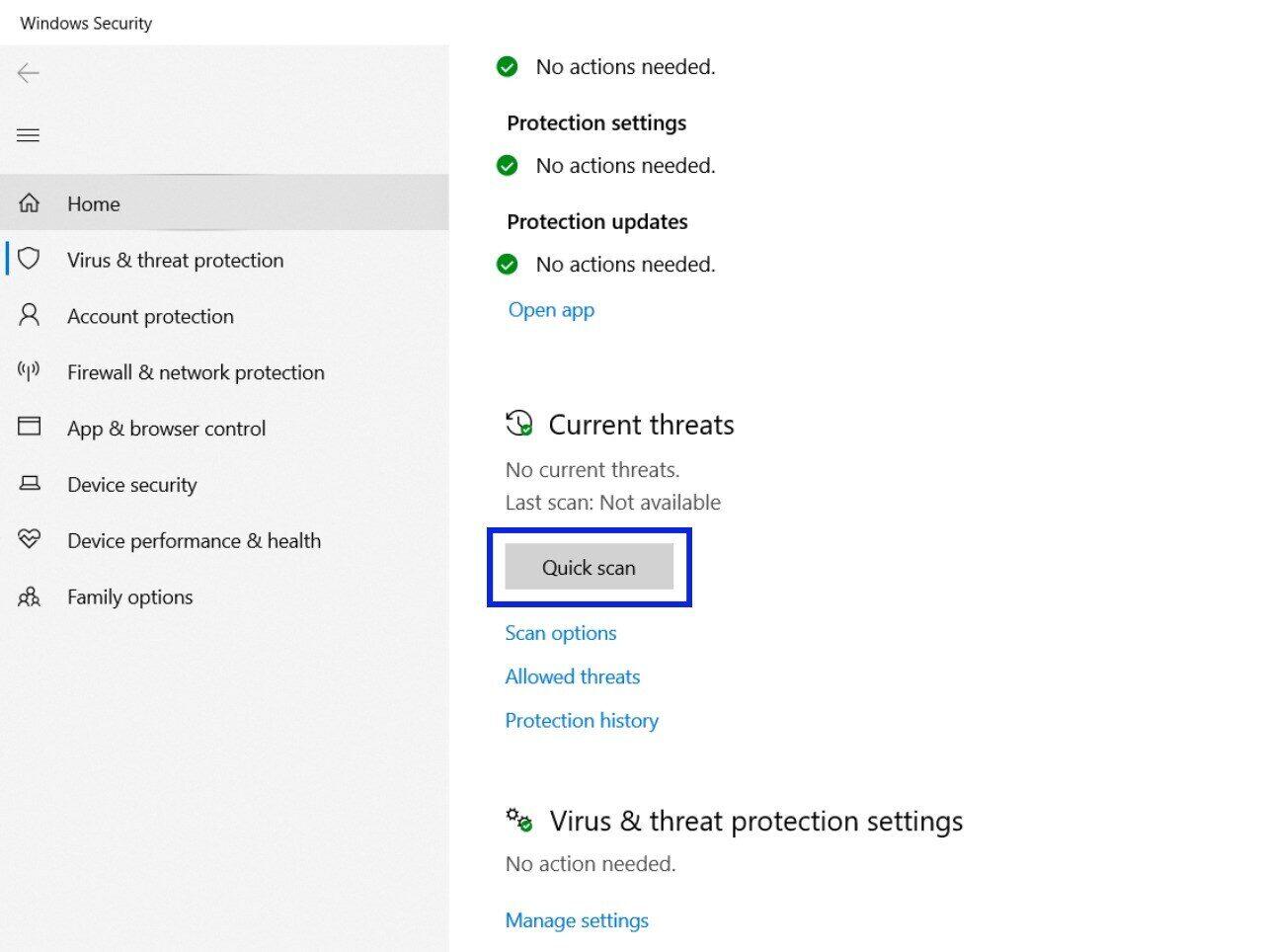
- Select Quick scan.
- For a stubborn infection, choose Scan options > Microsoft Defender Antivirus (offline scan) > Scan now. The PC will restart and check for threats before Windows reboots, which can catch sneaky threats lurking in the shadows.
Warning signs worth a scan: Browser homepage changes you did not make, pop-ups on a clean desktop, unfamiliar toolbars, and fans spinning hard when the system is idle. If another antivirus software package is installed, Defender steps aside and that program controls security responsibility and investigate the viruses, so run the tool’s scan instead like Bitdefender, Avast, Malwarebytes etc. Keep only one real-time antivirus active, because two running side by side compete for resources and slow the system down.
Step 5: Remove Bloatware and Unwanted Software
Pre-installed trial software, manufacturer promos, and toolbars that arrived with other downloads add background services and clutter that bog down your storage, memory, and startup speed. Removing them from the root can bring your system back to life.
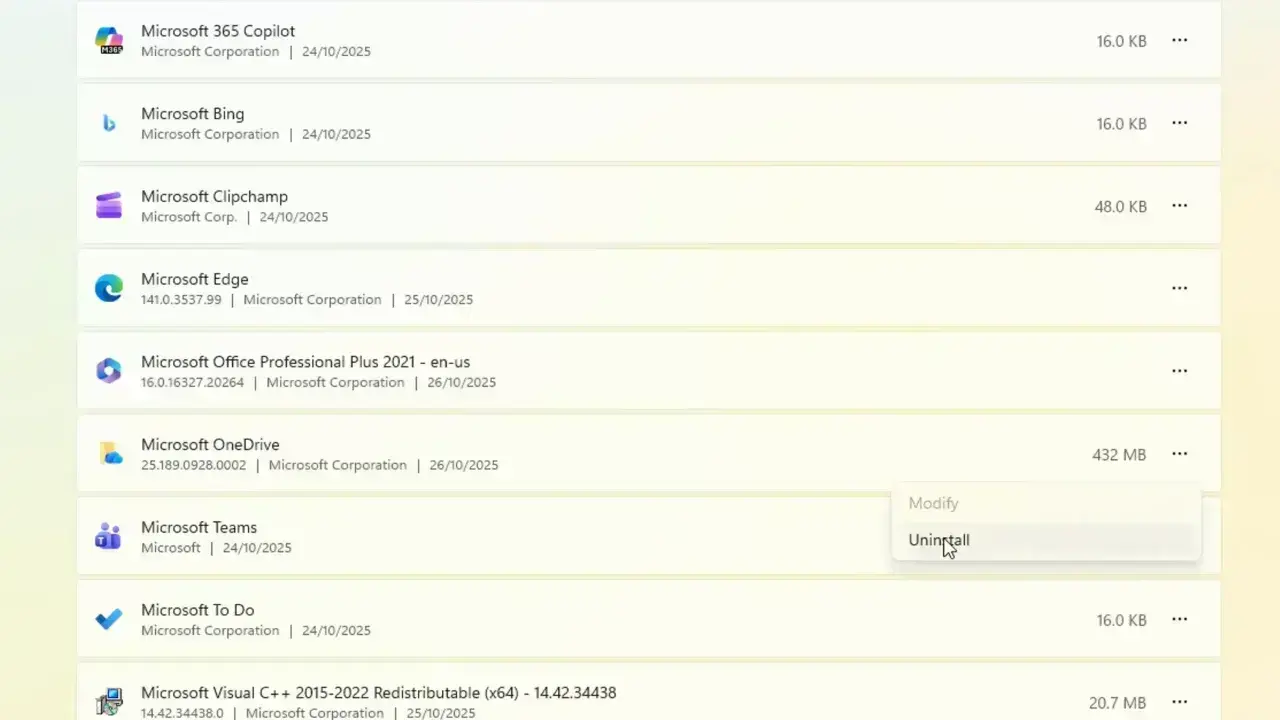
- Windows 11: Go to Settings > Apps > Installed apps. Windows 10: Go to Settings > Apps > Apps & features.
- Sort the apps by Size or Install date. Recent installs you do not remember are prime candidates.
- Select an app, then Uninstall. Restart when finished.
Microsoft also offers a free app called Microsoft PC Manager (available in many regions through the Microsoft Store) that bundles storage cleanup and startup management in one place. It’s optional, and everything it does can be done manually using the steps we just covered.
Step 6: Free Up Space on Hard Drive or SSD
Windows needs breathing room for temporary files, updates, and virtual memory. A rough rule of thumb is to keep 15–20% of the disk free, especially on an SSD, whose speed drops when it fills up.
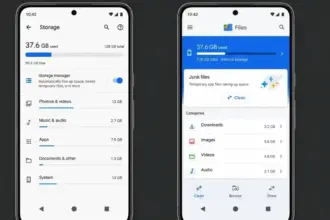
- Open Settings > System > Storage and review the category breakdown.
- Select Temporary files, tick the unnecessary files you want to clear (Recycle Bin, thumbnails, Windows Update cleanup, Delivery Optimization files), and select Remove files.
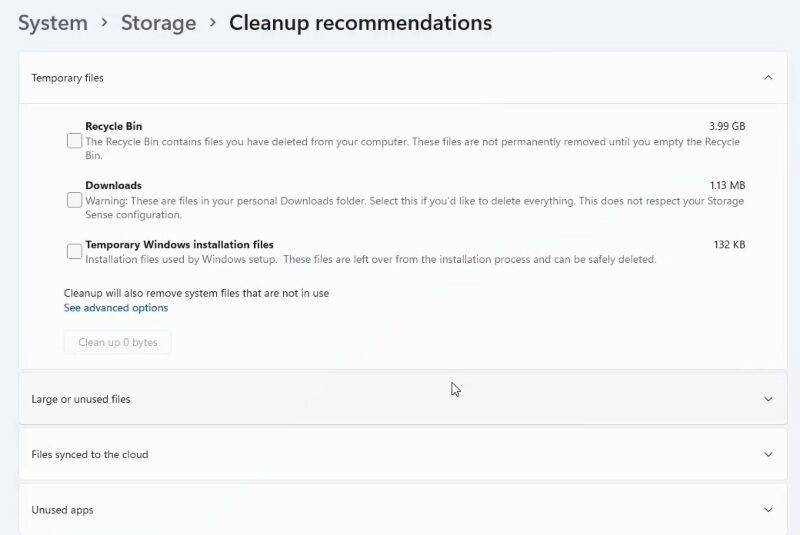
- Windows 11: Open Cleanup recommendations to find large or unused files and unused apps. Windows 10: Use Free up space now.
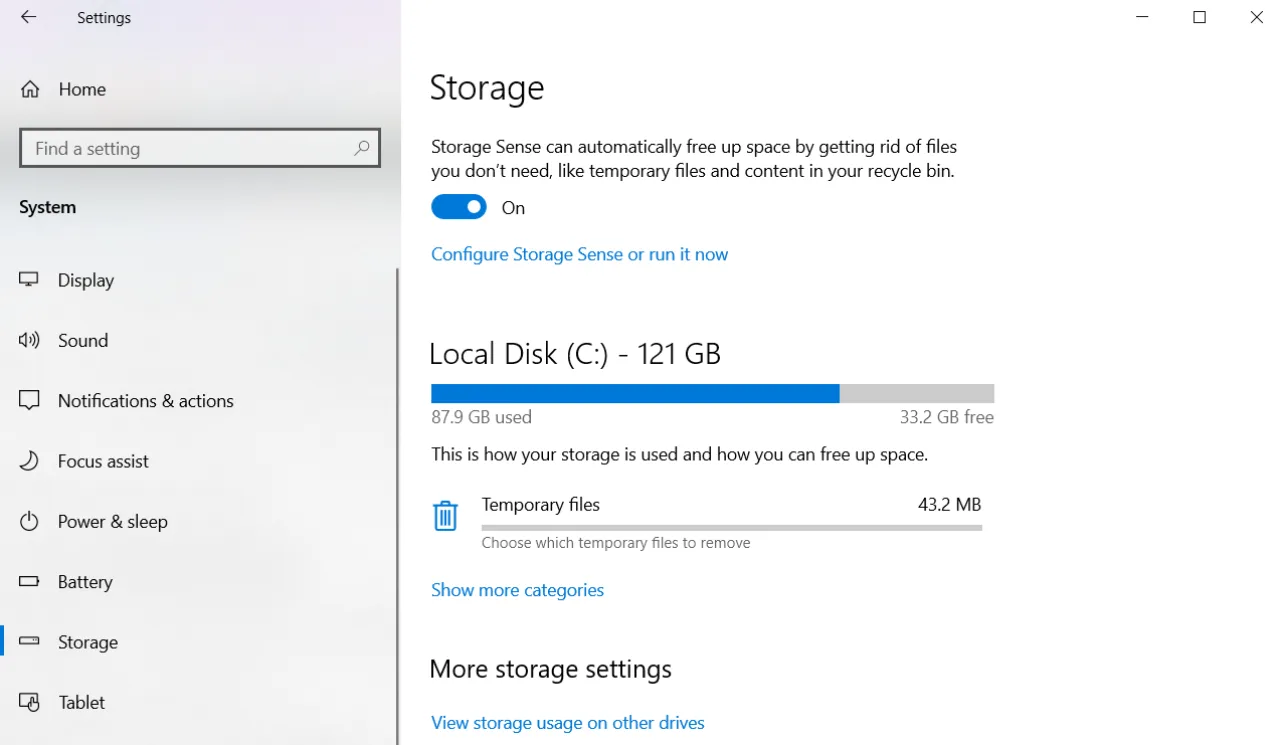
- Switch on Storage Sense so Windows can clear junk automatically.
- To hunt big items, open File Explorer and search size:>1GB. Sorting by file size reveals forgotten videos, installers and disk images. Move what you keep to an external drive or cloud storage.
- Type Disk Cleanup in Start and choose Clean up system files to remove old update leftovers and other system files you no longer need.
Microsoft says temporary files actually help apps load fast, so you don’t need to delete them every single day. Running Storage Sense or just doing a monthly cleanup is plenty to sort things out.
Step 7: Stop Apps Running in the Background
Some apps run in the background even without being opened. They sync data and check for alerts, eating a small share of memory and processing power.
- On Windows 11: Go to Settings > Apps > Installed apps, select the three dots beside an application, choose Advanced options, and set Let this app run in the background to Never.
- On Windows 10: Click Settings > Privacy > Background apps and turn off unused apps, or toggle off the global option.
Weather programs, email clients, and messaging tools usually result in the most drain. Keep the background activity enabled for anything you need instant notifications from.
Step 8: Set Power Mode to Best Performance
Windows usually tries to balance speed and battery life. If you switch to the top profile, the processor and graphics chip can push harder, which helps for gaming, editing, and big spreadsheets.
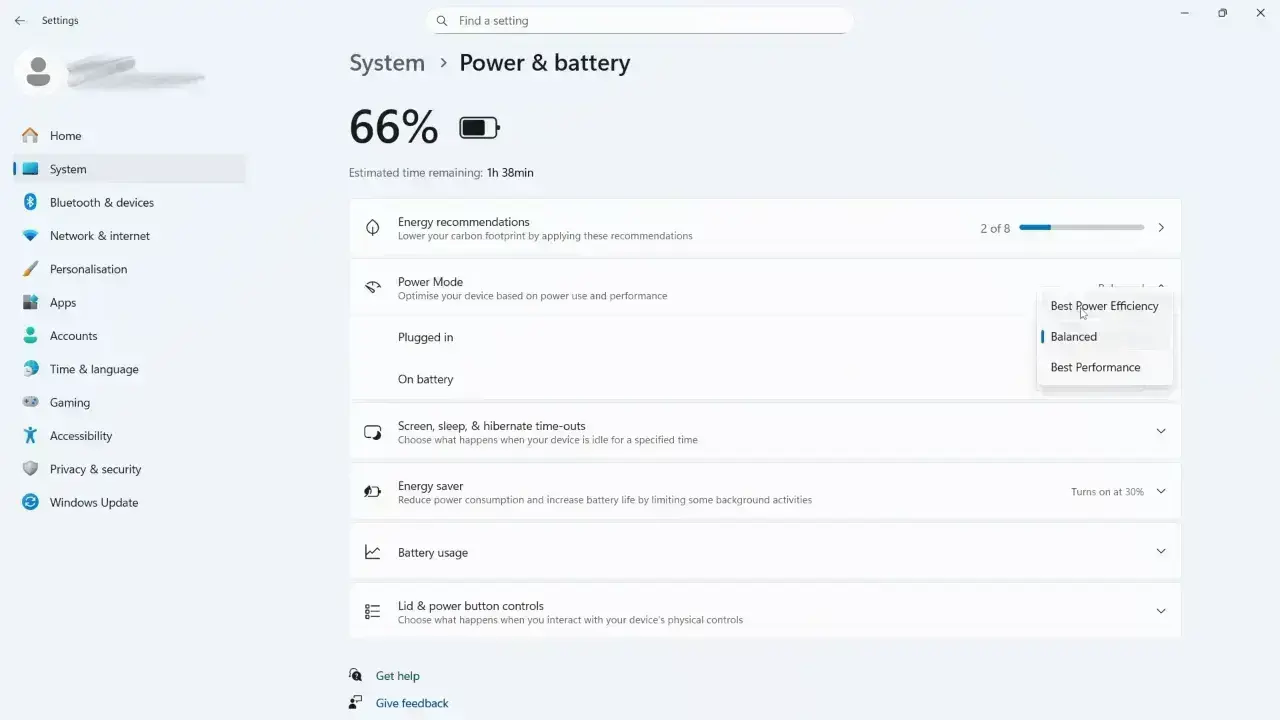
- Windows 11: Go to Settings > System > Power & battery and set Power mode to Best performance.
- Windows 10: Go to Settings > System > Power & sleep > Additional power settings and choose High performance (select Show additional plans if it is hidden).
Microsoft recommends this option only when you need top speed and power availability is not a limit. If you have a laptop, keep it plugged in while you use this setting.
Step 9: Adjust Visual Effects for System Performance
Fancy features like Transparency, shadows, and animations make your screen look good, but they affect performance on weak graphics hardware or low memory. Trimming them speeds up menus and window response.
- Select Start, type Adjust the appearance and performance of Windows, and open it. This will open the Performance Options dialog.
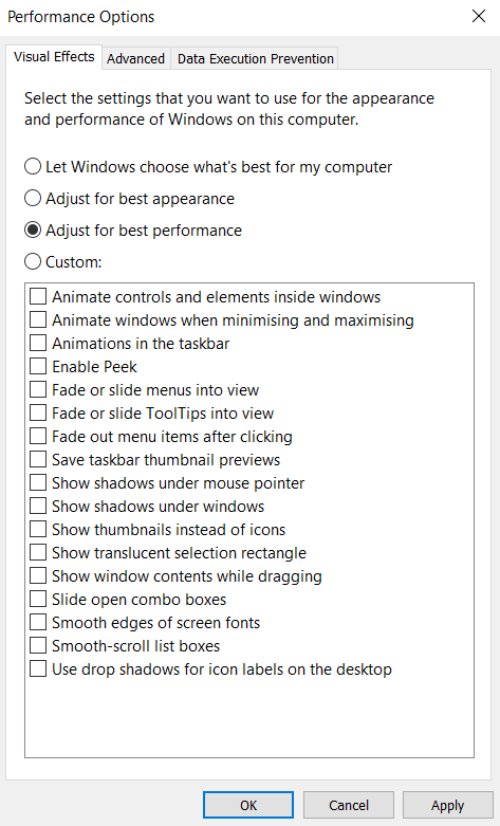
- On the Visual Effects tab, select Adjust for best performance, then Apply.
- Prefer a middle path? Choose Custom and tick Smooth edges of screen fonts and Show thumbnails instead of icons; the text will stay crisp while the heavy animation is gone for good.
- On Windows 11: Further, go to Settings > Accessibility > Visual effects and turn off Transparency effects and Animation effects.
Step 10: Optimize Your Drive (SSD vs Hard Drive)
- Select Start, type Defragment and Optimize Drives in the search bar, and click to open it.
- Check the Media type column in Disk Cleanup. It will identify your drives as either a Hard Disk Drive (HDD) or a Solid State Drive (SSD).
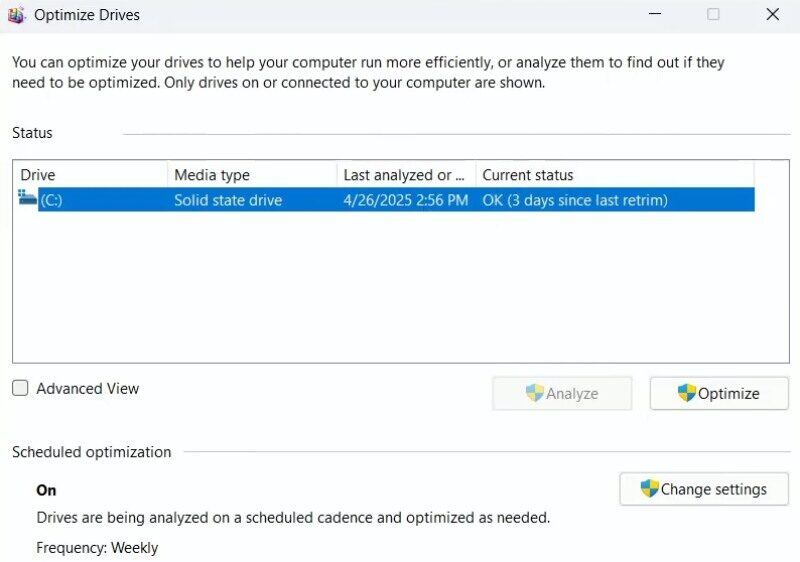
- If you have an HDD, select Optimize to defragment your files. Defragmentation reorganizes scattered data so the read head travels less, and it can noticeably help an old mechanical disk.
- Confirm that Scheduled optimization is turned on.
For an SSD, avoid manual defragmentation, as Windows automatically performs a TRIM operation on a schedule to maintain performance and hardware longevity.
Step 11: Make Microsoft Edge and Your Browser Lighter
Browsers usually hog the most memory on any PC since multiple tabs, extensions, and background pages pile up in no time.
- In Microsoft Edge, head to Settings > System and performance.
- Turn on Efficiency mode and Save resources with sleeping tabs.
- Disable Startup boost on a computer with limited memory. It will keep Edge processes alive in the background so the browser opens fast on next launch, but it steals resources from other tasks.
- Type edge://extensions in the address bar and remove extensions you no longer use.
- Press Shift + Esc inside Edge to open the browser’s task manager and End Task for the tabs that consume resources.
Chrome users get the same perks by turning on Memory Saver under Settings > Performance.
Step 12: Tame OneDrive and Windows Search Indexing
When OneDrive uploads a large photo library or Windows indexes a full drive, it can easily choke a slow disk for hours.
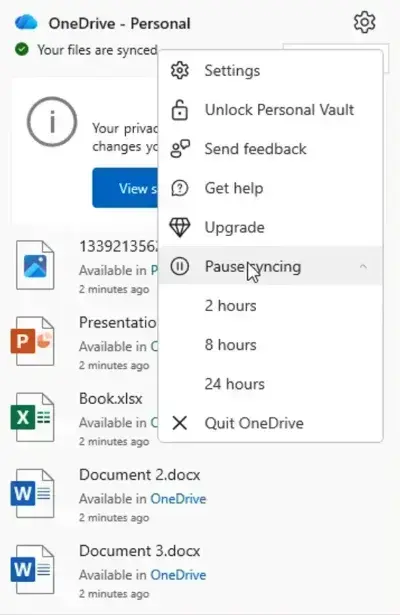
- Select the OneDrive cloud icon in the taskbar, open the gear, and choose Pause syncing for 2, 8 or 24 hours until you have to work on something demanding.
- Type Indexing Options in Start. On a hard drive, select Modify and uncheck large folders you never search, such as video archives.
- On an SSD, leave indexing as it is because the search feature remains fast and the overhead is small.
Step 13: Speed Up a Laptop: Heat and Battery
Laptops run into performance bottlenecks that desktop PCs rarely face, so you need to check three specific areas in a portable machine.
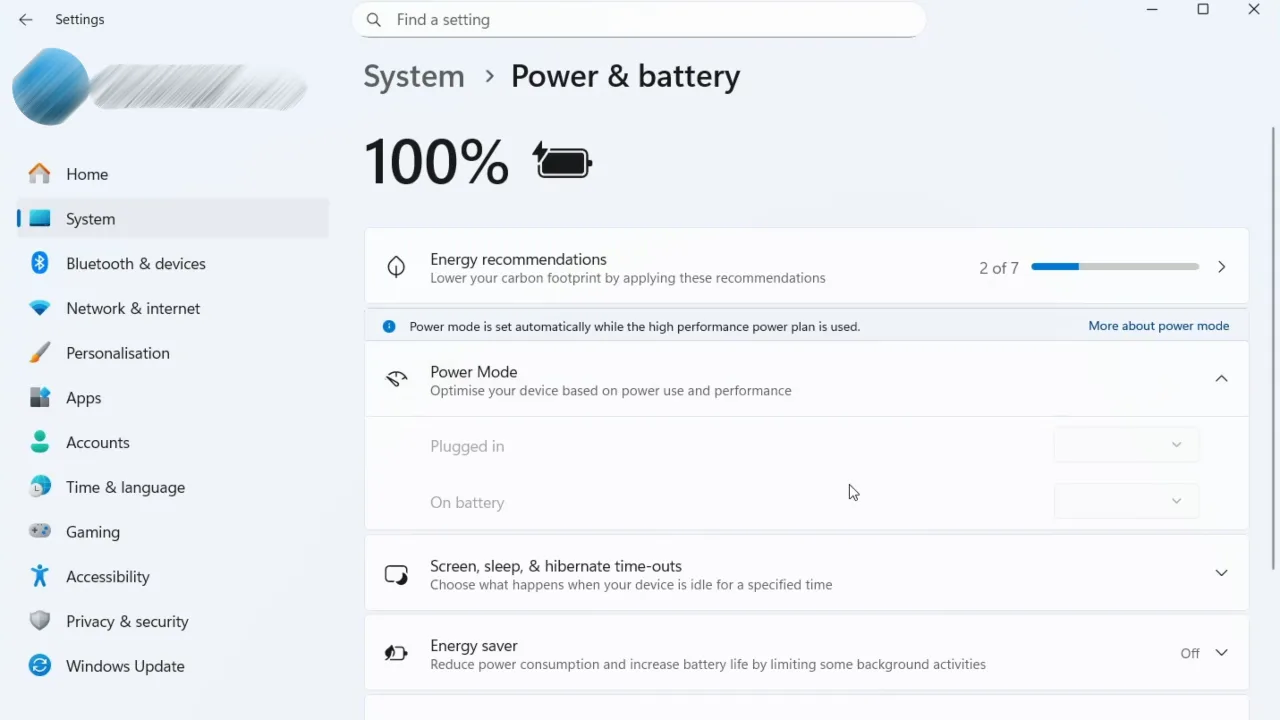
- Battery Saver. Your computer may be deliberately limiting performance to protect battery life. To check this, go to Settings > System > Power & battery > Battery saver or Energy saver, where you can either reduce the threshold for battery saver or turn it off while charging.
- Heat. Chips slow down when they get too hot to avoid damage, a process called thermal throttling. Open Task Manager, click Performance, select CPU, and run a heavy task to watch the clock speed. If you see sudden drops, your laptop is overheating. Place the notebook on a hard flat surface and, with the machine off and unplugged, blow dust out of the vents in short bursts of compressed air.
- Battery health. Open Windows Terminal and run powercfg /batteryreport. Open the generated HTML file and compare Design capacity with Full charge capacity. A massive gap combined with sudden shutdowns means your battery is worn and needs replacement.
Most manufacturers ship a companion app like Lenovo Vantage, Dell Optimizer, HP Support Assistant, or MyASUS that you can download from their official site to manage your performance profiles and install BIOS updates.
Step 14: Upgrade Your Hardware: SSD and RAM
When software fixes don’t get the job done, the hardware is the culprit. Open Task Manager > Performance and select Disk to see if your PC is equipped with an old hard drive or an SSD.
- Replace a hard drive with an SSD. This single change is the most noticeable upgrade for an aging computer. A solid-state drive has no moving parts, so boot times drop from minutes to seconds and programs launch very fast. Check whether your motherboard supports a standard 2.5-inch SATA drive or an M.2 NVMe stick, then either clone your current setup using the manufacturer’s software or do a clean Windows install.
- Add RAM. If Memory stays above about 80% during regular tasks, more RAM will make a big difference. Many thin laptops have soldered memory that cannot be replaced, while desktops usually let you swap modules easily. Match the memory generation (DDR4 or DDR5) and install pairs for dual-channel speed.
- Know when to replace. Run Microsoft’s PC Health Check app to decide if your machine is worth saving. If it fails to meet Windows 11 requirements, runs on a mechanical drive, and has four gigabytes of soldered RAM, buying or building a new PC makes more sense than spending money on repairs.
Step 15: System Restore and Reset This PC
Try System Restore when the slowdown began after a certain change. It rolls back drivers, system files, and installed apps to an earlier restore point and leaves personal documents untouched.
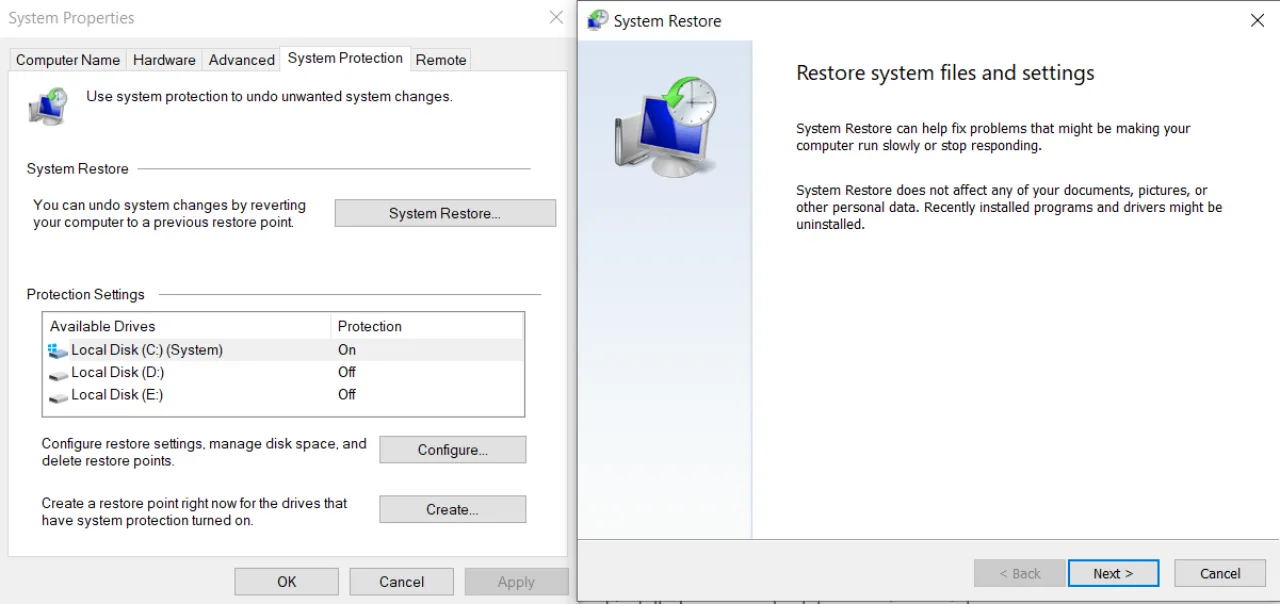
- Click Start, type Create a restore point in search, and open it.
- Choose System Restore, pick a date before the problem started, and follow the instructions on the screen.
Only possible if system protection was on beforehand; if the list of restore points is empty, move to the reset.
Reset this PC when nothing else speeds up Windows or fixes a slow computer. Doing a clean Windows install removes months of accumulated junk and repairs deep software damage.
- Back up any files you care about to an external drive or cloud storage.
- On Windows 11: Go to Settings > System > Recovery > Reset this PC. On Windows 10: Open Settings > Update & Security > Recovery > Reset this PC > Get started.
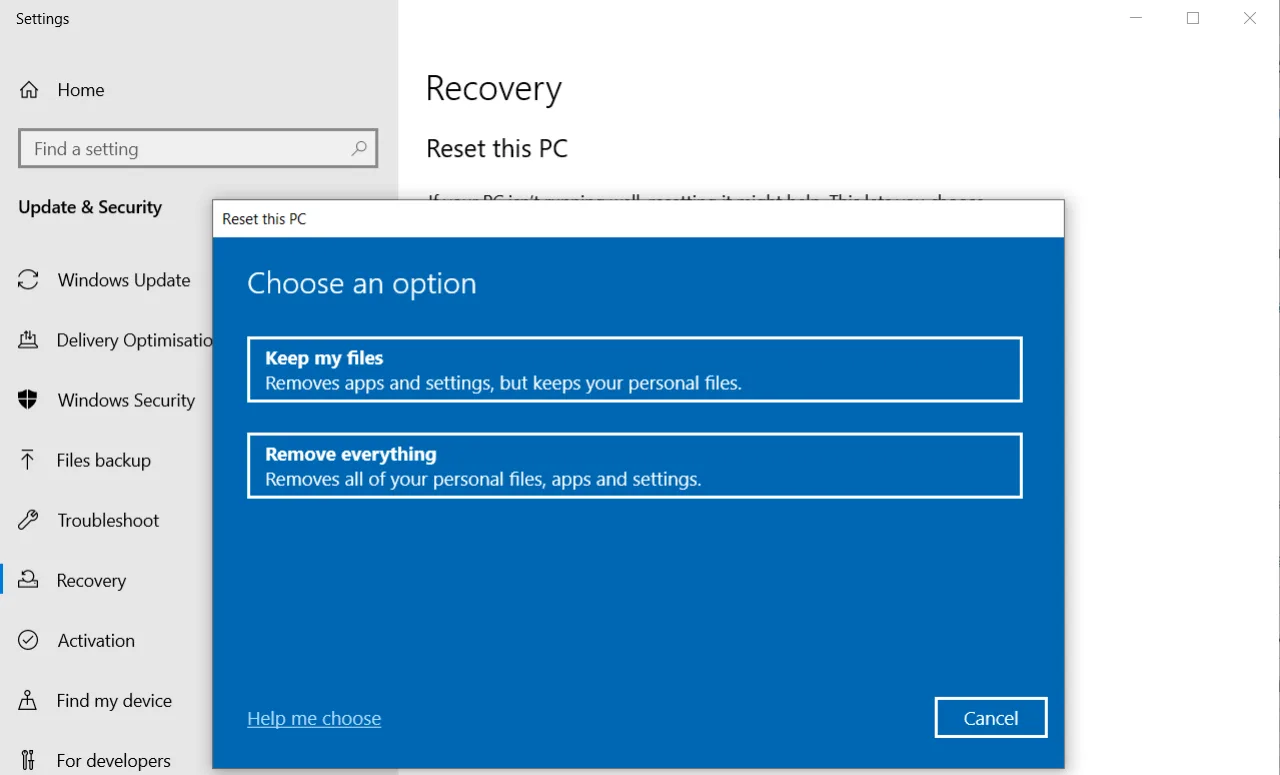
- Choose Keep my files, then Cloud download (a fresh copy from Microsoft) or Local reinstall.
- Afterwards, install only the apps you actually use. Your system runs much faster with less bloat, so try to leave the clutter behind.
Keep my files option preserves documents but removes apps and settings, so have your installers and licence keys ready.
Windows Tips: What Not to Do When You Speed Up Your PC
You will find plenty of one-click boosters online, but most of them just waste time or mess up your system.
- Skip registry cleaners. They don’t speed up your computer and often break apps or Windows.
- Avoid driver updaters and RAM boosters. Avoid driver updaters and RAM boosters. Stick to official manufacturer sites and Windows Update instead. Free versions of these tools usually bring in more unwanted software than they get rid of.
- Never turn off Windows Defender or Windows Security. You barely gain any speed but leave your system exposed to malware.
- Do not disable the page file. Windows needs this virtual memory to operate, and turning it off can cause crashes. Just let the system manage it.
- Ignore the number of processors option in msconfig. That old myth does nothing because Windows already uses all your cores at boot.
- Don’t disable bulk services or run random debloat scripts from unknown sources. They can break core features like printing, the Microsoft Store, and Windows Update.
- Never run two antivirus programs at the same time. They conflict and slow your machine down.
Frequently Asked Questions
Does Windows 11 run faster than Windows 10?
On similar hardware, you’ll barely notice a difference. Windows 11 schedules work better on newer processors that mix performance and efficiency cores, but an old PC does not speed up just from the upgrade. The strongest reason to move is security since Windows 10 no longer receives regular updates.
Why is my computer slow after a Windows update?
After a large update, Windows rebuilds its search index, optimizes apps, and cleans up old files, so the disk and CPU stay busy for a few hours. Leave the PC plugged in and idle for a while, and restart once. If it’s still slow the next day, check Task Manager for the culprit. A new graphics driver is a common cause, so in Device Manager, open the display adapter and roll back the driver.
How long should my PC take to start?
Computers with SSDs usually boot up in under a minute, while systems running on old hard drives typically require two to five minutes. If your startup takes much longer than this, you probably have too many background apps, a full disk, or a failing drive.
What is Antimalware Service Executable, and why does it use so much CPU?
It is the scanning engine of Microsoft Defender (the MsMpEng.exe process). It peaks during scheduled scans and after definition updates, then settles down. Let the scan finish. Do not disable it or exclude drives from scanning to hide the usage.
Why does Windows use so much memory when nothing is open?
Windows deliberately caches frequently used data in spare RAM so apps launch sooner, and it gives that memory back right away whenever a program needs it. High “In use” plus a large “Cached” figure is normal. You only need to worry when memory is nearly full during real work, and the PC starts to lag.