



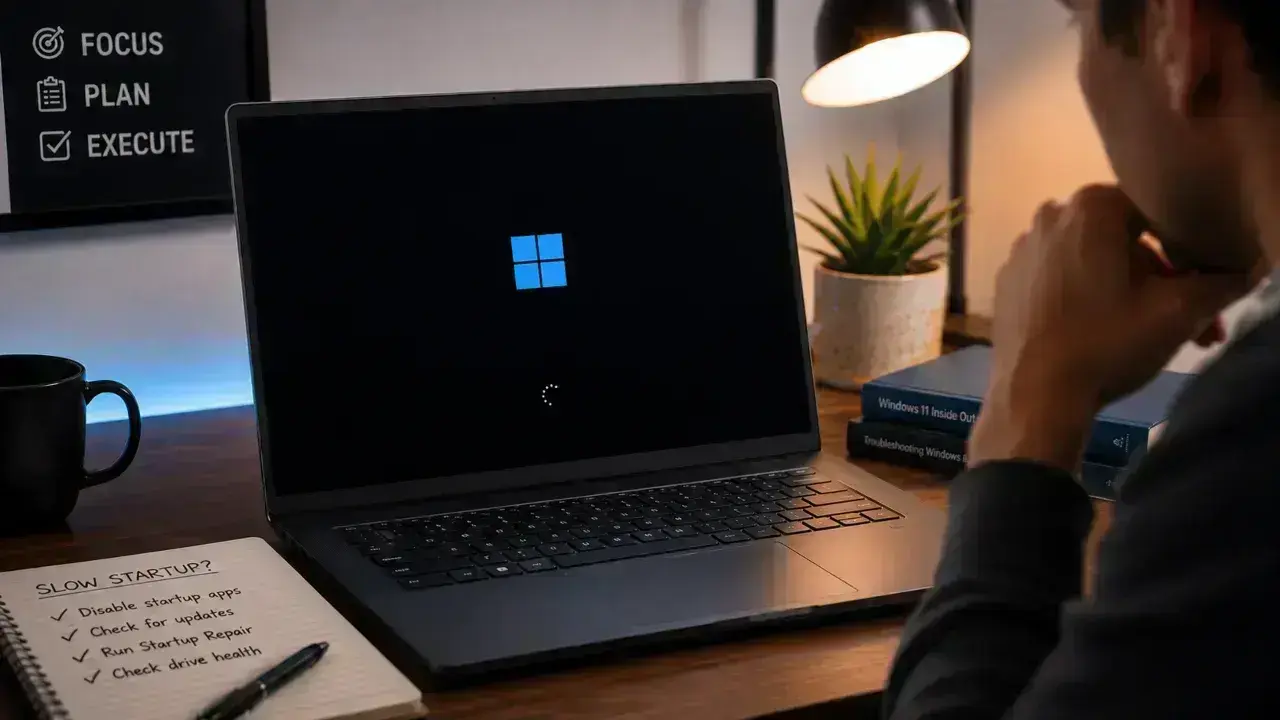

A slow Windows 11 startup can happen in two different places:
- Before the sign-in screen: firmware checks, storage detection, drivers, boot files, or a failing drive are more likely.
- After sign-in: startup apps, background services, low free space, updates, malware, and damaged Windows components are more common.
Address these symptoms as separate problems. Disabling every startup app will not fix a long pause before the Windows logo appears, and Startup Repair is useless against a desktop choked with launchers and sync clients.
Editorial Verification: This guide follows Microsoft’s Windows 11 support documentation and uses the same built-in tools Microsoft recommends: Task Manager, Windows Update, Storage, Windows Security, DISM, SFC, Clean Boot, and Windows Recovery Environment. Menu labels can vary slightly by Windows 11 release, device maker, and managed work PC. No artificial “boot-time” promises are made because startup speed depends heavily on whether the PC has an SSD or hard drive, the processor, installed software, and connected hardware.
First, Figure Out Where Startup is Slow
Before you tweak any Windows settings, do one normal Restart:
- Save your work.
- Select Start > Power > Restart.
- Watch where the delay occurs.

A restart is useful because it performs a full Windows startup. A standard shutdown, conversely, engages Fast Startup, which preserves the kernel session in the hibernation file rather than clearing the slate. If you want the system to start from scratch, choose Restart. The difference is mechanical, but the result is consistency.
Use this quick guide:
| What you see | Most likely area to check |
|---|---|
| Long wait before Windows logo or spinning dots | BIOS/UEFI, a connected USB device, storage drive, firmware, hardware |
| Long spinning dots before sign-in | Windows update, driver, disk health, damaged system files |
| Sign-in appears quickly, but desktop takes very long to become usable | Startup apps, cloud sync, background services, antivirus scans, low storage |
| It began directly after an update or driver install | Windows Update history, optional driver update, manufacturer driver/firmware |
| It is slow only after shutdown, not restart | Fast Startup or a driver/firmware interaction |
Make one change at a time, then restart your PC to see if the Windows 11 Startup issue is fixed. Changing ten settings at once makes it impossible to know what helped and makes it harder to reverse a bad change.
Related: How to Fix Windows Update Error: Reasons for Update Stuck and Easy Solutions
11 Ways to Fix Slow Startup in Windows 11
1. Disable Unnecessary Startup Apps
When Windows reaches the desktop quickly but spends several minutes loading icons, syncing files, or initializing background processes, the startup list is the primary suspect.
- Press Ctrl + Shift + Esc to open Task Manager.
- Select Startup apps in the left sidebar.
- Sort by Startup impact to see which programs demand the most resources at boot.
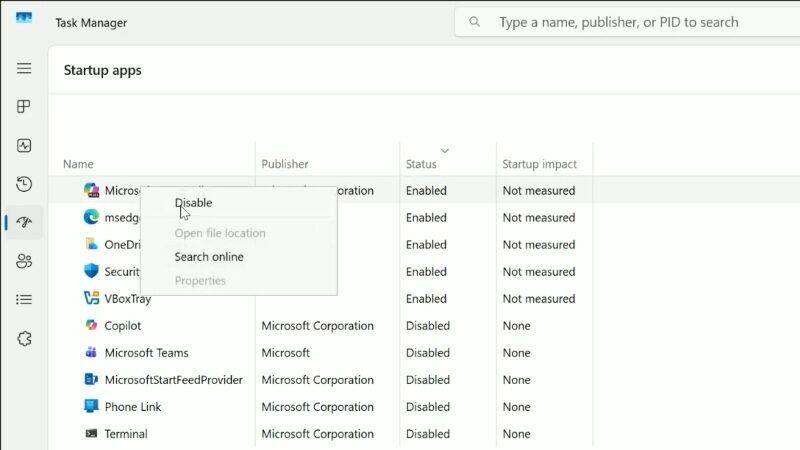
- Right-click any non-essential application and select Disable.
- Restart to see the improvement.
Target these first:
- Game launchers
- Chat applications
- Adobe and other updater services
- Music players
- Printer utilities
- Manufacturer bloatware
- Redundant cloud-storage clients
Keep anything important to your workflow active: antivirus, password managers, backup software, VPNs, and hardware-specific drivers for laptop hotkeys or audio.
Do not disable an entry just because its name is unfamiliar. If you are unsure, right-click the entry to view its Properties or search the publisher. Legitimate drivers often look cryptic, but if the provenance is truly unknown, it is time to run a malware scan.
2. Install Windows Updates and Relevant Driver Updates
A sluggish or delayed PC often reflects a system busy optimizing components or installing driver updates in the background. Interrupting these processes is a reliable way to turn a minor delay into a hardware failure. Let the machine finish its work.
- Go to Start > Settings > Windows Update.
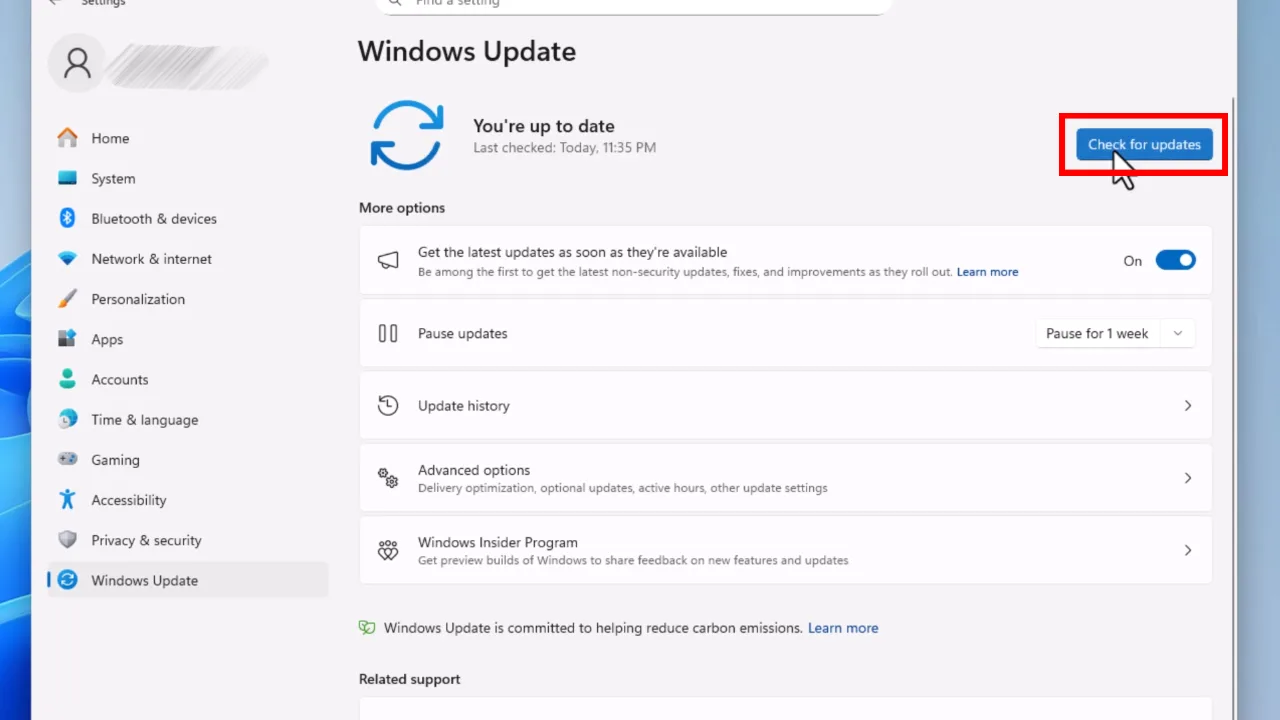
- Select Check for updates.
- Install available updates.
- Open Advanced options > Optional updates.
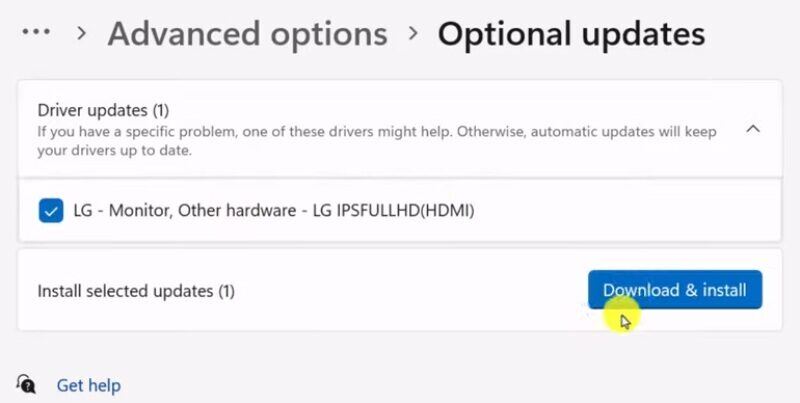
- Review offered driver updates and install ones relevant to your chipset, storage, graphics, network, or firmware.
- Select Restart now when prompted.

While Windows Update installs recommended drivers, optional drivers require manual approval. Learn how to safely update Windows.
If Windows fails to provide a compatible version, go directly to the source. Use the manufacturer’s support site for your laptop or branded desktop to find BIOS, processor, storage, and graphics updates. For a custom-built PC, start with the motherboard manufacturer for BIOS and CPU, then the graphics card maker for your GPU.
Proceed with caution regarding firmware. Only source these files from the manufacturer, keep the system connected to a stable power supply, and avoid third-party “driver updater” software. A failed or incorrect firmware update can leave a machine unable to boot.
3. Free Space on the Windows Drive
A nearly full C: drive creates problems beyond file storage. Windows needs working room for updates, temporary files, paging, restore points, caches, and hibernation. Low free space can contribute to slow sign-in and sluggish startup tasks.
Check available space:
- Open File Explorer.
- Select This PC.
- Check free space under Local Disk (C:).
Then clean up safely:
- Go to Settings > System > Storage.
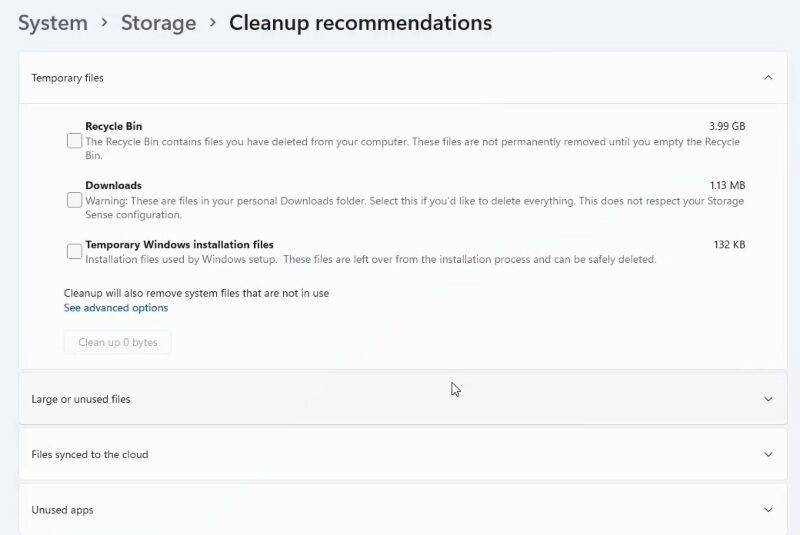
- Open Cleanup recommendations.
- Review Temporary files, Large or unused files, Files synced to the cloud, and Unused apps.
- Remove only items you recognize.
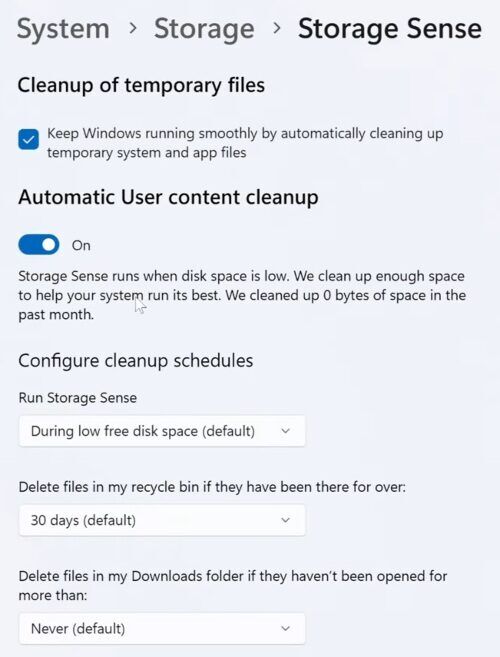
- Turn on Storage Sense to let Windows automatically clear temporary files and Recycle Bin items.

Exercise caution in Temporary files; inspect your Downloads folder before proceeding. A clean sweep here can erase files you meant to keep. Similarly, deleting Previous Windows installations is final; once they are gone, the path to roll back to an earlier Windows version is closed.
4. Remove Unused Software
Useless programs consume storage, run background processes, and often leave behind persistent updaters. So:
- Go to Settings > Apps > Installed apps.
- Sort by Size or Install date.
- Select the three dots next to an app.
- Select Uninstall.
- Restart after removing multiple big-sized software.
Prioritize these: expired trial antivirus software, manufacturer add-ons, duplicate cloud-sync apps, old VPN clients, creative suites, and drivers bundled with hardware you no longer own.
Do not delete hardware drivers, Microsoft Visual C++ Redistributables, or unfamiliar components in a misguided attempt to tidy your list. They usually provide the architecture for the software you intend to keep.
Related: How to Uninstall Apps and Programs on Windows
5. Check for Malware and Unwanted Background Activity
Malware and potentially unwanted software eat disk, memory, CPU, or network resources as soon as you sign in.
Run a standard scan first:
- Open Settings > Privacy & security > Windows Security.
- Select Virus & threat protection.
- Click Quick scan.

If symptoms don’t solve—unexpected ads, browser redirects, erratic data spikes, or repeated disk thrashing—return to Scan options for a Full scan. Should the threat remain, use the Microsoft Defender Offline scan, which restarts the computer to intercept malicious processes before they initialize.
After that, restart Windows, open Task Manager > Processes and look for a process that takes high CPU, Memory, Disk, or Network usage for several minutes. Verify the publisher before you terminate or uninstall the task.
A single antivirus suite is sufficient. Running two at once invites instability, slow startup, conflicts, and sluggish performance. Windows Security normally manages Microsoft Defender’s role when another supported antivirus product is installed.
6. Perform a Clean Boot
If Windows startup remains slow after pruning the obvious culprits, or if the decline tracks with a specific install like a security suite, an RGB tool, a VPN, or a printer package, perform a clean boot. This is a diagnostic state, not a permanent configuration, and loads only the Microsoft baseline, stripping away the third-party clutter that often sabotages performance.
- Sign in with an administrator account.
- Type msconfig in the Windows search bar and open System Configuration.
- Open the Services tab.
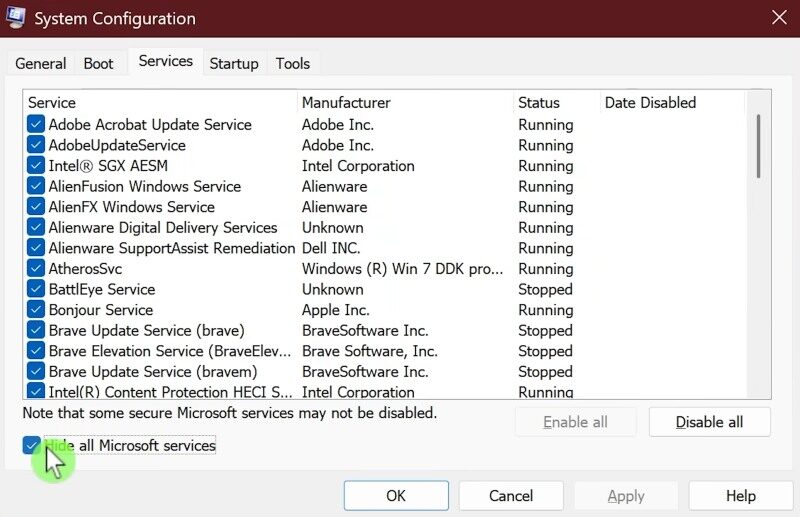
- Tick Hide all Microsoft services.
- Select Disable all, then select Apply.
- Open the Startup tab and click Open Task Manager in blue.
- In Startup apps, disable each enabled item. Take a screenshot or note what you changed.
- Restart the PC.
If the system recovers, the fault lies with a third-party process. Re-enable half the disabled services, reboot, and observe. By halving the remaining suspects, you will narrow down the results to the offender with surgical efficiency.
Once identified, update, uninstall, or contact the vendor of that program. Then restore normal startup:
- Open msconfig.
- On General, choose Normal startup.
- On Services, uncheck Hide all Microsoft services, select Enable all, and click Apply.
- Re-enable only the startup apps you really need in Task Manager.
- Restart.
Core Windows services, if disabled, can break sign-in, networking, updates, printing, security features, and recovery tools. So, do not permanently disable Microsoft services.
Related: How to Fix Wi-Fi Connection Issues in Windows
7. Repair Windows System Files
Corrupted system files responsible for low-level boot tasks can stall boot loader execution. If your PC is plagued by freezes, failed updates, frequent error messages, or hangs at the spinning-dots screen, Windows includes two command-line tools to find and replace broken core files.
Connect to the internet, then launch Command Prompt as an administrator.
Run this command and wait for it to finish:
DISM.exe /Online /Cleanup-image /Restorehealth
Follow it with:
sfc /scannow
Restart the computer once both operations are complete.

DISM repairs the Windows component store while System File Checker uses that foundation to replace damaged system files. Run them in that order. Do not close the window or kill the power while these tools are active. If the progress bars seem to stall, leave them be. They will reach 100% in their own time.
8. Check the Drive and Consider Hardware Limits
A traditional mechanical hard drive remains one of the largest causes of long Windows 11 startup times. The operating system can run on a hard drive, but startup, updates, and background tasks are far more constrained than on an SSD.
Watch for the warning signs of a storage problem:
- Startup progressively gets slower over weeks or months.
- File Explorer hangs while opening folders.
- Disk usage stays at 100% in Task Manager with little activity.
- You hear repeated clicking or grinding from a mechanical hard drive.
- Windows occasionally reports disk errors, freezes, or fails to load.
Start with these safe checks:
- Back up important files first if you suspect drive trouble.
- Open Task Manager > Performance > Disk after sign-in and observe the Disk active time.
- If you suspect fragmentation, run the built-in “Defragment and Optimize Drives” tool.
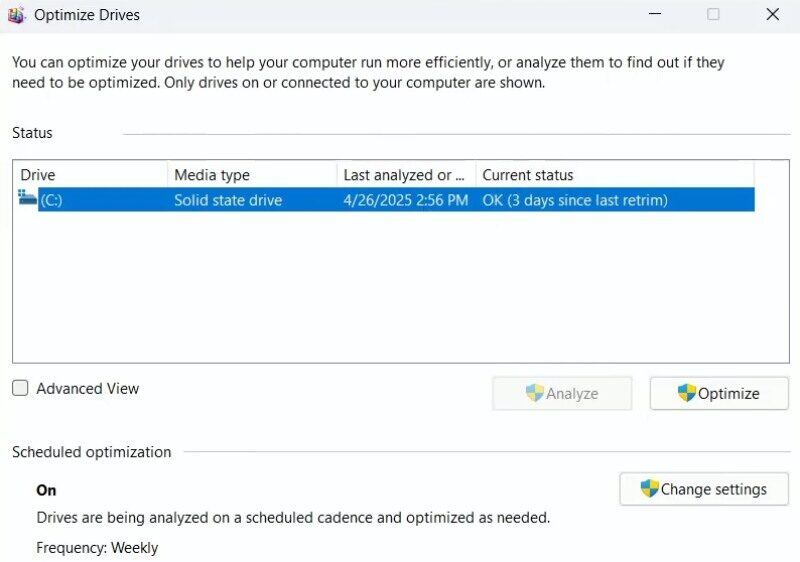
- Open Start, search for Defragment and Optimize Drives
- Select the system drive, and click Optimize.
Windows knows how to treat an SSD; it will execute a TRIM command rather than a manual defrag. Never install third-party defragmentation software as it’s redundant and harmful.
If the PC uses an old hard drive and otherwise works properly, replacing the system drive with a quality SSD is the most meaningful long-term startup upgrade. A technician can clone the old drive or install Windows cleanly, but back up files first.
Repeated clicks, sudden disappearing drives, corrupted files, or boot errors are data-loss warnings. Stop troubleshooting performance first and make a backup. A repair command cannot fix a physically failing drive.
9. Disconnect Nonessential USB Devices and Check Firmware
Peripheral devices are the most common source of boot-time friction. External drives, hubs, printers, and docks frequently force the system to wait while Windows or the motherboard firmware attempts to negotiate a connection.
- Shut down the PC.
- Disconnect nonessential USB devices, external storage, memory cards, and docks.
- Leave only the keyboard, mouse, monitor, and power connected.
- Boot the system.
- Reconnect devices one at a time after Windows loads.
If startup improves, reconnect each item and restart to identify the one involved. Update the device’s driver or firmware from its manufacturer, replace a defective cable, or try another USB port.
For a long delay before the Windows logo, check the PC or motherboard support site for BIOS/UEFI updates and review boot order settings. Your primary drive must be at the top of the priority list, ahead of any USB storage or network boot options.
10. Run Startup Repair for genuine boot problems
Startup Repair is the tool for a system that won’t start, is stuck in a boot loop, or hangs repeatedly at the Windows logo. These symptoms usually point to corrupted boot files or misconfigured startup data. Do not mistake this for a remedy for a sluggish machine burdened by excess software; it is a clinical fix, not a cleanup utility.
To run it:
- Go to Settings > System > Recovery.
- Next to Advanced startup, select Restart now.
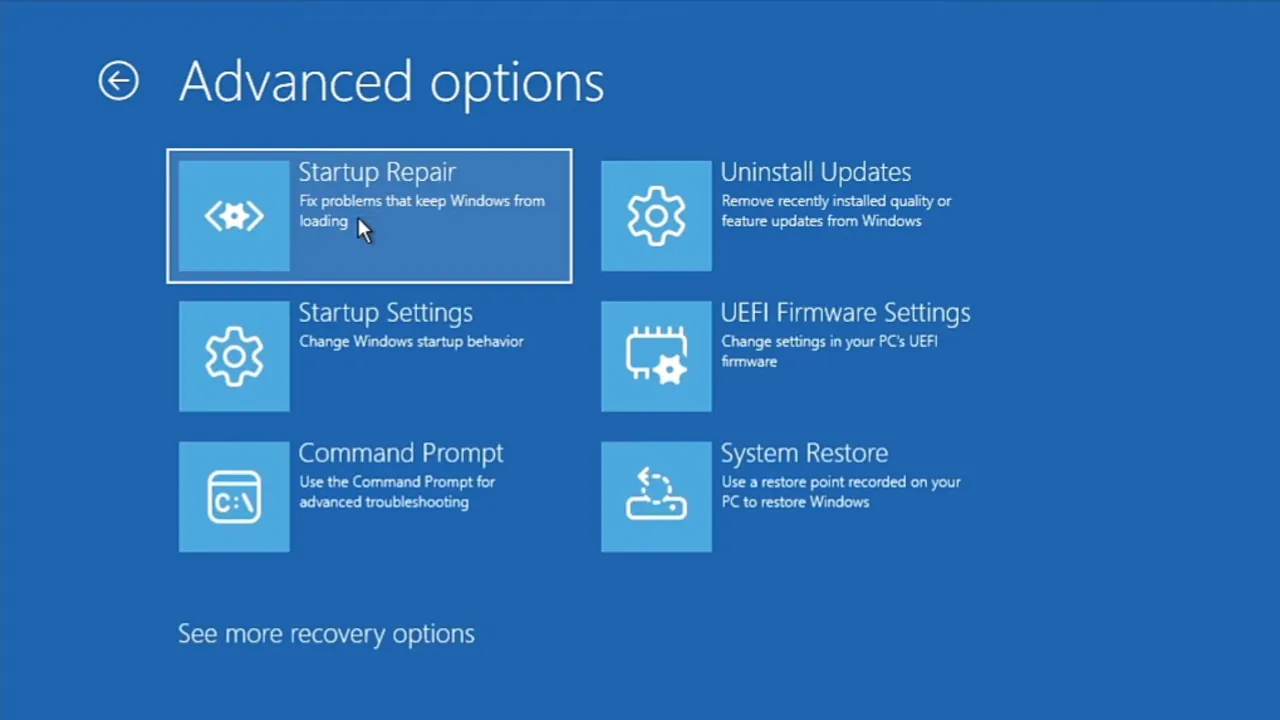
- Select Troubleshoot > Advanced options > Startup Repair.
- Choose your account if asked, enter the password, and let Windows diagnose the issue.

You may need your BitLocker recovery key on an encrypted device. Startup Repair can attempt to correct missing or damaged system files, boot configuration data, incompatible drivers, and certain registry-related startup errors.
If Startup Repair reports that it could not repair the PC, first back up files, check recent driver/software changes, run hardware diagnostics from the PC maker, and consider a repair install or professional support if the drive is suspect.
Related: How to Disable Driver Signature Enforcement (DSE) in Windows 11
11. Test Fast Startup Only When Shutdown Boot is the Problem
Fast Startup normally shaves seconds off a cold boot, so even if turned off, it won’t make much difference. If your computer is sluggish after a shutdown but behaves normally after a restart, or when hardware drivers fail to operate upon power-on, this feature is the primary suspect.
To test it:
- Open Control Panel.
- Select Hardware and Sound > Power Options.
- Select Choose what the power buttons do.
- Select Change settings that are currently unavailable.
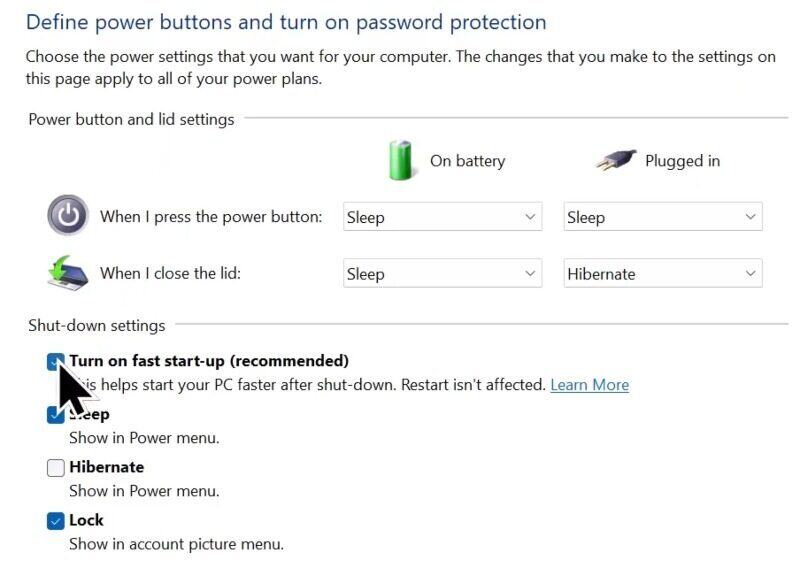
- Clear Turn on fast startup (recommended).
- Save your changes and perform a full power cycle.

Run a few shutdown-and-start cycles to confirm the result. If there is no improvement, revert the setting. If the system stabilizes, do not leave Fast Startup disabled permanently; treat it as a signal to update your chipset, storage, graphics, or firmware drivers. The setting is rarely the root cause, merely the catalyst for an underlying driver conflict.
Avoid These Fixes for Slow Windows 11 Startup
- Registry cleaners: Windows does not require routine maintenance of its registry, and deleting the wrong entry might cripple drivers, applications, and the boot sequence.
- Random driver-download sites: Use Windows Update or the hardware manufacturer’s official site only. Random download sites are an invitation for malware.
- Bulk disabling Microsoft services: It can prevent Windows features, security components, and updates from working.
- Third-party RAM cleaners or “PC boosters”: These programs usually launch at startup, effectively becoming the very clutter they claim to remove.
- Repeated forced shutdowns during a Windows update: Let an update finish unless Windows has been frozen for an exceptional period with zero disk activity.
- Deleting files manually from
C:\Windows,WinSxS, or system folders: If you need to reclaim space, use Storage settings, Disk Cleanup, DISM, or SFC. The system knows better than you where its own vitals are stored.
Related: How to Fix Black Screen Issue on Windows 11
Frequently Asked Questions
How long should Windows 11 take to start?
A modern PC with an SSD should reach the sign-in screen almost instantly. If your system is tethered to a mechanical hard drive, expect a lingering wait. Ignore the clock and look for deviation; a sudden shift from the machine’s established tempo is a warning, particularly if accompanied by errors, freezing, or an unresponsive system after login.
Why is Windows 11 slow only on the first startup of the day?
The initial boot of the day acts as a clearinghouse. Windows reconciles updates, runs antivirus scans, syncs cloud data, and initializes the device. If the delay happens only after a normal shutdown but not after restart, test Fast Startup and update storage, chipset, graphics, and firmware drivers.
Will more RAM fix slow Windows startup?
Do not mistake RAM for a universal cure. Extra memory prevents the system from paging to disk when your browser tabs and background applications pile up, but it rarely accelerates the pre-sign-in boot phase. If Windows startup takes long, the bottleneck is almost certainly your storage drive. An SSD upgrade often has a larger effect on boot time than extra RAM.
Can a Windows update slow down startup?
A Windows update can indeed slow startup. The system may require time to configure components, clear caches, or finalize driver installations. Cycle the computer through a few restarts, and if the latency remains, check for secondary updates or isolate the disruption to a specific driver.
Is it safe to disable all startup apps?
It is generally safe as a short test, but not ideal as a permanent blanket rule. Some apps provide security, backup, accessibility, VPN, audio, keyboard, or device-specific functions. Get rid of the nonessential entries, then restore the tools you rely on every day.
Should I reset Windows 11 to fix slow startup?
Take a Windows 11 reset as a final recourse. It is a blunt instrument. Before erasing your system, verify its disk health, scan for malware, and exhaust standard repair protocols. A reset can remove installed apps and may not solve a hardware problem such as a faulty drive.
Sources and Further Reading
- Microsoft Support: Tips to improve PC performance in Windows
- Microsoft Support: How to perform a clean boot in Windows
- Microsoft Support: Free up drive space in Windows
- Microsoft Support: Use the System File Checker tool
- Microsoft Support: Automatically get recommended and updated hardware drivers
- Microsoft Support: Startup Repair
- Microsoft Support: How to start a scan for viruses or malware in Microsoft Defender
- Microsoft Learn: Fast Startup and wake-from-hibernation
Did this fix your issue? Let us know. Your feedback helps other readers find the right solution. Great! What solved it for you? We read every response. Email is optional and never shared. Sorry to hear that. What happened? Leave your email and we will personally help you fix it.