



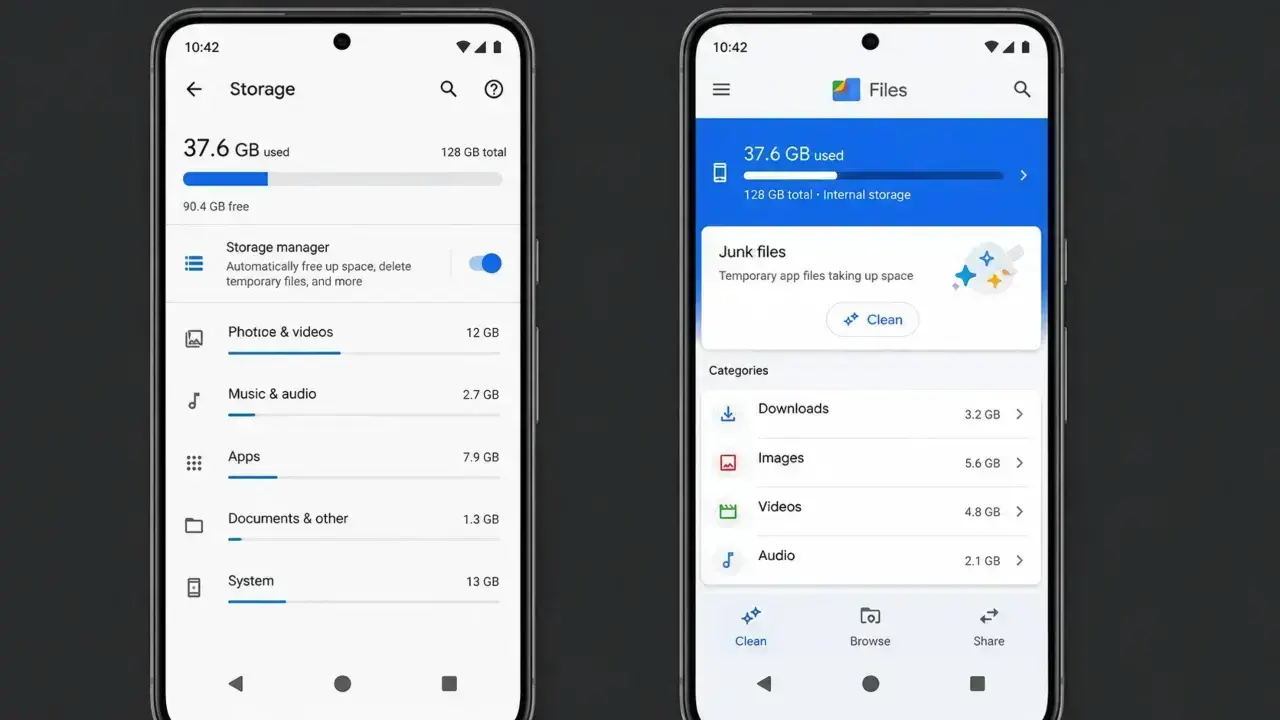

When Android storage gets crowded with old photos, large video files, forgotten app downloads, and piles of cached data, it can drag your device down. You might notice apps crashing, the camera refusing to save new pictures, or the whole interface lagging when you try to get things done.
It’s frustrating when your phone struggles to keep up with daily tasks, but instead of wiping data blindly, a smart way is to follow a systematic cleanup approach. By taking an organized look at what’s consuming space followed by backup of your important data first, you can reclaim plenty of room on your Android device without the risk of accidentally losing the memories or documents that matter a lot to you.
This guide explains the safest way to clean your phone or tablet, including apps, photos, downloads, cache, chat media, offline content, duplicate files, and SD cards.
Check What Consumes Your Android Phone Storage
Android storage menus vary by phone brand, but the general path is usually:
Settings > Storage
On some smartphones, the storage options can be found at Settings > Battery and device care > Storage, Settings > About phone > Storage, or a similar path. The storage page separates your used space into categories such as apps, images, videos, audio, documents, downloads, system files, and temporary data.
Do not treat all categories the same. “Apps” may include downloaded app content and offline media; “Images” might have screenshots and chat pictures, while “Other” can include app data that needs to be managed inside the relevant application.
| Storage category | Best place to clean it | What to watch for |
|---|---|---|
| Photos and videos | Google Photos, Gallery, Files app, or computer backup | Confirm backups before removing local copies. |
| Apps | Settings > Apps or Google Play Store | Uninstall unused apps before clearing important app data. |
| Downloads and documents | Files by Google or your phone’s Files app | Check PDFs, APK files, ZIP files, and old attachments. |
| Chat media | WhatsApp or the relevant messaging app | Large videos and forwarded files often take the most space. |
| Temporary app files | Settings > Apps > [App] > Storage | Use Clear cache first; Clear storage may sign you out or erase downloads. |
Recommended Cleanup Order
1. Delete Downloaded Videos, Music, Podcasts, and Files
Downloads are one of the fastest ways to free up space because you can remove them without affecting the original online content or your account. Start with media downloaded for offline use.
Delete downloads from the app
Open the streaming or media app where you downloaded the content and look for a section called Downloads, Offline, Saved, or Manage downloads.
Common storage heavy data include:
- Downloaded YouTube videos and playlists
- Offline music albums and podcasts
- Google TV or other movie downloads
- Netflix, Prime Video, Disney+, or similar offline episodes
- Offline language packs, dictionaries, and navigation data
- Large PDFs, ZIP files, installation files, and email attachments
For downloaded files outside apps, open Files by Google or your phone’s file manager. Check the Downloads folder, sort by size or date when possible, then delete all you no longer need.
2. Uninstall or Archive Apps You No Longer Use
Besides just taking up space when you install them, unused apps also tend to hoard extra junk like cached images, offline content, saved settings, and random downloads.
To remove an app:
- Open Settings > Apps.
- Select an app you no longer use.
- Tap Uninstall.

You can also use Google Play to do the same:
- Open the Google Play Store.
- Tap your profile picture.
- Select Manage apps & device > Manage.
- Choose unused apps and uninstall them.
Keep your security, banking, password management, backup, smart home, wearable, and work apps unless you know for sure you can delete them.
Archive apps you rarely use
Android lets you archive apps you don’t open often, which deletes most of the app files but keeps your personal settings and the icon on home screen, so you can easily download it from the Play Store whenever you need it again.
To manage this setting, open:
Play Store > Profile picture > Settings > General > Automatically archive apps

Archiving is a better option than uninstallion when you don’t use an app often but still want to keep your data.
3. Clear App Cache
Android apps generate cache files—temporary data stored to help content load fast which you can safely delete to reclaim storage space. Just keep in mind that the app may take a while to load data the next time you open it because it will have to create a fresh required cache for itself.
To clear the cache for an app:
- Open Settings > Apps.
- Select the app.
- Tap Storage or Storage & cache.
- Select Clear cache.
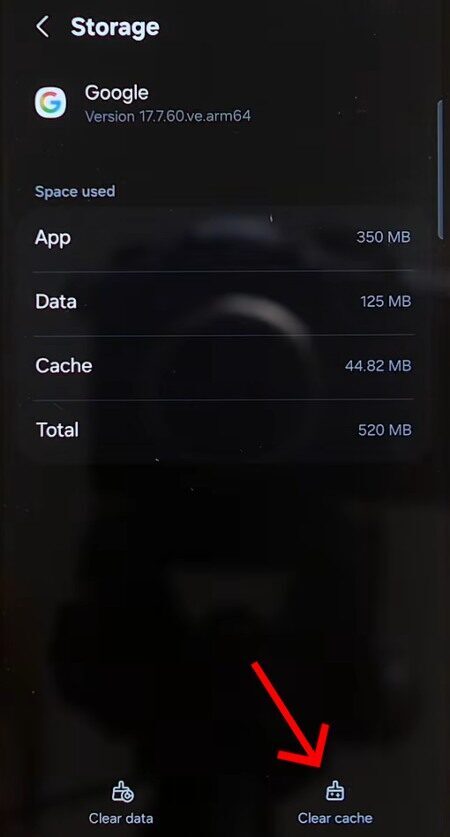
Focus on apps that handle heavy media or offline data, like browsers, social media, music and video platforms, maps, and shopping apps.
You don’t need to clear the app cache all the time. Do it only if an app is misbehaving, taking up too much space, or causing your phone to slow down.
4. Free Up Space Used by Photos and Videos
Photos and videos often occupy the largest share of Android storage, especially 4K video, long recordings, edited copies, screen recordings, and media from chat apps.
Use Google Photos “Free up space”
Google Photos can remove device copies of photos and videos that have already been backed up to your Google Account.
- Open Google Photos.
- Tap your profile image or initial.
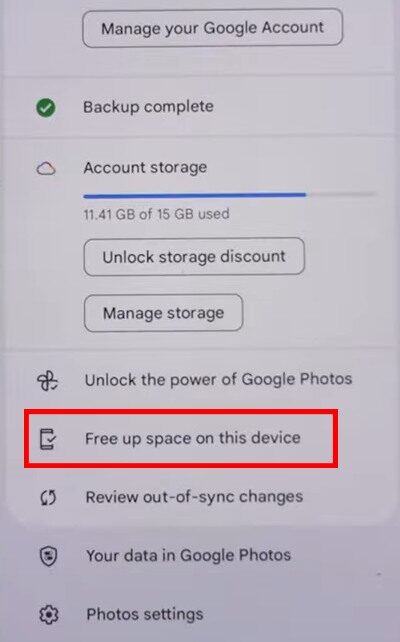
- Select Free up space on this device.
- Review the amount of space that will be recovered.
- Select Free up to remove the backed-up device copies.
Afterward, the backed-up items will be visible in Google Photos and at photos.google.com when you are signed in and connected to the internet. However, local copies are removed and might not appear in the phone’s built-in Gallery app, and they may be unavailable when the phone is offline.
Review screenshots, recordings, and large videos
Use Google Photos, Gallery, or Files by Google to review screenshots, old screen recordings, duplicate edited copies, and long form media. These files are easy to overlook because they are often not in the main camera folder. Google Photos also helps you manage your storage by highlighting large videos, blurry photos, and screenshots that take up too much space.
5. Remove Large Files, Duplicates, Screenshots, and Old Downloads
Files by Google makes storage management a breeze by letting you browse files by category instead of digging through folders. Its Clean feature does the heavy lifting for you by identifying large files, duplicates, old screenshots, junk data, and inactive programs.
To review large files:
- Open Files by Google.
- Open the Clean section.
- Find the Delete large files card.
- Tap Select files.
- Review each file, then move unwanted items to Bin or Trash.
To review duplicates, choose the Duplicate files card in the same Clean section. Files by Google marks one copy as the original which you should keep unless you have a good reason to store another copy.
6. Manage WhatsApp and Other Chat Media
Messaging apps are notorious for this because they auto-download every media sent to you by default, whether you asked for it or not. Thanks to it, WhatsApp groups, forwarded videos, voice notes, documents, and repeated media files can take many gigabytes.
- Open the WhatsApp app.
- Tap the three-dot menu > Settings.
- Select Storage and data > Manage storage.
- Use the filters “Larger than 5 MB” and “Forwarded many times,” to catch most of the clutter.
- Sort by size or date, select what you don’t need, and delete.
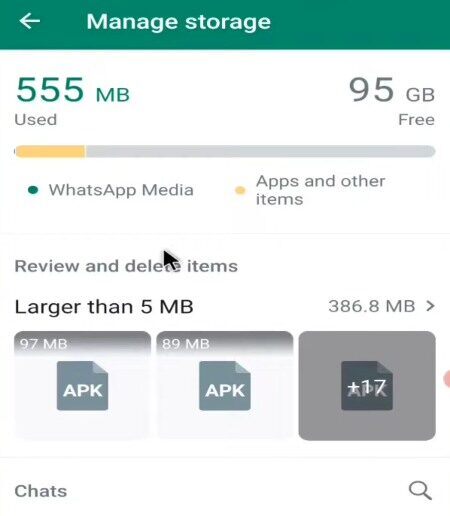
Deleting a file this way removes the media, not the message, and if the same photo is in more than one chat, you’ll need to remove each copy separately.
To stop this from building back up, go into the same Storage and data settings and turn Media auto-download off (or set it to Wi-Fi only) for photos, videos, and documents. The same pattern applies to Telegram, Instagram, and Discord — any app that auto-saves incoming media is worth checking the same way.
7. Remove Offline Maps and Other Data
Offline maps are handy for trips, but they take a lot of space. You can check and clear these downloads right in the app. Open Google Maps, tap your profile icon, and go to Offline maps. Pick maps you don’t need anymore and tap Delete. If your phone supports an SD card, you can store maps there instead, though you have to redownload them to change the storage location.
Check your other apps for cached content too. Things like music, podcasts, language tools, e-books, and cloud storage often keep files locally. Clearing these out inside every app keeps your storage organized and accurate.
8. Move Files to an SD Card or Computer
If your phone supports a microSD card, moving your photos, videos, music, and downloads over is a great way to free up some breathing room.
Note: Not every Androi phone ships with SD card slot, so double check your device settings to see if it’s an option for your specific model. Expandable storage now mainly survives on budget and rugged Android devices.
Google lists two primary ways to set up a card:
- Portable storage: It keeps files like media and lets you swap the card between devices. You cannot install apps onto the card in this mode.
- Internal/adoptable storage: It treats the card as an extension of your phone memory. This lets you save apps on it but links the card to that specific phone, so you cannot move it elsewhere.
If you want to move files manually, open the Files by Google app or your phone’s built-in file manager. Select the photos, videos, or documents you want to move, tap the move option, and select your SD card as the new home. You can also plug your phone into PC with a USB cable and just drag and drop the files over to keep them safe. Just double-check that everything opened correctly on your computer or SD card before you delete the originals from your phone.
10. Keep Your Android Device Storage Clear
Managing storage is easier if you stay ahead of the mess instead of waiting for your phone to hit a wall.
- Turn on photo backup only when you have enough cloud storage and a reliable connection.
- Use Google Photos’ device cleanup only after confirming backups.
- Review the Downloads folder once a month.
- Delete finished offline shows, podcasts, and maps after travel.
- Set WhatsApp and similar apps to avoid automatically downloading every video in active group chats.
- Archive apps you rarely use rather than leaving them installed.
- Use Files by Google’s Clean recommendations to check large files and duplicates.
- Move camera photos and long videos to an SD card or computer where possible.
A phone that is low on storage can also become sluggish during daily tasks, camera use, or app updates. After cleanup, restart the phone if an app still reports low storage or behaves unusually. If your device’s power button is broken, learn how to restart an Android phone without a power button.
Frequently Asked Questions
Why is “Other” storage so large on my Android phone?
Does deleting Google Photos from my phone delete them from Google Photos online?
What is the difference between phone storage and Google Account storage?
Is it safe to use Android cleaner or booster apps?
Stick to your phone’s built-in storage settings and the official Files by Google app to perform cleanup. Avoid third-party cleaners as they often run in the background, ask for excessive permissions, display ads, or prompt you to delete files too aggressively. Using the tools already on your phone is a safe, easy way to get your storage back.
Why does my phone still say storage is full after I deleted files?
Can I move every Android app to an SD card?
Sources and Editorial Verification
Editorial verification: This guide was reviewed against recent Android, Google Photos, Files by Google, Google Maps, Google Play, and WhatsApp support guidance. The cleanup order starts with identifying storage use and protecting important data, then moves through reversible actions before permanent deletion or SD card formatting.
Device scope: Android menus differ between Google Pixel, Samsung Galaxy, Xiaomi, OnePlus, Motorola, Oppo, Vivo, and other brands. The instructions use common Android menu names. Where a label differs, use Settings search for terms such as “Storage,” “Apps,” “Cache,” “Free up space,” or “SD card.”
- Google Android Help: Free up storage on your Android device
- Google Android Help: Clear up space
- Files by Google Help: Delete duplicate files
- Files by Google Help: Delete large files
- Google Photos Help: Free up space on your Android device
- WhatsApp Help Center: How to free up storage on WhatsApp
- Google Android Help: Get started with an SD card
- Google Maps Help: Download areas and navigate offline
Did this fix your issue?
Let us know. Your feedback helps other readers find the right solution.
Great! What solved it for you?
We read every response. Email is optional and never shared.
Sorry to hear that. What happened?
Leave your email and we will personally help you fix it.