






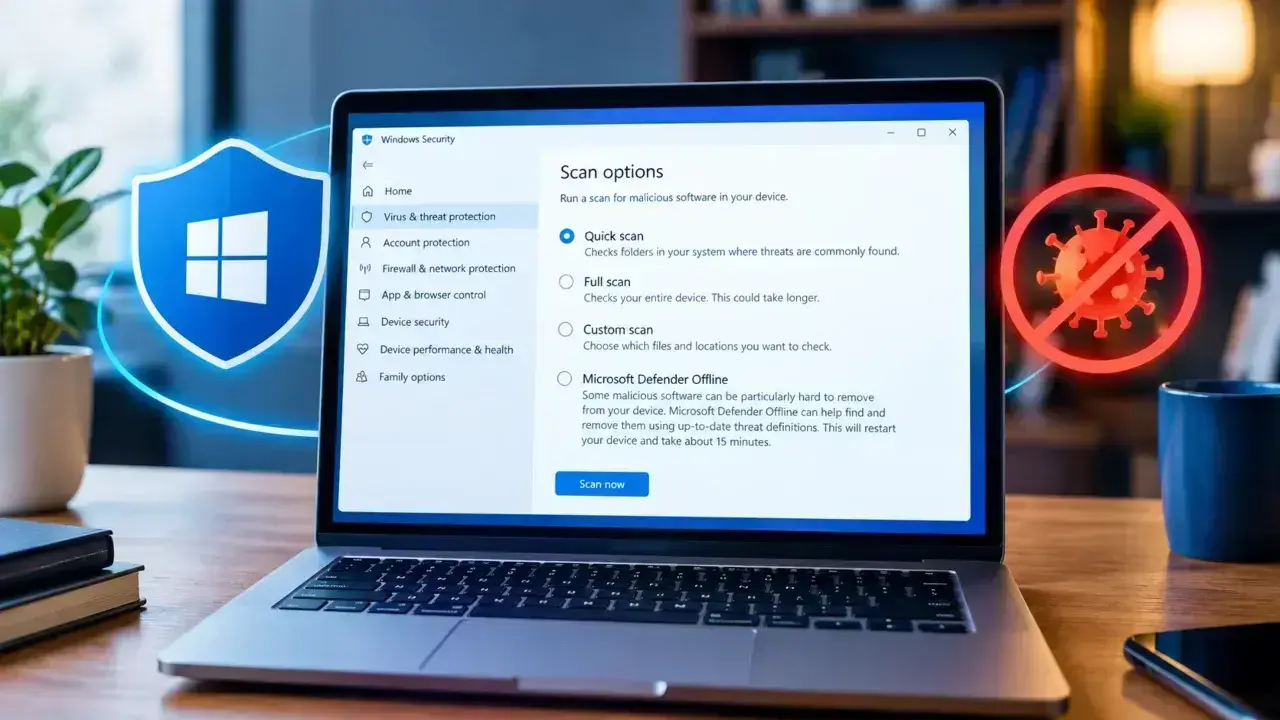

Does your computer have a virus or weird malware? Before you download random tools, start with the built-in security features already on your system. Most of the time, these can do the job just fine. Only bother with deep-dive scans or extra software if you’re seeing symptoms or if your initial check scans something that needs a closer look.
- Quick Answer
- First: make sure the warning is real
- What to Do Before You Scan Your Computer
- How to Scan a Windows PC for Malware or a Virus
- Step 1: Open Windows Security
- Step 2: Check the Current Threat Status
- Step 3: Start with a Quick Scan
- Step 4: Move to a Full Scan When the Situation Calls for It
- Which Windows Malware Scan Should You Use?
- When to Use Microsoft Defender Offline
- How to Scan a Single File, Folder, or USB Drive
- What to Do When Windows Finds Malware
- When to Use a Second-Opinion Malware Scanner
- How to Scan a Mac for Malware
- Step 1: Update macOS
- Step 2: Check Recently Installed Apps
- Step 3: Review Browser Extensions
- Step 4: Use a Well-Known Manual Scanner
- Macs still need sensible security habits
- When the Problem is Browser Malware or Unwanted Notifications
- When You Should Reset or Reinstall Windows
- How to Manage Accounts After a Suspected Infection
- Not Every Slow or Strange Computer Has Malware
- Windows 10 Users: One Important 2026 Note
- How to Reduce the Chance of Getting Malware Again
- Malware Scanning Checklist
- Frequently Asked Questions
Quick Answer
On a Windows PC, open Windows Security > Virus & threat protection. Start with a Quick scan. If you have persistent symptoms, a suspicious detection, or reason to believe something is hidden in the system, do a Full scan, then Microsoft Defender Offline when necessary.
On a Mac, keep macOS updated and pay attention to Apple’s built-in protections such as Gatekeeper and XProtect. A third-party scanner can be of some help when you have specific symptoms or want a second opinion, but installing multiple real-time antivirus products at once is a bad troubleshooting strategy.
First: make sure the warning is real
A browser tab saying “Your computer is infected,” “Call Microsoft immediately,” or “Click here to remove the virus” is not proof that your computer has malware. Fake security alerts are a common social engineering trick.
A new variation is the fake CAPTCHA scam. The FTC warned in June 2026 about pages that tell users to press keys such as Windows + R, paste text, and press Enter. A real CAPTCHA won’t ask you to run commands on your PC.
What to Do Before You Scan Your Computer
Before you click Scan, take a minute to figure out what’s exactly going wrong. A sluggish startup, overheating laptop, random crashes, or weird pop-ups might be malware. They could also be caused by a bad browser extension, a dying hard drive, too many background apps, or even a usual browser notification.
That matters because the right fix depends on the cause. If your main symptom is a slow Windows startup, you should check your startup programs and system health instead of running virus scans. For related troubleshooting, check out our guide on how to fix Windows 11 slow startup.
Before you scan
- Save your work, particularly before an Offline scan that will restart Windows.
- Install pending Windows or macOS security updates.
- Make sure your security software has the latest protection updates.
- Think about when the problem started and what changed just before it appeared.
- If you suspect an active ransomware or remote-access incident, disconnect the affected PC from the network before usual cleanup.
- If this is a work or school computer, contact the institution’s IT or security team.
Keep Windows Defender protection up to date because its security intelligence and other protection components are regularly updated. A scan is much more useful when the antivirus engine and its threat information are up to date.
Also read: How to Check If Your Phone is Hacked
How to Scan a Windows PC for Malware or a Virus
Windows Security workflow is straightforward, and you usually don’t need to download another antivirus program to run your first scan. Windows Security provides Quick, Full, Custom, and Microsoft Defender Offline scan options.
Step 1: Open Windows Security
- Open the Start menu.
- Search for Windows Security.
- Open the app.
- Select Virus & threat protection.

On this page, Windows shows the status of current threats, recent scan info, protection settings, and scan options.
Step 2: Check the Current Threat Status
Check the Current threats section first. If Windows has flagged or removed something, deal with it. You can see what Defender caught or blocked in the Protection history. This log keeps events for the last two weeks, including files that were quarantined, blocked, or left for you to decide about.
Important: Never choose “Allow on device” for a detected file. If you are not sure it is a false alarm, simply quarantine or delete it.
Step 3: Start with a Quick Scan

Click Quick Scan to have a fast check for common threats. This is the right starting point when your computer seems suspicious but you don’t have a strong reason to believe there is a deep infection. A Quick Scan is not the same thing as “scan every file on the computer.” Windows offers separate options for the deeper, more thorough scans when you need them.
Step 4: Move to a Full Scan When the Situation Calls for It
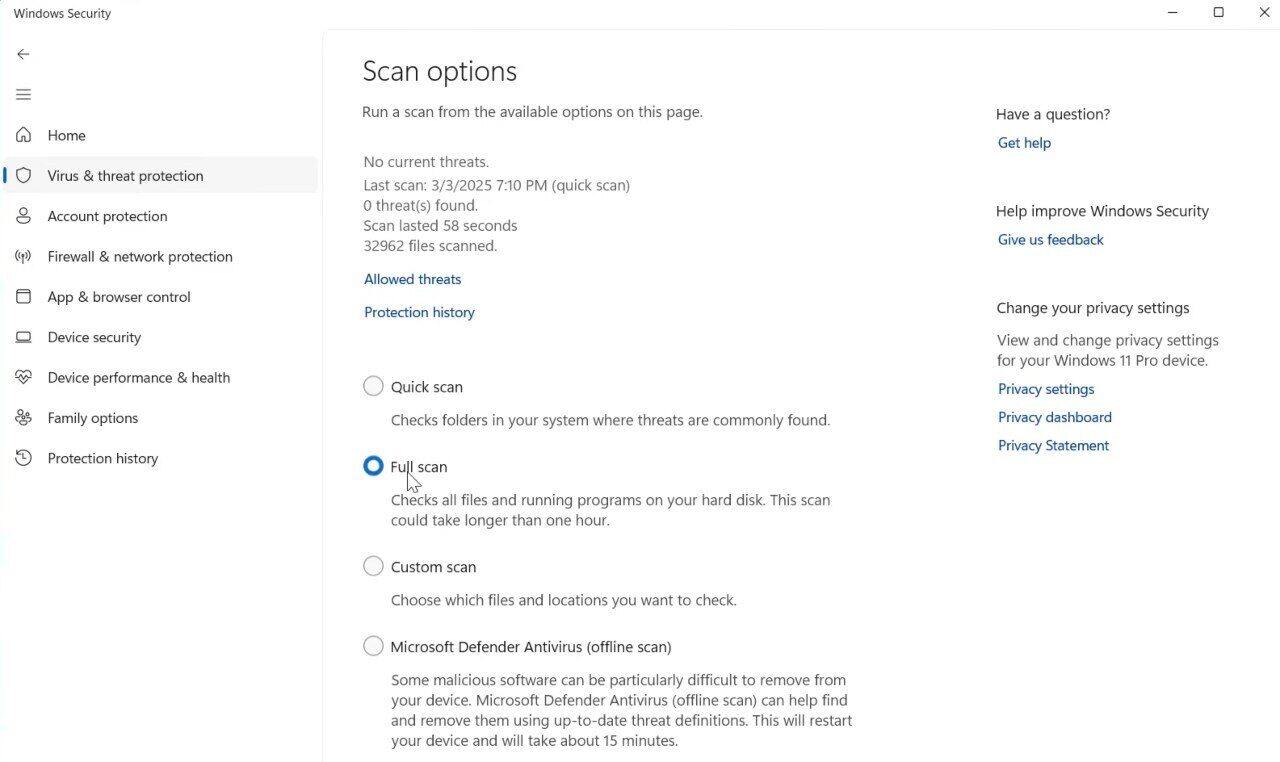
For unexplained malware-like behavior, a suspicious download, a detection you want to investigate more thoroughly, or recurring symptoms, open Scan options and choose Full scan. This checks every file and program on your PC but takes longer than a normal scan.
Which Windows Malware Scan Should You Use?
| Scan Type | Best Use | What to Expect |
|---|---|---|
| Quick scan | First check for common threats | Fastest normal scan; not a complete file-by-file examination |
| Full scan | Persistent symptoms or a more thorough check | Scans every file and program; may take much longer |
| Custom scan | A specific folder, drive, or suspicious location | Scans only the files or folders you select |
| Microsoft Defender Offline | Suspected malware that may resist a normal scan | Restarts Windows and scans from the Windows Recovery Environment |
When to Use Microsoft Defender Offline
Use Microsoft Defender Offline if you think a threat is stuck on your machine, and a regular scan fails to get rid of it. This tool runs before Windows completely loads after a restart. Because the operating system is not active yet, malware struggles to hide from the scan.
Try it when:
- Defender keeps detecting the same threat.
- Normal scans fail to delete a detected threat.
- Suspicious activity is noticed after a Full scan.
- You have a strong reason to believe malware is loading early in the boot process.
- You want a thorough check without loading the normal Windows desktop.
How to Run Microsoft Defender Offline
- Save your work and close open applications.
- Open Windows Security.
- Select Virus & threat protection.
- Select Scan options.
- Choose Microsoft Defender Antivirus (offline scan).
- Select Scan now.
- Allow Windows to restart and complete the scan.

After Windows starts again, check Protection history for the result.
Do not panic if the PC restarts
The restart is part of the Offline scan process. Save your work first and never interrupt the scan, even if you no longer see the normal Windows desktop.
How to Scan a Single File, Folder, or USB Drive
You don’t always need a full system scan. Sometimes the question is very narrow: “Is this downloaded file safe?” or “Could this USB drive have malware?”
In that case, use the custom scan settings in Windows Security or the Microsoft Defender option from File Explorer. This works well for installers you recently downloaded, suspicious executables, or drives you aren’t sure about (or don’t fully trust).
A practical rule for downloads
If you received the file from a shady site, a random pop-up, a message from an unknown sender, or a source that told you to bypass browser or security warnings, don’t waste time scanning it. You shouldn’t trust it regardless. Just delete the file without opening it.
Also read: Can iPhones Get Viruses? The Truth Explained
What to Do When Windows Finds Malware
A virus alert is not the end of the process. The next step depends on what Windows actually reports.
1. Quarantine or Remove
If Defender recommends quarantine or removal, stick to that advice unless you know for sure it is a false positive.
2. Check the File Details
Ignore the scary-sounding malware name for a moment. Look at where the file was found and when it appeared. Finding malicious files in your recent downloads, temp folders, or browser extensions usually provides useful clues about how the infection started.
3. Rescan if Necessary
If the detection was removed successfully and your computer is back to normal again, you’re good to go. But if the same threat returns, quit running the same quick scan over and over and step up your game.
4. Verify the Cleanup
Check Microsoft’s Protection History to see if the threat was blocked, quarantined, or if remediation was incomplete. “Remediation incomplete” deserves attention because it means the cleanup failed.
If the computer remains compromised after repeated scans, try an offline scan, use a second antivirus tool for a fresh perspective, or perform Windows Recovery or Windows Reset depending on the severity of the situation.
When to Use a Second-Opinion Malware Scanner
Use a second scanner if:
- Your computer still acts strange even after Microsoft Defender reports a clean result.
- You want another vendor’s assessment of a suspicious file or unwanted software.
- You suspect adware, potentially unwanted applications, or browser junk.
- The current security software fails to wipe out a threat.
Stick to one trusted scanner at a time and download it from the official site. Never trust free removal tools promoted via pop-up ads, unofficial download pages, or through fake support calls.
Keep in mind that running a second opinion scan is not the same as installing two antivirus programs. If you add another security suite, Windows might switch it to your primary protector. For general troubleshooting, avoid piling multiple antivirus tools on top of one another only to feel secure.
How to Scan a Mac for Malware
macOS protects you differently than Windows with built-in tools including Gatekeeper, notarization, and XProtect. XProtect is Apple’s malware protection and is updated independently of macOS version updates.
That does not mean a Mac can never have malware. But with such malware protection, the first troubleshooting step isn’t necessarily “download an antivirus and run a deep scan.” Start with Apple’s own security layers and the symptom your MacBook shows.
Step 1: Update macOS
- Open the Apple menu.
- Choose System Settings.
- Open General.
- Select Software Update.
- Install available updates compatible with your Mac.

Step 2: Check Recently Installed Apps
If the problem started immediately after you installed an unknown program, investigate it. Look through the Applications folder and remove software you knowingly installed only if you are sure you no longer need it and it’s the actual cause of the problem.
Step 3: Review Browser Extensions
Extensions can cause redirects, notification spam, search-engine changes, or weird ads without behaving like a standard virus. Delete any extensions you don’t recognize and verify your browser site permissions.
Step 4: Use a Well-Known Manual Scanner
If your Mac shows signs of malware or abnormal behavior, an external scanner might help. Download security software directly from its official vendor site and avoid pop-ups, cracked software sites, or third-party download mirrors.
Macs still need sensible security habits
While Gatekeeper and XProtect block plenty of threats, they cannot stop social engineering. You can still get tricked into granting remote access, approving a malicious login request, or installing bad software. Always be careful with what you click.
When the Problem is Browser Malware or Unwanted Notifications
Not every “virus popup” is the result of malware on the computer. Sometimes, browser notification permissions or shady extensions mimic the symptoms that look very similar to an infection.
Common warning signs include:
- New tabs opening on their own.
- Search results being redirected to strange websites.
- Your homepage or search engine changing unexpectedly.
- Ads stick around after you close the browser.
- Unknown extensions or toolbars keep reappearing after you delete them.
- Frequent alerts from websites claiming your device is infected instead of official Windows security prompts.
Do not click a button in a suspicious warning that offers to remove a virus. Manage security from your antivirus software or browser settings. Real security tools will not prompt you to call a phone number or visit a random site.
When You Should Reset or Reinstall Windows
If malware affects or changes your system in ways you cannot fix, use recovery options. Consider a reset or reinstall when malware has caused irreversible changes, provided you have clean backups of your data. If you do follow this process, be careful. Do not move random scripts, cracked software, or unknown programs from the infected machine to your fresh installation.
How to Manage Accounts After a Suspected Infection
Even if you have cleaned your system files, an attacker won’t forget what they already learned or stole.
Pay particular attention when you:
- Entered a password while a suspicious program was active.
- Typed banking or payment information into a page you now believe was fake.
- Allowed someone to control the PC remotely.
- Downloaded and ran a suspicious “fix” after seeing a fake virus warning.
- Used the same password on several important accounts.
Use a Clean, Trusted Device
If you believe the infected computer might be capturing keystrokes or sessions, change important passwords from a trusted device. Start with your email, password manager, bank accounts, and cloud storage since these control access to everything else.
Clear malware from your PC before changing a compromised Microsoft account password. After cleanup, set the new password, review account settings, and enable strong sign-in protections such as multifactor authentication.
Also check active sessions and recovery methods. Changing the password is only one part of securing an account. You must also check for strange devices, new email forwarding rules, connected apps, and modified recovery options to ensure the attacker is fully locked out.
Not Every Slow or Strange Computer Has Malware
This is one of the most important troubleshooting points: symptoms alone do not prove infection. If a computer suddenly becomes slow, it can have many possible causes as listed in the table below:
| Symptom | Possible non-malware causes to check |
| Slow startup | Too many startup apps, updates, storage pressure, damaged system files, aging hardware |
| High CPU usage | Browser tabs, software updates, indexing, cloud sync, background applications |
| Laptop overheat | Dust, blocked vents, poor airflow, heavy applications, thermal issues |
| Browser pop-ups | Website notification permissions, intrusive ads, unwanted extensions, or malware |
| Bluetooth problems | Driver problems, Windows services, pairing issues, interference, hardware faults |
For example, laptops overheat for all sorts of reasons. Check out our guide on why it gets hot and quick ways to fix laptop overheating. Likewise, if Bluetooth acts up, treat it as a connection error rather than an antivirus issue. Read our guide on why Bluetooth won’t work on Windows to figure out the right fix.
Windows 10 Users: One Important 2026 Note
Windows 10 support officially ended on October 14, 2026. While upgrading to Windows 11 on compatible hardware is recommended, Microsoft offers an Extended Security Update (ESU) program to keep qualifying Windows 11-incompatible PCs to continue to receive important security patches.
Antivirus software cannot repair underlying operating system vulnerabilities. Maintaining active, official update coverage is crucial for overall PC security. If your system still runs Windows 10, make checking your update status a priority.
How to Reduce the Chance of Getting Malware Again
- Patch OS, Browsers, and Key Apps: Regularly apply security updates to close exploit paths across your operating system (Windows, macOS), web browsers, extensions, PDF readers, and messaging software.
- Source Software Exclusively from Official Outlets: Avoid high-risk downloads, including pirated games, cracked software, activators, unofficial repacks, automated driver updaters, and third-party utility bundles offered on aggressive download pages.
- Ignore Design Polish on Warnings: Treat security alerts with skepticism regardless of how professional they look; scammers regularly copy official branding from Microsoft, Apple, Google, antivirus vendors, or government agencies.
- Recognize Interactive CAPTCHA Scams: Real CAPTCHAs only ask you to select images, type characters, or click a checkbox. Reject any prompt that asks you to open system utilities (like the Windows Run dialog), paste clipboard text, or execute terminal commands; it’s a malicious delivery technique.
- Keep Offline or Immutable Backups: Protect critical data against ransomware by keeping secondary backups disconnected from your network or configured with write-protection so malware cannot encrypt or purge them during an infection.
- Restrict Unnecessary Browser Notifications: Deny “Allow Notifications” prompts unless strictly necessary. Malicious sites abuse desktop notifications to push fake infection alerts that mimic active malware even on a completely clean machine.
Malware Scanning Checklist
☐ Save your work before starting a scan that may restart the computer.
☐ Update Windows or macOS.
☐ Make sure your antivirus protection is up to date.
☐ Start with a Windows Quick scan.
☐ Use a Full scan for in-depth investigation.
☐ Use Microsoft Defender Offline when persistent malware is suspected.
☐ Check Protection History and do not casually allow detections.
☐ Review recently installed apps and browser extensions.
☐ Use a reputable second-opinion scanner only when it brings value.
☐ Change important passwords from a clean device if credentials may have been exposed.
☐ Turn on multifactor authentication for important accounts.
☐ Consider reset/reinstall when malware has caused major or irreversible changes.
Frequently Asked Questions
Can a virus scan detect spyware and ransomware too?
Modern anti-malware products are developed to detect broad threat categories, including spyware, ransomware, keyloggers, and trojans. However, no single scanner offers a 100% detection guarantee. For complex or persistent infections, use dedicated second-opinion scanners and offline recovery tools.
Do I need to run a full antivirus scan every day?
Usually not. A modern security product provides ongoing protection in the background, while manual scans are useful when you have a reason to investigate. Instead, reserve full scans for periodic health checks or when investigating suspicious behavior. What you should do is keep protection updates current and respond to warnings as quickly as possible.
Can I scan a ZIP or RAR file before opening it?
Yes, and you should scan these archive files before opening them. However, a clean scan doesn’t mean the file is safe if the source is sketchy. Password-protected archives and other techniques can complicate scanning, so the file’s origin still matters.
Why am I still seeing scary pop-ups when my antivirus says the computer is clean?
Regular pop-ups often come from abused browser notification permissions, malicious browser extensions, or adware, rather than system-level malware. Review your browser’s “Notification Permissions” list, remove unrecognized extensions, and reset your search engine/homepage settings.
Can malware survive a normal Windows antivirus scan?
Yes. Certain rootkits and persistent malware hide active processes while the main operating system is working. To neutralize these, run Microsoft Defender Offline, which reboots your PC and executes a scan inside the Windows Recovery Environment (WinRE) before the main OS loads.
What should I do if I entered a password while malware may have been on my computer?
Assume the credential was compromised by a keylogger or stealer malware. Isolate or sanitize the infected PC first, then change your passwords from a clean, secondary device. Prioritize primary email accounts, bank profiles, password managers, and identity providers used for account recovery. Additionally, audit active login sessions, revoke unauthorized access, and re-verify Multi-Factor Authentication (MFA) settings.