







It’s hard to wrap your head around the fact that Roku has been in the streaming industry for nearly two decades. I still remember when the first boxes launched, developed as a vehicle for Netflix’s “Watch Instantly” feature. Since then, the hardware has evolved into the sticks and built-in smart Roku TVs we use today. So there’s a good chance the puck or stick behind your Roku TV is ancient.
If you’ve kept a device for a few years or even have a newer model that suffers heavy use every day, you are likely to hit the wall where the menu lags, the remote becomes unresponsive, or the audio falls out of sync with the video.
Before you look for a replacement, it’s worth knowing how the Roku TV handles its temporary data. Often, the hardware is fine and only needs a little digital housekeeping—a few basic tweaks are all it takes to make an old device snappy again.
What is a Cache?
Think of cache as your Roku’s short-term memory, or the same way you think of the cache on a web browser or smartphone. Every time you launch Netflix, Hulu, or any other app, your device stores temporary data like thumbnails, login credentials, and interface elements. This helps apps load fast since your Roku doesn’t need to fetch everything from scratch every time.
However, storage is finite. Over weeks and months, this digital attic gets cluttered. Files get corrupted, or the sheer volume of temporary data begins to choke the system’s available memory, the storage fills up, and what was once a helpful shortcut becomes clutter. When this happens, you see symptoms such as choppy playback, audio-video sync problems, or app crashes on launch.
Roku handles cache differently than most smart TVs. You won’t find a clear cache button in the settings menu like you would on other devices. But you can still do it, and you should do this very often. It requires using specific system commands to flush out the junk. Here are two quick and best ways to clear your Roku cache.
Reset Roku TV Using the Remote
This is my preferred method because it gives me the vibe of feeding an old-school cheat code into the controller. It’s a strange, hidden combination of buttons that engineers likely programmed for diagnostics, but it works wonders to remove temporary files without wiping your login credentials. You won’t lose your apps or settings, but the system will dump the temp data that might have caused the glitch.
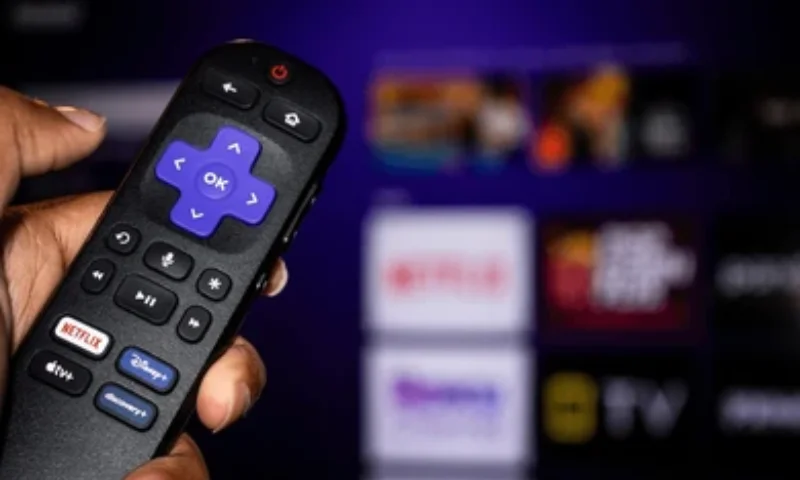
Pick the Roku remote and follow these exact steps:
- Press the Home button five times.
- Press the Up arrow once.
- Press the Rewind button twice.
- Press the Fast Forward button twice.
If you hit the timing right, the TV interface will freeze for a while. The screen might go black, and the device will reboot. It usually takes no more than a couple of minutes to power on, so don’t panic if it sits on the loading screen longer than a normal startup. Once it’s back, open the app that previously had the trouble; usually, the slowdown will disappear after this refresh.
Restart Roku from System Settings
If the above method didn’t work or feels too finicky, you can achieve a similar result through the system menu. However, a restart isn’t always enough to fully clear the volatile memory. I recommend adding a power cycle step to the process so the capacitors are completely drained, and the memory is wiped clean. This isn’t a factory reset, so it won’t delete your installed apps, logins, or Wi-Fi settings.
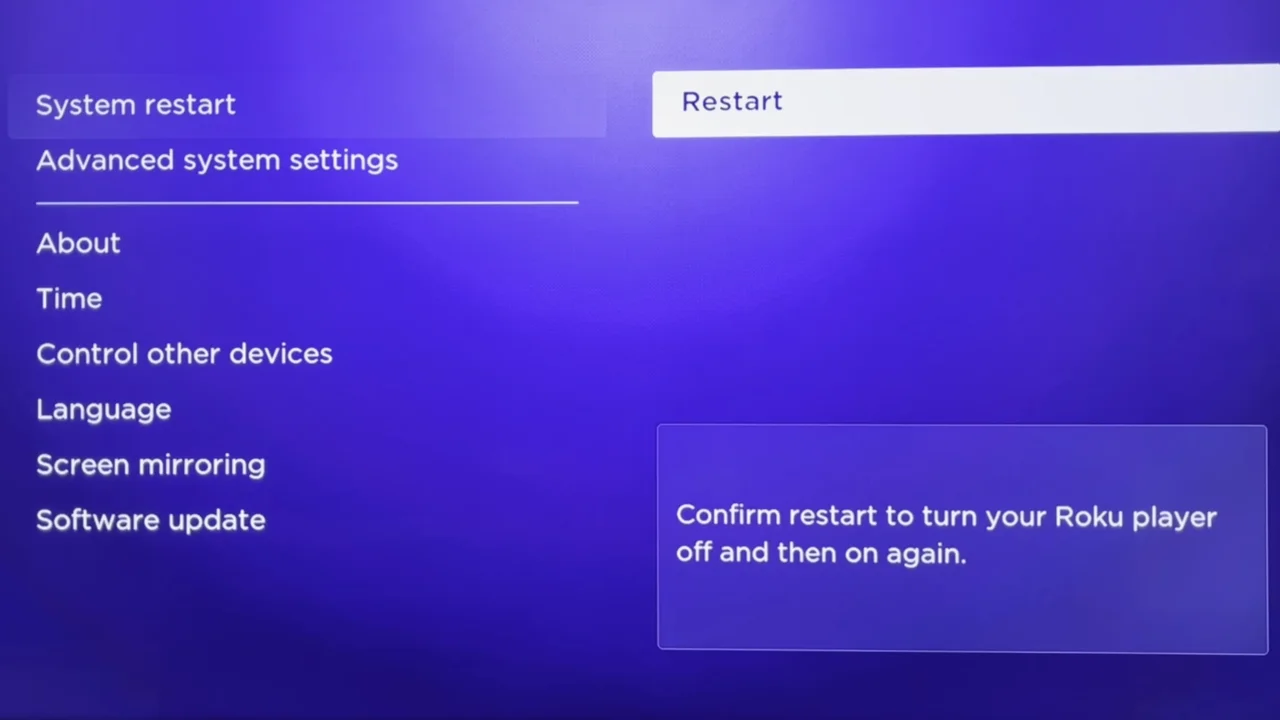
Here’s how you can perform a system restart:
- Press the Home button to get to the main menu.
- Scroll down and select Settings, then go to System.
- Select Power (Note: some old Roku sticks skip this submenu and go straight to the next step).
- Choose System Restart and click Restart.
Once the screen goes black and the system is about to shut down:
- Unplug the Roku device (or TV) from the wall outlet.
- Wait for at least 60 seconds, then plug it back in and power it on.
That one-minute break from power is the magic trick. It makes sure any leftover electricity is left, giving the Roku a clean restart and proper cache clear.
Uninstall the Problematic App
Sometimes the issue isn’t the system, but a specific app that has bloated or corrupted data. If your Roku generally runs fine but crashes every time you try to launch a certain channel, target that app. The only way to properly clear the cache for that channel is to uninstall and then reinstall it.
- Highlight the problematic app on your home screen (don’t open it).
- Press the Star (*) button on your Roku remote to open the menu.
- Select Remove Channel from the pop-up list.
- Confirm the removal.
- Restart your Roku TV (using the method above) before reinstalling the app to ensure the old data is completely gone.
- Go to the Channel Store and download the app again.
Be aware that this will sign you out. You will need your username and password at hand to log back in once the application is reinstalled.
Factory Reset Your Roku TV
If you have cycled the power, punched in the remote codes, and reinstalled apps, but the device still can’t be used, you are left with the “nuclear option.” A factory reset returns the device to the state it was when you first took it out of the box. This will erase everything, including your wireless network settings, Roku account link, and every downloaded app. It’s a big headache to set everything up again, but often the only fix for deep-seated system corruption.
- Open Settings from the Roku TV’s main menu.
- Select System, then Advanced System Settings.
- Select Factory Reset and enter the 4-digit code displayed on the screen to confirm the choice.
If the screen is frozen and you can’t get around the menus, find the physical reset button, usually on the back or bottom of the device, which might be small enough that you need a paperclip to press. With the TV on, press and hold the button for about 10 to 30 seconds and release when the status light blinks or the TV restarts.