



The cybersecurity landscape has shifted dramatically over the past few years. Attackers have changed their tactics as they have realized it’s easier to exploit human trust through social engineering than to break the powerful encryption protocols protecting modern mobile devices. If you’re wondering whether an iPhone can be compromised by a virus or malware, yes, iPhones can get viruses, though it’s much harder than most people might think, and what you deal with is rarely a classic virus.
To put it simply, while a traditional, self-replicating computer virus doesn’t exist on a standard iPhone, your device is not completely immune to malicious software. Modern threats have evolved into targeted spyware, malicious configurations, rogue third-party apps, and advanced network-level exploits. And it has become important to understand how these cyberthreats operate to guard against them and secure your data.
Related: How to Check If My Phone is Hacked and What to Do Next
Can iPhones Get Viruses?
To address the concept of an iPhone virus, let’s define what a virus actually is. In traditional computing, a virus is a malicious piece of code that attaches to a file, replicates, and spreads across programs to corrupt data or crash systems. On an unmodified iOS device, that behavior is virtually impossible.
Apple protects its devices through a highly controlled, closed software architecture. These defense pillars keep traditional viruses at bay:
- App Sandboxing: Keeps every iOS application inside an isolated virtual container. Because apps cannot read or write data in another application’s space or alter the core operating system, malicious files stay trapped and cannot spread across your device.
- The Secure Enclave: A hardware-based security processor embedded in the CPU. It controls cryptographic operations, protects sensitive data in memory, and ensures that information decrypts only when in use, keeping the data within an environment standard apps and background processes cannot access.
- Code Signing: To ensure the security of the App Store, every application is subject to a rigorous review process and must carry Apple’s signature. This process prevents unsigned or tampered code from reaching your device.

However, they don’t mean the iPhone is bulletproof. Spyware like Pegasus exploits message protocols to compromise devices, and malicious adware occasionally slips past App Store filters. Phishing sites and bad configuration profiles also trick users into surrendering data or installing a program they shouldn’t. Don’t mistake rare for impossible: iPhones may not be affected by usual viruses, but they are indeed vulnerable to malware.
| Threat Type | How It Affects iOS | Risk Level on Stock iPhone |
| Traditional Virus | Self-replicating code that infects system files. | Virtually Zero (blocked by sandboxing). |
| Trojan App | Disguised as a legitimate utility but performs malicious data harvesting. | Low (mitigated by App Store vetting). |
| Spyware | Highly targeted software designed to monitor calls, messages, and locations. | Critical for specific high-profile targets. |
| Adware / Scareware | Displays aggressive pop-ups or redirects via web browsers or calendar inputs. | Moderate (driven by user interaction). |
The belief that an iPhone is completely impervious to digital threats frequently leads users to ignore standard security practices, and that complacency leaves them exposed to social engineering attacks.
How Do iPhones Get Viruses and Malware
iOS security is so tight that attackers rarely try to break through it directly. They look for workarounds instead. Digital thieves exploit user habits, unpatched software, or loose configuration settings to get what they want.
1. Security Compromises from Jailbreaking
Jailbreaking is the process of modifying the iOS firmware to bypass Apple’s security controls and get root access to the file system. While some users do this to customize their interface or download software from unauthorized repositories, it strips away foundational protections like app sandboxing and mandatory code signing. With the security barriers gone, malicious software can execute deep within iOS, access private accounts, and monitor activity without restriction.
2. Sideloading and Malicious Configuration Profiles
Configuration profiles are another path to compromise. Legitimate settings files used by corporate IT departments, they can be weaponized by attackers. A malicious profile enrolls a phone in a hostile Mobile Device Management system, routes internet traffic through a proxy, inspects browsing logs, or forces the device to trust unauthorized software, all without an exploit.
3. Phishing, Smishing, and “Quishing”
Your iPhone could be compromised by a text message you never meant to open.
Phishing—through fake emails, fraudulent texts (smishing), or malicious QR codes (quishing)—stands as one of the most effective ways to hack an iOS user. The attack is deceptively simple: a common scheme involves a fraudulent delivery text message containing a link to a cloned website. When users scan a QR code or click that link, they’re redirected to an interface designed to steal Apple ID credentials, financial information, or personal data.
4. Malware Sites and WebKit Vulnerabilities
The same urgency applies to malicious websites. Although a normal visit to an unverified site doesn’t usually result in infection on up-to-date software, these domains can deploy scareware tactics where they display urgent pop-ups claiming multiple threats have been detected on your device. Attackers’ only purpose here is to manipulate you to approve a malicious download or calendar subscription.
In rarer but more dangerous scenarios, strong websites exploit zero-day vulnerabilities within WebKit, the core engine powering iOS browsers, to break out of the browser’s sandbox and execute unauthorized processes.
5. Zero-Click and Zero-Day Exploits
The most insidious cyberattacks happen silently, without warning, and without the victim knowing they are under a serious threat.
A zero-day exploit targets a software vulnerability that’s completely unknown to the developer community and has not yet received a patch. When it requires no action from the target (truly zero-click), it becomes something far more dangerous: an invisible breach that can hand an attacker complete control of a device.
The spyware suite Pegasus, developed by NSO Group, has exploited this class of flaw in Apple’s software. In 2021, researchers at Citizen Lab uncovered a strong zero-click iMessage exploit, dubbed FORCEDENTRY, that allowed attackers to compromise an iPhone by sending a specially crafted message—no tap or user interaction required. Once the exploit succeeded, Pegasus could gain advanced access to the device. Apple scrambled to patch the flaw, but the existence of such attacks underscores a harsh reality: these weapons aren’t sold to the public. They’re reserved for what the surveillance industry calls “high-value targets.”
6. Compromised and Insecure Public Networks
Unverified public Wi-Fi at a cafe or airport exposes your device to network-level threats. In an “Evil Twin” attack, a hacker configures a wireless hotspot with a legitimate sounding name. If your phone connects to it, the attacker can intercept your unencrypted traffic, capture session cookies, monitor your website history, or attempt to inject bad scripts into your opened web pages.
How to Check for Viruses on iPhone: Diagnostic Signs

Malware comes unannounced. Instead, it mimics things like a bad battery or a buggy app. Here’s what means a real infection rather than normal wear and tear:
Sudden and Severe Battery Drain
Your iPhone’s battery is dying for a reason. If a device that once cruised through the day suddenly demands a mid-afternoon charge without a corresponding increase in screen time, something is running in the shadows. Spyware operates nonstop; it logs keystrokes, tracks location coordinates, and exfiltrates your private files to a remote server. This consistent background labor keeps your processor redlining.
Unusually High Data Usage
Because spyware and data-stealing Trojans must transmit their harvested findings back to a command-and-control server, they consume massive data allowances and leave a footprint in your monthly usage report. An unexplained spike in cellular or Wi-Fi data metrics often indicates that an app is uploading data in the background.
Constant App Crashes and Sudden Overheating
When malicious code breaches the strict memory walls of an operating system, it triggers a cascade of conflicts. Apps freeze, crash, or refuse to launch. This perpetual loop of errors forces the CPU to work overtime. If your iPhone feels hot to the touch when placed idle on a desk or is in your pocket, it’s likely struggling to manage an unexpected process.
Regular Pop-Up Ads Outside the Browser
While pop-up ads are a common nuisance of web browsers, they should never appear on your device’s home screen or in core system UI. Seeing unsolicited advertisements while navigating the home display is a clear indicator of an active adware payload or a deceptive config profile.
Unfamiliar Apps Installed in the App Library
Check your app library, not just home screen folders. If someone accessed your unlocked phone or a rogue profile granted installation privileges, new app icons will be hiding in plain sight. Scan the complete, alphabetical list of programs to find what shouldn’t be there.
Strange Outgoing Calls or Account Activity
Your Apple handset can be used to harvest your identity or drain your wallet. Compromised phones often distribute spam texts, place premium-rate calls, or intercept two-factor authentication codes to hijack accounts. Compare your outbound messaging logs directly against your official carrier statement. Discrepancies here are mostly evidence of unauthorized network activity.
How to Check iPhone for Virus in Settings
You don’t need third-party software to investigate a suspicious iPhone. The built-in settings provide everything you need to find most infections.
Step 1: Audit Configuration Profiles
To verify if an external entity has administrative control over your device, check your profile settings following these steps:
- Open the Settings app.
- Tap General.

- Scroll down and select VPN & Device Management.

- Check the Configuration Profile section. If you see a profile listed you didn’t install, or one not provided by a verified employer or school, delete it immediately. It’s a security risk.


Step 2: Check Battery Activity
Identify which particular applications are drawing power behind the scenes.
- Open Settings > Battery.
- Wait for the usage charts to populate, then scroll down to the Activity by App list.

- See apps with high background runtime percentages. If a simple utility or game has been running in the background for hours without being opened, it’s likely executing malicious scripts.

Step 3: Examine Cellular Data Allocation
Track exactly how much data each installed app is currently uploading and downloading.
- Open the Settings app.
- Tap Mobile Service (or Cellular).
- Scroll down to the list of apps sorted by data usage.
- Check the exact MBs or GBs consumed by each program. Any unfamiliar app that draws large sums of network data requires immediate investigation.
To be safe, I’d suggest performing all these checks at once. A single weird glitch could only be a random bug, but if you notice two or more of these red flags at the same time, it’s a pretty strong sign that something is wrong.
How to Remove Virus from Your iPhone
If the configuration audit, battery check, or data logs confirm the presence of malware or a Trojan, act immediately. Act fast, systematically isolate the device, and remove the virus threat from the iPhone.
1. Clear Browser Cache and Website Data
Malicious web scripts can linger in your browser’s local cache storage and trigger recurring scareware redirects and pop-up warnings.
For Safari:
- Open the Settings app on your iPhone.
- Scroll down and tap Safari.

- Scroll down and select Clear History and Website Data.

- Choose Clear History and Data to purge all stored scripts and tracking cookies.


For Google Chrome:
- Open the Chrome app, then tap the three dots in the corner to open the menu.
- Select Settings, followed by Privacy.
- Choose Delete Browsing Data.
- Select your preferred Time Range.

- Tap Browsing Data, and check Cached images and files & Cookies, site data.

- Tap Delete Data at the bottom to confirm the removal.


2. Delete Suspicious Apps and Profiles
Removing a rogue application or its accompanying configuration profile will erase its local data container and stop its background processes.
- Find a suspicious app icon on the phone home screen or in the App Library.
- Press and hold the icon until the context menu displays.
- Tap Remove App, then select Delete App to confirm its full erasure.

- Next, head back to Settings > General > VPN & Device Management. Select the suspicious profile identified during the audit, tap Remove Profile (or Remove Downloaded Profile), and enter the device passcode to delete it.

In case of a malicious app on your phone, deleting it is only the first step. Because the app may have scraped credentials or contacts before you removed it, immediately change your account passwords.
3. Fully Restart Your iPhone
Restarting your iPhone will clear out malware, stubborn bugs, and erratic processes. It forces the device to reinitialize its system, which can complete pending updates that get rid of underlying glitches.
To completely restart your iPhone with Face ID, quickly press and release Volume Up, then press and release Volume Down, and next hold the Side button until the screen goes black and the Apple logo appears. For older models, follow the official Apple Support guide to shut down the device safely.
4. Install Pending iOS Updates
Apple regularly releases security updates to patch the exact zero-day flaws advanced malware uses to slip past system restrictions.

To update, connect your device to a secure Wi-Fi network and plug it into a power source. Go to Settings > General > Software Update, and if a new update is available, tap Download and Install. The latest firmware overwrites vulnerable system files and closes known security exploits.
5. Restore from a Clean Backup
If structural issues persist, revert your operating system to a verified configuration captured before the iPhone started to misbehave.
- Go to Settings > General > Transfer or Reset iPhone.
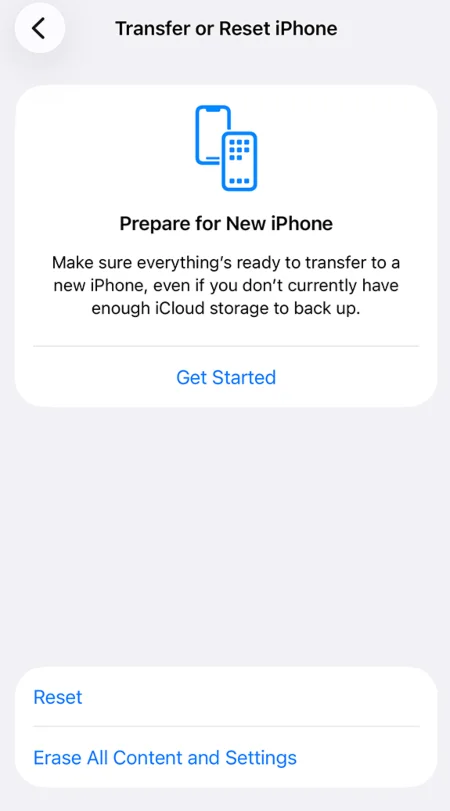
- Select Erase All Content and Settings.
- Follow the onscreen prompts to wipe the active storage clean.

- Once the device reboots to the initial setup screen, choose From iCloud Backup or connect the phone to a computer. Be sure to choose a backup date that predates your performance issues.


6. Factory Reset the iPhone
If you don’t have a clean backup or can’t seem to shake a persistent issue on your phone, only a factory reset is the best bet to wipe everything clean. Learn how to factory reset an iPhone through different methods.
Turn off Find My iPhone before you erase your iPhone. Go to Settings > [your name] > Find My > Find My iPhone and toggle it off. Otherwise, the device will be locked by Activation Lock, which complicates the setup process after a reset.
What About a Trojan Virus on iPhone?
Trojans disguise malicious code as legitimate software, like a flashlight app or a PDF reader. Trojans almost always arrive through sideloaded apps, a jailbreak, or a scam profile rather than the App Store, since Apple’s review process is specifically designed to catch such disguises. If you suspect a virus, uninstall the app and remove any associated profiles immediately. Before trusting a new app, verify the developer and scrutinize the permissions it requests.
How to Protect Your iPhone from Future Threats
- Turn on Automatic Security Updates: Go to Settings > General > Software Update > Automatic Updates and toggle on either Automatically Install or Automatically Download (it just downloads all updates so you can install later). This ensures that critical security patches are installed automatically overnight. Most infections exploit known flaws Apple has already patched, so keep iOS up to date to close that door.
- Limit Downloads to the App Store: Every app on the official store goes through Apple’s vetting process. Check reviews and developer names before downloading new software, and skip those with vague permissions requests that don’t align with their stated purpose.
- Avoid Jailbreaking: Device modification removes the sandboxing and code-signing protections that stop malware from spreading.
- Turn On Two-Factor Authentication: Go to Settings > [your name] > Sign-In & Security > Two-Factor Authentication and select Turn On Two-Factor Authentication. It stops someone from taking over your Apple ID even if your password is leaked.
- Use a VPN on Public Wi-Fi: A reputable VPN encrypts your traffic on networks you don’t control, which cuts off one of the easier ways attackers intercept data.
- Adopt a “Zero Trust” Policy: Treat unsolicited messages as hostile until you verify otherwise. Don’t tap links or open media attachments in unexpected texts, emails, or social media alerts.

- Use Lockdown Mode for High-Risk Scenarios: If you are an activist, journalist, or executive, you may face targeted cyberattacks. Use Apple’s Lockdown Mode to disable features that sophisticated exploits rely on. Go to Settings > Privacy & Security > Lockdown Mode, tap Turn On Lockdown Mode, and restart your phone.
- Think Before You Scan or Click: Preview links before tapping, double-check QR codes for signs of tampering, and treat unexpected calendar invites or AirDrop requests from strangers with suspicion. Most infections start with human error, not a piece of code.

FAQs
Can emails infect an iPhone?
A standard email in Apple Mail or Gmail won’t compromise your device. The risk lives in the content. Emails often carry links designed to harvest your credentials or attachments that redirect you to spammy sites. As long as you do not open suspicious attachments, install unknown profiles, or enter data into linked pages, your device will remain secure.
Does Safari show legitimate virus warnings?
No. Any alert claiming your iPhone has multiple viruses is a scam. Apple doesn’t scan your file system via a web browser, nor does it send pop-up performance warnings. These alerts are scareware tactics used by malicious websites to trick you into downloading rogue utilities or revealing account details. If you see one of these alerts, close the browser tab and clear your history.
Does iOS include a built-in virus scanner?
iOS lacks the traditional antivirus tools found on desktop systems. Because of app sandboxing rules, security applications downloaded from the App Store cannot access other programs’ data files to run a system-wide scan.
Instead, third-party mobile security utilities focus their efforts on network protection. They identify insecure Wi-Fi, block malicious domains, and filter spam links. The true security scanner on iOS is the operating system itself, which uses code validation and automated memory protections to neutralize threats.