




The pop-up saying the last USB device malfunctioned looks like a death sentence for your flash drive, phone cable, or printer. It usually is not. The device is fine far more often than the PC, the port, or a power-saving setting gets credit for.
Here is what happens behind the scenes. When you plug an external device like a USB drive into a PC, Windows asks it to introduce itself: what it is, how fast it communicates, how much power it draws. If there’s no decent answer, you get “USB Device Not Recognized,” “Unknown USB Device (Device Descriptor Request Failed),” or a yellow warning triangle in Device Manager.
I have ordered the USB error fixes below by effort and risk. You start with free physical checks, move to software settings, work around drivers if you have to, and leave system repair for last. Troubleshoot in the same order listed, and you will not break anything or waste an hour on step twelve when step one was the answer.
- Try a different port on the PC with a different cable with no hub in between.
- Unplug the device and choose Restart (not Shut down), then replug it.
- Uninstall the “Unknown USB Device” entry in Device Manager and reconnect.
- Disable USB selective suspend in your power plan.
- Turn off Fast Startup.
Why Causes “USB Device Not Recognized” Error
What the USB Error Messages and Codes Mean
Find the Right Fix for the Cause
How to Fix USB Device Not Recognized in Windows
What Causes “USB Device Not Recognized” Error
- Worn port, damaged cable, or loose connector. A flaky electrical connection breaks the handshake halfway through. This is the most common culprit and the easiest to rule out.
- Not enough power. Unpowered hubs, long extension cables, and portable hard drives that draw more current than a port can spare can all cause failed detection.
- Power-saving features. USB selective suspend lets Windows cut power to idle ports, and sometimes the port fails to wake properly afterward.
- Fast Startup. It saves part of the system state to disk at shutdown, so the next boot can skip a full driver reload and carry over a bad USB state.
- A confused or outdated driver. Corrupted driver entries, an unsupported manually installed driver, or a USB controller driver that went wrong after an update.
- A software conflict. Third-party background services can interfere with how Windows communicates with USB hardware.
- A failing device or port. The least common outcome, and the one you should verify last.
What the USB Error Messages and Codes Mean
Windows words these errors loosely, but each USB error message points in a slightly different direction. Find the text you see in the table below, then follow the step numbers in the last column to apply the right fix to the problem you’ve faced.
| What you see | What it means | Start here |
|---|---|---|
| “USB device not recognized. The last USB device you connected to this computer malfunctioned” | Windows sensed an electrical connection, but the device didn’t complete the introduction. | Step 1, Step 5 |
| “Unknown USB Device (Device Descriptor Request Failed)” | The device never returned its identity. Device Manager usually pairs this with Code 43. | Step 1, Step 7, Step 8 |
| “Unknown USB Device (Port Reset Failed)” or “(Set Address Failed)” | Same failure family: the port couldn’t reset the device or give it an address. | Step 1, Step 9 |
| Code 43 | Windows stopped the device because it or its driver reported a failure. | Step 5, Step 7, Step 16 |
| Code 28 | No driver is installed for the device. | Step 3, Step 6, Step 10 |
| Code 10 | The device cannot start. | Step 5, Step 6, Step 9 |
| Code 19 | The device configuration stored in the registry is incomplete or damaged. | Step 5, Step 13 |
| Code 31 | Windows cannot load the driver the USB flash needs. | Step 6, Step 10, Step 13 |
- If Windows says “You need to format the disk before you can use it,” click Cancel. Formatting will wipe the drive’s file index and make recovery hard.
- Write down the exact error text and any Device Manager code. You will use it to pick the right fix.
- Unplug every non-essential USB device while you troubleshoot. Fewer devices means less power load and minimum variables.
- Keep your keyboard and mouse situation in mind for Step 9, where USB input can drop out for a moment.
Find the Right Fix for the Cause
Prefer to skip ahead? Find your exact situation below, though I would recommend going through every step in order.
| Your situation | Go to |
|---|---|
| Error shows for any device, any port | Step 1, Step 2, Step 5 |
| Works after Restart but fails after shutdown or sleep | Step 7, Step 8 |
| Problem started right after a Windows update | Step 14, Step 3, Step 10 |
| Device Manager shows Code 43, 28, 10, 19, or 31 | Step 4, Step 5, Step 6 |
| Drive appears in Disk Management but not in File Explorer | Step 11 |
| Several ports fail, or keyboard and mouse behave abnormal | Step 9, Step 10 |
| Device works on another computer but not this one | Step 5, Step 6, Step 7, Step 8, Step 9, Step 10 |
| Device fails on every PC | Step 16 and the device-specific tips below |
How to Fix USB Device Not Recognized in Windows
Switch Ports, Swap the Cable, and Plug in Directly
Electrical contact problems lead to a huge share of failed detections, so you should check them first.
- Unplug the device, wait about 10 seconds, then plug it into a different port.
- On a desktop, use a port on the back of the motherboard. Front-panel ports travel through internal headers and cables that fail more often.
- Remove hubs, docks, KVM switches, and extension cables from the chain. A hub without its own power adapter shares a very small power budget across everything connected.
- Try a different cable, especially for external drives and phones.
- Inspect the connector for bent metal or packed lint. With the PC off, clear it with a wooden toothpick or short bursts of compressed air, but keep metal tools away.
- Plug the device into a different computer.
Restart the PC with the Device Unplugged
- Unplug the USB.
- Open Start › Power › Restart.
- Wait for the desktop to load, then connect the device again.
Choose Restart rather than Shut down. With Fast Startup enabled (covered in Step 8), Shut down does not reload drivers from scratch, while Restart does.
Install Windows & Optional Driver Updates
Monthly updates include fixes to the Windows USB stack, and Microsoft distributes certified hardware drivers through the same channel.
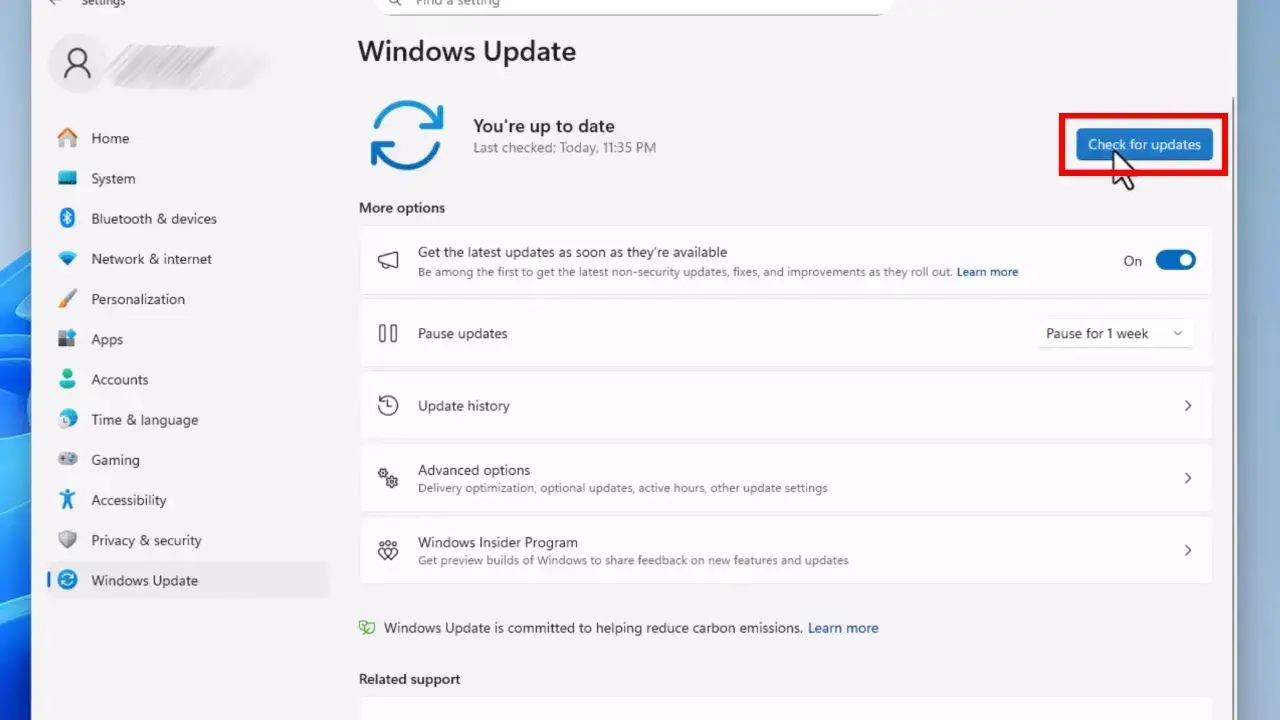
- Open Settings › Windows Update and click Check for updates. Install all pending updates and restart the PC.
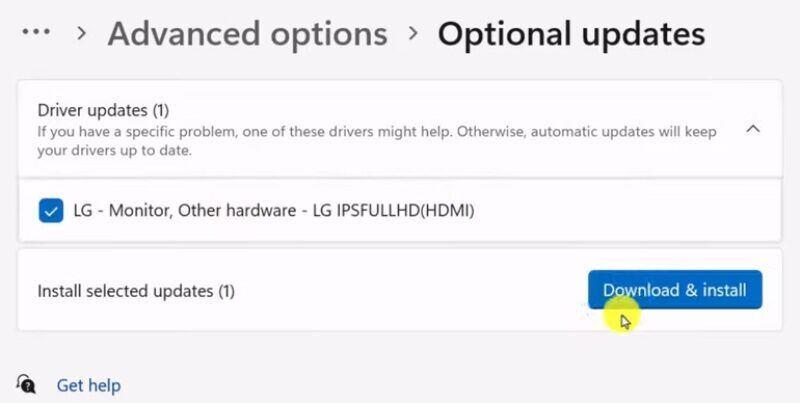
- Go to Advanced options › Optional updates › Driver updates. Select any USB, chipset, or device-specific driver if listed, then click Download & install.
Even when the error started right after an update, run this step. A later patch may already contain the correction, and if it doesn’t, Step 14 shows how to roll back.
Read the Error Code in Device Manager
- Press Win + X and choose Device Manager.
- Open the View menu and click Show hidden devices.
- Expand Universal Serial Bus controllers, Other devices, Disk drives, and Portable devices. Look for “Unknown USB Device” or a yellow triangle.
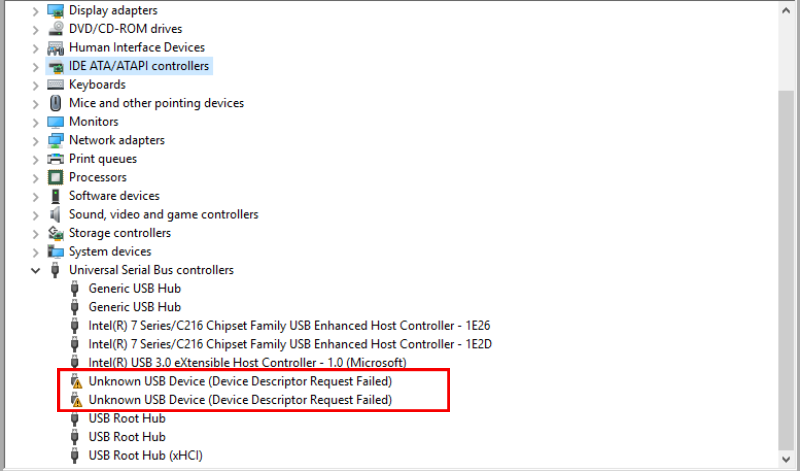
- Double-click the entry, open the General tab, and read the text under Device status.

Compare the code with the table near the top of this guide to see which later steps you need to prioritize.
Uninstall the Device and Let Windows Rebuild It
Removing the entry deletes the stored configuration for that device, so the system performs a clean detection when it reappears. This repairs corrupted driver assignments and wrongly installed drivers.
- In Device Manager, right-click the problematic entry (“Unknown USB Device” or the device by name) and choose Uninstall device, then confirm.
- Unplug the device and restart the PC.
- After rebooting, attach the USB and wait for Windows to set it up again. You can also click Action › Scan for hardware changes instead of restarting.
Update or Roll Back the Device Driver
Do this when the device appears by name like a disk drive, phone, or printer, rather than as “Unknown USB Device.”
- In Device Manager, double-click the USB device and open the Driver tab.
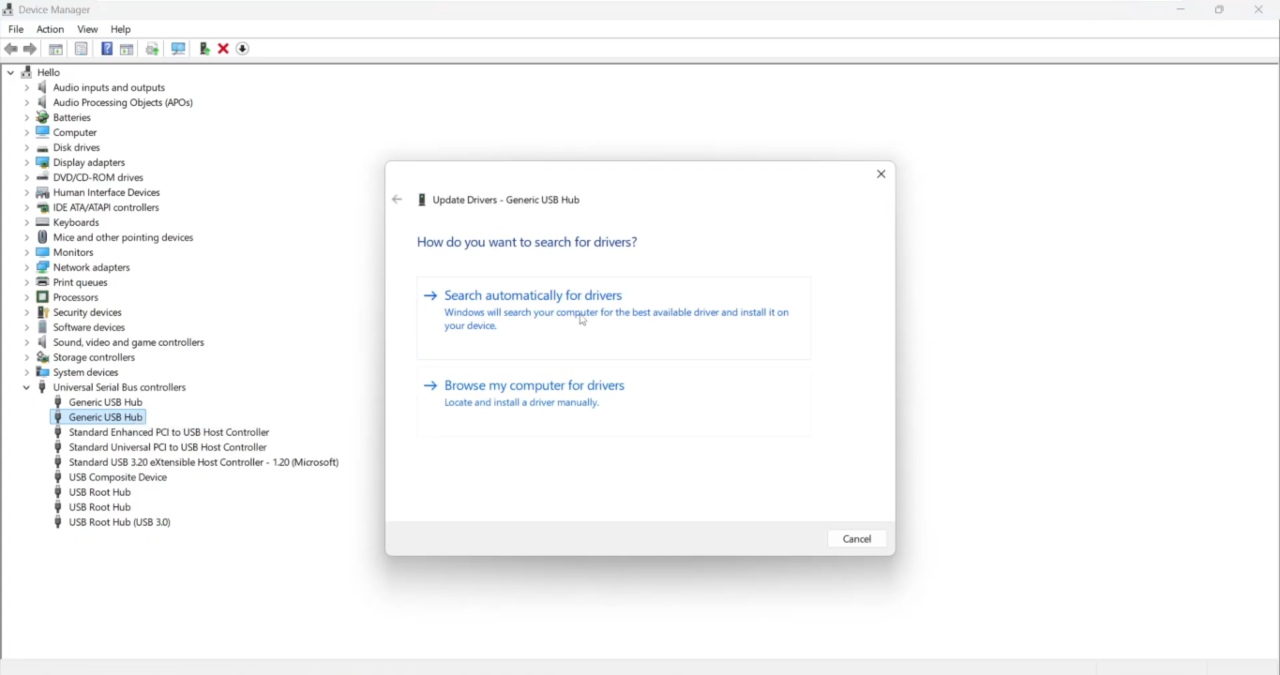
- Click Update Driver › Search automatically for drivers and let Windows check.
- If Roll Back Driver is clickable and the trouble began after a driver change, click it and restart.

For branded hardware such as printers, audio interfaces, and game controllers, download the driver from the manufacturer’s website.
Disable USB Selective Suspend
Selective suspend powers down idle USB ports to save energy, but if a port fails to wake, Windows may report a device is unresponsive. To resolve this, you need to disable the setting in two places:
Part A: Power plan
- Press Win and search for Edit power plan, then open it.
- Click Change advanced power settings.
- Expand USB settings › USB selective suspend setting.
- Set both On battery and Plugged in to Disabled, click OK, and restart.

Part B: Each USB hub
- In Device Manager, expand Universal Serial Bus controllers.
- Double-click USB Root Hub (USB 3.0) or Generic USB Hub and open the Power Management tab.
- Untick Allow the computer to turn off this device to save power, then click OK.
- Repeat for every hub entry that has the tab.

Turn Off Fast Startup
Fast Startup stores part of the Windows kernel on disk at shutdown so the next boot is fast. The side effect is that drivers are not fully reloaded, which can carry a bad USB state from one session to the next.
- Press Win, search for Control Panel, and open Hardware and Sound › Power Options.
- Click Choose what the power buttons do, then Change settings that are currently unavailable.
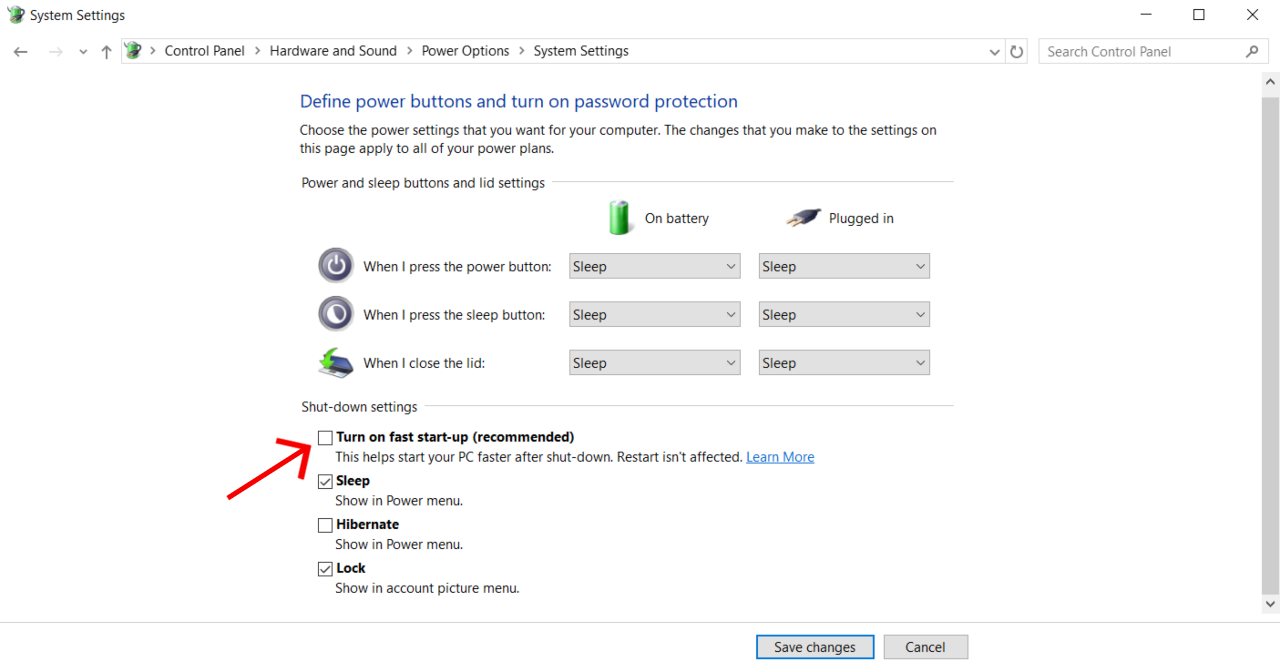
- Untick Turn on fast startup (recommended) and click Save changes.
- Restart the PC and test the device.

Reinstall All USB Controllers
Try this fix if mulitple ports or devices misbehave at once. The controllers drive every port on your machine so a single glitch can affect everything attached.
- Open Device Manager and expand Universal Serial Bus controllers.
- Right-click each entry such as USB Root Hub, USB xHCI Compliant Host Controller, or Generic USB Hub and choose Uninstall device.
- Restart. Windows will detect the controllers during startup and reinstall them.
- Plug in the problematic device and check the status.
Install the Chipset and USB Drivers from the PC or Motherboard Maker
Windows’ built-in drivers work for most hardware, but the manufacturer’s package is tuned for your exact USB controller.
- Identify your model. On a notebook, check the sticker or at Settings › System › About. On a desktop, press Win + R, type
msinfo32and read the System Model or BaseBoard Product line. - Open the support page of the PC or motherboard brand and search for your model with the current Windows version.
- Download and install the chipset and USB drivers. For USB-C ports, also download the Thunderbolt or USB4 driver if available.
Fix the Drive Letter and Check the Disk in Disk Management
Use this step when the drive is detected but File Explorer does not show it.
- Right-click Start and open Disk Management.
- Find the drive in the lower pane, usually labeled Removable.
| What the drive shows | What to do |
|---|---|
| Healthy partition without a letter | Right-click it › Change Drive Letter and Paths › Add, then choose a free letter. |
| Disk marked Offline | Right-click the disk label on the left › Online. |
| Not Initialized, Unallocated, or RAW | Do not initialize or format if the files are important. Read the data recovery FAQ below first. |
To scan a readable drive for file system errors, right-click it in File Explorer, choose Properties › Tools › Check, and follow the prompts. The command line version is chkdsk E: /f, with E replaced by your drive’s letter.
Run a Clean Boot to Expose Software Conflicts
A clean boot starts Windows with only Microsoft services. Third-party background programs like backup tools, device managers, and security suites can interfere with USB hardware, and this test reveals if one of them is the cause.
- Press Win + R, type
msconfig, and press Enter. - Open the Services tab, tick Hide all Microsoft services, then click Disable all.
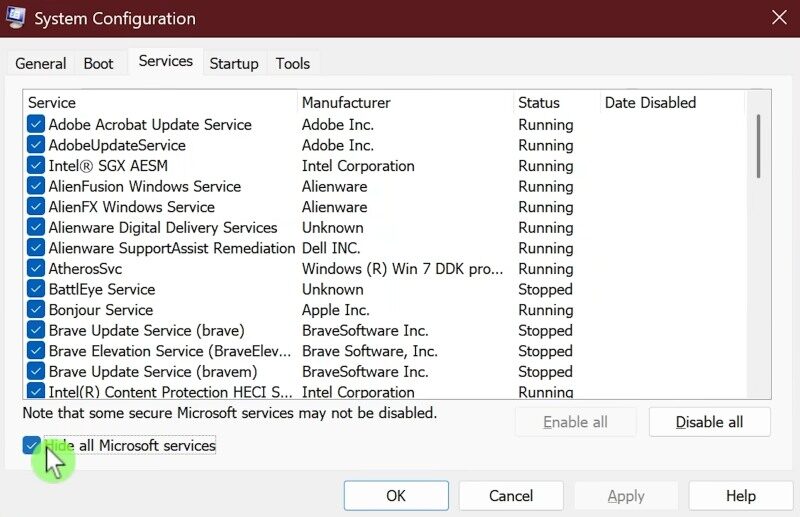
- Open the Startup tab, click Open Task Manager, and disable every startup item.
- Click OK in System Configuration, restart, and test the device.
- If it works, re-enable services in small groups until the problem returns. The last group contains the culprit.
- When finished, return to Normal startup in System Configuration.
Repair Windows System Files with DISM and SFC
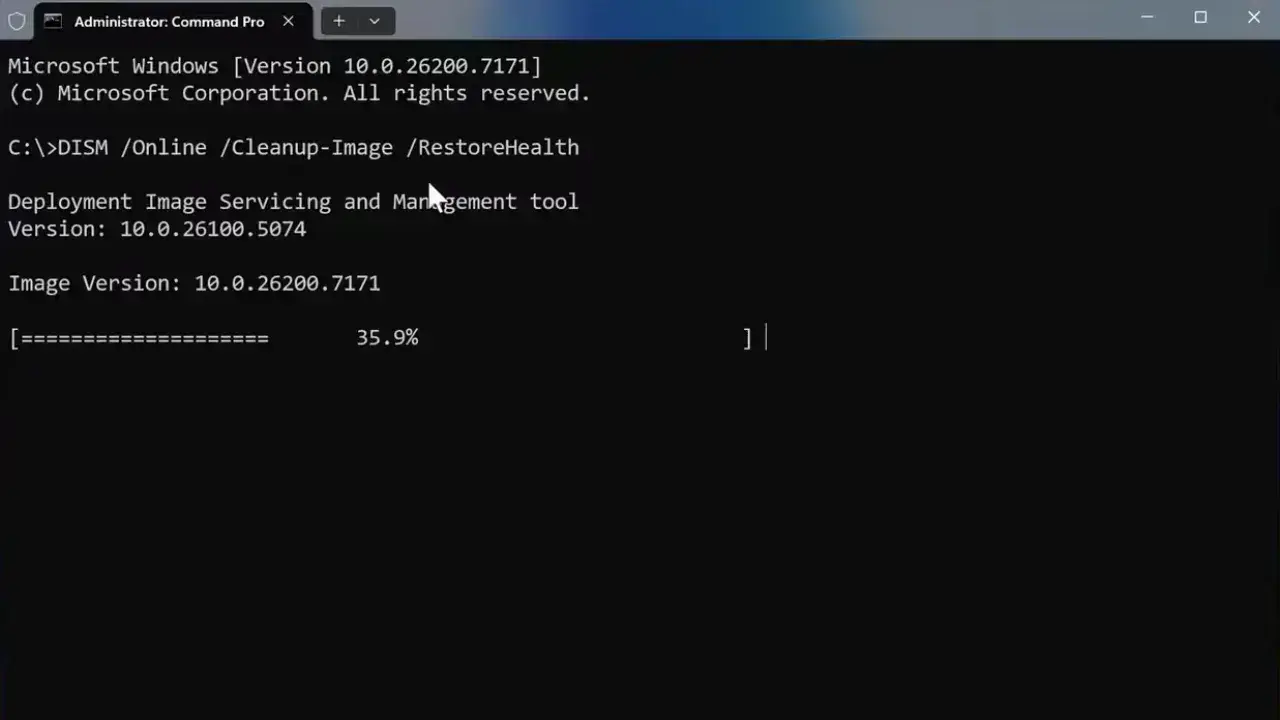
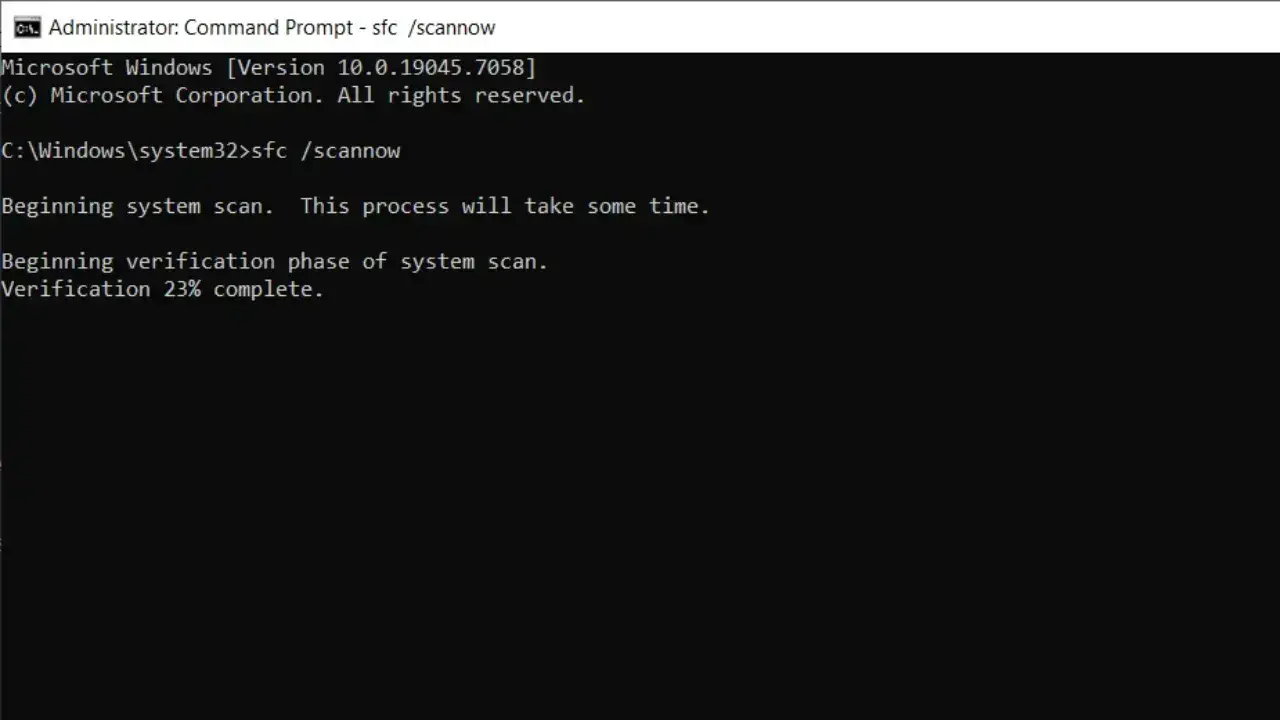
Damaged system files can break the USB stack. You will want to run two specific repair tools in this order so System File Checker draws from a healthy component store.
- Right-click Start and open Terminal (Admin).
- Run
DISM /Online /Cleanup-Image /RestoreHealthand wait for it to finish. It needs an internet connection and can pause at a percentage for a while.
- Run
sfc /scannowand let it complete.
- Restart and test if the USB not recognized error is fixed.
Undo a Recent Update or Use System Restore
Use this when the error appeared right after an update and the previous steps failed. Pick just one option here.
Option A: Uninstall the latest update
- Open Settings › Windows Update › Update history › Uninstall updates.
- Select the most recent update installed before the problem and click Uninstall.
Option B: System Restore
- Search for Create a restore point and click System Restore.
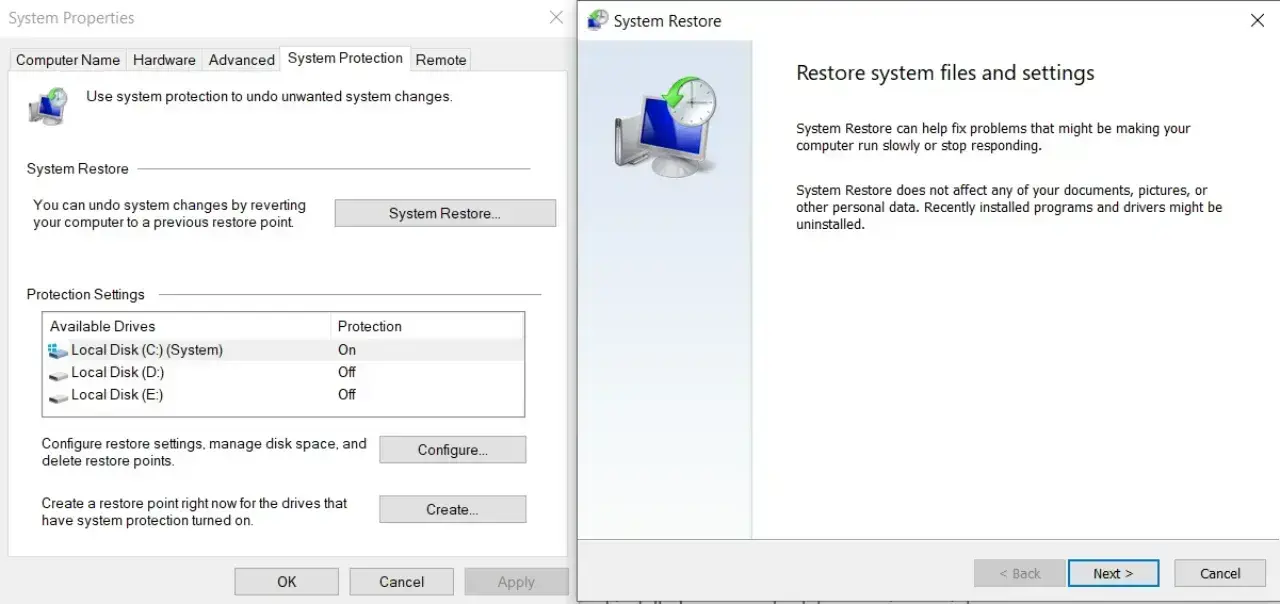
- Choose a restore point dated before the trouble started and follow the prompts.
Run a Repair Install of Windows
This is your final software-based Hail Mary. It reinstalls Windows over itself without wiping your personal files or apps. If this doesn’t clear up the pesky USB errors, it’s safe to assume you’re dealing with a hardware issue.
- Back up your important files first.
- Download the Windows ISO from Microsoft’s official download page, choosing the same Windows version you currently have or the latest.
- Double-click the ISO to mount it and run setup.exe.
- Choose Keep personal files and apps when asked, and follow the prompts.
Test for a Failing Device, Cable, or Port
If you’ve made it this far and the device still isn’t working on any computer, the issue is hardware.
- The connector wobbles, looks bent, or only works at a certain angle.
- The device gets unusually hot.
- A hard drive clicks, buzzes, or repeatedly disappears and returns.
- The same cable fails with a different device too.
- Several ports on this PC are dead while other ports on other machines work with the same USB device.
On a laptop, also check the chassis near the ports. If it overheats, cool it down with these tips to fix laptop overheating before you blame a port or controller.
Replace the cable first since they are cheap. For a dead port on a desktop, a PCIe USB expansion card or a powered hub on a working port can fix the issue. If there’s a failing drive with important files, don’t try to access it; get professional data recovery because keeping it plugged in will only make the damage worse.
Fixes for Phones, USB-C Docks, and External Drives
Phones and Cameras
USB-C and Thunderbolt Docks
External Hard Drives and Flash Drives
Keyboards, Mice, and Wireless Dongles
Frequently Asked Questions
Editorial Note and Disclaimer
- Use Windows’ own settings. Every fix uses something already inside Windows: Device Manager, Power Options, Disk Management, Windows Update, DISM, and SFC. Nothing here needs third-party software.
- Sequence matters. The steps move from zero-risk physical checks to heavy repairs. Stop at the first method that works for you, and skip the labeled Medium steps unless the earlier ones failed.
- Results vary by hardware. USB behavior depends on your PC, its drivers, the port, the cable, and the device. A step that fixes one setup may not work on another, and that’s normal.
- This guide is general troubleshooting information, not a guarantee of results for your specific USB device.
- Back up important files before tweaking system settings, reinstalling drivers, repairing the disk, or running a repair install. Data recovery cannot be promised once a drive is formatted or physically damaged.
- Firmware (BIOS or UEFI) updates carry major risk when interrupted, so follow your manufacturer’s instructions.
- This site is independent and is not affiliated with Microsoft or any hardware brand mentioned. Product and brand names belong to their owners.
- You apply these steps at your own risk. If your device is under warranty or stores important data, contact the manufacturer or a data recovery expert.