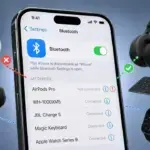








Diagnostic workflows verified across Android 13, 14, 15, and 16 builds on Samsung Galaxy (One UI 6 & 7), Google Pixel (Tensor G2 through G5), and Xiaomi (HyperOS) devices. Bench tests were executed against Bluetooth 4.2 through Bluetooth 5.4 peripherals, including vehicle infotainment systems (Ford SYNC, Stellantis Uconnect, BMW iDrive), high-bitrate LDAC/aptX wireless headphones (Sony WH-1000XM5, Sennheiser Momentum 4), and smart BLE trackers.
Bluetooth failure on Android is rarely a random event. The wireless pipeline relies on a tightly sequenced chain: the physical RF chip on the motherboard, the Linux kernel driver, the Bluetooth Host Controller Interface (HCI), the AOSP software stack (Fluoride/Gabeldorsche), and the target profile services (A2DP for media, HFP for phone calls, PBAP for contact sync). When any single link in this chain encounters an invalid state, bad cache entry, or protocol mismatch, the handshake falls apart, leading to a Bluetooth not working problem on your Android device.
In This Article
- Why Won’t My Android Connect to Bluetooth? (Root Causes)
- Symptom Matrix: Pinpoint Your Failure Mode
- How to Fix Android Bluetooth Connection Issues
- Fix 1: Peripheral Discovery
- Fix 2: Transceiver Reset
- Fix 3: Memory Purge
- Fix 4: Cryptographic Refresh
- Fix 5: Privacy & Permissions
- Fix 6: Service Cache Flushing
- Fix 7: Power Management
- Fix 8: Protocol Downgrade (Vehicles & Audio Receivers)
- Fix 9: Audio Driver Fallback
- Fix 10: Complete Subsystem Reset
- Hardware Diagnostics: Isolate the Defective Unit
- Authoritative Sources & Technical References
- Frequently Asked Questions
Why Won’t My Android Connect to Bluetooth? (Root Causes)
- Stale Encryption Link Keys: During initial pairing, Android and your accessory generate and store a 128-bit cryptographic key. If either device resets its bond table or updates firmware, the stored keys no longer match, causing silent authentication drops.
- Multipoint Handshake Deadlocks: Dual-connection accessories lock onto the first two broadcasting hosts they recognize. If your tablet, laptop, or a family member’s phone claims the open audio channels first, your phone will be off the list.
- Host Daemon Memory Leaks (
com.android.bluetooth): The background service coordinating system-level Bluetooth traffic can freeze its discovery thread or corrupt its internal SQLite pairing registry. - Audio/Video Remote Control Profile (AVRCP) Version Mismatches: Android defaults to newer AVRCP versions (1.5 or 1.6). Old car head units and legacy audio receivers frequently fail to negotiate these standards, aborting the connection during setup.
- Aggressive Background Task Termination: OEM battery savers (particularly across Samsung One UI and Xiaomi HyperOS) frequently cut power to the Bluetooth radio module or kill companion accessory services once the screen is locked.
- Permission Sandboxing Restrictions: Starting in Android 12 and strictly enforced through Android 16, Bluetooth scanning requires explicit Nearby Devices runtime permission instead of generic Location enabled. Revoking this halts all discovery routines.
Symptom Matrix: Pinpoint Your Failure Mode
| Symptom | Underlying Breakdown | Target Action |
|---|---|---|
| Accessory missing from “Available Devices” | BLE advertising beacon suppressed by an active secondary master link. | Fix 1 & Fix 2 |
| Device visible, but pairing session aborts | Mismatched cryptographic link key or expired security challenge window. | Fix 3 & Fix 4 |
| Phone indicates “Saved/Paired”, but stays idle | AOSP Bluetooth host daemon locked on a stale socket descriptor. | Fix 4 & Fix 6 |
| Link shows active, but audio routes via phone speaker | A2DP sink channel failed to initialize; HFP call profile claimed priority. | Fix 9 & FAQ 1 |
| Connects normally, then drops when display sleeps | OEM battery governor severing background wireless transceiver poll. | Fix 7 |
| In-car head unit drops connection during metadata or sync | AVRCP version incompatibility or PBAP contact buffer overflow. | Fix 8 & FAQ 3 |
How to Fix Android Bluetooth Connection Issues
Try these troubleshooting methods in order, starting with physical device verification and radio cycles, then moving on to permissions, and finishing up with some deeper system tweaks if you’re still having trouble.
Disconnect Other Paired Devices and Engage Discovery Mode
Powering an accessory on is not the same as putting it into pairing mode. Bluetooth accessories automatically reconnect to the last known master device within range (such as a laptop or tablet). While connected to that primary source, the Bluetooth device suppresses its broadcast range, making it completely invisible to your phone.
The Two-Part Discovery Protocol:
- Clear the Accessory’s Bond NVRAM: Many modern audio devices can remember up to 8 devices. When that memory fills up or latches onto a nearby PC, it will ignore pairing calls. Hold the accessory’s hardware button for 10–15 seconds (mostly inside the open charging case) until the LEDs flash an alert pattern to clear its internal host registry.
- Enforce the 0.5 Meter Proximity Threshold: If you rely on Google Fast Pair, keep your accessory within 0.5 meters (roughly 1.5 feet) of your phone. These high-frequency signals are very short-range, so being in close proximity makes sure the mobile receives the pairing prompt.
Cycle the Baseband Wireless Transceiver via Airplane Mode
Bluetooth toggle in the Quick Settings dropdown only suspends the high-level software service; it doesn’t reset the baseband radio hardware shared by Wi-Fi and Bluetooth on the SoC. Airplane Mode cuts power directly to the physical wireless bus, terminating hung socket connections.
- Swipe down the Quick Settings tray and enable Airplane Mode.
- Wait 10 to 15 seconds so the processor can complete its shutdown cycle.
- Disable Airplane Mode, turn on Bluetooth, and try connecting again.
Perform a Hard Restart on Both Devices
A normal reboot removes temporary system state tables, drops stuck driver processes, and terminates conflicting background tasks. Peripherals also run their own lightweight real-time microkernels (RTOS) that can freeze if they try to connect too many times without success.
- On Android device: Press and hold Power + Volume Down, then tap Restart.
- On accessory: Power off completely (for earbuds, return them to the charging case, shut the lid for 10 seconds, then reopen).
Unpair and Re-pair to Fix the Security Handshake
Operating system updates or peripheral firmware changes frequently cause the stored cryptographic bond keys on the phone and accessory to fall out of sync. Your Android might show the device as paired, but it will immediately reject the incoming security payload when you try to connect.
- Go to Settings > Connected devices (or Connections > Bluetooth on Samsung).
- Tap the Gear icon next to the problematic accessory.
- Select Forget or Unpair.
- Put the accessory back into active discovery mode and establish a new pairing session.
Check “Nearby Devices” and Location Permissions
If you pair via a dedicated management app like Sony Headphones Connect, Garmin Connect, Galaxy Wearable, or Bose Music, Android enforces strict permission boundaries. These apps won’t connect to your Bluetooth hardware unless you allow specific BLUETOOTH_SCAN or BLUETOOTH_CONNECT permissions.
- Press and hold the companion app icon > tap App Info (i).
- Select Permissions. Ensure Nearby devices is set to Allow.
- For older BLE trackers and smartwatches, confirm Location is enabled and set to “Precise” (required by legacy Android APIs to discover low-energy beacons).
Clear Cache and Storage on System Bluetooth Services
Android keeps all your Bluetooth info inside the com.android.bluetooth system package. Corrupt service discovery records or profile databases here will block pairing attempts across all connected devices.
- Open Settings > Apps.
- Tap the filter icon or the top three-dot menu and select Show system apps.
- Scroll to Bluetooth (on some ROMs, this appears as Bluetooth MIDI Service or Bluetooth Legacy).
- Tap Storage & cache > tap Clear Cache, then select Clear Storage (or Clear Data).
- Restart your phone immediately to let Android regenerate clean databases.
Turn Off Battery Optimization for Bluetooth
Android uses Doze Mode to save power by killing network polling daemons when your screen is off. If battery optimization is aggressively applied to the companion service or the Bluetooth stack, background link maintenance commands will get terminated.
- Open Settings > Apps > Special app access (or search for Battery optimization).
- Switch the filter to All Apps.
- Find your peripheral’s app and system Bluetooth apps.
- Change their power state from Optimized to Unrestricted.
Adjust Bluetooth AVRCP and MAP Settings
Car infotainment systems often run on old communication standards that cannot process modern Android profiles. When a smartphone attempts an AVRCP 1.5/1.6 or MAP 1.4 connection, the car system frequently times out and drops the link.
- Unlock Developer Options: Open Settings > About phone and tap Build number 7 times.
- Go to Settings > System > Developer options.
- Scroll down to the Networking category.
- Tap Bluetooth AVRCP Version and drop it from default (1.5 or 1.6) to AVRCP 1.4 or 1.3.
- Tap Bluetooth MAP Version and change it from 1.4 down to MAP 1.2.
- Restart the mobile and re-establish the connection to the car.
Turn Off Bluetooth A2DP Hardware Offload
By default, Android offloads audio encoding to a hardware DSP to save power. However, when streaming codecs like LDAC, aptX, or standard AAC to third-party receivers, this hardware pipeline can throw fatal unhandled exceptions and crash the connection.
- Open Settings > System > Developer options.
- Find the option labeled Disable Bluetooth A2DP hardware offload (or Turn Off A2DP Hardware Offload).
- Toggle this setting to ON (this transfers audio processing from the discrete DSP to the main CPU).
- Reboot your phone when prompted.
Reset Network and Bluetooth Settings
When config corruption spans across the shared wireless adapter driver (which controls Wi-Fi, cellular handoffs, and Bluetooth), try a network reset. Doing this will clear the underlying damage without deleting your personal files or media.
• Google Pixel / Motorola / Stock Android: Go to Settings > System > Reset options and tap Reset Wi-Fi, mobile & Bluetooth (or Reset network settings). Choose Reset settings and enter your PIN or password when asked.
• Samsung Galaxy: Go to Settings > General Management > Reset > Reset Wi-Fi and Bluetooth settings. Tap Reset settings to confirm.
• Xiaomi HyperOS: Go to Settings > More connectivity options (On old MIUI or some versions, the option will be under Connection & sharing or Additional settings). Select Reset Wi-Fi, mobile networks, and Bluetooth > Reset settings, enter the device security lock, and tap OK to confirm.
Hardware Diagnostics
• One peripheral fails across all your devices: Its internal radio firmware or Bluetooth chip is likely frozen.
• All peripherals fail on your Android phone: The issue is trapped inside your phone’s software, network configuration, or motherboard transceiver.
Before you blame a dead board, try these hardware checks:
- Native Pixel Diagnostics (Pixel 6 through modern Tensor builds): Go to
Settings > Connected devices > Bluetooth diagnostics. This tool runs an automated hardware loop across media pipelines, call routing, and antenna response to detect chip-level failures. - Samsung Factory Service Bus: On your dialer keypad, enter
*#0*#to open the hardware test environment. Select the Bluetooth sensor loop to confirm if the RF transceiver responds to basic loopback commands. - Kernel-Level Safe Mode Boot: Press and hold the power button, long-press the on-screen “Power Off” command, and confirm “Safe Mode“. It disables all third-party app processes. If Bluetooth pairs instantly in Safe Mode, a downloaded utility (custom audio mixer, external battery saver, or automation app) is hooking into and crashing the Bluetooth service.
Frequently Asked Questions
Why does my Bluetooth device connect for phone calls but not for media audio?
Can a protective phone case block Bluetooth signals?
Why does my car infotainment display a “Pairing Failed” error during contact sync?
Why does Bluetooth audio stutter or disconnect when I walk outside?
How can I determine if my phone’s Bluetooth chip is physically damaged?
*#0*# to run a quick diagnostic test. On other Android models, consistent failure across Wi-Fi and Bluetooth at once points to a damaged combo RF transceiver chip.What is the difference between Bluetooth LE Audio and Classic Bluetooth on Android?
Did this fix your issue?
Let us know. Your feedback helps other readers find the right solution.
Great! What solved it for you?
We read every response. Email is optional and never shared.
Sorry to hear that. What happened?
Leave your email and we will personally help you fix it.