



Android hotspot lets your phone share its mobile data with a laptop, tablet, or another phone, but it can fail in a few different ways. You might find the switch won’t turn on, other devices cannot find the network at all, a connection gets rejected, or everything connects but there’s no internet.
- Why is My Android Hotspot Not Working?
- How to Fix an Android Hotspot Not Working Issue
- 1. Turn the Hotspot Off and Restart Both Devices
- 2. Check That Mobile Data Actually Works
- 3. Check Your Hotspot Allowance and Carrier Restrictions
- 4. Turn Off Data Saver
- 5. Fix a Hotspot That Won’t Appear
- 6. Forget the Saved Network and Reconnect
- 7. Check Connected Devices and Test Another Device
- 8. Turn Off Third-Party VPNs and Ad Blockers
- 9. Stop Automatic Shutoff and Check for Overheating
- 10. Install Available Software Updates
- 11. Try USB Tethering as a Workaround and Diagnostic Test
- 12. Reset the Network Settings
- 13. Check for App Conflicts, Then Escalate the Problem
- Frequently Asked Questions
For the quickest fix, first identify which part of the connection is having a bad time. Changing the hotspot password won’t fix an exhausted data allowance, and resetting your phone will not help an old laptop talk to a new Wi-Fi band. Start with the checks below, in order. Test the connection after each change, and stop when your Android’s hotspot starts working again.
- Hotspot won’t turn on: Start at Step 1, then check Data Saver and carrier restrictions.
- Hotspot isn’t showing up: Complete the quick checks, then focus on Step 5.
- Password error or “Obtaining IP address”: Focus on Steps 6 and 7.
- Connected, but no internet: Pay particular attention to Steps 2, 3, and 8.
- Hotspot keeps disconnecting: Check Steps 7 and 9.
Why is My Android Hotspot Not Working?
A hotspot needs two working connections: your phone’s internet connection and the Wi-Fi link between your mobile and the connected device.
Things usually break down for a few specific reasons:
- Mobile data is off, unavailable, or routed through the wrong SIM card.
- Your cellular plan restricts tethering or limits how much hotspot data you can use.
- Data Saver can also block Wi-Fi tethering.
- The receiving device cannot use the selected Wi-Fi band or security setting.
- Old passwords and saved network settings cause connection drops too.
- A VPN, network filter app, or custom connection often interferes with the signal.
- Power-saving modes, automatic shutoff, and phone overheating interrupt the connection to save battery.
- Software glitches on either your phone or the other device can also result in hotspot failures.
Mobile data working but hotspot not working is completely possible. Successful browsing on your phone confirms its internet connection, but it doesn’t prove your carrier permits tethering or that the other device can connect properly.
The troubleshooting procedures in this guide are verified through hands-on lab testing across the latest major Android platform releases (up through Android 17) and legacy versions down to Android 12. Testing is conducted across native AOSP (Google Pixel), Samsung One UI, and custom OEM interfaces.
Every network fix, APN routing script, and frequency adjustment is confirmed against real client hardware—including Windows 11, macOS, iPadOS, and smart home streaming devices—across both Tier-1 5G Standalone networks and MVNO carrier plans.
How to Fix an Android Hotspot Not Working Issue
1. Turn the Hotspot Off and Restart Both Devices
Start with a clean connection attempt before you play around with advanced settings, which can be quite risky.
- Turn off the hotspot.
- Restart your Android phone.
- Restart the receiving laptop, tablet, or other device.
- Turn on mobile data, then re-enable the hotspot.
- Keep the devices close and test again.
Further check that Airplane mode is off on the phone and Wi-Fi is enabled on the receiving device. On a laptop, make sure to select your phone’s network instead of letting it automatically reconnect to another saved network.
- Google Pixel: Go to Settings > Network & internet > Hotspot & tethering > Wi-Fi hotspot.
- Samsung Galaxy: Go to Settings > Connections > Mobile Hotspot and Tethering > Mobile Hotspot.
- Other Android phones: Search for hotspot or tethering in your phone’s Settings app.
Menu names vary by manufacturer, carrier, and software version. So a missing Quick Settings tile doesn’t necessarily mean your phone lacks the feature.
2. Check That Mobile Data Actually Works
Your phone’s probably been browsing on home Wi-Fi rather than the cellular connection.
- Turn Wi-Fi off on the phone.
- Keep Mobile data on.
- Open a new webpage that you haven’t recently visited.
- Try a second website or app.
No internet on the phone? Deal with that first. Check your remaining data, account status, reception, and carrier’s service status information. Move to a location with better coverage, then test if the hotspot connection works. You can also briefly turn on Airplane mode, wait around 10 seconds, and turn it off to reconnect to the mobile network, though this interrupts calls and data, so don’t do it during a call.
If you are using two SIMs, confirm that the SIM selected for mobile data has an active data plan. On Pixel, you can check this setting under Settings > Network & internet > SIMs, or via SIM manager or Mobile network for other brands. Remember that only one SIM can be the default mobile-data SIM at a time.
3. Check Your Hotspot Allowance and Carrier Restrictions
When the phone has internet but connected devices don’t, open your carrier’s app or account page and check:
- Hotspot eligibility: Does your plan include tethering?
- Remaining hotspot data: Is it separate from the phone’s general data allowance?
- Speed restrictions: Has high-speed hotspot access been used up?
- Account status: Is the line active and paid?
- Recent changes: Did the problem begin after changing plans, carriers, SIMs, or eSIMs?
You see an “unlimited” phone plan, but it rarely means unlimited hotspot sharing. Carriers usually block tethering, cap the amount you can use, or restrict speeds once you cross a certain threshold.
For an error like “Contact your carrier,” “Subscription required,” or “Unable to verify subscription,” get in touch with customer support and ask them to investigate hotspot eligibility and activation for your specific line. Account status issues and carrier-side restrictions are usually the cause of hotspot concerns.
Ask your carrier: “Does my current line include hotspot access, have I reached its limit, and is tethering enabled?” A subscription error needs checking.
4. Turn Off Data Saver
Android’s built-in Data Saver prevents apps from sending and receiving data in the background. When enabled, Android automatically disables mobile tethering to protect your cellular data.
- Open your phone’s Settings.
- Tap Network & internet (or Connections on Samsung Galaxy devices).
- Tap Data Saver (or Data usage > Data saver on Galaxy).
- If it’s enabled, toggle Data Saver to Off.
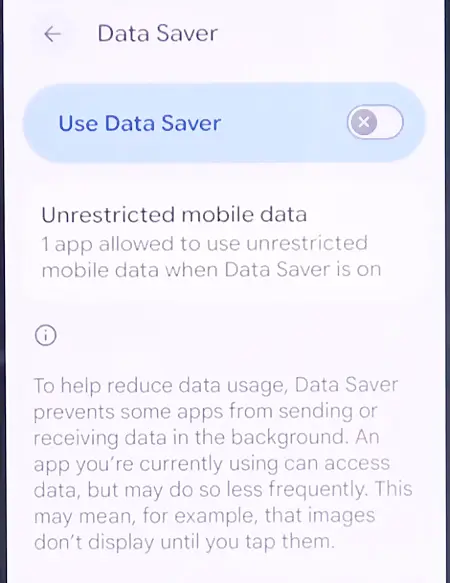
We would recommend keeping Data Saver turned off to tether over Wi-Fi on a Pixel device. Other Android versions may manage this differently, but checking this first saves you a lot of trouble. You should further turn off Battery Saver or Power Saving mode for a separate quick test. This matters most if your hotspot dies or drops connection when the screen goes dark.
5. Fix a Hotspot That Won’t Appear
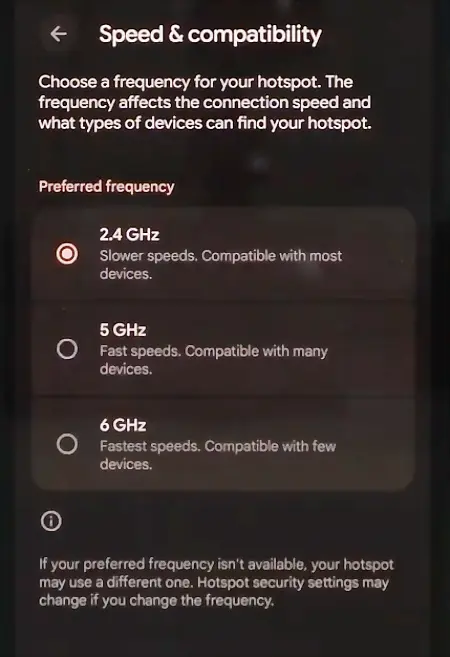
If your mobile hotspot is on but is missing from the other device’s Wi-Fi list, check its broadcasting settings. If your phone broadcasts on the 5 GHz or 6 GHz Wi-Fi spectrum, older laptops, smart TVs, handheld consoles, and cheap tablets will not detect the network. That’s usually why other devices cannot show the hotspot in the available network list. So switch the hotspot to 2.4 GHz and make the network visible if other devices won’t connect.
- Open the phone’s hotspot configuration.
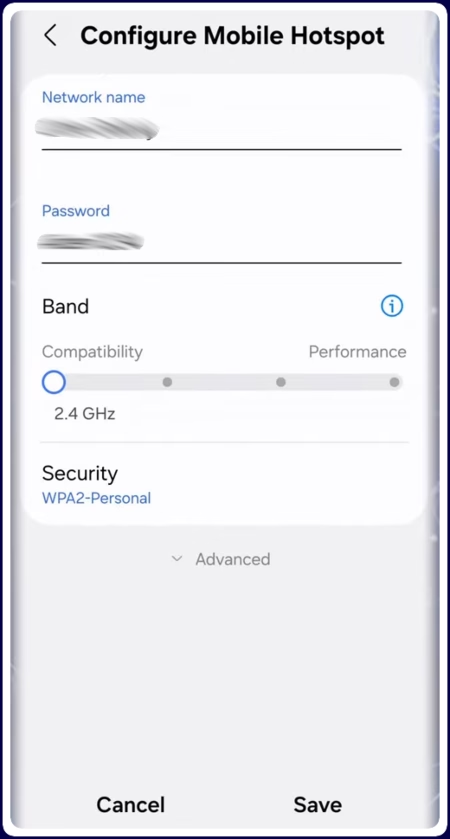
- Change Band, AP band, or Preferred band to 2.4 GHz.
- Turn off Hidden network or Hide SSID, where available.
- On phones with an Extend compatibility option, enable it for testing.
- Save your changes, restart the hotspot, and refresh the receiving device’s Wi-Fi list.
You can also give the hotspot a simple, recognizable name like MyPhoneHotspot, which makes it easier to set it apart from old saved networks.
- Stock Android / Pixel: Go to Settings > Network & internet > Hotspot & tethering > Wi-Fi hotspot > Speed & compatibility (or AP Band) and select Extend compatibility or 2.4 GHz Band.
- Samsung Galaxy (One UI): Go to Settings > Connections > Mobile Hotspot and Tethering > Mobile Hotspot > Configure > Band and select 2.4 GHz.
Your phone’s 5G mobile connection and its 5 GHz hotspot band are different things. Selecting a 2.4 GHz hotspot does not force the phone’s cellular connection down to 4G.
6. Forget the Saved Network and Reconnect
A device can keep trying an old password or outdated connection settings after you change the hotspot. On that device:
- Open Wi-Fi settings.
- Select your phone’s hotspot.
- Choose Forget, Forget network, or Remove.
- Find the hotspot again.
- Enter the current hotspot password.
Check capitalization and easily confused characters, such as 0 and O. If both devices support it, use the hotspot’s QR code. For consistent auth errors, try WPA2-Personal instead of WPA3-only if your phone offers that choice. Some old hardware cannot connect with WPA3.
Keep the network password-protected. Use a strong password of at least eight characters with mixed characters and never leave the connection open or unsecured.
Stuck on “Obtaining IP address”? Forget the network and, on an Android receiving device, also check that the network’s IP settings use DHCP.
7. Check Connected Devices and Test Another Device
One failed laptop connection doesn’t prove the phone’s hotspot is faulty.
- Disconnect unnecessary hotspot users.
- Check the hotspot’s connected devices list.
- Remove the intended device from any blocked devices list.
- Check allowed devices only or connection-limit settings if available.
- Connect a second gadget.
Use the result to narrow the problem:
| Test result | What to investigate next |
|---|---|
| A second device connects and gets internet | The original device’s saved network, VPN, Wi-Fi adapter, or software |
| Devices connect, but none gets internet | The phone’s mobile connection, carrier allowance, or network settings |
| No device can see the hotspot | Hotspot broadcasting, band compatibility, or automatic shutoff |
| Only older devices fail | Wi-Fi band and security compatibility |
Try your original device on a different Wi-Fi network. If it still fails, the problem is with that, not your Android phone.
8. Turn Off Third-Party VPNs and Ad Blockers
Active VPN apps (such as NordVPN, ExpressVPN, or ProtonVPN) and local DNS blockers (such as AdGuard or NextDNS) change the routing table on your Android device. By default, Android does not route tethered client traffic through a local VPN tunnel unless specifically allowed via root or specialized proxy tools. Instead, the Android firewall frequently drops outgoing hotspot packets when a VPN adapter is detected.
- Disconnect any active VPN app on your Android.
- Check Settings > Network & internet > VPN and ensure Always-on VPN and Block connections without VPN are disabled. On Galaxy, go to Settings > Connections > More connection settings > VPN > tap the Settings gear icon and then toggle Always-on VPN.
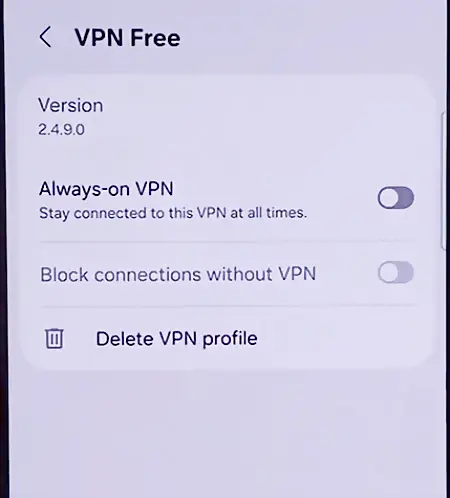
- Temporarily turn off custom Private DNS servers (at Settings > Network & internet > Private DNS > Off) to check whether a DNS resolution failure is blocking client traffic.
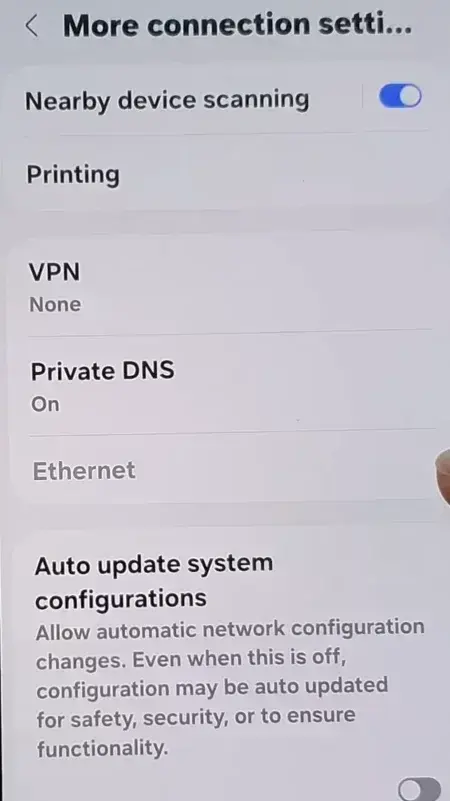
After the diagnosis, restore your normal privacy and security settings, then investigate the specific app or provider that caused the problem.
9. Stop Automatic Shutoff and Check for Overheating
If your hotspot disappears after a few minutes, you are probably dealing with a timeout setting. Go into your Android hotspot settings and look for options like Turn off hotspot automatically, Turn off when no device connected for, Timeout, or hotspot-specific Power saving.
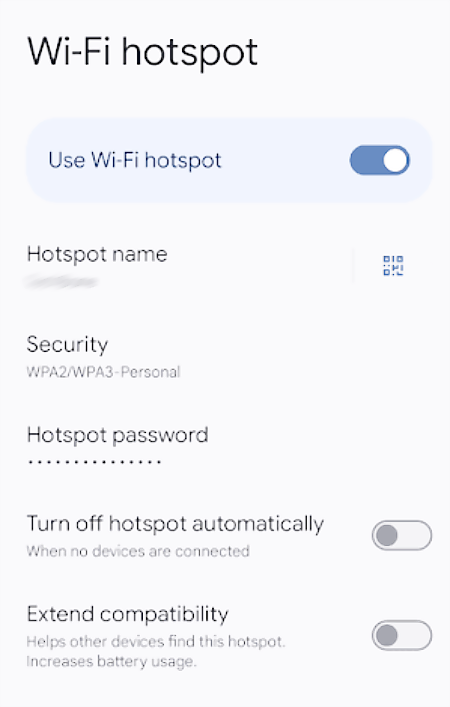
Temporarily extend the timeout or disable automatic shutoff. On Samsung devices, you can find these controls under Mobile Hotspot > Configure or tap Band > Advanced. The timeout turns the hotspot off after a set period if no devices are connected.
If disconnections happen while a device is actively connected, check for heat issues as well. In case the phone is unusually hot or showing a temperature warning:
- Stop hotspot use and demanding apps.
- Disconnect the charger.
- Move the phone out of direct sunlight.
- Let it cool naturally before you try using it again.
Overheating can force Pixel phones to partially or completely disable mobile data or Wi-Fi. Don’t try to keep a hotspot running during a temperature warning.
10. Install Available Software Updates
Update both sides of the connection to make sure they are on the latest OS versions:
- Android phone: Search Settings for Software update or System update.
- Receiving phone or tablet: Install its available system updates.
- Windows laptop: Check Windows Update and the laptop manufacturer’s official Wi-Fi driver support.
When the problem started immediately after an update, check the manufacturer’s support notices for your exact model. Install an available corrective update rather than downloading unofficial firmware or attempting a risky downgrade.
11. Try USB Tethering as a Workaround and Diagnostic Test
If your PC supports it, you can use USB tethering to get online while you troubleshoot the wireless connection.
- Connect the phone to the computer with a data cable.
- Open Hotspot & tethering or Mobile Hotspot and Tethering.
- Enable USB tethering.
- Check if your computer connects to the internet.
If USB tethering works but Wi-Fi hotspot doesn’t, the problem usually comes down to the wireless link, security settings, frequency band, or the Wi-Fi adapter on your receiving device. When USB tethering is unavailable or greyed out, swap your USB cable for a different one and plug into another port. A basic charging-only connection isn’t enough for data transfer.
Keep in mind that USB tethering still runs on your mobile plan and follows your carrier rules. Android officially supports USB, Wi-Fi, and Bluetooth tethering methods.
12. Reset the Network Settings
Perform a network reset when basic troubleshooting steps do not work. It’s less disruptive than erasing the phone, though you should read the confirmation screen carefully. Open the Settings app and search for network reset. Depending on the phone, you may see separate options for:
- Reset mobile network settings
- Reset Wi-Fi and Bluetooth settings
- Reset Wi-Fi, Bluetooth and mobile network settings
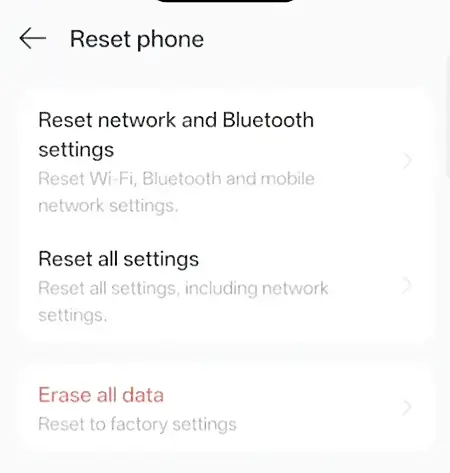
On the latest Galaxy models, you’ll want to go to Settings > General management > Reset > Reset Wi-Fi and Bluetooth settings.
Choose the option that matches the fault:
- Devices cannot discover or connect to the hotspot: Start with the Wi-Fi/network reset.
- Mobile data or carrier connectivity is failing too: Consider the mobile network reset.
- Only one device refuses to connect: Reset its network settings before resetting a phone that works with other devices.
A Wi-Fi/Bluetooth reset can remove saved networks and Bluetooth pairings. A combined reset can also set cellular preferences back to defaults. Have your Wi-Fi passwords ready and read the prompt to see what will be wiped or changed. Avoid options that erase downloaded or electronic SIM cards unless you want a bigger headache.
13. Check for App Conflicts, Then Escalate the Problem
When the hotspot still fails after you install a VPN or network app, test the phone in Safe mode.
Safe mode temporarily disables downloaded apps. Follow your manufacturer’s instructions because the startup method varies. Turn mobile data and your hotspot back on to check if they work.
- If the hotspot works in Safe mode, delete or update your recent network apps one by one.
- If it still fails, contact your carrier or phone brand support and share what you found during troubleshooting.
For work smartphones that display “Disabled by administrator” or a similar message, contact the IT department. Android management policies can restrict Wi-Fi tethering on supported company devices.
When you reach out to support, give them these details:
- Phone model and Android version.
- Carrier and plan.
- Exact error message.
- Whether mobile data works with Wi-Fi off, another device can use the hotspot, or USB tethering works.
- When the issue started.
Don’t jump straight to a factory reset. It deletes local data and won’t resolve a carrier restriction, exhausted allowance, or incompatible device. Consider it only after you’ve taken a backup of your important data and completed the relevant carrier and manufacturer checks.
Frequently Asked Questions
Can a dual-SIM setup cause Android hotspot connection issues?
Yes. If you have two physical SIM cards or a SIM combined with an eSIM, Android requires you to assign one card for cellular data. If your phone defaults data to SIM 1 but the hotspot plan is on SIM 2, it will broadcast without delivering any throughput.
Can a Mac use an Android phone’s hotspot?
Yes, a Mac can connect to an Android Wi-Fi hotspot like any wireless network, though it doesn’t support Android USB tethering. Android Bluetooth tethering is also not available on Macs running macOS Monterey or later, so you can only use Wi-Fi.
Why does my hotspot lose internet during a phone call?
Mobile-data availability during calls depends on the carrier, network coverage, voice-service support, and SIM configuration. Dual-SIM phones add another complication because data can route through whichever SIM line is currently making the call. Check for a setting such as Data during calls, and ask your carrier about simultaneous voice and data support on your line.
Does hotspot use more data than browsing on my phone?
There is no fixed “hotspot multiplier,” but the connected device may do much more in the background. Laptop updates, cloud backups, game downloads, and high-resolution video can quickly increase usage. Mark the hotspot connection as metered on supported computers and pause large transfers when your allowed data is limited.
Will my Android hotspot work while traveling abroad?
It depends on your plan, roaming agreement, and travel SIM or eSIM. A package can include phone data without the same tethering usage abroad, so confirm hotspot support, roaming limits, and charges with the provider. Domestic hotspot benefits shouldn’t be assumed to apply internationally.