- Common Reasons for Issues Downloading Apps on Google Play Store
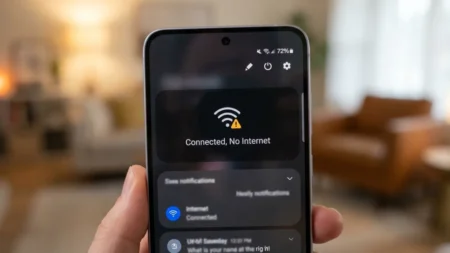
- Fix 1: Check Your Internet Connection
- Fix 2: Cancel Competing Downloads in the Queue
- Fix 3: Clear Google Play Store Cache & Data
- Fix 4: Free Up Device Storage
- Fix 5: Adjust Phone’s Date and Time
- Fix 6: Clear Google Play Services Cache
- Fix 7: Change App Download Preference
- Fix 8: Disable VPN or Proxy
- Fix 9: Remove and Re-add Your Google Account
- Fix 10: Update Google Play Store and Google Play Services
- Fix 11: Reset the Download Manager
- Fix 12: Uninstall Play Store Updates
- Fix 13: Factory Reset
- Frequently Asked Questions
- What do Play Store error codes like Error 495, Error 194, or Error 910 mean?
- Why do app downloads start but stop at a specific percentage?
- Can parental controls or Google Family Link block app downloads?
- How do I know if the Google Play Store is down, not my device?
- Will clearing Play Store data delete my purchased apps or subscriptions?
Open Play Store, tap profile icon, select Manage apps and device, and cancel all background updates in the Manage tab.
Go to Settings > Apps > Google Play Store > Storage and cache and tap Clear cache.
Check Settings > Storage and confirm at least 1GB of free space is available.
Go to Settings > System > Date and time and enable Set time automatically.
Restart your phone, open the Google Play Store, and try the download again.
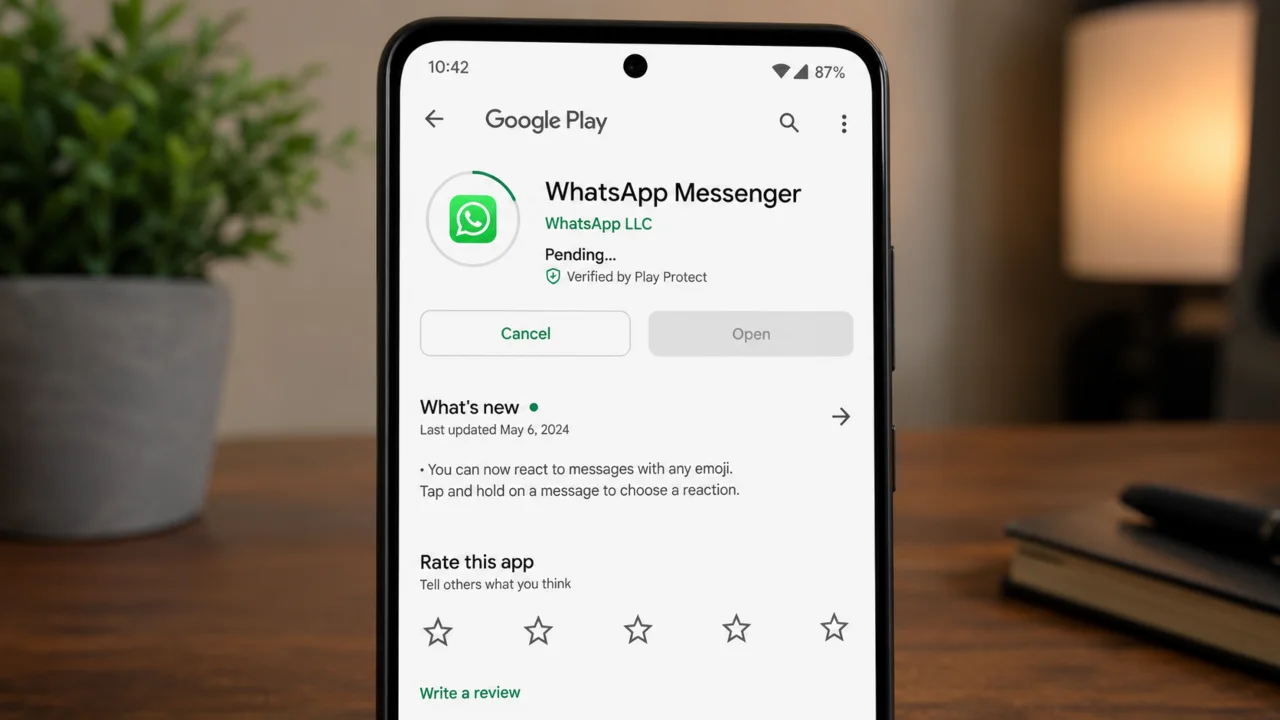
Google Play Store apps not downloading? It’s frustrating to tap Install in the Play Store only to see the app stuck on “Pending” with no explanation. This can happen either when you try to download a new app, install a crucial update, or apply important security patches, and can disrupt your device’s performance and leave you wondering what went wrong.
Because the Play Store rarely provides a clear error message for pending downloads or app installation failures, it can be difficult to know where to start. Thankfully, most of these issues are easy to fix with a few simple troubleshooting steps.
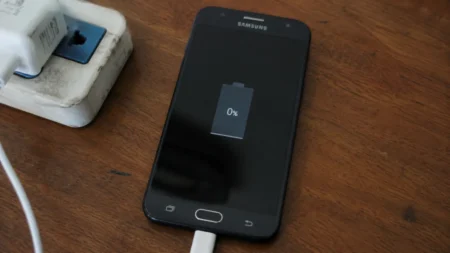
Related: Why Won’t My Phone Charge? 12 Ways to Fix Android Charging Issues
📋 Tested On
We tested and verified the methods on Samsung Galaxy S24 and Google Pixel 8a (Android 16). Menu labels vary slightly by manufacturer, but the process is the same across all modern Android devices on Android 10 or higher.
Common Reasons for Issues Downloading Apps on Google Play Store
The Play Store needs three things to work: a stable internet connection, enough free storage to receive and install the file, and a valid, authenticated session with your Google account. When any one of them is not up to par, downloads will stop.
- Unstable or misconfigured internet connection (the most common cause)
- Background download queue overload, with too many apps updating at once
- Corrupted Play Store cache or app data
- Not enough free internal storage (less than 1GB available)
- Incorrect date and time settings block Google’s authentication servers
- Corrupted Google Play Services cache
- Download preference locked to Wi-Fi only while on mobile data
- VPN or proxy interference with Google’s download servers
- Google account authentication failure
- Outdated Google Play Store or Google Play Services
- Download Manager bug or disabled state
- A broken Play Store version update (uncommon, but happens after major releases)
Fix 1: Check Your Internet Connection
A stalled Play Store download almost always means the connection dropped.
- First, open any website on a browser. If the page doesn’t load, the internet is down.
- Swipe down the notification shade on your phone and confirm Wi-Fi or mobile data shows a signal.
- Turn on Airplane Mode for 10 seconds, then off, to reset the device’s network radio and clear minor connection glitches.
- If you’re on Wi‑Fi, move near the router or try a different network.
- When Wi-Fi is unresponsive or the router seems dead, unplug it, wait 30 seconds, plug it back in, and watch the lights settle.
- Switch from Wi-Fi to mobile data (or vice versa) and retry the download to see which network works.
Hotel, school, and public Wi-Fi networks often require you to process through a login page before you get full internet access. When connected to one of these networks and the Play Store is not working, open a browser first to accept the portal, then retry the app install or download.
Fix 2: Cancel Competing Downloads in the Queue
When multiple apps update in the background at once, all new download requests will be added to a queue. Even if one of these updates is stuck, every app download waiting in line will stall too.
Follow these steps to clear the queue:
- Open the Play Store.
- Tap your profile picture in the top-right corner.
- Select Manage apps and device.
- Tap the Manage tab.
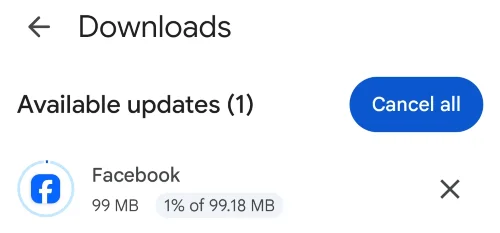
- Tap on Updates available to see the list of active/queued apps.
- See the competing updates, then select the Cancel (X) button for each, or tap an app and choose Cancel.
- Once the queue is empty, go back and start the download you need.
Background updates cancellation is completely safe and won’t disrupt your phone. The Play Store will automatically resume these updates later, usually overnight while connected to Wi-Fi, and your installed apps will continue to work normally in the meantime.
Fix 3: Clear Google Play Store Cache & Data
A corrupted cache in the Play Store is behind most “Download Pending” failures. Over time, the Play Store accumulates temporary data, and when these files become outdated or damaged, the application can no longer process new download requests properly.
Step 1: Clear the cache first:
- Open the Settings app.
- Tap Apps (some devices label this as Apps & notifications or Application Manager).
- Tap See all apps if the Google Play Store is not visible in the main list.
- Scroll down and tap Google Play Store.
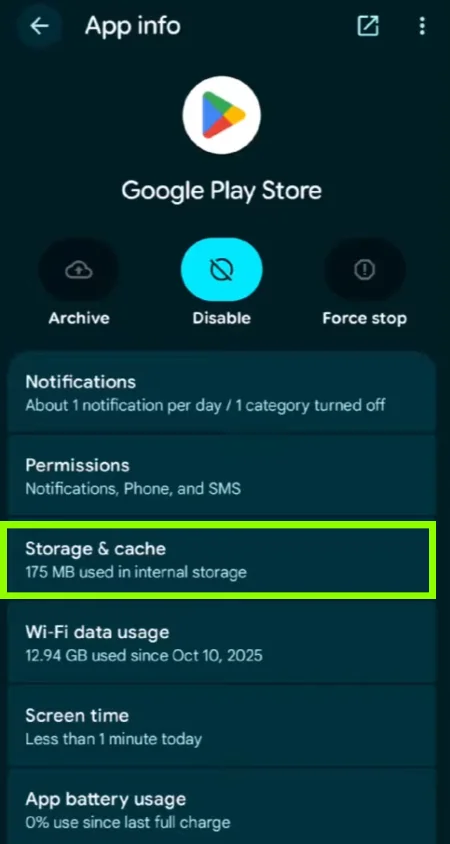
- Tap Storage and cache (or Storage).
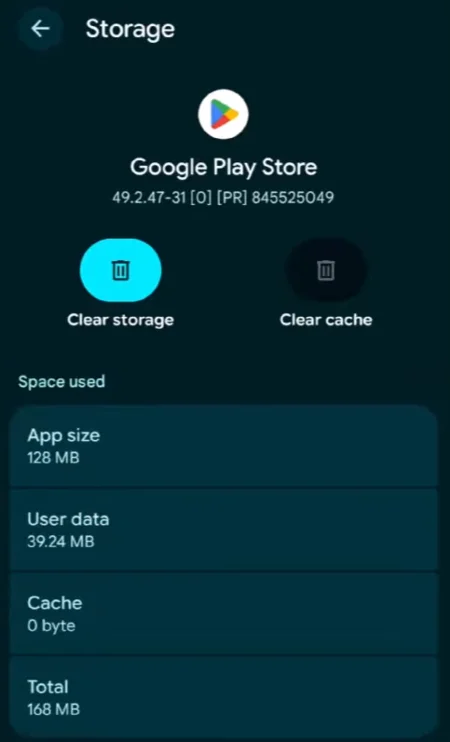
- Tap Clear cache.
- Restart your device.
Step 2: If the cache clear alone doesn’t fix it, clear the data:
- Go back to Settings > Apps > Google Play Store > Storage and cache.
- Tap Clear storage (labeled Clear data on old Android versions).
- Restart and try downloading again.
Fix 4: Free Up Device Storage
Android requires a good amount of free space during app installation. A 200MB app can demand double that amount of storage because the system holds the compressed download and the unpacked files side by side, so a device with under 1GB of spare space will see Play Store downloads stall or abort.
- Open Settings and tap Storage.
- Note how much free space is available. If under 1GB, free up space before proceeding.
- Delete apps you no longer use: Go to Settings > Apps, sort by size, and uninstall any large, unused applications.
- Clear downloaded files: Open the File Manager app and remove junk files and unused items from the Downloads folder.
- Back up photos to Google Photos or a computer, then delete them from the device to recover storage.
- Open Play Store, tap your profile image, go to Manage apps and device, and check for apps flagged as “Not used recently” to remove with a single tap.
Most Android apps demand internal storage, even when a micro‑SD card is present. Freeing that space matters because the system rejects new installations without it. The quick fix? Move your photos, music, and videos to the card; the files will remain intact, and the phone will regain the room it needs.
Fix 5: Adjust Phone’s Date and Time
Google’s download servers verify the device’s clock when authenticating download requests. If your mobile’s date or time is off by even a few minutes, the server may reject your connection, resulting in a stalled download or a generic error message.
This happens particularly after a factory reset, a SIM card swap, or when someone travels across time zones with Automatic time zone turned off.
- Open Settings.
- Tap System.
- Tap Date & time.
- Enable Set time automatically (or Automatic date and time), also called Use network-provided time.
- Toggle on Set time zone automatically (or Automatic time zone), also called Use network-provided time zone.
- Restart your phone.
📌 On Samsung Devices
Go to Settings > General management > Date and time, then enable Automatic date and time and Automatic time zone.
Related: How to Fix a Slow Android Phone: 16 Ways to Speed Up Device
Fix 6: Clear Google Play Services Cache
Google Play Services is an important framework that manages authentication, account sync, and communication between your device and Google’s servers. If this component collects a bad cache, it can restrict app downloads even after you’ve cleared the Play Store cache.
Follow the steps below to delete Google Play Services cache, which can resolve deep-seated synchronization errors that earlier fixes possibly fail to address.
- Open the Settings app.
- Tap Apps > See all apps.
- Tap the three-dot menu in the top right corner and select Show system apps. (This step is required on most devices, as Play Services is hidden by default.)
- Scroll through the list and tap Google Play Services.
- Tap Storage & cache (or Storage).
- Tap Clear cache.
- Reboot the phone.
Clear only the cache in Google Play Services. Selecting “Clear storage” or “Clear data” will wipe the account credentials, sync tokens, and every auth data linked to your Google suite. The cache can be emptied safely, but storage or data removal should be done only according to Google Support’s instructions.
Fix 7: Change App Download Preference
Google Play Store includes a setting that restricts app downloads to Wi-Fi only. If this preference is enabled and you are on mobile data, new downloads will remain stuck in a “Pending” state.
Here’s how to adjust your download preferences:
- Open the Play Store.
- Tap the profile icon in the top-right corner.
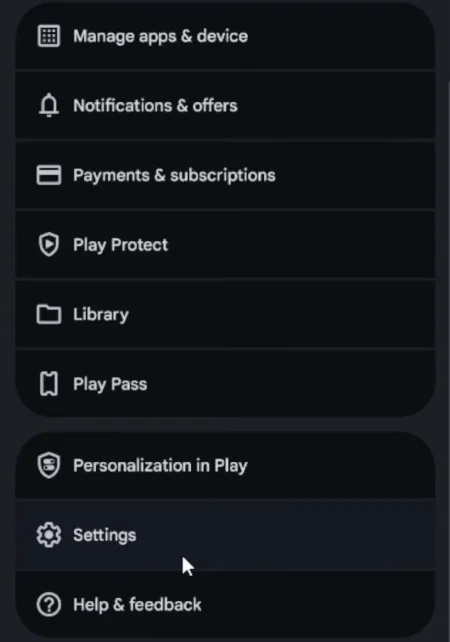
- Select Settings.
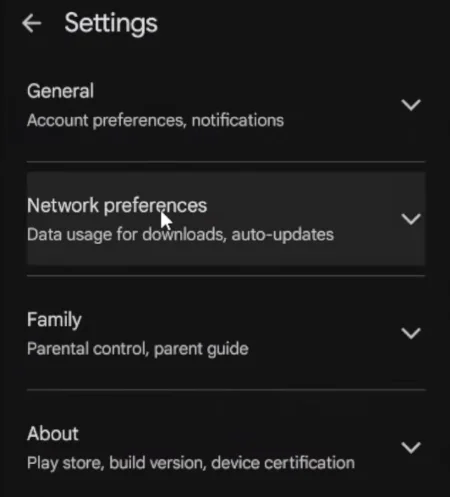
- Tap Network preferences.
- Tap App download preference.
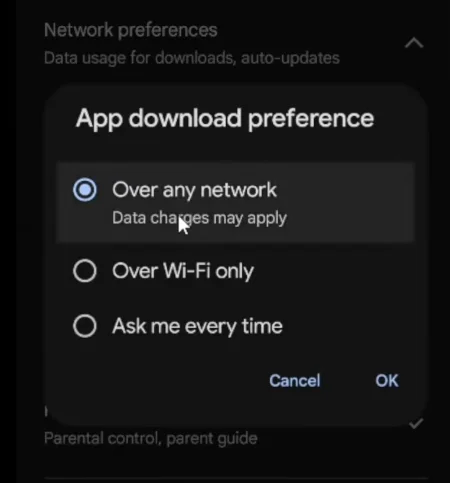
- Select Over any network.
- Try downloading the app again.
Once the download glitch is taken care of, change the setting back to Wi‑Fi‑only to avoid unexpected mobile data charges. Otherwise, a game update or a large application can eat gigabytes on a cellular plan.
Fix 8: Disable VPN or Proxy
Google’s servers can flag the connection as irregular, throttling the Play Store download outright. When a VPN reroutes a phone’s internet traffic through a different location (or country) where the app is not offered, the store often blocks the request. The same restriction applies to many proxy services.
- Open your VPN app and disconnect.
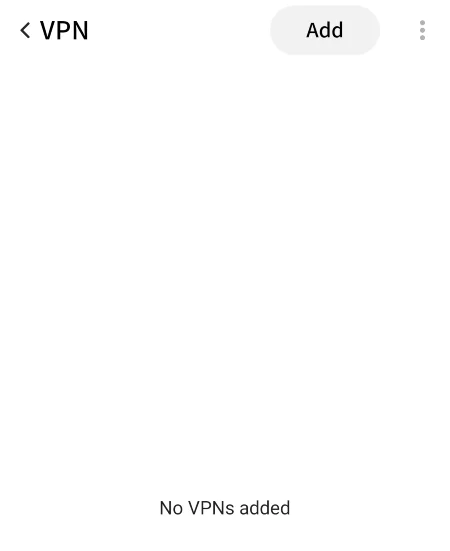
- Alternatively, go to Settings > Network and internet > VPN, tap the gear icon next to active VPN, and select Forget or toggle it off. (I haven’t added a custom VPN, so my menu screen has none, but you’ll see details for your custom setup.)
- Force‑close the Play Store by swiping it away in the recent‑apps view, then reopen it.
- If you have a manual proxy configured, open Settings > Wi-Fi.
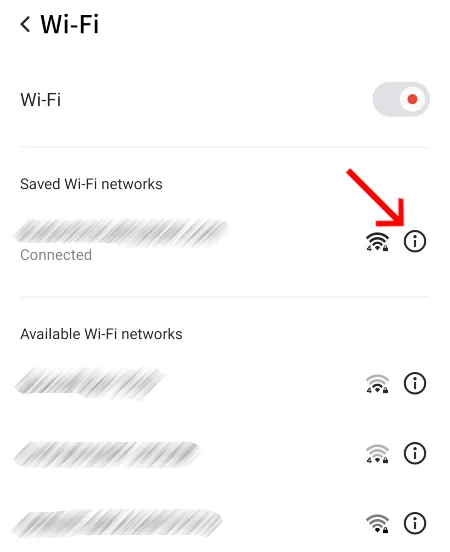
- Tap and hold your connected network, or tap the more info (i) icon next to it.
- Choose Advanced options or Modify network (some Androids have the Proxy option directly in the network menu).
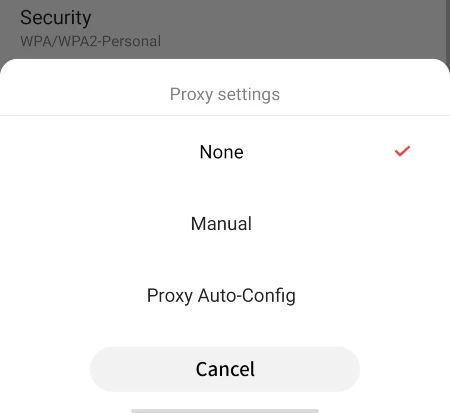
- Check the Proxy field. If it’s set to a custom setting, change it to None.
- Tap Save.
If downloads work with the Virtual Private Network off, try connecting to a VPN server in your own country and check again. In many cases, a server close to home resolves the conflict without the need to disconnect.
A corporate or school Wi‑Fi that funnels traffic through a built‑in proxy can block downloads from Google’s servers. When every other site loads but the download fails, swap to a cellular connection and try again. If it processes over mobile data, the Wi‑Fi filter is the culprit. Contact the network administrator and ask for the proxy to be bypassed.
Fix 9: Remove and Re-add Your Google Account
When a Google account’s auth token expires or becomes corrupted, the Play Store will not complete downloads. The only way to fix it is to remove the account from the device and sign back in to force a fresh authentication.
Make sure to note down your Google account password before removing the account. You will need to sign back in to restore access to the Play Store, Gmail, Drive, and any other Google services linked to that account.
- Open Settings.
- Tap Passwords & accounts (Samsung: Accounts and backup).
- Tap Google, then select the account linked to Google Play Store.
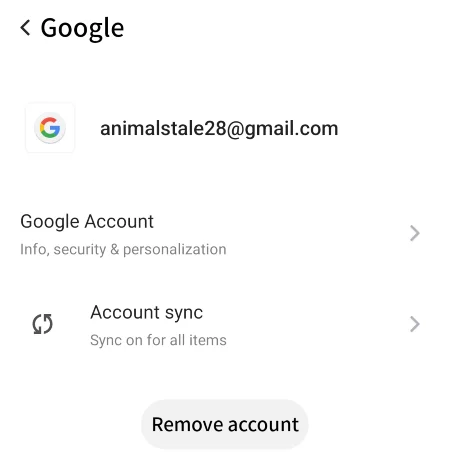
- Tap Remove account and confirm.
- Restart your device.
- Go back to Settings > Accounts > Add account > Google.
- Sign back in with your Google credentials.
Fix 10: Update Google Play Store and Google Play Services
An outdated Google Play Store or Google Play Services version can break compatibility with Google’s current backend. The problem spikes after a major Android OS upgrade, when the installed Play Store or Services lag behind the newly updated system components.
To update Google Play Store:
- Open the Play Store.
- Tap your profile icon in the top-right corner.
- Go to Settings > About.
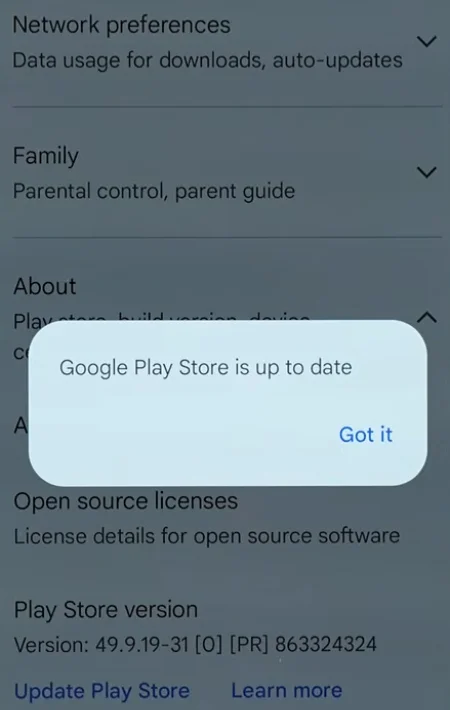
- Tap Update Play Store. If an update is available, it will install.
To update Google Play Services:
- Open the Play Store and search for Google Play Services.
- Tap Update if the button shows.
- Alternatively, go to Settings > Apps > Google Play Services, scroll down, tap App details, and update from the Play Store listing that opens.
Google Play Services usually updates behind the scenes, but older smartphones or those that limit background data can lag. A quick manual check takes about 30 seconds and can eliminate this usually overlooked issue.
Related: How to Fix Internet Connection Issues on Android Devices
Fix 11: Reset the Download Manager
The Download Manager is a core Android system component that handles all file transfers, including every Play Store installation. If this service is disabled or malfunctioning, all download activity will cease. While it happens seldom, it’s a critical underlying cause that must be sorted out to get everything working properly again.
- Open the Settings app.
- Tap Apps and select See all apps.
- Tap the three-dot menu icon in the top-right corner and select Show system apps.
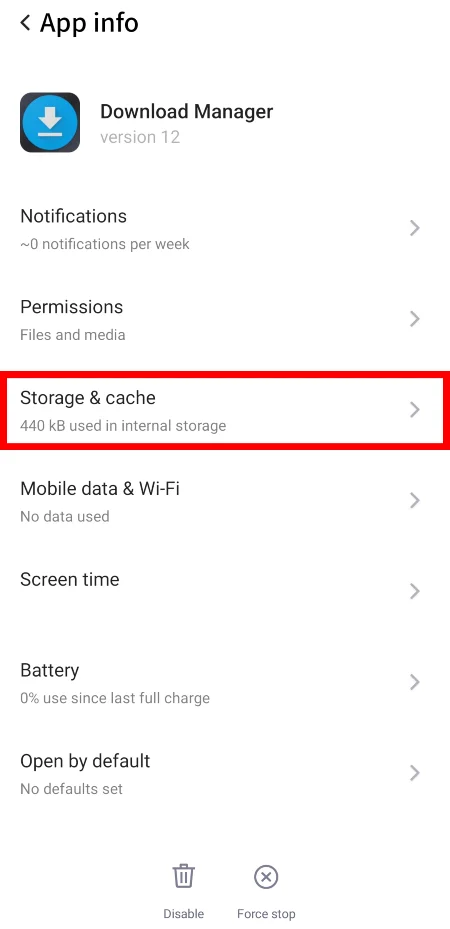
- Scroll down and choose Download Manager in the list.
- If you see an Enable button, tap it to reactivate the service.
- Tap Force Stop.
- If it’s already enabled, tap Storage & cache > Clear cache.
- Restart the phone.
Download Manager will not show in the regular apps list. Open Settings > Apps, tap the three‑dot menu, and turn on “Show system apps” to locate it. On Samsung phones, it may be listed as Downloads rather than Download Manager.
Fix 12: Uninstall Play Store Updates
Occasionally, an update to the Play Store contains a bug that stops certain devices or Android versions from downloading apps. The simplest fix is to revert the Play Store to its factory version. After a short while—usually a few hours—the store will update on its own, possibly to the correct app version.
- Open Settings > Apps > See all apps.
- Find and tap Google Play Store.
- Tap the three-dot menu in the top-right corner of the app info screen.
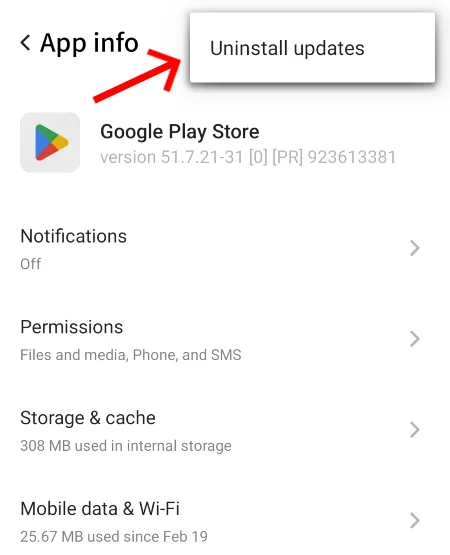
- Select Uninstall updates.
- Confirm when prompted.
- Restart your device.
Fix 13: Factory Reset
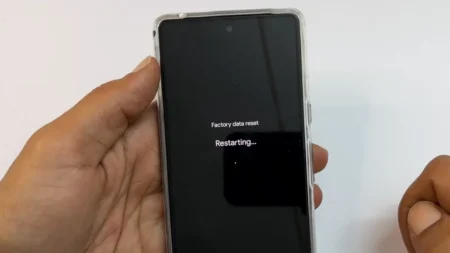
If you’ve tried everything and the Play Store app downloads are still broken, a factory reset is the final option. This can fix deep software problems, though it’s a drastic step because it erases everything on your device, so only do this after you’ve exhausted all other options. Check our complete guide to learn different ways to factory reset an Android phone.
A factory reset erases all apps, photos, contacts, and settings stored locally on the mobile. So, back up your data to Google Drive, Google Photos, or your PC. Any data not saved somewhere will be permanently lost and cannot be recovered after the reset.
Related: Why is My Phone Overheating? Reasons and How to Fix It
Frequently Asked Questions
What do Play Store error codes like Error 495, Error 194, or Error 910 mean?
Most Play Store error codes point to a corrupted cache or a broken account sync. Clearing the Google Play Store cache and data fixes the majority of them. Error 403 flags an account‑authentication failure, so re‑adding the Google account, as Fix 8 shows, restores access. When an existing cached app file conflicts with the update, it leads to error 910, and you’ll usually need to clear store data to fix it.
Why do app downloads start but stop at a specific percentage?
Downloads stalling at the same percentage usually means a storage bottleneck or a corrupted Google Play Store session. Either your Android lacks the temporary space needed for the unpack phase, or a network flicker interrupted the transfer. Free up mobile storage, clear the Play Store cache, and redownload the app on a stable Wi-Fi. If the app still fails at that exact mark, the problem is likely on Google’s end. Wait a few hours and try again.
Can parental controls or Google Family Link block app downloads?
Yes. When a device is managed by Google Family Link and a parent hasn’t approved an app, the Play Store leaves the download in “Pending approval”. The parent must open Family Link on their phone and grant permission. If you’re an adult who never set up Family Link, verify whether it’s active on your account at families.google.com. Employer or school‑issued MDM profiles can also restrict store downloads.
How do I know if the Google Play Store is down, not my device?
You can check Google’s server status at Downdetector’s Google Play page or visit the Google Workspace Status Dashboard to see if there is a reported outage. A widespread Play Store outage is uncommon but does happen. If other users are reporting the same problem, wait for the official statement and fix.
Will clearing Play Store data delete my purchased apps or subscriptions?
No. Google keeps your purchase history and active subscriptions on its servers, linked to your Google account. Even if you clear data, it will only reset local app preferences and your sign‑in session on that mobile. When you sign back in with the same account, all purchases and subscriptions will be available exactly as before.