



“My productivity app just crashed. Again.” Frustration seeps from the screen as the words fade to a sad, gray box, leaving you to wonder what went wrong. On Android, an app crash is more than just an annoyance; it’s a mystery to be solved. The Android app drawer on your phone holds around 47 apps on average, with some users installing over 100. With so many opportunities for things to go wrong, it’s a wonder any of us get anything done.
When an Android app suddenly crashes or refuses to launch, the culprit is usually a conflict between the application’s code and the operating system’s shared resources. Android depends on layered machinery—memory management here, background processing there, runtime environments humming away like stagehands in the dark—and each part must keep time with the others. When one component falls out of line, apps keep crashing on Android, taking workflows and user patience down with them.
To fix these unexpected closures, you need to get detective-y. Here’s how to stop apps from crashing and restore complete stability to your Android device. The steps listed below work on current Android phones and tablets, including Google Pixel, Samsung Galaxy, OnePlus, Motorola, Xiaomi, and others. Some setting names might vary slightly depending on your manufacturer. Start with the least invasive methods and move to reset only when necessary.
Before You Start: Confirm If One App or Many are Crashing
Before you try to fix a crashing app, you need to pinpoint the scope of the issue. Is it just one app giving you grief, or are many throughout the device? If it’s a single app, check its file integrity, permissions, and version. If multiple applications have the same issue, check for Android updates, available storage, and recent problematic apps.
When crashes begin after a system update, assume a bug or compatibility problem, so look for a new OS or app update. If an app only dies when you use a certain feature, the trigger might be a missing permission, a failed app download, or a weird account setting.
Record the app’s name, what you were doing when it happened, and whether it started after an update or a fresh install. You’ll need these details when you contact the developer.
Android occasionally kills background apps to free up memory or save battery, but that’s totally different from an app that keeps crashing.
Related: Why Won’t My Phone Charge? 12 Ways to Fix Android Charging Issues
How to Fix Apps that Keep Crashing on Your Android Phone
1. Restart Android Phone
A proper restart clears temporary processes and reloads Android services. It is simple, but it often resolves a one-off crash caused by a stalled background process or a failed update installation.
- Press and hold the Power button.
- Tap Restart.
- If your device does not show a Restart option, turn it off, wait about 30 seconds, and turn it on again.

When the screen is unresponsive, hold the Power button for roughly 30 seconds until the phone restarts. After the device has properly rebooted, open the affected app. If it works normally and is stable, no further action is required.
2. Update the Crashed App
App developers release fixes for crashes, Android-version compatibility issues, login problems, and broken features. An app update is particularly important when the problem happened recently or immediately after a system update.
To update an app from Google Play:
- Open the Google Play Store.
- Tap your profile picture in the top-right corner.
- Choose Manage apps & device.
- Tap Updates available.
- Find the affected app and select Update, or open the app’s Play Store listing and tap Update.
If you installed the app from another source, update it only from its original, trusted source. Never download random “latest APK” files from search results or unofficial stores, as modified packages can be unstable, unsafe, or don’t receive normal official updates.
If you’re on a beta version from Google Play, leave it and install the regular public release. Beta builds are for testing and can still carry bugs that cause crashes.
3. Update Android Software
Apps are built against Android system components. Install the latest software version and security updates to fix compatibility issues, improve stability, and refresh services that apps depend on.
On many Android devices:
- Open Settings.
- Tap System.
- Select Software update, System update, or System updates.
- Follow the on-screen instructions if an update is available.
On Samsung phones, go to Settings > Software update > Download and install. For Google Pixels, the update status is generally found under Settings > System > Software updates. See Check and update your Android version.
Keep the phone charged or connected to power before installing a system update. Do not interrupt the update process.
4. Force Stop the App and Clear Its Cache
Force stop ends the app completely, while cache clearance removes temporary files that may be damaged, outdated, or inconsistent after an update. Neither action erases your account, cloud‑stored messages, or configured settings.
Force stop an Android app
- Go to Settings > Apps.
- Tap See all apps, App management, or the relevant app list.
- Select the problematic app.
- Tap Force stop.
- Confirm, then reopen the app.
Clear the app cache
- Return to the app’s information screen.
- Tap Storage & cache or Storage.
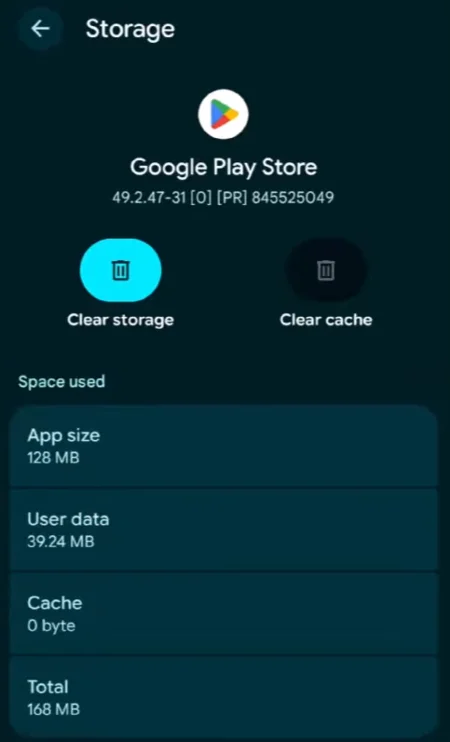
- Choose Clear cache.
- Launch the app again.

This one‑two punch is often the best fix for an app that flashes briefly and then disappears, refuses to load images or feeds, or crashes after a recent update.
Clear cache is not the same as Clear storage, Clear data, or Manage storage. Cache removal is safe, though the others wipe a large amount of app data.
5. Clear the App’s Storage
Reset the app’s storage if wiping the cache doesn’t work. It will remove corrupted settings, downloads, databases, and sign-in tokens, but it’ll also return the app to its newly installed state.
First, check if the app syncs your information to an account. Notes, games, authenticator apps, messaging apps, offline maps, finance apps, and others may have non-recoverable data.
Clear app storage
- Open Settings > Apps.
- Select the problem app.
- Tap Storage & cache or Storage.
- Choose Clear storage, Clear data, or Manage storage > Clear all data.
- Open the app and sign in again if required.
Clearing storage can permanently remove locally saved files, offline downloads, game progress, drafts, and app-specific settings. Verify backups beforehand, particularly for authenticator, recording, notes, and messaging tools. Use a built-in backup or export option for the apps that support it.
6. Make Sure Your Phone Has Enough Free Storage
Android requires free space to allocate RAM and write temporary files. When your Android phone’s internal storage drops below 10% of its total capacity, the operating system starts killing background and foreground apps to preserve core functions, which results in Android apps crashing unexpectedly.
To check how much free space is left on your device, go to Settings > Storage, or on many Samsung devices, Settings > Battery and device care > Storage.
Free up space by removing items you no longer need:
- Large videos and duplicate photos
- Offline downloads in streaming apps
- Old messaging attachments
- Unused games and apps
- Files in the Downloads folder
- Device backups already stored elsewhere
Before deleting personal files, move them to cloud storage, a computer, or an external drive.
Don’t aim to keep your storage at 99% full but leave a buffer for Android updates and normal app use. The size of this buffer varies by device capacity and the apps you use.
Avoid using “phone cleaner,” “RAM booster,” and task-killer apps, as they can do more harm than good. Modern Android already manages memory and background processes, and these utilities can aggressively stop useful services, interrupt notifications, and create more instability.
Related: How to Fix Slow Android Phone: 16 Ways to Speed Up Device
7. Check the App’s Permissions
Damaged apps will close, freeze, or fail to complete tasks due to a lack of access to required permissions, particularly for camera, microphone, location, files, contacts, and notifications.
To review permissions:
- Go to Settings > Apps.
- Choose the damaged app.
- Tap Permissions.
- Review denied permissions.
- Allow only the access that makes sense for the feature you are trying to use.
A camera app, for example, needs camera access, while a navigation app requires location access when navigating. A document-scanning app might demand both camera and photo/file access.
Grant permissions based on the app’s genuine purpose. A simple flashlight or wallpaper app should not need contacts, microphone, or precise location access.
If the app still closes once the permissions are correct, revert to your preferred privacy settings and proceed with the next steps.
8. Reinstall the App
When an application package is installed, the Android Runtime (ART) compiles the code based on the current operating system framework. If the underlying operating system sees big changes, this compiled bytecode can conflict with new system files. In such cases, a standard update may not overwrite old configurations, making a complete reinstallation necessary.
- Before reinstallation, confirm that your important data is synced or backed up.
- Then, press and hold the app icon.
- Tap App info or Uninstall.
- Select Uninstall.
- Restart the phone.
- Install the app again from the Google Play Store.
- Sign in and test it before restoring large offline downloads or changing many settings.
For preinstalled apps that cannot be removed, Android may display Uninstall updates instead. Use this option carefully, as it reverts the app to the version supplied by the phone manufacturer. Afterward, open Google Play and update the app again.
If the latest app version crashes immediately for many users, reinstalling may not resolve the issue. Check the app’s recent Play Store reviews, official support page, or status page for known outages or faulty releases before you take further action.
9. Update Chrome and Android System WebView
If multiple apps break when opening sign-in pages, payment screens, or embedded web content, update Chrome and Android System WebView first. They provide the web engine that many Android software rely on.
- Open the Google Play Store.
- Search Google Chrome and tap Update if available.
- Search Android System WebView and update if it’s listed for your device.
- Restart your handset.
Some devices don’t expose Android System WebView as a separate app because Chrome supplies the same component. Do not disable or uninstall either unless you have a good reason and understand the consequences.
Android’s developer documentation confirms that WebView renders web content inside apps, so problems with it can affect app stability.
10. Rule Out Your Network, Account, or a Service Outage
Not every “app crash” is a crash. Many apps fail because they can’t authenticate, sync, or reach their servers.
Check the basics:
- Switch between Wi-Fi and mobile data.
- Temporarily disable any VPN, private DNS, ad blocker, or firewall.
- Make sure Date & time is set to Automatic.
- Sign out and back in only if the app provides a supported way to do it.
- Check the developer’s official status page or support account for outages.
- Test the same account on another device or the service’s website, where available.
This is especially common with banking, email, streaming, social media, cloud storage, rideshare, workplace, and shopping apps, where a server problem mostly looks like an application problem.
Never share your password, one-time verification code, recovery code, or full payment details with anyone who claims to offer support through social media or unsolicited messages. Use the developer’s official support channels.
11. Remove Recently Installed Apps That May Be Causing a Conflict
If Android app crashes started after a new install, remove it immediately. Recent additions are the most likely cause, mainly when nothing else changed.
Pay close attention to apps with broad system access, including launchers, keyboards, VPNs, antivirus software, accessibility tools, screen overlays, battery optimizers, automation tools, and any third-party application from outside Google Play.
Apps with broad access can interfere with other software when they use:
- Accessibility services
- Display-over-other-apps permission
- Device administrator access
- VPN connections
- Custom DNS or content filtering
- Aggressive battery or memory management
- System level settings
Open Google Play Store > Manage apps & device > Manage to review recently installed apps. If your device supports sorting by recent installs, use it. Uninstall one suspicious or unnecessary app at a time and test again.
Google Play Protect can also scan installed apps and warn about potentially harmful software. Open Play Store > profile picture > Play Protect > Scan. Google explains its protection and scanning features in its Play Protect help page.
Related: How to Fix Internet Connection Issues on Android Devices
12. Use Safe Mode to Find an App Conflict
Safe Mode starts Android with preinstalled system apps while temporarily disabling downloaded ones. It’s a strong diagnostic tool when multiple apps are crashing, the device is unstable, or you suspect a recently installed tool is interfering; it’s the quickest way to isolate a bad actor.
If:
- The crash stops in Safe Mode: A third-party app is to blame.
- The crash continues in Safe Mode: The issue is more likely related to Android, device storage, the affected app, or hardware.
To enter, hold the power button, then long-press the Power off prompt until the Safe Mode option appears. (Some manufacturers require a specific hardware-button combination during startup.)

Once in Safe Mode:
- Check if the issue continues.
- Restart normally to exit Safe Mode.
- Remove recently installed apps one at a time.
- Restart and test after each removal.
Test the device. If it runs fine, restart normally to exit. Then, remove your most recently installed apps one by one, testing after each deletion until you find the culprit. Safe Mode is a diagnostic lens, not a repair kit.
13. Check Battery Restrictions for Background Closures
If an app drops an upload, kills a workout tracker, or flatlines the moment you switch away, Android’s aggressive power management is probably killing it to save power.
Here’s how you can fix it:
- Tap Settings > Apps > [App Name] > Battery (or App battery usage).
- Set it to Optimized or Unrestricted.
Use “Unrestricted” sparingly. It will noticeably drain the phone’s battery, especially on GPS, messaging, or fitness apps. Also, don’t mistake this for a cure-all: if an app crashes while continuously in use, the code is buggy, but this adjustment only stops Android from quietly killing processes in the background.
14. Reset App Preferences
A reset to app preferences can help when an app chokes on opening a link, file, or notification because a default handler or disabled system app is misconfigured.
The option is usually found under:
- Settings > Apps > three-dot menu > Reset app preferences
This typically resets:
- Disabled apps
- Default apps for links and actions
- Permission restrictions or notification preferences on some devices
- Background data restrictions on some versions
This re-enables disabled apps, clears default link handlers, and resets background data and notification restrictions. It does not delete your personal files, photos, or app data. (Read the confirmation screen anyway because some manufacturers like to sneak in different caveats.)
Don’t use this method as a first response to every crash. Save it for when ordinary troubleshooting has not panned out.
15. Contact the App Developer
When only one app keeps crashing after you’ve updated, cleared the cache, and reinstalled, it’s probably a bug on devs’ end. Send a concise report to them with the following details:
- App name and version
- Phone model and Android version
- The exact action that triggers the crash
- When it started (after an app update or OS update?)
- Network context (Wi-Fi, mobile data, or both)
- A screenshot of the error message
- The time and date it happened, if the app has support staff who can inspect logs
Find the developer’s contact details on the app’s Google Play listing, usually under App support. And never post personal information, account numbers, passwords, recovery codes, or private screenshots in a public review.
Related: How to Share Location on Android: 7 Easy Methods
16. Factory Reset the Phone
Treat a factory reset as an absolute last resort, not a troubleshooting shortcut. If one app is acting up, a reset is overkill. Only pull this trigger if the entire system is unstable, Safe Mode didn’t help, and you have exhausted every other logical step listed above.
Before you perform a reset, do these four things:
- Back up everything: Photos, documents, contacts, and critical app data.
- Know your Google account password: If you reset without your credentials handy, Android’s anti-theft security will lock you out of your own device.
- Verify recovery methods for two-factor authentication apps: Getting locked out of your auth apps is a self-inflicted nightmare.
- Remove your SD card: To keep your external files safe from a stray wipe.
Follow our detailed guide on how to factory reset an Android phone. If the device still has widespread app crashes after a clean reset (before restoring third-party apps), contact the manufacturer or a reputable repair provider, as hardware or firmware may be involved.
How this Guide was Prepared
Last reviewed: July 13, 2026
This guide follows the troubleshooting order I use for Android stability issues: start with reversible actions, figure out if the fault affects a single app or the whole device, protect user data before resets, and avoid “cleaner” tools or untrusted downloads that introduce further problems.
The steps were checked against current official Android and Google Play support documentation. Menu labels and Safe Mode entry methods can differ across smartphone manufacturers, carriers, and Android versions, so use the equivalent setting on your device instead of relying on an exact label.
Frequently Asked Questions
Why do my apps keep closing on my Android even though there is no error message?
An app can terminate without a visible error when Android runs short of available resources, when the app encounters a background failure, or when a battery-management setting ends its background process. Confirm if the closure occurs while you are using the app or only after leaving it, since these are different problems with different fixes.
Can a faulty SD card make Android apps crash?
Yes. If you have formatted a physical MicroSD card to act as adoptable internal storage, or if an application saves its asset folders onto external memory, any read/write lag will break the app. If the memory card has bad sectors or a slow read speed, the phone’s processor will stop waiting for data to load, resulting in an immediate application crash. Try moving the app back to internal phone storage to test if the card is faulty.
Why did an app start crashing right after an Android update?
The app may not yet be fully compatible with the latest Android version, or its developer may need to issue a corrective update. Check Google Play for a new app version, look for an official acknowledgement from the developer, and avoid installing unofficial downgrade packages.
How does RAM affect application stability on older devices?
Random Access Memory (RAM) is a phone’s short-term workspace. Old models with 3GB or 4GB of RAM physically cannot hold modern, resource-heavy apps in memory at once. The operating system is forced to shut down the program to prevent the entire phone from freezing.
Is an app crash the same as Android closing an app in the background?
No. A crash usually happens during active use and may return you to the Home screen, show an error, or reopen from the start. Background closure happens after you switch away and is often related to battery optimization or memory management.
What should I do if a banking or authenticator app keeps crashing?
Do not clear the app’s storage or uninstall it until you have confirmed how to restore access. Check for updates first, contact the institution or service through its official website or phone number, and make sure you have backup authentication methods available.
Can a phone case, overheating, or physical damage cause apps to crash?
Overheating can make Android reduce performance and close demanding apps to protect the device. Physical damage or battery problems can also cause broader instability if multiple apps crash during gaming, video recording, charging, or heavy use. Let the device cool, remove it from direct heat, and seek manufacturer support if the problem won’t solve or is accompanied by unexpected restarts.
Sources
- Google Play Help: Fix an installed Android app that isn’t working
- Google Android Help: Check and update your Android version
- Google Android Help: Find problem apps by rebooting to Safe Mode
- Google Play Help: Use Google Play Protect to help keep your apps safe & your data private
- Android Developers: Manage WebView objects
Did this fix your issue?
Let us know. Your feedback helps other readers find the right solution.
Great! What solved it for you?
We read every response. Email is optional and never shared.
Sorry to hear that. What happened?
Leave your email and we will personally help you fix it.