


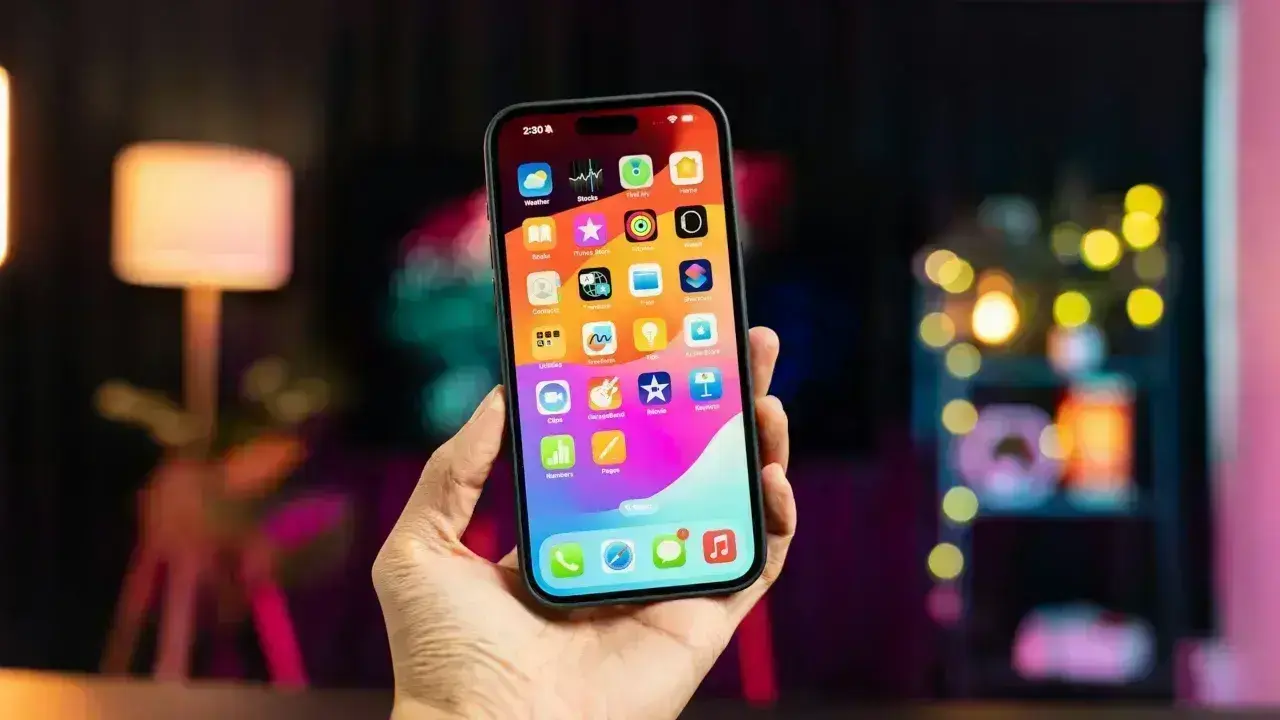

Every iPhone since the iOS 11 update has a built-in screen recorder, so there’s no need for third-party apps anymore. Just add one button to Control Center, tap it, and everything on your screen gets recorded with Apple’s Screen Recording tool and saved as a video. Thanks to it, you can even snap screenshots from your video clips. Read on to learn how to get everything set up, start recording, and add your own voiceover to iPhone recordings.
Related: How to Factory Reset or Hard Reset an iPhone
How to Record Your Screen on iPhone or iPad
On most of the latest iPhones, the Screen Recording tile is already available in Control Center. If it’s not for you, here’s how to add it:
- Swipe down from the top right corner of your iPhone screen.
- Tap and hold your finger on any empty space in the Control Center until the icons start wiggling.
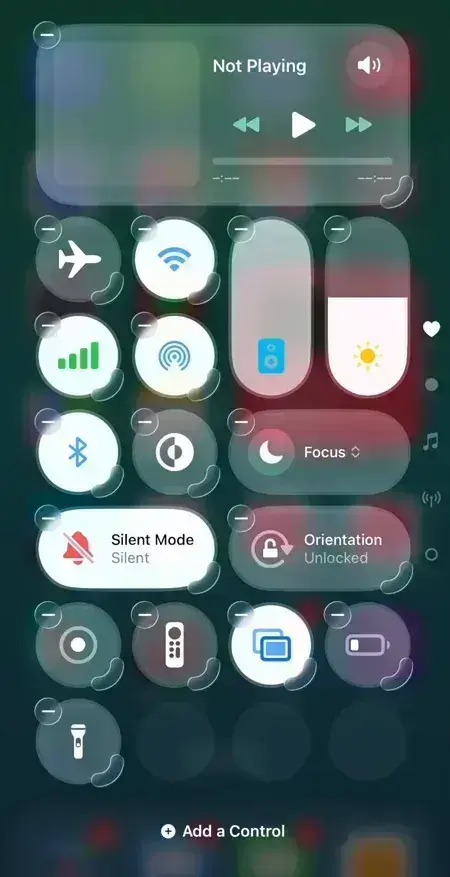
- Tap the Add a Control button at the bottom.
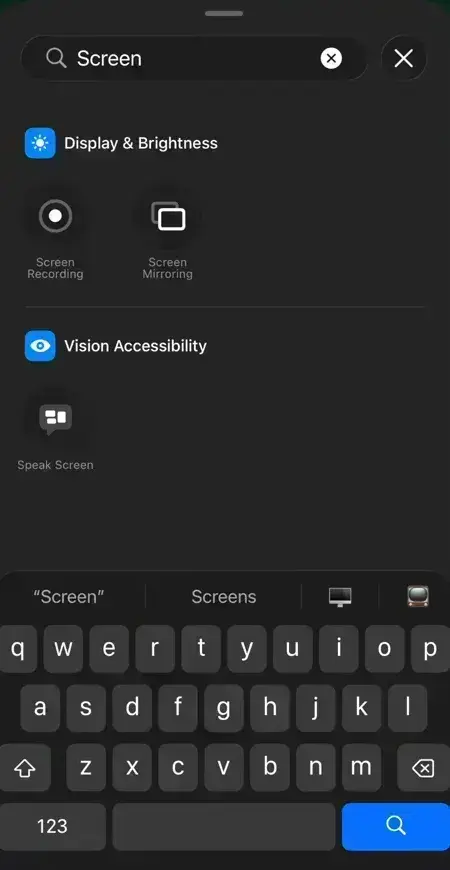
- Scroll down to the “Display & Brightness” section, or type “Screen Recording” into the search bar at the top.
- Tap the Screen Recording icon (it looks like a solid circle inside a ring). It will immediately drop into the Control Center layout.
- Tap a space on the screen to lock your layout in place.


Alternatively, you can do the same with these steps:
- Open Settings.
- Scroll down and tap Control Center.
- Under More Controls, find Screen Recording and tap the green + next to it.
It will now appear in your Included Controls list and will be waiting in Control Center. This is a one-time setup and won’t require this step again unless you remove it later.
Related: iPhone Not Connecting to Wi-Fi: 10 Ways to Fix Internet Issues
Start a Screen Recording
- Open Control Center. On an iPhone with Face ID (iPhone X and newer), swipe down from the top-right corner. On an iPhone with a Home button (iPhone SE, iPhone 8, or earlier), swipe up from the bottom edge.
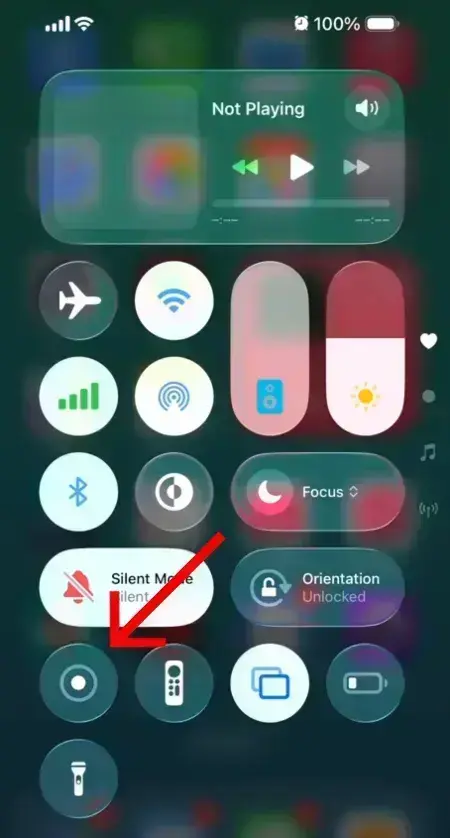
- Tap the Screen Recording button, the solid grey circle inside a ring.
- Wait for the 3-second countdown. This gives you time to get out of Control Center and onto whatever you want to record.
- Once the countdown ends, you’ll see a red dot or red pill appear in the top left corner (or the Dynamic Island, depending on your phone model) confirming the recording has started.
- Go ahead and scroll, tap, or play whatever you want to capture.
- To stop recording, tap the red clock or Dynamic Island at the top of the screen, then select Stop on the pop-up prompt. Your video will be saved automatically to the Photos app.

Turn on Do Not Disturb before recording something you plan to share publicly, as everything on your display will be captured, including new notifications. A stray alert banner is the single most common thing people have to re-record for.
Record With Your Voice or Microphone
By default, iPhone only captures the internal system sounds (like app music or sound effects). It does not record your voice. If you’d like to narrate a tutorial or react to something on screen, you must manually activate your microphone.
- Open Control Center.
- Press and hold the Screen Recording button (not tap).
- A hidden menu will pop up. At its bottom, tap the gray Microphone icon, which will turn red and say “Microphone On.”
- Tap Start Recording from that same menu.
iPhones with multiple microphones capture stereo sound automatically once the mic is on, so voice recordings for tutorials or app walkthroughs sound noticeably fuller than they used to on older iOS versions.
You can’t turn the mic on or off during a recording. In case you forget, you have to stop, long-press the screen record icon to find the microphone option, and then start over. The system will remember this setting for next time. So if you turn the mic on, it stays on for future recordings until manually disabled. Always double-check the mic status before capturing something important or private.
Find Screen Recordings
- Open the Photos app.
- Tap Albums at the bottom.
- Scroll to Media Types and tap Screen Recordings.
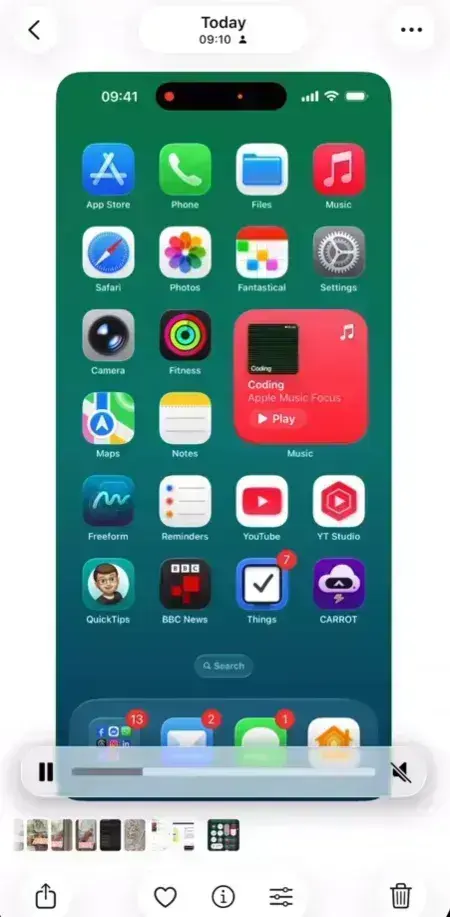

This album contains only your screen recordings, separate from regular photos and videos, which makes it much faster to find one from last week without scrolling through your whole camera roll.
How to Record in HDR for Sharp Quality
iOS 26 can capture screen recordings in HDR, which keeps colors and contrast sharp, matching what you see on screen rather than getting washed out.
Want to try it? Follow these steps:
- Open Settings.
- Tap General, then Screen Capture.
- Under Format, select HDR.
This saves the recordings in HEVC HDR10. You’ll want to use it for high contrast content, like a dark app or an HDR video, though the files will be noticeably larger. If you care more about file size than color accuracy, switch back to SDR (Most Compatible) in the same menu.
Related: How to Connect AirPods to MacBook, iPhone or Android
Assign Screen Recording to the Action Button
On iPhone 15 Pro and later models, you can configure the Action Button to launch screen recording instantly and skip Control Center.
- Open Settings and tap Action Button.
- Swipe until you land on Screen Recording.
Press and hold the Action Button whenever you need to capture something. This is the fastest method available on supported Apple phones, and it’s the one I default to now that I’ve got used to it.
Fix Common Screen Recording Problems on iPhone
- The Screen Recording button is greyed out or missing. This is almost always a Screen Time restriction, especially on a device that was set up as part of a family account or handed down from someone else. Go to Settings > Screen Time > Content & Privacy Restrictions > Content Restrictions, and set Screen Recording to Allow.
- The recording has no sound. Check whether the microphone was actually on before, since it can’t be toggled in mid-recording. Also, some streaming apps like Netflix intentionally block audio and video capture during playback for copyright reasons, and you can’t do anything about it.
- Recording stops on its own. It’s usually due to insufficient storage. Screen recordings consume approximately 30–50 MB per minute, so long sessions on a near-capacity device can quickly exhaust the remaining space; first check available storage under Settings > General > iPhone Storage.
- An incoming call interrupts the recording. Turn on Do Not Disturb before recording begins to avoid that incident.
Edit or Share a Screen Recording
Screen recordings save as standard .MOV files using HEVC compression, and they open natively on iPhone, Mac, and most current Windows computers. For quick trims, the Photos app lets you cut the start or end of a clip.
For more editing work, iMovie is a free tool available on every iPhone and covers titles, transitions, and basic multi-clip editing. To create good media for social media, a third-party app like CapCut is a better choice because it lets you generate captions and export presets more directly than Apple’s tools.
Frequently Asked Questions
Why is my screen recording totally black?
You are probably trying to record protected content. Streaming apps like Netflix, Hulu, Disney+, and banking apps use Digital Rights Management (DRM) software to block screen capture. The video will deliberately black out to prevent piracy, though you might still hear the audio.
Can I screen record a phone call?
Screen recording captures whatever is visible on your display, so it will record the call screen, but Apple restricts recording of the other person’s video or audio in FaceTime for privacy reasons. Standard phone calls do not display anything to record beyond the call interface.
Can I record just part of my screen?
No, the built-in tool always captures the full display. If you only need a specific app window or region, you’ll need to crop the video afterward in Photos, iMovie, or a third-party editor.
Is there a time limit for screen recordings?
Apple does not impose a time limit. Your recording will keep going until you manually stop it, your iPhone battery dies, or you completely run out of internal storage space. Video files are large, so a 30-minute recording will take up several gigabytes of space.
Sources: Apple Support documentation on screen recording for iPhone, iPad, and iPod touch; Apple’s iOS 26 Screen Capture settings documentation. Steps verified on a device running iOS 26 as of July 2026.