







Apple introduced a new shape on the iPhone 14 Pro in 2022: a pill-shaped camera cutout at the top of the screen. The company called it the Dynamic Island, a name enough to tell this wasn’t going to be a static notch anymore. It didn’t stay a Pro-only flex for long. Every flagship iPhone since the iPhone 15 lineup ships with Dynamic Island. Read on to learn what Dynamic Island is, how it works, and how to use it to make day-to-day iPhone use better.
- What is the Dynamic Island and How Does It Work
- Which iPhones Have Dynamic Island
- What Dynamic Island Can Do
- How to Use Dynamic Island
- Can You Customize or Disable Dynamic Island?
- 1. Tone Down the Motion
- 2. Control Which Apps Appear
- 3. Limit How Long It Hangs Around
- 4. Go Discreet When You Want to Focus
- The Design Thinking Behind It
What is the Dynamic Island and How Does It Work

Dynamic Island is Apple’s attempt to make the most of the dead space left by the notch on the iPhone screen, first seen on the iPhone X. Instead of pretending the camera cutouts aren’t there, Apple decided to make them useful and what you get is a small, adaptable hub that lets you keep track of your current activities and alerts in a limited top display area.
Dynamic Island sits around the TrueDepth camera and Face ID hardware – a combination of the two camera cutouts, a pill-shaped one, and a smaller circular one. By careful pixel combination, Apple created a single black island that changes size and shape according to what your iPhone does. When inactive, it fades into the screen’s top, and when something happens, let’s say, a call comes in, or you connect your AirPods, it animates to life.
You’ll see it stretch wide to show caller info and buttons to answer or decline. If you start a timer, it keeps the countdown visible without cluttering your screen, and when you plug in the AirPods, it’ll show you their connection status and battery level. It can even pop up quick notifications for other things like AirDrop transfers, Apple Pay confirmations, music playback, navigation directions, or when Focus mode changes.
Which iPhones Have Dynamic Island
Dynamic Island first made its debut with the iPhone 14 Pro and iPhone 14 Pro Max, and subsequently, it’s been standard on every mainline model from the iPhone 15 onwards including the 15, 15 Plus, 15 Pro, and 15 Pro Max. It’s been the same story with the iPhone 16 lineup and the latest 17 series, although we did see the Dynamic Island shrunk down a bit, thanks to a design revamp. Though the budget iPhone 16e still sticks with the old-school notch and lacks the island.
What Dynamic Island Can Do
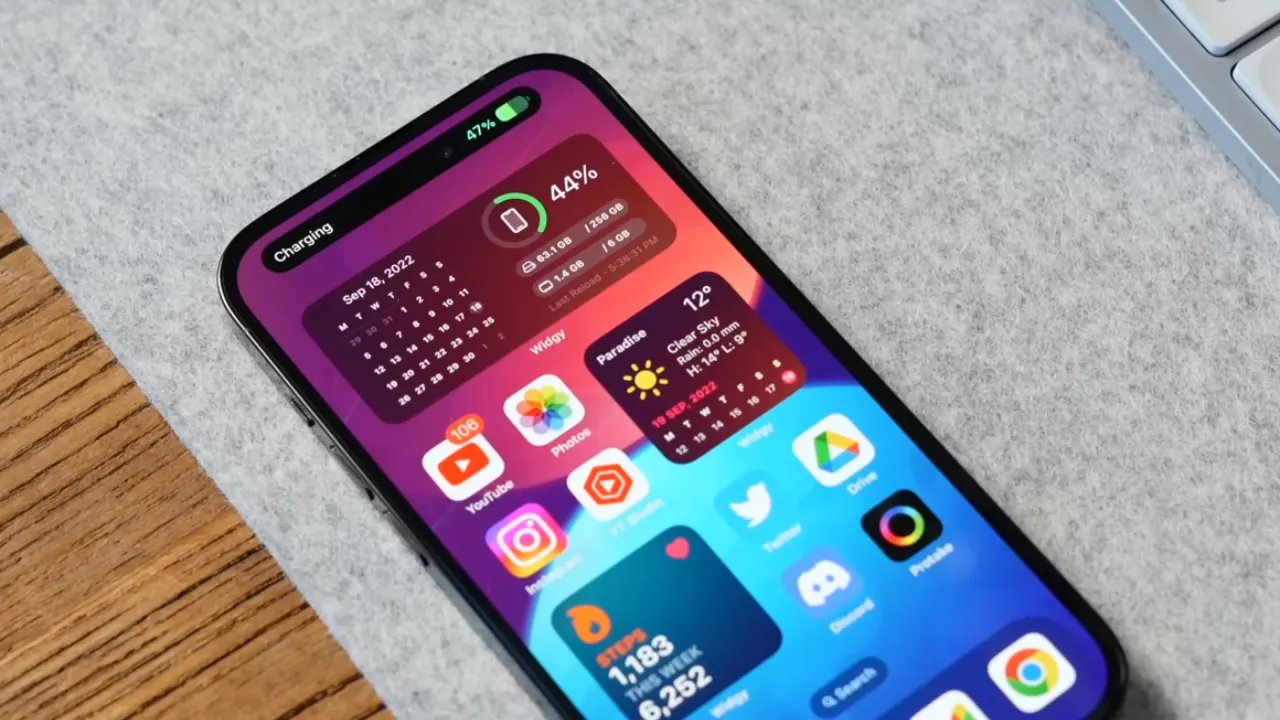
So, what actually happens up there in the cutout? It’s more than you might think. Here’s what the Dynamic Island handles day-to-day:
Display Outputs and Alerts
- Incoming calls and call duration
- Apple Pay confirmations (complete with that green Face ID swirl)
- Charging and battery status
- AirPods connection and battery levels
- AirDrop transfers
- Face ID unlock animation
- Silent and Focus mode switches
- Privacy indicators for microphone and camera use
- AirPlay connections
- Apple Watch unlock status
- SIM and network alerts
- Find My notifications
- Carkey access
- Shortcut actions
- Airplane mode and NFC interactions
Background Activities and Live Updates
Dynamic Island is amazing when it multitasks for you in the background. It keeps live activities visible and interactive, which means you can monitor the status without needing to open apps.
Some examples include:
- Navigation directions from Apple Maps or Google Maps
- Timers and countdowns
- Music or podcast playback controls
- Screen recording progress
- Voice memo status
- Live sports scores
- Food delivery or ride-hailing updates
- SharePlay sessions
- Personal Hotspot and connection indicators
It doesn’t freeze when there’s more than one thing going on. The Island can actually split into two sections — a large pill and a small circle, so you can track two live activities at once. Maybe you’re running a timer and listening to a podcast. You’ll see both. Tap either to expand or open the specific app.
How to Use Dynamic Island
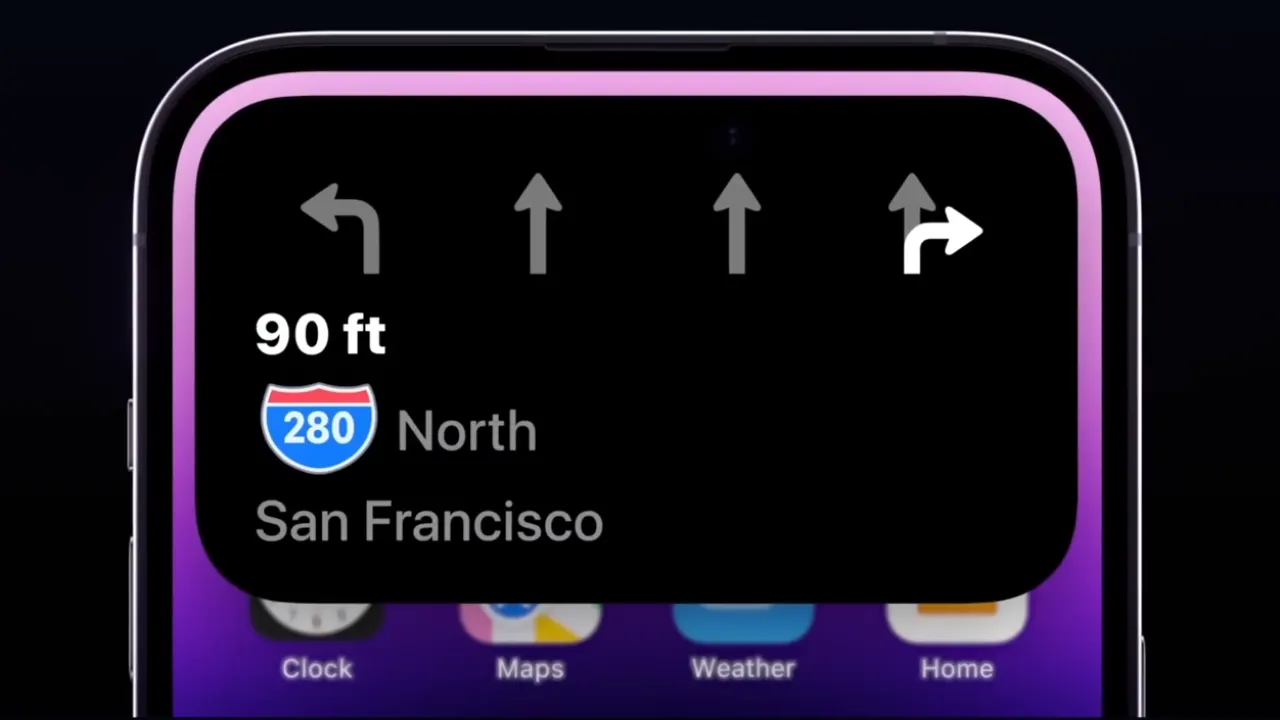
You don’t need a manual, but knowing a few gestures will help you understand it better to get the best out of this feature.
- Tap: Once you tap the Island, it opens the related app. For music playback, tapping will take you into your Music or Spotify app.
- Press and Hold: A long press expands the Island into a small widget that displays playback controls, call details, or timer options. It’s quick, clean, and doesn’t hijack your entire screen.
- Swipe: If you’re done looking at an animation or notification, swipe sideways to shrink it back down. The background activity continues without the visual distraction.
- Split View: When two apps are running background activities, Dynamic Island automatically divides into two bubbles. You can interact with both — switch focus, tap to expand either, or leave them there until you need them.
Apple built the feature to be unobtrusive. You can still play games or watch full-screen videos without the pill hovering around the screen, as it minimizes automatically.
Can You Customize or Disable Dynamic Island?
No, you can’t currently turn off Dynamic Island. Believe me, I’ve tried. After a few weeks with my iPhone, I went looking through every settings menu, hoping to find a “disable Dynamic Island” toggle, but it doesn’t exist. Apple wants it to be part of your experience, not an optional add-on.
That said, you can still tame it a little with the possible customization. Once you start living with it, you realize the Island isn’t something to switch off; it’s something to manage. Here’s how I worked around it and now live with it enabled on my iPhone:
1. Tone Down the Motion
If the bouncing and stretching are too much for you, go to Settings → Accessibility → Motion and turn on Reduce Motion. It reduces the Island’s animations without killing its functionality.
2. Control Which Apps Appear
Some apps love to hog the Island with updates you don’t need. You can fix that by heading to Settings → Notifications → Live Activities. There, you can pick which apps are allowed to show background updates or notifications in the cutout. I turned off a few that kept flashing delivery statuses I didn’t care about.
3. Limit How Long It Hangs Around
Certain apps (like sports or delivery trackers) let you set a time limit for their live updates. It’s buried in the app’s own settings, not in iOS, but worth checking. I set mine to expire after 15 minutes so my screen doesn’t keep reminding me about an Uber I already got out of.
4. Go Discreet When You Want to Focus
When you open a video or a game, the Island silently fades away. You don’t need to fiddle with anything; it knows to back off. Using dark wallpaper helps too. The Island practically disappears into the background, which makes reading or watching content less distracting.
If Apple ever gives us a full “off” switch, I might not even use it. It’s grown on me quietly, like most of Apple’s best ideas.
The Design Thinking Behind It
From a design perspective, Dynamic Island is Apple’s most “human” interface move in years. It solves the problem of the dead zone created by the camera notch by turning it into an interactive space. It morphs when needed, shrinks when not, and never asks you to stop what you’re doing. It’s also a clean example of contextual interaction. Instead of forcing you to open an app to confirm what’s happening, the information comes to you.
Of course, there are limits. You can’t fully customize it, and on smaller screens, the animation can be mildly distracting. But as far as everyday use goes, it’s one of Apple’s best small ideas in years and a glimpse at how future iPhones might handle multitasking.