




Tired of pixelated photos and missing features when you text between an iPhone and an Android? Meet RCS (Rich Communication Services), the modern upgrade that finally brings your texting experience into the 21st century.
By ditching traditional SMS and MMS protocols for a fast, internet-based connection, RCS bridges the long-standing gap between ecosystems, giving you high-quality media, read receipts, and seamless group chats no matter if you have an iPhone or Android. Instead of sending basic 160-character texts over old cellular networks, RCS routes your messages through the internet via Wi-Fi or cellular data.
While Android devices adopted RCS years ago, Apple officially introduced the standard with iOS 18 in 2024, and fixed cross-platform texting between iPhones and Android devices. As of iOS 26.5, released in May 2026, RCS chats between these phones can also be end-to-end encrypted for the first time.
What Exactly is RCS Messaging?
RCS is a chat protocol built by the GSMA to upgrade the default conversational messaging experience on mobile phones. Before it, sending a text meant you had to rely on SMS (Short Message Service) for words and MMS (Multimedia Messaging Service) for pictures. Both protocols are decades old and strictly limited by bandwidth.
When you send an RCS message, it bypasses standard voice and text cellular tracks and uses an IP (Internet Protocol) connection. Because it needs the internet, data limits expand a lot and allow your default application to work like a modern chat client with no need to download third-party messaging apps like WhatsApp or Facebook Messenger or create an account.
How Does RCS Chat Work?
RCS relies on an industry wide standard called the Universal Profile, a shared rulebook meant to keep features consistent across different phones and networks. Rich Communication Services is established by the GSMA (the same trade group that oversees global mobile network standards).
When you open your default messaging app—either Apple Messages on an iPhone or Google Messages on an Android—the phone checks if the recipient’s device and carrier also support the RCS standard.
- Data-Based Transmissions: If both devices are compatible, your texts, media files, and interactive elements travel as data packets over the internet.
- Automatic Fallback: If internet connectivity drops or the person on the other end is using an old device without RCS enabled, the system nicely downgrades the conversation to standard SMS or MMS so the message still delivers.

Note: RCS is not an app you download, nor is it linked to an Apple ID or a Google account like iMessage or WhatsApp. Think of it as a behind the scenes (carrier-level) upgrade to the old-school texting we’ve used since the 90s. Instead of sending messages over your carrier’s ancient SMS radio channels, it uses your Wi-Fi or data connection to deliver them as data, the same way iMessage does.
RCS vs SMS vs MMS: What Changed
SMS was designed to send 160 characters of plain text over a phone network that predates smartphones. MMS came later to allow photos and short videos, but it largely compresses everything and caps group chats at a handful of people. RCS fixes most of these limits at once:
- Photos and video: Sends media at close to its original quality. MMS shrinks photos down to a fraction of their size.
- Read receipts and typing indicators: Both sides can see when a message was read and when the other person is typing, features that used to be iMessage exclusive.
- Group chats: RCS group threads support more participants, named group chats, and shared photos and reactions that stay in sync for everyone.
- Message size: Allows much larger attachments than the roughly 1MB ceiling most carriers put on MMS.
- Fallback: If either person loses RCS support during a conversation, such as switching to a dead zone, the message reverts to SMS or MMS instead of a fail response.
What RCS doesn’t do is turn your Android phone conversations into iMessage. Features like Memoji stickers, some message effects, and SharePlay are still exclusive to Apple to Apple conversations.
What Features Does RCS Offer?

RCS closes the massive gap that used to make conversational messaging between different ecosystems such a headache. Once you have an active service connection, there are all sorts of modern features you’d expect:
- High-Quality Media: Video clips and photos are sent at their original quality rather than being compressed into blurry, pixelated blocks.
- Typing Indicators: See the animated three dots indicating the other person is actively drafting a response.
- Delivery and Read Receipts: Real-time timestamps show exactly when a text is delivered to the recipient’s phone and when they open it.
- Wi-Fi Texting: You can send and receive texts comfortably on a Wi-Fi network, even in areas with zero cellular reception.
- Advanced Group Chats: Rename groups, drop out of threads, add or remove members, and leave a group willingly without creating fragmented, separate message chains.
- Improved Reactions: Full tapback support and emoji reactions display correctly on both ends without sending awkward text descriptions of the emoji.
You can turn off read receipts, particularly for RCS chat, in your iPhone message settings if you prefer privacy over real-time read notifications.
RCS for Businesses Messaging
Businesses take advantage of it to upgrade customer interactions. Instead of receiving a standard, plain-text automated alert from an unknown number, you will see branded communications. Big brands use RCS to send verified messages that feature the company’s official logos and authentication checkmarks. This stuff often includes interactive carousels to let you swipe through products or tap quick-reply buttons to track a package, confirm a flight, or authorize a login without leaving the Messages UI.
Is RCS Encrypted?
Previously, RCS messages between iPhone and Android lacked privacy. While they outperformed SMS in reliability and appearance, carriers could still access the content in transit, just as they always had with normal text.
Since iOS 26.5, RCS conversations now use Messaging Layer Security (MLS) via RCS Universal Profile 3.0 to provide end-to-end encryption. A lock icon appears next to the RCS label at the top of the screen when a chat is protected. Encryption happens automatically; you don’t need to search for a toggle, given RCS Messaging is enabled on your handset.

Encryption only activates when the hardware, software, and carrier support it. Both users need compatible phones, the latest version of their respective messaging software—iOS 26.5 or later for iPhone, and the latest Google Messages for Android—and carriers that support encrypted RCS. If any piece is missing, the conversation will remain standard, unencrypted RCS, or default to SMS.
Encryption has limits. Apple, Google, and carriers still track metadata, meaning they know who you messaged and when, even if the content is protected. Furthermore, these messages only receive full protection in iCloud backups when you enable Advanced Data Protection. Without it, standard backups are vulnerable, with privacy at risk.
Which US Carriers Support RCS and Encryption?
All three major US carriers, AT&T, Verizon, and T-Mobile, now support encrypted RCS on the iPhone. Most prepaid companies and smaller carriers operating on these networks have followed suit, though support occasionally lags on regional or budget providers.
The industry spent years attempting to build a joint system through the 2019 Cross Carrier Messaging Initiative. That effort failed. Rather than a carrier-led network, the industry settled around Google’s Jibe infrastructure for Android, while carriers offer network support and Apple integrates RCS directly into Messages.
For anyone using a modern phone on a known US carrier, that history doesn’t matter because Rich Communication Services work out of the box.
RCS Messages Still Show as Green Bubbles on iPhones, Here’s Why?
Many iPhone users assume Apple would make encrypted RCS chats display as blue bubbles, just like iMessage. That’s not how it works. All RCS messages on iPhone, encrypted or not, show as green bubbles labeled Text Message or Text Message RCS in carrier settings.
Blue bubbles are reserved for iMessage, which requires both parties on Apple devices with iMessage enabled. Green has always indicated a message left Apple’s network, whether via SMS or now RCS, and the new iOS updates didn’t change this. A green bubble no longer signals an unencrypted text like it did before 2024, but it’s still not the same as blue.
In my experience during testing across multiple carriers, this distinction confuses people more than almost any other aspect of iPhone messaging. Today’s green bubble could be SMS, standard RCS, or fully encrypted RCS. The only way to differentiate is by the lock icon in the conversation header.
How to Turn On RCS on Your iPhone
RCS is enabled by default on most modern iPhones upgraded to the latest iOS, but you can manage it in your device settings.
- Open the Settings app on your iPhone.
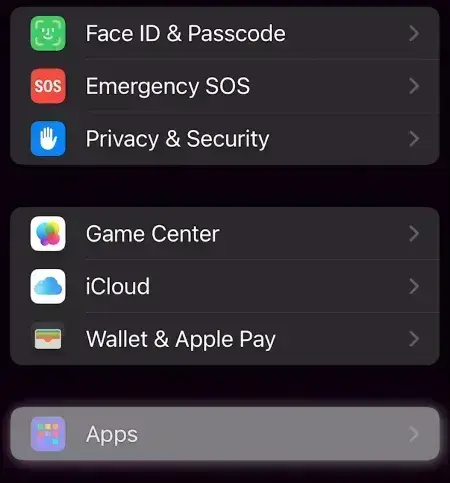
- Scroll down and tap Apps.
- Select Messages.
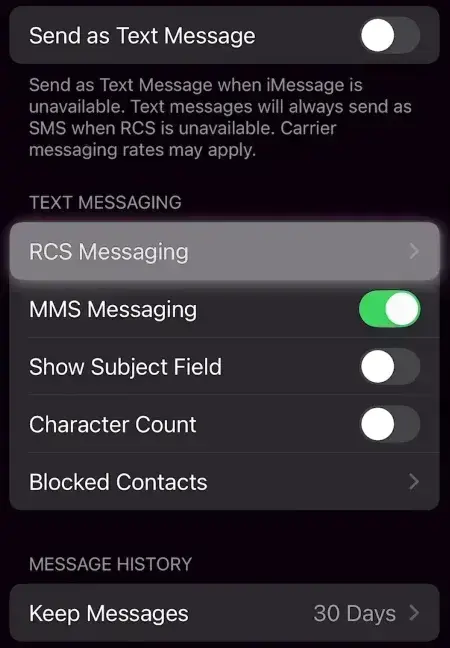
- Tap RCS Messaging.
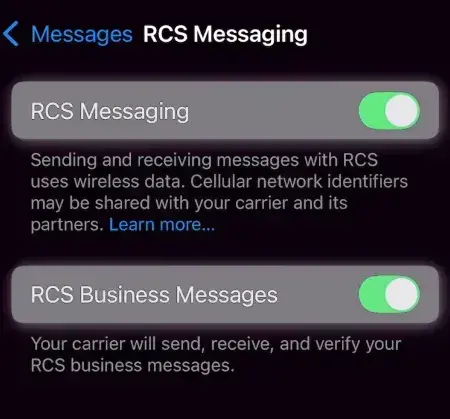
- Toggle the switch next to RCS Messaging to On.
- Make sure to have an active Wi-Fi or cellular data connection, since it won’t activate without a network.


For iOS 26.5 or later, you will also see a toggle for End-to-End Encryption (Beta) in this same menu. Keep this turned on to ensure maximum security when texting Android users on supported carrier networks.
Tip: RCS activation is not always instant. Apple says it can take a few hours to switch on after you update your phone or SIM. If a contact’s messages still look like basic SMS the day after an update, give it time before assuming something is broken.
Cross-platform messaging requires carrier support. Giant providers globally control RCS via Google’s Jibe platform or their own entitlement servers. However, if you use a smaller, prepaid mobile virtual network operator (MVNO) and the “RCS Messaging” option is missing from your device settings, that carrier has not yet provisioned the feature in your region. Ensure your device is updated to the latest available iOS version and check for carrier settings updates under Settings > General > About.
Sources:
What is the difference between iMessage, RCS, and SMS/MMS?
Turn on RCS messaging on your iPhone
End-to-end encrypted RCS messaging begins rolling out today in beta