







An iPhone app that crashes right after you open it, or freezes on a blank screen, can be fixed in most cases without a trip to the Apple Store. Since iOS lacks a direct Clear Cache button or a Force Stop screen, you will need to follow a short troubleshooting ladder. This guide starts with gentle steps and works up to the extreme ones to fix iPhone apps that keep crashing or won’t work, so you avoid losing data.
Note your iOS version
Open Settings › General › About and check iOS Version. Keep that number handy, because Step 5 and any report you send to a developer depend on it. The steps below apply to current iPhones; Apple occasionally renames or moves a setting, so the search field at the top of Settings is the quickest way to find an option you might struggle to locate otherwise.
In This Guide
-
- Why iPhone apps crash or stop working
- Pinpoint the problem before you fix it
- Close and reopen the app
- Restart your iPhone
- Check your connection and Apple’s system status
- Check for app updates
- Update your iPhone software
- Check your iPhone storage
- Offload the app, then reinstall it
- Delete the app, then redownload it
- Check permissions and Screen Time restrictions
- Reset network settings
- Reset all settings
- Contact the app developer or Apple
- Erase the iPhone and test on a clean setup
- Keep apps from breaking again
- FAQs
Why iPhone Apps Crash or Stop Working
| Cause | What it looks like |
|---|---|
| Outdated app | Crashes or black screens soon after an iOS update, because the app was built for an older iOS |
| Full storage | Apps close at random, updates stall, and new photos fail to save |
| Damaged app files or data | One app crashes on launch while every other app runs fine |
| Connection or server trouble | The app opens but stays blank, spins, or shows a network error |
| Restrictions or permissions | Apps cannot be installed, deleted, or used, or one feature inside an app is dead |
| An iOS bug | Many unrelated apps misbehave until Apple names the cause in a release note |
Looking for Force Stop or Clear Cache? These are the iPhone equivalents, which matters if you recently switched from Android:
| Android feature | iPhone equivalent |
|---|---|
| Force stop | Swipe the app away in the App Switcher (Step 1) |
| Clear cache | No dedicated button; offloading the app is the nearest option (Step 7) |
| Clear storage or data | Delete the app, which removes its data too (Step 8) |
| Play Store update list | App Store › profile picture › App Updates (Step 4) |
| Safe mode | No equivalent |
Pinpoint the Problem Before You Fix It
| What you see | Most likely cause | Start with |
|---|---|---|
| One app crashes, others are fine | The app itself | Step 1, Step 4, Step 7 |
| Many apps crash or freeze | Storage, an iOS bug, or a stuck system process | Step 2, Step 5, Step 6 |
| App opens but shows no content | Connection or the app’s own servers | Step 3 |
| App will not download, update, or delete | App Store account, payment, or restrictions | Step 4, Step 9 |
1Close and Reopen the App
When you close an application, the system clears it from memory, so it starts fresh whenever you open it the next time. This should be the first thing to try.
- On Face ID iPhones: Swipe up from the bottom edge and pause in the middle of the screen to open the App Switcher.
- On iPhone SE with a Home button: Double-press the Home button.
- Swipe left or right to find the app, then flick its card up and off the screen.
- Return to the Home Screen and tap the app icon.
If the swipe keeps dropping you on the Home Screen, slow down and hold your finger briefly in the middle of the screen until the cards appear.
2Restart Your iPhone
A restart completely terminates all active background processes that you might not achieve by closing an app. Open Settings › General › Shut Down, or hold the side button and either volume button until the power-off slider appears. Drag it, wait a short while, then hold the side button until the Apple logo returns.
For a frozen screen, use a force restart:
- Press and quickly release Volume Up.
- Press and quickly release Volume Down.
- Press and hold the Side button.
- Release when the Apple logo appears, ignoring the power-off slider if it shows first.
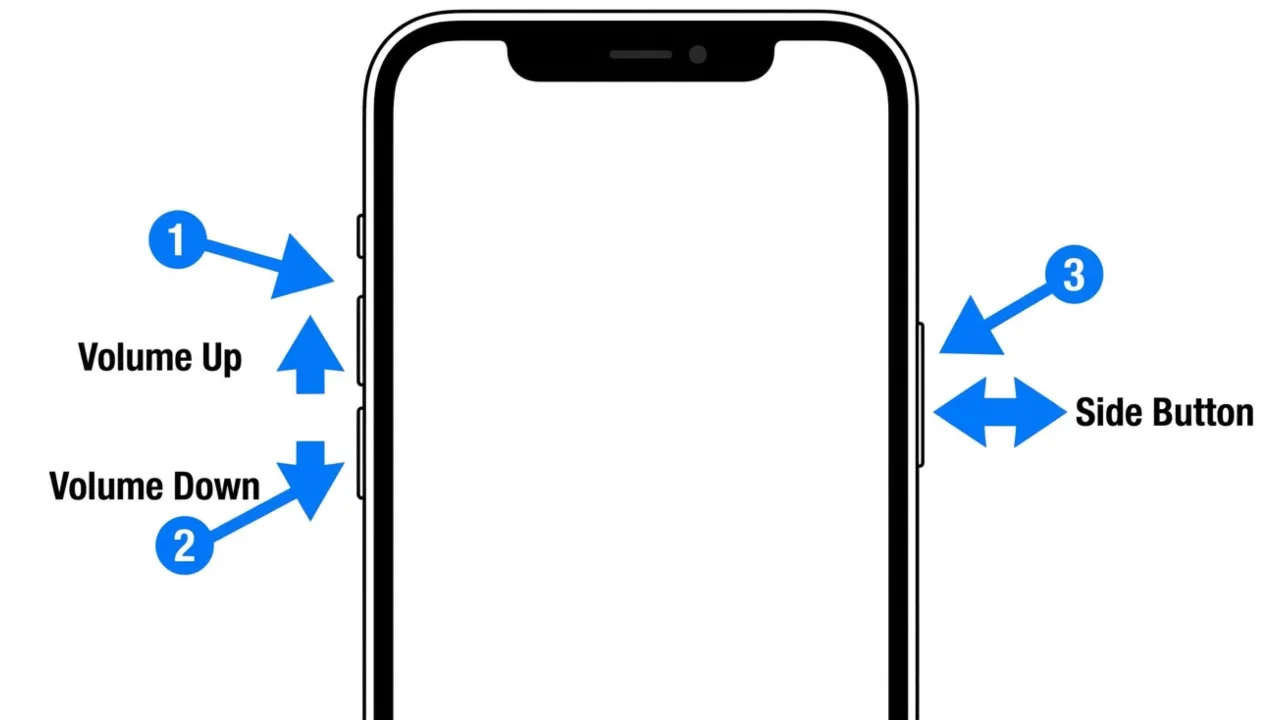
The speed of the two volume presses is the detail people miss. If nothing happens, repeat with crisper taps.
3Check Your Connection and Apple’s System Status
If an app opens but shows nothing, it’s most often a network problem, not a crash. So to confirm it:
- Load any page in Safari. If it doesn’t open, there’s an issue with your network connection.
- Switch between Wi-Fi and mobile data to see which one the app tolerates.
- Turn on Airplane Mode for at least 15 seconds, then turn it off.
- Confirm the app may use mobile data: Settings › Cellular, then scroll to the app list.
- Sign out of the app and back in, but only when you know your login details and active two-factor method.
For App Store, iCloud, and Apple Account trouble, open Apple’s System Status page. A yellow or red marker next to a service means the fault is on Apple’s end, and waiting is the only fix. For a third-party app such as banking, chat, or streaming, check the developer’s status page or social account for an outage notice.
4Check for App Updates
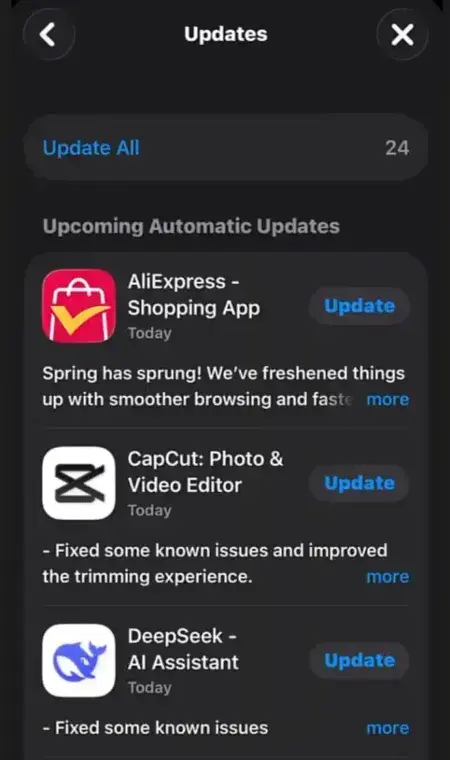
Developers regularly release compatibility fixes after a new iOS arrives, and your automatic updates might not have installed them yet. So, you should check by hand:
- Open the App Store.
- Tap your profile picture in the top corner.
- Select App Updates.
- Tap Update next to the problematic app, or tap Update All.
When the app will not download or update
- Prioritize the download. Touch and hold the app icon on the Home Screen and choose Prioritize Download.
- Add a payment method. A valid payment option might need to be on file even for free apps.
- Confirm your age. Some countries and regions require adult confirmation before certain apps can be installed.
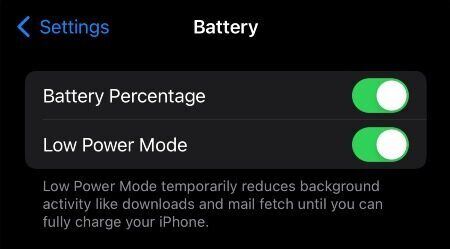
- Turn off Low Power Mode in Settings › Battery while testing, since it holds back some background activity, automatic downloads included.
- Use the right Apple Account. Users in Apple’s support community report that an app linked to another account will not update under yours, so sign in with the same Apple account that first downloaded it.

5Update iPhone Software
It’s recommended to update your iPhone software if an app acts up and lacks its own update. New iOS versions introduce bug fixes and security patches, and apps are tested against them. Follow these steps in order:
- Back up the iPhone to iCloud or a computer.
- Plug in power and join Wi-Fi. A VPN or proxy connection can prevent the phone from reaching the update servers, so switch either off if the update won’t show.
- Open Settings › General › Software Update. The screen shows your installed version and the new one if available.
- If two options are listed, like a small patch for your current iOS and a major upgrade, pick the one you want. Then tap Install Now, or Download and Install, and enter your passcode.
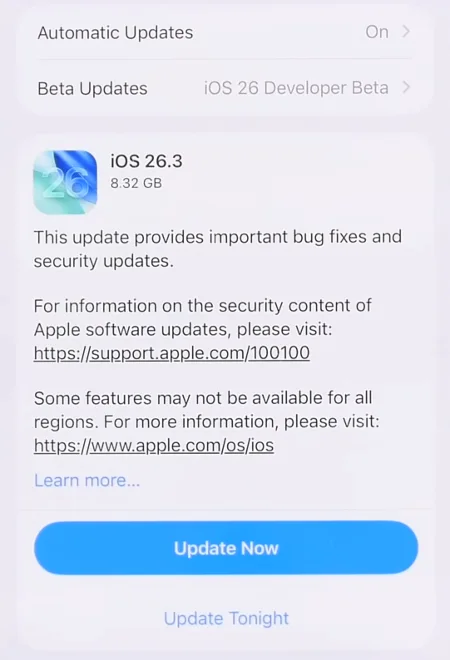
Three situations can happen mostly in the update process:
- Not enough space: The phone may ask to remove some apps temporarily, but they get reinstalled automatically once the update finishes. Choosing Cancel instead lets you free space manually (see Step 6).
- No update appears: Your model may have reached the end of its supported iOS versions, and Apple explains that some updates are not offered wirelessly. The alternative is to upgrade the system via a Mac or Windows PC.
- Automatic updates: At Settings › General › Software Update › Automatic Updates, Apple lets you choose to either install updates overnight while the phone charges on Wi-Fi, or download only and install later at your own pace.
6Check Your iPhone Storage
When your iPhone runs out of space, it struggles to save app data or install updates. Go to Settings and tap General, then iPhone Storage. Apple shows recommendations right at the top, followed by a list of every app and how much room it takes up. iOS automatically clears some temporary files, so a Storage Almost Full warning means the system could not clear enough room by itself.
- Tap Enable beside Offload Unused Apps when available.
- Work through the recommendation cards, such as large videos and old message attachments.
- Scan the app list and remove what you have not opened in months.
Cached and temporary data may not appear in these numbers, so your actual storage usage can be slightly higher than the numbers indicate.
7Offload the App, then Reinstall It
Offloading removes the app but keeps its documents and data, so a damaged application file gets replaced while your saved content stays put. It is a less risky way to refresh an app, though it cannot promise a fix.
- Go to Settings › General › iPhone Storage.
- Tap the problem app.
- Tap Offload App and confirm.
- Tap Reinstall App when it appears, then open the app.

8Delete the App, then Redownload It
Deleting removes the app and its data, and anything stored only inside it might be lost.
- Touch and hold the app icon, choose Remove App in the pop-up menu.
- Tap Delete App, then choose Delete to confirm.
- Open the App Store, find this app, and install it again.
You can get your money back from Apple for a recent purchase that still fails to work, which saves you from arguing with a program that never launched fine in the first place.
9Check Permissions and Screen Time Restrictions
Occasionally the app is healthy, and a setting is just getting in the way. So check these few usual suspects that probably are the cause of the app crashes:
- Permissions: Open Settings › Apps, tap the app, and confirm if the required features such as camera, microphone, location, and notifications are allowed.
- Installation or deletion blocked: Go to Settings › Screen Time › Content & Privacy Restrictions › iTunes & App Store Purchases and allow apps to be installed and deleted. A missing Delete App option is a common sign that this restriction is switched on.
- Greyed-out icon with an hourglass: Means a Screen Time app limit has run out. Adjust it under Settings › Screen Time › App Limits.
- Age-rating limits: Content restrictions in Screen Time can hide or block apps by rating.
- Managed phones: A school or employer profile can control apps. See under Settings › General › VPN & Device Management; only the administrator can change it.
10Reset Network Settings
Try this fix when several apps cannot connect, Wi-Fi is unreliable too, and Step 3 didn’t work. Open the Settings app, tap General, then go to Transfer or Reset iPhone › Reset › Reset Network Settings.

The reset removes saved Wi-Fi networks and passwords, plus VPN settings that were not installed by a profile, and it disconnects Bluetooth devices. Your Wi-Fi will switch off and on during the process. Everything else including your photos, apps, and text messages will stay untouched. Just make sure you don’t forget your Internet password.
11Reset All Settings
This method returns every setting to its factory default and deletes no content, which helps when a bad configuration is interfering with multiple apps. You can find the reset options in Settings › General › Transfer or Reset iPhone › Reset › Reset All Settings.

Plan to redo network, privacy, location, keyboard, and Home Screen preferences, and to add your Apple Pay cards again. Create a backup first so you can keep your important settings and restore them during the pre-reset device setup. For detailed steps, check out our iPhone factory reset guide.
12Contact the App Developer or Apple
If you have an issue with an App Store app, Apple tells you to reach out to the developer. For problems with built-in apps like Messages or Photos, you need Apple Support instead. You will get a fast response and help if you include specific details in your report:
- Your iPhone model and iOS version (find at Settings › General › About)
- The app version from its App Store page
- What happens, and when it started, for example “right after an iOS update” or “since the last app update”
- Which steps from this guide you already tried
- A crash log, if the phone recorded one that you can find at Settings › Privacy & Security › Analytics & Improvements › Analytics Data. Entries start with the app’s name, and the share icon sends one to the developer. If you do not see any logs, skip it and let the developer know the list was empty.
13Erase the iPhone and Test on a Clean Setup
This is the last resort for stubborn app crashes after Apple Support has already struck out. It helps you figure out if the problem lies in your personal data or the app.
- Make a complete backup and confirm it finished. Have your Apple Account password ready, since Find My and Activation Lock will ask for it. With an eSIM, check with your carrier.
- Go to Settings › General › Transfer or Reset iPhone › Erase All Content and Settings.
- Set the phone up as new, without restoring, sign in to the App Store, and install only the crashing app.

If the app works, the cause was somewhere in the old setup. Add your apps back gradually, or restore the backup and watch if the crash occurs again. If it still fails on an erased iPhone, the app or the iOS version is the problem, and that finding is exactly what a developer or Apple needs to hear.
Keep Apps from Breaking Again
- Turn on automatic app updates. Search “App Updates” inside Settings to find the toggle since Apple keeps moving it around depending on your iOS version.
- Give a fresh iOS install a day or two. The phone does background housekeeping after a major update, such as re-indexing content, so extra warmth, battery drain, and sluggishness right after a new software update are normal and temporary. Judge app stability after that window.
- Time major upgrades. On a phone you need for work, wait until the apps you rely on have published compatibility updates before moving to a brand new major iOS. Their App Store pages and release notes will mention the details.
FAQs
Does a crashing app mean my iPhone has a virus?
What if the developer stopped updating the app years ago?
Can I go back to the previous iOS version to stop the crashes?
Can a VPN or a wrong date and time break apps?
Do older iPhones crash apps more, and could the battery be involved?
Are third-party “iPhone repair” or “cleaner” tools worth using?
Did this fix your issue?
Let us know. Your feedback helps other readers find the right solution.
Great! What solved it for you?
We read every response. Email is optional and never shared.
Sorry to hear that. What happened?
Leave your email and we will personally help you fix it.