


Bluetooth problems on an iPhone rarely mean the hardware has failed. Most of the time it’s a stalled wireless service, an outdated pairing record, a software bug, interference, or an accessory that no longer responds. The first task is to identify the root cause, so you know what changes to make or solutions to apply to fix the issue.
Apple’s Bluetooth stack has become more reliable over the last many iOS releases, though it’s also more dependent on background services. Bluetooth interacts with Wi-Fi, AirDrop, Handoff, Find My, Apple Watch, AirPods, and Continuity features. A problem in one layer can affect pairing, discovery, audio quality, or connection stability, even when Bluetooth seems to be working.
This guide follows the same progression I use when troubleshooting customer devices: check the simple causes first, verify if the problem is the iPhone or the accessory, then move to network-level fixes only if the earlier steps don’t solve it. It avoids unnecessary resets and usually gets to the real cause fast.
Related: iPhone Not Connecting to Wi-Fi: 10 Ways to Fix Internet Issues
Before You Start Troubleshooting
Take a minute to check the basics before you move on to tweak settings. It will help you avoid unnecessary things and narrow down the troubleshooting process from the start.
| If this is happening… | Focus on… |
|---|---|
| Only one Bluetooth accessory won’t connect | Accessory, including its battery, pairing mode, firmware, and existing Bluetooth connections |
| Every Bluetooth accessory fails to connect | iPhone, iOS, or wireless settings |
| Bluetooth works everywhere except one app | App’s Bluetooth permission or compatibility |
| Bluetooth setting is grayed out | A system-level software issue or possible hardware problem |
A device can appear under My Devices without being connected. Paired means the iPhone remembers the accessory, and Connected means the Bluetooth link is currently working.
Many Bluetooth devices remember only one active connection. If your headphones automatically reconnect to a nearby laptop or tablet, the iPhone may never get a chance to pair until that connection is disconnected.
Match Your iPhone’s Bluetooth Problem to the Right Fix
| Problem | Most Likely Cause | Start With |
|---|---|---|
| Bluetooth won’t turn on | Temporary software issue or hardware fault | Turn Bluetooth off and back on, then restart the iPhone |
| Bluetooth toggle is grayed out | System issue or possible hardware problem | Restart the iPhone, update iOS, then continue through the guide |
| iPhone can’t find Bluetooth devices | Accessory is not in pairing mode or is connected elsewhere | Restart the accessory and put it back into pairing mode |
| Pairing always fails | Corrupted Bluetooth pairing record | Forget the device and pair it again |
| Devices disconnect repeatedly | Wireless interference, low battery, or outdated firmware | Move closer, reduce interference, and update the accessory firmware |
| Audio skips or cuts out | Weak Bluetooth signal or interference | Reduce distance and remove nearby sources of wireless interference |
| AirPods or speakers connect but produce no sound | Incorrect audio output or connection issue | Reconnect the accessory and verify it’s selected as the audio output |
| Bluetooth stopped working after an iOS update | Software bug or compatibility issue | Install the latest iOS update and reconnect the accessory |
| Every Bluetooth device fails | iPhone software or hardware issue | Continue through the guide, including Network Settings Reset if earlier fixes fail |
14 Ways to Fix Bluetooth Not Working on iPhone
1. Turn Bluetooth Off, Then Back On
Start here because it’s the fastest fix and does not erase any of your saved devices. All you are doing is restarting the Bluetooth radio.
- Open Settings > Bluetooth.
- Turn Bluetooth off.
- Wait about 15 seconds, then enable it again.
Now, you might think, can’t I just tap the Bluetooth icon in Control Center to turn it off and on? Not quite. Since iOS 11, that button usually disconnects your current accessories and won’t completely shut down the Bluetooth radio. It will keep running in the background for Apple services, so use the Settings app to restart the Bluetooth properly.
Temporary communication failures between CoreBluetooth services and connected accessories mostly get cleared after the Bluetooth radio restarts. It is the least disruptive reset available and should always be the first software fix.
2. Restart the iPhone
If turning Bluetooth off and back on doesn’t help, restart your iPhone. Sometimes the Bluetooth service is not the only thing stuck. A full mobile reboot reloads all of the wireless services from a clean state.
If you have an iPhone with Face ID:
-
Press and hold the Side button together with either the Volume Up or Volume Down button.
-
Drag the Power Off slider.
-
Wait at least 30 seconds.
-
Turn the iPhone back on.

For iPhones with a Home button:
-
Hold the Side or Top button.
-
Drag the Power Off slider.
-
Wait 30 seconds.
-
Turn the phone back on.
Once it’s restarted, try Bluetooth again and see if the problem is gone.
What if the iPhone is frozen and won’t shut down normally? Force restart it instead:
- Press and quickly release Volume Up.
- Press and quickly release Volume Down.
- Then press and hold the Side button until the Apple logo appears.

People often ignore the restart, but this simple step can fix a surprising number of Bluetooth failures after iOS updates since multiple wireless services restart together rather than one at a time.
3. Restart the Bluetooth Accessory
The problem is not always the iPhone. Your headphones, speaker, printer, game controller, camera, fitness equipment, or car adapter has its own software too, and that software can have bad times.
- Turn the accessory completely off.
- Wait about 20-30 seconds.
- Turn it back on.
- If the accessory has a dedicated pairing mode, activate it again.
If you are troubleshooting AirPods:
-
Place both AirPods in the charging case.
-
Close the lid.
-
Wait about 30 seconds.
-
Then open the lid again and reconnect.
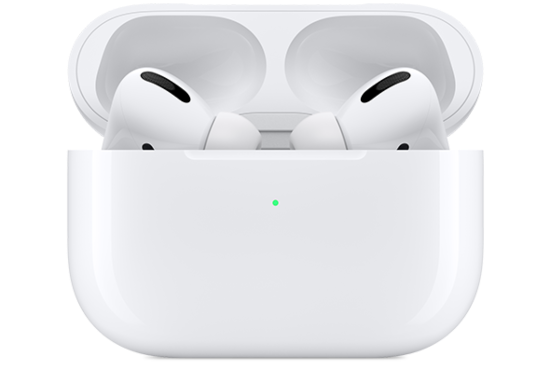
Different manufacturers use different reboot procedures, so if the Bluetooth device has its own instructions, follow them instead.
Some accessories don’t actually power off and enter Standby instead when you press the power button once. If iPhone Bluetooth still is not working, use the manufacturer’s restart or reset instructions to do it the right way.
Related: Why is My iPhone Getting Hot? Reasons & How to Fix Phone Overheating
4. Move Closer and Reduce Wireless Interference
Bluetooth is designed for short-range communication. Yes, some devices advertise impressive range, but pairing is always most reliable when the two devices remain within a few feet of each other.
Distance is not the only factor, though. Think about what’s between the devices. Concrete walls, metal cabinets, large appliances, vehicle body panels, industrial equipment, and even busy office spaces packed with wireless gear can all drop and weaken the Bluetooth signal.
Wireless congestion creates another problem. Bluetooth shares the crowded 2.4 GHz frequency with Wi-Fi, cordless devices, wireless keyboards and mice, and plenty of smart home gadgets. Too much activity on that band doesn’t usually stop Bluetooth from turning on, but it can prevent devices from finding each other or create random disconnects.
For troubleshooting, temporarily:
-
Move somewhere with less wireless traffic.
-
Disconnect unnecessary Bluetooth devices.
-
Avoid testing right next to a busy Wi-Fi router.
-
Examine the same accessory in a different room.
If Bluetooth works normally in another location, interference—not the iPhone—is the likely cause.
I rarely see Bluetooth hardware fail without other wireless symptoms happening first. People think their gear is broken, but they have in fact stacked too many wireless signals in one corner of the room—mouse, keyboards, headphones, all of them fighting for the same sliver of spectrum. You add a third or fourth device to that same narrow frequency, and the air gets too thick for any of it to work. It’s a traffic jam, not a broken engine. If your Bluetooth connection is failing, check what else you turned on before blaming the silicon.
5. Make Sure the Accessory is not Connected to Another Device
Many Bluetooth accessories remember multiple devices, but can have only one active connection at a time. Others remember only a single device and automatically reconnect to whichever device wakes them first.
So if your headphones, speaker, or controller won’t connect to your iPhone, ask yourself: Is it already linked to something else? It could be your Mac, iPad, another iPhone, an Android phone, a Windows PC, a smart TV, or even a game console.
If it is, disconnect it from that device first. If you’re not sure, the quick way is usually to temporarily turn off Bluetooth on the other devices and then try pairing with your iPhone again.
For headphones, earbuds, and speakers, there’s one extra step that often makes the difference. After you disconnect them from the other device, place them back into pairing mode before trying again. That tells the Bluetooth item to look for a new connection and not return to the old one.
6. Forget the Bluetooth Device and Pair It Again
If the Bluetooth device is still visible in the list but won’t connect, it’s time to unpair it and start fresh.
When you first pair a device, your iPhone saves security keys, supported Bluetooth profiles, features, and encryption data so they can automatically connect later. This saved information can get out of sync, which might happen after an iOS update, a firmware update on the accessory, or even just a pairing process that didn’t finish correctly. The result will be a Bluetooth connection that looks fine but never works.
Removing the saved pairing record forces the iPhone and accessory to establish a brand new trusted connection from scratch.
To do that:
-
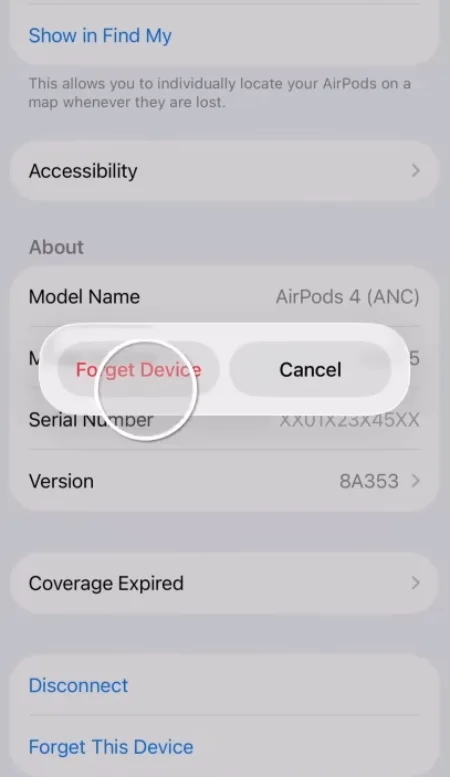
Open Settings > Bluetooth.
-
Tap the ⓘ button next to the affected device.
-
Select Forget This Device.
-
Tap Forget Device in the pop-up to confirm.

Once you’ve removed it, restart the Bluetooth accessory if you can. Then put it back into pairing mode, wait for it to appear under Other Devices, and pair it again.
What if the accessory doesn’t appear? That’s actually a useful clue. Now you’re dealing with a discovery issue, which means the iPhone cannot even see the Bluetooth device. Then continue with the next troubleshooting steps.
Forgetting a Bluetooth device removes only that pairing record. It does not erase personal data from your iPhone or reset Bluetooth connections for other accessories.
7. Test with Another Bluetooth Device
A Bluetooth connection always has two parts, so you have to check both to figure out what is wrong. Testing just one device is guesswork, but once you have investigated both the phone and the accessory, you can usually narrow down the problem in a few minutes.
Start by pairing your iPhone with a different Bluetooth accessory you know works properly. Another pair of headphones, a Bluetooth speaker, a wireless keyboard, a mouse, your car, or any other compatible device will do.
Then reverse the test. Pair the original accessory with another phone or tablet and get the result.
| Test Result | Likely Cause |
|---|---|
| Original accessory won’t connect to anything | Accessory issue. |
| No Bluetooth device works with your iPhone | The problem is likely with the iPhone. |
| Only one accessory fails to pair with one iPhone | Pairing issue, firmware problem, or compatibility bug. |
| Everything works except one specific device combination. | Device-specific compatibility issue. |
One thing I’d avoid is testing with another gadget that is already faulty. If you don’t know whether the second device works fine, you’ve only added another unknown to the equation, and troubleshooting will get a lot more confusing.
8. Check for an iOS Update
If Bluetooth is still not connecting, check if your iPhone has the latest iOS version. Apple regularly fixes Bluetooth problems through system updates. Some improve compatibility with new accessories while others resolve issues with specific Bluetooth chipsets, wireless drivers, or connection profiles that only affect certain devices.
To check for updates:
-
Go to Settings > General > Software Update.
-
Let your iPhone check for new updates.
-
If the latest version is available, download and install it.

Before you start, make sure your phone has at least 50% battery (or keep it connected to a charger), has a stable internet connection, and enough free storage for the update.
Now, what if the Bluetooth problems started after a new iOS update? It’s normal. Major software updates sometimes introduce bugs that Apple usually takes a short time to fix in the next release. So check if the team has released another update or patch.
Beta versions of iOS increase the likelihood of Bluetooth bugs. If stability matters more than testing new features, the public release channel remains the better choice.
9. Update the Bluetooth Device’s Firmware
It’s easy to focus on the iPhone, but remember there’s another computer in this connection, the device itself. Just like iOS, that firmware receives updates over time to fix bugs, improve compatibility, and make Bluetooth connections more reliable.
How you can update an accessory depends on the manufacturer. Some devices install firmware automatically through their companion app, and others may need to be connected to a PC or updated via a specific process.
If every Bluetooth device is giving you trouble, the iPhone is probably where you should focus. But if one accessory refuses to cooperate while everything else connects normally, move that accessory’s firmware update near the top of your troubleshooting checklist.
Once a firmware update starts, let it finish. Don’t turn the device off or move it out of Bluetooth range unless the manufacturer tells you to. Interrupting the update can leave the item temporarily unusable.
10. Check Bluetooth Permissions
Many Bluetooth accessories don’t pair directly with your phone and instead need a companion app. Fitness sensors, medical devices, smart home products, cameras, and diagnostic tools all fall into that category. If the app doesn’t have Bluetooth permission, it won’t be able to find or communicate with the accessory.
To check Bluetooth permissions:
-
Open Settings.
-
Go to Privacy & Security.
-
Tap Bluetooth.
-
Make sure the problematic app is allowed to use Bluetooth.
If the app is not listed, reinstall it. That usually prompts iOS to ask for Bluetooth permission again the next time you open it.
Denying Bluetooth permission does not disable Bluetooth across the system. It only prevents that specific app from scanning for or communicating with supported accessories.
11. Reset Network Settings
If you have made it this far, you’re now working with system-level solutions. And the first one that’s actually worth trying is to reset iPhone’s network settings.
What does this reset do? It will clear all of your wireless configuration data, including:
- Saved Wi-Fi networks
- Wi-Fi passwords
- VPN settings
- Cellular network preferences
- Bluetooth pairing records
What it doesn’t erase? Your photos, apps, messages, Apple ID, documents, and other personal files will remain safe.
To reset network settings:
-
Open Settings > General > Transfer or Reset iPhone.
-
Tap Reset.
-
Choose Reset Network Settings.
-
Enter your passcode if prompted and confirm the reset.

After the iPhone restarts, reconnect to Wi-Fi, re-pair Bluetooth devices, and test if the problem is solved.
One last thing, because it’s an easy mistake to make. When you’re in the Reset menu, don’t choose Erase All Content and Settings. It’s a full factory reset that wipes the iPhone, not part of normal Bluetooth troubleshooting.
The reason is simple. A network reset can be very effective because it removes corrupted wireless settings, but it also means reconnecting to every Wi-Fi network and pairing every Bluetooth accessory again. If a quick Bluetooth restart or a regular reboot can fix the problem for good, you will avoid all that extra work.
12. Check If Bluetooth Works in Other Apps
Some Bluetooth problems affect only one app rather than the entire operating system.
For example:
-
Music plays through the iPhone speaker instead of Bluetooth headphones.
-
A fitness app cannot detect a heart-rate monitor.
-
A navigation app fails to use the vehicle’s Bluetooth audio.
-
A camera app cannot find a Bluetooth remote.
Those are not always Bluetooth failures but can be app-related problems. So try the accessory in more than one place.
If it’s an audio device, play some music, watch a video, and make a phone call. If it’s a keyboard or mouse, type something, move the pointer around, and make sure all of the buttons respond.
Now ask yourself one question: Does Bluetooth work everywhere except the one app? If the answer is yes, troubleshoot that application.
The possible cause is often something much simpler:
-
Missing Bluetooth permission.
-
Outdated version of the app.
-
Temporary software bug.
-
Compatibility issue between the app and the Bluetooth device.
If the accessory relies on a companion app, also confirm that the app has Bluetooth permission. You can find it under Settings > Privacy & Security if the developer requires Bluetooth access for device discovery or communication.
App specific Bluetooth failures are becoming more common. More and more devices depend on companion apps for setup, syncing, and advanced features. That’s why it’s important to confirm the gadget is connected at the system level before you assume the Bluetooth radio has failed.
13. Investigate Bluetooth Restrictions
Bluetooth settings can also be restricted, although that’s uncommon on a personal iPhone. This usually happens on devices managed by an employer, school, government agency, or another organization. Configuration profiles, Screen Time, or Mobile Device Management (MDM) can all prevent changes to Bluetooth settings.
The signs are hard to miss. Bluetooth settings won’t change, options are grayed out or unavailable, or you see a message saying that your organization manages certain settings. If the device is managed through MDM, only the administrator can remove these restrictions.
For personal devices, review Settings > Screen Time if changes to system settings appear unexpectedly blocked.
Don’t remove a management profile from a work or school iPhone unless you’re authorized to do it because it can violate organizational policies.
14. Confirm If the Problem is Hardware Related
Bluetooth hardware failures are much less common than software or configuration problems.
If Bluetooth worked before an iOS update, starts working again after a restart, connects to some accessories but not others, or only fails with one specific device, the problem is most likely software, pairing, or compatibility.
Signs that may indicate hardware failure are:
-
The Bluetooth toggle remains permanently grayed out.
-
Bluetooth won’t turn on after a restart and iOS update.
-
The phone never detects any Bluetooth devices.
-
Wi-Fi, AirDrop, or other wireless features also behave abnormally.
-
iPhone recently experienced massive liquid exposure or impact damage.
Several wireless features share internal components, so a genuine hardware failure often affects more than Bluetooth.
A permanently grayed-out Bluetooth switch after software updates and a network settings reset is one symptom I take seriously. At that point, repeating the same troubleshooting steps usually won’t help. It’s time to have the hardware evaluated.
Book a Genius Bar appointment or start a chat with Apple Support and ask for Bluetooth hardware diagnostics. Apple’s retail diagnostic tool isolates a failed antenna in a few minutes, faster than any further round of settings tweaks. Devices still under AppleCare+ or the standard one-year warranty receive repair or replacement for free if it’s a manufacturing fault.
How We Tested
We checked every recommendation in this guide against Apple’s current Bluetooth troubleshooting guidance and iPhone documentation, then compared it with real-world behavior across multiple iPhone generations on the latest iOS versions.
The testing covered:
-
Pairing new Bluetooth headphones, speakers, keyboards, and mice.
-
Reconnecting previously paired accessories.
-
Testing after iOS software updates.
-
Verifying Bluetooth behavior with Wi-Fi enabled and disabled.
-
Reproducing pairing failures caused by corrupted Bluetooth records.
-
Confirming the effects of Network Settings Reset.
-
Testing Bluetooth recovery after forced restart.
Apple’s documentation covers many of these fixes, but it doesn’t prioritize them. That’s the gap this guide is meant to fill. The steps are ordered from the least disruptive to the most advanced, so you’re more likely to solve the problem without resetting settings or making changes you didn’t need to make.
Frequently Asked Questions
Why is my iPhone Bluetooth connected but not playing audio?
A Bluetooth connection does not automatically make the accessory the active audio output. Open Control Center, tap the AirPlay audio output control, and confirm the correct device is selected. If the accessory still produces no sound, disconnect it, reconnect it, and test with another audio app.
Why won’t my iPhone find Bluetooth devices?
The accessory may not be in pairing mode, could already be connected to another device, may have a depleted battery, or may be outside Bluetooth range. Restart both devices and verify the Bluetooth device is discoverable.
Why does Bluetooth keep disconnecting?
Frequent disconnections are commonly caused by wireless interference, outdated accessory firmware, low battery levels, excessive distance, or an accessory switching to another previously paired device. Testing the gadget with another phone helps determine which device is responsible.
Why can my iPhone see a Bluetooth device but not connect to it?
It may be connected to another device, out of battery, outside its usable range, or has an invalid saved pairing record. Forget it on the iPhone, remove the phone from the accessory where applicable, then pair them again.
My AirPods connect on my iPad but not my iPhone. Why?
AirPods and Beats headphones stream to one device at a time and use automatic switch to guess which one you’re using. Go to Settings > Bluetooth, tap the ⓘ next to your AirPods, tap Connect to This iPhone, then choose When Last Connected to This iPhone, and connect manually on the device you want.
Can a phone case block Bluetooth?
Thick cases with metal plates, kickstands, or magnetic mounts can shorten range and cause intermittent drops, particularly in a car where the phone is placed near a metal dashboard mount. Test without the case to quickly rule out this concern.
Did this fix your issue? Let us know. Your feedback helps other readers find the right solution. Great! What solved it for you? We read every response. Email is optional and never shared. Sorry to hear that. What happened? Leave your email and we will personally help you fix it.