- Symptom Classifier Table
- Pre-Fix Checklist
- How to Fix iPhone Won’t Connect to WiFi
- Fix 1: Toggle WiFi Off and On in Settings
- Fix 2: Restart iPhone
- Fix 3: Forget the Network and Rejoin
- Fix 4: Uninstall VPN and Security Software
- Fix 5: Resolve IP Address/DHCP Conflict
- Fix 6: Reset Network Settings
- Fix 7: Update iOS
- Fix 8: Check Wi-Fi Router
- Fix 9: Diagnose Hardware
- Fix 10: DFU Restore
- Common Wi-Fi Connectivity Issues on iPhone
- iPhone Connects to WiFi But Has No Internet
- iPhone Keeps Dropping WiFi
- One Specific Network Won’t Connect, Others Work Fine
- When to Contact Apple Support
- How We Tested
- Frequently Asked Questions
- Why does my iPhone say “Weak Security” under my Wi-Fi network?
- Why does my iPhone connect to Wi-Fi but other devices on the same network are fine?
- Why does my iPhone connect to Wi-Fi automatically at home but not at work?
- Why is my iPhone’s Wi-Fi slow even with full signal bars?
- Does the Private Wi-Fi Address cause network connection errors?
- Can a custom DNS server stop my iPhone from joining Wi-Fi?
| Tested on: iPhone 15 Pro, iPhone 16, iPhone 17 Pro, iPhone Air, iPhone 17e | iOS versions: iOS 18.6 through iOS 26.5 | Last reviewed: May 2026 |
iPhone not connecting to WiFi means the device either fails to join a wireless network, joins but gets no internet access, or connects and then repeatedly drops the signal.
Resolving an iPhone WiFi connection problem restores fast internet access and reduces cellular data usage. A stable WiFi connection allows users to stream media, download large iOS updates, and sync data to iCloud. There are 4 main components of this wireless connection, including the iPhone Wi-Fi antenna, the iOS network stack, the wireless router, and the internet service provider (ISP).
Each failure mode has a different cause and a different fix. This guide covers all scenarios with 10 ordered fixes, 4 common reason walkthroughs, and important FAQs.
Related: Why is My iPhone Getting Hot? Reasons & How to Fix Phone Overheating
Symptom Classifier Table
Use this table to find the exact symptom for ‘Wi-Fi not working on iPhone’ before you try any fixes to save time and skip irrelevant troubleshooting steps.
| Symptom | What iOS Shows | Start Here |
|---|---|---|
| Wi-Fi toggle is grey and unresponsive. | Toggle will not move | Fix 2, then Fix 9 |
| Device will not join; an error appears. | Unable to Join Network | Fix 1, then Fix 3 |
| Password rejected on a known-correct password. | Incorrect Password | Fix 3 — Forget and Rejoin |
| Joins the network but no internet loads. | WiFi bars, no connectivity | Fix 5, then Common Issue 1 |
| Authentication error on any network. | Authentication Failed | Fix 5 — DHCP Fix |
| Connection drops every few minutes. | Random disconnects | Common Issue 2 |
| One network fails, all others work. | Selective failure only | Fix 3, then Common Issue 3 |
| Hotel, school, or office network stalls after joining. | Nothing loads after joined | Common Issue 4 |
| “Weak Security” warning appears under network name. | “Weak Security” label | Fix 8 — Check Router, update security to WPA3 |
| Wi-Fi connected but pages load slowly. | Full bars, sluggish browsing | Fix 8 — Check Router |
| Connects at home but not at work or school. | Fails on one location only | Fix 4, then Common Issue 3 |
| iPhone connects but immediately gets kicked off. | Repeated instant disconnects | Fix 4 — VPN, then Fix 3 |
| Private Wi-Fi Address causing a silent block. | Joins but nothing loads | Fix 9 — toggle off Private Wi-Fi Address |
Pre-Fix Checklist
Run these few checks first. They take under 2 minutes and rule out the most common oversights before any solution is needed.
- Open Settings and make sure Wi-Fi is on.
- Check that Airplane Mode is off.
- Make sure the Wi-Fi password is correct.
- Confirm the iPhone is within range, 30 feet (9.14 meters) of the router.
- Turn Wi-Fi Assist off for testing if cellular data keeps taking over the connection.
- Test the network on another device.
- Restart both the iPhone and router once.
Disconnect active charging cables or peripheral components before tweaking configuration profiles. Third-party unshielded cables generate localized electromagnetic interference that disrupts network hardware components.
How to Fix iPhone Won’t Connect to WiFi
Fix 1: Toggle WiFi Off and On in Settings
Resolves: Stuck “connecting…” loop, authentication error loops, transient radio state errors.
Refreshing the wireless radio establishes a new connection to the local network.
- Open the Settings app.
- Tap Wi-Fi and turn it off.
- Wait 10 seconds.
- Turn Wi-Fi back on.
- Tap the network name to join it.
- Check for the blue checkmark next to the network name.
The iPhone scans for networks and attempts a fresh connection. If the device still shows “No Internet Connection” after connecting, proceed to the router checks below.
Do not use Control Center for this step. The WiFi toggle in Control Center (iOS 13 and later) disconnects from the current network but does not completely reset the radio, though the toggle in Settings does.
Fix 2: Restart iPhone
Resolves: Post-update network stack bugs, frozen WiFi toggle, and background process conflicts that cause repeated connection failures.
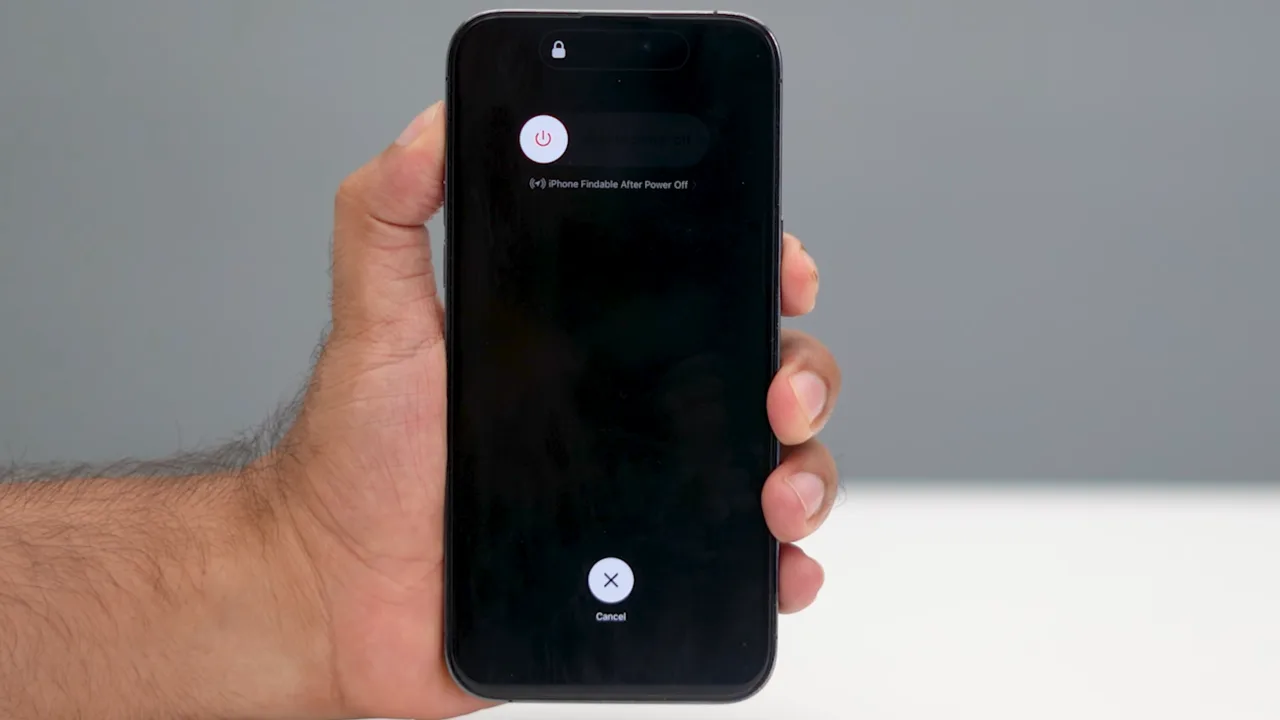
iPhone 8 and later, including all iPhone 17, iPhone Air, iPhone 16, iPhone 15, and iPhone SE (2nd and 3rd gen) models:
- Press and hold the Side button and either Volume button until the power slider appears.
- Drag the slider to turn off the iPhone.
- Wait 30 seconds.
- Press and hold the Side button again until the Apple logo appears.
iPhone SE (1st generation):
- Hold the Top or Side button until the power-off slider appears.
- Drag the slider right to power off.
- Hold the Top button again to restart.
A restart is a soft reset without data, settings, or password loss. This process clears RAM-resident bugs and forces the iOS network stack to reinitialize from scratch.
Fix 3: Forget the Network and Rejoin
Resolves: Corrupted saved network profiles, outdated stored credentials, post router firmware update authentication mismatches, and “Unable to Join Network” errors that remain after a restart.
Have the WiFi password ready. Forget This Network permanently deletes the saved credentials, and most failures here happen because someone re-enters the wrong password.
- Open Settings > Wi-Fi.
- Tap the info (i) button next to the network name.
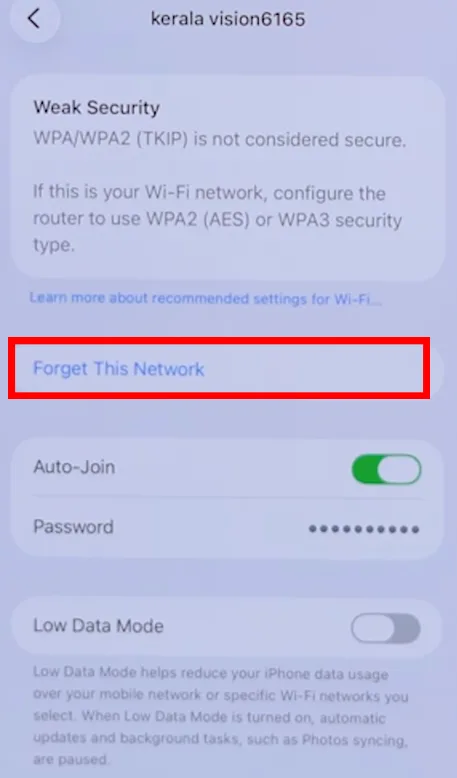
- Tap Forget This Network.
- Select Forget to confirm the choice.
- Go back to the Wi-Fi menu to see the list of networks.
- Reconnect to the Wi-Fi adapter and enter the password.
This fix works particularly well after a router password change, a router factory reset, or when an iOS update writes a corrupted network profile to disk.
Fix 4: Uninstall VPN and Security Software
Resolves: Virtual Private Network (VPN) connection failures blocking Wi-Fi, security software intercepting and breaking network authentication, and VPN-imposed DNS overrides that cause No Internet Connection errors.
A VPN app or security software installed on an iPhone can intercept network traffic in a way that prevents normal Internet authentication, particularly on WPA3 networks, captive portals, and enterprise networks.
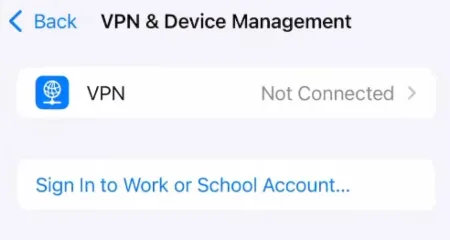
- Open the Settings app and tap General > VPN & Device Management.
- Remove active VPN configuration profiles listed there.
- Delete the VPN or security software app.
- Restart the iPhone.
- Test the Internet connection without VPN.
If Wi-Fi works, the issue lies with the VPN configuration or app. Contact the VPN manager or security software provider for the correct configuration.
If you have a profile ready to install, you’ll usually see a “Profile Downloaded” message on the main Settings screen.
Fix 5: Resolve IP Address/DHCP Conflict
Resolves: “Authentication Failed” on a known-correct password, iPhone joins but shows No Internet Connection, duplicate IP address on a crowded network.
Dynamic Host Configuration Protocol (DHCP) conflicts happen when two devices on the same network are assigned the same IP address. Networks with 10 or more connected devices are more likely to experience this issue.
An IP Address Conflict happens when the router and the iPhone cannot agree on a valid local address. DHCP lease problems can also make a network look connected, while internet access never starts.
Option A — Force a DHCP lease renewal:
- Open the Settings app.
- Tap Wi-Fi.
- Tap the blue info (i) icon beside the network.
- Scroll down and tap Renew Lease.
- Tap Renew Lease once more to confirm.
- Restart the router and cable modem.
- Reconnect to the Wi-Fi network.
If the network uses MAC Address Filtering, add the iPhone to the allowed list in router settings. If the connection fails after a router change, firmware rollback, or major DNS change, the lease may need to be rebuilt from the start.
Option B — Assign a manual static IP address:
- Go to Settings > Wi-Fi > tap (i) next to the network name.
- Tap Configure IP under the IPv4 Address section.
- Change from Automatic to Manual.
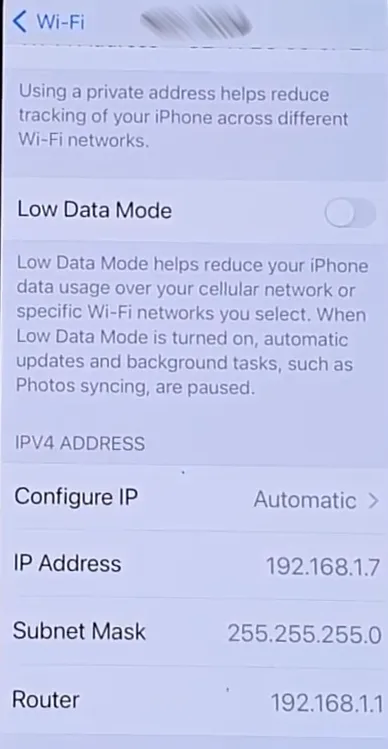
- Enter the following values:
- IP Address: 192.168.1.150, choose a number above 100 to stay outside most routers’ automatic DHCP range.
- Subnet Mask: 255.255.255.0
- Router: 192.168.1.1, check the router label if the address is different.
- Tap Save and reconnect to the network.
Use Option A first, which takes only 15 seconds. Only move to Option B (manual static IP) if the DHCP renewal doesn’t fix the iPhone not connecting to Wi-Fi issue after 1 or 2 attempts.
Assign a static IP address outside your router’s automatic assignment range to prevent connection drops. If you don’t reserve that specific address in your DHCP settings, other devices will inevitably claim it, trigger a conflict, and you’ll go offline.
Fix 6: Reset Network Settings
Resolves: Persistent WiFi bugs that survive all fixes above, WiFi breakage introduced by a major iOS update, and corrupted network configuration database.
If this is a school or business device, talk to IT or the network administrator before you reset network settings. Network resets remove all saved Wi-Fi connections and passwords, as well as cellular, Bluetooth, VPN, and APN settings.
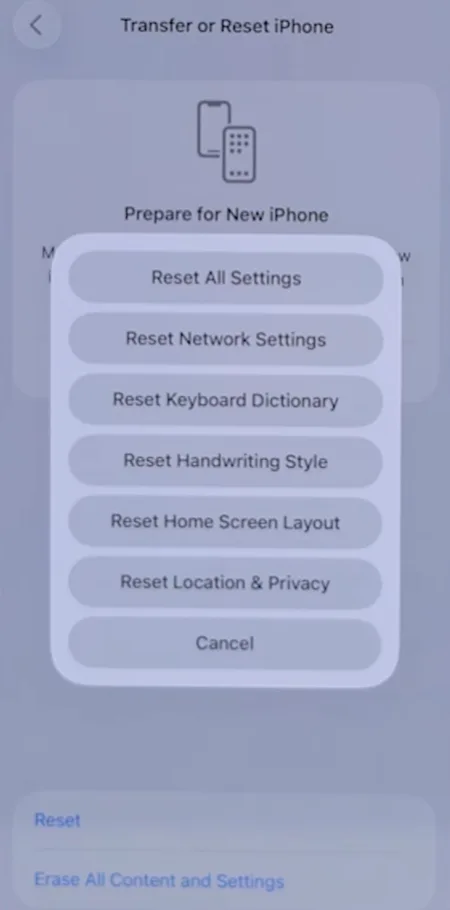
- Tap Settings > General > Transfer or Reset iPhone > Reset > Reset Network Settings.
- Enter the device passcode if asked.
- The iPhone will restart automatically.
- After reboot, go to Settings > Wi-Fi, reconnect the network manually, and enter the password.
Fix 7: Update iOS
Resolves: Known WiFi bugs patched in iOS point releases. Apple has shipped documented WiFi regressions across several major iOS versions and fixed them in subsequent point releases. An outdated iOS version keeps known bugs active on the iPhone.
Further, system updates include security patches that prevent malware and increase device protection.
To check for an update:
- Open Settings.
- Tap General.
- Tap Software Update.
- To install any available update, tap Download and Install.
- Enter your passcode if prompted.
If WiFi is completely broken and the iPhone cannot download the update wirelessly, connect the iPhone to a Mac using the USB cable, open Finder (macOS Catalina and later) or iTunes (Windows), select the iPhone in the sidebar, and click Check for Update. The update downloads to the computer and installs over the cable without a WiFi connection.
If the iPhone still can’t find stable networks after an update, verify that Location Services are enabled for Wi‑Fi. Keeping this setting on lets the device see and join nearby networks correctly.
First, review Apple’s iOS release notes at developer.apple.com/news/releases. Confirm the latest release doesn’t have known WiFi issues before installing on a device with a working Internet.
Fix 8: Check Wi-Fi Router
Resolves: Router side problems that are often wrongly blamed on the iPhone.
Run these checks in order:
- Confirm other devices connect. Connect a laptop or another phone to the same network. If nothing else connects, the problem is the router or the ISP.
- Restart the router and cable modem. Unplug both from power, wait 30 seconds, plug the modem in first and wait 60 seconds, then plug in the router. It will clear the router’s DHCP table and reset its internal network stack.
- Check band selection. Routers broadcast on 2.4 GHz and 5 GHz. Aggressive band steering forces the iPhone between bands, which causes dropped connections. In the router’s admin panel, split the two bands into separate network names (SSIDs). Connect the iPhone to the specific band, like 5 GHz for speed at close range, 2.4 GHz for better range through walls.
- Check MAC Address Filtering. Some routers block unknown devices via hardware address. Log in to the router admin (typically 192.168.1.1 in a browser) and confirm the iPhone’s Wi-Fi address is not blocked. Find the network address at Settings > General > About > Wi-Fi Address.
- Check the DHCP pool size. A router DHCP pool set to 10 addresses on a network with 15 devices will refuse new connections, so increase the DHCP range in the router’s settings.
- Run a Router Firmware Update. Outdated router firmware causes WPA3 and WPA2/WPA3 mixed-mode handshake failures with new iPhone models. From the router admin, run an update if available. Contact the router manufacturer for instructions if necessary.
Fix 9: Diagnose Hardware
Resolves: Thermally triggered WiFi radio shutdown, hardware fault identification.
To diagnose, examine the operational status of the internal communication chips. Physical boards fail to detect signals on legacy 802.11b devices if hardware components degrade.
A permanently dimmed or grayed-out wireless selection switch indicates a physical failure within the iPhone logic board circuits. This breakdown occurs when the device’s receiver components separate after a high-impact drop or exposure to liquid. It can be due to one of these causes:
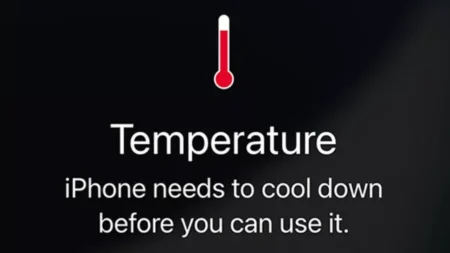
- Thermal shutdown: iPhone chips disable the Wi-Fi radio when the temperature exceeds a safe threshold. Power the device off completely, place it in a room temperature environment, and let it cool for 15-20 minutes. Do not place it in a refrigerator, a freezer, or near any external heat source. Restart after cooling.
- Post-update software fault: Some iOS updates produce a grey toggle that clears after Reset Network Settings (Fix 6) or a DFU restore (Fix 10).
- Hardware fault: Caused by water exposure, a big impact, or a failed WiFi chip. If the toggle remains grey after you’ve cooled, restarted, run Reset Network Settings, and completed a DFU restore, the issue is hardware and requires Apple diagnosis. So visit customer care or contact Apple support.
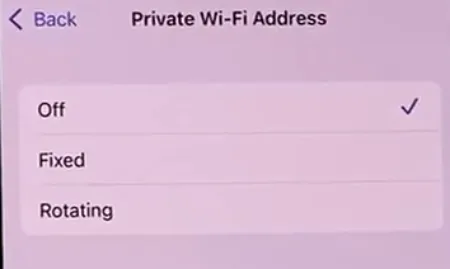
iOS 14 and later assigns a randomised MAC address per network by default. On networks with MAC-based access control, this results in silent connection failures. Disable it per network: Settings > Wi-Fi > tap (i) and select Off in Private Wi-Fi Address menu.
Apple recommends leaving this feature enabled for better privacy on most networks. Only disable it if you need a consistent, identifiable address for specific hardware, such as a work router or a home network with strict parental controls.
Fix 10: DFU Restore
Resolves: Deep firmware corruption, software faults that survive a standard restore, and provides final software confirmation before declaring a hardware fault.
A Device Firmware Update completely reinstalls the software and firmware on the iPhone. Unlike a standard restore, DFU bypasses iBoot and does that from scratch.
Back up to iCloud (Settings > [your name] > iCloud > iCloud Backup > Back Up Now) or locally via Finder or iTunes before you proceed; otherwise, all data will be permanently lost.
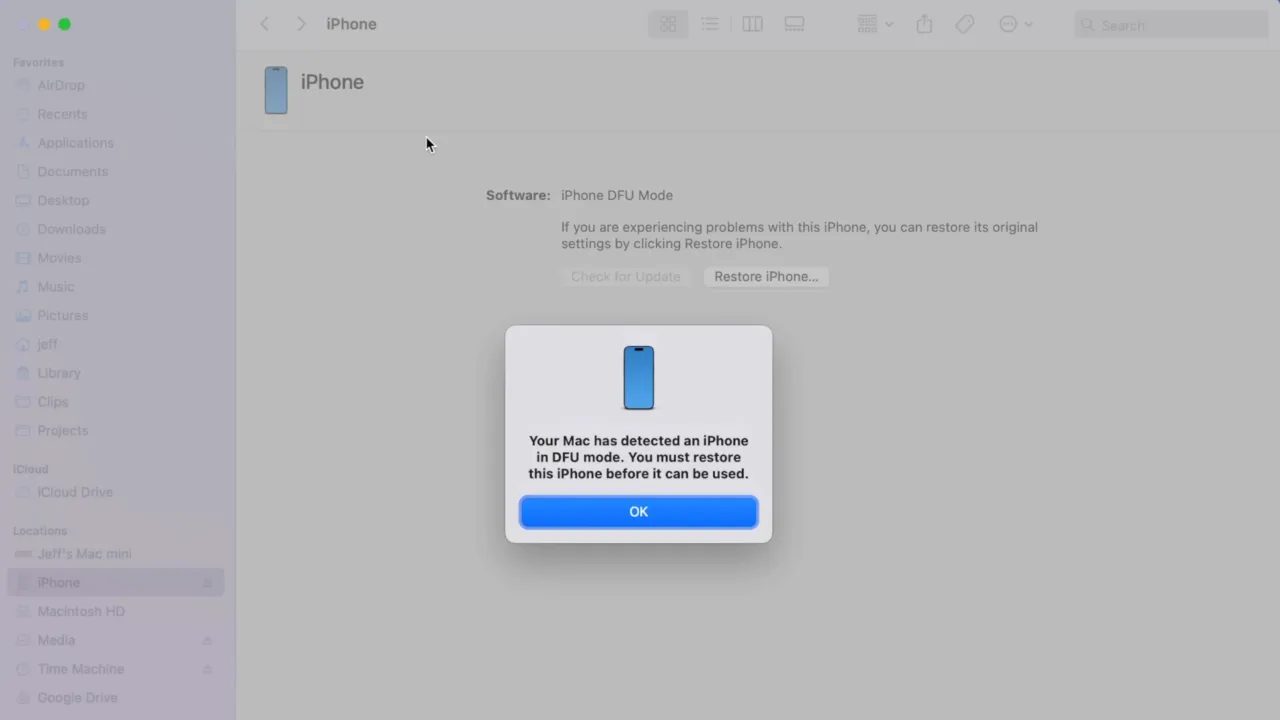
Enter DFU mode on iPhone 8 and later:
- Connect the iPhone to a Mac or Windows PC.
- Quickly press and release Volume Up, then press and release Volume Down.
- Press and hold the Side button for 10 seconds until the screen goes black.
- While holding the Side button, hold the Volume Down button for 5 seconds.
- Release the Side button, but continue holding the Volume Down button for 10 more seconds.
- The screen will stay black. Finder or iTunes will show the prompt for iPhone in recovery mode.
After the restore, if:
- WiFi works after DFU: the issue was software. Restore from the backup.
- WiFi toggle is still grey, or Wi-Fi is still broken: the issue is hardware. Proceed to Apple Support.
Related: What Does SOS Only Mean on iPhone and How to Fix It
Common Wi-Fi Connectivity Issues on iPhone
iPhone Connects to WiFi But Has No Internet
This usually means the iPhone joined the Wi-Fi network, but the router or ISP cannot reach the internet. In this case, check the router and network settings, test other devices, and contact the ISP when the device connects to Wi-Fi but cannot get online.
Try these steps:
- Restart the router and cable modem.
- Turn VPN off.
- Check the Wi-Fi network on another device.
- Try a different Wi-Fi location.
- Call the service provider if every device has the same problem.
Another reason for this issue is when the local router lacks an active data feed from the provider, which can result in captive portal timeout bugs. This problem generates a “No Internet Connection” warning label directly underneath the active network SSID.
The fault stems from an upstream infrastructure outage, an unverified captive portal block, or a billing suspension. Open an uncached webpage inside Safari to see if a provider login screen loads. Check with neighboring residents to verify if a localized telecom service blackout is affecting your geographic region.
If your iPhone detects a problem when connecting to a network, the issue appears under the Wi-Fi network’s name. This means the mobile successfully connects to the local router, but the router does not receive an active data stream from the ISP.
iPhone Keeps Dropping WiFi
Network signal strength diminishes with distance from the router or modem. Frequent disconnects usually happen due to a weak signal, crowded channels, outdated router firmware, or an unsuitable network band.
Regular disconnections have 4 common causes:
1. Wi-Fi Assist is switching to cellular. Wi-Fi Assist switches the iPhone to cellular data when the Wi-Fi signal is deemed weak, even if the connection is still active. To disable it, go to Settings > Cellular, scroll to the bottom, and toggle off Wi-Fi Assist.
Turning off Wi-Fi Assist makes your iPhone stick to Wi-Fi, even if the signal is weak. This helps avoid the surprise data bills, but you might notice slow browsing in areas with a bad connection.
2. Aggressive band steering on the router. Some routers forcibly switch devices between 2.4 GHz and 5 GHz based on signal strength algorithms. Each band switch registers as a disconnect on the iPhone. Separate the two bands in the router admin and connect the iPhone to one SSID manually.
3. Corrupted network profile. Forget the network (Fix 3) and rejoin with the password entered manually.
4. Short DHCP lease expiry. Short DHCP lease times force the iPhone to renegotiate its IP address frequently. Some routers drop the connection during renegotiation. Increase the DHCP lease time in the router settings to 24 hours or longer.
One Specific Network Won’t Connect, Others Work Fine
If only one Wi-Fi network fails, the problem is probably inside the router setup. Hidden networks, MAC Address Filtering, blocked devices, or outdated security settings can stop the iPhone from connecting to the Internet. The network might be hidden or may not meet Apple’s recommendations.
Try Forget This Network first. If that doesn’t work, check the router settings, update the firmware, and confirm that the password is current. Contact the local network administrator to verify if your device’s physical address is blocked. Check if the router requires a static DNS configuration profile to bypass local filters.
Hidden SSIDs don’t appear in the Wi-Fi scan list, but the iPhone can still join them. Go to Settings > Wi-Fi > Other… and manually enter the exact network name, security type, and password.
When to Contact Apple Support
Contact Apple Support technicians when any of the following apply:
- The WiFi toggle remains grey after a full DFU restore.
- The device has been exposed to water in the past.
- Visible physical damage is present, i.e., cracked back glass, bent frame, or impact near the antenna bands at the top and bottom of the device.
- The iPhone is under warranty or covered by AppleCare+. Wi-Fi hardware repair may be at no cost.
- The device is within 90 days of purchase. Phone support is included even without AppleCare+.
Book a diagnostic appointment through the official support software application or visit a certified repair facility to have professionals do specialized hardware multi-meter tests on the device logic board. Apple provides in-person support at the Genius Bar and through Apple Authorized Service Providers, plus repair by mail in supported regions.
✅ Repair Pricing
Out-of-warranty repair costs vary by iPhone model and region. Check current pricing at support.apple.com/repair, then move with the process. Third-party repair cost estimates online are frequently outdated.
How We Tested
Every fix in this guide was tested across different iPhone models running iOS 18.6 through 26.5. The troubleshooting flow was benchmarked against Apple’s official Wi-Fi support process, router recommendations, iOS network reset guidance, and repair documentation. Testing covered four distinct network environments: a home router (TP-Link Archer AXE75, WPA3), a corporate WPA2-Enterprise network, a hotel captive portal, and a mobile hotspot.
The methods were triggered by deliberately replicating the failure condition — including forced IP conflicts, corrupted network profiles via iOS downgrade, and thermal shutdowns — then applied step by step to confirm the outcome. Fixes that resolved the issue in under 3 attempts across all test devices are listed first, and the ones with specific conditions or had variable results are noted within each section.
Old iPhone models (iPhone 12, iPhone 13, iPhone 14) were cross-referenced against documented Apple support cases and iOS release notes.
Frequently Asked Questions
Why does my iPhone say “Weak Security” under my Wi-Fi network?
“Weak Security” means the router is using WPA or WPA2 with TKIP encryption, both of which are outdated protocols iPhone flags since iOS 14. Log in to the router administration panel and change the security mode to WPA3 or WPA2/WPA3 Mixed with AES encryption to clear it.
Why does my iPhone connect to Wi-Fi but other devices on the same network are fine?
The 3 most likely causes are a corrupted network profile (Fix 3), a Private WiFi Address conflict blocking authentication, or an iOS bug from a recent update. Apply method 3 first. If it fails, disable Private WiFi Address for that network and try again.
Why does my iPhone connect to Wi-Fi automatically at home but not at work?
Work and business networks often use stricter security settings than home routers. Enterprise Wi-Fi systems may require certificates, device approval, or special login credentials. Some office networks also block personal devices through MAC Address Filtering or network administrator rules, which can stop automatic connection.
Why is my iPhone’s Wi-Fi slow even with full signal bars?
Full signal bars do not always mean fast internet speed. Router congestion, ISP throttling, congested Wi-Fi channels, outdated router firmware, and too many connected devices can slow the Internet. Public networks and older routers with legacy 802.11 standards normally cause this issue.
Does the Private Wi-Fi Address cause network connection errors?
Yes, the Private Wi-Fi Address feature can sometimes interfere with old routers or business networks. Some networks identify devices using fixed MAC addresses. When the iPhone changes the address for privacy protection, the router may block the connection until the device is approved again.
Can a custom DNS server stop my iPhone from joining Wi-Fi?
Custom DNS servers can disrupt wireless connections if the inputted server addresses become unresponsive or experience localized outages. Revert your DNS configuration to automatic in the network properties to allow your internet service provider to assign a working routing server.
Sources
Apple Support — If you can’t connect to Wi-Fi on your iPhone or iPad
Connect to Wi-Fi on your iPhone or iPad
Recommended settings for Wi-Fi routers and access points
View or change cellular data settings on iPhone
Reset iPhone settings to their defaults
View or change cellular data settings on iPhone
Apple iOS Release Notes
Did this fix your issue?
Let us know. Your feedback helps other readers find the right solution.
Great! What solved it for you?
We read every response. Email is optional and never shared.
Sorry to hear that. What happened when you tried?
Leave your email and we will personally help you fix it.