







Your iPhone is warm to the touch, and now you’re wondering if that’s normal, a warning sign, or your phone is about to give up. The truth is: sometimes it’s completely fine, and sometimes it’s a sign you need to do something right away.
- Is It Normal for an iPhone to Get Hot?
- Why Does My iPhone Get Hot? 10 Reasons
- How to Cool Down Your Overheating iPhone
- 1. Stop What You’re Doing
- 2. Remove the Case
- 3. Force-Close Recent Apps
- 4. Turn Off Background App Refresh
- 5. Enable Low Power Mode
- 6. Reduce Screen Brightness
- 7. Restart Your iPhone
- 8. Update iOS and Apps
- 9. Stop Wireless Charging and Device Use
- 10. Check Battery Health
- How to Keep Your iPhone from Overheating
- Frequently Asked Questions
iPhones generate heat; that’s part of the deal. The A-series chips inside the device are powerful mobile processors, and power creates heat. But there’s a line between acceptable warmth and dangerous overheating, and you should know which is which. This guide explains why your iPhone gets hot, quick ways to cool it down, and the issues many people don’t notice until it’s too late.
Is It Normal for an iPhone to Get Hot?
Warm is normal. Though for hot, it depends. An iPhone will always produce some heat during active use. Streaming, gaming, charging, and even photoshoots for extended periods all tax the processor and generate warmth on the back glass or around the camera module.
Also: Why Does My Phone Get Hot When Charging? Reasons and 11 Quick Fixes
Apple says that iPhones are designed to run best in ambient temperatures between 0°C and 35°C (32°F to 95°F). The internal operating range differs, but that’s the comfort zone where you can use the phone without performance degradation. Outside it, the device will trigger built-in protection.
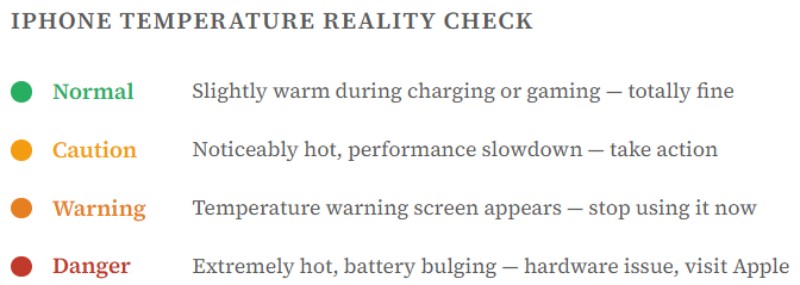
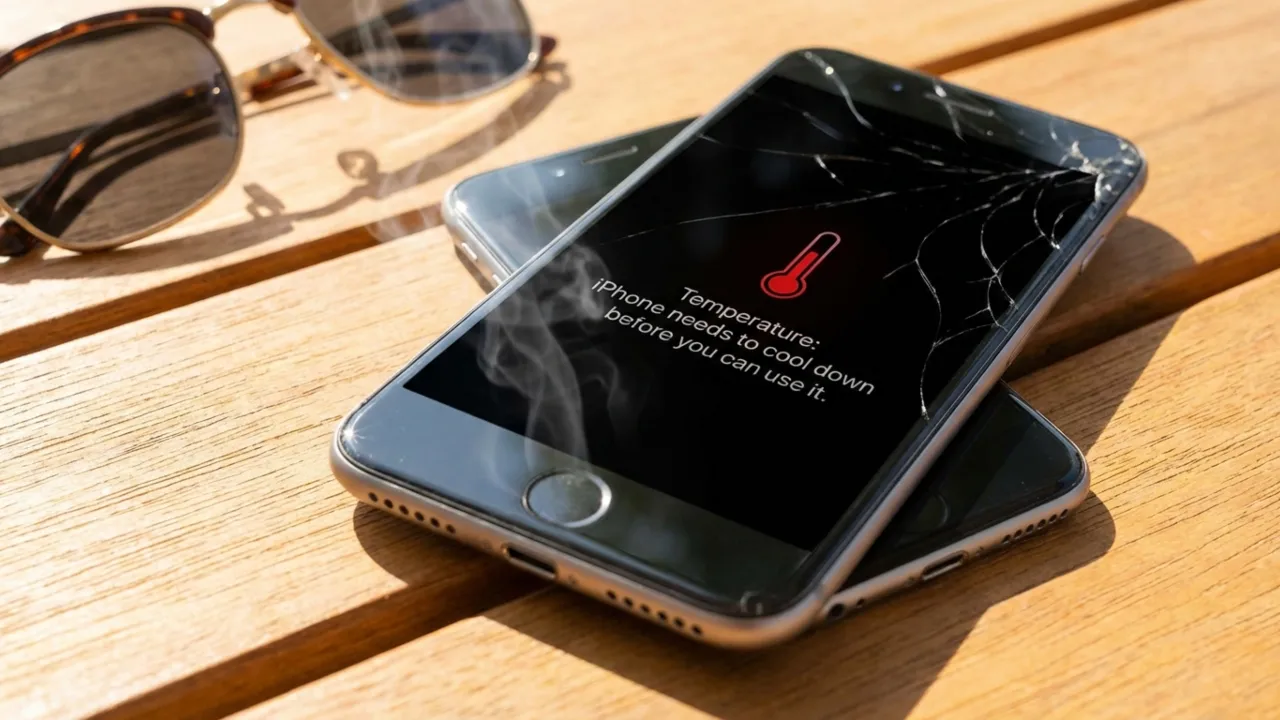
When your iPhone reaches a critical temperature, it throws a black screen with a red thermometer icon and the message: “iPhone needs to cool down before you can use it.” That’s an automatic shutdown, and one of Apple’s better safety features.
Why Does My iPhone Get Hot? 10 Reasons
iPhones don’t have internal fans, so the metal and glass chassis also have to do the job of a heat sink to dissipate heat away from the logic board. When the device produces more heat than it can shed, the temperature increases fast. The battery area (the back of the phone) is usually the warmest spot. But if the screen radiates massive heat, that’s unusual and worth investigating.
- Processor-Heavy Apps: High-end games, AR, 4K video editing, and navigation with live GPS can drive the chip close to its limits for long stretches. That kind of sustained load makes serious heat. If your iPhone gets hot when you game or use demanding apps, the processor does what it was built to do, just at full tilt.
- Charging (Particularly Wireless): Your iPhone will obviously get a little warm while it charges. A cable usually gives off moderate heat. Wireless charging (MagSafe or Qi) runs very hot because it wastes more energy during conversion. If you use the phone while it charges, the energy sources stack as the battery and processor work hard at the same time, so heat builds up.
- Background App Refresh: Apps you don’t use can still run in the background, like mail, social, news, and fitness trackers. Each one adds some CPU load. With multiple programs refreshing at once in the background, the device can heat up even when idle in your pocket.
- Direct Sunlight and Hot Environments: Not all the heat comes from inside the iPhone. If left on a car dashboard in summer, set face-up on the beach, or used outdoors on a hot day, the surrounding temperature can push it into the danger zone. The phone absorbs external heat on top of what it generates under the hood, a fast way to the red thermometer screen.
- A Runaway App or Software Bug: An app can get stuck in a loop and pin the CPU at 80–100%. It happens more often after iOS updates, when apps face compatibility issues with the new update. You might notice that your iPhone overheats for no reason, even when you haven’t used it. To verify, go to Settings → Battery and check which app is burning power without screen time.
- Extended Streaming or Video Playback: Long sessions on Netflix, YouTube, or FaceTime keep the display, GPU, and network radio active at once. It gets worse with 4K HDR or high-frame-rate video. After an hour, you’ll occasionally feel heat building along the bottom and the back of the device.
- Heat Trapped by an iPhone Case: Thick cases, mainly leather, rubber, or multi-layer materials, insulate the phone. They are great to protect the device from drops, but terrible for thermal management. The iPhone dissipates heat through its aluminum or stainless steel frame and back glass. A bulky case blocks that transfer and causes heat to accumulate inside.
- Restored, Updated, or iCloud Sync: If you just set up a new iPhone or restored from backup, expect it to overheat. During this period, it downloads data, indexes it for Spotlight, syncs photos to iCloud, and runs setup tasks in the background. It’s an intense burst of work that settles down within a few hours, usually not a reason for concern.
- Degraded Battery: Lithium-ion batteries lose cell strength as they age. An old battery has to work harder to deliver the same power, and that extra effort results in more warmth.
- Malware or Unauthorized Processes: It’s rare on iPhones, especially if you’ve never jailbroken yours, but it can happen. A compromised app with unauthorized background processes can peg the CPU. If your iPhone stays hot with no obvious cause and battery drain is severe, check your installed apps for anything unfamiliar or suspicious.
In case your iPhone burns extremely hot and the back looks swollen or warped, stop using it immediately. A swollen battery can catch fire. Don’t charge it, compress it, or shove it in a drawer. Place the device on a non-flammable surface and contact Apple Support or visit a nearby Apple Store the same day.
Also: How to Unpair Apple Watch With or Without iPhone
How to Cool Down Your Overheating iPhone
If your iPhone is getting hot, you can usually bring it back to normal temperature with a few easy steps. Overheating can rattle you, but most of the time the fix is simple: stop whatever is generating the heat, and give the phone time to cool down.
1. Stop What You’re Doing
Quit the app, lock the screen, and place the iPhone face down on a flat surface out of direct light. Leave it alone for 3–5 minutes in a cool environment, and don’t charge it during that time. For mild overheating, this fixes the problem most of the time.
Never put the device in a freezer or refrigerator. Quick temperature changes create condensation inside it, which can cause water damage and corrosion.
If the phone is charging, unplug it. Charging generates heat, so disconnecting removes one source while you deal with the rest. If your iPhone shows a temperature warning, turn it off. Let it cool completely before you resume use.
2. Remove the Case
Take your case off immediately. Most cases are made of rubber, plastic, or leather, and these materials are excellent thermal insulators. The frame and glass back are iPhone’s built-in cooling system. Exposing them to the open air can bring the temperature down in a few minutes. Once it cools, swap to a slim iPhone case with ventilation cutouts.
3. Force-Close Recent Apps
Swipe up from the bottom or double-press Home on old iPhone models, then swipe away every open app. That will stop any process stuck in a runaway loop. Only launch the app you need to use afterward.
4. Turn Off Background App Refresh
Background App Refresh lets apps fetch new data so your social feeds always stay up-to-date. Every so often, one app goes off the rails—stuck in a refresh loop that puts strain on the processor, and the screen stays dark.
[pgallery id=”22″]To disable Background App Refresh on an iPhone, go to Settings > General > Background App Refresh and choose Off to stop it across the iPhone. If you only want to curb a few apps, leave it on and toggle the apps off one by one. Either way, they won’t update new content unless you reopen them, which can save battery and data.
5. Enable Low Power Mode
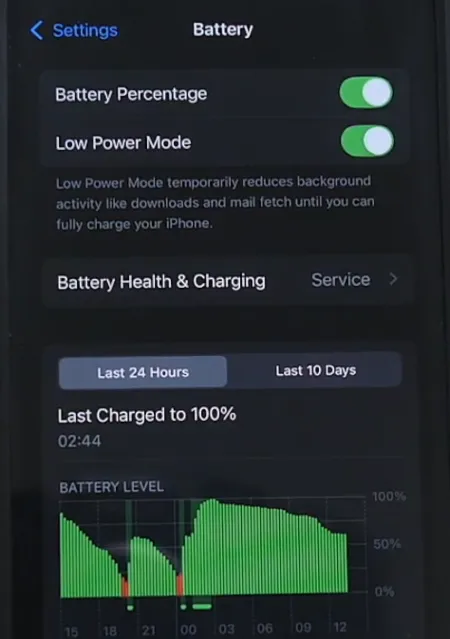
To turn on Low Power Mode on an iPhone, tap Settings > Battery and toggle on Low Power Mode. Next, the phone will reduce display brightness, restrict performance, and pause background tasks such as downloads and mail fetch to save power and extend battery life. When it’s enabled, the battery icon will turn yellow. It’s a stopgap, but it drops the temperature fast when your iPhone runs hot under load.
You can also enable it in a few other ways. In Control Center, swipe down from the top-right corner (or up from the bottom on older iPhones) and tap the battery icon; if you don’t see it, add it under Settings > Control Center. You can also ask Siri to turn on Low Power Mode. Or use the Shortcuts app to create an automation that turns on the mode at a specific battery percentage.
6. Reduce Screen Brightness
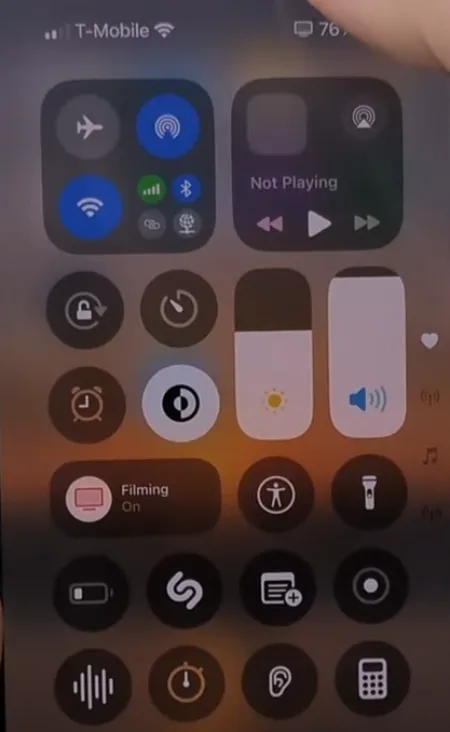
To dim an iPhone screen, swipe down from the top-right corner to open Control Center, then drag the brightness slider down. You can do the same in Settings > Display & Brightness, then move the slider or ask Siri to do it without lifting your finger.
When the minimum still seems too bright, iOS gives you deeper cuts:
- Reduce White Point will dim the screen beyond the normal floor. Tap Settings > Accessibility > Display & Text Size > Reduce White Point.
- Dark Mode shifts the interface to darker tones and to enable it, select Settings > Display & Brightness > Dark.
- Night Shift warms the colors for late hours. Go to Settings > Display & Brightness > Night Shift.
If you want iPhone to handle all of that, turn on Auto-Brightness. For it, tap Settings > Accessibility > Display & Text Size > Auto-Brightness. This can help prevent the screen from being unnecessarily bright indoors.
7. Restart Your iPhone
A full restart clears temporary files, kills background processes, and resets anything in iOS that has been stuck. If an app or system process is looping and driving up the heat, a restart often fixes it. Do a normal reboot first, not a factory reset.
8. Update iOS and Apps
[pgallery id=”23″]To update your iPhone software, go to Settings > General > Software Update and install the latest iOS. To update apps, open the App Store, tap your profile icon, pull down to refresh, then tap Update All. Many overheating issues traced back to software can be silently fixed in updates. Moreover, it improves security and performance, and gives access to new features.
When updating, use Wi‑Fi to avoid cellular data charges, and connect the adapter to the iPhone, so it doesn’t power off mid-update. If there’s not enough space left on the device, iOS may temporarily ask to remove apps.
9. Stop Wireless Charging and Device Use
If you’re on a MagSafe pad or wireless charger while browsing or watching a video, that’s a double heat load. Disconnect the charger, let the phone cool, and don’t use it while charging wirelessly. If you can, use a cable instead.
Use Apple-certified chargers and cables. MFi (Made for iPhone) certified accessories meet Apple’s power delivery specifications and charge effectively without extra heat. Further, charge your phone in cool, ventilated areas. Don’t charge on a bed or couch, or anything else where fabric traps heat. A hard, cool surface like a table allows better heat dissipation. Remove the protective case while charging overnight.
10. Check Battery Health
[pgallery id=”24″]To check the battery health of your iPhone, open Settings, tap Battery > Battery Health & Charging (or Battery Health). The first thing to check is the Maximum Capacity, which tells how much charge the battery holds compared with when it was brand new. Once it drops to around 80% or below, it likely falls under service territory. An Apple-certified battery replacement costs around $99 and dramatically improves daily performance.
Maximum Capacity measures the battery’s remaining capacity. The lower it is, the fewer hours you’ll get between charges. Peak Performance Capability shows if a worn battery is behind surprise shutdowns or throttled performance. Introduced on iPhone 15 and later, Cycle Count tells how many full charge cycles the battery has completed.
Also: What Does SOS Only Mean on iPhone and How to Fix It
How to Keep Your iPhone from Overheating
Fixes come after the fact. Prevention keeps you from turning “my phone feels warm” into a weekly problem. You can’t babysit your iPhone all day to keep it from getting hot. But a few habits can be adopted to avoid things that turn the device into a pocket furnace.
- Keep iOS and apps updated, and don’t ignore update notifications.
- Use a slim, breathable case, not a thick, multi-layer shell.
- Don’t leave your iPhone in a parked car, on a beach towel, or in direct sunlight.
- Avoid using it while it charges, particularly on a wireless pad.
- Turn off Background App Refresh for apps that don’t need real-time updates.
- Disable Location Services for apps with no good reason to track you.
- Replace the battery once it drops below 80% health; it drags down everything.
- On very hot days, turn on Airplane Mode when you’re not using the phone to reduce radio activity.
Contact professional support if the iPhone gets extremely hot with minimal use, you see the red thermometer screen regularly without explanation, the battery health has plummeted fast, the back feels deformed or raised, the phone shuts off without warning even at 30–40% charge, or nothing from this guide has made a difference to cool down your hot phone.
Apple’s in-warranty service is free. If your device is still under warranty, an Apple Store will run diagnostics for free and quote the repair cost before you agree to it. You can also use a third-party shop for a battery swap, but make sure it uses genuine Apple parts. The cheap off-brand batteries usually turn hot pretty fast.
Frequently Asked Questions
Can overheating permanently damage my iPhone?
Yes. If your iPhone spends a lot of time hot, it can wear out the battery faster and, in worst cases, hurt other parts too. Extreme heat can damage the display, weaken solder joints on the logic board, and impact camera modules. A little warmth now and then is normal and harmless, but chronic overheating shortens your iPhone’s lifespan.
Can extreme heat degrade battery health?
Yes, lithium-ion batteries age faster when exposed to high temperatures for long. Heat changes the battery’s chemistry over time, and that loss of capacity doesn’t come back. If your device regularly becomes hot, you’ll probably see the maximum capacity percentage in Battery settings drop much sooner than expected.
Why does my iPhone get hot during phone calls?
Phone calls, mainly long ones, keep the cellular radio, microphone, speaker, and sometimes the display active at once. Then there’s the proximity sensor and background network activity. That adds up, so the phone warms up. A speakerphone can reduce the heat, mostly because it’s not pressed against your face.
Is it bad to use my iPhone while it charges overnight?
Using your iPhone hard while it charges overnight does it no favors. Modern iPhones have Optimized Battery Charging, which holds the charge at about 80% until morning to reduce heat. But if you run demanding apps while it’s plugged in, the chip and the battery strain at once, and the phone overheats. Heat is what wears batteries out.
How long should I wait before using my iPhone after it overheats?
Wait until your iPhone feels room temperature to the touch, typically 10-30 minutes depending on how hot it became. If you see a temperature warning, the screen will notify you when it’s safe to use again. Don’t rush the cooling process; the internals need time to settle.
Did this fix your issue?
Let us know. Your feedback helps other readers find the right solution.
Great! What solved it for you?
We read every response. Email is optional and never shared.
Sorry to hear that. What happened?
Leave your email and we will personally help you fix it.