



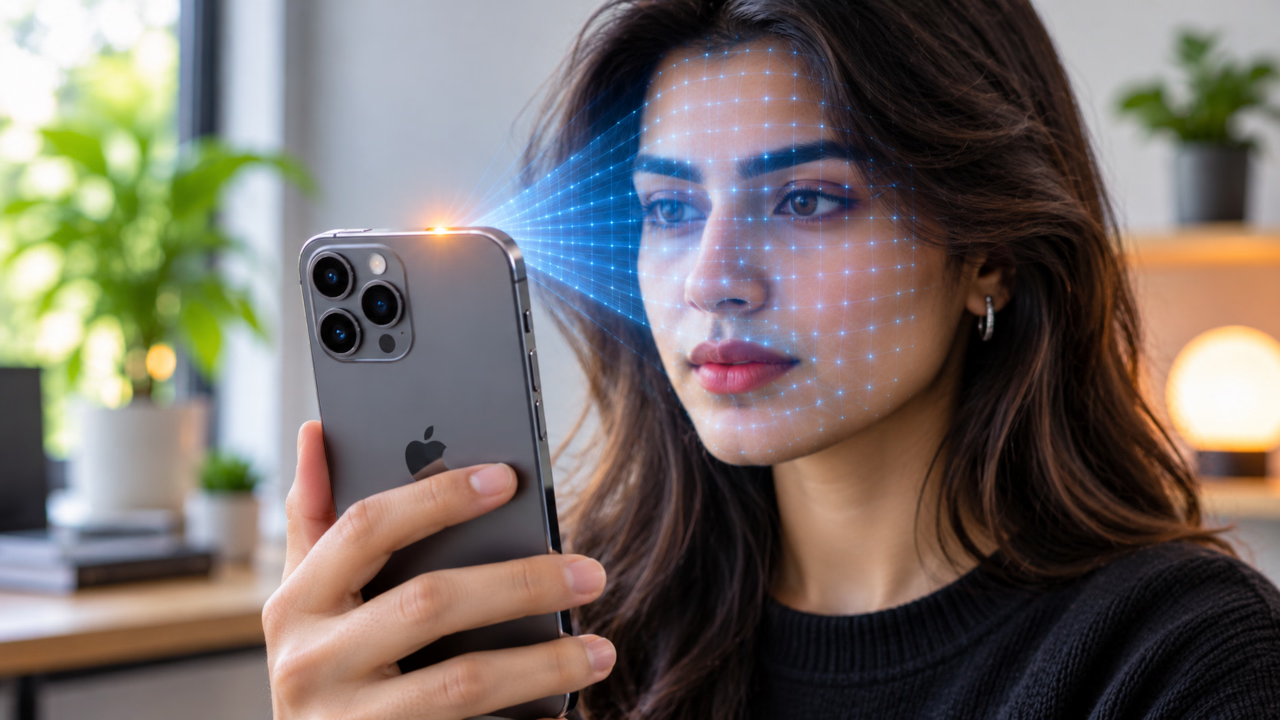

When Face ID stops working or won’t recognize your face and asks for your passcode, it throws off your iPhone routine. Whether the sensor is dead with a grayed-out setting, acting flaky, or showing the pesky “Face ID is Not Available” alert, you’ve encountered one of two things. Either software or environmental interference is blocking the system, or something has physically broken in Apple’s TrueDepth sensor array.
At Technical Master, we fix broken tech. Read on to learn why Face ID fails and how to fix it with easy troubleshooting steps, from quick and easy software fixes to advanced hardware realities.
What to Do If Face ID Isn’t Working on Your iPhone or iPad?
Apple intentionally disables Face ID and requires your passcode under certain security triggers. Your biometric hardware is not broken if:
- You just restarted or powered on your iPhone.
- The device has remained unlocked or untouched for more than 48 hours.
- You triggered Emergency SOS by pressing and holding the side and volume buttons.
- The phone received a remote lock command via the Find My network.
- The sensor failed to verify your facial identity 5 times in a row.
- You haven’t entered your manual passcode in 6.5 days, and biometrics haven’t unlocked the phone in the last 4 hours.
1. Clean the TrueDepth Housing and Remove Sensor Obstructions
The TrueDepth camera array equipped inside the display notch or Dynamic Island uses invisible infrared light instead of standard RGB photography. Smudges or improperly cut screen protectors can distort the beam before it leaves the glass.
- Wipe the sensor glass: Makeup, pocket lint, skin oils, and ear sweat collect over the small ear speaker mesh and camera glass. Gently wipe the sensor cluster with a dry, lint-free microfiber cloth, but never blast compressed air directly into the mesh, as it can damage the internal acoustic and optical membranes.
- Inspect your screen protector: Cheap or thick tempered glass protectors without proper cutouts often turn cloudy over time or create micro-refractions that spread the infrared dot pattern. If Face ID behaves erratic, remove the protector and test it again.
- Watch your grip: When you hold your iPhone sideways (in landscape mode) or use an iPad, keep your fingers away from the top notch or Dynamic Island.
2. Check Your Face ID System Permissions
If Face ID works on your lock screen but fails in banking apps or to auto-fill your passwords, the biometric hardware is fine; probably the individual iOS permissions are toggled off.
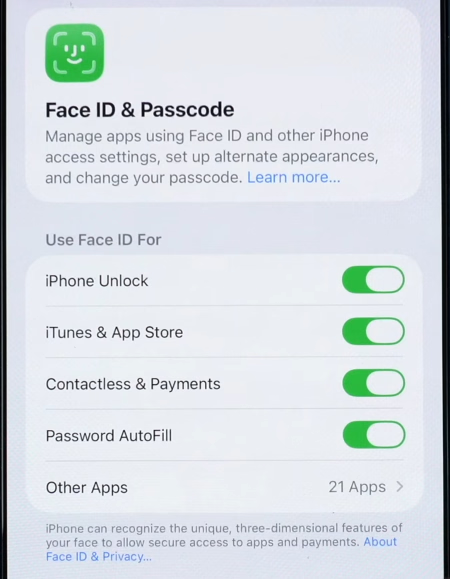
- Open Settings and tap Face ID & Passcode.
- Type in your device passcode.
- Under the Use Face ID For section, verify that every option is turned on:
- iPhone Unlock
- iTunes & App Store
- Contactless & Payments
- Password AutoFill
- Tap Other Apps at the bottom of this section and confirm the individual apps like WhatsApp, banking, or password managers have active biometric permissions granted.
3. Disable Require Attention for Stubborn Reads
By default, iOS checks whether your eyes are open and looking dead-center at the screen before it gives access. This prevents people from unlocking your phone while you are asleep. However, polarized lenses, thick glasses, or extreme viewing angles can trigger false negatives.
- Go to Settings > Face ID & Passcode.
- Scroll down to the Attention section.
- Turn off Require Attention for Face ID.
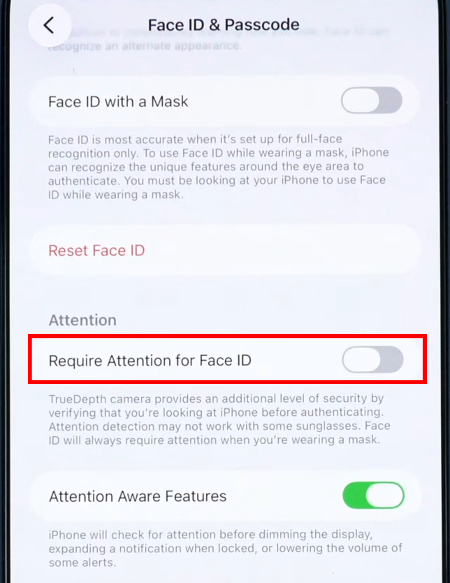
- Read the security warning pop-up and tap OK.
Face ID works with most everyday sunglasses, but sport or outdoor lenses equipped with heavy infrared-blocking coatings will block the IR camera from scanning your pupils. So, disable “Require Attention” to bypass eye-gaze verification, which lets your device unlock even when you’re wearing heavy polarized eyewear.
4. Check Orientation Rules and Face ID with a Mask
Holding your device at the wrong angle or distance is one of the most common reasons facial recognition won’t work:
- Distance: The TrueDepth system has a focal range of 10 to 20 inches (roughly an arm’s length). If you shove it right up against your nose or hold it three feet out, the scan fails.
- Landscape Limitations: Landscape support for Face ID depends on specific hardware. It works only on iPhone 13 models and later running iOS 16 or above, and on compatible iPad Pros. If you have an iPhone 12, 11, or X series, the phone must stay upright in portrait mode.
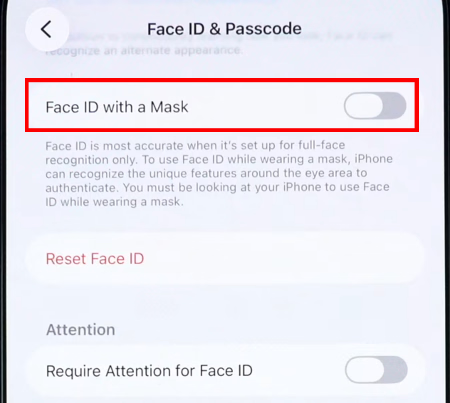
- Masks and Scarves: When you wear a surgical mask, scarf, or motorcycle helmet, normal Face ID will not work. So, open Settings > Face ID & Passcode, turn on Face ID with a Mask, and complete an additional facial scan that zeroes in on the periocular area (the contours around your eyes).
5. Force Restart to Clear the Biometric Daemons
A normal reboot usually leaves corrupted background cache files intact. If you do a force restart at the hardware level instead, it hard-cycles the baseband firmware and restarts biometrickitd and camerad, the background daemons that control Face ID.
Face ID iPhones dropped the physical Home button, but every model from the X and XR onward uses the same button sequence to force restart.
For all Face ID models (iPhone X through current iPhone 18 series):
- Press and quickly release the Volume Up button.
- Press and quickly release the Volume Down button.
- Immediately press and hold the Side (Power) button.
- Do not let go when you see the “slide to power off” slider. Keep holding the button down until the screen goes completely black and the white Apple logo appears, then release it.
- After boot, unlock iPhone with your passcode, lock the screen, and try biometrics again.
For iPad Pro models with Face ID (no Home button):
- Press and quickly release the volume button closest to the top button.
- Press and quickly release the volume button farthest from the top button.
- Press and hold the Top (Power) button until the device restarts and the Apple logo appears.
Once the device boots back up, unlock it with your manual passcode. Then lock your screen and try Face ID again to check if the hardware reset worked.
6. Enroll an Alternate Appearance
Face ID learns slow changes in your appearance (like facial hair growth or aging) through adaptive machine learning, but sudden shifts can confuse the system.
- Open the Settings app on your iPhone.
- Go to Face ID & Passcode.
- Tap Set Up an Alternate Appearance.
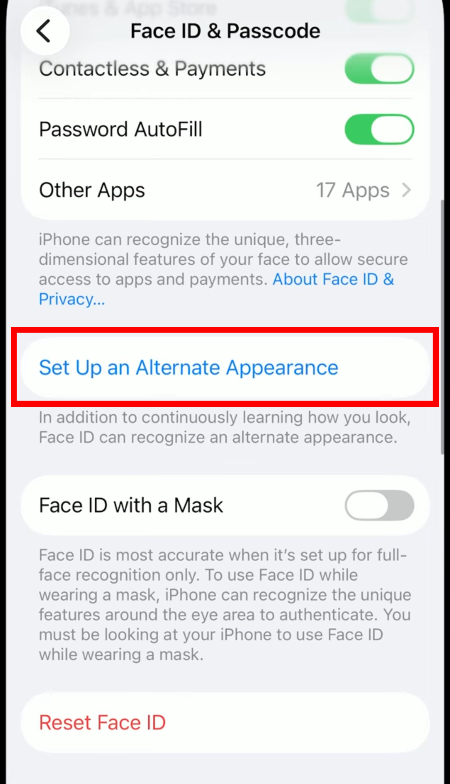
- Hold the device directly in front of your face, tap Get Started, and slowly circle your head to complete the scan.
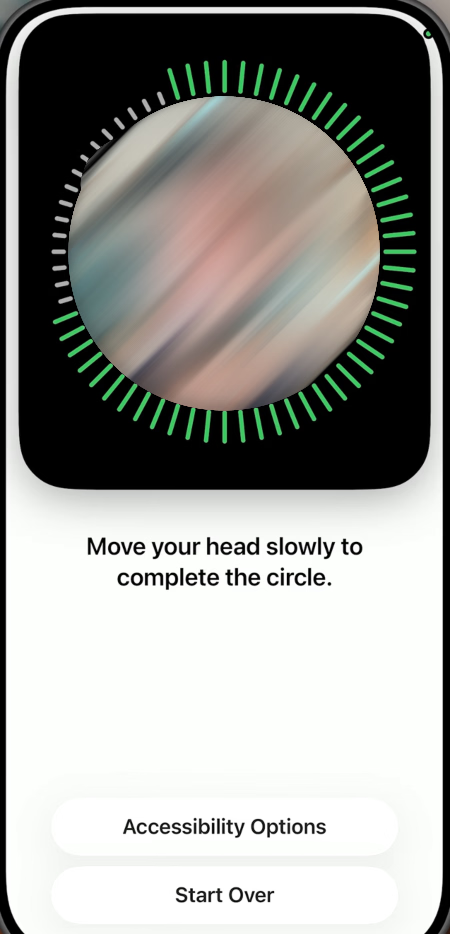
Set up this secondary profile if you wear heavy work goggles, your beard grows fast, or you often switch between two very different looks, so the phone sensor always recognizes you with an extra reference point.
7. Reset Face ID and Re-Register from Scratch
If your first scan had corrupted depth calculations or was completed in poor lighting, then reset Face ID to wipe the slate clean.
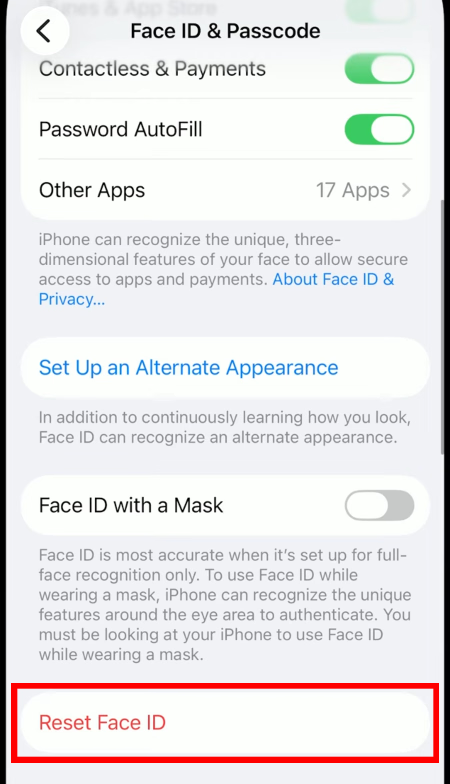
- Go to Settings > Face ID & Passcode.
- Tap Reset Face ID (this immediately removes your existing biometric depth map).
- Tap Set Up Face ID.
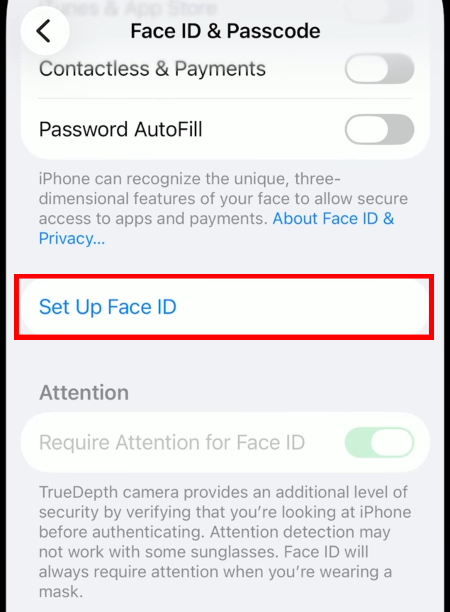
- Complete the two circular scanning sweeps in a well-lit indoor environment away from harsh, direct sunlight.
If you tap Set Up Face ID and the camera viewer opens but shows an error saying “Face ID is Not Available,“ or repeatedly asks you to position your face in the frame without completing the scan, it indicates the sensor has a fault.
8. Update iOS or Reset All Settings
Software conflicts, bad over-the-air (OTA) updates, or corrupted system-level privacy files can break the camera subsystem.
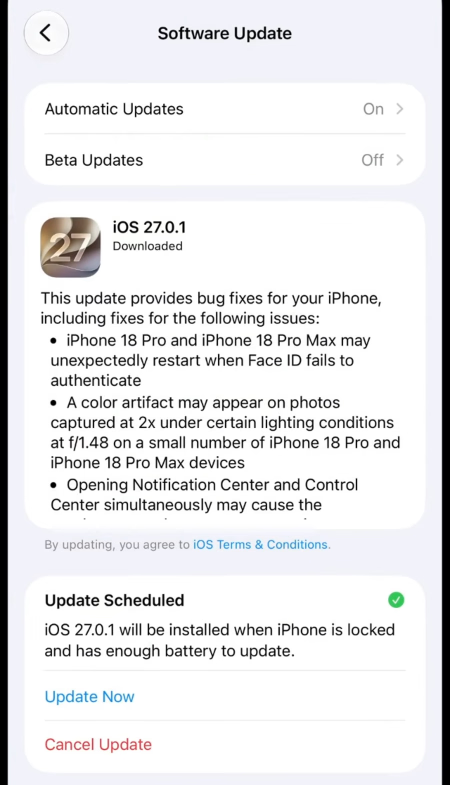
- Update iOS: Go to Settings > General > Software Update. Apple routinely releases security patches that fix baseband driver conflicts and biometric communication drops.
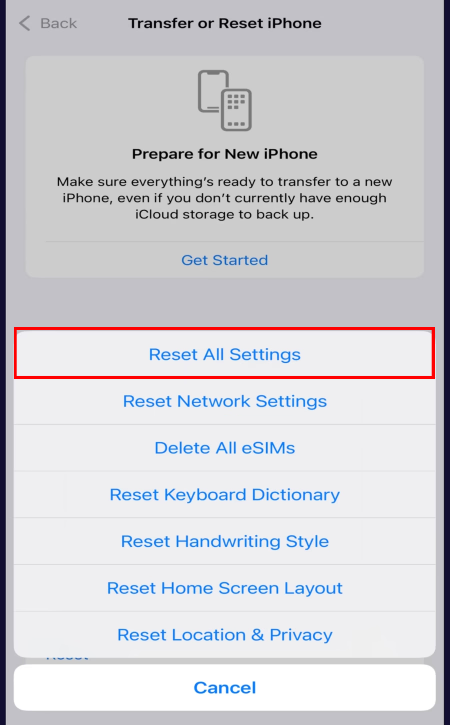
- Reset All Settings: If the software update doesn’t do the job, tap Settings > General > Transfer or Reset iPhone > Reset > Reset All Settings. This preserves your photos, texts, and apps, but wipes system caches, network profiles, and hardware permissions back to factory defaults.
When It’s a Hardware Failure
If you tried all software fixes and your iPhone still shows “Face ID Not Available” or “Unable to activate Face ID on this iPhone,” a physical part of the TrueDepth has failed. You cannot just swap these parts out like an ordinary car battery. Apple cryptographically links each module to the A-series or M-series processor on the logic board using unique security keys stored in the Secure Enclave.
The Flood Illuminator (Top-Side Screen Assembly)
The Flood Illuminator is on the display flex cable next to the ear speaker and ambient light sensor.
- The Cause: Water damage makes this the weakest part of the phone. Sweat from a workout, a damp wipe, or rain can seep through the earpiece mesh and rot the solder joints under the chip. Sloppy screen repairs cause trouble too. If you recently had your screen replaced at an inexperienced repair shop, an improper pry tool can tear this thin cable and cut power to the sensor.
- The Repair: Skilled board technicians can fix this with microsoldering. They desolder the original paired chip off your damaged flex cable, clean any corrosion, and solder it onto a new flex. This brings Face ID back to life without forcing you to buy a replacement phone from Apple.
The Dot Projector (Bottom-Side Logic Board Assembly)
This small optical system fires over 30,000 infrared dots through a crystal prism onto your face.
- The Cause: There’s a built-in safety fuse in the dot projector. Dropping your phone, getting it wet, or touching the glass lens with bare fingers will trip this fuse. Once it does, the part shuts down to protect your eyes from unregulated laser emissions.
- The Repair: Regular repair shops cannot fix this with a basic replacement part. It requires specialized diagnostic hardware like a QianLi or JCID programmer to read the serialized security hash off the blown chip, transfer that data to an aftermarket cable, and carefully realign the micro-prism under a microscope using UV structural epoxy.
If your front camera shows a black screen in the app and Face ID stopped working too, the camera module itself is broken. Replacing this module requires Apple’s Cloud System Configuration (GSX) to pair the new hardware with your logic board. Face ID will stay dead if an independent shop swaps the camera without Apple’s official software.


