







iPhone’s contact list can turn into a graveyard of duplicate entries, old numbers, and people you haven’t talked to in years. When you finally decide to tidy up, deleting contacts one by one can feel like picking up every grain of sand on a beach. Thankfully, iOS offers a few ways to delete multiple iPhone contacts at once. You can use that to remove a handful of names or wipe the slate and reset your full address book. Here’s how to mass delete contacts on iPhone and get your call list back under control.
- How to Delete Multiple Contacts on Your iPhone at Once
- How to Delete a Single Contact on iPhone
- How to Mass Delete iPhone Contacts Using iCloud
- How to Remove Contact Batches by Turning Off Sync
- How to Delete Google Contacts from Your iPhone
- How to Delete Duplicate Contacts on iPhone
- How to Find or Recover Deleted Contacts on iPhone
Also: Why is My iPhone Getting Hot? Reasons & How to Fix Phone Overheating
How to Delete Multiple Contacts on Your iPhone at Once
Apple introduced a native bulk-delete gesture in iOS 16. If your iPhone is on iOS 16 or later (go to Settings > General > About and check Software Version), you can use a simple swipe move to highlight and delete in batches. It’s obviously the best quality-of-life update the Contacts app has seen in years.
- Open the Contacts app (or the Contacts tab inside the Phone app).
- Place two fingers over a contact you want to remove. Press and hold for about a second until the contact highlights.
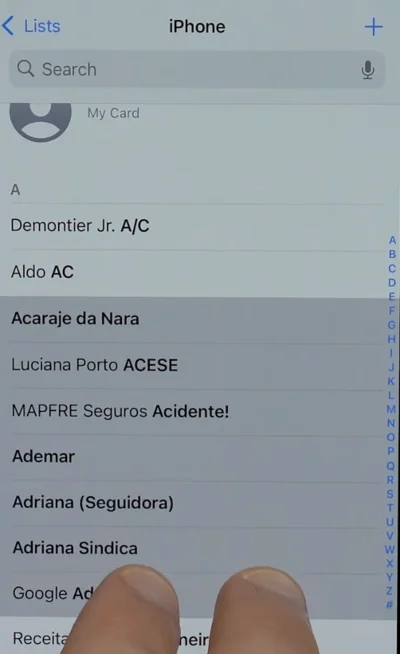
- Keep fingers on the screen and drag up or down. You will see the contacts highlighted in gray as you drag over them.
- Release fingers once you’ve selected the group.
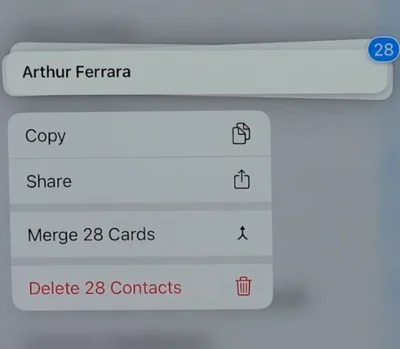
- Long-press anywhere on the highlighted gray block. A menu will open with options for Copy, Share, Merge, and Delete.
- Tap Delete [X] Contacts and confirm.
Note: You don’t have to select a continuous block. Drag to select a few, lift your fingers, scroll down, and use the two-finger drag again to add more to the current selection before you press & hold to delete. You can seperately select as many small groups as you want in one go.
That’s the fastest way to delete numbers directly from an iPhone. It works well for small to medium batches, say 5 to 30 contacts at a time.
Read: What is iPhone Dynamic Island and How to Use It
How to Delete a Single Contact on iPhone
To delete only a contact on your iPhone, you can do it right from the Contacts app:
- Open Contacts or go to the Contacts tab in the Phone app.
- Use the search bar to find the person you want to delete and tap their name.
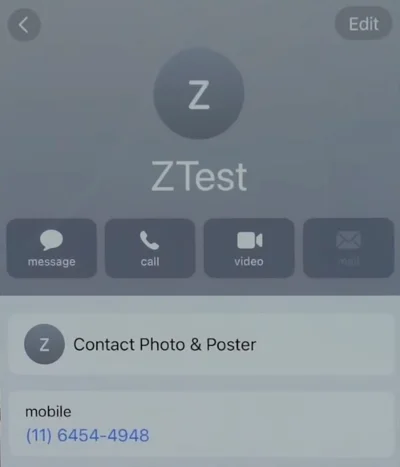
- Tap Edit in the top right corner.
- Scroll to the very bottom and tap Delete Contact (in red).
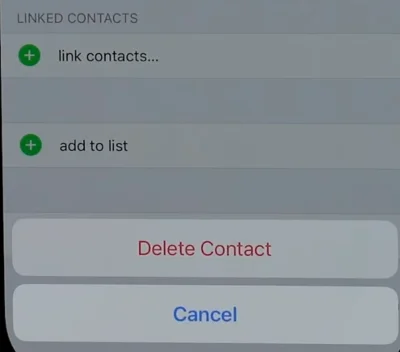
- Tap Delete Contact again in the pop-up to confirm the choice.
To save time, long-press the contact’s name in the list to directly open the menu with the delete option.
If the contact was saved in iCloud, it’ll be removed from your other Apple devices signed into the same account. For contacts synced via Google or another third-party service, you may need to delete them within that specific account to remove them permanently.
How to Mass Delete iPhone Contacts Using iCloud
The two-finger swipe is decent for a dozen contacts, but when you need to delete hundreds of contacts or want more control over address book selections, do yourself a favor and move to a computer. Using iCloud from a desktop browser gives you control of a keyboard and mouse.
- Open a web browser on Mac or PC and log in to iCloud.com with your Apple ID.
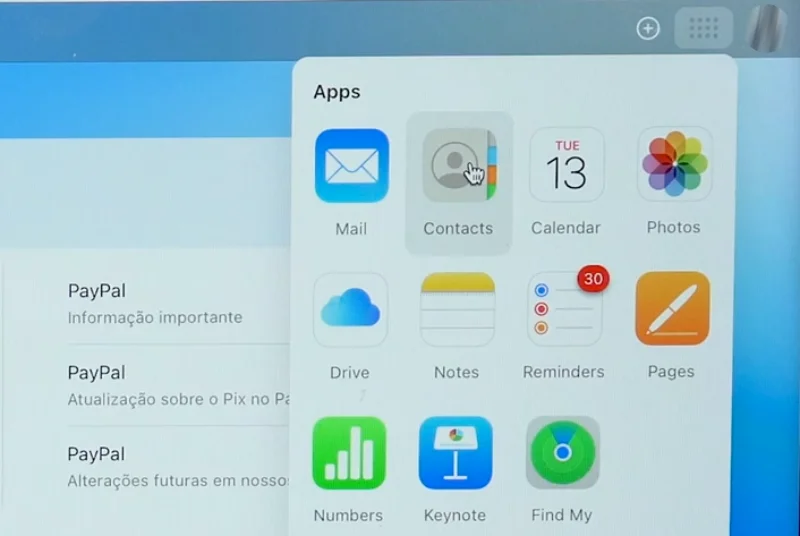
- Click the Contacts web app to view all your synced contacts.
- Select multiple contacts with keyboard shortcuts:
- Hold Command on Mac or Control on Windows and click individual contacts for non-consecutive selections.
- To select a consecutive range, click the first contact, hold Shift, and click the last one to highlight all items in between.
- Press Command+A on Mac or Control+A on PC to select the complete contacts list.
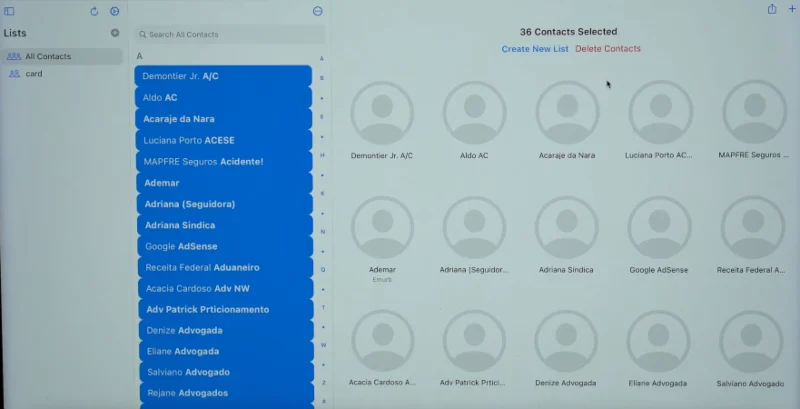 Once all unwanted numbers are highlighted, press Delete or Backspace on your keyboard, or click Delete Contacts.
Changes sync automatically across all devices signed into your iCloud account. Give it a few minutes, and the contacts will disappear from your iPhone, iPad, and Mac.
Read: What Does SOS Only Mean on iPhone and How to Fix It
How to Remove Contact Batches by Turning Off Sync
In case you want to get contacts off your iPhone without permanently deleting them, you can. This happens when people leave a job and want to remove their Exchange or Google work numbers from their personal device.
- Open iPhone’s Settings.
- Tap Apps, then select Contacts.
- Tap Accounts and select the account that has the contacts you want to hide (like Gmail, Outlook, or a work server).
- Turn off the Contacts toggle.
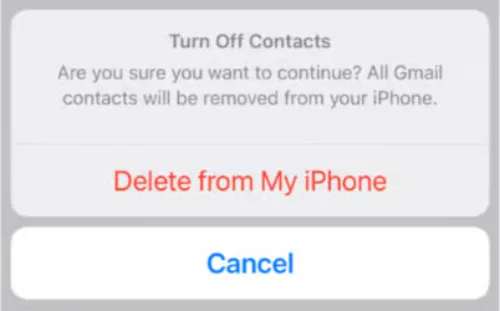
- A prompt will appear at the bottom of the screen. Tap Delete from My iPhone to confirm.
It will only remove the local copy from your iPhone and doesn’t touch the contacts saved in the cloud account. You can always turn the sync back on later to restore them. It’s a simple way to declutter the list without losing any contact.
How to Delete Google Contacts from Your iPhone
If you sync contacts through Google, here’s how to delete them directly from Google Contacts to remove them from your iPhone, iPad, and Gmail account at once:
- Open a browser on your computer and visit contacts.google.com.
- Check the boxes next to contacts you want removed. You can choose individual contacts or click the checkbox at the top to select all.
- Click the Delete icon (trash can) and confirm deletion when prompted.
Deleted contacts move to Google’s trash folder for 30 days before permanent wipe. If Google Contacts synchronization is enabled on your iPhone, the changes will appear automatically whenever it connects to the internet.
Also: How to Unpair or Reset Apple Watch: The Right Way to Do
How to Delete Duplicate Contacts on iPhone
When you’ve imported contacts from multiple accounts, you probably end up with duplicate entries for the same person. Instead of deleting one and manually updating the other, you can merge them this way:
- Open Contacts and tap one of the duplicate entries.
- Tap Edit, then scroll down to Link Contacts.
- Find and select the duplicate card.
- Tap Link to merge them.
Both cards will now appear as one in your All Contacts list.
How to Find or Recover Deleted Contacts on iPhone
If you get too aggressive with mass-deletion and accidentally wipe out someone important, it’s usually reversible. iCloud keeps archived versions of your contact list, so you can restore a previous backup.
- Go to iCloud.com and sign in.
- Scroll to the bottom of the main dashboard page and click Data Recovery.
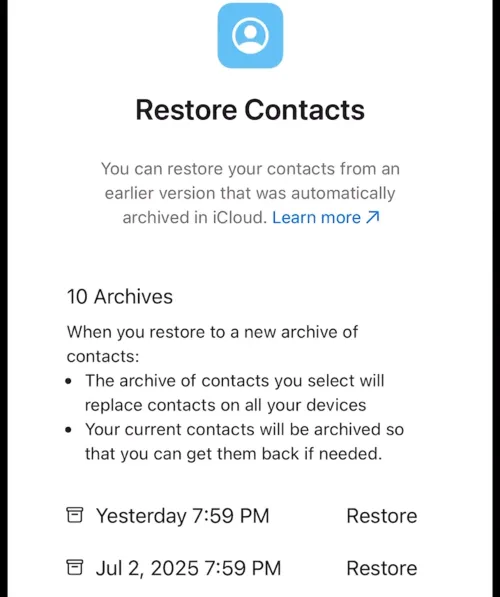
- Choose Restore Contacts. You’ll see a list of archived backups sorted by date and time.
- Find a timestamp from before your deletion spree and click Restore.
After some time, the contacts will reappear across all synced devices. Keep in mind that this will replace the whole current list with the backup address book.
iPhones don’t store contacts locally. Instead, they sync them from accounts like iCloud, Gmail, Outlook, or Exchange. Deleting a contact removes it from the server, so it disappears from every device linked to that account. Since there’s no simple way to undo bulk deletions, you can only restore from a backup whenever you need to recover lost data.