


Wondering why I am not getting notifications on Android? It’s likely because the app doesn’t have permission, Android is muting or hiding the alert, a mode like Do Not Disturb is blocking interruptions, or battery settings are postponing the app.
Start with the section that can fix the exact Android notification problem you’re facing:
- Zero notifications from an app: Check its notification permission, categories, and in-app settings.
- Notifications arrive late: Check battery saving and background restrictions.
- They appear only after unlocking the phone: Check lock-screen settings and battery controls.
- They appear but make no sound or banner: Check notification category behavior, volume, and Do Not Disturb.
- No apps notify you: Check Do Not Disturb/Modes, system notification settings, connection, and software updates.
Android menu names vary by manufacturer and Android version. The core controls are usually found under Settings > Notifications, Settings > Apps, and Settings > Battery. Samsung, Xiaomi, OnePlus, Motorola, and other brands might have their own battery-management options.
Related: How to Stop Apps from Crashing on Android: 16 Quick Fixes
Check If Notifications are Actually Missing
First, swipe down twice from the top of the screen and see both the Alerting and Silent sections; Android may deliver a notification silently with no sound, without a pop‑up or status bar icon.
Also check Notification history:
- Open Settings.
- Tap Notifications.
- Tap Notification history.

- Turn it on if it is available, then review recently dismissed alerts.
Notification history records dismissed and snoozed alerts as well as notifications from the current day, but it cannot retrieve messages an app never sent, and only logs after activation.
If an alert appears in the history, Android received the notification. Troubleshoot display, sound, lock‑screen, or mode settings rather than the app’s Internet connection.
1. Verify the App Has Notification Permission
Android 13 and later require all installed apps to ask a separate runtime permission before they can send notifications. A denied prompt, an accidental tap on “Don’t allow,” or a restored setting can leave the app dead silent.
To check the permission:
- Open Settings > Notifications (or Notifications & status bar) > App notifications.
- Find the app in the list (use the “All apps” filter if it’s not shown under “Most recent“).
- Tap the application.

- Turn on All notifications or Allow notifications.

Alternatively:
- Press and hold the app icon.
- Tap App info.
- Tap Notifications.
- Enable notifications.
On a Galaxy phone, open Settings > Apps > [app name] > Notifications > Allow notifications. The app’s sound, vibration, and pop-up options need to be allowed where available.
Turning on the main notification toggle might not be enough. Many apps split alerts into separate categories, and a single disabled category can block messages, calls, orders, account warnings, or reminders while leaving other notifications intact.
2. Check Notification Categories for the App
Android apps can divide notifications into categories. For example, a messaging app may have separate controls for direct messages, group chats, calls, mentions, backups, and promos, while a shopping app might isolate deliveries from marketing offers.
- Go to Settings > Apps > [app] > Notifications.
- Tap Notification categories, Notification types, or the listed categories.
- Turn on the category for the missing alert.
- Open that category and set it to Alerting, not Silent, when you need a sound, vibration, banner, or lock-screen notice.
On some Android devices, categories appear only after the app has posted at least one notification. On recent Samsung Galaxy phones, the controls can also be hidden until you enable Settings > Notifications > Advanced settings > Manage notification categories for each app.
Enable only the specific category you need—e.g., “Messages,” “Calls,” “Security alerts,” or “Deliveries” and leave ads and recommendations off.
3. Make Silent Notifications Alert You Again
A notification, if set to Silent, appears only in the shade, and there will be no sound, vibration, heads‑up banner, or obvious status‑bar icon.
To make it alert again:
- Let the app post a notification, then swipe down its shade.
- Press and hold that notification.
- Tap Settings or the gear icon.
- Select the relevant category.
- Choose Alerting and, when available, enable Pop on screen, Show as pop‑up, Sound, or Vibrate.
The same page is accessible through Settings > Apps > [app] > Notifications.
Google classifies notifications as Alerting, which can sound and appear on the lock screen, or Silent, which remain visible in the shade without interrupting you.
4. Check Do Not Disturb, Bedtime, Driving, and Other Modes
Do Not Disturb does not necessarily stop notifications from arriving. It often stops their sound, vibration, pop-ups, and lock-screen behavior. New Android versions also use Modes for Bedtime, Driving, and custom routines, which can turn on automatically by time, charging status, calendar event, or driving activity.
Turn off a mode temporarily
- Swipe down twice from the top of the screen.
- Look for Do Not Disturb, Bedtime, Driving, or a custom mode.
- If any of these modes is active, tap to turn it off.
Review the mode’s rules

- Open Settings > Modes or Settings > Notifications > Do Not Disturb (or Digital Wellbeing > Focus Mode).

- Open each active or scheduled mode.
- Check its schedule and automatic triggers.

- Review People, Apps, and Alarms & other interruptions.
- Remove an app from the blocked list, or add it to allowed notifications where appropriate.
Modes can filter notifications by people, apps, and alert type, and can run automatically.
Additional checks:
- If the device has a physical alert slider (used on some OnePlus models), confirm it is not set to the silent or vibrate-only position.
- Confirm Airplane Mode is off: Settings > Network & internet > Airplane mode.
Don’t set every app to bypass Do Not Disturb. Keep overrides for time-sensitive alerts, such as calls from family, medical services, work on-call tools, or security alarms. Otherwise, Do Not Disturb will lose its purpose.
Related: Why Won’t My Phone Charge? 12 Ways to Fix Android Charging Issues
5. Check Lock-Screen Notification Settings
If alerts show in the shade after unlocking but not on the lock screen or as banners, check display behavior settings.
- Go to Settings > Notifications.
- Tap Notifications on lock screen, Lock screen notifications, or On lock screen.
- Ensure it is set to Show alerting and silent notifications, or Show all notification content.
- Toggle on Show sensitive content for message previews on lock display.

Then check the app:
- Open Settings > Apps > [app] > Notifications.
- Open the relevant category.
- Confirm that lock-screen notifications are allowed.
- Review if Sensitive content is hidden.
A phone may be set to show notification icons but hide the content, or hide all silent notifications from the lock screen.
Showing all lock-screen content can expose one-time codes, message previews, banking notices, and private email subjects. The pragmatic compromise: allow notifications while concealing sensitive details.
6. Turn off Battery Saver and Remove Background Restrictions
Battery‑management throttles background activity, so notifications pile up until you open the app. Android limits background processes to save power, particularly for infrequently used apps; that’s why notifications may not work or appear promptly. Adaptive Battery and app battery optimization can also delay alerts in some cases.
On Pixel and close-to-stock Android phones
- Go to Settings > Apps > See all apps > [app].
- Tap App battery usage or Battery.
- Select Unrestricted for the specific app that needs timely alerts.
- Also check Settings > Battery > Battery Saver and turn it off. On Galaxy, tap Settings > Battery > Power saving.
On Samsung Galaxy phones
- Go to Settings > Battery and device care > Battery.
- Tap Background usage limits.

- Open Sleeping apps and Deep sleeping apps.

- Remove the affected app from either list.
- If available, add it to Never auto sleeping apps.
Samsung warns that sleeping and deep sleeping apps may not send notifications when closed.
On Xiaomi phones
Tap Settings > Notifications & Control center > App notifications for notification permission, while battery restrictions are found under Settings > Battery. Xiaomi recommends checking Battery Saver and having a stable connection when notifications are delayed.
Set Unrestricted or remove sleep restrictions only to apps that require immediate alerts like messaging, calendar, security, medical, delivery, and work‑on‑call programs. Extending the setting to every app can increase battery consumption.
Further, follow these steps to check Data Saver and app background data:
- Open Settings > Network & internet > Data Saver.
- Temporarily turn Data Saver off to test.
- If you need Data Saver enabled, open Unrestricted data or Allow app while Data Saver is on.
- Allow the affected app.
- On the app’s App info page, check that background data and mobile data have not been restricted.
Most relevant when alerts fire promptly over Wi‑Fi but lag on mobile data and rarely accounts for a notification issue that happens on both connections.
7. Check Notification Volume, Vibration, and Bluetooth Audio
When notifications do pop up but make no sound, their permission is not the issue. Check the sound settings instead.
- Go to Settings > Sound & vibration > Volume.
- Increase the Notification volume slider.
- Ensure the phone is not in Silent or Vibrate mode.
- Open the affected app’s notification category and confirm a sound is assigned.
- Disconnect Bluetooth earbuds, a car system, or a smartwatch and send a test alert.
Some phones route notification audio to connected Bluetooth devices. Also review manufacturer‑specific accessibility options such as “Mute all sounds,” which can silence alerts.
8. Check the App’s Notification Settings
Android can deliver a notification even when the app’s internal alert type is turned off. It’s most common with:
- Email apps with sync or label-specific notification controls
- Messaging apps with per-chat muting
- Social apps with notification preference pages
- Banking apps that require security alerts in account settings
- Calendar apps with calendar-specific reminder settings
- Delivery, travel, and shopping apps with order-level communication preferences
Open the app and look under Settings, Notifications, Preferences, Account, or Privacy. Verify that the relevant conversation, inbox, calendar, account, or topic is not muted.
If only one person, group, mailbox, or calendar fails to notify you, investigate inside the app. Android wide settings affect the entire app, not a single conversation or account.
Related: How to Fix Slow Android Phone: 16 Ways to Speed Up Device
9. Confirm the Phone Has a Working Internet Connection
Many app alerts are delivered through the internet. A weak Wi‑Fi connection, disabled mobile data, airplane mode, a captive portal, a restrictive VPN, or a network outage can delay them.
Try this quick check:
- Open a browser and load a normal website.
- Turn Wi‑Fi off, then test on mobile data.
- Turn mobile data off, then check on Wi‑Fi.
- Disable Airplane mode if it is active.
- Disconnect VPN, ad-blocking DNS service, or firewall app briefly.
- Ask someone to send a new message or trigger a fresh demo notification.
Do not rely on an old alert already waiting in the app; trigger a new notification after every change.
10. Restart the Phone and Update the App
A restart clears temporary service issues and should be done before more invasive steps.
To restart your Android device:
- Press and hold the power button.
- Select Restart.
Then update both the app and Android OS:
Update the app
- Open the Google Play Store.
- Tap your profile picture.
- Choose Manage apps & device.
- Install the app update for the problematic app.
Check for Android update
- Open Settings.
- Go to System > Software update or System update.
- Install any available update.
- Restart once installation is complete.
Manufacturers periodically release updates to fix notification delivery issues introduced in a prior release.
If the problem persists across all apps after the steps above, a factory reset resolves system‑level faults that individual settings changes cannot address. Back up photos, messages, and app data first, as this step erases all device data, then follow our guide to safely and easily factory reset your Android phone.
11. Clear App Cache
Clear the app’s cache only when the problem is limited to one app and the earlier checks have not helped.
- Open Settings > Apps > See all apps > [app].
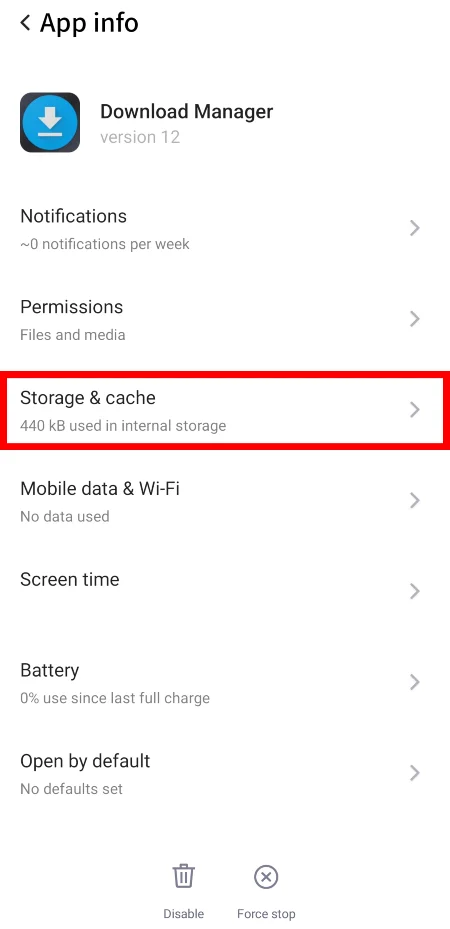
- Tap Storage & cache.
- Tap Clear cache.
- Restart the mobile.
- Open the app, sign in if necessary, and send a new test notification.

Clearing cache deletes temporary files. It is different from Clear storage or Clear data, which can erase the app’s local settings, downloaded content, and sign-in state.
Do not clear storage for an authenticator, encrypted messaging, banking, password-manager, or offline-work app until you know how to restore access and local data. Clear cache first.
12. Reset App Preferences (Later Step)
When many apps have broken notification behavior and individual settings seem to be fine, resetting app preferences can restore certain disabled defaults.
The menu is generally found at:
- Access this option via Settings > Apps > See all apps > three-dot menu > Reset app preferences or Settings > System > Reset options (or Apps > three-dot menu) > Reset app preferences

Read the confirmation screen carefully before accepting it. Android skins differ, and this reset can affect app-level defaults and permissions behavior.
Try this solution only after you have verified notification permissions, categories, Modes, lock‑screen rules, battery restrictions, and updates. It should not be the first repair attempt.
13. When the Problem is Likely with the App, Not Your Phone
The phone is less likely to be at fault when:
- Notifications fail for a single app even though all Android settings are enabled.
- Others report the same issue with that app.
- The app displays content only after you open it, even on a second device.
- The service behind the app is experiencing an outage or an account problem.
- Alerts stop after you change a password, sign out, switch profiles, or add a new device.
Visit the developer’s support or status page. If the application works for other alerts but not for a certain account, conversation, or feature, contact its support team and provide them with the phone model, Android version, app version, time of the missed alert, and screenshots of the relevant notification settings.
Related: How to Fix Android Phone Battery Draining Fast
How We Tested
This guide was compiled and verified by our Android editorial team, where we simulated notification failures by inducing Doze mode, enabling aggressive battery savers, and manipulating app-specific notification channels. Each troubleshooting step was executed and confirmed to restore push notifications across messaging, email, and calendar applications.
We editorially reviewed the instructions against current official Android, Android Open Source Project, Google Pixel, Samsung, and Xiaomi support documentation.
The settings menu paths cover current Android behavior, including Android 13’s notification permission requirement and newer Android Modes controls. Exact wording and placement vary by Android version, region, carrier build, and phone maker.
Frequently Asked Questions
Why do notifications arrive only when I open the app?
That pattern usually points to background battery restrictions, a sleeping app list, Battery Saver, or an unstable network connection. Set the affected app to unrestricted battery use where appropriate, remove it from sleeping/deep sleeping lists, then test with a new message while the app remains closed.
Why is there no notification dot on an app icon?
Notification dots are controlled separately from app notifications on many Android phones. Open Settings > Notifications and look for Notification dot on app icon, App icon badges, or Notification badges. Then confirm dots are also allowed for the app.
Do Android notifications work while the phone is turned off?
No. A powered-off smartphone cannot receive and display a live notification. Once it restarts and reconnects to Wi‑Fi or mobile data, supported apps can sync and may deliver pending alerts.
Why do I get notifications on my smartwatch but not on my phone?
Check the phone’s notification shade and lock-screen settings first. Some watch companion applications can mirror, dismiss, or change phone alerts. Also review the wearable app’s notification settings and disconnect the watch briefly to confirm if the mobile starts to display alerts normally.
Why are Android Auto text message notifications not showing?
Android Auto requires explicit, separate permission to read and announce messages. Go to Settings > Connected devices > Android Auto, and make sure both “Show message notifications” and “Read messages aloud” are actively enabled.
Sources
- Google Android Help: Control notifications on Android
- Google Android Help: Modes and Do Not Disturb
- Android Open Source Project: Notification permission on Android 13+
- Google Pixel Help: Adaptive Battery and battery optimization
- Google Android Help: Fix an installed app that is not working
- Samsung Support: Apps not sending notifications
- Samsung Support: Notifications not showing or no sound on Galaxy
- Xiaomi Support: Cannot receive notifications on Xiaomi 13 Pro
Did this fix your issue?
Let us know. Your feedback helps other readers find the right solution.
Great! What solved it for you?
We read every response. Email is optional and never shared.
Sorry to hear that. What happened?
Leave your email and we will personally help you fix it.