


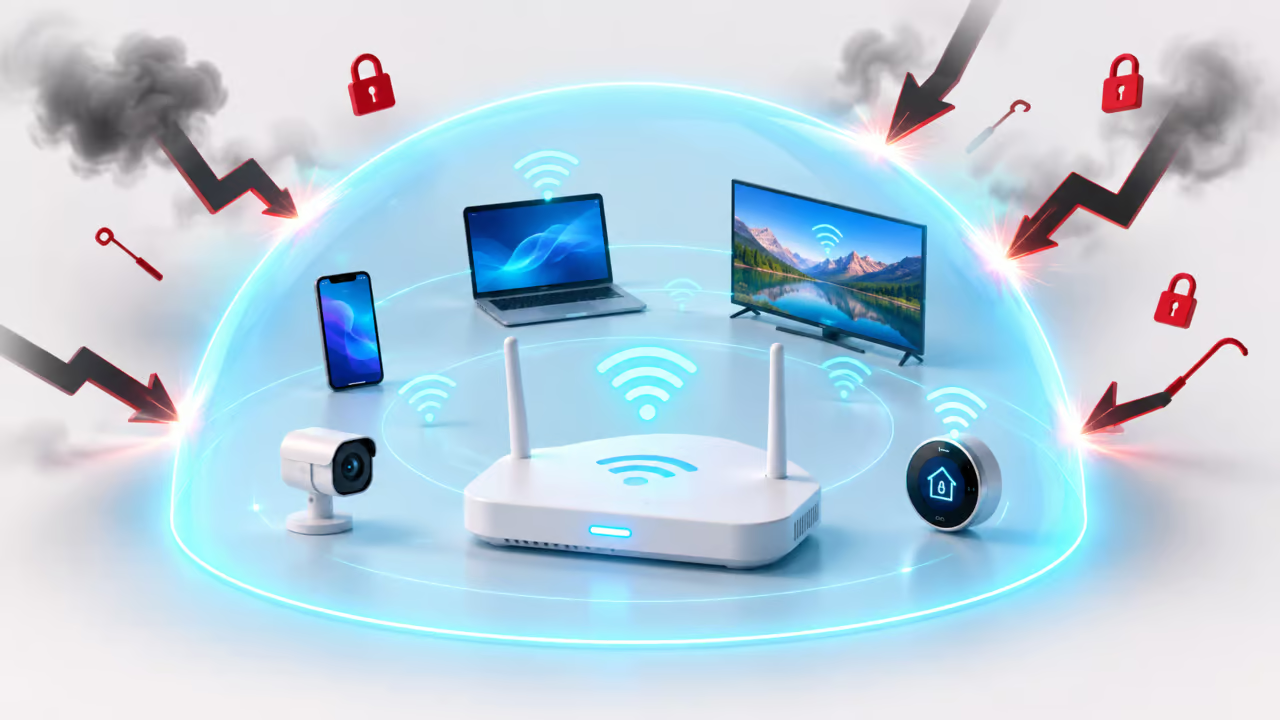

Modern home routers connect far more devices than phones and laptops. Smart TVs, security cameras, thermostats, speakers, and gaming consoles all share the same wireless airwaves. If your Wi-Fi network is unsecured or misconfigured, hackers will have an easy route to snoop on your traffic, hijack your smart home devices, spread malware across linked computers, and drain internet bandwidth.
Securing your wireless router only takes about half an hour and blocks the most common entry points attackers use against residential networks. You can keep your home internet safe without hurting your streaming, gaming, or remote work by making a few smart tweaks.
Why Securing Your Home Wi-Fi is Important
Leaving a wireless router on factory defaults exposes your network to neighborhood snoopers and automated attacks. Anyone within range can latch onto an open or weakly encrypted connection, which slows down your internet speed, chews through your monthly data caps, and can route illegal web traffic directly to your IP address. Even worse, lazy security lets opportunistic hackers sniff out your passwords, browser history, personal files, and whatever else you send through the air.
Modern smart homes multiply the blast radius. Once a compromised smart bulb, unpatched TV, or unauthorized visitor gets into your primary local network (LAN), malware can scan for vulnerable computers, network-attached storage (NAS) drives, and wireless printers. Internet provider gateways bring their own headaches too, since many force open remote access channels, broadcast public hotspots from your hardware, or run Wi-Fi motion tracking without transparent user control.
Evaluate Router Hardware and Physical Placement
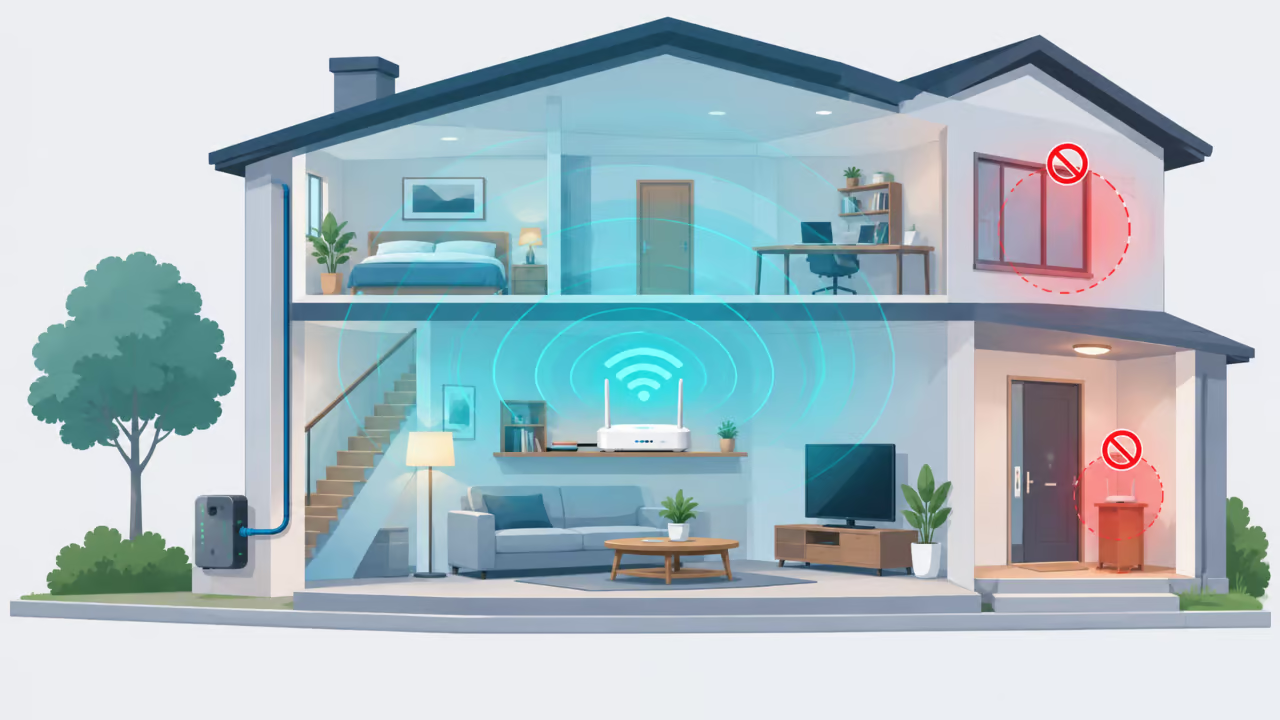
Before adjusting software menus, check the router and how it’s placed in your home. ISP-supplied combo units often strip out granular security features, lag behind on security patches, and keep administrative backdoors open for customer support tools. Buying your own hardware—a standalone router for apartments and single-story homes, or a mesh networking kit for multi-floor houses with plaster, brick, or concrete walls—gives you complete control over firmware, DNS, and network isolation and also removes monthly equipment rental fees. Place the ISP modem in bridge mode, or plug your personal router straight into the optical network terminal.
Before you change major settings, log into your router’s admin panel and export a backup config file so you always have a working baseline to restore if something goes sideways. Changing your network name, password, or encryption standard will disconnect all devices, so you’ll need to forget the old network profile and rejoin with the new login details.
Physical placement matters just as much as software configurations. Keep your router in a secure area inside your living space rather than shared hallways, windows, or common spots. If someone physically touches the unit, they can press the recessed factory-reset pinhole, wipe your manual setup, and read the default login sticker printed on the underside.
Change Router’s Admin Username and Password
Homeowners frequently mistake the Wi-Fi password for the router’s administrator password. Your Wi-Fi key lets phones and laptops join the wireless signal; the admin account controls the router’s firewall, DNS servers, encryption standards, and connected device list. Because manufacturers print default admin logins on unit labels and publish them in public manuals, attackers and malware almost always try default credentials first to breach into settings.
Follow these steps to secure your management portal:
- Open a browser on a connected device and enter your router’s local IP address (typically printed on the device, like 192.168.1.1 or 192.168.0.1), or open the manufacturer’s management app.
- Sign in with the existing default username and password.
- Go to the System, Administration, or Account Management menu.
- Change the default username if the settings allow it, then set a long, unique admin password completely different from your Wi-Fi password.
- Save your new credentials in a password manager so you don’t get restricted and have to factory reset the device later.
Enable WPA3 or WPA2 AES Encryption
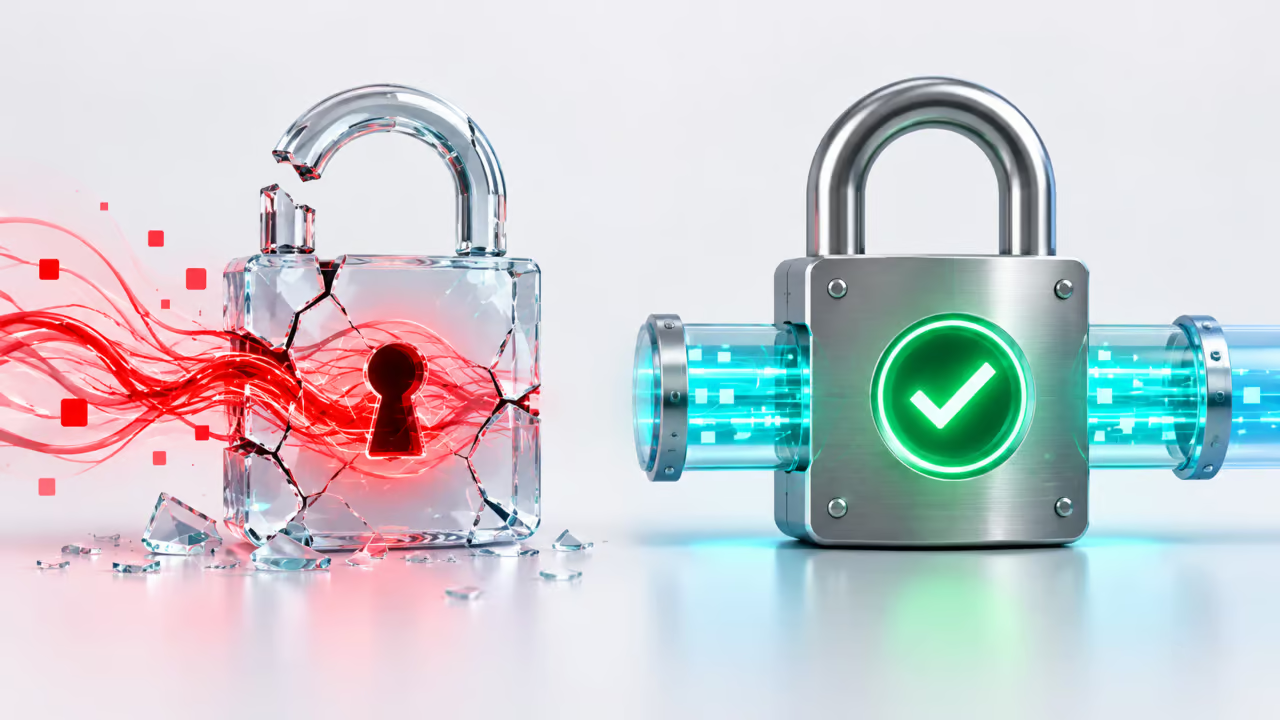
Wireless encryption scrambles every packet traveling between your devices and router. Outdated protocols use broken cryptography that normal laptops can crack in minutes. Inside your router’s Wireless Security settings, pick the highest standard your household gadget supports:
- WPA3 Personal: This is the best residential choice because it stops offline password cracking and encrypts traffic individually per device. All Wi-Fi 6E and Wi-Fi 7 hardware supports WPA3, alongside most Wi-Fi 6 devices.
- WPA2/WPA3 Transitional: A practical mixed mode for households with a mix of new phones and older smart home gadgets. Modern devices connect over WPA3 Personal while legacy hardware falls back to WPA2 Personal (AES).
- WPA2 Personal (AES): The bare minimum acceptable standard when your router lacks WPA3 support. Make sure the cipher or encryption type is set to AES rather than mixed encryption.
Avoid WEP, WPA, any mode containing TKIP, and Open/Unsecured networks. Deprecated encryption triggers weak security warnings on Windows, macOS, and iOS, throttles modern Wi-Fi speeds, and leaves browsing activity exposed. Routers too old to offer WPA2 AES or WPA3 have reached the end of their useful security life and need replacement. For advanced home lab users running a local RADIUS authentication server such as FreeRADIUS on a Raspberry Pi, WPA3-Enterprise provides logins for each person instead of one shared passphrase.
Create a Strong Wi-Fi Password
Strong encryption still relies on an unguessable pre-shared key. Since devices save the Wi-Fi password after the initial login, prioritizing length over short convenience costs you almost nothing.
Set a password between 16 and 20+ characters long (wireless standards support up to 63 characters). The easiest way to get high entropy is a passphrase using 5 to 7 random words mixed with hyphens, random capital letters, numbers, and symbols—something along the lines of velvet4-Anchor-kettle9-Orbit-plume—or a random string generated by a password manager. Keep family names, street addresses, birthdays, pet names, and phone numbers out of the key, and never reuse this secret Wi-Fi key on email, banking, or router admin accounts. Last but not least, only share the password with family members or close relatives/friends when they visit your home and need internet.
Customize Your Network Name (SSID)
The Service Set Identifier (SSID) is the public name your router broadcasts to nearby devices. If you keep the factory name like linksys, NETGEAR84, TP-Link_8B07, or an ISP-branded name, you give attackers easy clues about your router’s make and model so they can target hardware-specific flaws. Common default names also appear in precomputed “rainbow tables,” massive databases of pre-hashed passwords that speed up cracking attempts against popular SSIDs.
Change your Wi-Fi name to something unique and completely unrelated to your identity. Never put your last name, apartment number, or street address in the broadcast name. When configuring dual-band or tri-band routers, use the exact same case-sensitive SSID and password across 2.4 GHz, 5 GHz, and 6 GHz bands (often managed automatically by a “Smart Connect” feature). Splitting bands into separate names interferes with seamless band steering, causes connection drops as you walk around the house, and triggers limited-compatibility alerts on Apple and Wi-Fi 6E devices.
Segregate Guests and Smart Devices
Flat home networks put every connected gadget on equal footing. A cheap smart plug with outdated firmware or a friend’s malware-infected laptop shares the same subnet as your work computer and personal backups. Splitting up your traffic keeps a single hacked endpoint from getting to everything else in home.
Turn on your router’s Guest Network feature with a separate SSID and unique password for visitors. Inside guest settings, enable Client Isolation (sometimes labeled “Disable guests from seeing each other” or “Block access to local network/file sharing”) so guests can access the internet without seeing your home PCs or printers. Rotate this guest password every few months if you host people often.
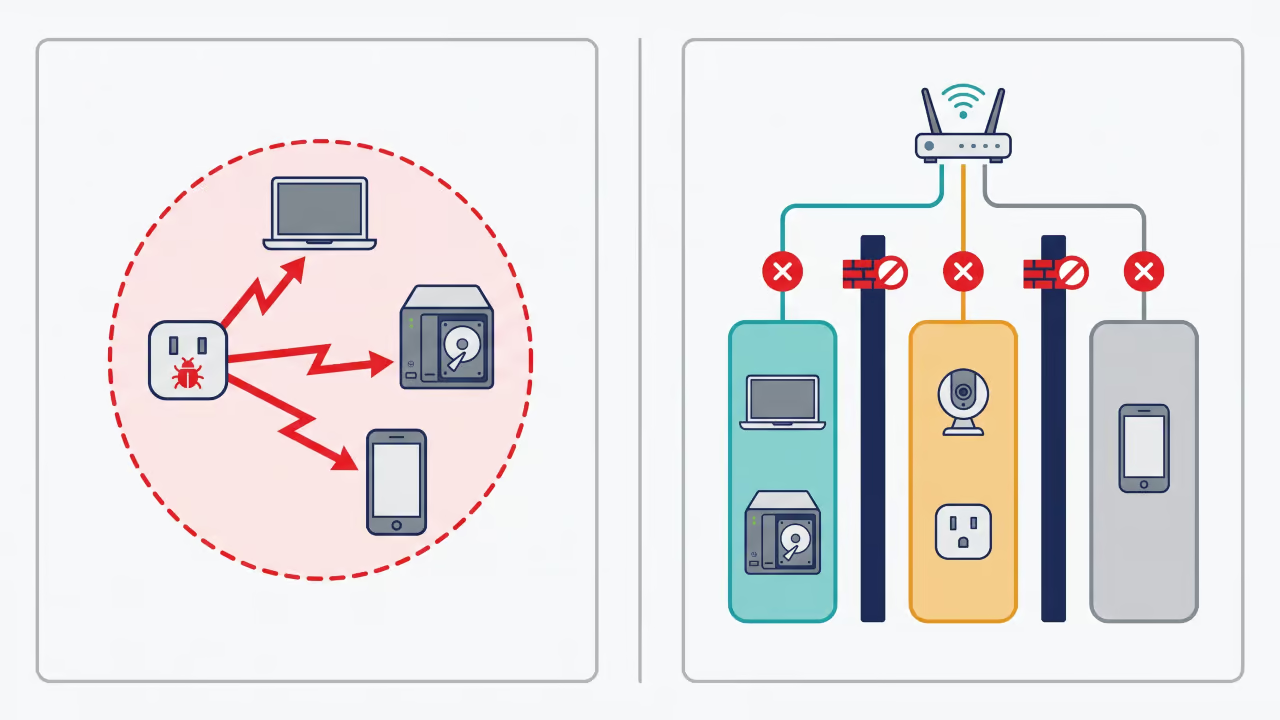
Smart home and Internet of Things (IoT) gear, including cameras, TVs, voice assistants, thermostats, and plugs, deserve the exact separation. High-end routers and mesh systems have a dedicated IoT Network or VLAN option that lets these gadgets reach the cloud while blocking local access to your main network. If your router lacks this option, connect cloud-only smart gadgets directly to the isolated Guest network instead. Company-issued work notebooks also belong on a separate guest or work VLAN to keep corporate traffic away from personal devices.
Disable Remote Management, WPS, and UPnP
Routers ship with many convenience features that secretly expand your attack surface. Turning off three specific settings eliminates major security holes.
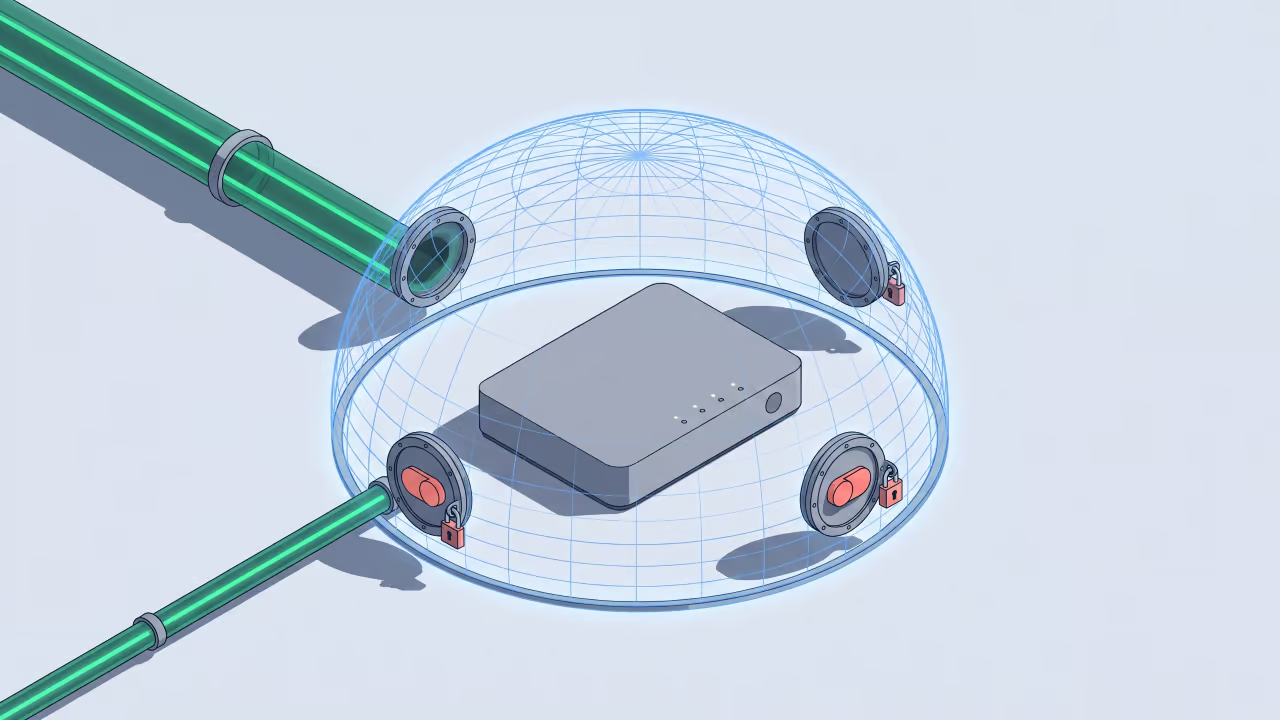
Remote Management (WAN Access)
Remote management exposes your router’s admin login page to the internet so you can change settings from anywhere. That opens you up to automated bots trying to guess your login and old firmware bugs. Turn it off so configuration changes can only be made over a wired Ethernet connection or trusted local Wi-Fi. Vendor cloud-app management works differently from open WAN admin ports, though turning off unneeded cloud features further shrinks your exposure to cybercriminals.
Wi-Fi Protected Setup (WPS)
WPS was designed to pair printers and phones via a push-button or an 8-digit PIN without a password. The PIN validation protocol has deep flaws that let hackers brute-force your main password very fast, even if you have a long 20-character passphrase. So, turn WPS completely off in your wireless settings.
UPnP, NAT-PMP, and Port Forwarding
Universal Plug and Play (UPnP), along with Apple’s NAT-PMP and PCP equivalents, lets apps and smart home devices automatically punch open incoming port-forwarding rules in your firewall without asking permission. Malware exploits UPnP to expose infected computers to remote control. Disable all automatic port features like UPnP, NAT-PMP, and PCP, and avoid manual port forwarding whenever possible. If you need access to home files or self-hosted servers while away, use a WireGuard VPN server or a mesh overlay network like Tailscale rather than leaving firewall ports open.
Keep Router Firmware Updated
Router vendors regularly release firmware patches to fix dangerous security holes like privilege escalation, chip bugs, and remote code execution. If you leave your consumer router unpatched, botnets can easily hijack it to spy on traffic or mount denial-of-service attacks.
Check your router’s Firmware Upgrade menu and enable automatic updates whenever the hardware supports them. Routers without auto-update options need manual checkups every three to six months and a subscription to the manufacturer’s security bulletin. Because models usually receive updates for only three to five years, replace routers after the company ends official support.
Configure Firewall, DNS, and Core Network Settings
A few background routing and wireless adjustments tighten privacy and prevent baffling connectivity drops. First, confirm your router’s built-in Stateful Packet Inspection (SPI) firewall is switched on. Home network users who want deep traffic inspection and threat detection can place a dedicated firewall appliance managed by OPNsense or pfSense ahead of commercial access points like UniFi or TP-Link Omada.
Second, you need to ditch your internet provider’s unencrypted DNS, which lets the ISP log every domain visited in your home. Switch your router’s primary and secondary DNS addresses to privacy-first and security-filtering resolvers like Cloudflare (1.1.1.1) or Quad9 (9.9.9.9) to automatically block malware and phishing sites. Enable DNS over HTTPS or DNS over TLS in your settings so outsiders cannot eavesdrop on or tamper with your lookups. If you’re a power user and handy with the tech, you can alternatively run Pi-hole or AdGuard Home on a Raspberry Pi for network-wide tracker and ad filtering.
Review these core network and radio settings at the same time:
- Single DHCP and NAT Source: Keep DHCP and NAT (Network Address Translation) enabled just on your main router. Running them on both the ISP modem and personal router causes IP conflicts and Double NAT errors that mess up VPNs and video calls.
- DHCP Lease Time: Set lease duration to 8 hours for home networks and 1 hour for guest connections so the router can quickly reclaim unused IPs after visitors leave.
- Channel and Channel Width: Leave Channel selection on Auto, set the congested 2.4 GHz band’s Channel Width to 20 MHz to cut interference from neighbors and Bluetooth devices, and set 5 GHz and 6 GHz widths to Auto or all widths for full speed.
- Radio Modes and WMM: Leave Radio Mode set to All and keep WMM (Wi-Fi Multimedia) turned on so modern devices can connect reliably at peak performance without legacy degradation.
Skip Security Theater: Hidden SSIDs and MAC Filtering
Old networking advice still tells people to hide their Wi-Fi name and whitelist device MAC addresses. Security experts and device makers discourage both because they result in endless maintenance headaches and fail to stop attackers.
Disabling SSID broadcasting only hides your network name from casual device menus; cheap wireless scanners reveal hidden networks immediately. Your phone and laptop must consistently broadcast your hidden network name through probe requests wherever you go. That behavior leaks personal info, opens the door to evil twin spoofing attacks, triggers privacy warnings on Apple devices, and often breaks smart home setup apps.
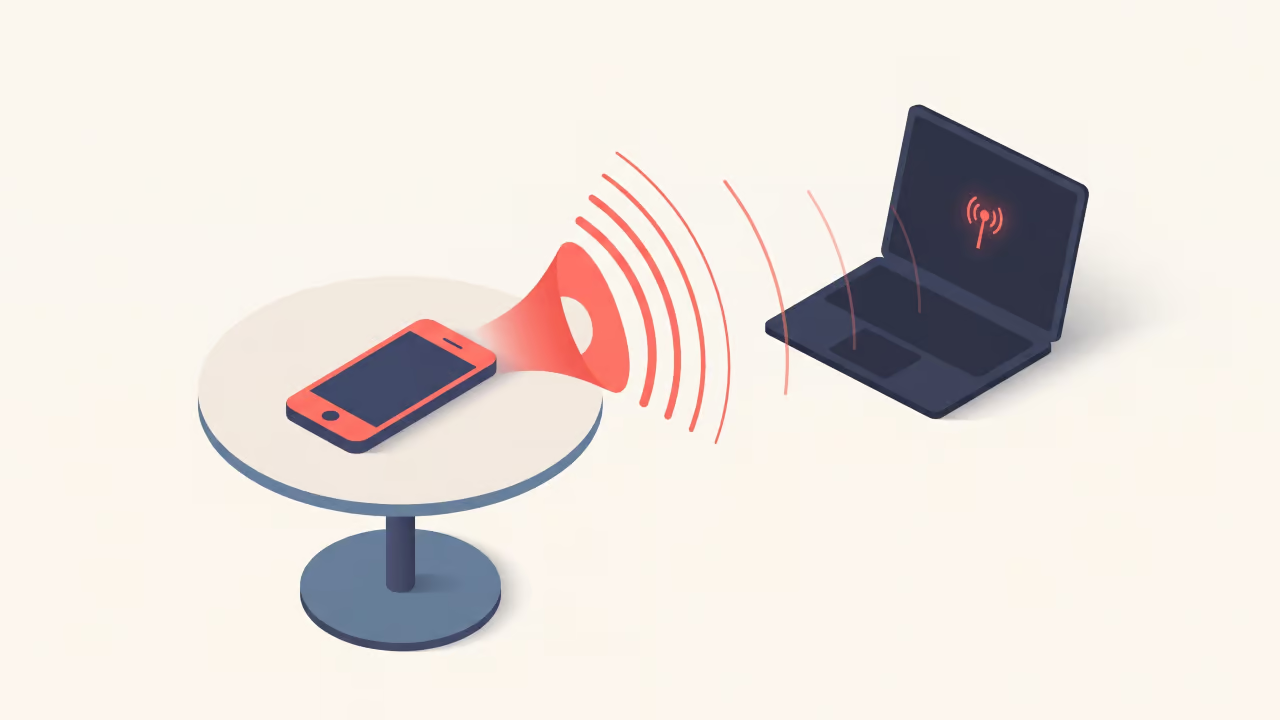
MAC filtering fails for the same reasons. Every device broadcasts its MAC address in plain text (or unencrypted) over the air. Anyone can sniff an approved address and spoof that hardware ID on their own laptop in under a minute. Managing an allowlist turns into a chore every time you buy new hardware or have guests over. Modern phones randomize their MAC addresses by default for every network, which means your static allowlist will just end up blocking your own household devices. Strong WPA2 or WPA3 encryption renders both of these outdated tricks completely useless.
Lock Down Client Devices and Connected Gadgets
Securing your router protects the perimeter, while good device hygiene keeps individual endpoints safe. Open the router’s connected device list every few weeks to audit active hardware. If you spot anything unfamiliar, block or disconnect it right away, then change your Wi-Fi password, and force disconnect current sessions, so unauthorized clients cannot sneak back in.
On phones, tablets, and laptops, turn on Private Wi-Fi Address for every wireless profile to prevent cross-network tracking, and leave Location Services enabled for Wi-Fi networking so devices follow local signal and channel regulations. Disable Auto-Join for public carrier hotspots in your phone settings to protect your cellular identity from fake networks. On Windows PCs, turn off file and printer sharing as well as Remote Desktop on untrusted public networks.
Treat every smart home appliance like a small computer. Change weak factory passwords on IP cameras, smart hubs, and NAS boxes immediately, install vendor firmware patches promptly, and turn off unused local ports or services. When you travel and rely on hotel or coffee shop Wi-Fi, route your traffic through a trusted VPN or set up a VPN directly on your home router. If you leave town for a long trip, power down your Wi-Fi radios or unplug the router to shut down remote access while nobody is home.