- Why You Should Regularly Install Windows Updates?
- Things to Do First Before You Update Windows
- How to Check for and Install Windows Updates
- Security Updates vs. Feature Updates
- Update in The Right Order
- Use Active Hours
- Schedule a Restart Time
- If Space is Tight
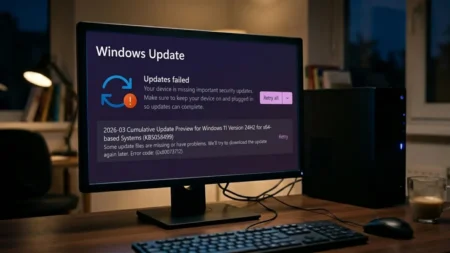
- If Update Fails
- What to Do After the Update?
- When to Pause Windows Update and Should You?
- Frequently Asked Questions
- How long should a typical Windows Update take?
- What is the difference between a quality patch and a feature release?
- Do I need to update drivers separately from Windows Update?
- Do Windows updates slow down your PC permanently?
- Can I update Windows without a Microsoft account?
- What does it mean when an update is stuck at 0% or a specific percentage?
Windows updates have a reputation, and not always a good one. You click “update”, the screen goes black, the spinning dots freeze, then the PC hangs. Your heart sinks. We all know the terror of a botched OS installation. One month, Microsoft patches an ugly zero-day, and the next it breaks your printer, freezes the taskbar, or sends your Windows PC into a boot loop. Both things are true at the same time. That’s why “click update and hope” is not a good plan. Here’s the proper and safest way to update Windows and keep your system smooth and secure.
Why You Should Regularly Install Windows Updates?
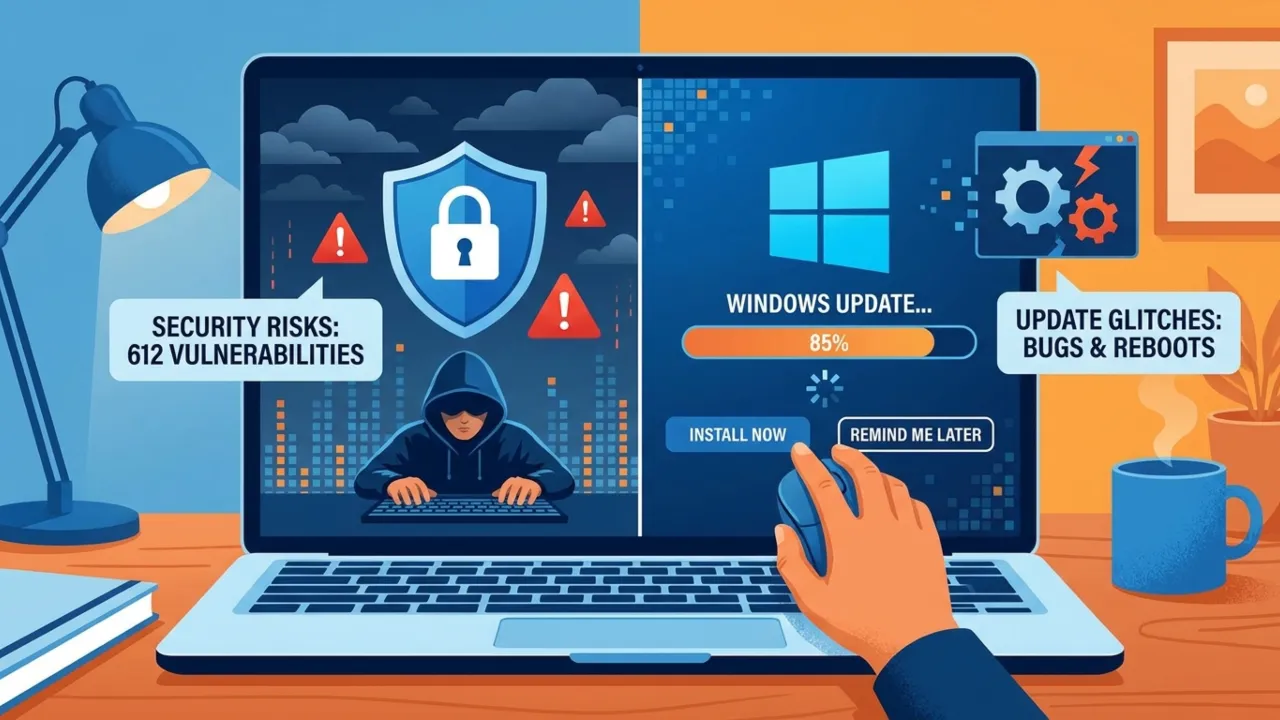
Skipping Windows updates is very dangerous. According to BeyondTrust’s 2026 Microsoft Vulnerabilities Report, 612 Windows vulnerabilities were published in 2025, of which 36 were declared critical. In other words, the Windows operating system experienced a record number of documented security vulnerabilities throughout 2025, more than in previous years.
Attackers do not wait. As soon as a patch goes public, reverse engineers pick it apart to see which hole it plugs, then write exploits for the machines that still haven’t updated. That said, Microsoft has also had a rough run of bad updates. In 2025 alone, Windows 11 released updates that got stuck at random percentages during install, broke Windows Hello facial recognition on Lenovo laptops, made File Explorer toolbar buttons unclickable, and even caused random reboots mid-session on some systems.
Also: How to Disable Driver Signature Enforcement (DSE) in Windows 11
Update regularly but not instantly. If you wait 1-2 weeks after a Patch Tuesday release, it lets Microsoft catch and fix the worst rollout bugs before they install on your machine. It’s what experienced IT admins normally do.
Things to Do First Before You Update Windows
First and most important, back up all data and files you can’t afford to lose. You do not need to save the whole system every time (though that’s not a bad idea). At minimum, make sure your documents, photos, and anything irreplaceable are copied somewhere safe. Microsoft also recommends having adequate free storage before updates, as feature and quality updates require temporary working space. Updating a nearly full drive risks failure.
These are the necessary things you should do before proceeding with Windows Update:
- Save your work and close open apps.
- Plug in a laptop. Battery power is too unpredictable, and the system will automatically block the setup process when the charge drops below 40%.
- Back up important files to OneDrive, an external drive, or another trusted backup.
- Free up at least 30GB of space if the system is low on storage. If you’re under 25GB free storage, clean up first. Right-click the C: drive, choose Disk Cleanup, then click “Clean up system files” to delete the hidden items.
- Type Create a restore point in the Windows search bar, open it, and click Create. Takes about two minutes, and what you get is a rollback point inside Windows, which means if something goes sideways during the update, you can revert the system to the previous working state.
- Use a stable internet connection, preferably not public Wi-Fi.
Considering what to back up, these are the most important files almost all computer users have to keep:
- Documents, Desktop, Downloads folders
- Browser bookmarks and saved passwords
- Custom application settings (especially for Adobe, AutoCAD, and development environments)
- Product keys for licensed software
File History is Windows’ built-in, local backup tool that creates incremental, time-stamped copies of personal files, including Documents, Pictures, Videos, and the Desktop, to an external drive or a network location. The feature runs hourly by default and allows you to restore earlier versions of files after accidental deletion, unwanted edits, or corruption.
To set it up, connect an external drive, open Control Panel, go to System and Security, then File History, and click Turn on. Advanced settings in the sidebar let you change how often backups run, including every 15 minutes, and how long Windows keeps saved versions. To restore files, type Restore your files with File History in the search bar and click it, then browse and recover old copies. You can keep folders out of File History by selecting Exclude folders and choosing what Windows should skip.
Windows updates are safest when installed while the PC is idle, powered on, and connected. Microsoft recommends scheduled restarts, active hours, and keeping the device attached to the adapter so the update completes properly.
How to Check for and Install Windows Updates
On Windows 11:
- Open Settings from the Start menu, then select Windows Update in the left sidebar.
- Click Check for updates. Windows will contact Microsoft’s servers and scan for new updates.
- If updates are available, review what’s listed. Security updates (labeled with KB numbers, like KB5034441) should be installed promptly. Feature updates (major version changes like 23H2 or 24H2) can be deferred for a few weeks.
- Click Download & install for the updates you plan to install right away, and let the download finish before running intensive tasks.
- When asked to restart, save all open work first, then restart the computer. Don’t blow it off; lots of updates need a Windows reboot to complete.
On Windows 10:
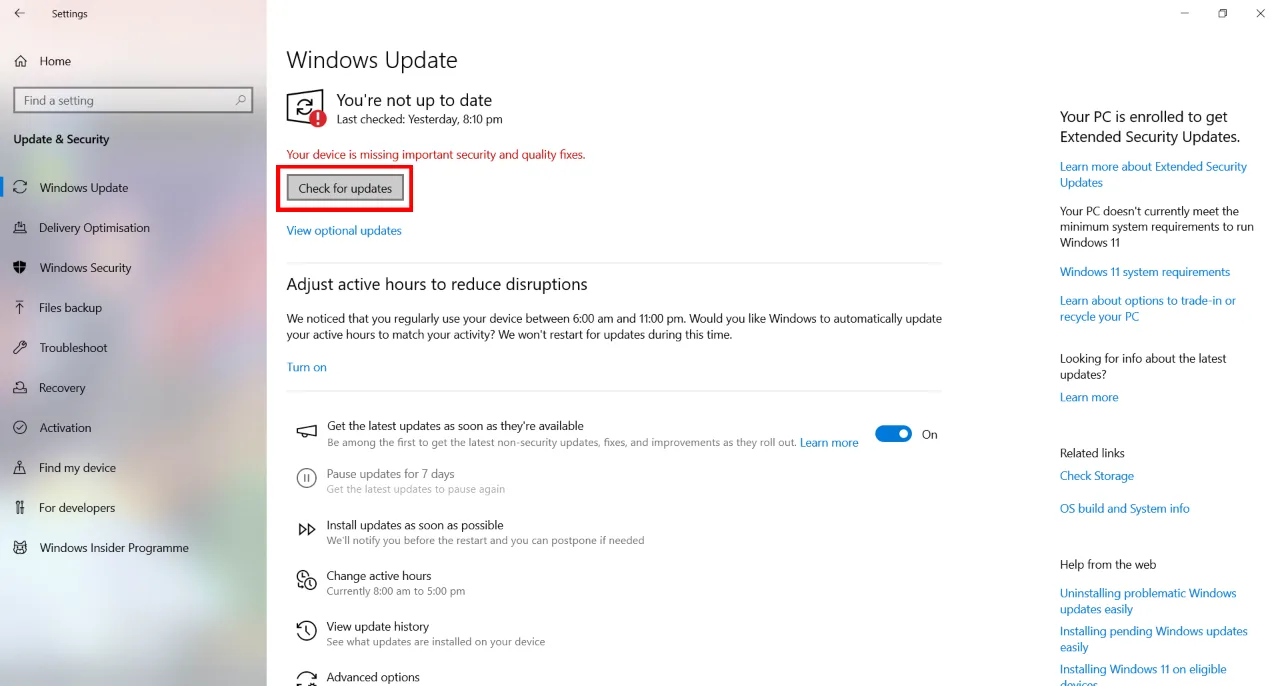
- Go to Start > Settings > Update & Security > Windows Update.
- Click Check for updates and wait for the scan to complete.
- Install available updates. If a restart is needed, do it if you can or schedule it for a time when the system will be free.
Microsoft ended support for Windows 10 on October 14, 2025, and the company no longer provides free updates to Windows 10 PCs. So any system still on it should upgrade to Windows 11 or move to another supported option as soon as possible.
Security Updates vs. Feature Updates
| Update Type | What It Does | How Fast to Install |
|---|---|---|
| Security/Cumulative | Patches vulnerabilities, bug fixes, and stability improvements. | Within 1–2 weeks of release |
| Optional | Driver updates, non-critical fixes — you choose. | When stable, can wait longer |
| Feature (version upgrade) | Major OS changes, including new UI, new behaviors, and compatibility shifts. | Wait 4–6 weeks, check for issues first |
Microsoft releases security patches on the second Tuesday of every month, known as Patch Tuesday. The week after it often brings clear reporting on whether a certain patch is triggering widespread failures. That can guide a decision to install the update immediately or wait.
Also: How to Remove Chat from Taskbar in Windows 11
Update in The Right Order
There’s a reason seasoned admins do not treat every update the same way. Security and quality releases keep the system patched and arrive more frequently, while feature updates are larger and should be dealt with carefully, as they modify more of the operating system.
Follow this recommended order to download them:
- Install the latest security and quality updates.
- Reboot and confirm the system is stable.
- Only then consider downloading large feature updates or optional changes.
If PC is your work machine, update it when you have a buffer, not right before a deadline. When’s the best time? When you can afford a restart and still test the essential apps afterward.
Use Active Hours
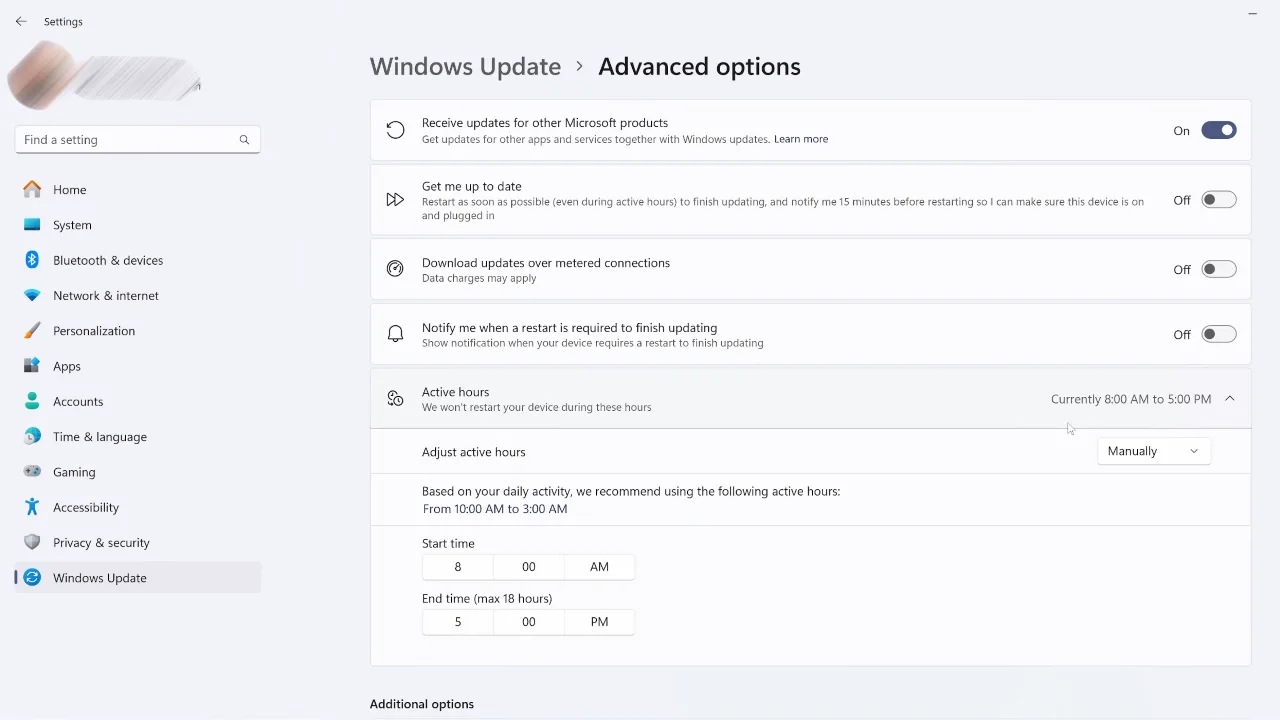
Active Hours tells Windows not to restart for updates during the time window you specify. On Windows 11, go to Settings > Windows Update > Advanced options > Active hours. On Windows 10, click Settings > Update & Security > Windows Update > Change active hours.
If you work irregular hours, choose “Adjust active hours automatically based on activity.” Although the updates process in the background without disruption, an unprompted reboot will erase unsaved data, sever active downloads, and close open meeting presentations.
Schedule a Restart Time
Windows lets you schedule pending-update restarts for a specific time rather than leaving the decision to the operating system. Choose a period when the computer or laptop will be idle, late evening or early morning are the better times to set the schedule restart.
GOOD HABIT
Do a manual check for updates and install them on a regular, predictable schedule like the first weekend of each month. This puts you in control of when Windows should update rather than letting it choose the worst moment.
If Space is Tight
Insufficient hard drive space causes most Windows update failures. Microsoft advises users to clear storage or connect an external drive before initiating new software downloads.
Starting a major installation on a computer with a full drive triggers failed installations and rollback loops.
To clear space, delete temporary files and uninstall dormant applications. You can move personal media to OneDrive, a USB flash, or a separate physical disk. Reboot the PC once after clearing the drive, then try the update again.
If Update Fails
Sometimes the cure is worse than the disease. If you install an update and something stops working, such as audio disappears, an app crashes, or the display driver is broken, don’t panic. You have a few ways to fix it. Learn our detailed guide on how to fix Windows Update errors to restore system functionality and resolve faulty software updates.
THE 10-DAY ROLLBACK WINDOW
After every major feature upgrade, Windows offers 10 days to roll back to the previous OS version without losing personal files. You can find this under Settings > System > Recovery > Go back. After 10 days, Windows automatically removes the rollback files kept in Windows.old folder to recover disk space.
What to Do After the Update?
Once the update finishes, verify the basics before calling it done. Open Windows Update again and confirm the system says it is up to date, then test your browser, printer, VPN, and any work-critical software. Microsoft also provides an update history so you can see what was installed and when.
That final check is where many hidden issues show up. A machine can look healthy at first, yet still have a missing driver, a flaky audio device, or an app that needs a quick repair.
Also: How to Fix Blue Screen of Death (BSOD) on Windows
When to Pause Windows Update and Should You?
There are legitimate reasons to delay an update. Pause Windows Update when it would disrupt critical work, a newly released patch is breaking specific software, or you are traveling on limited data. Microsoft allows temporary pauses, but makes it clear that updates can’t be stopped permanently because security fixes still need to be installed.
Follow these steps to do it:
- Go to Settings > Windows Update.
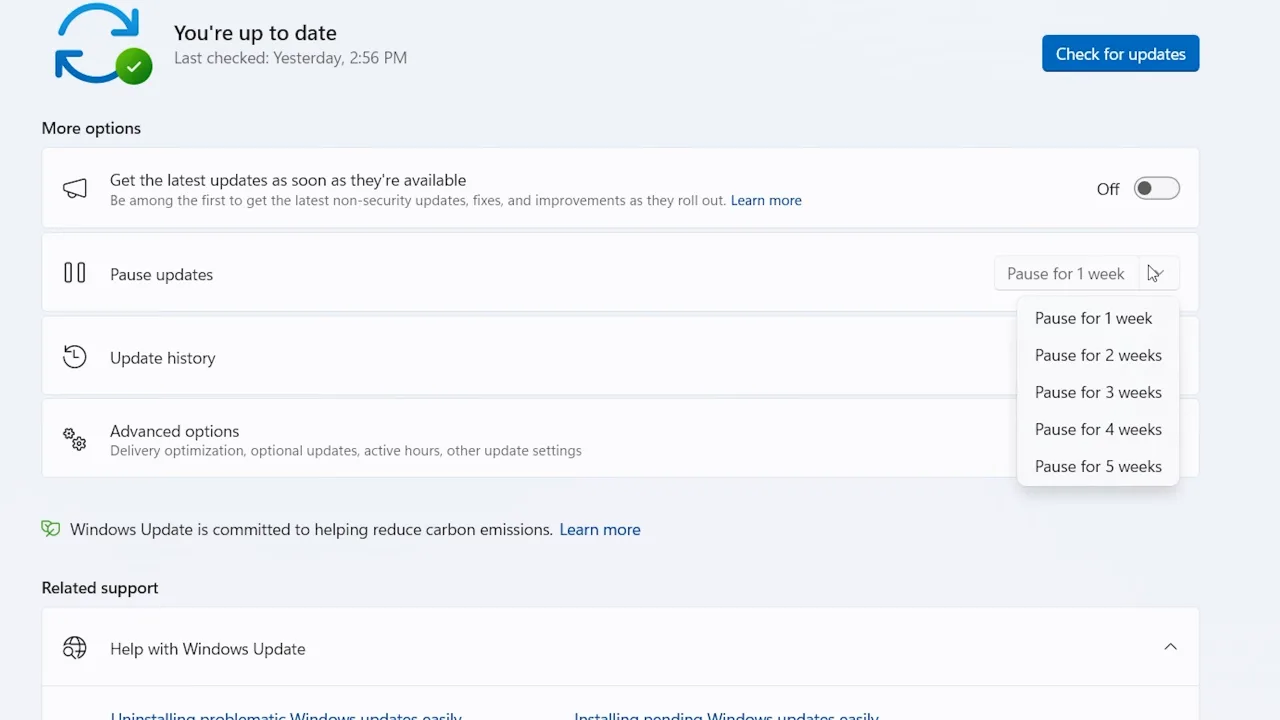
- Find Pause updates and click the dropdown to choose the stop duration.
- Windows 11 allows pauses of up to 5 weeks. When the period ends, updates resume automatically, and you must install pending updates before you can pause again.
If you have a data-capped plan or use a mobile hotspot and want to avoid large downloads to conserve your data allowance, configure your connection as metered. This setting will instruct Windows to delay non-essential updates.
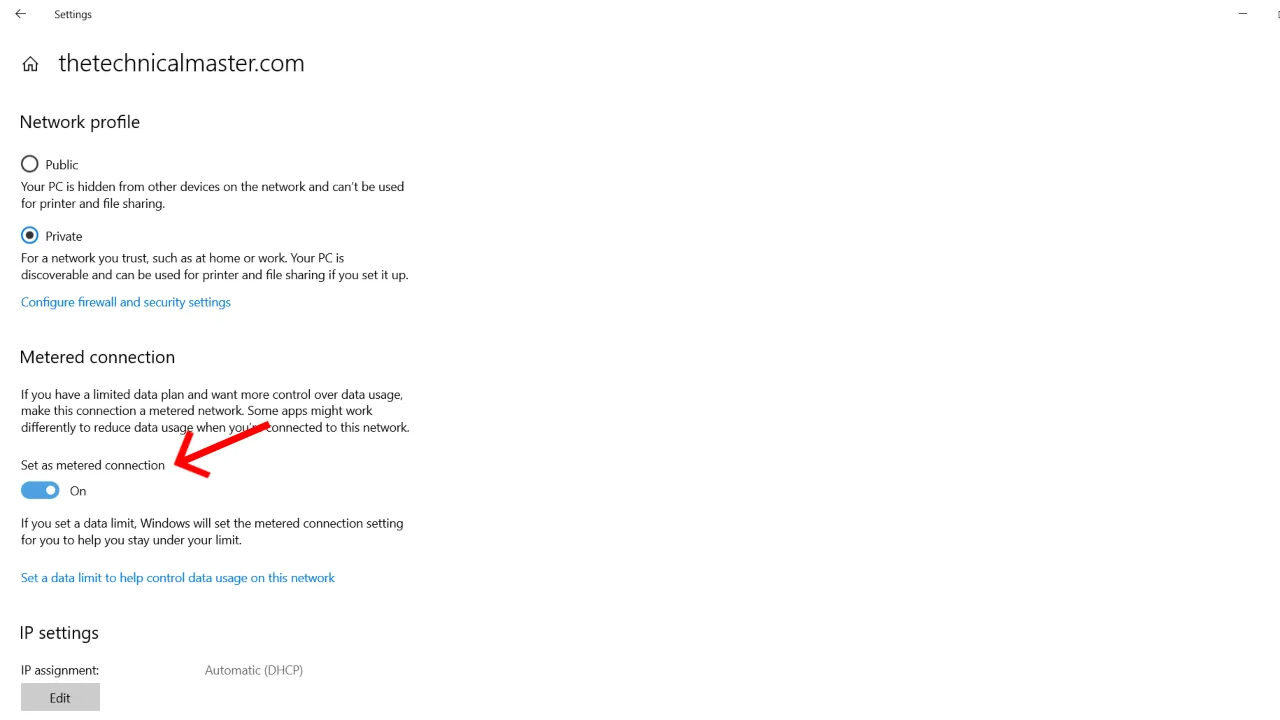
To make a connection metered on Windows 11 and cut down data use, go to Settings > Network & internet. Choose Wi‑Fi or Ethernet, open the network Properties, then toggle Metered connection to On. On Windows 10, open Settings > Network & Internet. Choose Wi‑Fi or Ethernet, click your network name, then toggle Set as metered connection to On.
Turn this off again once you are back on a normal connection, so updates can download in the background. Use pause only for a short delay. It’s best to usually schedule a restart and set active hours, which keeps you in control without leaving the device exposed for long.
Also: How to Change Your DNS Server on Windows and Mac
Frequently Asked Questions
How long should a typical Windows Update take?
Most routine security patches can be done in under 10 minutes. Major Windows releases can take 20 minutes or more than an hour, depending on your internet bandwidth and whether the PC has an SSD.
What is the difference between a quality patch and a feature release?
A quality patch is Microsoft’s monthly package of bug fixes and severe security vulnerability repairs. A feature release is a roughly annual overhaul that adds new interfaces, built-in tools, and broader changes to the operating system.
Do I need to update drivers separately from Windows Update?
Windows Update installs workable, often generic drivers, but performance-critical components usually run better on the manufacturer’s versions. Update GPU, chipset, and network drivers from Nvidia, AMD, Intel, or your PC maker, and rely on Windows given drivers for basic peripherals like keyboards and mice.
Do Windows updates slow down your PC permanently?
No, but they can cause temporary slowdowns immediately after installation while Windows rebuilds its search index and completes background maintenance that usually settles within a few hours. If performance is consistently worse after a specific update, it may have triggered a driver conflict; check Device Manager and roll back the update if needed.
Can I update Windows without a Microsoft account?
You can update Windows without a Microsoft account. It runs whether you sign in with a local account or a Microsoft account. One exception is the Windows 10 Extended Security Updates (ESU) consumer programme, which requires a Microsoft account sign-in to qualify for the free extended security patches on Windows 10 for one additional year, until October 2026.
What does it mean when an update is stuck at 0% or a specific percentage?
An update stuck at 0%, or frozen at a particular percentage, usually points to a corrupted download, a conflict with a background process, or low disk space. Wait 30 minutes first, because some updates pause while Windows completes other steps. If it does not move, restart the PC, clear the Windows Update cache by deleting its contents in C:\Windows\SoftwareDistribution\Download, then check for updates again.