- Why Your Phone Says No Internet Connection When You Have Wi-Fi
- Figure Out What Kind of Internet Problem You’re Facing
- Basics Fixes That Solve 60% of Connectivity Issues
- Restart Your Phone
- Toggle Airplane Mode
- Switch Between Wi-Fi and Mobile Data
- Check Other Devices on the Same Network
- How to Fix Wi-Fi Connected But No Internet on Android
- Sign In to the Network (Captive Portals)
- Restart Your Router
- Forget the Network and Reconnect
- Fix Date and Time
- Change DNS Servers
- Disable VPN and Private DNS
- How to Fix Mobile Data “Not Working” or “Not Available” on Android
- Enable Mobile Data and Check Indicator
- Check for Carrier Outage
- Reinsert the SIM Card
- Adjust APN Settings
- Enable or Disable Data Roaming
- Change the Network Mode
- Update Your Software
- Choose Network Operator Manually
- Advanced Troubleshooting Tips for Internet Connection Problems on Android
- Change MAC Address Randomization
- Reset Network Settings
- Boot into Safe Mode
- Check App-Level Data Permissions
- Factory Reset
- Frequently Asked Questions
- Why does my Android show full Wi-Fi bars but won’t load anything?
- Why does my phone work on some Wi-Fi networks but not others?
- Can too many devices on Wi-Fi cause “no internet” errors on Android?
- Can a heavy phone case block data signals?
- Does leaving Bluetooth on affect Wi-Fi speed?
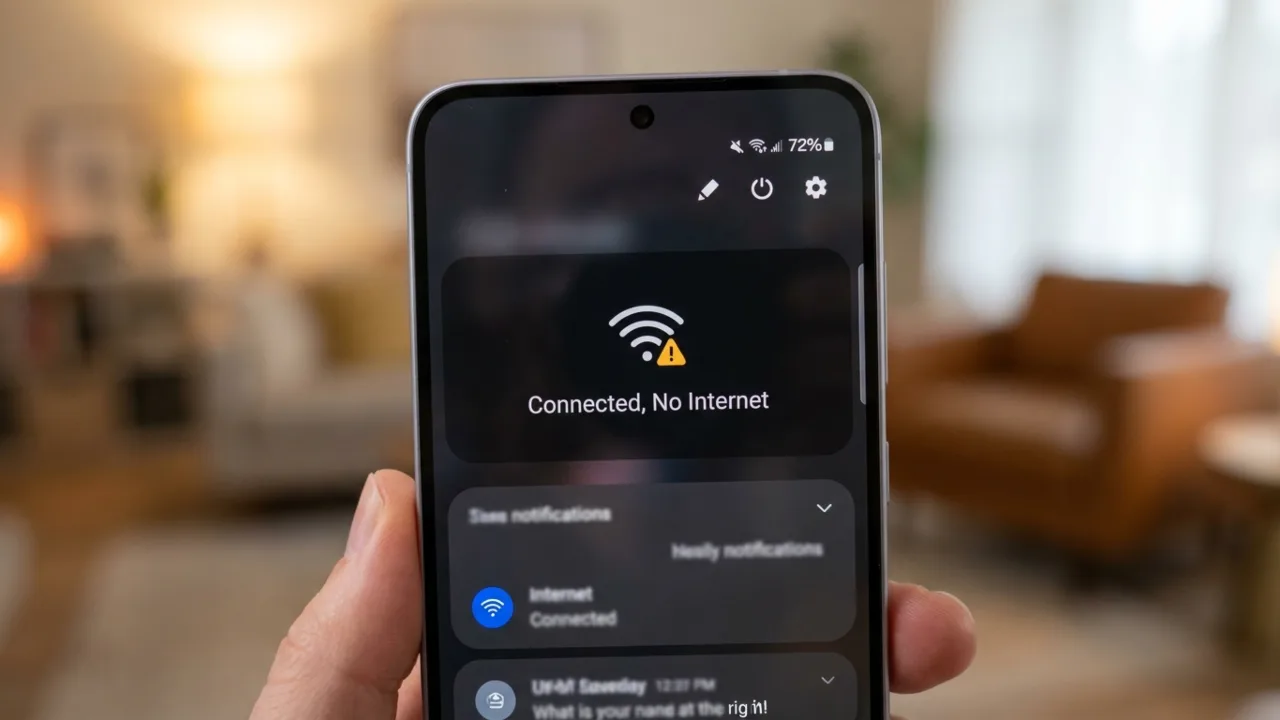
Your Android phone says it’s connected, the Wi-Fi bars look full, but not a single web page loads, apps hang, and Google Play is stuck at “Loading…” forever. Whether it’s the Wi-Fi connected but no internet situation, a mobile data connection that has gone silent, or a random “mobile network not available” error, there’s a reason why this happens, and almost always a quick fix.
Wondering, “Why does my phone say no internet connection when I have Wi-Fi?” You’re not alone. Android connectivity problems are common, and they can be irrational. The phone reports a connection, yet you’re stranded offline. If your Android device can’t access the Internet, read this guide to troubleshoot the connectivity issues.
Why Your Phone Says No Internet Connection When You Have Wi-Fi
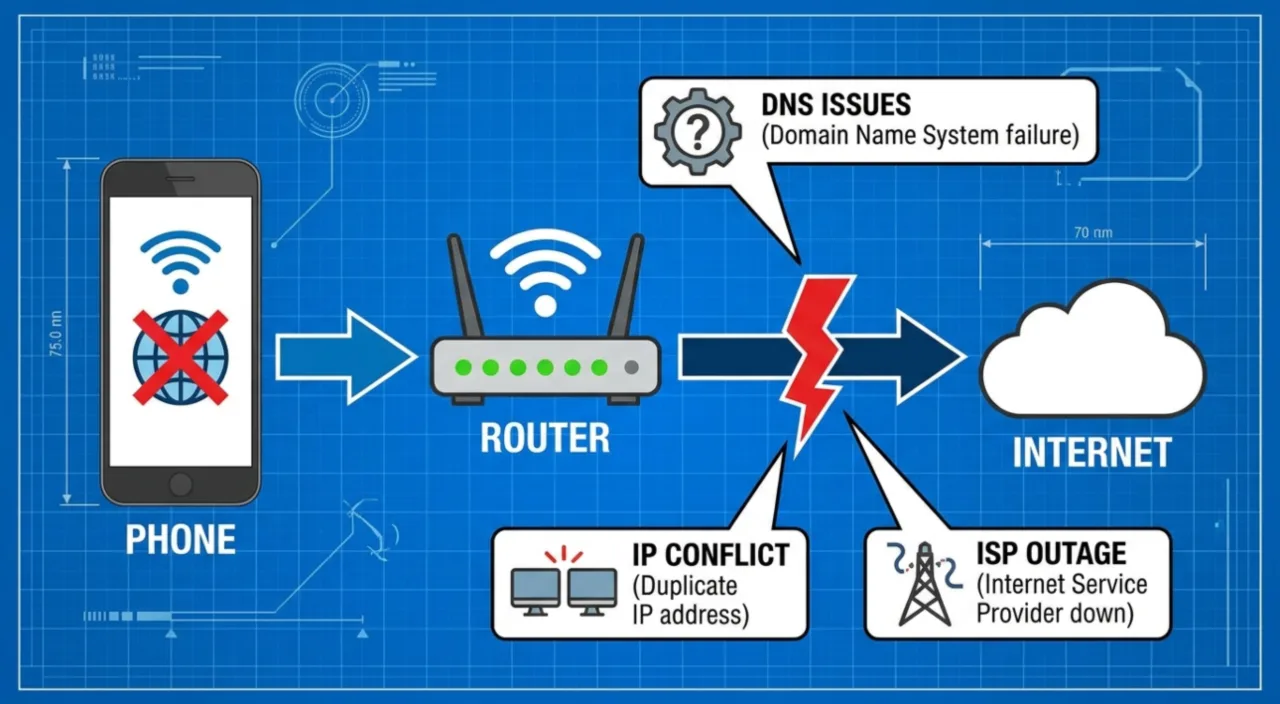
Every time Android joins a Wi-Fi network, it runs a connectivity check, a quick ping to Google servers, to verify internet access. If that test fails, you face the “No internet connection” warning, even while the phone stays connected to the router.
Three usual suspects are:
- Router issues: The Wi‑Fi network has lost connectivity. In this case, every device on that network is dead in the water, not only your Android.
- IP conflicts: Two devices try to use the same IP address, or your phone is clinging to an old, invalid IP that the router doesn’t recognize.
- DNS problems: Your Android mobile can reach the modem, but it can’t translate website names into addresses. Anything that depends on a domain name fails, while direct IP connections might still work.
Try opening another device on the same Wi‑Fi. If it can’t connect to the internet either, the problem is in the router or ISP, not the phone.
Also: How to Share Location on Android: 7 Easy Methods
Figure Out What Kind of Internet Problem You’re Facing
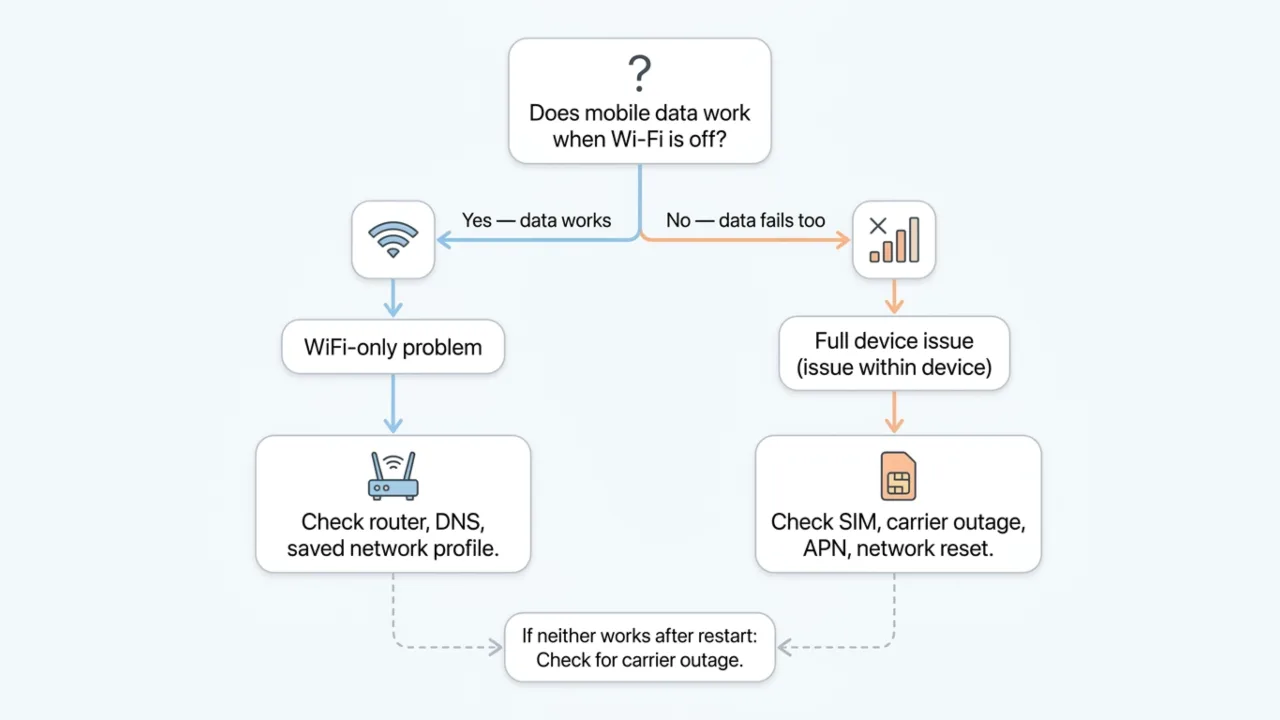
Before you start flipping switches like defusing a bomb, spend 30 seconds to find the problem. The fix depends on whether the issue is specific to Wi-Fi, cellular data is the culprit, or the whole device is affected.
- Test 1: Turn off Wi-Fi and test mobile data. Does it work?
- Test 2: Turn off mobile data and connect to Wi-Fi. Does it work?
- Test 3: Try a different website or app. Sometimes only one service is down, not your connection.
Does mobile data work when Wi-Fi is off?
Yes — data works: This is a Wi-Fi-only problem, so scroll to its section below. Check the router, DNS, and the saved network profile.
No — data fails too: The issue is within the device. Check SIM, carrier outage, APN settings, or perform a network reset.
If neither works even after a restart, check for a carrier outage before tweaking any settings to save a lot of wasted effort.
Basics Fixes That Solve 60% of Connectivity Issues
Restart Your Phone
A hard reboot clears temporary cache, stalled network processes, and background glitches Android can’t resolve on its own. Only this method fixes a surprisingly large number of internet issues, especially sudden ones. Hold the Power button, tap Restart, then wait at least 60 seconds before you test the connection again. Background services responsible for DNS routing often crash; a reboot forces Android to reload them in a fresh state.
Toggle Airplane Mode
Android controls incoming and outgoing signals through a dedicated piece of hardware called the baseband processor. When this chip gets stuck in a loop trying to switch between cellular towers or Wi-Fi bands, data transmission completely halts. The immediate action to take is to trigger an aggressive power cut to this hardware.
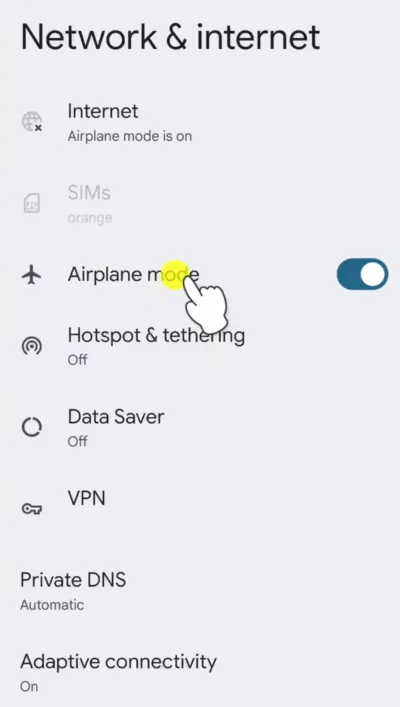
- Open Settings, and tap Network & internet or Connections > Airplane Mode, or swipe down twice from the top of your screen to open the Quick Settings panel.
- Tap the Airplane Mode icon to turn it on or in Settings, toggle it off.
- Wait for at least 30 seconds before turning it back off.
This duration forces the baseband processor to drop all active IP leases and deregister from the local cell tower. Disable Airplane Mode and watch the status bar. The device will be forced to abandon all network connections and re-establish them from scratch. It clears temporary authentication failures and network registration glitches that accumulate during normal use.
Switch Between Wi-Fi and Mobile Data
Turn Wi-Fi off and mobile data on, see if there’s a difference. If not, disable mobile data and turn WiFi back on, and check again. This quick swap often reveals which side of the equation is broken.
Check Other Devices on the Same Network
Connect a laptop or another phone to the same Wi-Fi. If they also have no internet, the problem is with your router or ISP, and no amount of phone tweaking will fix it.
Also: Why is My Phone Overheating? Reasons and How to Fix It
How to Fix Wi-Fi Connected But No Internet on Android
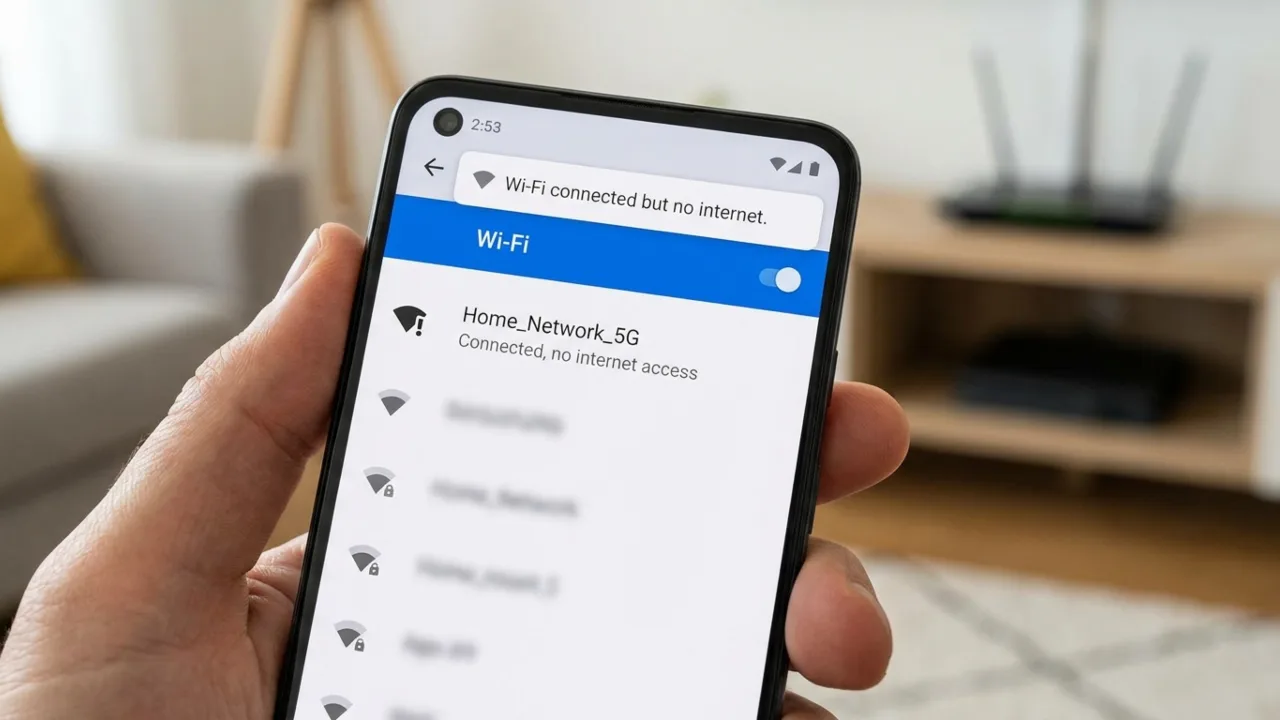
It’s the most common and confusing scenario: your Android device shows full Wi‑Fi bars and “Connected”, yet every app and browser times out. “Connected” only means the phone has joined the Wi‑Fi network, but it doesn’t mean that the network can reach the internet. When the link is there, but the internet isn’t, the usual culprits are router or modem settings, or an IP conflict. So why does your phone say connected without internet? Here are the common reasons and how to fix them.
Sign In to the Network (Captive Portals)
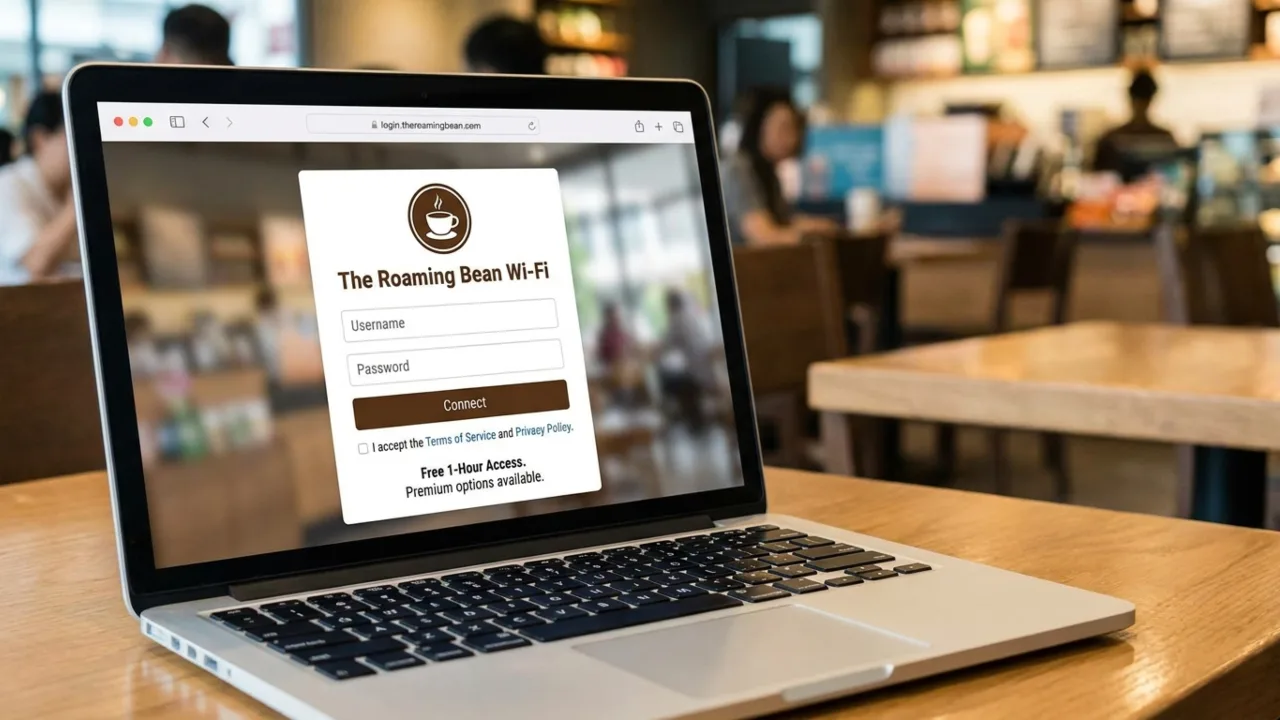
Public networks in hotels, airports, coffee shops, and office buildings use what’s called a captive portal, a login page that must be completed before traffic is allowed through. Sometimes, Android’s automatic captive portal detection fails to trigger, or your mobile connects to the network fine, then waits for login. If you’ve accessed such a network, the device will display a notification asking you to sign in.
If you don’t see a captive portal notification, open Google Chrome or your preferred browser. Type a non-secure, non-HTTPS website into the address bar; a reliable test address is http://neverssl.com. Because this site does not use encryption, the public router can easily intercept the request and redirect your browser to the secret login screen. Accept the terms, and the connection will open.
Restart Your Router
Walk over to your router and check the status lights. Most routers have an “Internet” or “WAN” light that should be solid or blinking. If it’s off or red, your gadget is fine, but the modem has lost its internet connection. If that’s the thing in your case, unplug it, wait 30 seconds, plug it back in. Wait 2 minutes for it to restart properly, and check the Internet status.
Also: How to Block Spam Calls on Android
Forget the Network and Reconnect
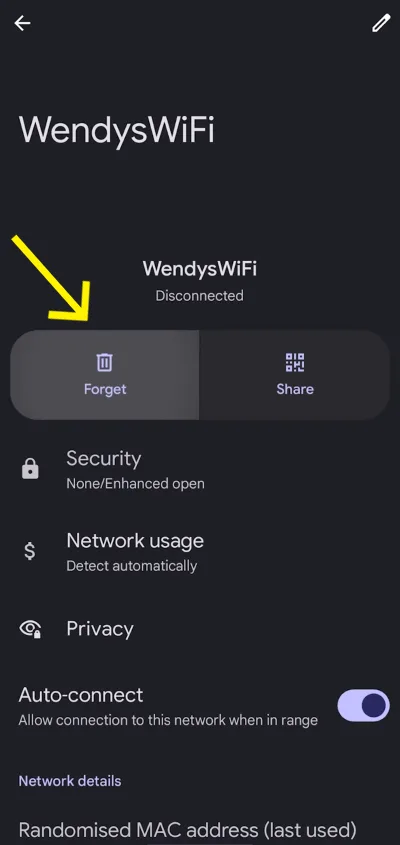
Saved Wi-Fi profiles can become corrupted over time. Open Wi-Fi Settings on your phone, tap the connected network, and choose Forget. Tap the network name again and enter the password to reconnect. A fresh configuration can restore proper internet access after saved profile corruption. It’s particularly effective after router firmware updates that changed security protocols or channel configurations.
If the network doesn’t even appear in the list, verify you are within range, and that the router is broadcasting its SSID. Some people hide the network name for security. If that’s the case, scroll to the bottom of the Wi‑Fi list, select “Add network,” and enter it manually.
Fix Date and Time
Every secure website on the internet uses SSL/TLS certificates to encrypt data. These certificates have strict expiration dates and timestamps. If your phone’s internal clock is off by even a few minutes compared to the server’s clock, the server assumes your device is attempting a replay attack and terminates the connection. It breaks almost all modern websites and apps.
Follow these steps to fix this:
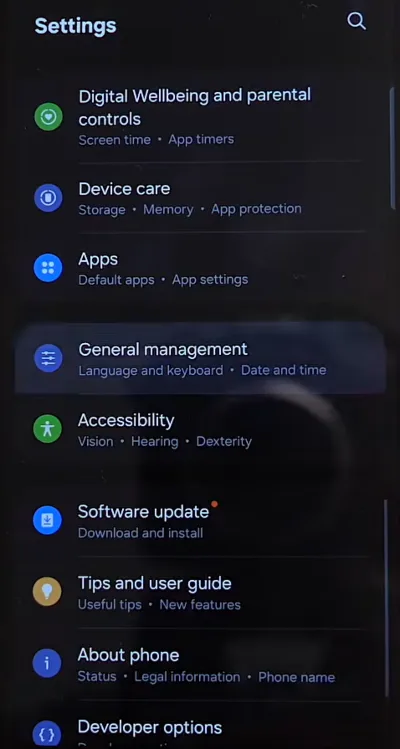
- Go to Settings > System or General Management > Date & time.
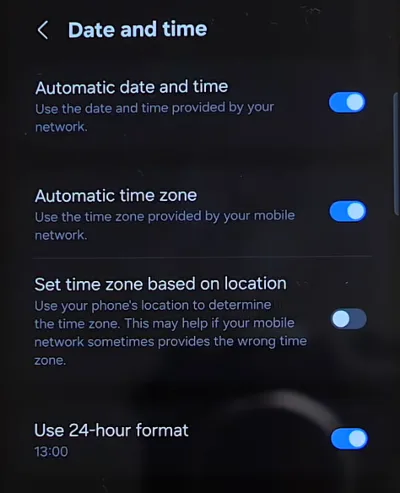
- Ensure that Set time automatically (or Automatic date and time) and Set time zone automatically (or Automatic time zone) are both toggled ON.
If they are already enabled, toggle them off, manually set the time to the wrong hour, save it, then toggle the automatic settings back on to force a sync with the carrier’s network time protocol.
Change DNS Servers
The Domain Name System (DNS) acts as the phonebook of the web, translating readable URLs (like https://www.google.com/search?q=google.com) into IP addresses. ISPs automatically assign DNS servers to your router, which passes them to your phone. ISP-provided DNS servers are often slow and unreliable. When they fail, you will see a status that says no internet access but connected, because while the physical link is fine, the phone cannot figure out how to route web traffic.
Here’s how to override this on an Android device:
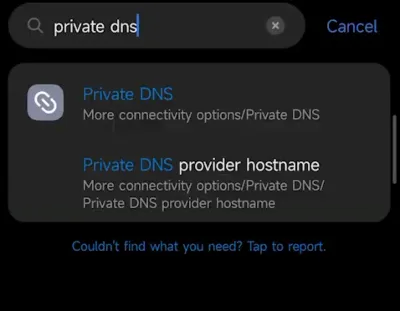
- Open Settings > Network & internet > Private DNS or Connections > More connection settings on Samsung phones.
- Select the Private DNS provider hostname.
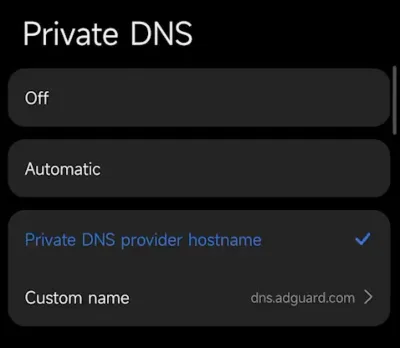
- Type
dns.googleor1dot1dot1dot1.cloudflare-dns.com. - Tap Save to apply changes.
This allows your phone to bypass the local router’s DNS and use highly stable, encrypted global servers.
The above method applies the change to all Wi-Fi and mobile data connections. But if you want to change DNS servers for one specific network, here’s how you can do it:
- Go to Settings > Network & Internet > Wi-Fi or Settings > Wi-Fi.
- Tap your connected network.
- Select Advanced or the pencil icon.
- Change IP settings from DHCP to Static.
- Scroll to DNS 1 and enter 8.8.8.8. Set DNS 2 to 8.8.4.4.
- Save changes.
Google’s public DNS servers are decent fallbacks. If this fixes your Android connection problem, the original servers were the bottleneck.
Save your original IP settings before you switch to Static, and better screenshot the DHCP configuration in case you need to revert.
Disable VPN and Private DNS
Virtual Private Networks (VPNs) route all your incoming and outgoing data through an encrypted tunnel, right? The problem is, if the VPN server you are connected to goes offline, or the app crashes in the background, Android can remain stuck pointing at a now-dead tunnel. The OS believes the VPN is active, so it blocks all standard traffic.
That’s why VPNs and DNS-based blockers can fail in this weird, silent way where your phone says it’s connected, but no traffic actually goes through. If you have any VPN app installed, disable it completely (not just disconnect, toggle it off in the app settings). Tap the gear icon next to VPN and disable “Always-on VPN” and “Block connections without VPN.” The same goes for ad blockers that use a custom DNS. If mobile data works and WiFi won’t, the device has no problem.
Also: How to Fix Slow Android Phone Charging: 12 Reasons & Easy Solutions
How to Fix Mobile Data “Not Working” or “Not Available” on Android
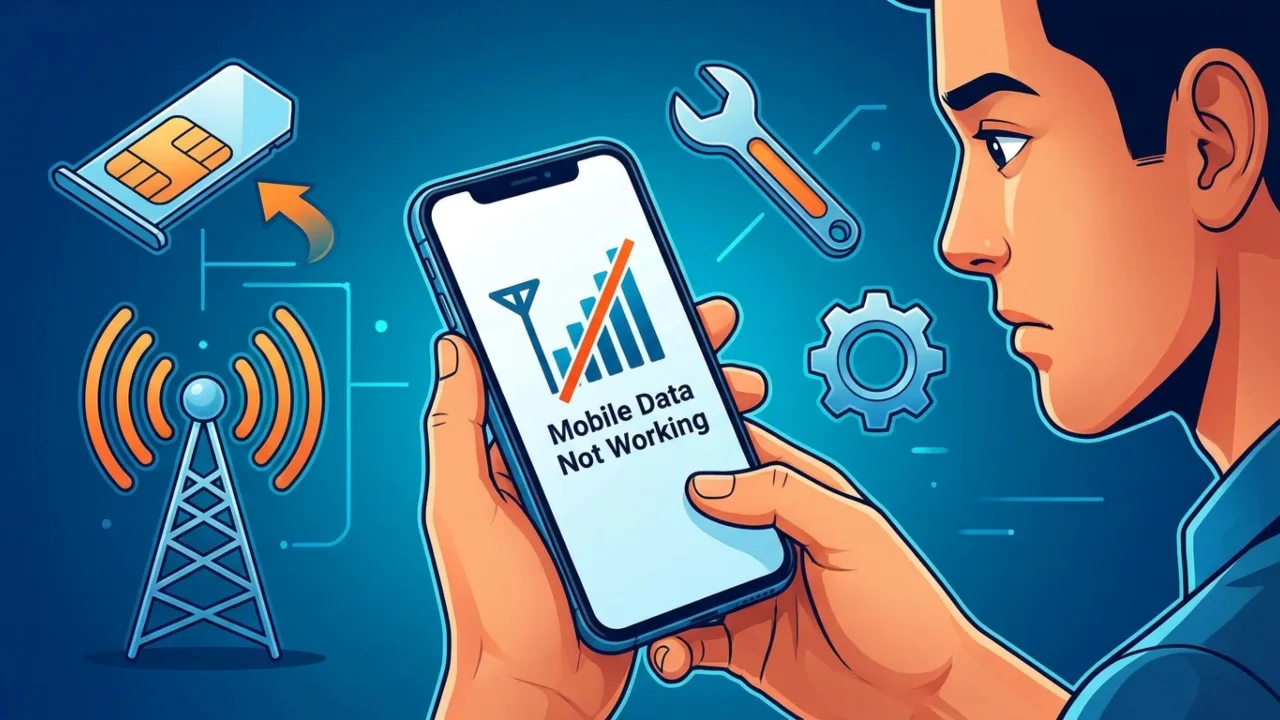
Mobile data not working is different from WiFi issues. When you’re away from a router, and your cellular data goes quiet, the fixes are specific to SIM, carrier, and Android’s network settings.
CHECK THIS FIRST
Before you troubleshoot anything, verify you haven’t hit your data cap. Go to Settings > Network & Internet > Data Usage. If you’ve exceeded the limit, the only way to resolve it is to top up or wait for the billing cycle to reset, and further, check if your bill is overdue. Carriers often restrict data when payments are late.
Enable Mobile Data and Check Indicator
- Open Settings, then go to Network & internet and tap Mobile data or Cellular data.
- On some phones, you’ll need to tap Data usage first to find this option.
- Turn Mobile data (or Cellular data) on. If it’s already on, switch it off, then back on.
Look for a data label next to the signal bars at the top of the screen: 2G, 3G, 4G, 5G, or H. If you’re on Wi‑Fi, you may not see it, so turn the connection off and check again.
Check for Carrier Outage
If mobile data is enabled but nothing loads, don’t assume your phone is the culprit. Carriers go down, and a local outage can look exactly like a settings problem. Check your carrier’s website for network status or their social feed for the latest updates. Otherwise, you’ll waste 20 minutes fiddling with APN settings while the network is down in your area.
Reinsert the SIM Card
The SIM card connects to the phone’s motherboard via microscopic gold pins. Over years of use—drops, pocket grit, some humidity—a microscopic film of oxidation can form on these contacts. The phone can read the basic network ID (so you see signal bars), but fails to complete the authentication needed for secure data packet transfers.
A loose or poorly seated SIM can trigger all kinds of sporadic network issues that are hard to pin down. Power off your phone completely, remove the SIM tray, take the SIM out, and inspect it for damage. Take a clean microfiber cloth and gently wipe the gold contacts on the SIM card, then seat it firmly again. If the SIM is loose or nicked, it can struggle to stay in proper contact with your carrier. Turn the device back on and see if the problem resolves.
Adjust APN Settings
If you swap a SIM from an old phone into an unlocked one, you might find yourself wondering, “Why is my internet not working on my phone?” Calls and texts work, but the internet won’t.
The usual culprit is the Access Point Name, or APN. It’s the set of instructions your Android uses to connect to the carrier’s data servers. It tells the phone which IP protocols to use, whether to route traffic through a proxy, and which ports control multimedia messaging. If a single character is wrong, the data connection can stop dead. That’s why a bad APN can leave you with a device that seems connected but can’t use mobile data properly.
To rebuild this bridge:
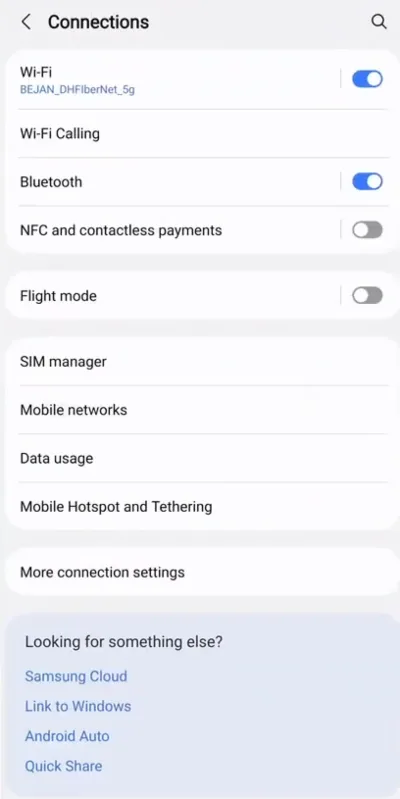
- Open Settings > Network & internet or Connections > Mobile network.
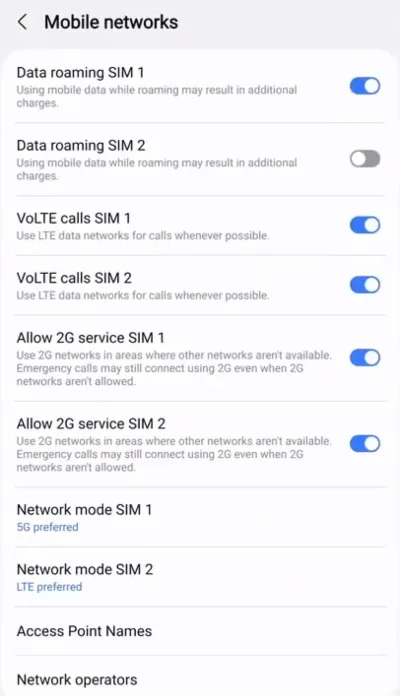
- Scroll down to Advanced and select Access Point Names.
- Compare your settings against your carrier’s official APN configuration (search “[your carrier] APN settings”)
- If it looks wrong or is missing, tap the three-dot menu in the top right corner.
- Select Reset to default.
If this fails, you must manually program the APN. You will need to search the web (using another device) for your specific carrier’s current APN settings (e.g., “T-Mobile APN settings”). Tap the “+” icon to add a new APN. You must enter the exact values for fields like Name, APN, MMSC, MCC, and MNC. Once entered, hit the three-dot menu, tap Save, and ensure the radio button next to the new APN is selected. Restart the phone immediately.
Enable or Disable Data Roaming
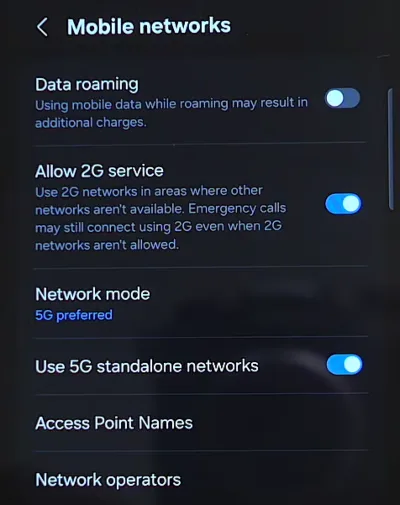
If you’re travelling even to a different region in your own country, the new area might have different tower infrastructure that can trip up your data. Go to Settings > Connections > Mobile Networks > Data Roaming and toggle it on. Roaming may incur extra charges from your carrier. If it was already on, try turning it off and back on.
Also: Why Does My Phone Get Hot When Charging? Reasons and 11 Quick Fixes
Change the Network Mode
Your phone might be forcing 5G in an area with only 4G coverage, or vice versa. So:
- Open Settings, then go to:
- Connections > Mobile Networks > Network Mode on Samsung/General Android.
- Network & Internet > SIMs > Preferred network type on Pixel or Stock models.
- Tap Preferred network mode.
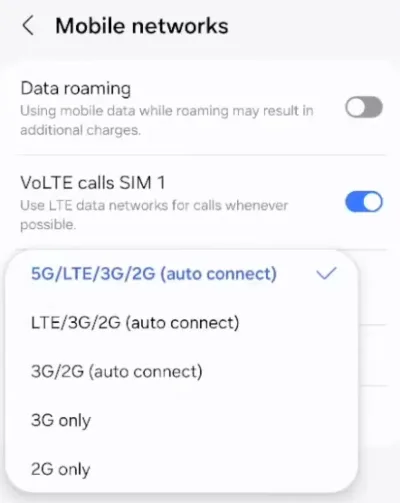
- Switch to LTE/4G (or 4G/3G/2G auto).
- Test connectivity.
If it works, your phone was linked to a network generation that isn’t available at your current location. This change in mode lets Android use the strongest signal present there, rather than waiting for a specific generation.
Update Your Software
A software update can fix the “My mobile data is on but not working” problem on Android. Open Settings, tap System > System update (or search “update” in Settings), then choose Check for updates to download and install the latest version. Use Wi‑Fi, and make sure your phone is charged to at least 80%. On Samsung devices, you can update the device at Settings > Software update.
If a new update is available, follow the on-screen instructions to download it. Your phone may restart to finish the installation. System updates often include carrier patches that can fix problems in the network stack.
Choose Network Operator Manually
To pick a network operator manually on Android, open Settings, then Network & Internet (or Connections), tap Mobile Networks > Network Operators. Turn off Select automatically. Let the phone scan, then choose your preferred provider from the list. That forces the handset to register again with the network, which helps after an outage when it never re-registered on its own.
Advanced Troubleshooting Tips for Internet Connection Problems on Android
If none of the earlier fixes worked, you’re left with the big levers. These are the more impactful and involved methods to troubleshoot Android connectivity issues.
Change MAC Address Randomization
With the Android 10 release, Google implemented a privacy feature called MAC Randomization. Every piece of network hardware has a Media Access Control (MAC) address, a unique identifier. To prevent tracking, Android generates a fake MAC address for every new network you join.
Although great for privacy, old routers or strict corporate networks use MAC filtering and expect to see a recognized, static address. If your mobile shows a randomized one, the network allows the connection but instantly blackholes all traffic. This can be a reason why your phone Wi-Fi is connected but no internet data is transmitted.
To disable this for a network:
- Open Settings > Network & internet > Wi-Fi or Settings > Wi-Fi.
- Tap the gear icon next to your current network name.
- Tap Advanced or Privacy.
- Change the setting from Use randomized MAC to Use device MAC.
- Disconnect and reconnect to the network.
Reset Network Settings
Go to Settings > System > Reset Options or Reset > Reset Wi-Fi, mobile & Bluetooth or Reset Wi-Fi and Bluetooth settings. On Samsung: open Settings > General Management > Reset > Reset Network Settings. Tap Reset Settings to confirm and wait.
Network reset wipes all saved Wi-Fi passwords, Bluetooth pairings, and cellular settings, returning every network configuration to factory defaults. Your apps, photos, and personal data will remain untouched. Write down any Wi-Fi passwords you’ll need to re-enter before proceeding.
After a restart, the Android phone will rebuild network settings from scratch. You’ll need to reconnect to Wi-Fi networks manually, but if the problem was a corrupted network parameter, it will get eliminated.
Also: Don’t Use Pattern Lock to Secure Your Android Phone: Here’s Why
Boot into Safe Mode
Safe Mode starts Android with only the basic built-in apps. If the Internet works in Safe Mode, one of your third-party apps is probably the culprit. The usual suspects are VPNs, system optimizers, antivirus tools, and other background apps.
If your phone connects to Wi‑Fi but won’t access the internet, and it seems like a software issue, clear the app cache, power the phone off, then boot into Safe Mode. If the connection works there, it should also work once you restart back into normal mode after the cache is cleared.
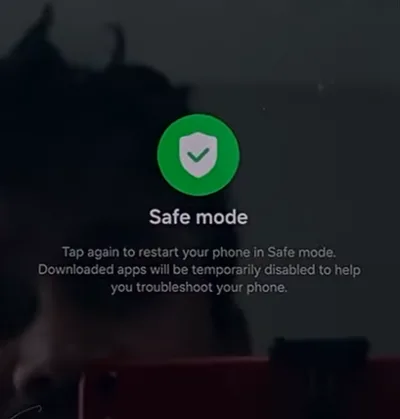
To enter Safe Mode, hold the Power button, then press and hold Power Off until you see “Reboot to Safe Mode.” Tap OK. To exit Safe Mode, restart the phone normally. If the mode produces the same dead connection, the internal radio hardware has likely failed. At that point, the only way forward is a repair centre that can run diagnostics on the antenna array and baseband voltage limits.
Check App-Level Data Permissions
Sometimes the problem is not the connection but an app that’s unable to use mobile data. Go to Settings → Apps → [App Name] → Mobile Data Usage, and activate the switches next to Background Data and Unrestricted Data Usage. It’s mostly the case with WhatsApp, the Play Store, or Gmail that seem broken while everything else works.
Factory Reset
If all else fails to restore mobile data, perform a factory data reset. The hard reset erases your phone and returns all settings to factory defaults. It fixes pretty much any software issue you may encounter, but should be used as a last resort due to the data loss involved. Learn how to factory reset an Android device through multiple ways.
Before you do a clean wipe on your mobile, back up photos, contacts, and app data to Google Drive or your PC.
Frequently Asked Questions
Why does my Android show full Wi-Fi bars but won’t load anything?
Your phone successfully connected to Wi-Fi but that network has no internet access. The router either lost its ISP connection or has internal configuration problems. Check if other devices can reach the internet on that network.
Why does my phone work on some Wi-Fi networks but not others?
Different routers use different security protocols, encryption types, and frequency bands. Your Android might not support classic WEP security, or probably struggle with 5GHz-only networks if it’s an old model. To verify, check the router’s wireless settings.
Can too many devices on Wi-Fi cause “no internet” errors on Android?
Yes. Routers have DHCP address limits (usually 50-250 devices). If the limit is reached, new devices can connect to Wi-Fi but won’t receive IP addresses, leading to “connected without internet” errors. You either have to disconnect unused devices or increase the DHCP pool size to get Internet access on the new device.
Can a heavy phone case block data signals?
Absolutely. Cases with metal plates, heavy magnetic mounts, or thick dense metallic alloys can create a Faraday cage effect. This severely degrades the RF signals reaching the internal antenna, which creates dramatic drops in data speeds and connectivity.
Does leaving Bluetooth on affect Wi-Fi speed?
It can. Standard Bluetooth and 2.4GHz Wi-Fi use the same slice of spectrum (radio frequency band), so they can get in each other’s way. Poorly shielded hardware or heavy Bluetooth traffic, such as streaming high-resolution audio, can largely slow down Wi-Fi throughput. If you encounter this issue, try switching your Wi-Fi to the 5GHz band to avoid the clash.