- Why Do Windows Updates Fail or Get Stuck?
- Pre-Update Preparation Checklist
- Basic Troubleshooting Steps for Windows Update Error
- Step 1: Restart Your PC
- Step 2: Run Windows Update Troubleshooter
- Step 3: Verify Network Connectivity
- Step 4: Confirm Administrator Access
- Step 5: Unplug External Devices
- Step 6: Free Up Disk Space
- Step 7: Fix Date and Time Settings
- Step 8: Update Third-Party Drivers
- How to Clear the Windows Update Cache
- Reset Windows Update Components via Command Prompt
- Windows Update Error Codes Explained, and How to Fix Them
- Windows 10 Errors
- Windows 11 Errors
- How to Fix Windows Update Stuck Issues
- Stuck at 0% or 100%
- Stuck Between 51-99%
- Advanced Repair: Run System File Checker and DISM
- Manually Download and Install a Windows Update
- Change DNS Settings (When Nothing Else Works)
- Use System Restore
- Last Resort Options
- In-Place Upgrade via Windows Update (Windows 11)
- Reset This PC
- Clean Windows Installation
- Frequently Asked Questions
- Why does my Windows Update keep failing with different error codes?
- Can I skip a Windows Update if it keeps failing?
- Will clearing the Windows Update cache delete installed updates?
- Can antivirus software actually block updates?
- What should I do if updates work fine but my system becomes unstable afterward?
- What happens if I force shut down during a Windows update installation?
Windows Update is important to keep Windows 10 and Windows 11 secure, stable, and up to date. So, Microsoft consistently releases patches to address vulnerabilities, add new features, fix bugs, and improve system performance.
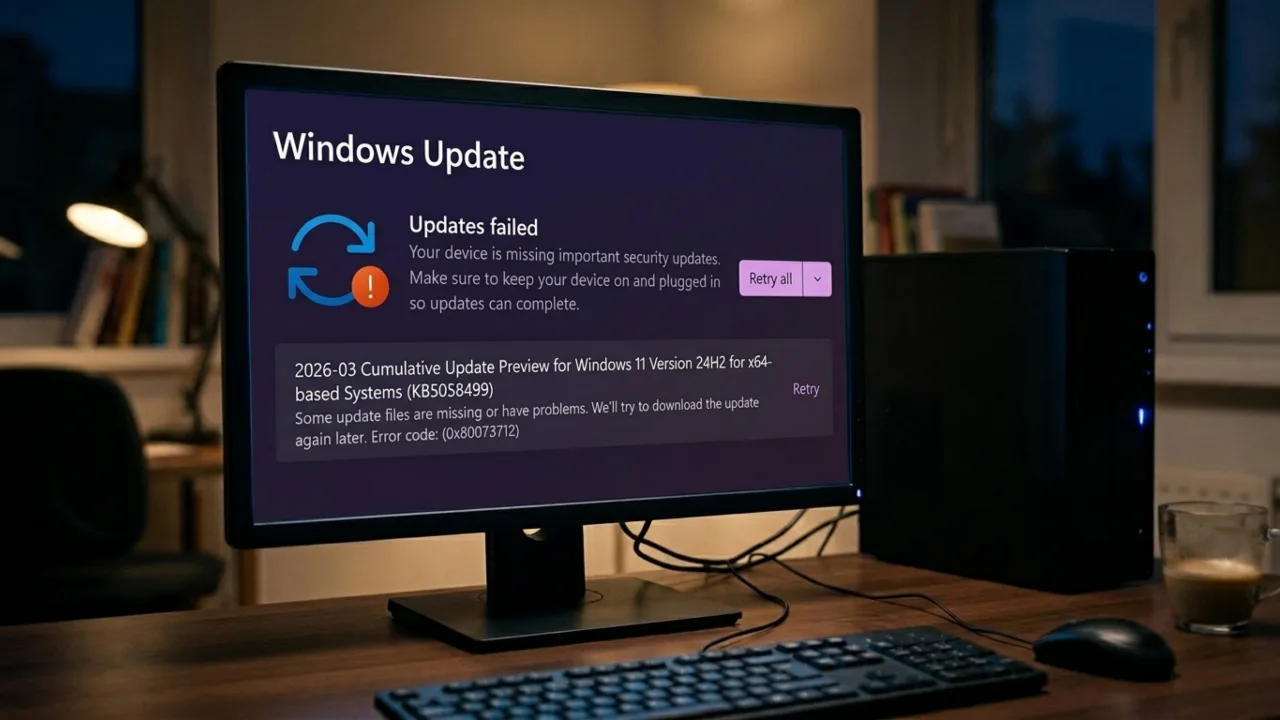
Quite often, a new Windows Update runs in the background and installs with little or no input from you. But it doesn’t always go as intended. An update can get stuck or stop halfway through, then nothing installs. When that happens, the obvious question is: what broke? This guide shows the steps to troubleshoot and fix the Windows Update errors easily.
Why Do Windows Updates Fail or Get Stuck?
When something interrupts the Windows Update process, the PC becomes vulnerable and unstable. But what’s the reason for the holdup? Windows Update errors almost always trace back to one of these causes:
- Corrupted update files are the top culprit. The download files are likely interrupted, existing system files are damaged, or the update cache gets bloated with broken data. Whatever the reason, Windows can’t proceed when the pieces don’t fit together properly and the installation chokes. To fix it, you usually need to clear that cache.
- Not enough disk space is common. Updates need breathing room, and without enough space, the update will either fail or throw an error like 0x800f0922.
- Windows Update services stopped or disabled. If background services like BITS (Background Intelligent Transfer Service) or the update service fail to run, the download or installation will be interrupted.
- Hardware and driver conflicts can throw a wrench into the works when peripherals or outdated drivers clash with new update requirements. That USB printer or external drive might look innocent, but it’s probably the one blocking the process. Old or incompatible drivers are another common culprit for Windows update errors.
- Third-party security software can occasionally be overprotective, treat legitimate Windows updates as threats, and block them completely. The antivirus you installed for good reason might be doing more harm than good.
- Bad internet connection. Network connectivity issues sabotage downloads, particularly on an unstable Internet. Such a connection during a large update download can corrupt the files being fetched, and the installer will fail.
- Updates try to install in the wrong order. Some patches depend on others. When Windows tries to install them at once rather than in sequence, things break. A PC restart can fix it most of the time.
Back up your personal files first. You can use OneDrive, an external USB drive, or Windows’ built-in backup tool. If you’re signed into a Microsoft account, Windows will automatically restore system settings after the update.
Also: How to Fix Black Screen Issue on Windows 11
Before you start troubleshooting, write down any error codes you see on the screen. These alphanumeric strings (like 0x80070002) provide specific clues about what went wrong, and can save you a lot of time.
Pre-Update Preparation Checklist
Most Windows update problems are avoidable. So confirm these things first before you attempt to install the update:
- Verify your system requirements for the new updates. Microsoft lists the minimum hardware for major releases, and if you don’t meet it, there will be trouble.
- Make sure to have 16-20 GB of free space on your drive. Open File Explorer, right-click the C: drive, and select Properties to see the available storage.
- Establish a stable internet connection. Use Ethernet if you can, or sit close to the modem for strong Wi‑Fi signals. Updates can be several gigabytes, so flaky connections will bite you.
- Back up all data you can’t afford to lose using OneDrive, an external drive, or whatever backup method you trust. It’s rare, but failed updates can cause data issues.
- Disconnect unnecessary peripherals. Unplug everything except keyboard and mouse. External drives, printers, webcams, and docking stations can all trigger conflicts.
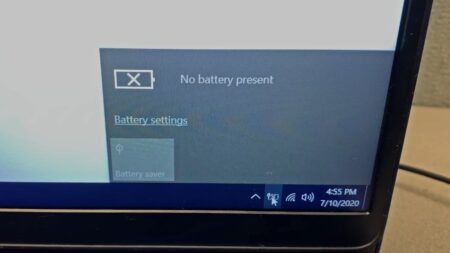
- Plug the laptop into AC power. Updates consume massive resources and can drain the battery fast. If it dies in the middle of an update, serious problems might happen.
Basic Troubleshooting Steps for Windows Update Error
These steps cover the most common scenarios and should be your first try to troubleshoot problems updating Windows.
Step 1: Restart Your PC
A restart wipes out the small glitches that pile up and terminates processes that can stall an update. Windows runs on complex dependencies, and sometimes updates queue up in the wrong order until the system gets a clean run at them. Save your work, close apps, then click Start > Power > Restart.
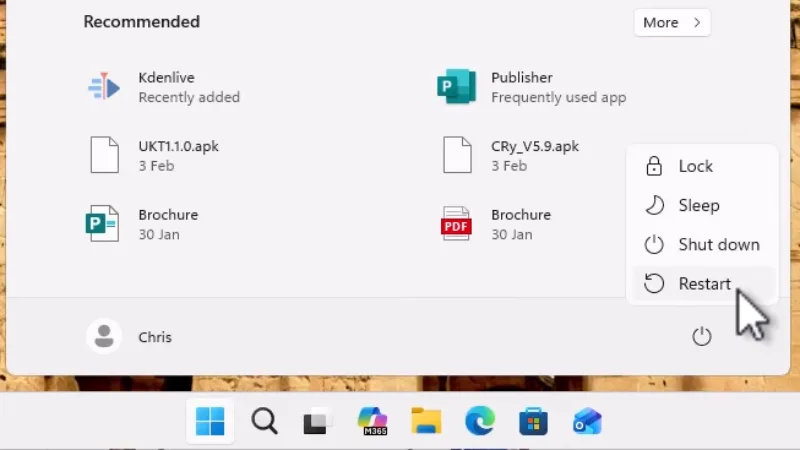
Common ways to restart Windows 10 or 11:
- Start menu (standard): Choose Start > Power > Restart.
- Power User menu: Right-click Start > Shut down or sign out > Restart.
- Keyboard shortcut (desktop): On the desktop, press Alt + F4, then choose Restart from the dropdown.
After your system reboots, go to Settings > Windows Update > Check for updates and try again.
Step 2: Run Windows Update Troubleshooter
Microsoft has a built-in tool that diagnoses Windows Update problems. It looks for common issues and tries to auto-fix them for you. Here’s how to use it:
For Windows 11:
- Press Win + I to open Settings.
- Open System > Troubleshoot > Other troubleshooters.
- Find Windows Update and click Run.
- Follow the on-screen prompts as the tool diagnoses and repairs issues.
For Windows 10:
- Go to Start > Settings > Update & Security.
- From the left menu, select Troubleshoot, then click Additional troubleshooters.
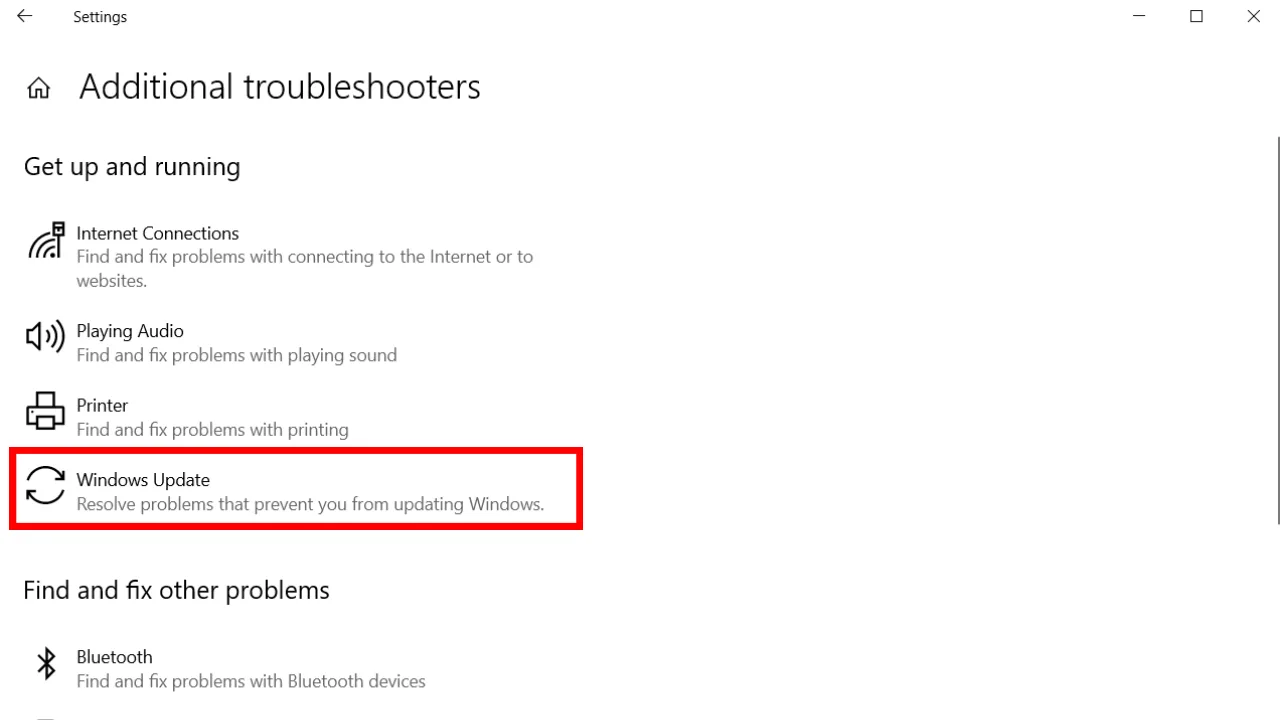
- Under Get up and running, select Windows Update.
- Choose Run the troubleshooter.
- Follow the on-screen instructions.
The tool examines update services, cache integrity, and common configuration errors. It won’t solve everything, but it’s fast and can catch obvious problems.
Step 3: Verify Network Connectivity
Unstable connections can corrupt downloads, leading to failed installations. Go to Settings > Network & Internet > Wi-Fi and confirm your connection status. If disconnected, reconnect immediately. If you’re on Wi-Fi and it’s spotty, switch to a wired Ethernet connection before you try updating Windows again. Run a quick speed test at speedtest.net. Big updates need steady bandwidth.
VPN connections can sometimes interfere with Windows Update servers. If you’re using a VPN, temporarily disable it and retry the update. You can re-enable VPN to work under a private IP once installation completes.
Step 4: Confirm Administrator Access
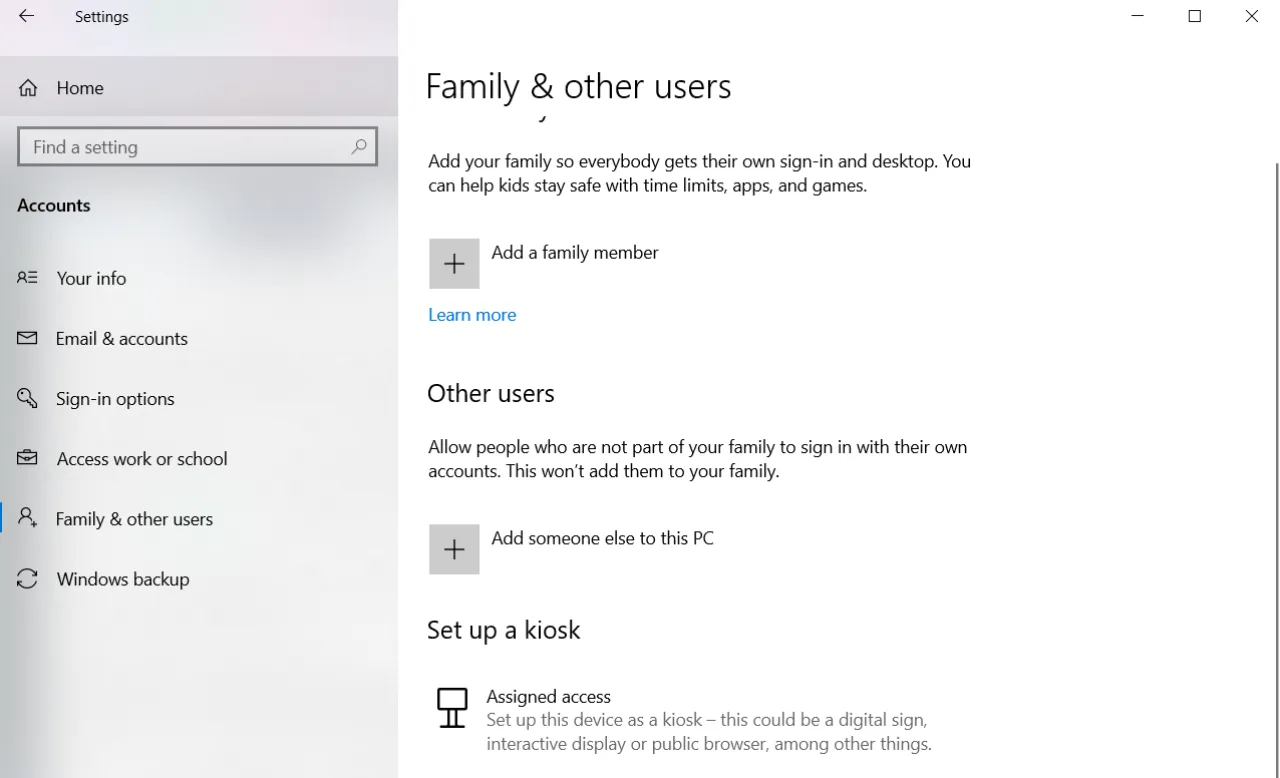
Some updates need admin-level permission to install. If your account isn’t set up as an Administrator, then either switch accounts or create an admin account in Settings > Accounts > Family & other users. If someone at home or in your office already has an admin account on the device, ask them to install the Windows updates.
Also: How to Fix Blue Screen of Death (BSOD) on Windows
Step 5: Unplug External Devices
Peripherals often create compatibility conflicts. USB devices, external monitors, printers, and docking stations introduce variables that can derail updates. Unplug everything except essentials, restart the computer, and try the update again. If it succeeds, reconnect devices one at a time to identify the problematic hardware.
Step 6: Free Up Disk Space
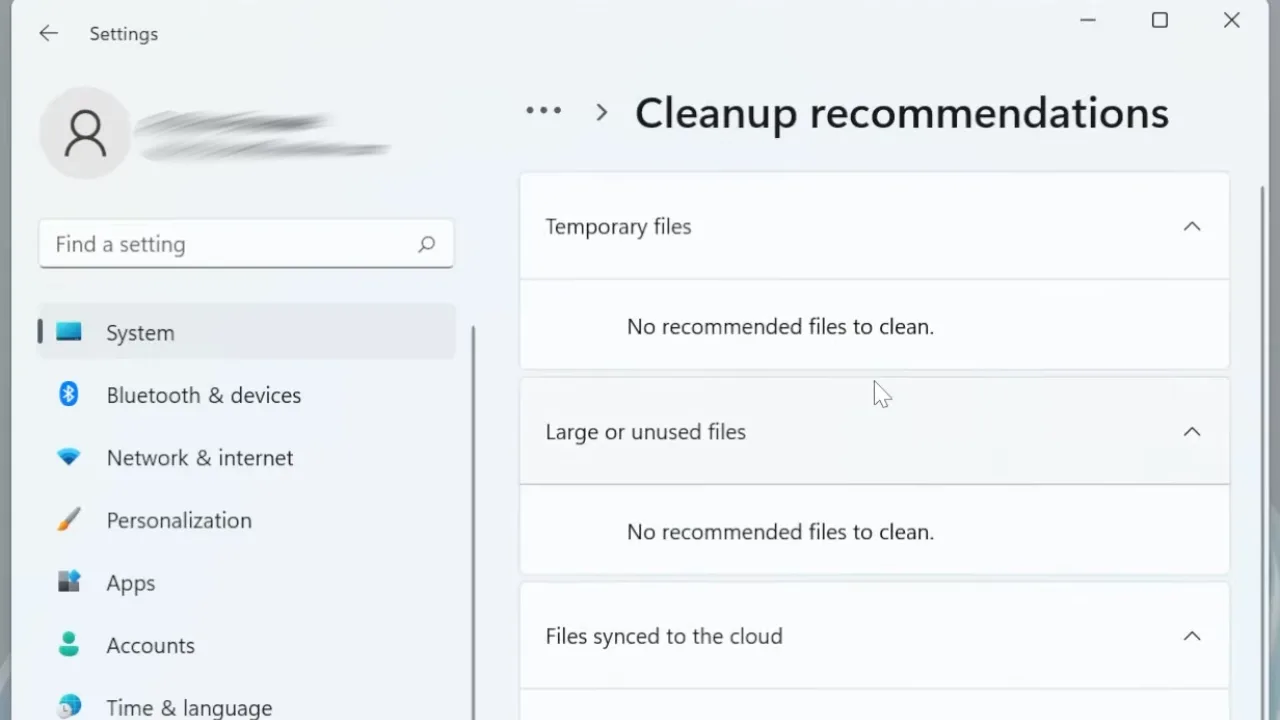
Updates fail with no warning when you’re low on storage. Open Settings > System > Storage > Cleanup recommendations (Windows 11) or right-click your C: drive > Properties > Disk Cleanup (Windows 10). Delete temporary files, empty the Recycle Bin, and clear the Downloads folder of anything you don’t need.
To save more room, move files to external storage or a cloud service. It’s recommended to have at least 20 GB of free space on the drive partition where Windows is installed.
Step 7: Fix Date and Time Settings
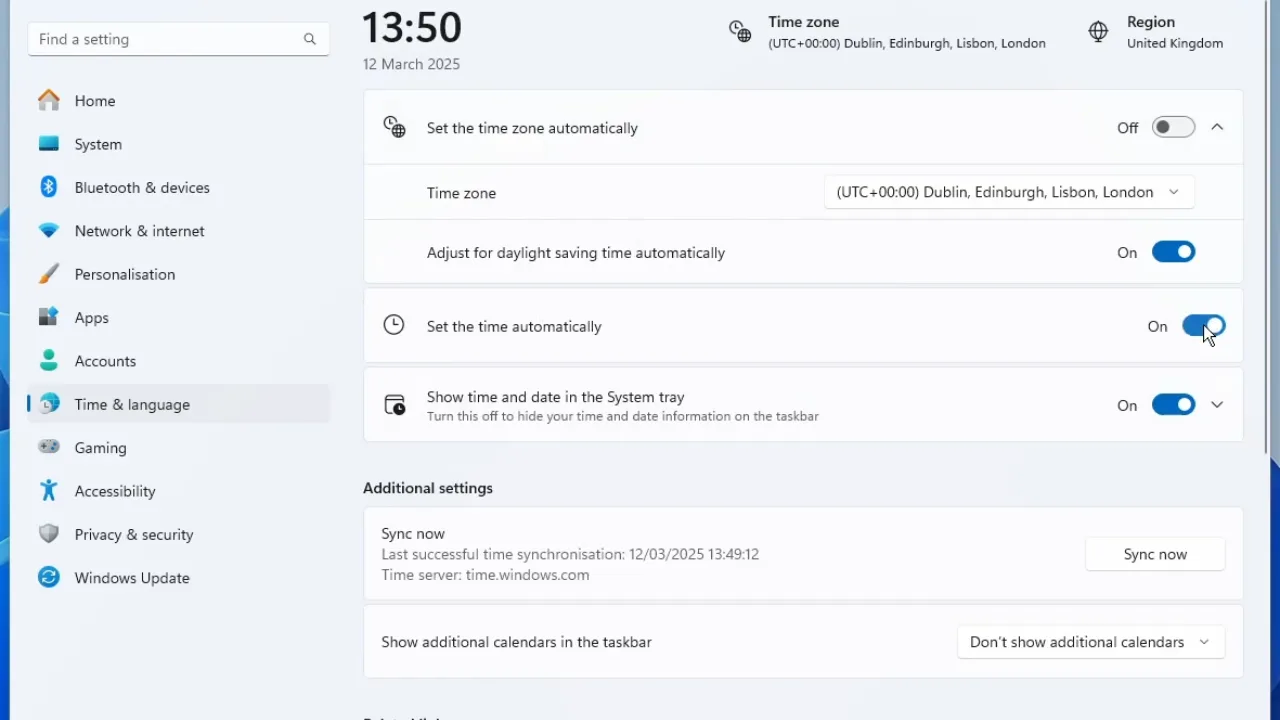
Incorrect date/time settings can cause Windows Update to fail authentication checks with Microsoft’s servers. Go to Settings → Time & Language → Date & Time, turn on “Set time automatically,” and choose “Sync now.”
Step 8: Update Third-Party Drivers
Outdated drivers — especially network adapters and graphics cards — can block updates. Check the hardware manufacturer’s website for the latest drivers, install them, then try the update.
How to Clear the Windows Update Cache
Corrupted cache files sabotage even well-connected systems. Clearing the cache forces Windows to download fresh copies. Follow these steps to remove cache on Windows 10 or Windows 11:
- Press Win + R, type
services.msc, and hit Enter. - In the services list, scroll down to find Windows Update, right-click it, and choose Stop.
- Open File Explorer and navigate to
C:\Windows\SoftwareDistribution. - Delete everything inside that folder, including files and subfolders.
- Return to Services, right-click Windows Update, and choose Start. It will recreate the cache from scratch with clean files.
Reset Windows Update Components via Command Prompt
If cache clearance doesn’t work, resetting the Update-related services from the command line usually does. Sometimes Windows Update components become corrupted, and that’s why an update fails.
To troubleshoot it, open Command Prompt (or PowerShell) as Administrator (search “cmd” > right-click > Run as administrator), then run these commands one by one by pressing Enter after each:
net stop wuauservnet stop cryptSvcnet stop bitsnet stop msiserverren C:\Windows\SoftwareDistribution SoftwareDistribution.oldren C:\Windows\System32\catroot2 catroot2.oldnet start wuauservnet start cryptSvcnet start bitsnet start msiserver
Restart the PC afterward, then try running Windows Update again.
If any command returns “The service is not running” — don’t panic and execute the next one. The rename commands are most important here, as they force Windows to rebuild the update infrastructure from scratch.
Also: Windows 10 & Windows 11 Search Bar Not Working: Reasons & Quick Fixes
Windows Update Error Codes Explained, and How to Fix Them
Windows 10 Errors
| Error Code | Cause | Quick Fix |
|---|---|---|
| 0x800705b4 | Update took too long to install or was interrupted. | 1. Run Windows Update Troubleshooter 2. Check internet connection 3. Reset Update Services/Clear Cache (SoftwareDistribution) 4. Disable antivirus/firewall temporarily |
| 0x80240034 | Windows Update is stuck due to incomplete downloads or connection issues. | 1. Verify Windows Update services are running (services.msc) 2. Run Windows Update Troubleshooter 3. Check network connectivity |
| 0x800f0922, or 0x8007000E | Unable to install due to insufficient disk space. | 1. Free up at least 16 GB (32-bit) or 20 GB (64-bit) of space 2. Use the Disk Cleanup utility 3. Disable VPN if active |
| 0x800F081F, 0x80073712, or 0x80246007 | Corrupted or missing system files, or incomplete download. | 1. Run System File Checker: sfc /scannow2. Run Windows Update Troubleshooter3. Use the DISM repair tool |
| 0x80246007 | Missing download or required update files are unavailable. | 1. Clear Windows Update cache 2. Restart the Windows Update service 3. Run Windows Update Troubleshooter 4. Restart PC |
| 0x80070002, 0x80070003, or 0x80070057 | Update failed to install. | 1. Restart your PC 2. Run Windows Update Troubleshooter 3. Verify sufficient disk space is available |
| 0x80070422 | Windows Update service is disabled or stopped. | 1. Open services.msc2. Set Windows Update service Startup type to Automatic 3. Click Start to run the service, then Apply 4. Restart PC and retry update |
| 0x80070020 | Another program or process is blocking the update process. | 1. Restart PC to close conflicting apps 2. Disable antivirus/firewall temporarily 3. Run Windows Update Troubleshooter |
Windows 11 Errors
| Error Code | Cause | Quick Fix |
|---|---|---|
| 0x8007000d | Problems exist with Windows Update files or cache corruption. | 1. Run Windows Update Troubleshooter 2. Clear Windows Update cache (delete SoftwareDistribution folder) 3. Restart the Windows Update service |
| 0x800705b4 | Update took too long or was interrupted during installation. | 1. Verify a stable internet connection 2. Disable antivirus/firewall temporarily 3. Restart PC 4. Retry update |
| 0x80240034 | Update process stuck due to an incomplete update or a connection issue. | 1. Ensure Windows Update services are running 2. Run Windows Update Troubleshooter 3. Check network status |
| 0x800f0922 | Insufficient disk space prevents installation, or .NET Framework components create conflicts. | 1. Free up required space 2. Disable VPN connection 3. Use Storage Sense to clean temporary files |
| 0x80070057, 0x80080005 | Incorrect system configurations, permission limits, or file corruption. | 1. Run System File Checker: sfc /scannow 2. Run Windows Update Troubleshooter 3. Check administrator permissions |
| 0xC1900101 | Incompatible driver causing update failure. | 1. Uninstall network/graphics drivers via Device Manager 2. Restart PC to reinstall generic drivers 3. Update drivers automatically 4. Perform a clean boot |
| 0x80248014 | The internal Windows Update database has crashed, or the service has stalled. | 1. Run Windows Update Troubleshooter 2. Manually force the Windows Update Service to Start via services.msc3. Restart PC |
| 0x80070005 | Access Denied error or insufficient permissions to install updates. | 1. Verify Administrator access (or create an admin account) 3. Temporarily disable antivirus/firewall 4. Check user permissions |
| 0x80070002 | Update failed to install. | 1. Restart PC 2. Run Windows Update Troubleshooter 3. Check and free up required disk space (16 GB / 20 GB) 4. Clear the update cache if needed |
How to Fix Windows Update Stuck Issues
Progress bars that freeze at specific points require targeted approaches. Frozen at 0% or 99% are slightly different problems, but both can be fixed the same way.
Stuck at 0% or 100%
These extremes usually indicate Windows is trying to start or finalize the update, but is encountering obstacles.
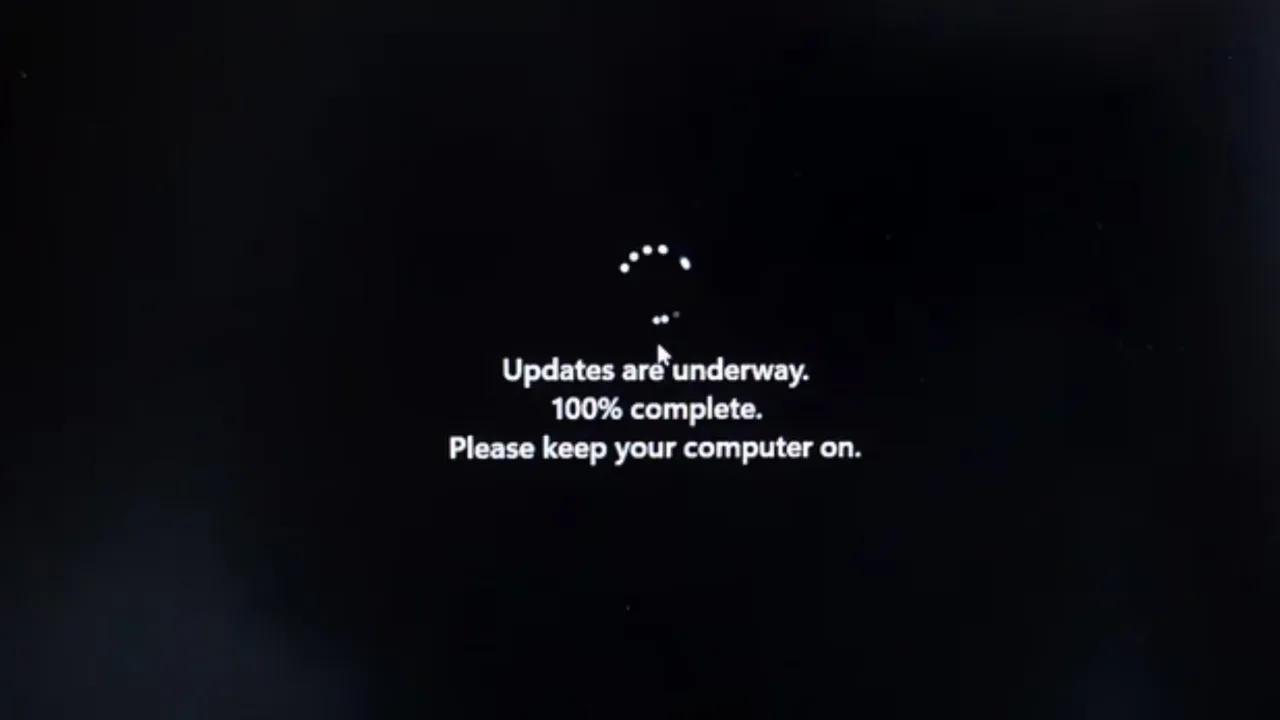
Fix: Restart your computer to unstick the process. Verify internet connectivity and connection speed, and check available disk space and free up if necessary. If it’s still stuck after a restart, clear the Windows Update cache.
Stuck Between 51-99%
Downloads and installations take time, especially for large feature updates of many gigabytes. How long it takes depends on the update size, Internet speed, and network settings.
Fix: Wait. Some updates can legitimately take hours. If the percentage hasn’t moved in 2–3 hours, restart the computer. Then run the Windows Update Troubleshooter. After that, go to Settings > Windows Update > Check for updates to trigger a fresh installation attempt.
Also: How to Disable Driver Signature Enforcement (DSE) in Windows 11
Advanced Repair: Run System File Checker and DISM
Next up in our Windows Update toolkit are System File Checker (SFC) and Deployment Image Servicing and Management (DISM). They’re what you run when system files are corrupted, or when Windows’ core components need a general integrity check. These powerful command-line tools repair damaged system files and Windows image components.
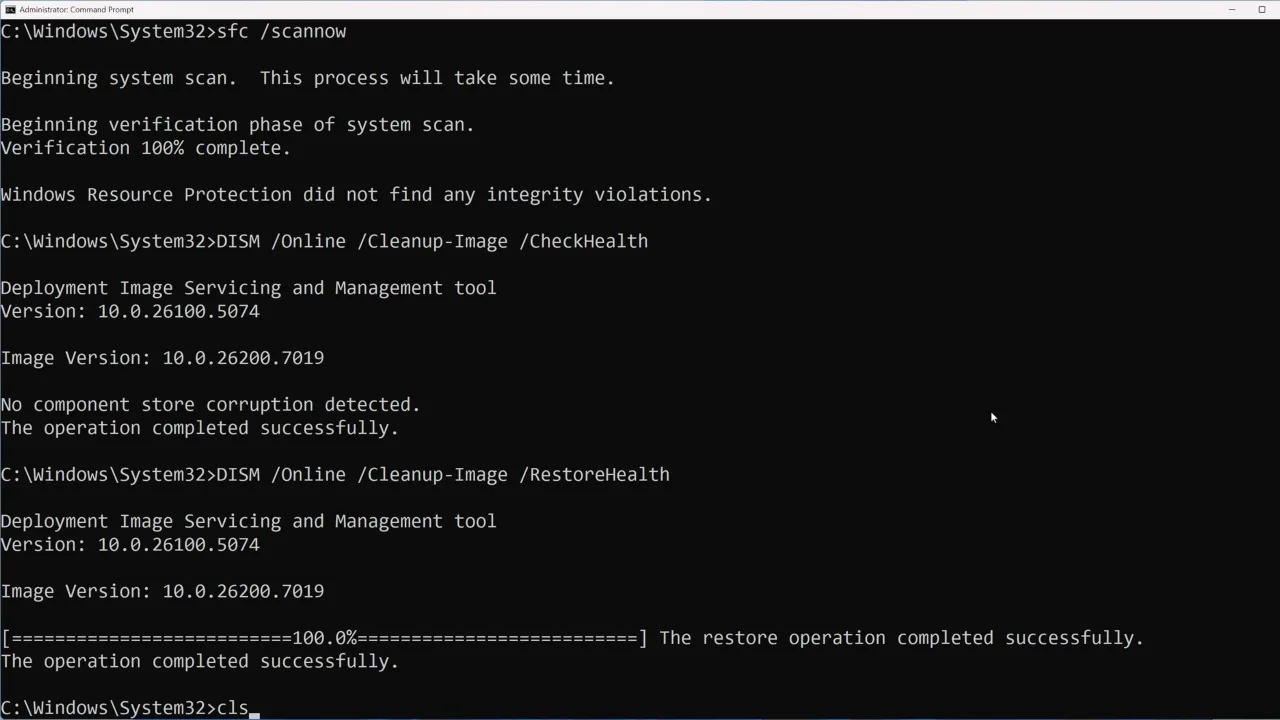
System File Checker scans all protected Windows system files and replaces corrupted ones with clean copies:
- Open Command Prompt as administrator. Type
sfc /scannowand press Enter. The scan will take around 15-30 minutes and automatically replace corrupted files with cached healthy versions.
After SFC completes, run DISM to repair the Windows image:
- Type
DISM.exe /Online /Cleanup-image /Restorehealthand press Enter. This command compares the system with an online database and repairs discrepancies.
Both tools require uninterrupted Administrator access and might take considerable time. Don’t interrupt or shut down your PC during these processes.
Manually Download and Install a Windows Update
When automatic updates repeatedly fail, a manual install often succeeds. Visit the Microsoft Update Catalog website. In the search box, enter the KB number of your failed update (found in Windows Update history or error messages). Download the version that matches your system architecture (x64, x86, or ARM64). Double-click the downloaded file to install it. Windows will check compatibility and installation status before it continues.
You can also search “Windows 11 update history” or “Windows 10 update history” in your browser to find the latest KB number for the update version, even without a specific error code.
Change DNS Settings (When Nothing Else Works)
Some users found that Windows Update fails because their DNS trips it up. Switching to public DNS servers, like Google’s 8.8.8.8 and 8.8.4.4, can fix the problem.
Windows 10:
- Right-click the network icon in the bottom-right and select Open Network & Internet settings.
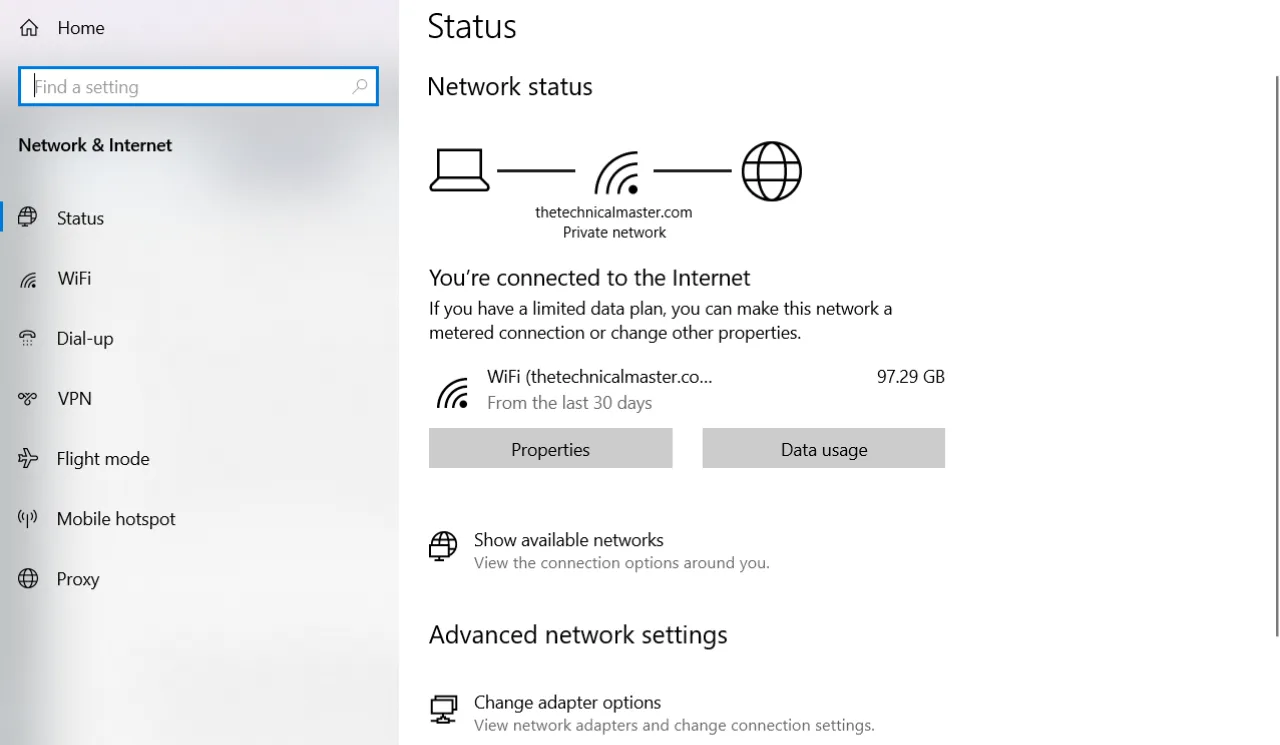
- Under Advanced network settings, choose Change adapter options.
- Right-click your current network connection and choose Properties.
- Select Internet Protocol Version 4 (TCP/IPv4) and click Properties.
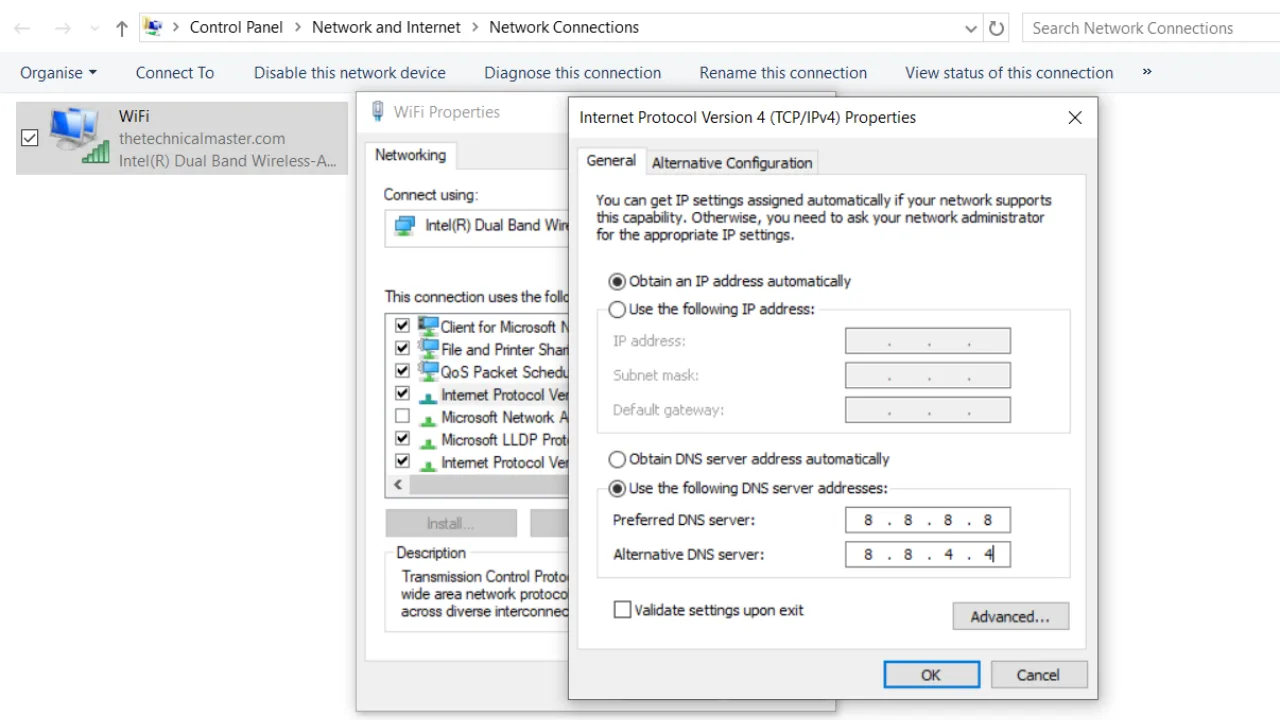
- Click Use the following DNS server addresses, enter 8.8.8.8 as the preferred DNS server and 8.8.4.4 as the alternate DNS server.
- Click OK to save changes.
Windows 11:
- Right-click the Start icon and select Settings, or press Win + I.
- Click Network & internet in the left sidebar.
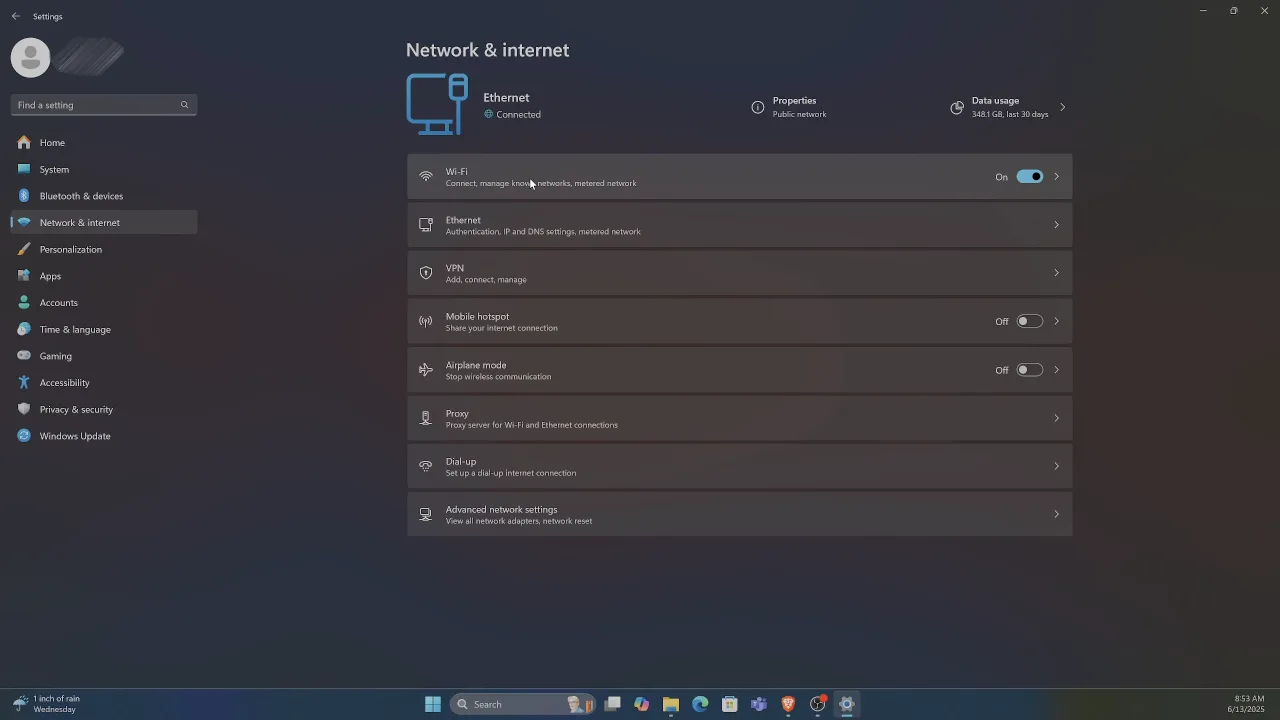
- Choose your current connection type, either Wi‑Fi or Ethernet.
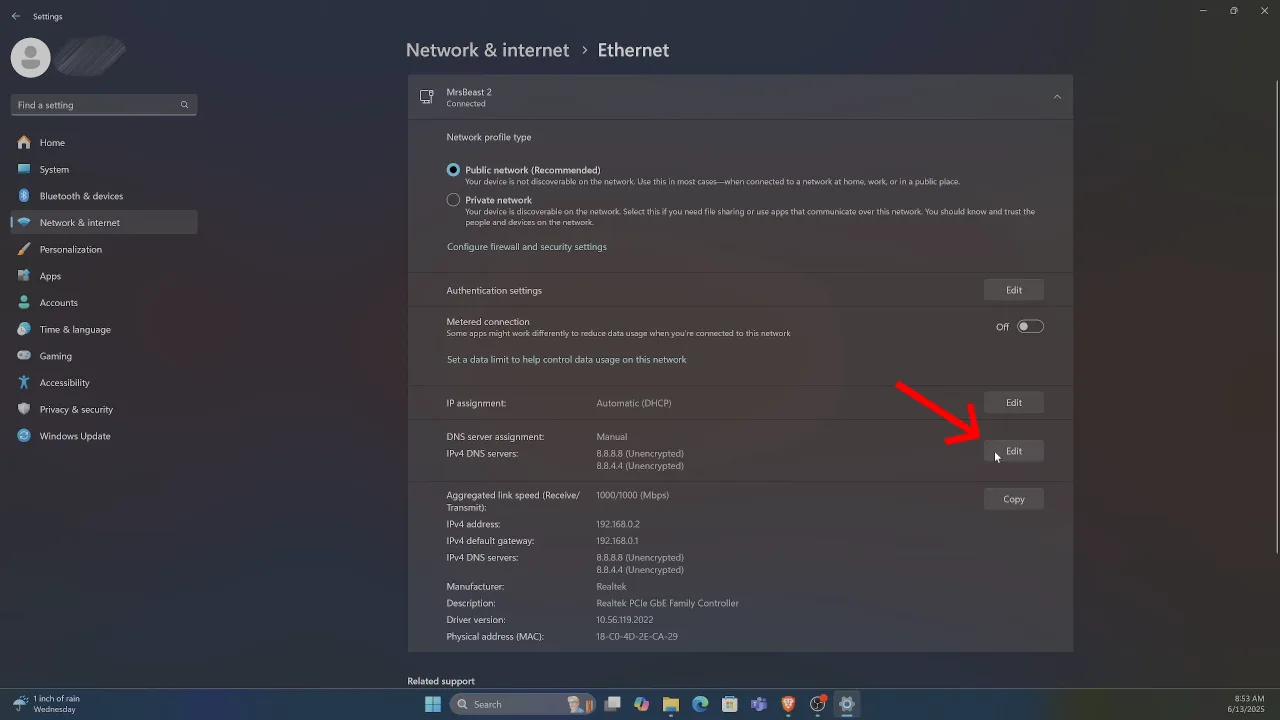
- Scroll to DNS server assignment and click the Edit button to its right.
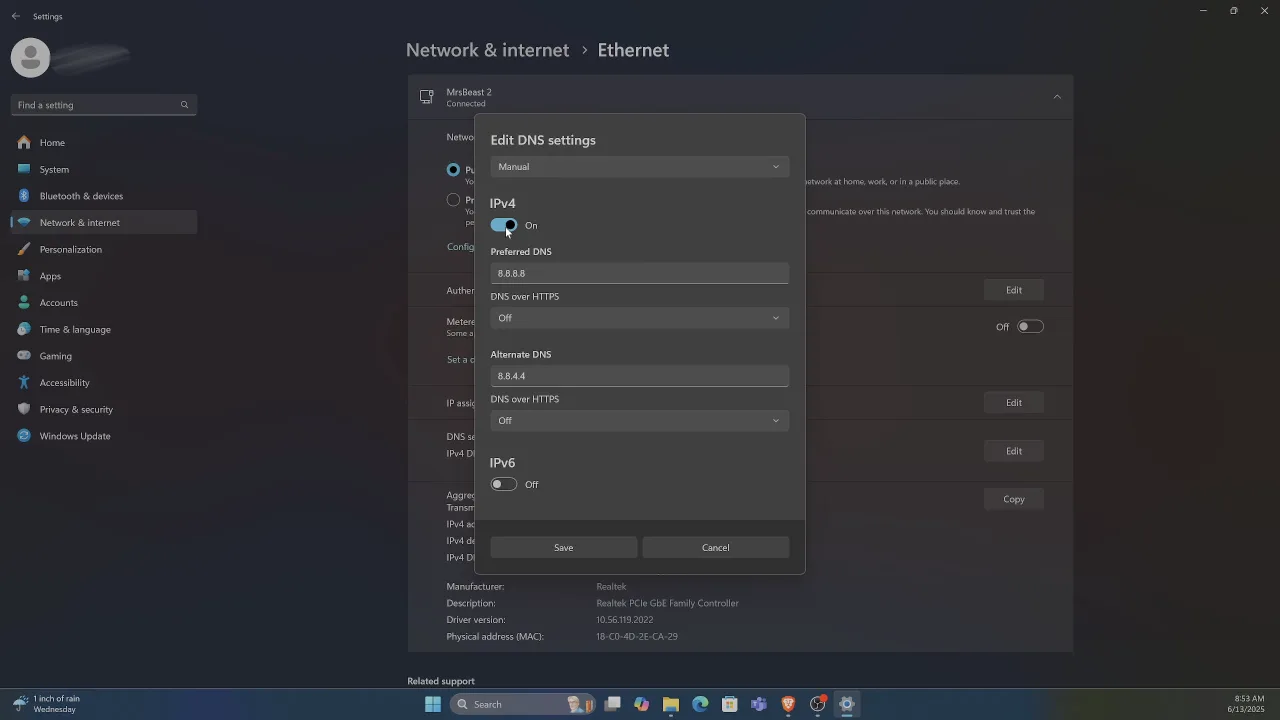
- Choose Manual as the DNS type. Toggle IPv4 to On and enter these DNS servers:
- Preferred DNS: Enter primary server (for example, 8.8.8.8 for Google or 1.1.1.1 for Cloudflare).
- Alternate DNS: Enter secondary server (for example, 8.8.4.4 for Google or 1.0.0.1 for Cloudflare).
- Click Save to apply the changes.
Use System Restore
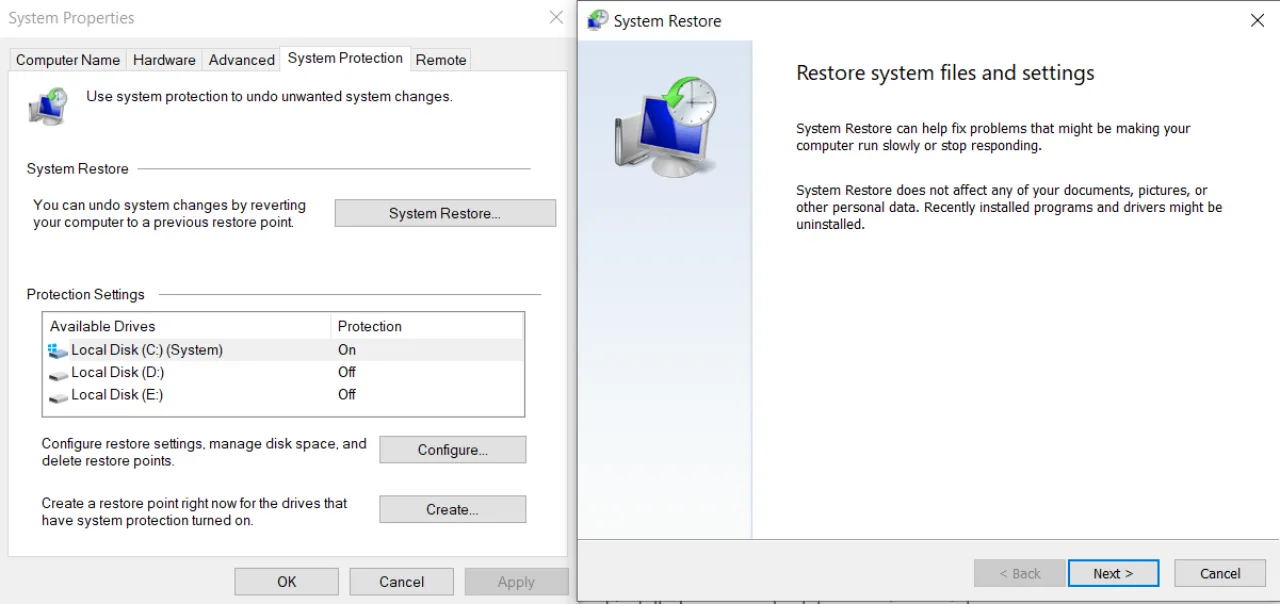
System Restore reverts your computer to a previous working state before the update problems began. In the Start menu, search for “Create a restore point” and open System Properties. Click System Restore, pick a restore point from before the update issues started, and follow the on-screen steps. When it’s done, retry the update. The personal files will stay safe, but any programs and drivers installed after that restore point will be removed.
Also: How to Remove Chat from Taskbar in Windows 11
Last Resort Options
In-Place Upgrade via Windows Update (Windows 11)
This hidden feature reinstalls Windows while preserving applications and personal files. Head to Settings > System > Recovery > Reinstall now. Click “Fix problems using Windows Update,” then select Reinstall now. Windows will download the latest version and perform an in-place upgrade without removing your data. Most users come out the other side with everything intact and update issues resolved.
Reset This PC
- Open Settings > System > Recovery.
- Click the “Reset PC” button next to Reset this PC.
- Choose “Keep my files” to preserve personal data in Documents, Downloads, and Pictures folders.
Windows and all applications will be removed and reinstalled. The method fixes almost any problem when installing Windows, but after that, you’ll need to reinstall all programs. So, first make sure to have installation files and product keys on hand.
Clean Windows Installation
Absolute last resort when none of the above methods succeed. Visit Microsoft’s Windows download page for Windows 10 or Windows 11 and download the Media Creation Tool. Follow the prompts to create installation media or upgrade directly. This solution will completely wipe your system and install a fresh Windows.
Frequently Asked Questions
Why does my Windows Update keep failing with different error codes?
Windows Update throws different error codes because different parts of the pipeline break in different ways. Sometimes the troubleshooter will spot the pattern, but the usual culprits include a corrupted update cache, damaged system files, or a drive that’s too full to finish the job. Clear the update cache, run SFC and DISM to repair system files, and ensure enough storage space.
Can I skip a Windows Update if it keeps failing?
You can postpone an update, but you do it with your eyes open. Every week you wait is another week you run exposed to bugs that attackers already know how to use. Cybercriminals exploit unpatched vulnerabilities in outdated machines. Even if a feature update fails, security updates can still install, so don’t ignore them.
Will clearing the Windows Update cache delete installed updates?
No, clearing the SoftwareDistribution folder removes only pending downloads and temporary installation files. Already installed updates remain intact and fine. This process forces Windows to re-download clean copies of remaining updates, which is often enough to break a loop caused by a bad download.
Can antivirus software actually block updates?
Yes. Some third-party antivirus and firewall tools flag Windows Update traffic as suspicious and block it. If that happens, turn the antivirus off for 10–15 minutes while you try the update, then enable it back as soon as the update finishes.
What should I do if updates work fine but my system becomes unstable afterward?
Boot into Safe Mode to narrow down the problematic component. Use System Restore to revert to a pre-update state, then investigate driver conflicts from Device Manager. Event Viewer can also show what’s failing if you see the specific errors. Uninstall recent driver updates and allow Windows to reinstall them automatically or download fresh versions from manufacturers.
What happens if I force shut down during a Windows update installation?
If you power off the PC during a Windows update, you can end up with corrupted system files and Windows in a broken state. In most cases, the OS will attempt to roll back the update on the next boot. If it can’t, you may need to run Startup Repair or use the DISM tool to recover.
Did this fix your issue?
Let us know. Your feedback helps other readers find the right solution.
Great! What solved it for you?
We read every response. Email is optional and never shared.
Sorry to hear that. What happened when you tried?
Leave your email and we will personally help you fix it.