- Why Does My Android Phone Stop Charging at 80%?
- Battery Protection Features
- Overheating
- Aging Battery
- Faulty Hardware Accessories
- Software Glitches and Calibration Errors
- How to Fix an Android Device Not Charging Past 80%
- 1. Turn Off Optimized or Adaptive Charging
- 2. Disable Battery Protection
- 3. Cool Down the Device
- 4. Try a Different Cable and Charger
- 5. Restart Your Phone
- 6. Recalibrate the Battery
- 7. Investigate Third-Party Apps
- 8. Check Battery Health
- 9. Update or Roll Back Software
- 10. Factory Reset
- Should You Disable the 80% Limit on Android?
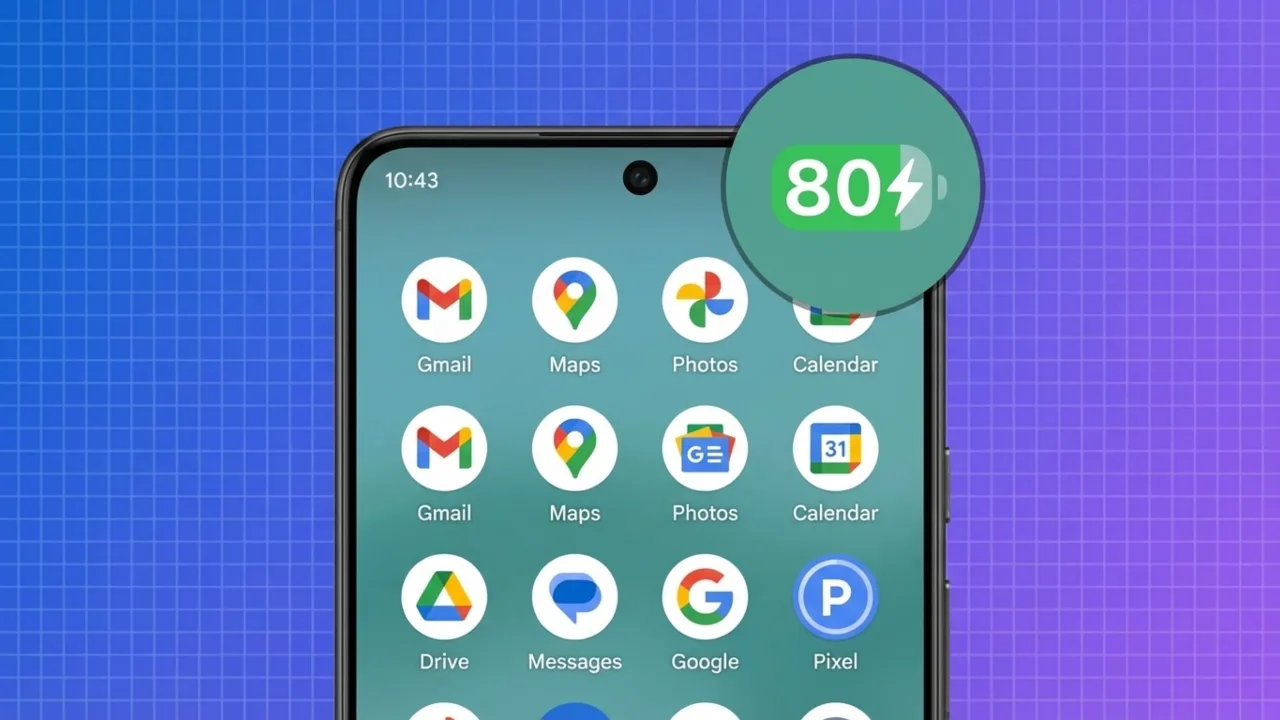
Does your Android phone stop charging at 80% and won’t budge? That’s usually either due to a battery-protection feature or a hardware issue. Most of the time, the device caps the charge on purpose to protect the battery’s lifespan, or heat forces the system to hit the brakes. It’s one of the most common complaints among Android users, and often something you can sort out in a few minutes. Here’s why it happens and how to fix the phone that won’t charge past 80%.
Why Does My Android Phone Stop Charging at 80%?
Battery Protection Features
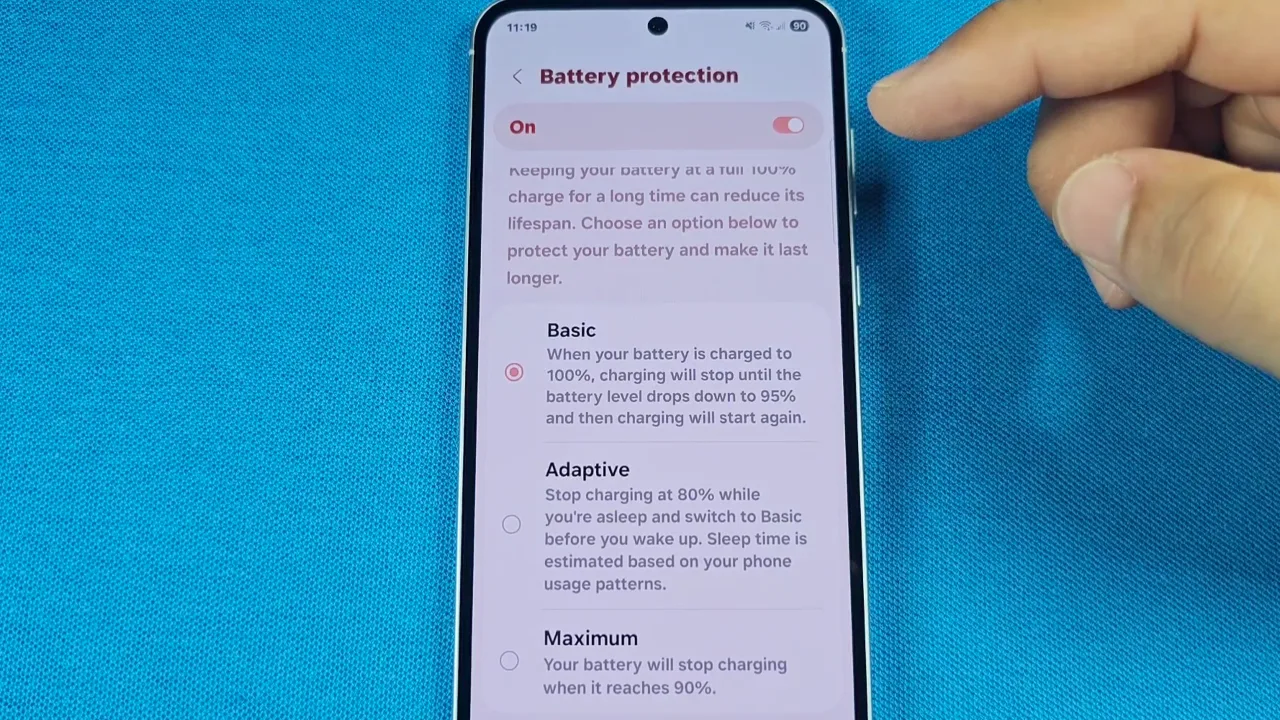
Modern Android phones have adaptive charging features that deliberately cap your battery at 80%. Samsung calls it “Protect Battery,” Google uses “Adaptive Charging,” and OnePlus has “Optimized Charging.” These systems reduce battery degradation by avoiding the stress of staying at full charge for long.
The device learns your habits when you usually unplug. So if you charge overnight, it may park at 80% for hours, then top off to 100% right before your morning alarm. Some brands also let you set a permanent hard limit at 80% or 85% if you care more about battery lifespan than having a full charge. And if you turned that on weeks ago and forgot, that’s probably where the problem lies.
Also: How to Share Location on Android: 7 Easy Methods
Overheating
Charging generates heat, particularly when you use high-wattage fast chargers or when the phone is in a hot environment. Android consistently monitors internal thermals. If temperatures exceed a certain threshold, the system automatically limits the charging current or stops it to protect the battery cells from getting cooked.
Aging Battery
When a battery degrades, it can hit “full” for its current worn-out capacity and still display 80% on the meter. If it’s lost about 20% of its original capacity, it might show as 80% charged even when it has reached its maximum physical capacity. Bad cells can make it even weirder, and the battery management system may stop charging early as a safety measure.
Faulty Hardware Accessories
Damaged cables, weak power adapters, or a pocket-lint-filled USB-C port disrupt power delivery. A poor connection might provide enough trickle charge to get to 80% overnight but fail to deliver enough watts to complete the cycle, especially when the charging curve slows down near the top end.
Software Glitches and Calibration Errors
Android’s battery calibration can get confused, particularly after software updates. The system may report an 80% charge when the physical capacity is lower because the stored battery statistics no longer match the hardware’s state. When the operating system loses track of the true voltage, or a software bug or a miscalibrated battery sensor reports a full charge prematurely, the power management system cuts the charging current before the battery reaches its limit.
Also: Don’t Use Pattern Lock to Secure Your Android Phone: Here’s Why
How to Fix an Android Device Not Charging Past 80%
1. Turn Off Optimized or Adaptive Charging
Turning this off for now will let your phone charge all the way to 100%. You can turn the feature back on later to manage long-term battery health.
Depending on your phone settings, here’s where you can find the Adaptive Charging or similar options:
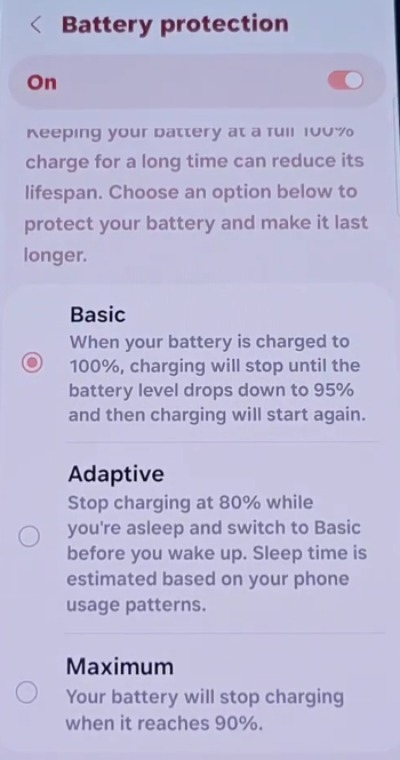
- Samsung Galaxy: On a Samsung Galaxy with One UI 6.1+, go to Settings > Battery > Battery protection and toggle it off or set it to Basic. On older One UI versions, tap Settings > Battery > Background usage limits and turn off Adaptive Battery.
- Google Pixel: Open Settings > Battery > Battery health > Charging Optimization (or Adaptive preferences on old Pixel devices). Toggle off the Use Adaptive Charging option.
- OnePlus: Go to Settings > Battery > Battery health (or Battery management) and toggle off Smart Charging.
- Xiaomi / MIUI: Go to Settings → Battery → Battery Saver and look for Optimized charging or Charged optimally.
2. Disable Battery Protection
Some phones include a manual battery limit separate from adaptive settings. It’s a static limit you’ve either set intentionally or turned on by accident. On Samsung devices, go to battery settings and check “Protect battery,” which caps the charge at 85%. Similar toggles exist on Xiaomi and OPPO devices. If you want a 100% charge, ensure such modes are disabled.
3. Cool Down the Device
Heat is the enemy of lithium-ion chemistry. Move the device out of direct sunlight or hot vehicles. Remove thick, bulky cases while charging, as they trap heat against the chassis. Let the device rest on a cool, hard surface rather than a bed or couch. Once internal temperatures drop to normal operating levels, the charging cycle will resume automatically.
4. Try a Different Cable and Charger
A damaged, bent, or cheap USB cable can cause all sorts of inconsistent charging behavior. Swap your current unit for the original cable and wall plug that came with the device, or a certified replacement. Further, inspect the USB-C port for lint or dust, as it’s very common and results in a poor connection. If you find debris, gently clear it out with a wooden toothpick or a soft brush.
Also: How to Turn On Private DNS Mode on Android: Why You Should Use It?
5. Restart Your Phone
A restart will clear temporary system states that can interfere with battery management. If your phone has run for many days without a reboot and stops charging at 80%, restart it and reconnect the charger. Learn how to restart your Android device in 3 different ways, even without the power button.
6. Recalibrate the Battery
If the battery percentage gets stuck or acts erratically (not only at 80% but jumps around), the battery gauge might need recalibration.
To do this:
- Let the phone drain completely until it shuts off on its own.
- Leave it powered off for a few minutes.
- Connect the original or certified adapter and charge it back to 100% without interruption.
- Restart the phone once fully charged.
This won’t repair a worn-out hardware, but it can fix issues with how the software reports the charge level.
7. Investigate Third-Party Apps
Battery management apps from the Play Store can override system charging. If you use battery savers or health monitors, disable them to see if charging resumes. Tools like AccuBattery can include settings that intentionally limit charging to a specific percentage.
8. Check Battery Health
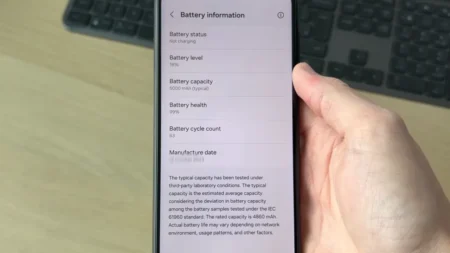
On older Android phones, a physically degraded battery can’t hold a full charge anymore. The battery cells wear out over time, typically after 300–500 full charge cycles, and what was once full capacity shrinks a lot. If your battery health falls below 80%, a battery replacement from the manufacturer or a reputable repair shop will restore its original capacity. Read this guide to check your device’s battery health via multiple ways to confirm the cell’s current status.
9. Update or Roll Back Software
Check if your phone’s software is up to date by going to Settings → Software update. OS updates can tweak battery management settings or introduce bugs that limit charging. If the 80% limit happened right after an update, check the forums to see if other users with your model are facing the same issue.
Manufacturers release patches if an update causes charging issues. If no patch is available, you may have to wait for the next release. Although some devices allow you to roll back to a previous software version, many brands block this option, so check your device’s specific limitations first.
10. Factory Reset
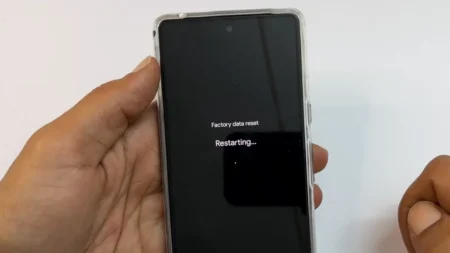
If the above troubleshooting methods didn’t work and you’ve ruled out hardware damage, a factory reset will clear software corruption responsible for the issue. This step is often more effective than replacing the battery, as damaged calibration files or system errors can create charging issues that stick through normal restarts. Back up your data under Settings → General management → Backup and restore before you proceed. Here’s how to do a full factory reset on an Android device.
Also: How to Block Spam Calls on Android
Should You Disable the 80% Limit on Android?
Whether you should disable it comes down to your daily habits. If you need a full charge to last until evening, turn the limit off. Just keep in mind that charging to 100% every night speeds up battery wear over time.
If you usually charge overnight and 80% gets you through the day, leave it on. Manufacturers introduced this setting for a reason, and the evidence that lithium batteries last longer at lower charge levels is strong. You can always switch the limit off for a day when you’ll be away from a charger, then turn it back on.