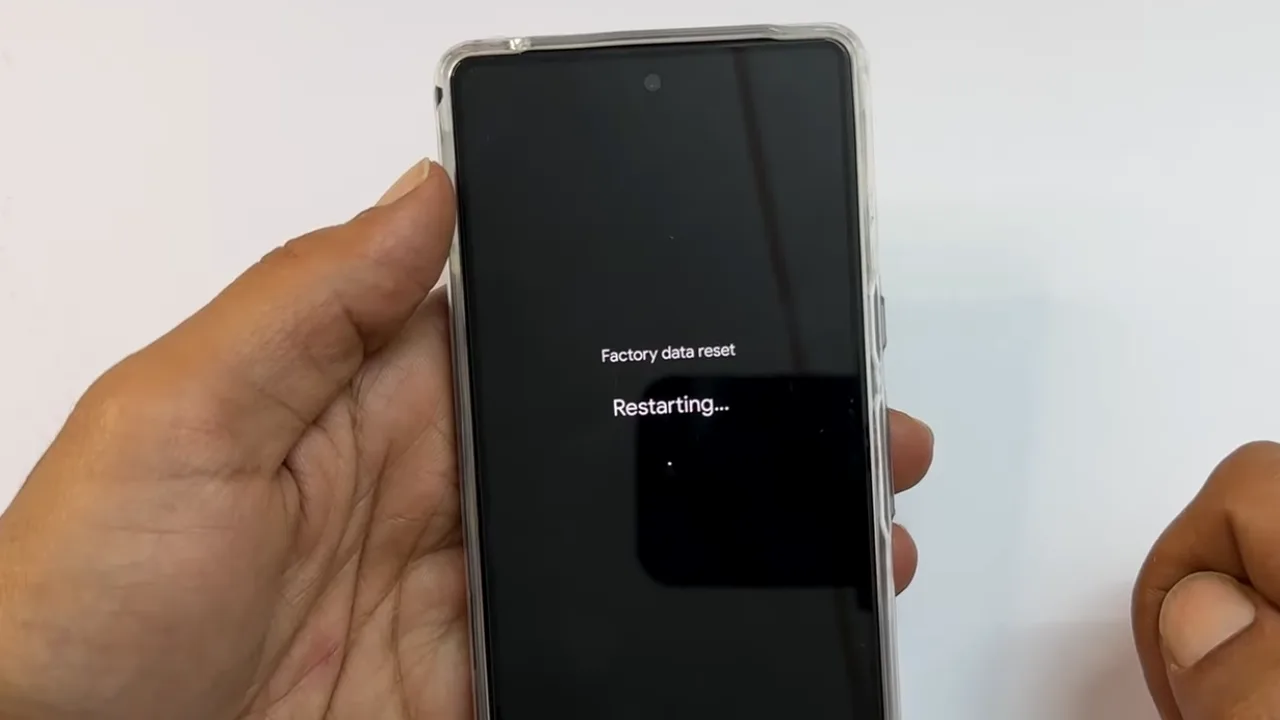
- When You Need to Factory Reset an Android Device
- What Data Factory Reset Deletes and What Remains
- Prepare for a Factory Reset
- Know Your Google Account Credentials
- Back Up Your Important Data
- Charge the Phone and Connect to Wi-Fi
- Remove Security Locks and Accounts (If Selling or Giving to Someone)
- How to Do a Factory Reset on Android via Settings
- How to Factory Reset Android Using the Hard Buttons (Locked Out)
- How to Factory Reset an Android Device Remotely
- Google Find My Device
- Samsung SmartThings Find (Samsung Only)
- How to Perform a Factory Reset on Android via Computer Software
- Soft Reset vs. Hard Reset: Quick Clarification
- How to Restore Your Data After the Reset
A factory reset, also known as a hard reset or master reset on Android, deletes all personal data and custom settings from your device and returns the hardware to its original out-of-box state, as it was when it left the factory. It’s the right move when your Android phone is too slow to fix any other way, you’re selling or giving it away, or you’re locked out and have no other option. Before you do anything, understand that there’s no undo option here. Once it’s done, it’s done.
When You Need to Factory Reset an Android Device
Because a reset is permanent, try these simple things first to confirm if your problem gets solved without the complete wipe:
- Restart your phone: It can fix about 60% of random glitches. Hold the power button, tap restart, done.
- Boot into Safe Mode: This disables all third-party apps and tells you if a downloaded app is causing issues. If your phone works fine in Safe Mode, there’s a rogue app on your device. Uninstall recently added applications until you find the culprit.
- Clear app cache and data: Go to Settings > Apps, find the problematic app, and clear its cache or data. This often fixes app-specific crashes without affecting the rest of the phone.
- Check for system updates: Sometimes a software bug is already fixed in a pending update. So, go to Settings > System > System update to see the update status.
If none of that helps, it may be time for a reset. It becomes necessary when you’re selling or giving the phone away and need to erase your personal data. A factory reset is also the only option left when the mobile is locked, and you can’t remember the PIN, password, or pattern.
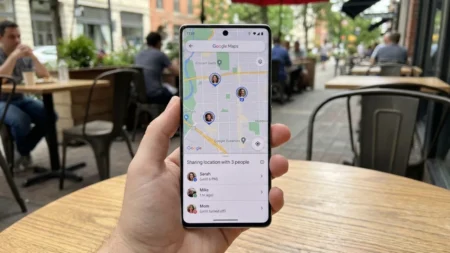
Also: How to Share Location on Android: 7 Easy Methods
You should also do it if your phone is stuck in a boot loop (and won’t start the OS properly), has malware you can’t remove, or system performance has degraded so badly that other fixes are ineffective. In some cases, tech support might also require a hard reset to troubleshoot a major software fault.
What Data Factory Reset Deletes and What Remains
After a master reset, all data on the phone gets removed, including downloaded apps, saved passwords, photos stored locally, text messages, contacts not backed up to Google, customized settings, and everything. The phone reboots into the same setup screen you saw the first time you turned it on.
Factory resets also roll back the software state. Any OS updates won’t be wiped, but cached system data does get cleared, which is often why a phone runs noticeably fast right after a reset. Worth knowing if you’re doing this to fix performance issues.
What device reset does not delete is the data stored in your Google Account and files on your SD card (usually varies by manufacturer). Gmail, Google Contacts, Google Photos (if backed up), and app data synced to Google Drive all stay safe on Google’s servers and recover when you sign in again after the reset.
Prepare for a Factory Reset
Skipping this part is the big reason people lose everything permanently. Give it 10 minutes and save yourself serious regret later.
Know Your Google Account Credentials
Once the reset finishes, the phone will ask you for the Google Account previously used on the device. This is Factory Reset Protection (FRP), an anti-theft security feature designed to prevent unauthorized users from resetting a stolen phone to make it useless for them.
So make sure you know:
- The exact email address of your Google Account that was linked to the phone.
- The correct password for that account.
To check which account is on the device: go to Settings → Accounts and check the Google account listed there. Then sign in to that account on a computer to confirm the password is correct. If you can’t remember the password, use Google’s account recovery at accounts.google.com before you proceed.
After you’ve recently changed the Google password, wait 24 hours and then reset the phone because Google needs this delay before FRP accepts the new credentials. Further, confirm your screen lock PIN, pattern, or password. You’ll need it to authorize the factory reset.
Back Up Your Important Data
A hard reset permanently deletes your local files, so they should be saved somewhere safe to retrieve them later. Google automatically backs up a lot, but not everything. Here’s what gets saved to your Google Account and what doesn’t.
What Google backs up automatically:
- App data (for apps that support it)
- Call history
- Contacts
- Device settings (Wi-Fi passwords, wallpaper, etc.)
- Google Calendar events
- SMS texts (on some devices)
What you need to back up manually:
- Photos and videos (use Google Photos)
- Important files (upload to Google Drive)
- WhatsApp chats (WhatsApp has its own backup system)
- Game saves (check if your games support cloud saves)
To manually trigger a backup:
- Open Settings.
- Tap Google → Backup.
- Tap Back up now and wait for it to finish.
For photos and videos, open Google Photos, tap your profile picture, go to Photo settings > Backup, and turn it on. Let it finish uploading everything before you reset.
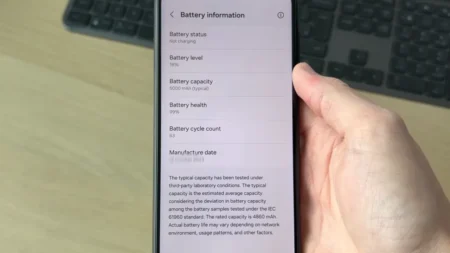
Also: How to Check Battery Health on Android: 4 Quick Ways
Charge the Phone and Connect to Wi-Fi
A factory reset can take a few minutes or close to an hour. It depends on your phone and how much data it has to wipe. Plug it in and charge it to at least 70% and connect to Wi‑Fi, since you’ll need internet right after the reset to sign back in to your Google Account.
Remove Security Locks and Accounts (If Selling or Giving to Someone)
If you’re resetting your device because you are about to sell or give it to a friend or family member, do this first:
Remove your Google Account:
- Open Settings and select Passwords, passkeys & accounts.
- Select your Google account, then tap Remove account.
- Tap Remove account again when prompted to confirm.
- Choose OK on the next prompt and enter the password or scan your fingerprint to finish.
It will disable Factory Reset Protection so the new owner won’t get stuck at the setup screen asking for your credentials.
Turn off Find My Device:
- Go to Settings > Security > Find My Device.
- Toggle the switch off.
Disable screen lock:
- Go to Settings > Security > Screen lock. Open Settings and select Security & privacy.
- Scroll down and tap the Device unlock text.
- Tap the gear icon next to Screen lock and select None.
- Do the same for Face & Fingerprint Unlock to disable it.
- When prompted to confirm, tap Delete.
Once these steps are complete, you’re ready to reset Android without locking out the next user.
How to Do a Factory Reset on Android via Settings
This is the standard method and the one to use whenever you can still access the phone normally. The path through Settings varies slightly by manufacturer and Android version, but these are the most common routes to factory reset a phone:
- Stock Android / Pixel: Settings → System → Reset options → Erase all data (factory reset).
- Samsung (One UI): Settings → General management → Reset → Factory data reset.
- Other brands (older Android): Settings → Backup and reset → Factory data reset or Settings → Privacy → Factory data reset.
Once you find it:
- Tap Factory data reset or Erase all data.
- Scroll down and tap Reset or Reset phone.
- Enter your PIN, pattern, or password when prompted.
- Tap Erase everything or Delete all to confirm.
The phone will reboot, show a progress screen, and return to the setup wizard when done. Next, set up your Android smartphone or tablet and restore your backed-up data.
How to Factory Reset Android Using the Hard Buttons (Locked Out)
When you can’t access Settings due to a wrong PIN too many times, a forgotten password, an unresponsive screen, or a phone stuck in a boot loop, you can format the device via the hard buttons. They bypass the lock screen and open the Recovery Mode.
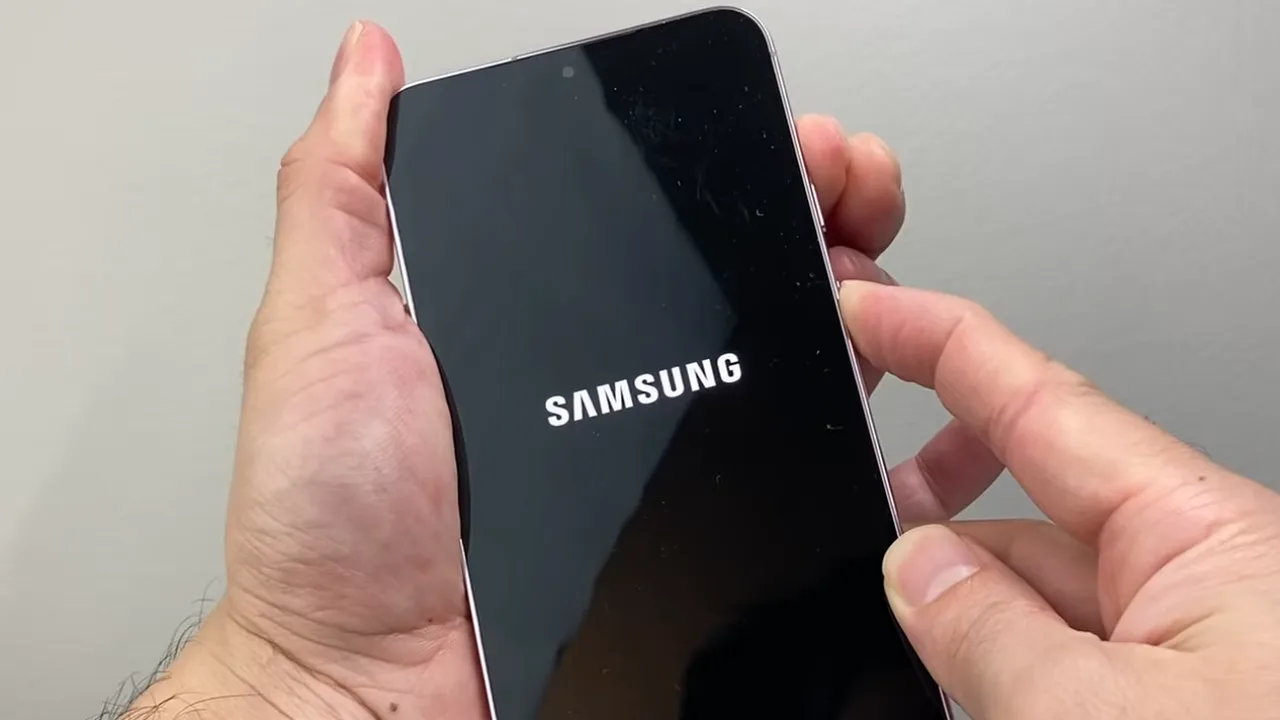
What combined keys to press are differently configured by different brands, so follow your device’s setup:
- Google Pixel phones: Power + Volume Down at once.
- Samsung (no Home button — S8, Note 10, S20, S21, Fold, Flip): Volume Up + Power/Side button simultaneously.
- Samsung (with Home button — S6, S7): Volume Up + Home + Power simultaneously.
- Most other Android phones: Power + Volume Down, or Power + Volume Up.
Next, follow these steps:
- Power off the device. If it’s locked, hold the power button and tap Shut down — you don’t need to unlock it to power it off.
- Press and hold the button combination for your phone until the screen lights up with a brand logo or menu, then release.
- It will open the Recovery Mode menu or a “No command” screen.
- If you see “No command,” hold the Power button, and while holding it, press Volume Up once, then release both. The recovery menu will appear.
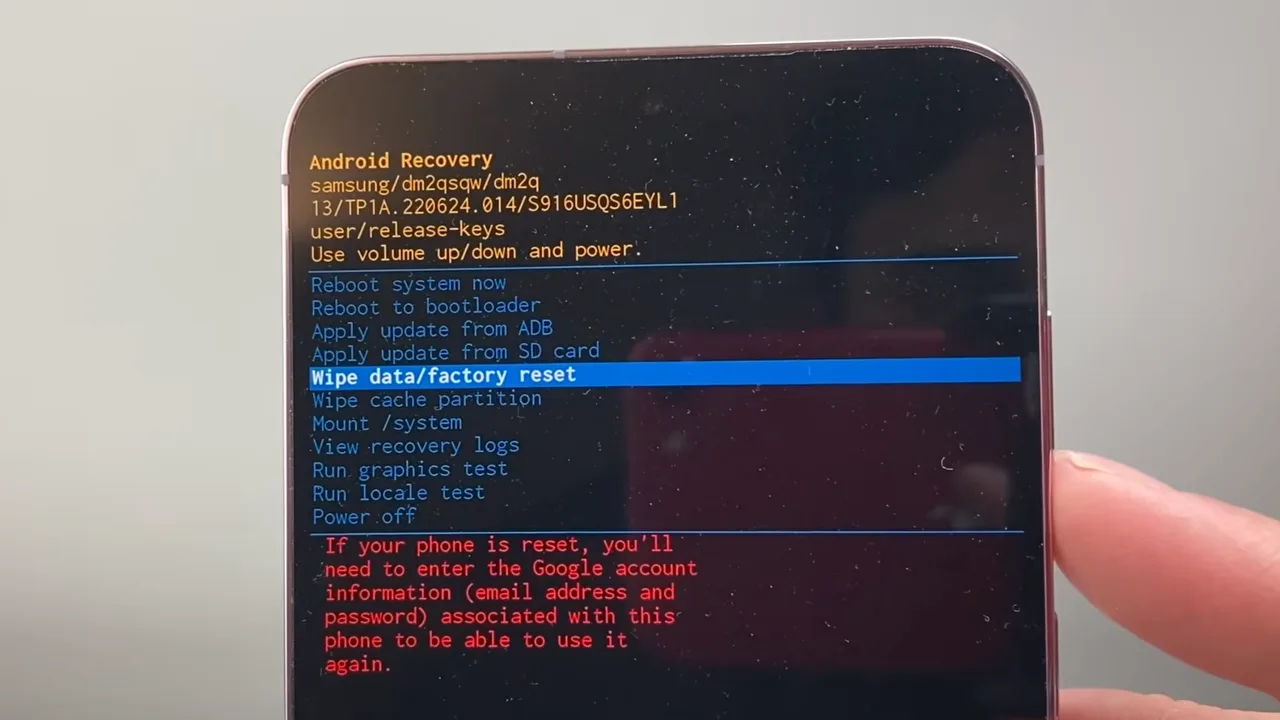
- Use Volume Up/Down to scroll to Wipe data/factory reset.
- Press Power to select it.
- Scroll to Factory data reset or Yes – delete all user data.
- Press Power to confirm to start the master reset.
- When the wipe finishes with a message like “Data wipe complete“, scroll to Reboot system now and press Power.
The phone will restart to the setup wizard. If you didn’t remove your Google Account before the reset, you have to sign in with the original account credentials to continue. Enter the previous Google email and password when prompted to verify ownership.
How to Factory Reset an Android Device Remotely
Two services let you wipe an Android phone from a browser without touching the device, which is useful if the phone is lost, stolen, or completely inaccessible.
Google Find My Device
You can reset your mobile remotely from a web browser or the Find My Device app. This works even if you don’t have the device with you, given it meets these requirements:
- The phone is powered on and is signed in to your Google Account.
- It’s connected to Wi-Fi or mobile data.
- Location services are enabled
- Find My Device is enabled (it’s on by default)
To reset the device:
- On a computer or another device, visit android.com/find in a browser.
- Sign in with the Google Account linked to the phone.
- If you have multiple devices, select the specific phone or tablet at the top of the screen.
- In case the device has multiple user profiles, you must sign in with the Google Account associated with the main profile.
- A notification will be sent to the target device.
- Choose the Erase device. You may need to click Enable lock/data erase first.
- Confirm. The phone wipes remotely.
Once erased, Find My Device can no longer track or communicate with that phone, and the deletion is permanent.
Also: How to Fix Android Phone Battery Draining Fast
Samsung SmartThings Find (Samsung Only)
SmartThings Find lets you remotely find, lock, or wipe your device. To perform a factory reset, the phone must be connected to Wi-Fi or cellular data, signed in to your Samsung Account, and have Remote control and Remote unlock enabled in settings.
- Go to smartthingsfind.samsung.com.
- Log in to your Samsung Account.
- Select the device you want to reset from the list on the left pane.
- Click Erase data.
- If prompted, enter the verification code sent to your Samsung device and click Verify. Click Erase data again.
- If you don’t receive a code, click Verify with text message or Verify with backup code. To use a different Galaxy device for verification, select Verify with text message followed by Verify with another Galaxy device.
- When the confirmation box appears, click Erase to clean wipe.
- Enter your Samsung Account password and click Next.
- The device will be factory reset, and you’ll no longer have remote control over the Android phone once this process ends.
How to Perform a Factory Reset on Android via Computer Software
Google Pixel phones have a special tool called Android Flash Tool that can reset and update the phone from a computer.
What you need is:
- Google Pixel 3 or newer model.
- Computer with a Chrome browser.
- USB cable.
Steps to follow:
- Go to flash.android.com on the PC.
- Connect your Pixel phone to your computer with a USB-C cable.
- Enable USB debugging on the phone (Settings > Developer options).
- Follow the on-screen instructions to allow the connection.
- Select Wipe device or Factory reset.
- The tool will reset the phone and install the latest Android version.
This method will install the latest Android version during the reset, unlike other options that return the device to its original factory software.
Soft Reset vs. Hard Reset: Quick Clarification
A soft reset is a simple restart when you turn the phone off and back on. It clears temporary memory and fixes minor glitches without deleting data, so always try this before a full wipe. A hard reset is a factory reset that permanently removes all data from the device and is irreversible.
If your phone doesn’t work fine, soft reset it first. If the issue remains, boot into Safe Mode (hold Power → long press “Power off” to get the Safe Mode prompt) to see if a third-party app is the cause. Only use a factory reset as a last resort.
Also: Why is My Phone Overheating? Reasons and How to Fix It
How to Restore Your Data After the Reset
After the reset completes, the phone will power on and display the initial welcome screen. Follow the prompts to connect to the Wi-Fi network and log in to your Google Account. The setup wizard will automatically detect your recent cloud backup and provide on-screen prompts to recover contacts, saved app data, and settings onto the freshly wiped system. Apps that don’t support Google Backup won’t restore this way like WhatsApp; you must use its internal Google Drive backup tool during the app’s early setup.