A dead or unresponsive power button doesn’t mean your Android phone can’t shut down or reboot. This is a common hardware issue, mainly on phones that are a few years old or used heavily. Android has enough built-in flexibility and gives you multiple ways to restart your device without the physical power button. Below, I will show you three reliable methods that work when you need them most.
I restart my RedMagic 6 at least once a week, and for good reason. You might think it’s a minor habit, but regular reboots have a few good benefits that keep the device in fine shape. First, a restart clears temporary caches that accumulate over time and prevents usual performance bottlenecks.
It’s also a simple but good way to protect your phone. A lot of malware only resides in memory, so a device restart can stop potential cyberattacks or remove malicious code. If your mobile phone gets hot, apps are crashing, or a connection issue happens, a quick power off and on often fixes the underlying conflicts. These benefits are totally worth it for any Android user.
[internal_posts_grid ids=”15889, 18017, 6240″]Whenever I restart my phone, I kinda feel like I have opened a brand new device that’s at its best. On high-performance hardware like my smartphone, it’s the most effective way to eliminate micro-stuttering and restore peak clock speeds. You should have this habit as well.
Although there’s a standard way to hold the power button, this isn’t always viable. Mechanical fatigue—the gradual wear of the internal switch—is a common failure if the phone is stressed with heavy use. If you have trouble with your hands or arthritis, it can be tough to press and hold the power key. Software controls help get around these hardware and accessibility concerns.
How to Restart Your Android Phone from the Quick Settings Panel
Modern Android versions have decoupled the power menu from physical hardware and embedded a software trigger into the notification shade.
If you swipe down from the top of your screen to reveal the notification tray and then swipe down once more, it will fully expand the grid of toggles. You will see a circular power symbol, normally placed near the bottom-right corner or beside the settings gear icon.
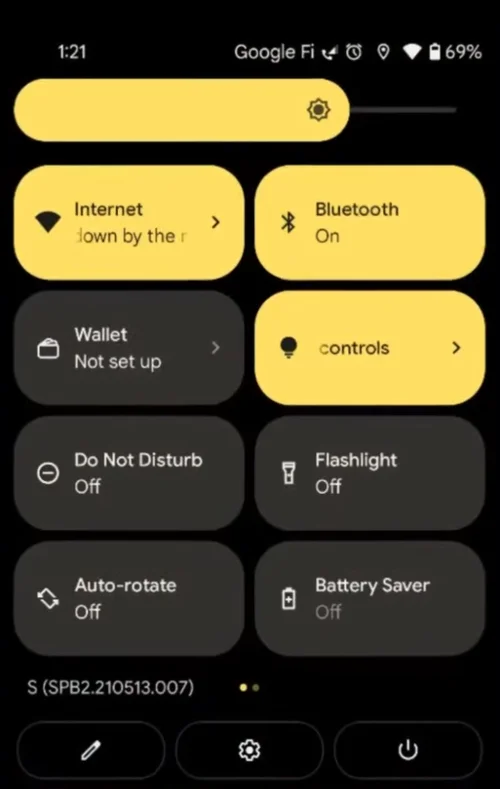
- Tap the power icon to open the system power overlay, as you would with the side button, and select Restart to let your device shut down and reboot.
It’s the go-to method available on Android 12, 13, and later. Further, it’s also the easiest one and gentle on the frame’s mechanical parts.
How to Use Android’s Accessibility Menu to Restart Your Phone
The Accessibility Menu is one of Android’s hidden gems that most users never use until they desperately need it. This built-in feature puts a floating button on the screen that gives you access to many features as a quick shortcut, including the power options. It’s particularly useful when the device’s screen is partially unresponsive or if you want to avoid the double-swipe gesture of the notification shade.
First, you will want to turn this feature on from your phone’s settings.
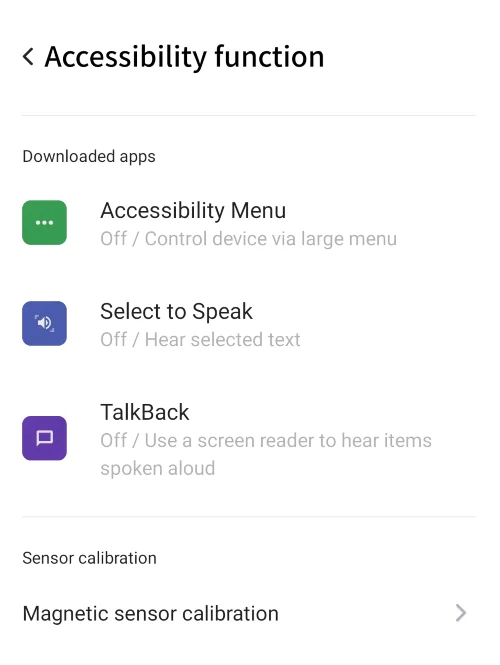
- Open Settings, scroll down, and tap Accessibility section. On my phone, I found it by heading to Advanced settings > Accessibility function under the main Settings.
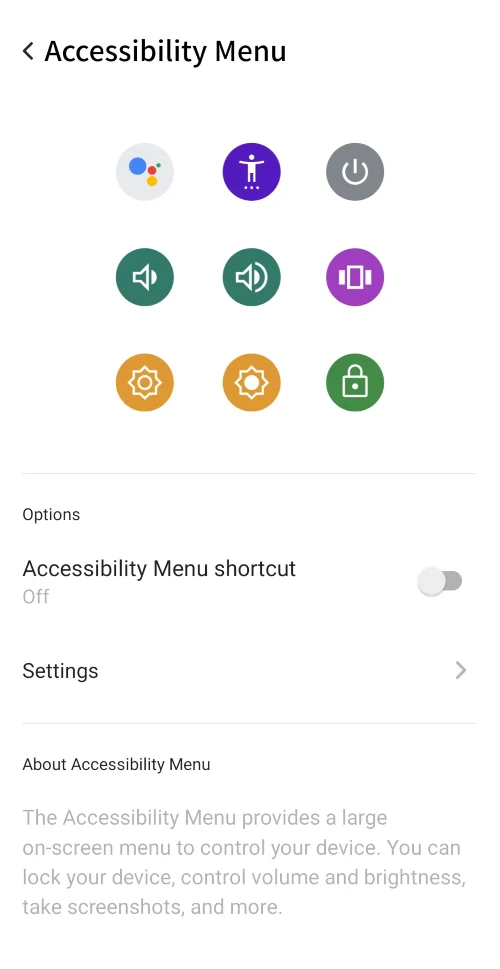
- Look for “Accessibility Menu,” or sometimes labeled as “Accessibility Button,” depending on your Android version. Toggle it on.
- It will add the Accessibility Menu shortcut icon to your Android display, which you’ll see at the bottom right. It can be dragged anywhere on the screen as you like.
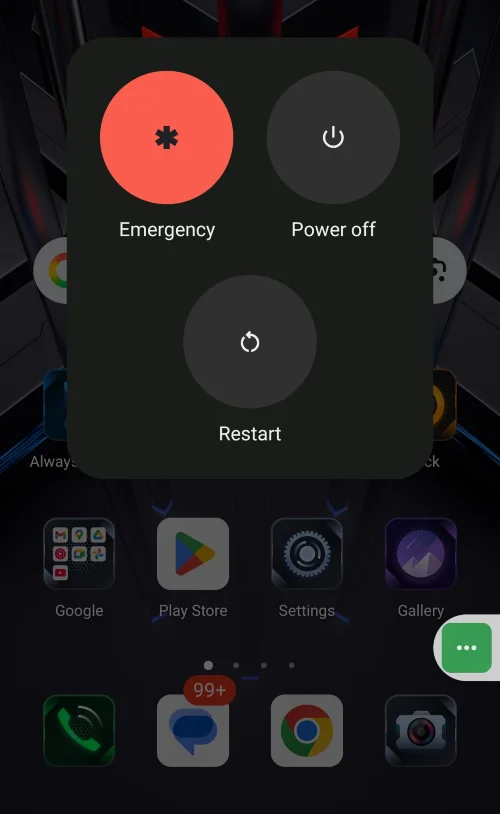
- Tap the floating icon, then tap the Power option from the pop-up menu, and choose Restart or Reboot.
The icon stays on the display unless you turn off the toggle from the same settings, so you now have permanent access to it. I’ve kept mine on for months because it’s more convenient for me than the actual button.
How to Schedule an Automatic Restart for Your Android Phone
The third way is to set an automatic restart schedule on your Android. It won’t help if you need an immediate reboot, but it’s reliable for regular maintenance and keeps the device running smoothly without manual work.
To enable the scheduled restart, follow these steps.
Set Up Scheduled Restart
Go to the Settings menu and find the System section. On the RedMagic 6, Nubia’s RedMagic OS organizes these features somewhat differently than stock Android.
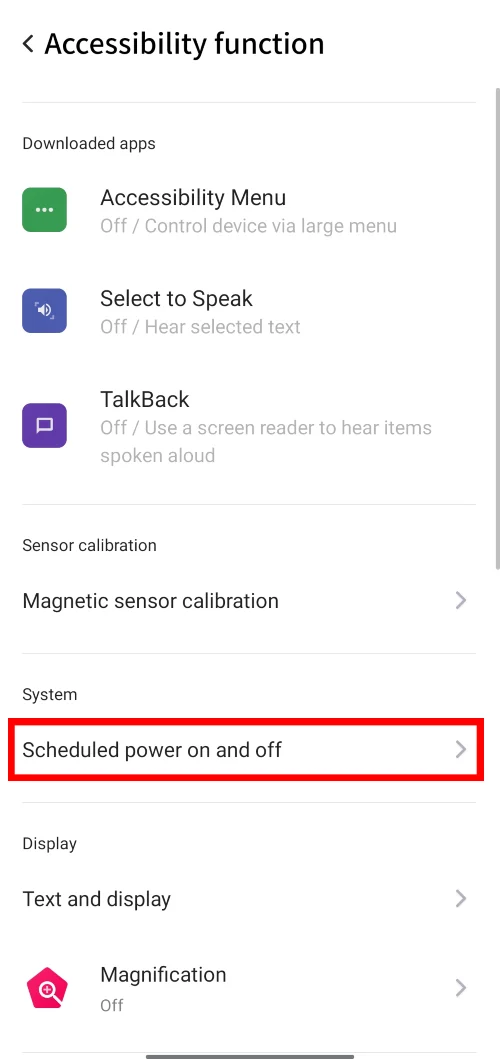
My ‘Schedule power on and off‘ is found in the same Accessibility function section. Find “Scheduled Power On/Off,” “Auto Restart,” or “Scheduled Restart” within the Advanced or System settings.
In gaming phones, the manufacturers often place these options under performance or power management sections since they’re built for high-intensity use. You might find it under Battery settings or within the Game Space configuration.
Configure Your Restart Schedule
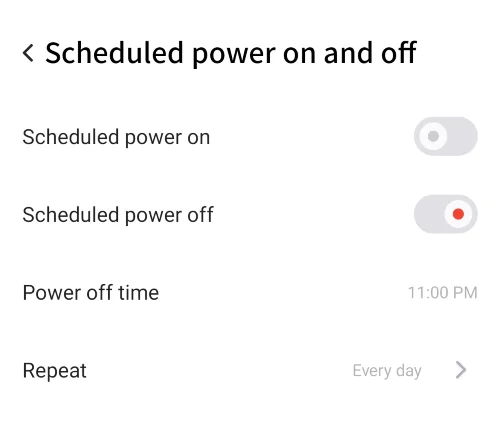
Once you’ve found the scheduled restart option, enable it and set the preferred time. I recommend picking a time when you won’t use the phone, like 3 or 4 AM. The device will automatically restart every day at the set time or on whatever schedule you choose.
If prompted, enter your PIN or lock pattern; the device may need this security check to authorize the automatic boot and ensure the process completes while you sleep.