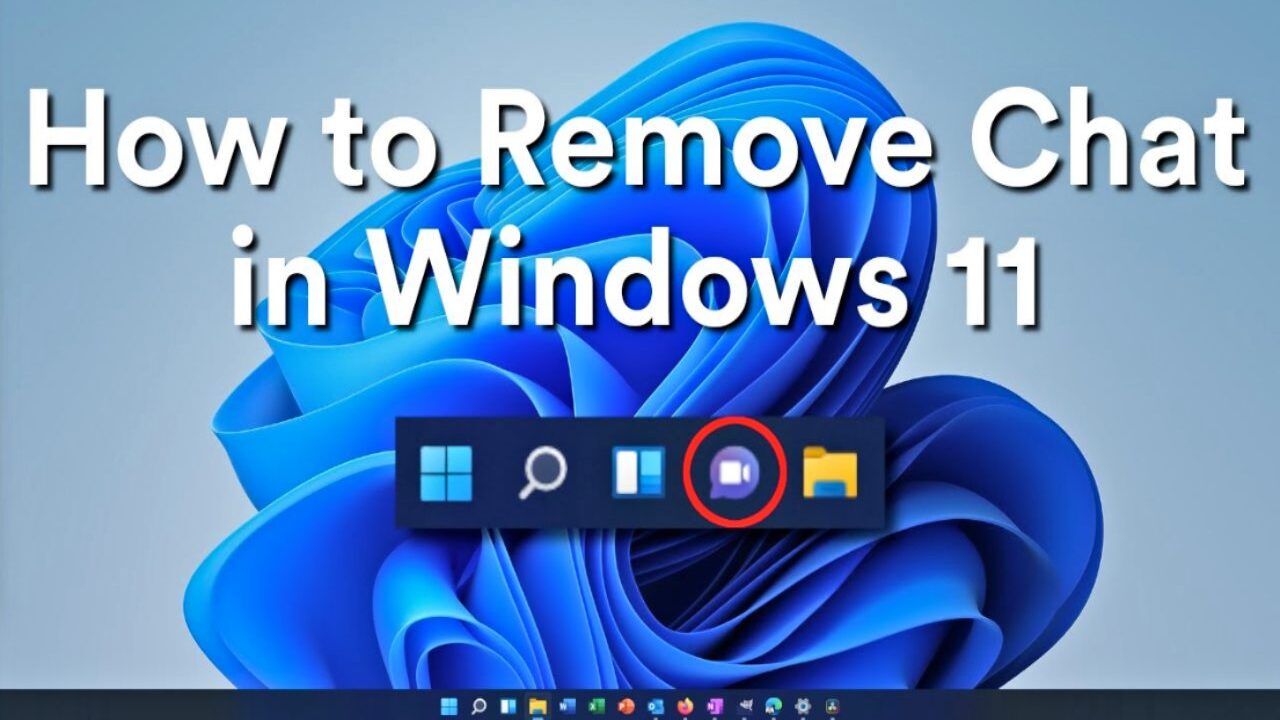
Windows 11 was launched with a clean UI, but Microsoft also used it to promote a few of its own services, and the Chat icon is one of them that you see on the taskbar. This shortcut connects to Microsoft Teams, but if you don’t have anything to do with Teams, this Chat is an annoying bloatware you might want to get rid of. If you prefer a clean taskbar without useless things, here’s how to remove the Chat icon from the Windows 11 Taskbar.
Read: Windows PC Won’t Boot: Reasons and 14 Fixes
How to Remove Windows 11 Chat from the Taskbar
You can remove the Chat icon directly from the taskbar, and it’s very quick.
- Right-click the empty area on the taskbar and select Taskbar settings from the pop-up menu.
- Under Taskbar items, you’ll see toggles for different icons to show or hide, such as Search, Widgets, Task view, and Chat.
- Click the Chat toggle to turn it off, and the icon will disappear immediately. You won’t need to restart the PC or deal with the confirmation screen. It’s gone for good.
How to Remove Chat from Windows Settings
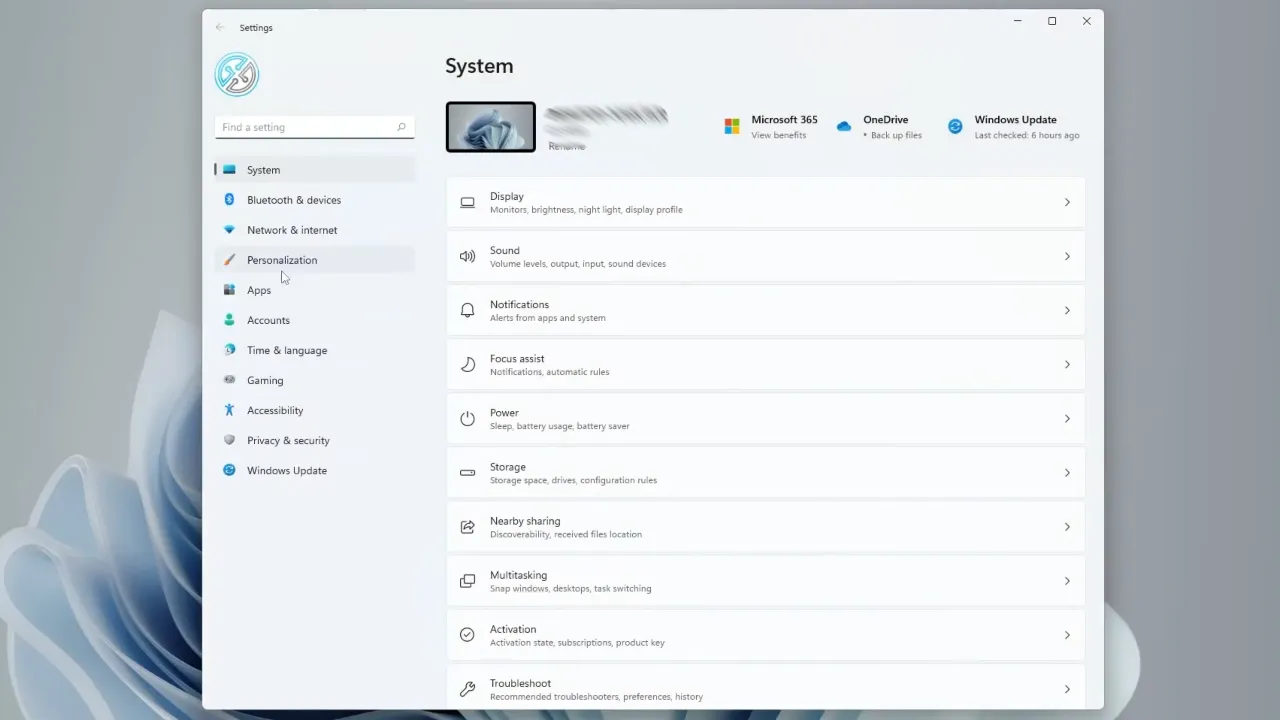
- Open Settings (press Windows + I) and go to the Personalization tab from the left side panel.
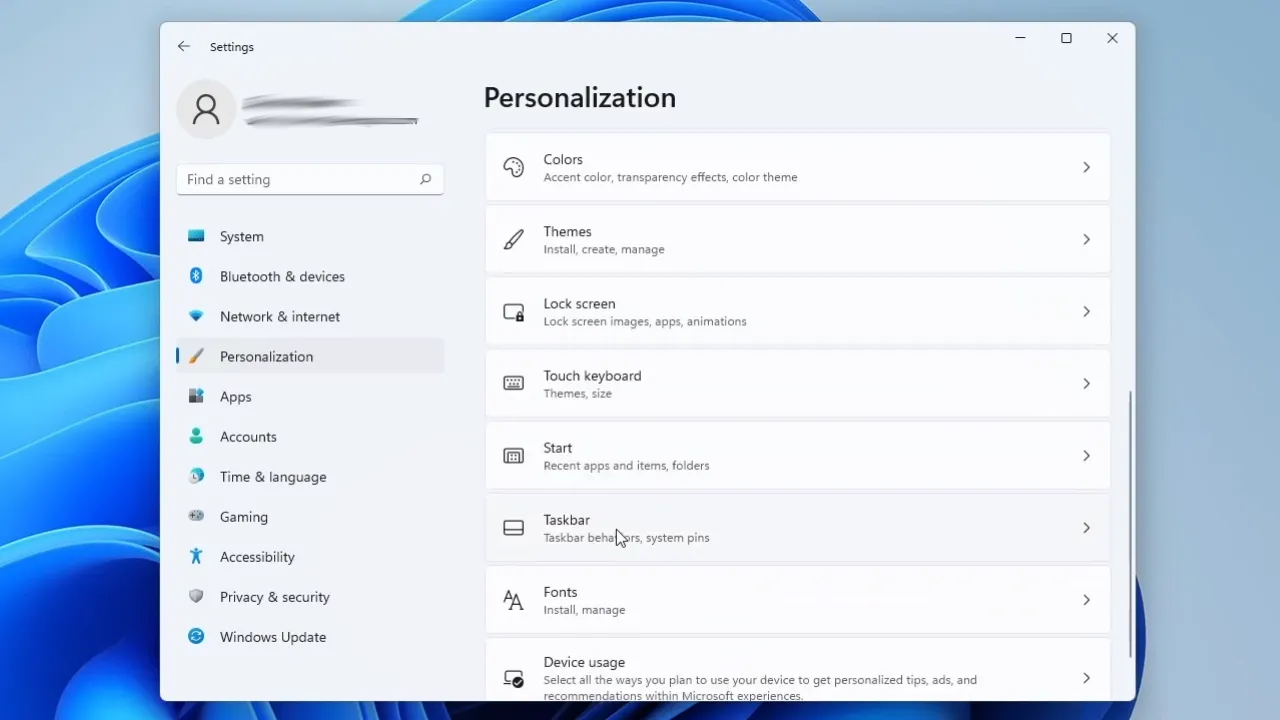
- Scroll down a little until you find the Taskbar option and click it.
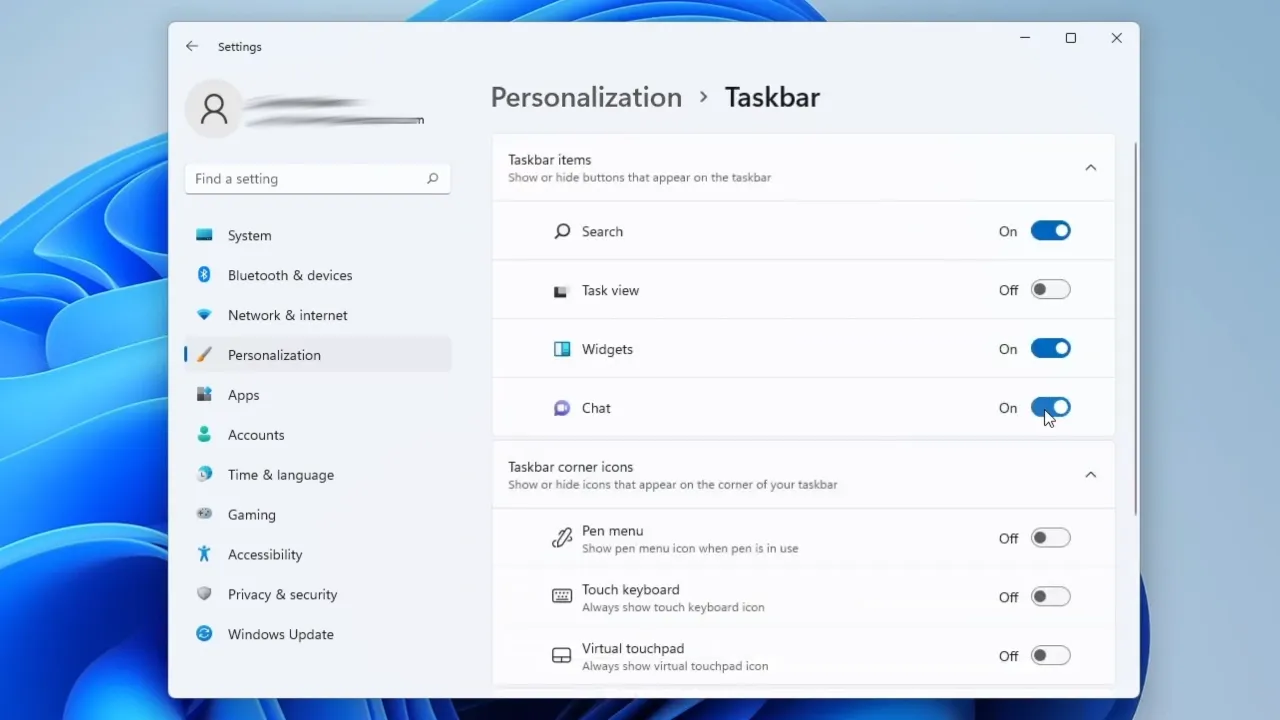
- In its section, you will find the same icons’ settings under Taskbar items, so flip the Chat toggle off.
Can You Remove Chat Completely?
You can’t completely get rid of the Chat, since it’s built into the operating system. You can, however, stop Microsoft Teams from running every time Windows boots. To disable it from Startup, go to Settings → Apps → Startup. From the list, disable Microsoft Teams.
It will not remove the Chat icon, but this does stop the app from running in the background on PC startup. On a work computer, an IT department can use group policies or custom images to block it entirely. For a personal machine, disabling it at start is the most you can do.
Read: How to Turn Off OneDrive on Windows 11: 7 Methods to Get Rid of It
Microsoft wants to get people to use Teams outside the workplace, so they introduced the Chat feature to offer you a simple way to communicate with personal accounts like Apple’s FaceTime and iMessage. Since most Windows users don’t use Teams for personal communication, it ends up being another piece of clutter taking up space for a feature you don’t want. Thankfully, Microsoft makes it easy for us to remove it in no time.