
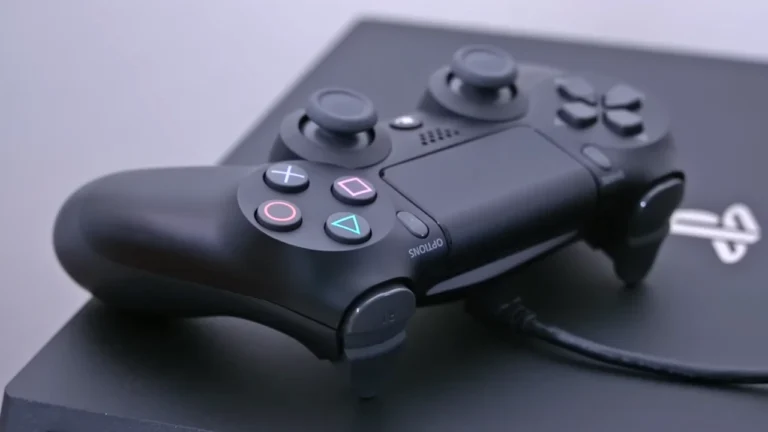
The PS4 controller won’t always turn off when you want it to. If you leave DualShocker 4 on during a Netflix stream, pause a game, or walk away from the console, it keeps draining battery. If you want your controller to last long, you need to know how to properly switch it off. Below, we’ll show the possible ways to power down your DS4 controller either via the PS button, console menu, or automatic sleep mode.
Method 1: Turn Off a PS4 Controller Using the PS Button
It’s the quick method, and works no matter if you’re gaming or not. It won’t need you to juggle through menus or settings. Here’s how you can do it:
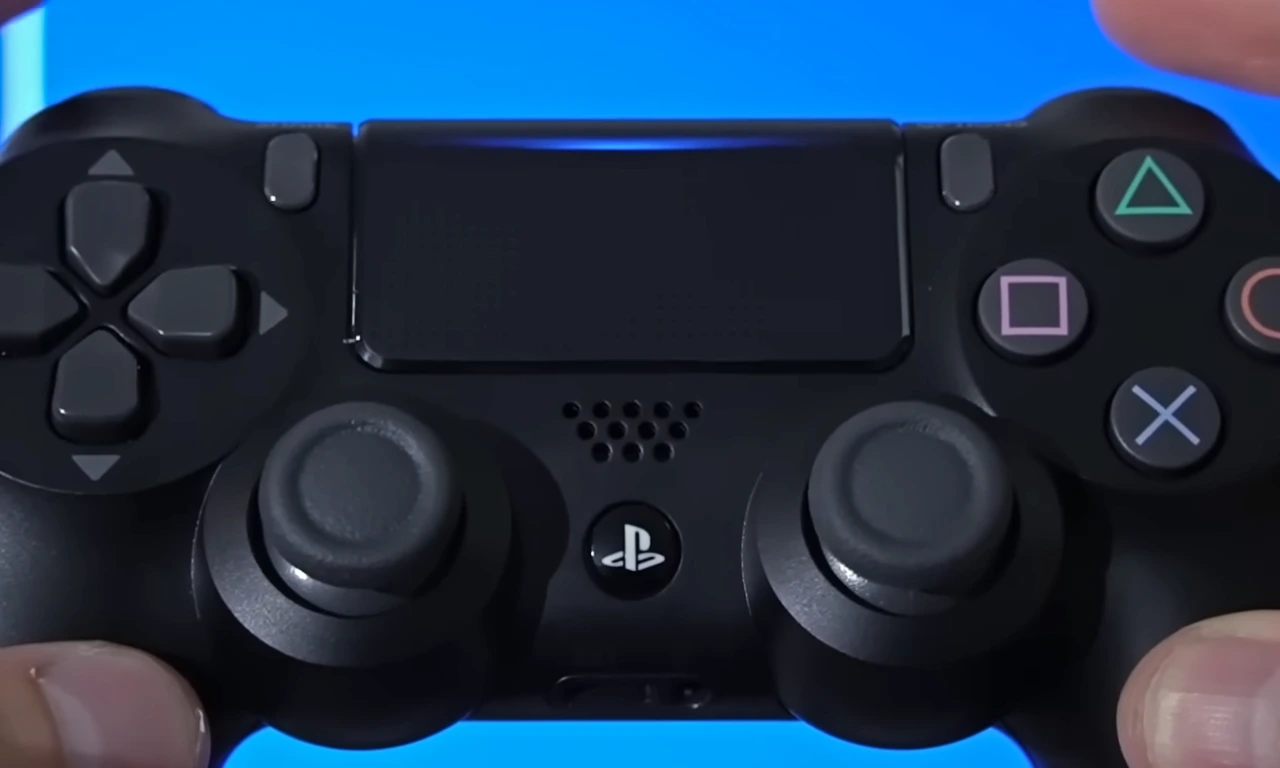
- Find the PS button in the middle of the controller, between the analog sticks.
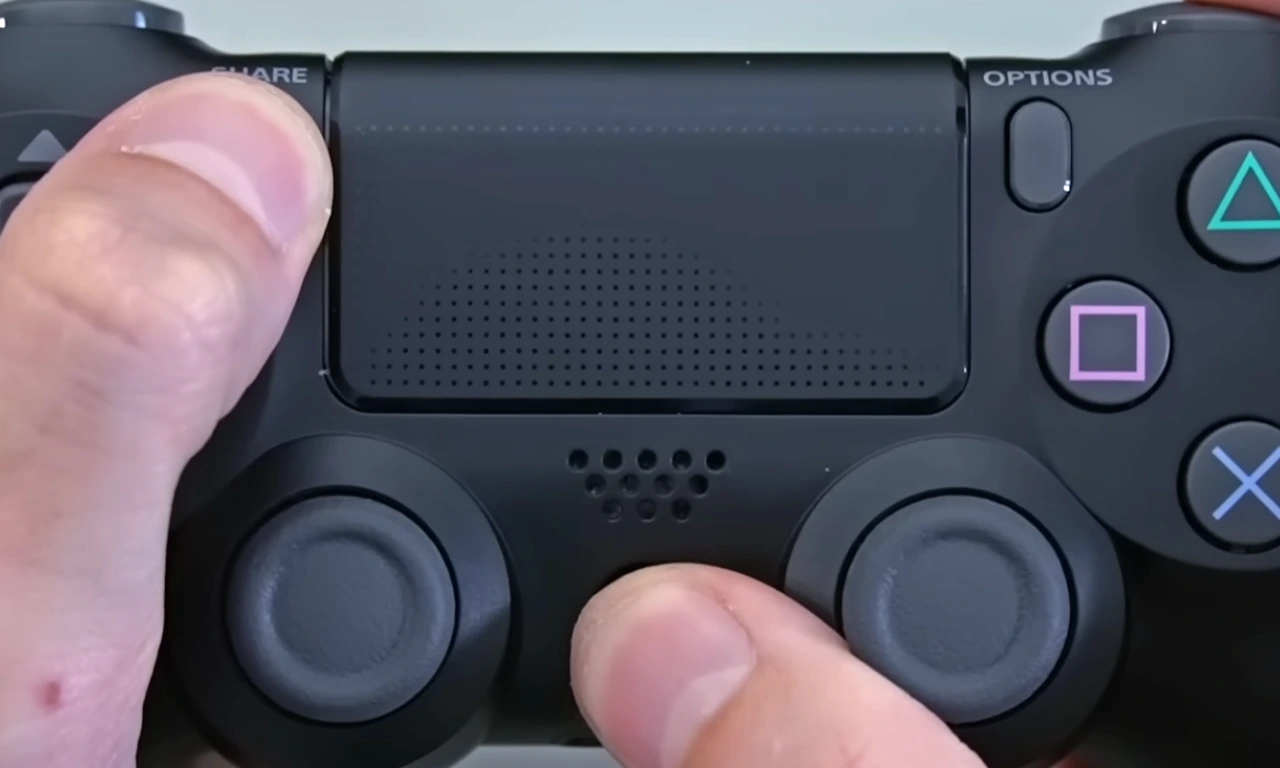
- Press and hold the PS button for about 10-15 seconds.
- Keep holding it even though the light bar stays on at first, and release it when the light turns off.
When that light goes out, your controller is off and disconnected from the console. If this method gives you trouble, try the next method.
Method 2: Using the Quick Menu
Got more than one controller connected, or want to turn off just one and leave the others powered on? The Quick Menu gives you control. Here’s how:
- Hold the PS button for about 2 seconds to open the Quick Menu.
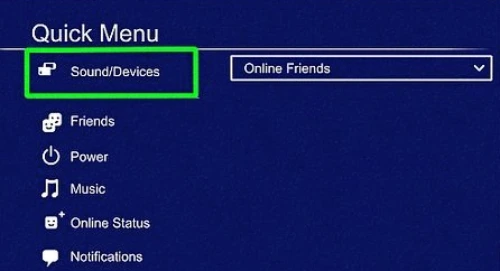
- Go to the Sound/Devices menu, the first option on the left panel.
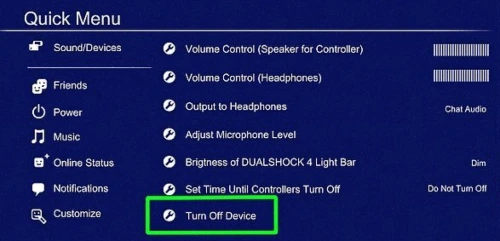
- Scroll to the bottom and click “Turn Off Device.” On the next screen, pick the controller you want to shut down.
DS4 will turn off right away. This way is especially handy if you’re gaming with friends or have a bunch of controllers connected at once.
Method 3: Disconnect Through System Settings
If you ever need to completely remove the DS4 controller from your console, maybe when Bluetooth doesn’t work fine, here’s how to disconnect the PS4 and controller from settings:
- Open “Settings” from the PS4 home screen.
- Go to Devices and select Bluetooth Devices.
- Find your controller in the connected devices list.
- Select it, and choose the option to disconnect.
This process takes a bit longer than the PS button shortcut, but it’s a better way when you need to manage multiple accessories or troubleshoot pairing issues.
Method 4: Let the Controller Auto Turn Off
The DualShock 4 has a power-saving feature that powers off the controller after you stop using it for a while. By default, it’s set to 10 minutes, but you can change that if you want. Here’s how:
- Press and hold the PS button for 2 seconds to open the Quick Menu.
- Head to the Sound/Devices menu.
- Select “Set Time Until Controllers Turn Off” and set any duration like 10, 30, or 60 minutes.
Next time when you leave the controller alone, it will turn off automatically after your set time.
Remember, this won’t work if the controller is plugged in with a USB.
How to Turn a PS4 Controller Back On
Turning your DualShock 4 back on is very simple. Make sure your PS4 is powered on or in rest mode. Press the PS button—the light bar will blink, then turn solid once the connection is done. If the controller doesn’t reconnect, it’s possibly because it is out of charge or the Bluetooth pairing has been removed. In this case, connect the controller to the PS4 via a USB cable, press the PS button, and it will pair automatically.
How to Extend Your PS4 Controller’s Battery
Turning off your controller when you’re done using it is a good start, but there’s more you can do to squeeze extra hours out of each charge. The DualShock 4 keeps eating battery even when you’re off the gaming session. A few settings are the reasons behind this, but you can tweak them and get way more playtime between charges.
Disable Controller Vibration
Vibration motors are one of the biggest power eaters in DS4. They get active frequently during gameplay, often even during menus or cutscenes, and drain the juice. To turn it off, open Settings from the PS4 home screen and go to Devices. In the menu, select Controllers and disable the Enable Vibration option.
It won’t affect the accuracy and input response. It removes rumble feedback, which can largely extend battery life in long playthroughs.
Reduce the Light Bar Brightness
The glowing light bar on the back of your controller looks cool, but it’s another battery drain. If you don’t need it blazing bright, reduce its brightness following these steps to save some battery:
- Press and hold the PS button to open the Quick Menu.
- Head to Adjust Devices on the left.
- Choose the Brightness of DUALSHOCK 4 Light Bar and set it to Dim.
Dim light has no impact on how your controller works or gets tracked. You don’t lose anything except wasted battery, and get more time to play before you have to refill the battery.