Close Menu
Technical Master – Expert Tech News, Insights & How-Tos
    Facebook X (Twitter) Instagram Vimeo YouTube SoundCloud
    Technical Master – Expert Tech News, Insights & How-TosTechnical Master – Expert Tech News, Insights & How-Tos
    • Android Fixes
      • Android Battery & Charging
      • Android Network Issues
      • Android Performance
    • Device Fixes
      • Laptop Issues
      • Peripheral Issues
    • How-To Guides
      • Device Setup
      • Maintenance Guides
    • iPhone & iOS Fixes
      • Performance Issues
      • Battery & Charging
      • Connectivity Issues
    • Tech Explainers
      • Hardware Explained
      • Internet & Networking
    • Windows Fixes
      • Windows Error
      • Windows Hardware Issues
      • Windows Performance
    Technical Master – Expert Tech News, Insights & How-Tos
    Home / iPhone & iOS Fixes / How to Use the Same WhatsApp Account on Two Phones
    How-To Guides

    How to Use the Same WhatsApp Account on Two Phones

    Get multi-device WhatsApp use with the new Companion Mode.
    By Roy TauntonJul 2, 2023 6:10 PMUpdated:20 hours ago3 Mins Read
    Share Facebook Twitter Pinterest LinkedIn Reddit Telegram WhatsApp Email Threads Copy Link
    A smartphone screen displaying the new WhatsApp Companion Mode feature, symbolizing multi-device connectivity and synchronization.
    Photo by Pocket-lint

    Do you want to use your same WhatsApp account on more than one Android phone? It was a bit tricky in the past, but WhatsApp has listened to user feedback and has now made it much easier. With a new device linking feature, you can use the same WhatsApp account across multiple phones.

    But a couple of features like live location sharing and status updates won’t work on the linked devices, as they are still exclusive to your main mobile phone. For security, your chats will still be end-to-end encrypted when linked to more than one device. It doesn’t matter if you’re an iPhone or Android user, or you can link as many devices as you want.

    What is WhatsApp Companion Mode?

    WhatsApp Companion mode allows users to use one WhatsApp account on multiple devices. So all your chats, contacts, and groups sync no matter which device you’re using. You can connect a maximum of five devices with the same phone number. You might think it’s just like the ‘Linked devices’ feature we already have. But this Companion mode is different from it, and it’s specially designed for phones rolled out on April 25, 2023.

    How to Use the Same WhatsApp Account on Two Android Phones

    1. Download and open the WhatsApp app on the second device. Choose your preferred language and accept the terms of use, tap on ‘Agree and Continue‘ to move next.
    2. Don’t enter a number; choose the option ‘Link this device to an existing account‘. If you’re using a smartphone, tap on the three dots at the top right. A menu should pop up with the ‘Link to existing account‘ option. Select it, and the QR code will appear on your screen.
    3. On your primary phone, choose ‘Settings‘ in WhatsApp on an iPhone or the three little dots on Android. Then, select ‘Linked Devices‘ and proceed to ‘Link a Device,’ and your phone’s camera view will pop up. Scan the QR code with the camera on your second phone. It will link the account, and your WhatsApp chats will start loading.
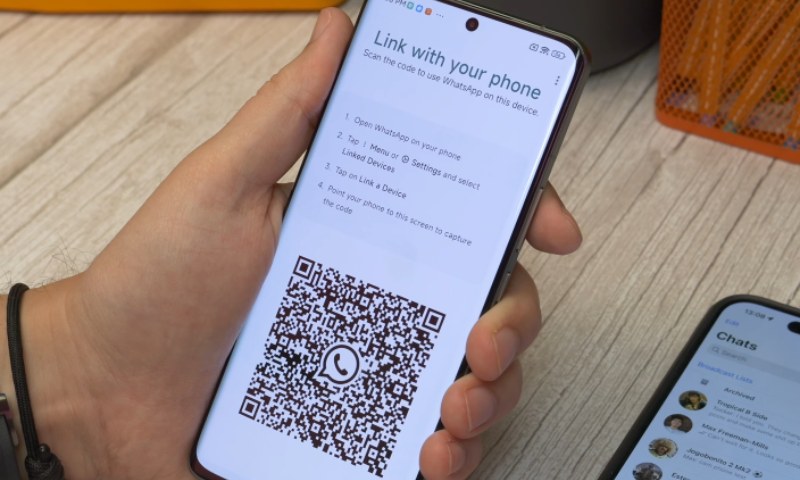
    WhatsApp QR Code Screen to Link Devices
    Photo by Pocket-lint

    You can use this process to link one WhatsApp account to a PC, laptop, or tablet. One thing to remember, you don’t need your main device to keep close or even turned on to use WhatsApp on linked devices. To keep the secondary connections, the main phone needs to be logged in to WhatsApp every two weeks, and the linked devices can’t remain inactive for more than 30 days. Doing so prevents it from being auto-logged out, which requires going through the whole process to relink the devices.

    Read Next:

    • Why the iPhone’s Always-on Display Beats Even the Best Android Phones
    • How to Connect AirPods to MacBook, iPhone, or Android
    Follow Us on Google News Follow Us on Flipboard
    Roy Taunton

    Roy Taunton is an expert technology writer and contributor at Technical Master with focus on gaming, social media, and all things tech. With over 6 years of experience in the entertainment, gaming, and technology industries, Roy has skills and knowledge to break down complex topics into easy-to-follow guides that help readers to understand everything. When he isn't writing, he spends time in video games, and tries to find something new about cutting-edge developments.

    Related Posts
    How to Change the DNS Server on Your Windows PC and Mac
    How to Change Your DNS Server on Windows and Mac
    How-To Guides
    How to Clear Cache on Roku TV and Get Rid of Slow Performance
    How-To Guides
    How to Turn Off PS4 Controller
    How to Turn Off a PS4 Controller
    How-To Guides
    What Does SOS Only Mean on iPhone: How to Fix
    What Does SOS Only Mean on iPhone and How to Fix It
    How-To Guides
    How to Fix Corrupt Video Files on Windows & Mac OS
    How to Fix Corrupt Video Files on Windows and Mac
    How-To Guides
    How to Improve FPS and Reduce Lag in Roblox
    How to Improve FPS and Reduce Lag in Roblox
    Android Fixes

    When you buy anything through links on our site, we may earn an affiliate commission. Learn more

    Trending Now

    How to Hide Photos and Videos on Samsung Galaxy Phone

    Don’t Use Pattern Lock to Secure Your Android Phone: Here’s Why

    Apple Updates MacBook Air and Pro With M5 Chips, and Higher Starting Prices

    Remnant 2: How to Solve the Lemark District Clock Puzzle

    How to Fix Laptop Screen Flickering Issue

    How to Fix Android Phone Not Charging Issue

    Technical Master – Expert Tech News, Insights & How-Tos
    Facebook X (Twitter) Instagram YouTube Vimeo SoundCloud
    • About Us
    • Privacy Policy
    • Terms of Use
    • Editorial Ethics & Guidelines
    • Contact Us
    • Write for Us
    © 2026 Technical Master, Inc. All Rights Reserved.

    Type above and press Enter to search. Press Esc to cancel.