- Why is My iPhone Stuck on the Apple Logo?
- Failed or Interrupted iOS Update
- Corrupted System Files
- Jailbreak Gone Wrong
- Low Storage
- Physical Hardware Damage
- Third-party Accessory Interference
- Fix 1: Force Restart iPhone
- Fix 2: Charge Your iPhone
- Fix 2: Enter Recovery Mode
- Fix 4: Use DFU Mode
- Fix 5: Try Dedicated System Repair Tools
- Fix 5: Remove a Problematic SIM Card
- Fix 6: Free Up Storage (If You Can Boot Partially)
- When to Contact Apple Support
- FAQs
- How long should I wait before assuming my iPhone won’t boot?
- Can a bad iOS beta update cause the Apple logo freeze?
- Does Apple logo stuck mean my iPhone is permanently dead?
- Is it safe to let the iPhone battery completely die to fix the logo freeze?
- What does it mean if the logo disappears every three minutes?
- Is there a way to recover data from an iPhone frozen on Apple logo?
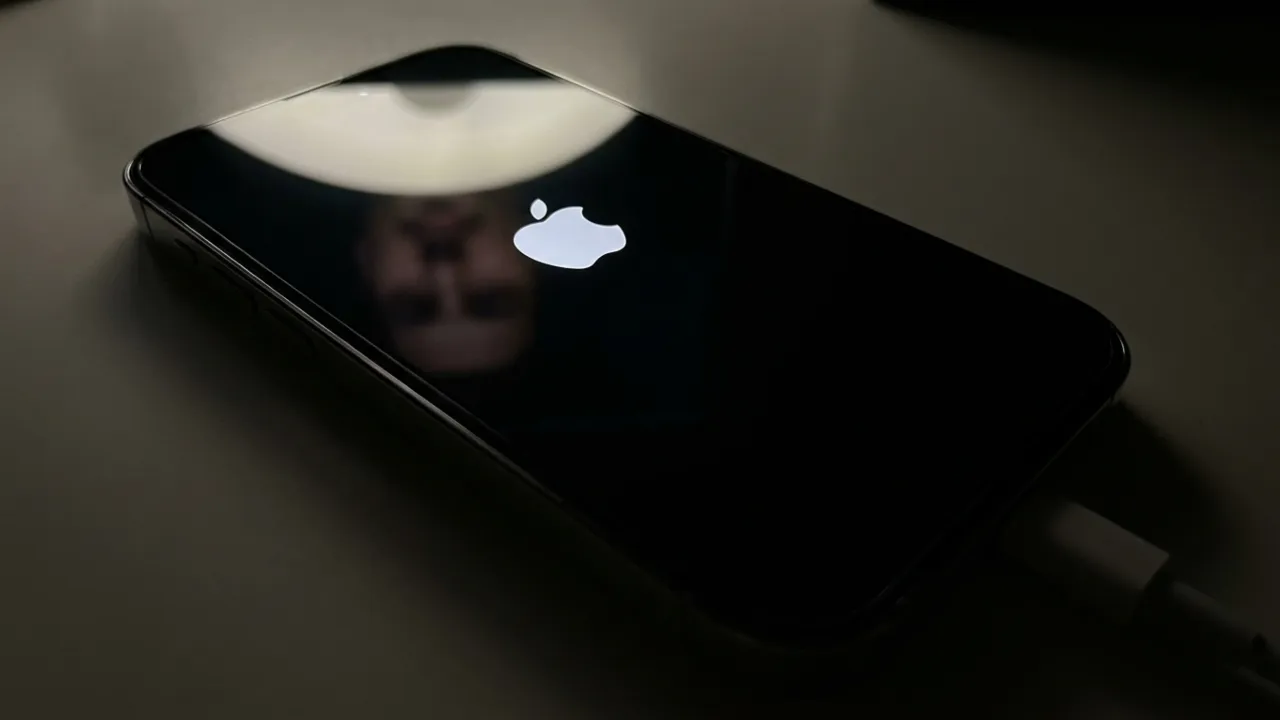
Your iPhone boots up, stuck on the Apple logo, and then nothing, no matter how long you wait. You didn’t drop it, haven’t done anything unusual, and yet here you are staring at the spinning wheel of dread. It’s one of the most commonly reported iPhone problems, and almost every case has a fix. Some take 30 seconds. Others need a little more work. Either way, you’ll find exactly what to do on this page to fix the iPhone stuck on the Apple logo issue.
Why is My iPhone Stuck on the Apple Logo?
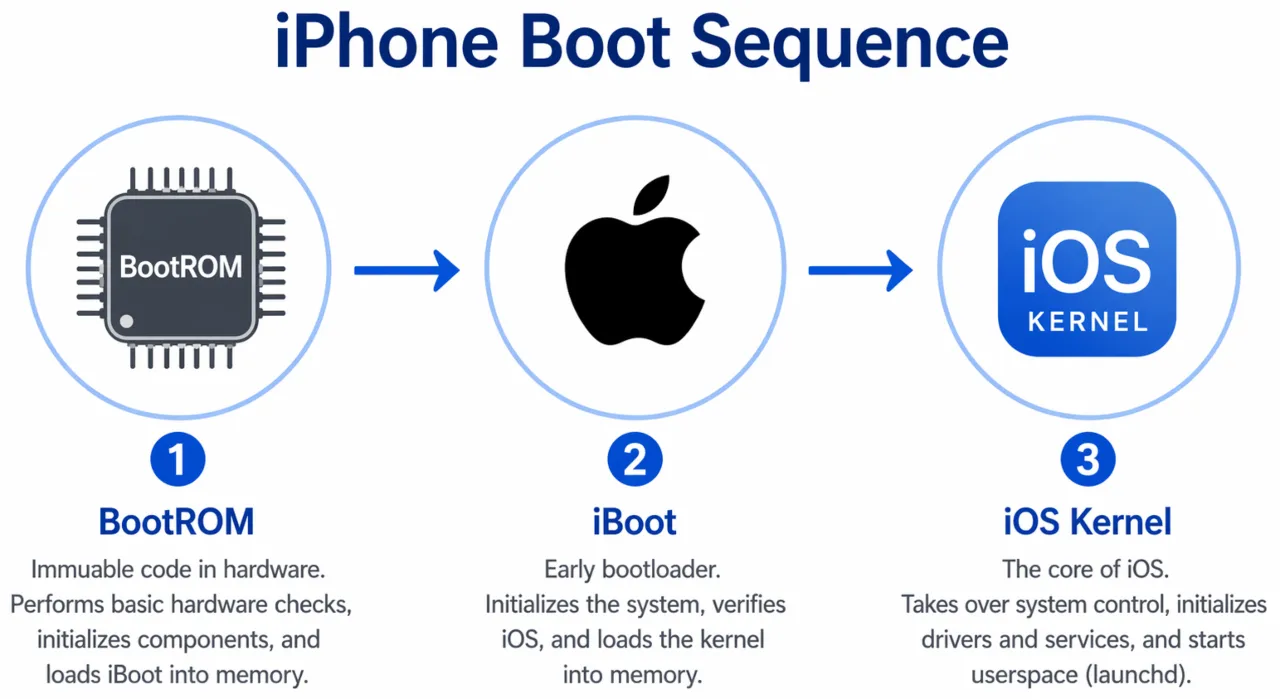
To fix the freeze, you need to know what your iPhone is trying to do behind that logo. When you press the power button, the processor wakes up and executes a secure boot chain. A read-only block of code called BootROM loads first, then hands control over to iBoot, and the Apple logo appears exactly at that moment.
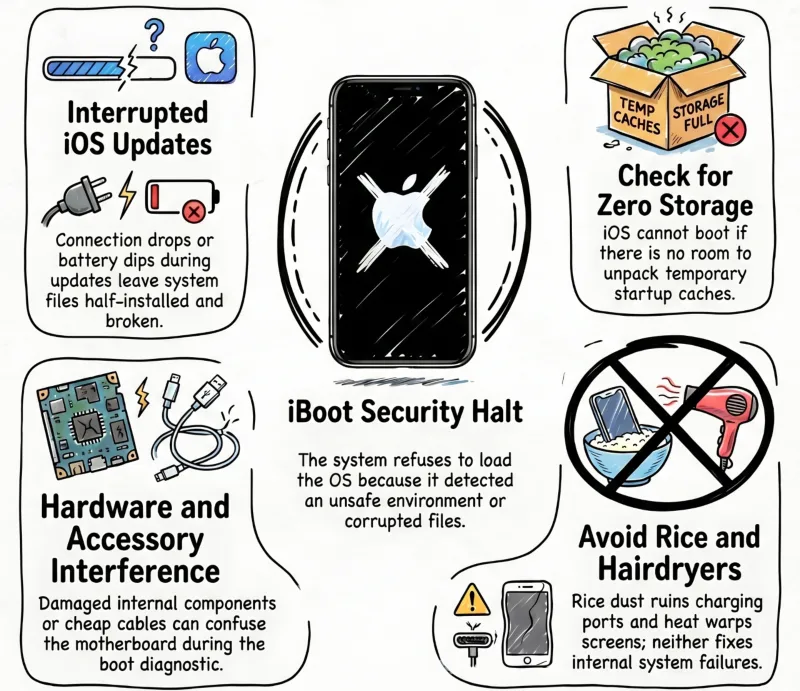
iBoot’s job is to verify the iOS kernel and load the operating system into active memory. If the logo is stuck on the screen, it means iBoot encountered a critical error, realized the environment is unsafe, and refused to load the operating system.
Also: What Does SOS Only Mean on iPhone and How to Fix It
An iPhone being frozen on the Apple logo usually happens due to a physical or software issue. Check if any of these common reasons match your situation:
Failed or Interrupted iOS Update
You started an iOS update over Wi-Fi, went to sleep, and woke up to a brick. A brief drop in internet connection or a slight voltage dip in the battery during installation corrupts the core system files, and the OS ends up half-installed, half-broken. When iBoot runs its security check, it finds that the iOS signature is broken or incomplete and halts the boot sequence to prevent a compromised operating system from executing.
Corrupted System Files
Apps sometimes write data improperly. Unexpected shutdowns can corrupt files in the middle of this process. Even a sketchy third-party app installation can damage system partitions. When enough of these files go bad, iOS can’t complete its startup checks and hangs.
Jailbreak Gone Wrong
Jailbreak modifies core system files to remove Apple’s restrictions. When these changes clash with iOS during an update or if the jailbreak corrupts the wrong file, the boot sequence will fall apart. The phone will reach a point where it doesn’t know which instructions to follow.
Low Storage
iPhone’s iOS requires empty storage space to unpack temporary cache files during startup. When the NAND storage chip is 100% full of apps, photos, and 4K videos, the device will try to boot, realize there is absolutely no room to load system caches, and enter a nonstop loop.
No space means no boot. The phone hangs at the logo because it’s unable to proceed. To fix a boot loop due to full storage without losing your data, there’s a specific workaround I’ll explain in the Recovery Mode section.
Physical Hardware Damage
Dropped your iPhone in water? Screen replacement by a sketchy repair shop? Battery swelling? Physical damage to the logic board, battery connector, damaged NAND flash, or display cables can all cause boot failure. The boot sequence runs a quick diagnostic check on key hardware components.
A torn flex cable from a recent screen replacement, a malfunctioning Face ID module from a drop, or microscopic water corrosion on the board will force the motherboard to stop the boot process. When that happens, the phone may still show the logo because the display works, but it won’t go any further because internal components fail to communicate with each other. But that’s a lot less common than a software problem.
Do not put a boot-freeze iPhone in a rice bag or hit it with a hairdryer. Rice dust destroys the charging port pins, and external heat will warp the OLED display panel and melt the internal water resistant adhesive long before it fixes a logic board short.
Third-party Accessory Interference
Cheap or incompatible accessories connected during startup can often confuse the boot process.
Also: How to Unpair Apple Watch With or Without iPhone
Stop treating force restart like a slot machine. If it doesn’t fix the issue in one or two attempts, move on to Recovery Mode and DFU Mode, respectively.
Fix 1: Force Restart iPhone
This should always be your first step to fix an iPhone freeze on the Apple logo. A force restart clears the RAM and forces a fresh boot attempt. This sends a raw electrical interrupt directly to the Power Management IC (PMIC) on the motherboard, completely ignoring the frozen software and forcing the power circuit to reset.
Because Apple removed the physical home button years ago, the interrupt sequence is completely dependent on your specific model. It takes only under 30 seconds, and works surprisingly often, particularly if the phone has been stuck during a routine reboot rather than a failed update.
iPhone 8 and later (including all Face ID models):
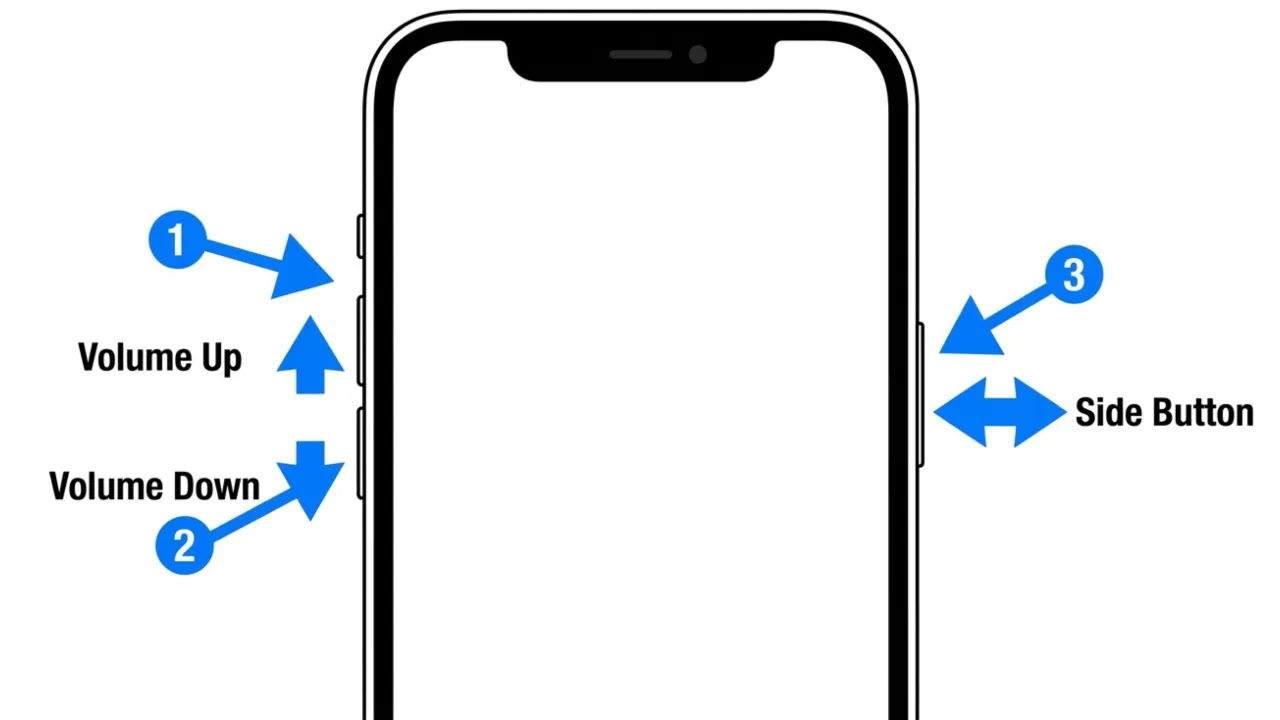
- Press and quickly release the Volume Up button.
- Press and quickly release the Volume Down button.
- Press and hold the Side button until the screen goes black.
- Continue to hold until you see the Apple logo appear again (about 10-15 seconds).
- Release and let it attempt to boot normally.
iPhone 7/7 Plus:
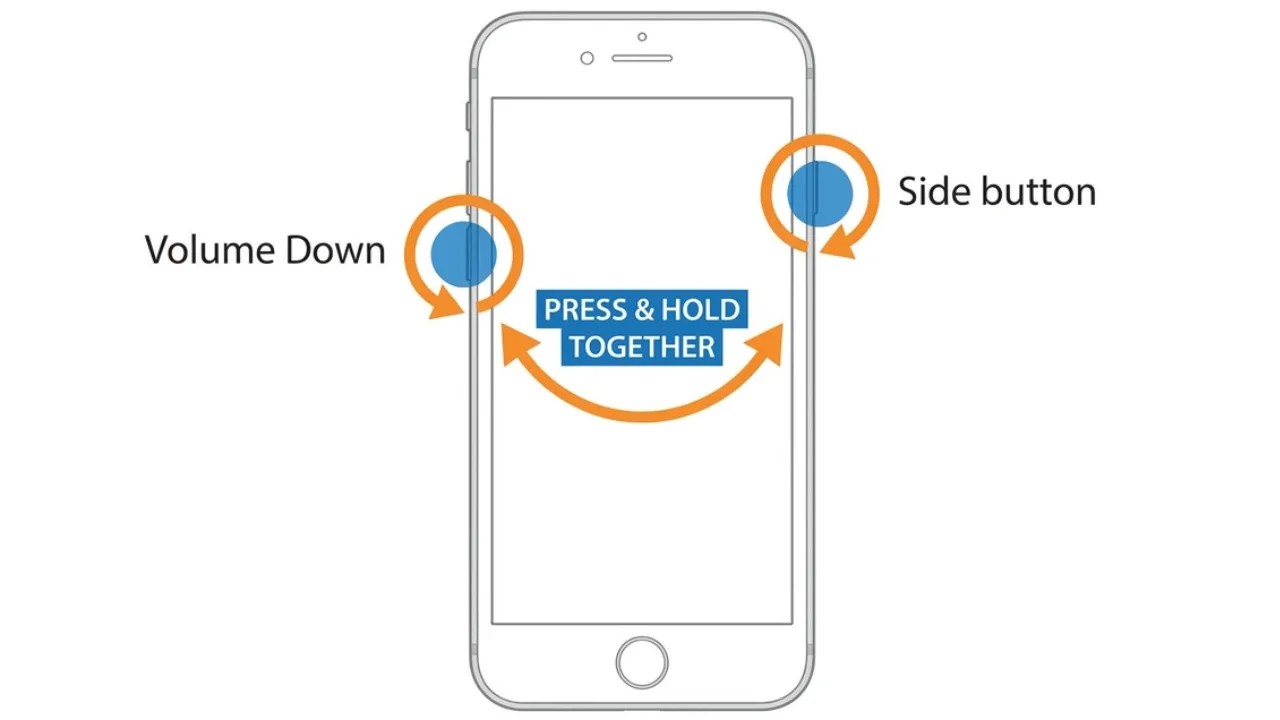
Because these models use a taptic, non-moving home button, the hardware interrupt relies on the volume rocker.
- Press and hold the Volume Down button and Side (Power) button simultaneously.
- Keep holding both buttons for approximately 10-15 seconds.
- Release the keys instantly when the screen turns black and the Apple logo re-illuminates.
For iPhone 6s and earlier:
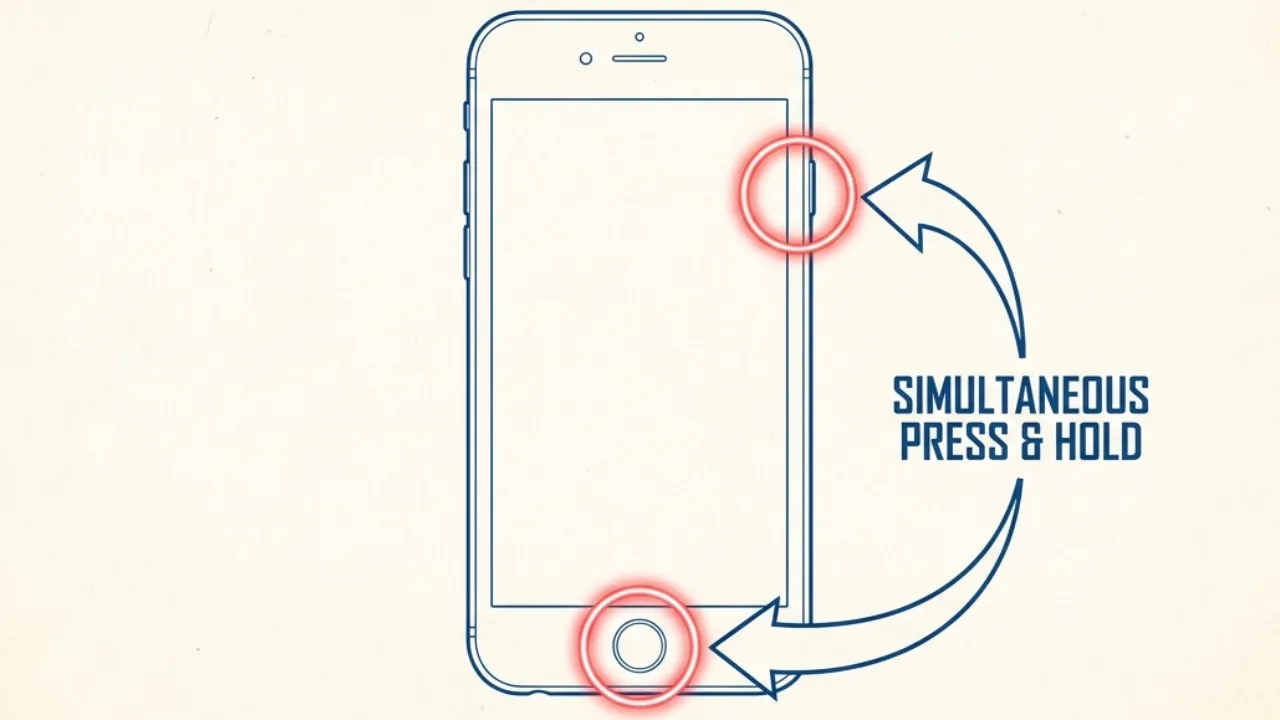
- Press and hold both Home and Sleep/Wake buttons at once.
- Don’t release them until 10-15 seconds.
- Release when you see the Apple logo reappear.
If the device boots up and asks for a passcode, you’ve cleared a simple memory panic. But if it restarts, flashes the Apple logo, and freezes again, the core iOS file system is mathematically corrupted. A normal power cycle cannot rewrite broken code. We must intervene using a Mac or PC.
Fix 2: Charge Your iPhone
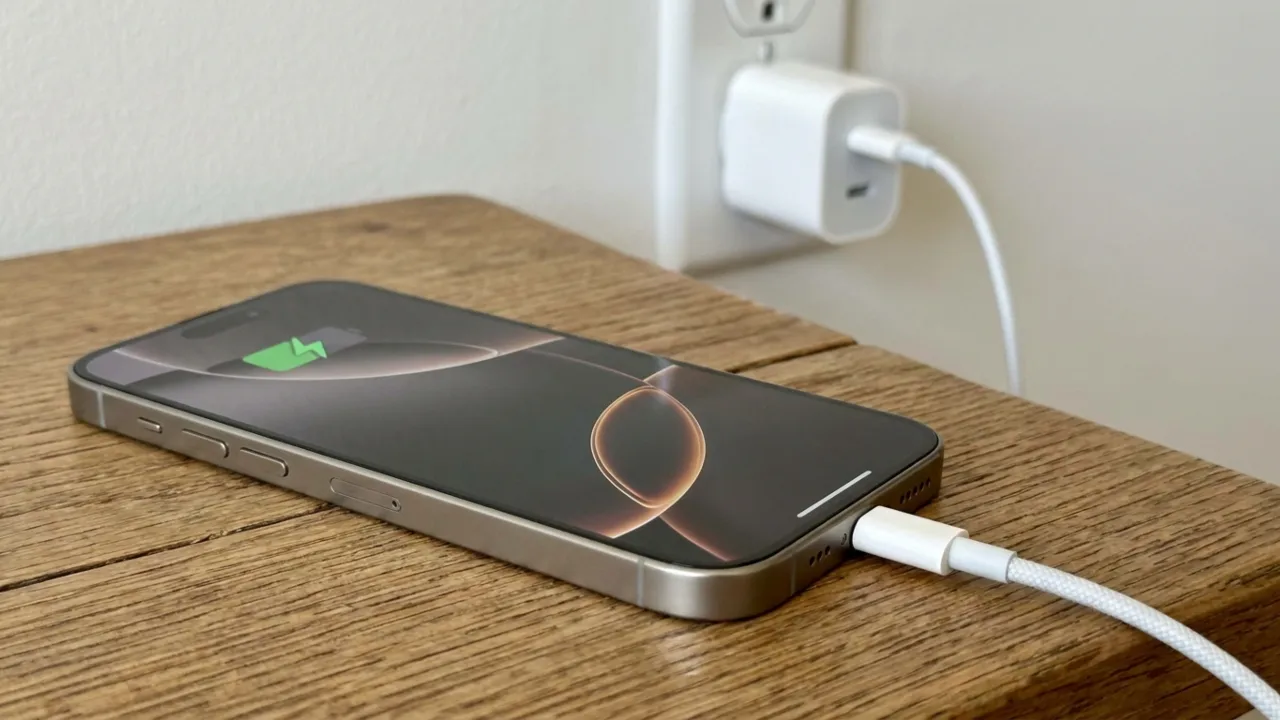
Dead obvious, right? Except here’s what most people miss: your iPhone might show the Apple logo but have zero battery charge. The brand emblem appears because there’s just enough power to light the display, but not enough to complete the boot process.
Plug your iPhone into a wall charger—not a computer USB port, as those charge too slowly and leave it for at least 30 minutes. Don’t touch it and turn it on. Just let it charge.
If the battery is completely drained, you might see the low battery icon first, then the logo, and then it’ll start normally. If there’s a genuine dead battery (hardware failure), you’ll see the charging symbol, but the phone never gets past the logo, even after hours. Use Apple’s original charger or a certified MFi cable. Cheap knockoff adapters occasionally deliver inconsistent power that can prevent proper startup.
iPhone needs some juice to run Recovery Mode too, so charge it to at least 20% if possible before proceeding to the steps below.
Fix 2: Enter Recovery Mode
Occasionally, I have to diagnose Apple hardware, and Recovery Mode is one of the features I rely on most. It’s a hidden diagnostic state Apple programmed into the device, which stops a broken iOS from booting. That way, Finder (on a Mac) or the Apple Devices app/iTunes (on a PC) can connect with the logic board and send over a clean software image.
Always use an authentic Apple cable or a certified MFi (Made for iPhone) cord to access Recovery Mode. Cheap gas station cables lack the internal logic chips required for high-speed firmware data transfer. The connection will drop midway, and in return, throw a dreaded “Error 4013” on the computer screen.
Follow these steps to execute the Recovery Flash:
- Connect the frozen iPhone to the PC.
- Open Finder (macOS Catalina or newer) or iTunes/Apple Devices app (Windows/older macOS).
- With the cable connected, execute the exact Force Restart button sequence for your model, as told in Fix 1.
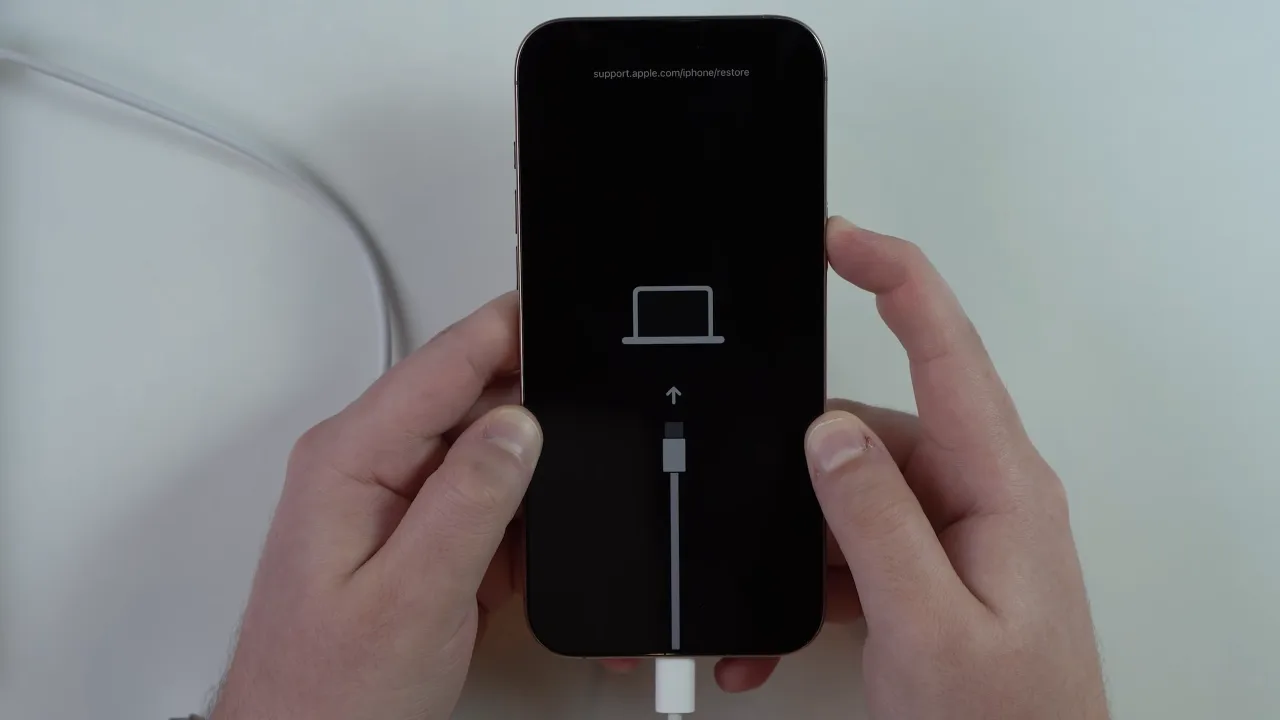
- The Vital Step: When the screen goes black, keep holding the final button. Don’t release it when the Apple logo appears, as you did in the restart method. Instead, keep holding it until you see the Recovery Mode screen (cable + laptop icon).
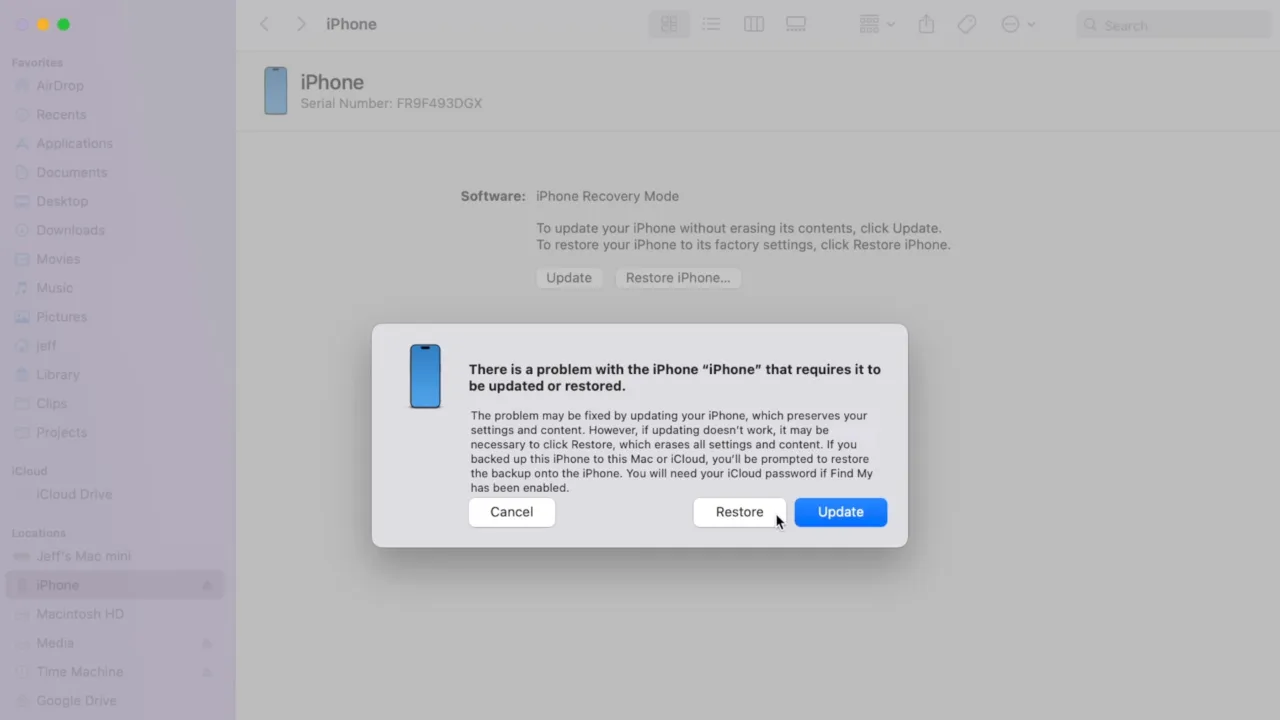
- Look at your computer monitor. A prompt will appear: “There is a problem with the iPhone that requires it to be updated or restored.”
You are now at the most critical juncture for your data. You will see two buttons in Recovery Mode: Restore and Update.
You must click Update. It will force the computer or Mac to download the latest signed iOS firmware from Apple’s servers and overlay it onto your device without impacting the user data partition. If your phone is stuck due to full storage, this process will rewrite the core system files, clear out temporary caches, and try to give iOS enough breathing room to boot.
Also: How to Delete Multiple Contacts on iPhone at Once
If the update finishes, the iPhone restarts, and it returns to the frozen Apple logo, the corruption is terminal. You’ll have to repeat the entire process and click Restore. This will completely format the NAND chip, wipe all data, and install a clean factory copy of iOS. If you haven’t backed up recently to iCloud or a PC/Mac, you will lose data.
Recovery mode won’t fix hardware problems. If the restore completes but your iPhone still freezes on the logo, there’s likely a hardware fault that needs professional repair.
Fix 4: Use DFU Mode
DFU (Device Firmware Update) Mode goes further than Recovery. It skips the bootloader and lets iTunes or Finder write a new firmware image straight to the device. That can fix what Recovery Mode can’t, like a severely corrupted iOS installation or a stuck jailbreak. It’s the last software-related solution before admitting hardware issues.
DFU Mode almost always results in a full erase. However, if you’ve tried everything else, it’s the best solution left before visiting an Apple Store.
Connect the iPhone to your computer and open Finder/iTunes. Then follow these steps based on the models:
iPhone 8 and later:
- Quickly press and release Volume Up.
- Quickly press and release Volume Down.
- Press and hold the Side button for 10 seconds until the screen goes completely black.
- While still holding the Side key, press and hold the Volume Down button for exactly 5 seconds.
- Release the Side button, but continue holding the Volume Down for 10 more seconds.
iPhone 7/7 Plus:
- Press and hold Side + Volume Down together.
- After 8 seconds, release Side but keep holding Volume Down.
iPhone 6s and earlier:
- Press and hold Home + Side buttons together.
- After 8 seconds, release the Side button but keep holding the Home button.
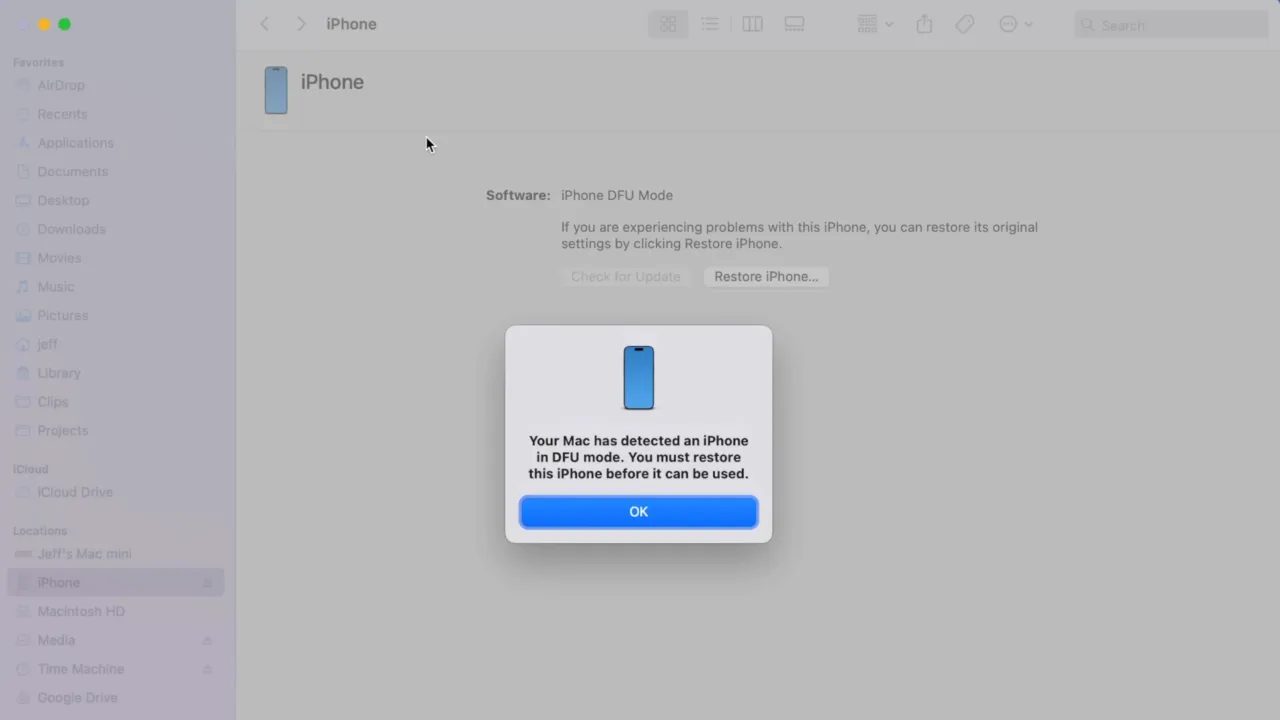
HOW TO TELL IF DFU WORKED
If executed perfectly, the iPhone screen will remain completely pitch black. However, your PC or Mac will display a notice that it has detected an iPhone in DFU Mode that must be restored as shown in the above image. If you see any logo or image, it’s Recovery Mode, not Device Firmware Update. Try again. The timing on DFU is tricky and might take 2–3 tries to get right.
Initiate the restore. The system will strip the device down to the raw logic board level, rebuild the partition maps from scratch, and flash the firmware. If a DFU restore completes successfully and the phone is still stuck on the Apple logo, the issue is definitely not software.
Fix 5: Try Dedicated System Repair Tools
Although Finder and iTunes are the official methods, Apple’s communication protocols are very strict. A microsecond of USB latency will cause Finder to abandon the entire firmware installation and throw an error code.
When dealing with a stubborn boot loop, third-party iOS system repair software can sometimes force a firmware update where Apple’s native software fails. These tools use custom USB drivers to bypass standard protocol checks and push the .IPSW firmware file to the board.
Most of these tools feature a “Standard Repair” function that operates similarly to “Update” in Recovery Mode, and attempts to inject the fresh operating system while preserving the data partition. If you face consecutive error codes in Finder or iTunes, keeping one of these repair tools in your arsenal is a good fallback strategy before you think the motherboard is dead.
Fix 5: Remove a Problematic SIM Card
In rare cases, a damaged or corrupted SIM card can hang a phone at startup, particularly on old models or if the SIM has been physically damaged. Remove the SIM tray, pull out the card, and force restart the iPhone without it. If it boots normally, the SIM is likely the culprit. Call your carrier and ask for a replacement SIM; they’re normally free.
Also: How to Connect AirPods to MacBook, iPhone, or Android
Fix 6: Free Up Storage (If You Can Boot Partially)
If your iPhone sometimes makes it past the Apple logo and then crashes, it may simply be out of storage. iOS needs some free space to run; with only around 1GB or less, the phone will struggle at boot. If you can get it into a working state even briefly, delete large apps, videos, and photos, or offload them to the cloud to give the system room to breathe.
When to Contact Apple Support

If you’ve worked through all the above fixes and the iPhone still won’t boot, or if DFU restore fails with an error code, the problem is almost certainly hardware. Common causes at this stage include:
- Failed NAND flash memory.
- Logic board damage (often from liquid exposure or physical impact).
- Battery cells that can’t hold enough charge to complete startup.
At this point, book a Genius Bar appointment or contact Apple Support online. If your device is under warranty or AppleCare+, hardware repairs may be covered. Out-of-warranty battery replacement is relatively affordable; logic board repair typically costs more and might not be worth it on older iPhone models.
ERROR CODES DURING RESTORE
If iTunes or Finder throws an error during Recovery or a DFU restore like Error 4013, 4014, or 9, search that exact code on Apple’s support site. Each one relates to a different issue. Some are USB/connection problems, others are linked to hardware.
FAQs
How long should I wait before assuming my iPhone won’t boot?
Wait 10–15 minutes after a major update because slow progress bars are normal in large iOS installs. If there’s still no progress after waiting, it’s stuck, so do a force restart. And if the Apple logo remains unchanged for 15+ minutes after a force reboot, then try recovery mode.
Can a bad iOS beta update cause the Apple logo freeze?
Yes, it’s one of the more common ways beta testers end up here. Beta builds can have boot-related bugs. Use DFU Mode to restore the device to a stable public iOS release, then re-enroll in the beta program if you want to continue testing.
Does Apple logo stuck mean my iPhone is permanently dead?
Most of the time, it’s software, and the Recovery/DFU state recovers it. Even hardware faults are often repairable. True “dead forever” cases are rare, usually severe logic board damage from water or physical trauma.
Is it safe to let the iPhone battery completely die to fix the logo freeze?
While it won’t physically harm the device, it rarely fixes the startup hang. Deep discharge puts extra strain on a lithium-ion battery, and you have to trade hours of waiting for a reset you can do in seconds. It’s much safer and faster to force a manual power cycle via the hardware button combinations.
What does it mean if the logo disappears every three minutes?
An Apple logo that vanishes like clockwork every three minutes usually points to a sensor the iPhone can’t read. iOS starts up, waits on a thermal sensor or a charging-port flex to answer, reaches a 180-second timeout, then reboots.
Is there a way to recover data from an iPhone frozen on Apple logo?
If the phone won’t boot at all, professional data recovery services can sometimes extract data by directly accessing the storage chip, but it’s expensive ($300-1000+) and not guaranteed. Regular iCloud or iTunes backups eliminate this lost-everything nightmare.
Did this fix your issue?
Let us know. Your feedback helps other readers find the right solution.
Great! What solved it for you?
We read every response. Email is optional and never shared.
Sorry to hear that. What happened when you tried?
Leave your email and we will personally help you fix it.