- Why Your Windows Search Bar Stops Working
- Quick Fixes to Resolve Windows Search Bar (Try These First)
- Restart your PC
- Restart Windows Explorer
- End Search Process
- Restart Windows Search Service
- How to Fix Can’t Type in the Search Bar
- Run Dialog Trick
- Start ctfmon.exe
- Check Your Keyboard Settings
- Change Taskbar Alignment
- How to Fix Search Opens But Shows Nothing
- Check Search Indexing Status
- Rebuild the Complete Search Index
- Run the Search Troubleshooter
- How to Fix Search Bar Won’t Open or is Blank (Reset Windows Search)
- Via PowerShell Reset
- Quick PowerShell Alternative
- Advanced Fix: Regenerate Search AppData
- Update Windows
- Find Files with Third-Party Search Tools
- Frequently Asked Questions
- Can I recover deleted search history in Windows 11?
- Does disabling Cortana fix Windows Search issues?
- How do I search for files larger than a specific size in Windows?
- Why does the search find recently created files but not old ones?
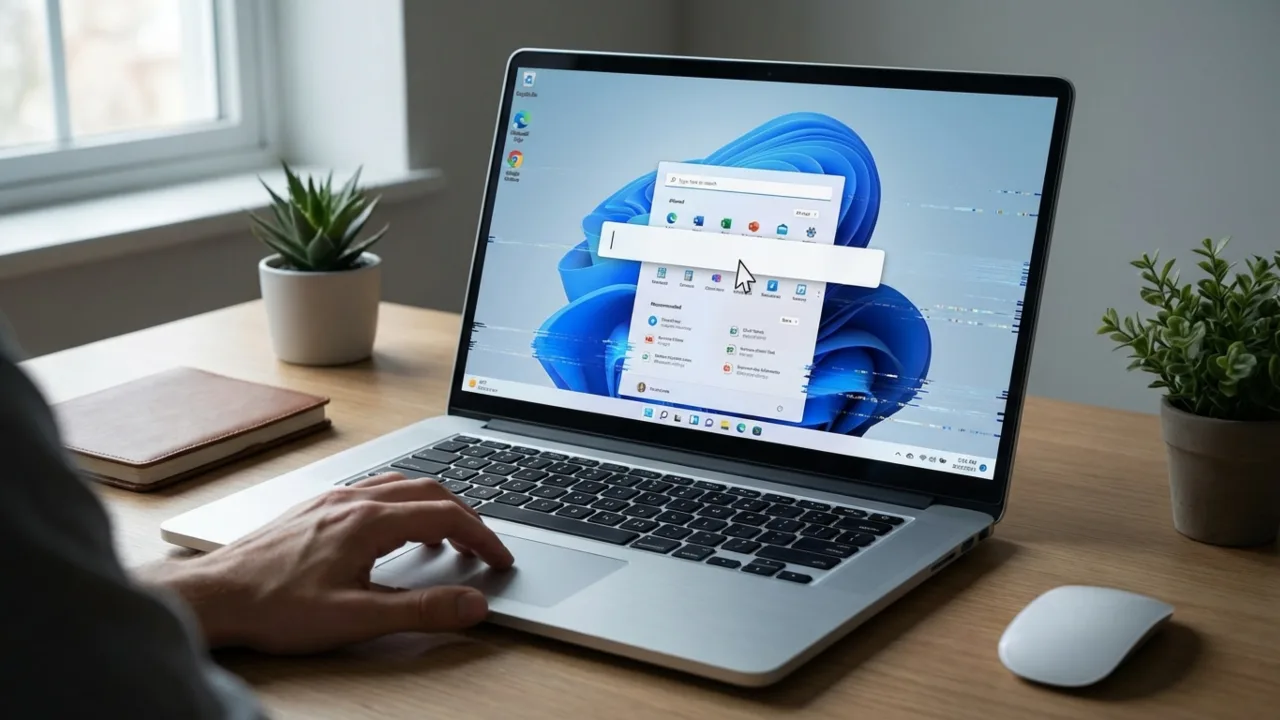
You click the Windows search bar. Nothing happens. You click again, still nothing. Or worse, it opens but ignores every key you press, leaving you with a useless blank box while your deadline looms closer. You might find you can’t type into the box, or the panel might flash grey and close. Over 60% of Windows users report the search bar not working issue at some point, which makes it one of the most common frustrations on Windows 10 & 11.
Though most cases can be fixed in under 5 minutes once you match the right solution to the symptom. Here’s how to troubleshoot the Windows Search not working error and get the bar working again.
Why Your Windows Search Bar Stops Working
- Corrupted search processes: SearchHost.exe or SearchUI.exe can crash or freeze, and you see a dead search bar. These processes control what happens when you click the search box.
- Broken search index: Windows keeps a database of your files to speed up search results. If this index gets corrupted, the search either shows nothing or won’t open.
- Registry corruption: Some registry entries control search. If they get messed up, often after updates, the search bar becomes unresponsive.
- Font cache problems: Weird but true, the Windows Font Cache Service can break search. If fonts don’t load right, the search interface might not render.
- Windows updates gone wrong: Certain builds, particularly some Windows 11 24H2 versions, were released with known search bugs.
- User profile corruption: Sometimes the only thing that’s broken is your Windows user profile. When that happens, Search can fail for you while it works normally on other accounts on the same PC.
Also: How to Fix Black Screen Issue on Windows 11
Quick Fixes to Resolve Windows Search Bar (Try These First)
Restart your PC
Obvious, but a lot of search glitches are temporary, and a computer reboot can clear them right away, so you won’t have to trouble yourself with other methods. Use the Start menu to shut down or boot Windows, instead of pressing the power button. That way, you won’t lose unsaved work.
Restart Windows Explorer
Once you restart Windows Explorer, it refreshes the complete taskbar, which can fix a broken search bar.
- Press Ctrl+Shift+Esc to open Task Manager.
- Find Windows Explorer under the Processes tab.
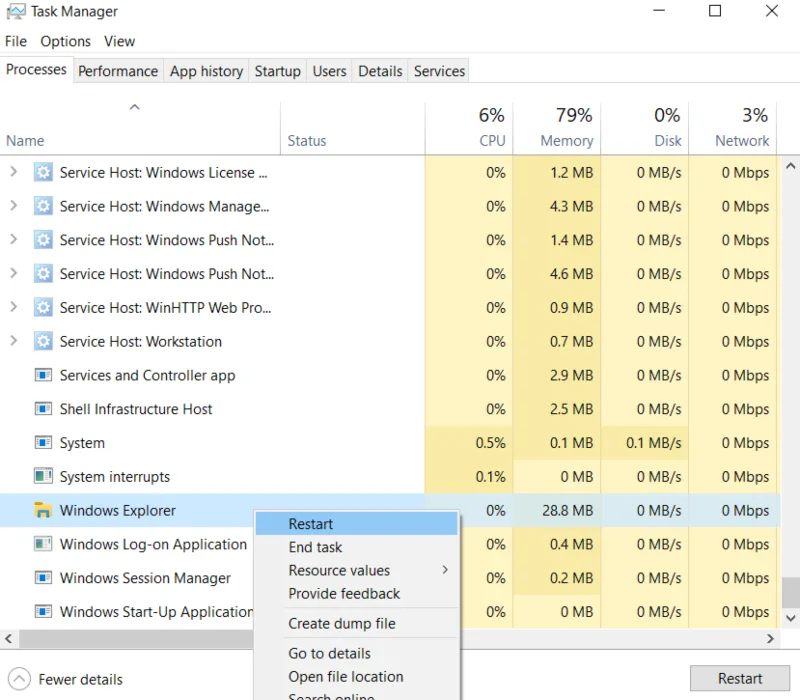
- Right-click it and choose Restart.
Your taskbar will flicker for a second and return to normal, hopefully with a working search bar.
End Search Process
When SearchHost.exe or SearchUI.exe freezes, killing it forces Windows to start a clean copy.
- Open Task Manager.
- Click the Details tab.
- Scroll down until you find SearchHost.exe (on Windows 11) or SearchUI.exe (on Windows 10).
- Right-click it, choose End task, and watch it disappear. Windows will automatically relaunch it within seconds.
The search process sometimes hangs, often after updates. Once terminated, the PC restarts the service with no other effects on the system.
Restart Windows Search Service
- Press Win+R, type services.msc, and hit Enter.
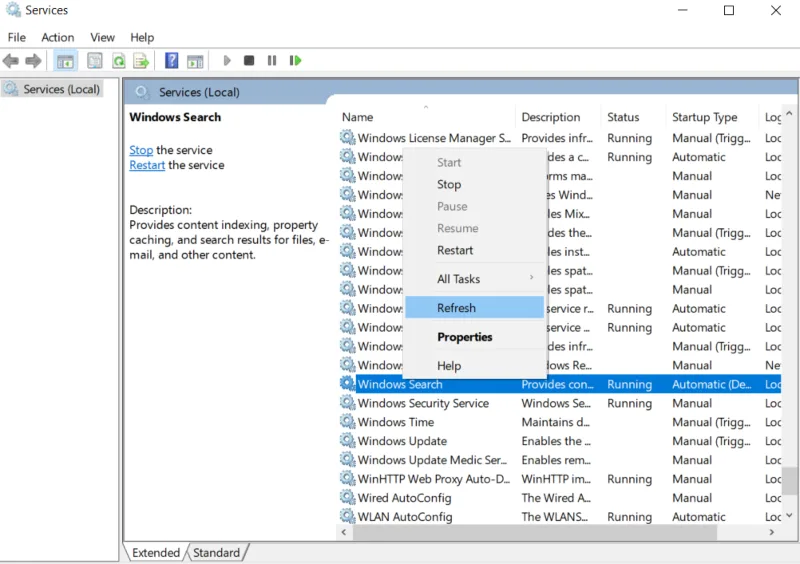
- Scroll down to Windows Search and right-click it. If it’s running, click Restart. If it isn’t, click Start.
- Wait a few seconds, close the window, and check whether the search bar works.
In services.msc, do the same for Windows Font Cache Service. It sounds random, but font caching issues damage search more often than you’d think. Stop it, wait 10 seconds, then start it again.
How to Fix Can’t Type in the Search Bar
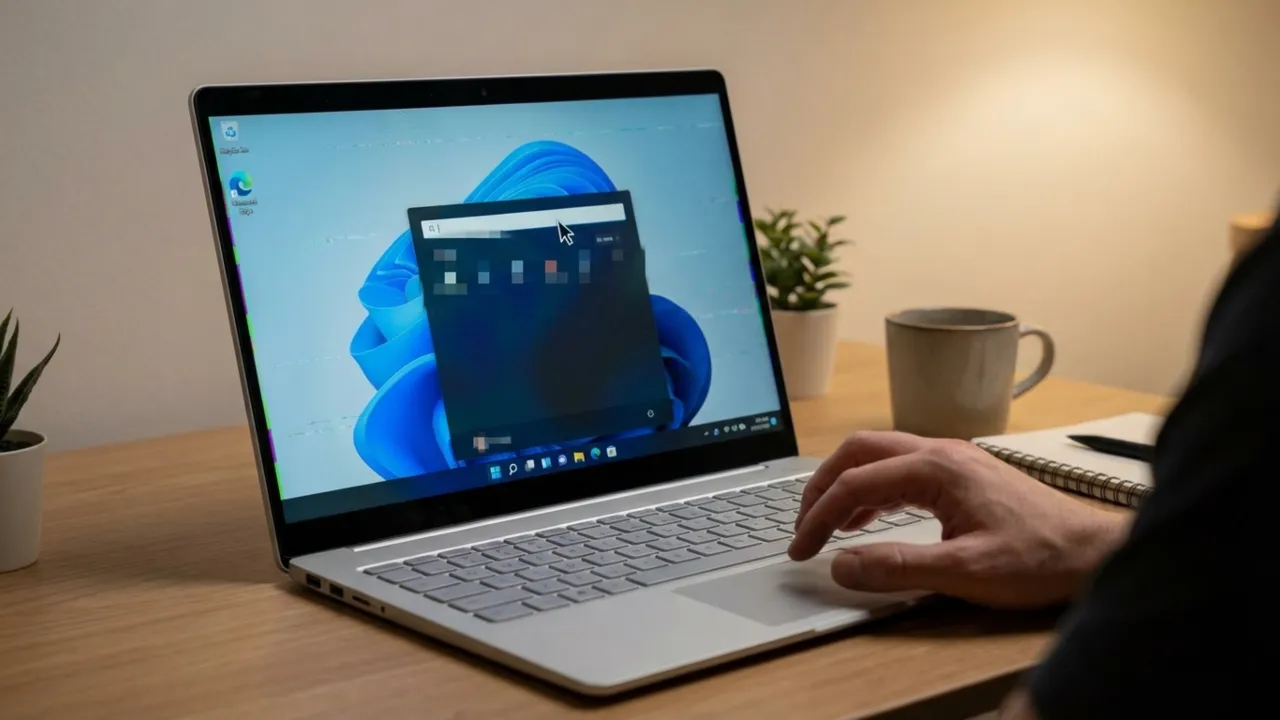
The search panel opens fine, but won’t accept any keyboard input. You might notice icons in the Start menu getting highlighted based on the first letter you press; that’s a sign that something is wrong with text input routing. Certain Windows 11 builds (particularly around version 26100) have a specific registry bug that breaks search. To recover it, you need to clear a specific registry value.
Registry edits can break things badly if you mess up the process. In Registry Editor, go to File → Export and save a backup somewhere safe. If things go wrong, you can restore it.
- Press Win + R, type regedit, and hit Enter.
- Navigate to or paste this exact path in the top address bar:
HKEY_LOCAL_MACHINE\SOFTWARE\Microsoft\Windows\CurrentVersion\AppModel\StateChange\PackageList\ - Find a folder starting with
MicrosoftWindows.Client.CBS_. You might see many with different numbers. Search for the one with the highest number in its name, likeMicrosoftWindows.Client.CBS_1000.26100.121.0_x64__cw5n1h2txyewy. In your case, the file will have different values at the end. - Click on that folder. In the right pane, you’ll see PackageStatus. Right-click it, click Modify.
- Delete everything in the “Value data” field. Leave it completely blank and click OK.
- After that, open Task Manager and restart Windows Explorer. Test search; this fix has rescued countless broken search bars.
NO APPMODEL FOLDER?
If you don’t have an AppModel folder, that’s a different issue, and it usually means something deep is going on with your Windows install. At that point, you may need a repair install (I’ll cover that at the end).
If the registry edit didn’t solve the problem, these are a few quick methods you can try:
Run Dialog Trick
Press Win+R to open the Run dialog, then immediately press Escape or click Cancel. This action can reset the keyboard’s input handler and might fix the problem right away.
Start ctfmon.exe
Another possibility involves the `ctfmon.exe` process, which manages text input services. If it’s inactive, typing can fail. To manually start it:
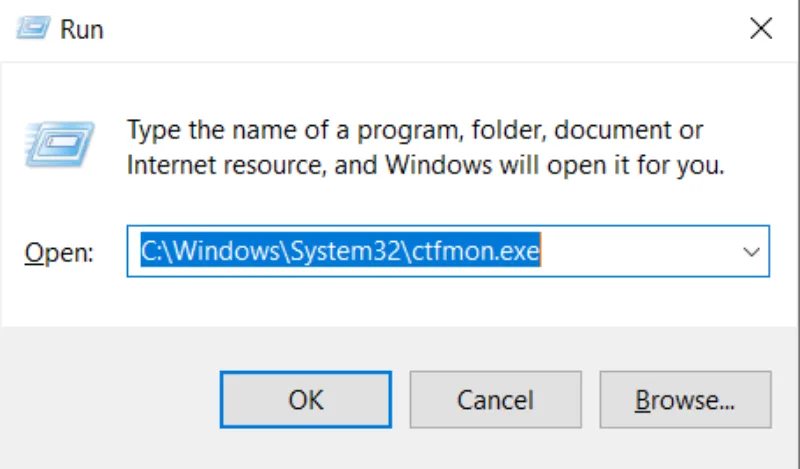
- Press Win+R, type “C:\Windows\System32\ctfmon.exe“, and click OK.
- It will launch the text services process. Test the search bar again.
If that works, but the issue returns after a reboot, you’ll need to add the process to your startup folder. Press Win+R, type shell:startup, press Enter. In the folder that opens, right-click and choose New → Shortcut. Set the location to `C:\Windows\System32\ctfmon.exe` and name it whatever you like. Next time, it will automatically start on every boot.
Check Your Keyboard Settings
Rule out the simple stuff first: you may have flipped to the wrong keyboard layout without noticing. Press Win+Space to cycle through installed layouts to make sure you haven’t switched to a different one. Then open Notepad and type a few lines. If it works there but not in Search, the keyboard is fine, and there’s something wrong with Search.
Change Taskbar Alignment
It’s a strange fix, but it targets a specific Windows glitch when the search box won’t accept keyboard input. Open taskbar settings and change the alignment from Center to Left. Then try the search bar again and see the current status.
Also: How to Fix Blue Screen of Death (BSOD) on Windows
How to Fix Search Opens But Shows Nothing
It’s the case when the search interface appears, but no results will appear for anything you type. Just blank space mocking you.
Check Search Indexing Status
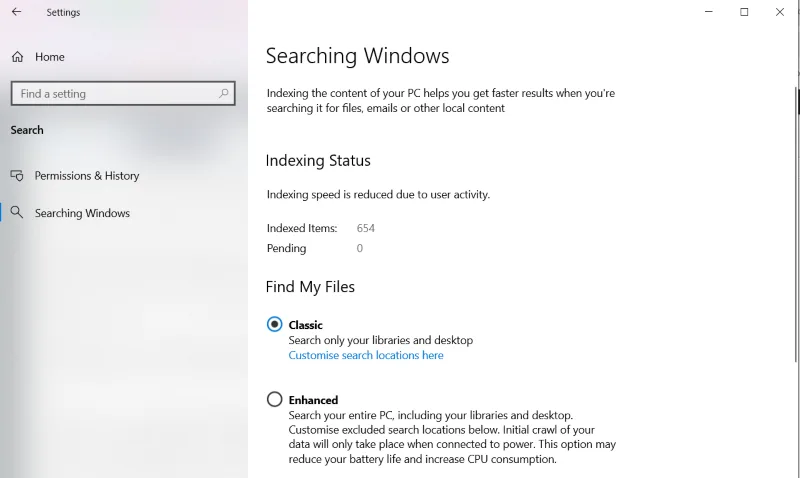
in Windows 11, go to Settings → Privacy & Security → Searching Windows (on Windows 10, it’s Settings → Search → Searching Windows). Look at the indexing status. If it’s set to “Classic” mode, change it to Enhanced. Classic only indexes a limited slice of your system. Then confirm your key folders—Documents, Desktop, Downloads—aren’t excluded. If Windows isn’t indexing where the files are, Search will not find them.
Rebuild the Complete Search Index
Sometimes the index database gets corrupted and needs to be rebuilt from scratch.
- Press Win+R, type ‘control panel’, and press Enter.
- Find Indexing Options. If you don’t see it, change the “View by” dropdown at the top right to Large icons.
- Click Advanced at the bottom. You’ll see a Rebuild button under the Troubleshooting section. Click it.
Rebuilding takes a while, could be hours if there are a lot of files. Until the index finishes, search results will be incomplete, so let it run overnight if that’s what it needs.
Click the File Types tab in Advanced Options. Make sure important extensions like .docx, .xlsx, .pdf, .txt are set to “Index Properties and File Contents“. Otherwise, the rebuild index still won’t let search look inside your documents.
Run the Search Troubleshooter
Windows includes a built-in troubleshooter that can automatically find and fix common search problems.
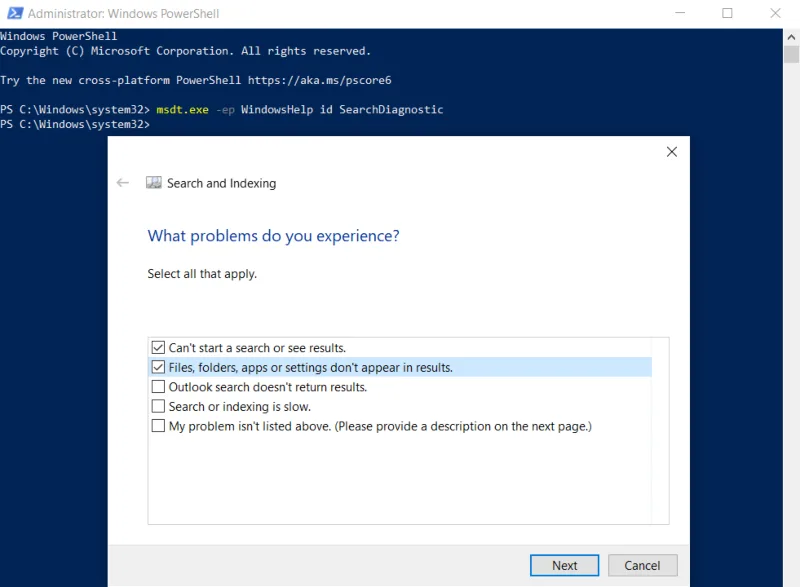
Press Win+X, choose “Terminal (Admin)” or “Windows PowerShell (Admin)“, then run this command:
msdt.exe -ep WindowsHelp id SearchDiagnosticPress Enter, follow the prompts, tick the options that match what you’re facing, and let Windows try to fix it.
Also: How to Disable Driver Signature Enforcement (DSE) in Windows 11
How to Fix Search Bar Won’t Open or is Blank (Reset Windows Search)
When the search panel is completely blank or the app package is corrupted, you need to use PowerShell to re-register the Windows components or reset the search to factory defaults to remove deep corruption.
Via PowerShell Reset
This reset method works on Windows 11 and Windows 10 version 1903 or newer.
- Go to Microsoft’s support site and download the ResetWindowsSearchBox.ps1 script. Save it somewhere you’ll remember.
- Right-click the downloaded file and choose Run with PowerShell.
- Accept the User Account Control prompt if asked. The script will hard reset Search. When you see “Done“, close the PowerShell window.
INDEXING STARTS FROM ZERO: After reset, Windows will rebuild the entire search index from scratch. Search results will be incomplete for some hours (or longer with terabytes of data) until it re-indexes all files. Be patient.
Quick PowerShell Alternative
Press Win+X and choose Windows PowerShell (Admin). To reset the core search package, paste this command and hit Enter:
Get-AppxPackage -allusers Microsoft.Windows.Search | Reset-AppxPackage
This will reinitialize the search package without having to download anything. If that fails, re-register the Start Menu experience by running:
Get-AppxPackage -AllUsers Microsoft.Windows.StartMenuExperienceHost | Foreach {Add-AppxPackage -DisableDevelopmentMode -Register "$($_.InstallLocation)\AppXManifest.xml"}In rare cases, users have reported that a full reinstall of Microsoft Edge fixes the blank search window bug, likely due to how the system heavily intertwines web search and Edge into the Start Menu logic.
Advanced Fix: Regenerate Search AppData
Regenerate AppData can be effective when your user profile’s search data is corrupted, but other accounts work fine. First, create a new local account and verify that search works there. If it does, your profile is the problem. Now, make sure hidden files are visible on PC, go to File Explorer → View → Show → Hidden items for it.
On Windows 11, delete this folder (replace %USERPROFILE% with your profile path):
%USERPROFILE%\AppData\Local\Packages\MicrosoftWindows.Client.CBS_cw5n1h2txyewy
On Windows 10:
%USERPROFILE%\AppData\Local\Packages\Microsoft.Windows.Search_cw5n1h2txyewy
In some old Windows versions, this folder is named Microsoft.Windows.Cortana_cw5n1h2txyewy.
Open Registry Editor and head to:
HKEY_CURRENT_USER\SOFTWARE\Microsoft\Windows\CurrentVersion\Search
Delete the entire Search registry key.
Next, open PowerShell as admin and run:
For Windows 11:
Add-AppxPackage -Path "C:\Windows\SystemApps\MicrosoftWindows.Client.CBS_cw5n1h2txyewy\Appxmanifest.xml" -DisableDevelopmentMode -Register
For Windows 10:
Add-AppxPackage -Path "C:\Windows\SystemApps\Microsoft.Windows.Search_cw5n1h2txyewy\Appxmanifest.xml" -DisableDevelopmentMode -Register
Restart the computer and use the search again. This process will restart indexing, regenerate the registry key, and rebuild the AppData folder.
Update Windows
Windows 11 and Windows 10 let you decide when to install updates, so your PC stays secure and runs well. To check pending updates and manage settings, go to Start > Settings > Update & Security > Windows Update and click Check for updates. Install any updates you see, then restart if the OS asks you to.
Also: How to Change Your DNS Server on Windows and Mac
Find Files with Third-Party Search Tools
If you need to find a file right now and don’t have time to wrestle with Microsoft’s flaky search, skip the built-in tool. Windows Search relies on a heavy, easily corrupted index database.
Third-party tools can index your drives locally much faster and avoid the Windows UI. Everything by Voidtools is the recommended tool for this. It’s very lightweight and shows files instantly as you type. SeekFast is another good option. They don’t launch the Start Menu apps, but for file retrieval, they run circles around the native Windows Search.
Frequently Asked Questions
Can I recover deleted search history in Windows 11?
No. Windows doesn’t keep a recoverable taskbar search history. If you clear it in Privacy settings or wipe it via Disk Cleanup, it’s permanently deleted. But File Explorer does keep a separate “recent files” list in Quick Access, and that can still show documents you opened recently.
Does disabling Cortana fix Windows Search issues?
No. Turning off Cortana doesn’t fix Search, and in some Windows 10 versions, it could even make them worse because Cortana and Search share parts. Windows 11 split them up, so Cortana being on or off won’t change how Search behaves. If someone told you to do this, they’re probably remembering early Windows 10 advice.
How do I search for files larger than a specific size in Windows?
In File Explorer’s search box, type size:gigantic (files over 128MB), size:huge (10-128MB), or size:large (1-10MB). For a specific cutoff, use size:>500MB or size:<1GB. These operators work in File Explorer and taskbar search, but only if indexing is working well enough for the files to appear.
Why does the search find recently created files but not old ones?
Usually, the index hasn’t covered older locations yet, or it got corrupted partway through. Open Indexing Options in Control Panel. If it says indexing is still running, let it finish. If it shows complete, but old files don’t appear, rebuild the index from Advanced settings so it rescans everything.
Did this fix your issue?
Let us know. Your feedback helps other readers find the right solution.
Great! What solved it for you?
We read every response. Email is optional and never shared.
Sorry to hear that. What happened when you tried?
Leave your email and we will personally help you fix it.