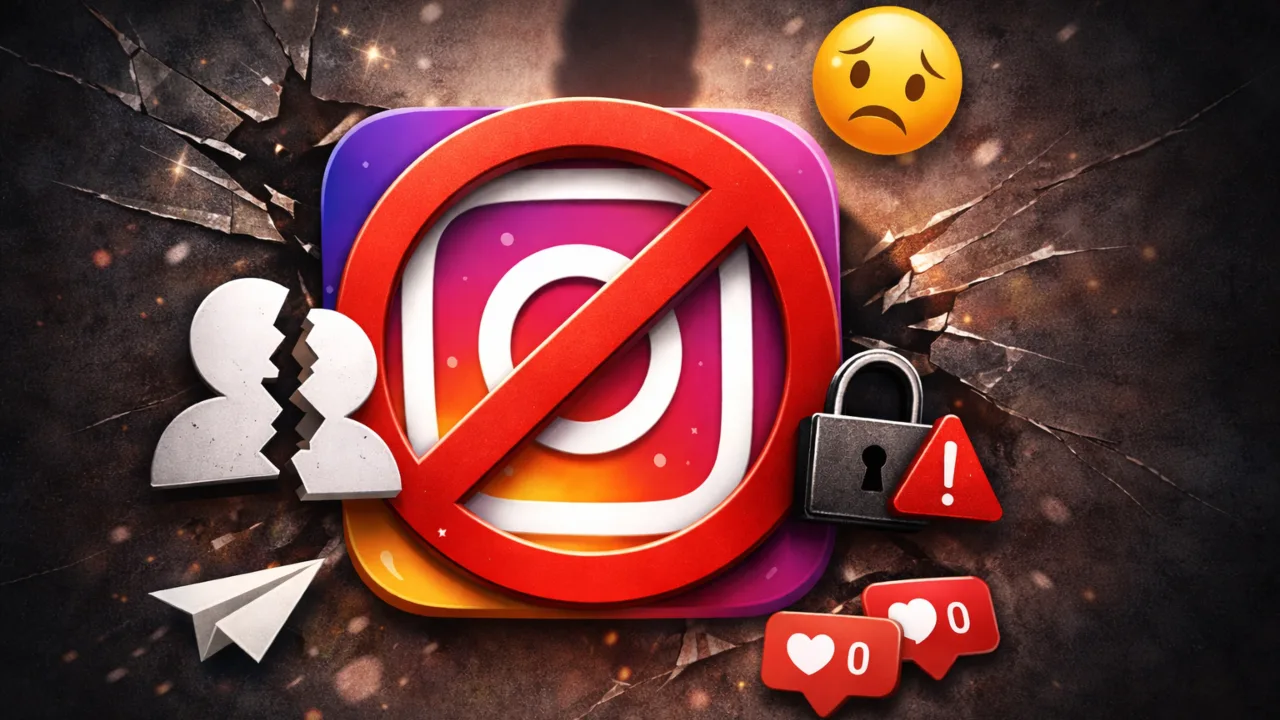
Instagram won’t tell when someone blocks you. You get no alert or message, nothing. The biggest social media platform stays silent on purpose, so you have to figure out the signs yourself. There are 7 ways to confirm you’ve been blocked on Instagram. Each method reveals a certain change in how the network behaves once someone applies a block to your account.
What Does It Mean When Someone Blocks You on Instagram?
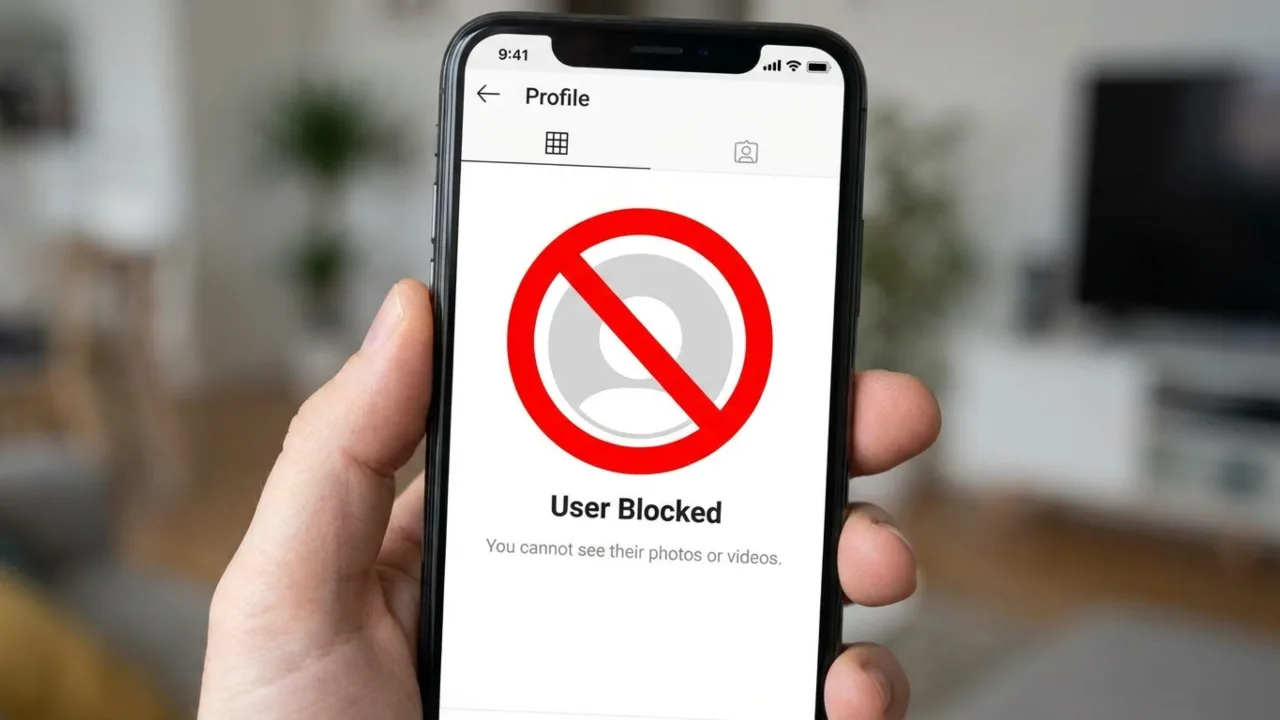
When an Instagram user blocks another account, their profile becomes completely inaccessible to the blocked person. He can’t find them in search, see their posts or stories, or send them messages. The block only works one way, which means the user who blocked you can still see your public profile whenever they want. But you’ll notice something else changed. All their old likes and comments on your posts are removed from your feed.
Instagram treats blocking as a user-initiated privacy action and doesn’t send you a notification when it happens. The blocked user must identify the block on their own through the platform signals detailed below.
How to Tell If Someone Blocked You on Instagram?
When someone blocks you on Instagram, their profile will not appear in your search results, their posts will show a non-zero count but display “No Posts Yet” on their grid, your direct messages will show sent but never delivered, and a mutual friend can see their profile while you cannot. These 4 signals confirm a block.
Just one thing doesn’t mean you’ve been blocked. A changed username could be why you can’t find them, a deactivated account might make their profile disappear, and a private account could explain why you can’t see their data. To confirm it, cross-reference multiple signals at once or verify from a second account.
1. Search for Their Account in the Instagram App
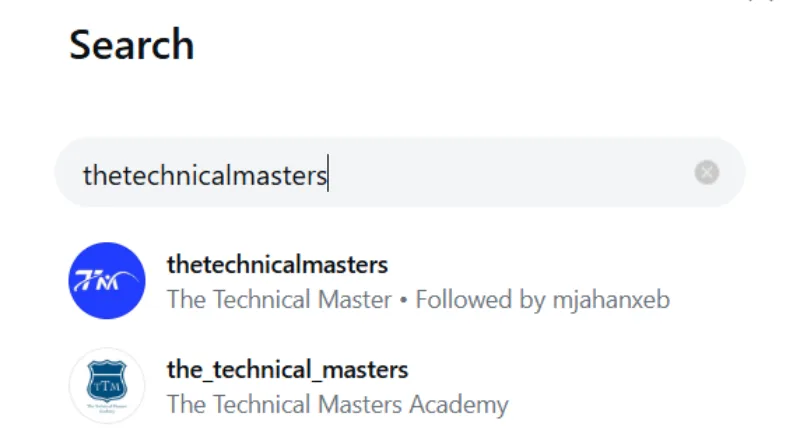
Open Instagram, tap the search magnifying glass, and type the profile’s exact username.
If the account doesn’t appear in results despite correct spelling, it means a possible block. But this method has a flaw because there can be other reasons the user’s profile won’t show in search results. It can happen if they deleted or disabled their account. So use it as a first-pass check only and confirm with the next method before you conclude.
2. Check Their Profile URL in a Browser
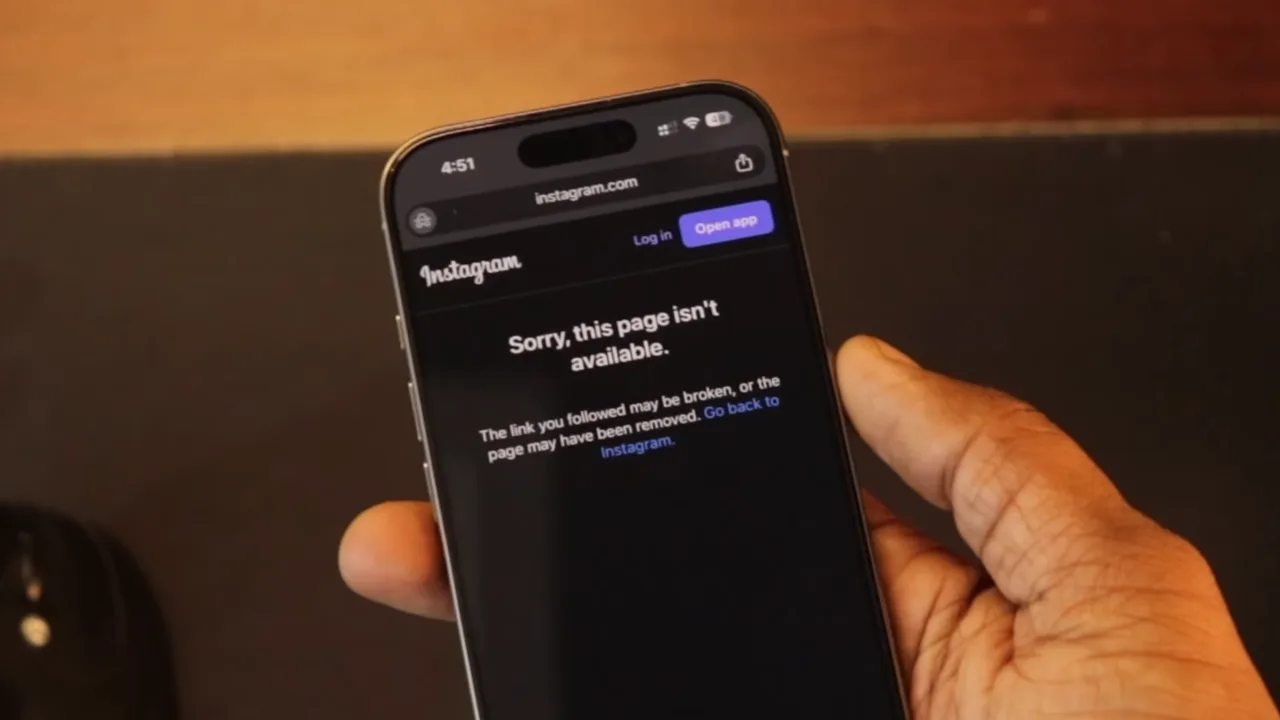
Every Instagram account has a unique web address: instagram.com/username. Enter this URL into a web browser while logged into your account. If you receive a “Sorry, this page isn’t available” error, log out or open the link in an incognito window. If you can see their profile when you’re not logged in but not when you are, you’ve been blocked. This test isolates your account as the variable; when the profile loads for everyone but not you, the block is confirmed.
3. Look for the “No Posts Yet” Sign on Their Profile
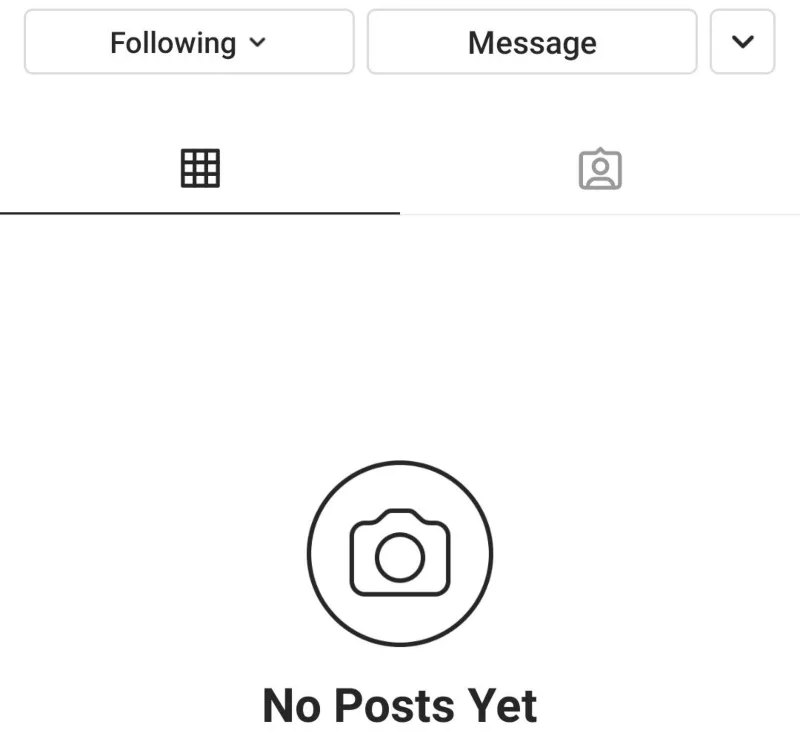
One of the most definitive indicators of a block is when you visit a user’s profile and see a non-zero post count at the top of the page, yet the main grid displays a “No Posts Yet” banner. It tells that the account is active and the user has posted content, but the server prevents only you from viewing it. A deactivated or deleted account would not show a post count at all; the profile would be completely unreachable.
4. Check Direct Messages for Block Signals
Open your DM and find the conversation thread with the person in question. In your Direct Message inbox, a blocked user’s name often changes to “Instagram User.” Their profile picture vanishes, leaving a default blank icon. While previous message threads remain visible to you, you will no longer see their “Active Now” status or “Seen” receipts for new messages sent.
Furthermore, if you try to message a user who has blocked you, the message might appear as “sent” but never as “delivered.” In some cases, you might encounter an error message “User not found” or “No users found” when trying to send a message.
5. Tap Their Username from an Old Comment or Previous Post
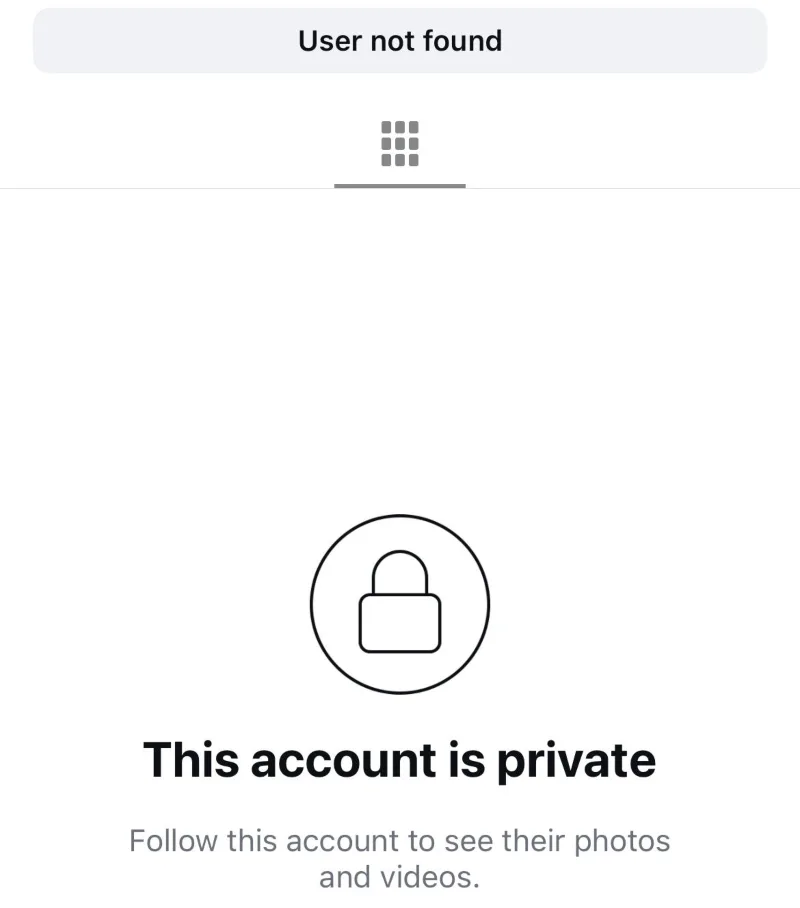
If the person commented on your posts previously, find one of the comments and tap their username. If the page is blank or shows the “User Not Found” error, yet you know they are active on the platform, the block is confirmed. Tapping their name in a comment skips the search and tries to load their profile page from your account. A failed load under these conditions points strongly to a block.
6. Try the Follow Button
If you can open their profile page via a direct link, an old comment tap, or any other method, tap the Follow button. If you are blocked, the button may briefly change to “Requested” or “Following” before instantly reverting to “Follow.” This is a server-side rejection of your follow request, and the behavior is different from a private account, which would show “Requested” and hold that status until the user manually approves or declines.
7. Verify Through a Second Account or Mutual Friend
Ask a friend to search for the account on their phone. Can they see it while you can’t? That’s your answer. You could also use a second Instagram account if you have one. Log in to that other profile and search for the user, or take a friend’s phone and do the search there. When the profile appears fine on that second account but is hidden or blocked on yours, you’ve done your block confirmation.
Does Your Follower Count Drop When Someone Blocks You on Instagram?
Yes. When someone blocks you on Instagram, their account is removed from your follower list, and your account is removed from theirs. If you were following each other, both follower counts would adjust by one. This signal is difficult to detect in isolation unless you monitor follower counts closely. It makes more sense when combined with profile search failures and DM status changes.
What Happens to Comments and Tags When Someone Blocks You on Instagram?
When someone gets blocked, their digital footprint on your content vanishes. Every like they left and comment they posted gets wiped clean. You won’t see them anymore, but nobody else will either. Other people scrolling through the same posts will see the same thing you do – empty space in place of interactions.
Tags work differently but follow the same logic. Once you block someone, that person loses the ability to mention you or tag your username. They can try, but it won’t work. As for old tags that existed before you hit that block button? Those will become dead links. Anyone clicking through your account can’t access them anymore. The system erases their ability to connect with you in any way.
| Signal | Blocked | Restricted | Deactivated | Deleted |
|---|---|---|---|---|
| Profile searchable | No (for you only) | Yes | No (for everyone) | No (for everyone) |
| Profile visible to others | Yes | Yes | No | No |
| Can see your posts | No | Yes | N/A | N/A |
| Can send you DMs | No | Yes (to requests) | N/A | N/A |
| DM thread shows “Instagram User” | Yes | No | Yes | Yes |
| Follow button behavior | Reverts instantly | Normal | N/A | N/A |
| Notified of action | No | No | N/A | N/A |
How Do You Confirm a Block Versus a Private Account on Instagram?
Visit their profile while logged out of Instagram or use an incognito browser window by going to instagram.com/username. If the profile loads completely when you’re logged out and you can see posts, bio, and profile details, but it won’t load or displays “No Posts Yet” during login view, the reason is a block specific to your account.
On the other end, a private account loads for logged-out visitors too, but shows only the profile photo, username, bio, and a Follow Request button without revealing posts.