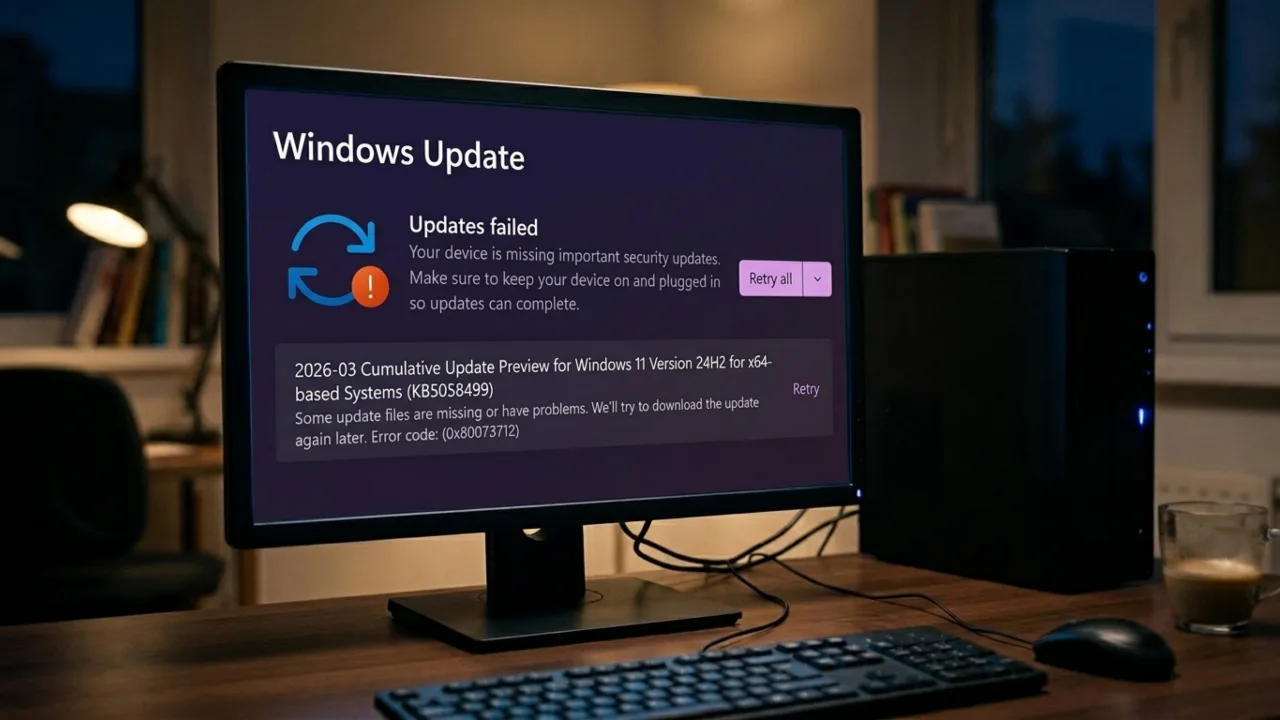
- Windows Update Repair Roadmap
- Why Windows Updates Fail or Get Stuck
- Pre-Update Preparation Checklist
- Windows 10 Update Error Codes and Fixes
- Windows 11 Update Error Codes and Fixes
- Step 1: Restart Your PC
- Step 2: Run Windows Update Troubleshooter
- For Windows 11
- For Windows 10
- Step 3: Check Internet, VPN, Date/Time, and Admin Access
- Step 4: Confirm Administrator Access
- Step 5: Disconnect External Devices
- Step 6: Free Up Disk Space
- Step 7: Clear the Windows Update Cache
- Step 8: Reset Windows Update Components Using Command Prompt
- Step 9: Run SFC and DISM to Repair Windows Files
- Run System File Checker
- Run DISM Repair
- Step 10: Manually Download and Install the Failed Update
- Step 11: Change DNS Settings
- Change DNS on Windows 11
- Step 12: Use System Restore
- Step 13: Use Last Resort Repair Options
- Option 1: In-Place Upgrade
- Option 2: Reset This PC
- Option 3: Clean Windows Installation
- How We Tested These Fixes
- Official Microsoft References
- Frequently Asked Questions
- Why does my Windows Update keep failing?
- Will clearing the Windows Update cache delete installed updates?
- Can antivirus software block Windows updates?
- Can I skip a failed Windows Update?
- What should I do if Windows Update works but the PC becomes unstable afterward?
- Is it safe to force shut down during a Windows update?
- Final Verdict
Windows Update keeps Windows 10 and Windows 11 secure, stable, and compatible with the latest drivers, software, and security protections. Microsoft regularly releases cumulative updates, feature upgrades, bug fixes, and security patches to protect systems against vulnerabilities and stability problems.
Most updates install quietly in the background, but when something goes wrong, the failure can be frustrating. An update may freeze at 0%, sit near 99% for hours, fail after restart, or keep showing the same error code again and again. In our testing, the most common causes were corrupted update cache files, stopped update services, low storage, damaged system files, unstable internet, and driver conflicts.
Hands-on Windows Update troubleshooting checks
May 2026
Windows 11 24H2, Windows 10 22H2
HP EliteBook 840 G8, Dell Inspiron 15, Lenovo ThinkPad E14
Update stuck at 0%, stuck near 99%, KB installation failure, SoftwareDistribution corruption, DISM repair issue, stopped update services, 0x80070005, 0x80070422
This guide follows the same repair order we use when troubleshooting Windows Update failures: start with safe checks, then move to cache repairs, service resets, system file repair, manual update installation, and finally recovery options.
Windows Update Repair Roadmap
- Restart the PC: Clears pending update tasks and temporary glitches.
- Run Windows Update Troubleshooter: Checks update services, cache, and permissions.
- Check internet, VPN, date/time, and admin access: Fixes connection and permission problems.
- Free up storage: Prevents update failure caused by low disk space.
- Disconnect external devices: Removes possible driver conflicts.
- Clear Windows Update cache: Forces Windows to download fresh update files.
- Reset update components: Rebuilds the update service stack.
- Run SFC and DISM: Repairs damaged system files and Windows image corruption.
- Install the KB manually: Useful when automatic installation keeps failing.
- Use recovery options: System Restore, Reset This PC, or clean installation as final options.
Why Windows Updates Fail or Get Stuck
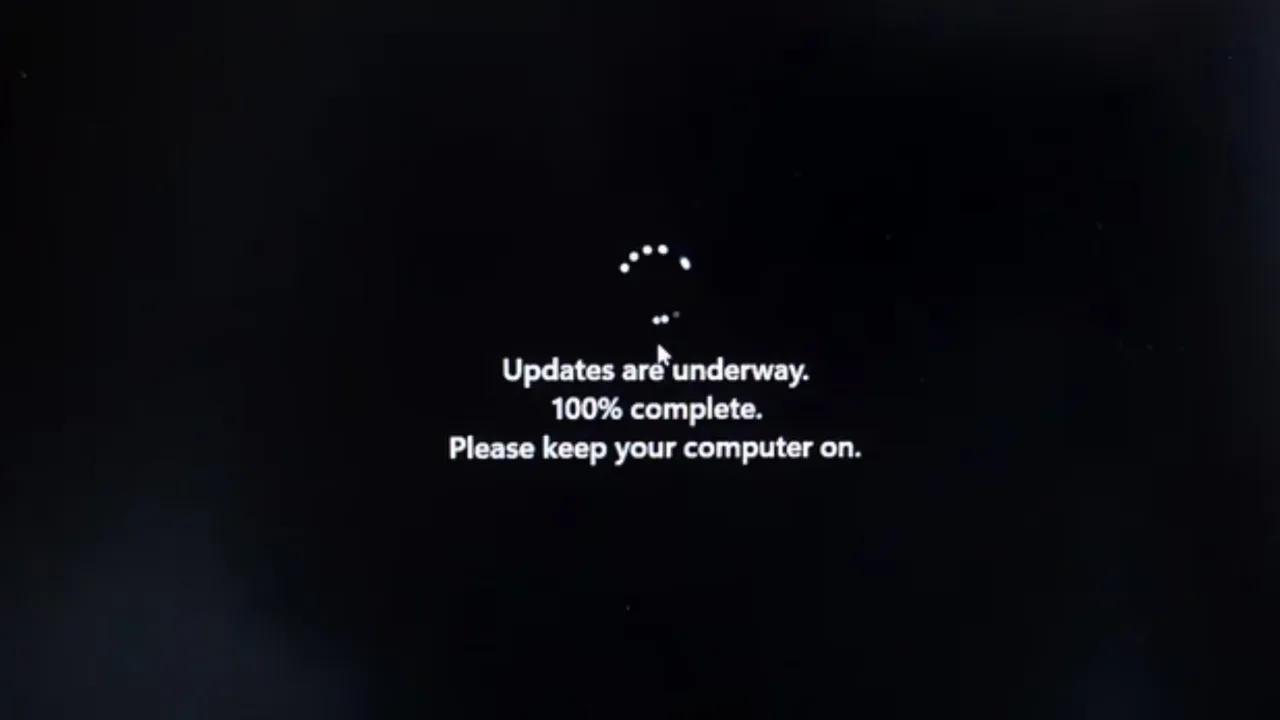
Windows Update can fail when Windows cannot download, verify, unpack, or install required update files. In our testing, cache corruption and interrupted downloads were the two problems we saw most often.
- Corrupted update cache files: Windows stores temporary update downloads inside the SoftwareDistribution folder. If these files break, the same update may fail repeatedly.
- Low disk space: Large cumulative and feature updates need enough room to download, extract, and install files.
- Disabled update services: Windows Update, BITS, Cryptographic Services, or Windows Installer may stop running.
- Driver conflicts: Outdated network, graphics, chipset, storage, or printer drivers can interrupt installation.
- Security software interference: Third-party antivirus or firewall tools may block temporary update files or Microsoft update connections.
- Unstable internet: Interrupted downloads can damage update packages before Windows installs them.
- External device conflicts: USB drives, printers, docking stations, webcams, and external monitors can sometimes trigger driver-related failures.
Back up important files using OneDrive, Windows Backup, or an external drive before running advanced repair commands.
During testing, disconnecting external USB drives fixed repeated update failures on one Windows 10 system showing error code 0x80070020.
Related Windows fixes: If your PC shows other symptoms after a failed update, also check our guides on fixing a black screen on Windows 11, fixing BSOD errors on Windows, and repairing a Windows PC that won’t boot.
Write down the exact error code before troubleshooting. A code like 0x80070005, 0x80070422, or 0x800f0922 can save a lot of time because each one points to a different cause.
Pre-Update Preparation Checklist
Before installing or repairing updates, confirm these basics first. Many Windows Update problems can be avoided before they start.
- Keep at least 20 GB of free space on the Windows drive.
- Use a stable internet connection, preferably Ethernet.
- Disable VPN temporarily if update downloads keep failing.
- Disconnect unnecessary USB devices and peripherals.
- Plug laptops into AC power before updating.
- Back up important files before advanced troubleshooting.
- Confirm your account has administrator permission.
- Write down the exact Windows Update error code.
Windows 10 Update Error Codes and Fixes
| Windows 10 Error Code | Likely Cause | Recommended Fix |
|---|---|---|
| 0x800705b4 | Update timed out or was interrupted. | Restart the PC, run Windows Update Troubleshooter, check internet, then reset update services. |
| 0x80240034 | Incomplete download or update process stuck. | Check internet, restart Windows Update service, and clear the update cache. |
| 0x800f0922 | Low storage, VPN issue, or reserved partition problem. | Free disk space, disable VPN, restart, and retry the update. |
| 0x8007000E | Not enough memory or storage to complete installation. | Free storage, close apps, restart, and run Windows Update again. |
| 0x800F081F | Missing or corrupted Windows component files. | Run DISM RestoreHealth, then run sfc /scannow. |
| 0x80073712 | Windows component store corruption. | Run DISM and SFC, then retry Windows Update. |
| 0x80246007 | BITS download problem or missing update files. | Restart BITS, clear SoftwareDistribution, and run the troubleshooter. |
| 0x80070002 | Windows cannot find required update files. | Clear the update cache and restart Windows Update service. |
| 0x80070003 | Missing or incorrectly stored update files. | Delete SoftwareDistribution contents and check for updates again. |
| 0x80070057 | Incorrect parameter, damaged files, or configuration issue. | Run troubleshooter, SFC, and DISM; then retry the update. |
| 0x80070422 | Windows Update service is disabled. | Open services.msc, set Windows Update to Automatic, then start the service. |
| 0x80070020 | Another program is blocking update files. | Restart, temporarily disable antivirus, remove external devices, and retry. |
Windows 11 Update Error Codes and Fixes
| Windows 11 Error Code | Likely Cause | Recommended Fix |
|---|---|---|
| 0x8007000d | Invalid or corrupted update data. | Run troubleshooter, clear SoftwareDistribution, and restart update services. |
| 0x800705b4 | Update timed out during download or installation. | Restart, check internet, disable antivirus temporarily, and retry. |
| 0x80240034 | Update download failed or became incomplete. | Run troubleshooter, verify services, and clear update cache. |
| 0x800f0922 | Low storage, VPN conflict, or .NET component issue. | Free storage, disable VPN, run DISM, and retry. |
| 0x80070057 | Configuration, permission, or corrupted file issue. | Run SFC, DISM, and Windows Update Troubleshooter. |
| 0x80080005 | Windows Update service registration or component issue. | Reset Windows Update components and restart the PC. |
| 0xC1900101 | Driver conflict during upgrade. | Update drivers, remove external devices, and perform a clean boot. |
| 0x80248014 | Windows Update database or service problem. | Start Windows Update service manually and reset update cache. |
| 0x80070005 | Access denied or insufficient permission. | Use administrator account and temporarily disable third-party security software. |
| 0x80070002 | Missing update files or corrupted download cache. | Clear SoftwareDistribution and check for updates again. |
Step 1: Restart Your PC
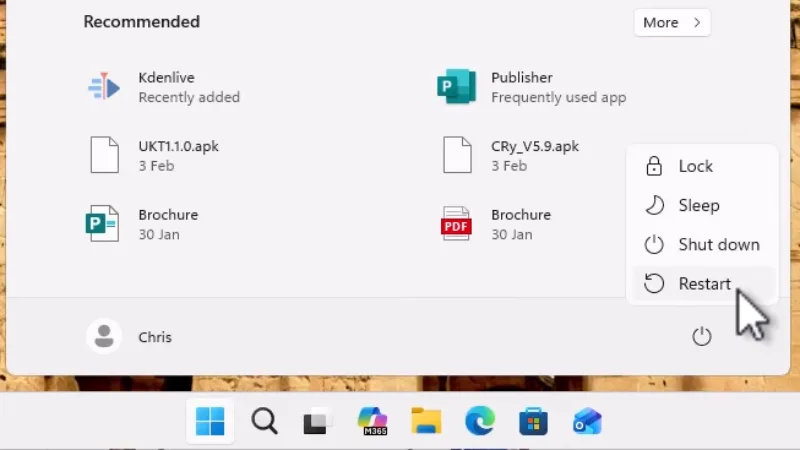
A restart clears temporary processes, completes pending update tasks, and gives Windows Update a clean attempt. This is the safest first step before changing services or deleting update files.
- Save your work and close open apps.
- Open Start.
- Select Power.
- Click Restart.
- After reboot, go to Settings > Windows Update > Check for updates.
Restarting fixed stuck update queues on systems where updates were waiting for a clean reboot.
Step 2: Run Windows Update Troubleshooter
Windows includes a built-in troubleshooter that checks update services, cache problems, permissions, and common configuration errors.
For Windows 11
- Press Win + I.
- Open System > Troubleshoot > Other troubleshooters.
- Find Windows Update.
- Click Run.
- Follow the on-screen repair steps.
For Windows 10
- Open Settings > Update & Security.
- Select Troubleshoot.
- Click Additional troubleshooters.
- Select Windows Update.
- Click Run the troubleshooter.
The troubleshooter repaired update permission issues on one Windows 11 24H2 system during testing.
Step 3: Check Internet, VPN, Date/Time, and Admin Access
Windows Update needs a stable connection, correct system time, and proper account permissions to communicate with Microsoft update servers.
- Use Ethernet if Wi-Fi is unstable.
- Move closer to the Wi-Fi router if using wireless internet.
- Disable VPN temporarily and retry the update.
- Open Settings > Time & Language > Date & Time and enable automatic time.
- Make sure your Windows account has administrator access.
VPN software can interfere with Windows Update downloads. Turn it off temporarily and retry Windows Update.
Step 4: Confirm Administrator Access
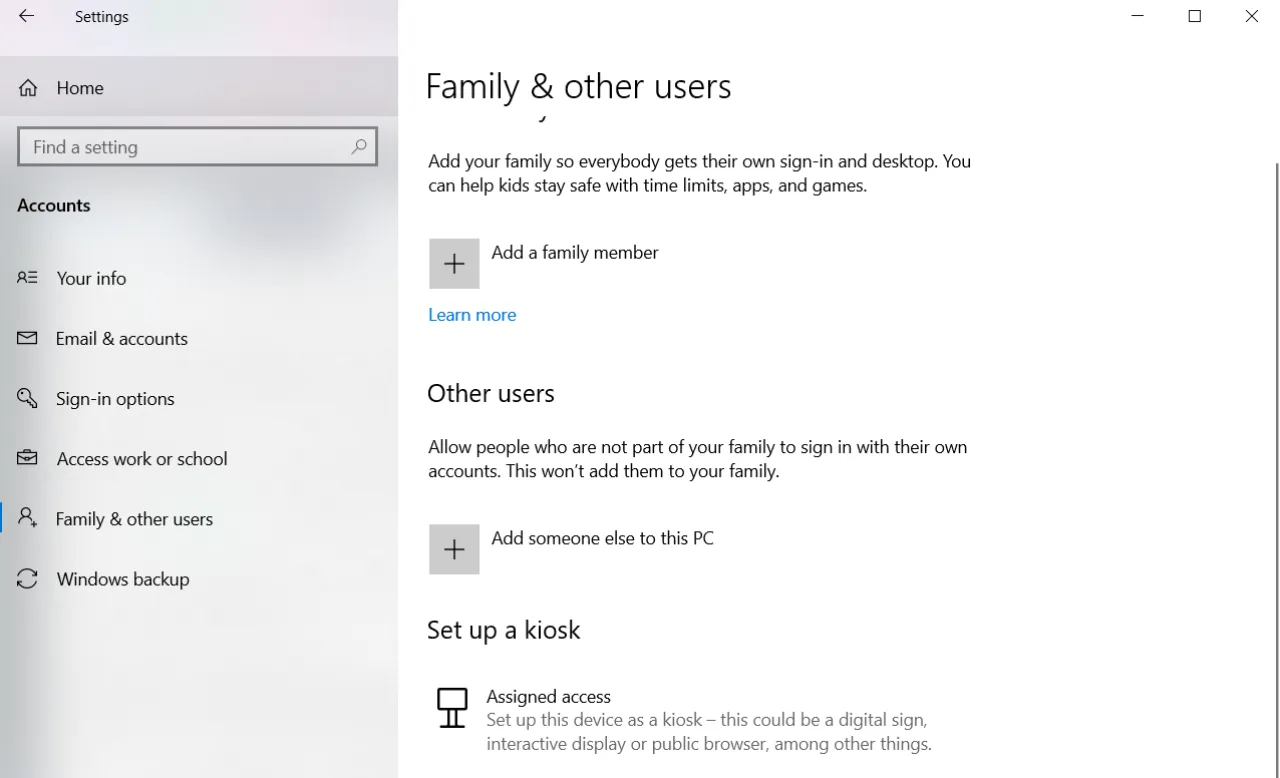
Some Windows updates require administrator permission. If your account is a standard account, switch to an administrator account before installing updates.
Go to Settings > Accounts > Family & other users and check the account type. If you do not have administrator access, ask the device owner or IT administrator to install the update.
Step 5: Disconnect External Devices
External devices can create driver conflicts during updates. Disconnect non-essential hardware before retrying Windows Update.
- External USB drives
- Printers
- Docking stations
- Webcams
- External monitors
- Memory card readers
If the update installs successfully after removing a device, reconnect devices one by one to identify the problematic hardware.
Step 6: Free Up Disk Space
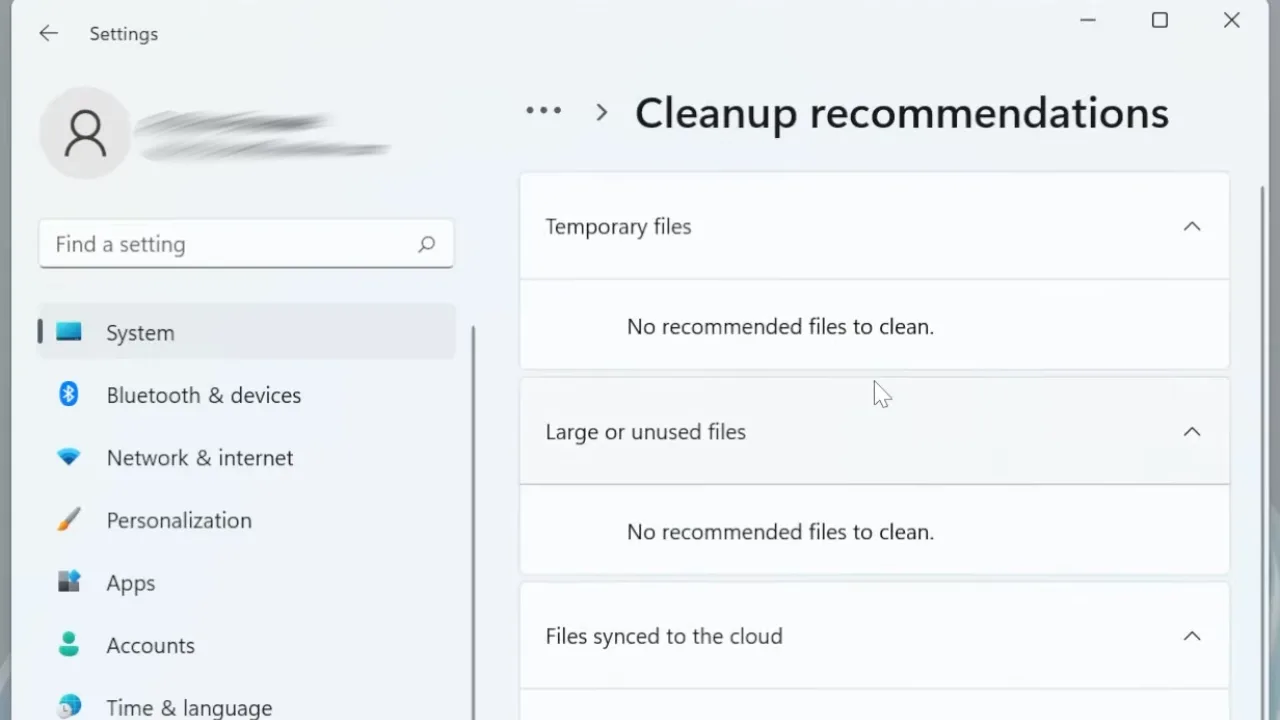
Low storage is one of the most common reasons Windows updates fail. Windows needs space to download, extract, and install update files.
- Open Settings > System > Storage.
- Select Cleanup recommendations.
- Delete temporary files.
- Empty the Recycle Bin.
- Move large files to external storage if needed.
Keep at least 20 GB free space before installing large cumulative or feature updates.
Step 7: Clear the Windows Update Cache
If update files are corrupted, clearing the cache forces Windows to download fresh copies.
- Press Win + R.
- Type
services.mscand press Enter. - Find Windows Update.
- Right-click it and select Stop.
- Open File Explorer.
- Go to
C:\Windows\SoftwareDistribution. - Delete all files and folders inside it.
- Return to Services.
- Right-click Windows Update and select Start.
- Restart the PC and check for updates again.
Clearing the SoftwareDistribution folder fixed repeated KB installation failures on two Windows 11 systems during testing.
Step 8: Reset Windows Update Components Using Command Prompt
If clearing the cache does not work, reset the main Windows Update services manually.
Open Command Prompt as Administrator and run these commands one by one:
net stop wuauserv
net stop cryptSvc
net stop bits
net stop msiserver
ren C:\Windows\SoftwareDistribution SoftwareDistribution.old
ren C:\Windows\System32\catroot2 catroot2.old
net start wuauserv
net start cryptSvc
net start bits
net start msiserver
Restart the PC after running the commands, then go to Settings > Windows Update > Check for updates.
If a command says “The service is not running,” continue to the next command. That message is normal on some systems.
Step 9: Run SFC and DISM to Repair Windows Files
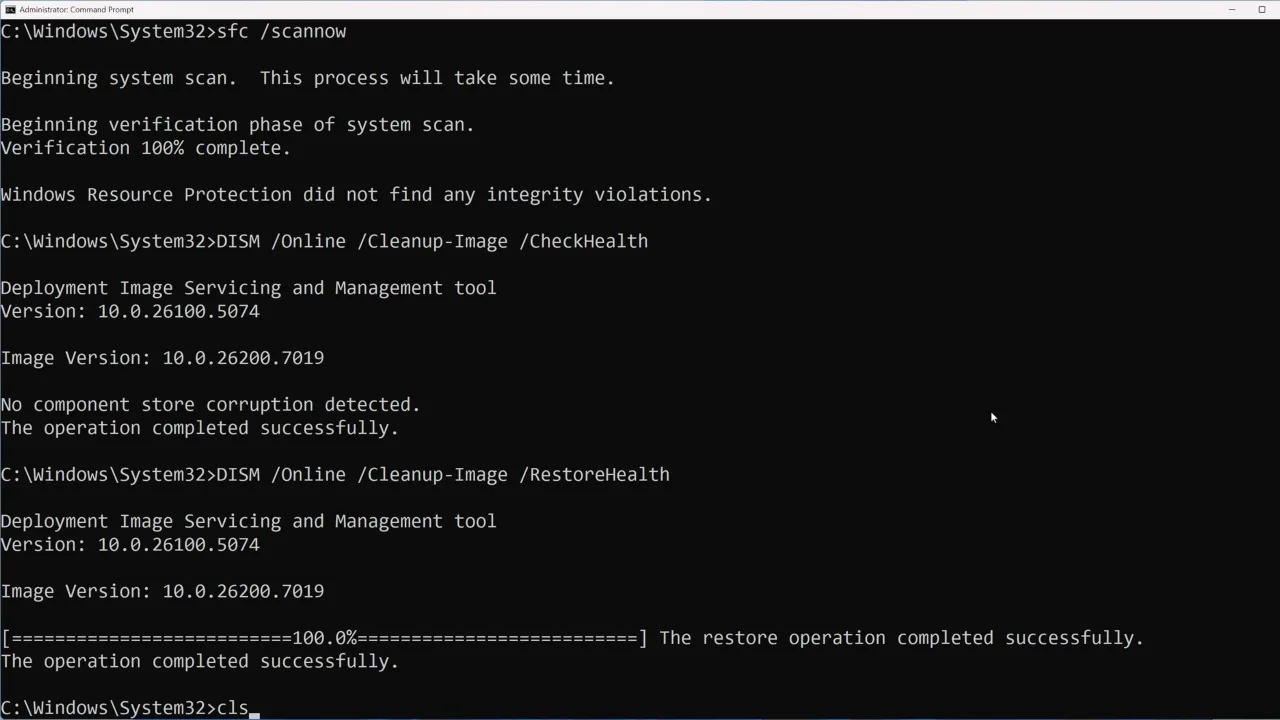
Damaged system files can stop Windows Update from installing correctly. Run System File Checker first, then DISM.
Run System File Checker
sfc /scannowThis scan checks protected Windows system files and replaces damaged files automatically.
Run DISM Repair
DISM.exe /Online /Cleanup-image /RestorehealthDISM repairs deeper Windows image corruption using Microsoft’s online repair source. Do not shut down the PC while the repair is running.
DISM repaired Windows Update corruption after failed cumulative updates on one Windows 10 system.
Also useful: If Windows becomes unstable after failed updates, check our guides on Windows Search bar not working and disabling Driver Signature Enforcement on Windows 11.
Step 10: Manually Download and Install the Failed Update
If automatic update installation repeatedly fails, manually downloading the update from Microsoft Update Catalog can help.
- Open the Microsoft Update Catalog.
- Search for the failed update KB number.
- Download the correct version for your system architecture.
- Run the installer manually.
- Restart Windows after installation.
You can find the KB number in Settings > Windows Update > Update history.
Step 11: Change DNS Settings
DNS issues can prevent Windows from reaching Microsoft update servers reliably. If updates fail during download, try switching to a public DNS server.
- Google DNS: 8.8.8.8 and 8.8.4.4
- Cloudflare DNS: 1.1.1.1 and 1.0.0.1
Change DNS on Windows 11
- Open Settings > Network & internet.
- Select your Wi-Fi or Ethernet connection.
- Find DNS server assignment.
- Click Edit.
- Select Manual.
- Enable IPv4.
- Enter the DNS addresses.
- Click Save.
For detailed steps, read our guide on changing DNS servers on Windows and Mac.
Step 12: Use System Restore
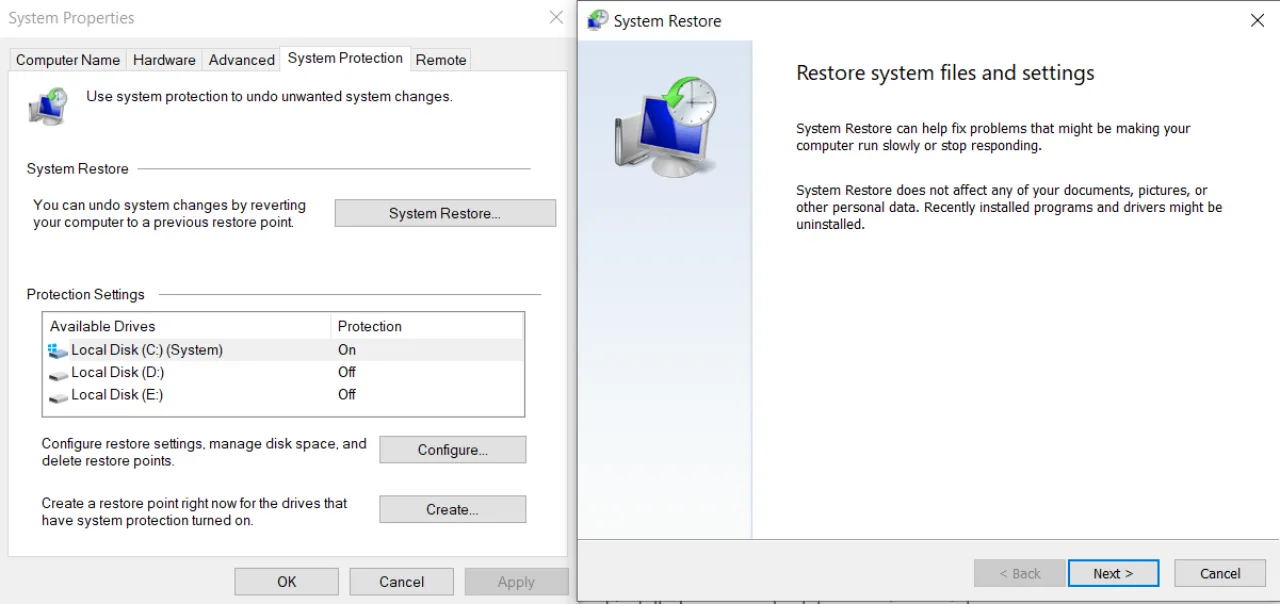
System Restore returns Windows to an earlier working state without deleting personal files. It can help if update failures started after a driver installation, system change, or failed update attempt.
- Search for Create a restore point.
- Open System Properties.
- Click System Restore.
- Select a restore point before the update issue started.
- Follow the on-screen instructions.
Step 13: Use Last Resort Repair Options
Option 1: In-Place Upgrade
An in-place upgrade reinstalls Windows while keeping personal files and apps. On Windows 11, go to Settings > System > Recovery > Reinstall now.
Option 2: Reset This PC
Use Reset This PC when Windows Update remains broken after all repair attempts.
- Open Settings > System > Recovery.
- Click Reset PC.
- Select Keep my files.
- Follow the on-screen instructions.
Option 3: Clean Windows Installation
A clean installation should be the final option because it removes Windows, apps, settings, and files from the selected drive.
How We Tested These Fixes
This troubleshooting process was verified on Windows 10 and Windows 11 systems experiencing real update problems, including failed KB installations, stuck update percentages, corrupted update cache files, permission-related errors, stopped update services, and DISM repair scenarios.
- Windows Update stuck at 0%
- Windows Update stuck near 99%
- Failed cumulative update installation
- SoftwareDistribution cache corruption
- Windows Update service disabled
- Permission-related update errors
- SFC and DISM repair scenarios
Official Microsoft References
- Microsoft Windows Support
- Windows Update documentation
- Microsoft Update Catalog
- Windows 10 download page
- Windows 11 download page
Frequently Asked Questions
Why does my Windows Update keep failing?
Windows Update usually fails because of corrupted update files, low storage, unstable internet, disabled update services, permission issues, driver conflicts, or damaged system files.
Will clearing the Windows Update cache delete installed updates?
No. Clearing the SoftwareDistribution folder removes only temporary update downloads. Already installed updates remain installed.
Can antivirus software block Windows updates?
Yes. Some third-party antivirus tools may block update services, temporary files, or Microsoft update connections. Disable antivirus temporarily only while testing the update, then turn it back on.
Can I skip a failed Windows Update?
You can pause updates temporarily, but skipping security updates for a long time is not recommended because it leaves the system exposed to known vulnerabilities.
What should I do if Windows Update works but the PC becomes unstable afterward?
Use System Restore, uninstall the recent update, check Device Manager for driver problems, and review Event Viewer for crash or driver errors.
Is it safe to force shut down during a Windows update?
No. A forced shutdown during installation can corrupt Windows files and create boot problems. If the system appears stuck, wait before interrupting it, especially during large feature updates.
Final Verdict
Most Windows Update errors can be fixed without reinstalling Windows. Start with safe checks such as restarting the PC, running the troubleshooter, checking storage, disabling VPN, disconnecting external devices, and confirming administrator access. If the issue continues, clear the update cache, reset Windows Update services, and repair system files with SFC and DISM.
If none of these methods work, manual KB installation, System Restore, Reset This PC, or an in-place upgrade can usually restore Windows Update functionality.
Did this fix your issue?
Let us know. Your feedback helps other readers find the right solution.
Great! What solved it for you?
We read every response. Email is optional and never shared.
Sorry to hear that. What happened when you tried?
Leave your email and we will personally help you fix it.