- How to Stop and Block Spam Calls on Your Android Phone
- Use Google’s Built-in Spam Protection
- Block Spam Calls on Samsung Phones
- Manually Block and Report Specific Numbers
- Use the Call Screen Feature
- Install Third-Party Spam Blocker Apps
- Enable Do Not Disturb for Unknown Callers
- Carrier-Level Spam Protection
- Register with the National Do Not Call Registry
- Report Spam Calls to FTC and Carrier
- What Not to Do
Spam calls have gotten completely out of control. Between robocalls about your car’s extended warranty, fake IRS threats, scammers pretending to be your bank, and telemarketers who somehow got your number, the average person now receives many junk calls every single day, and your phone probably rings more from strangers than people you know. Android phones have a few built-in ways to fight back against this spam, and some third-party options that work even better. Here’s how to stop unwanted calls on your Android device and get rid of spammers for good.
How to Stop and Block Spam Calls on Your Android Phone
Use Google’s Built-in Spam Protection
Every Android device comes with basic call blocking that works right out of the box. Google embedded caller ID and spam protection into the Phone app, and it’s gotten very good at catching junk calls before they even ring.
To enable spam protection:
- Open the Phone app.
- Tap More (three-dot icon) and select Settings.
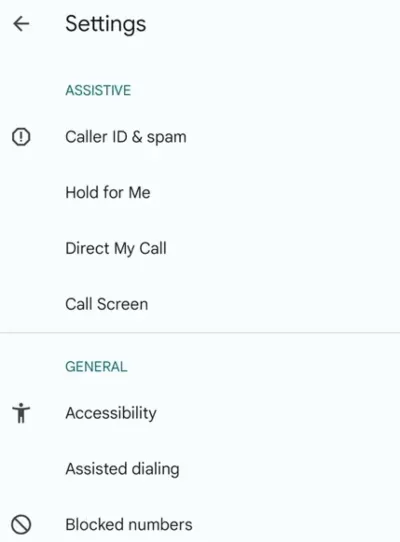
- Tap “Caller ID & spam” to open the menu.
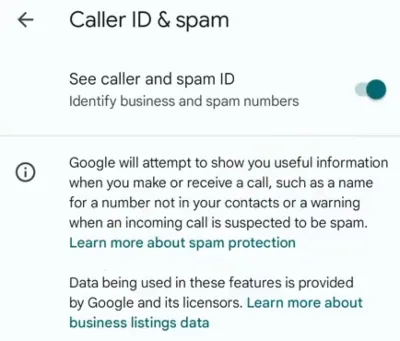
- Toggle on “See caller and spam ID” to identify unsaved businesses and known offenders.
- Toggle on “Filter spam calls” to automatically decline suspected spam before the device even rings.
Once enabled, Google will automatically screen incoming calls against a database of known spam numbers. When a suspected spam call comes through, your device either won’t ring at all or will show a red “Suspected spam caller” warning on the screen. These calls will still appear in call history so you can check them if required, but they won’t disturb you anymore.
The system learns over time, too. The database is highly accurate because it crowdsources real-time info from millions of active Android devices globally. Google collects data from users who report spam, so the protection gets smarter as more scammers get flagged.
Block Spam Calls on Samsung Phones
Samsung devices use a proprietary dialer and partner with Hiya (a dedicated caller profile company) for spam protection.
To prevent unwanted calls on Samsung:
- Launch the Samsung Phone app.
- Tap More and choose Settings.
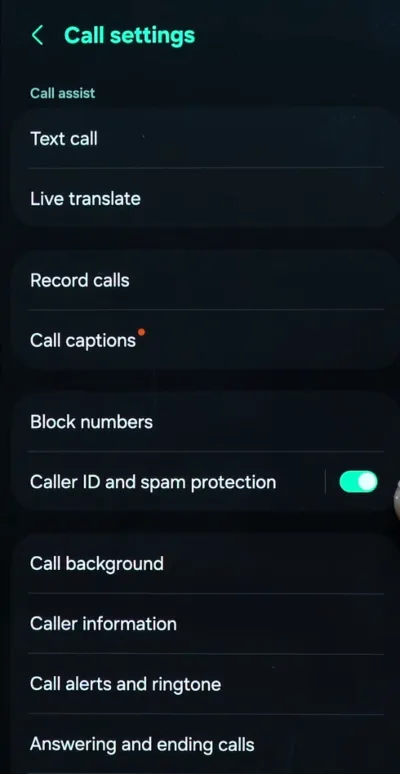
- Tap Caller ID and spam protection.
- Toggle the main switch on, then move into the menu to enable Block spam and scam calls.
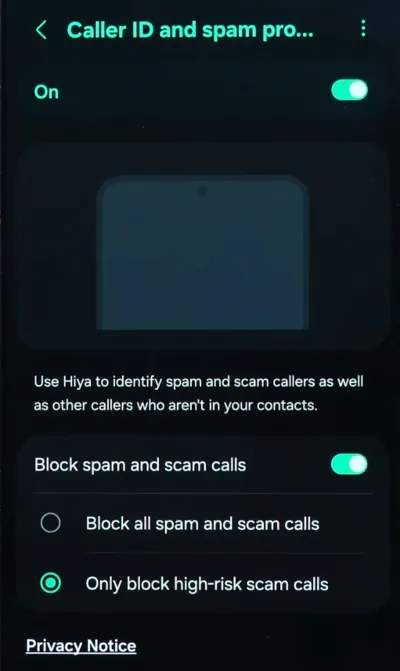
- Choose either Block all spam and scam calls or Only block high-risk scam calls.
Set this to block only high-risk calls initially. Aggressive filtering sometimes intercepts legitimate, automated business calls like doctor appointment reminders or delivery drivers.
Manually Block and Report Specific Numbers
Automated filters will occasionally let a freshly spoofed local number slip through the cracks. Manual blocking is necessary to train the backend algorithms, and blocking them individually takes about five seconds.
To block a number from the call history:
- Open your Recent Calls log.
- Long-press the offending phone number.
- Choose Block/Report Spam.
To manually add a number to the block list:
- Open Settings from the Call app.
- In the settings menu, select “Blocked numbers.”
- Tap “Add a number,” type the number, and save it.
To view or manage blocked numbers:
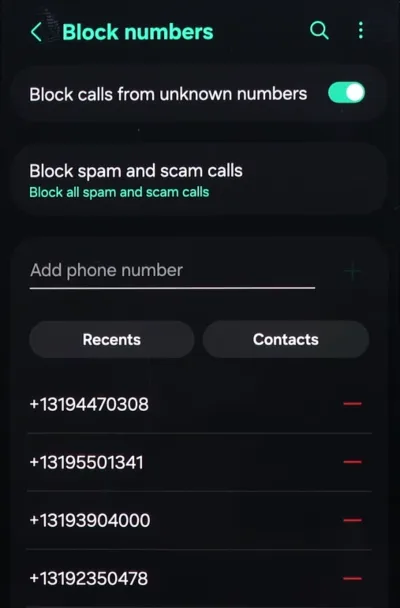
- Open the caller app settings.
- Tap “Blocked numbers” and view the complete list of blocked numbers.
- Choose unblock for any contact if needed.
Never answer a suspected spam call to yell at the operator or press an automated keypad prompt to “be removed from the list.” If you answer, it verifies that your phone number is active and monitored, which instantly moves your contact info to a premium list sold to other scammers. Immediately block, report, and move on.
Use the Call Screen Feature
Call Screen is one of Google’s great features, and barely anyone uses it. Available on Pixel phones and some other Android devices, it lets Google Assistant answer calls for you and transcribe the conversation in real-time. You’ll see the details on your screen and can decide whether to answer, hang up, or mark it as spam.
To enable Call Screen:
- Open your Phone app.
- Tap the three dots and open Settings.
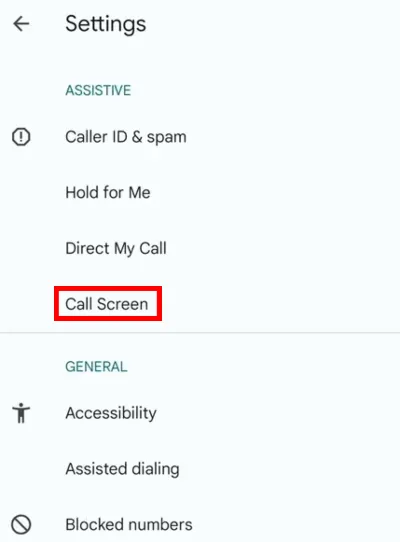
- Find and tap “Call Screen.”
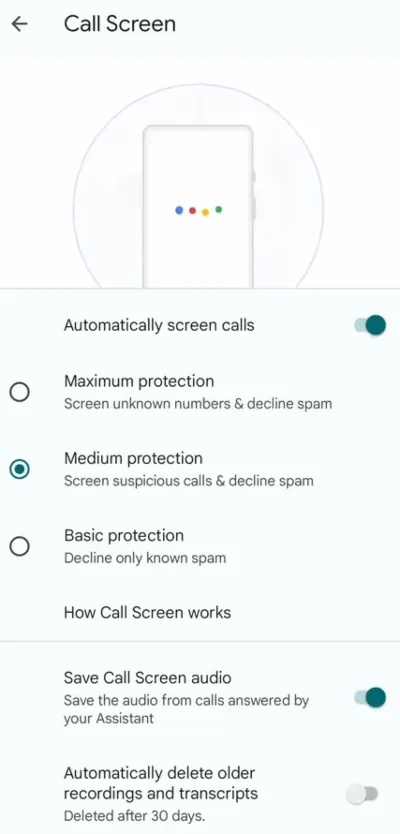
- Enable the option “Automatically screen calls.”
- Choose the protection level and the screening option (suspected spam, unknown numbers, or first-time callers).
- Customize the screening message if you want.
To screen calls manually during incoming calls:
- When an unknown number calls, select the “Screen call” button.
- Google Assistant will ask who’s calling and why.
- Watch the real-time transcript as they respond.
- Choose to pick up, hang up, or mark as spam based on the response you see and decide what to do.
Most robocalls hang up immediately. If it’s legitimate, you can pick up mid-conversation or let it go to voicemail with context. Real people usually state their business, and you can see it all written out before deciding to pick up. The auto-screen feature is particularly helpful for never having to deal with the “should I answer this?” anxiety again.
Install Third-Party Spam Blocker Apps
When native Android tools fail to catch localized spoofed numbers or strong spam operations, third-party applications fill the gap. Services like Truecaller, RoboKiller, and Hiya dominate this space by operating as complete dialer replacements. They have large databases, can filter calls more strictly, and let you pick and choose which ones get through.
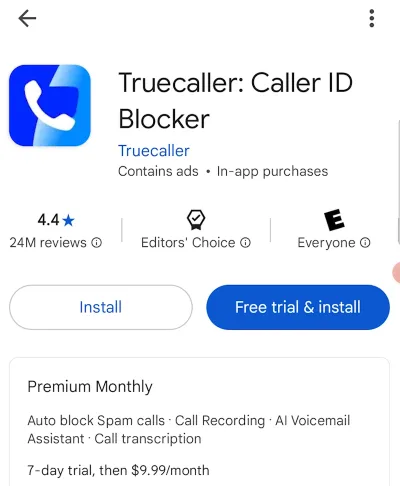
To set up a third-party call blocking app:
- Open the Google Play Store.
- Search for a reputable caller ID app (Truecaller, Hiya, or RoboKiller).
- Download and install the app.
- Grant it default dialer permissions during the initial setup.
- Enable the built-in spam blocking shield within the app’s internal settings.
These services need deep access to your contact list and daily call logs to work. If data privacy is a strict priority, stick to the native OS tools. However, for complete blocking efficacy, a massive community driven database like Truecaller’s is hard to beat.
Enable Do Not Disturb for Unknown Callers
If you’re completely fed up with random calls and want peace, Android’s Do Not Disturb mode can silence everyone except people in your saved numbers, repeat callers, or starred contacts.
To configure Do Not Disturb:
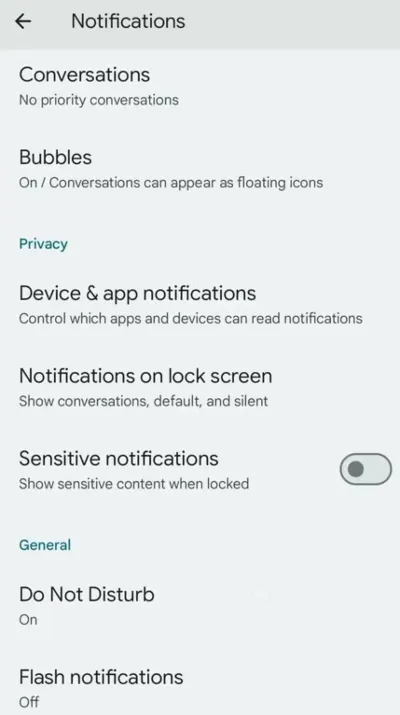
- Go to Settings, tap Sound (or Sound & vibration) or Notifications.
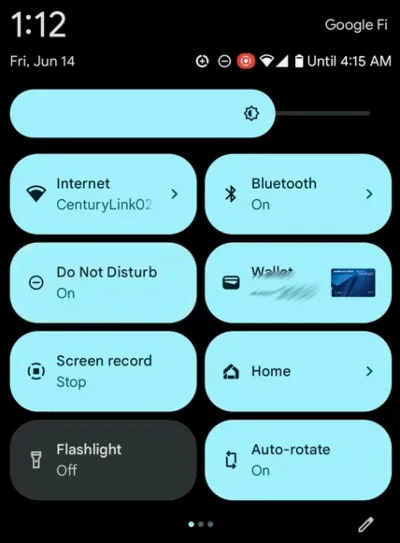
- Choose Do Not Disturb. Or your device might also have the Do Not Disturb icon in the quick menu.
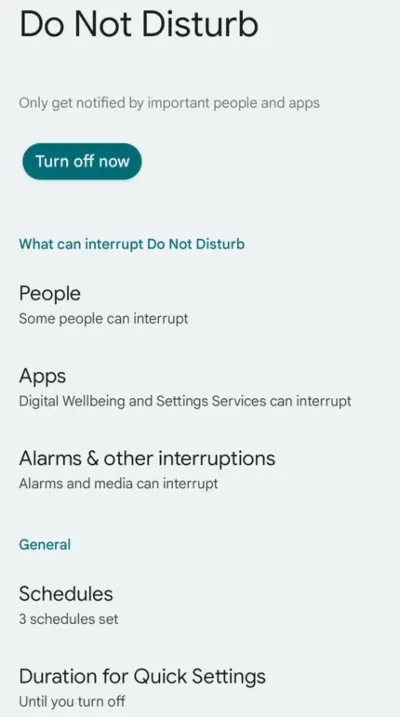
- Create a schedule or turn it on manually.
- Under “People,” tap to customize who can interrupt. Set it to allow calls from “Contacts only.”
- Furthermore, tap “Calls,” and select “From contacts only” or “Starred contacts only.”
- Enable “Allow repeat callers” (calls twice within 15 minutes).
- Add any custom exceptions as needed.
Your phone will only ring when someone in your address book calls; all others will go directly to voicemail without notification. With the repeat caller exception enabled, emergency calls won’t get blocked, even from unknown numbers.
Carrier-Level Spam Protection
Carrier networks provide effective hardware-level blocking by intercepting spam calls before they reach the device. Your phone carrier probably offers spam blocking too, and it can catch scams that Google misses because carriers analyze call patterns across their entire network.
- Identify your carrier’s proprietary app: AT&T offers ActiveArmor, Verizon uses Call Filter, and T-Mobile provides Scam Shield.
- Download the respective app from the Play Store.
- Activate the free tier to flag incoming network calls as “Scam Likely” or drop them completely at the network switch.
Always activate the free carrier-level blocking. Network-level interception stops the digital routing before your phone’s internal processor even has to deal with the incoming cellular signal.
Register with the National Do Not Call Registry
The federal Do Not Call Registry won’t stop illegal robocalls (scammers don’t care about following the law), but it will reduce calls from legitimate telemarketers.
To register your number:
- Visit donotcall.gov on a browser, or call 1-888-382-1222 from the phone you want to register.
- Click “Register Your Phone.”
- Enter your phone number and email address.
- Check your email for the verification link and click it to complete registration.
- Wait 31 days for it to take full effect.
- Register all your numbers, including landlines.
It won’t stop political calls, charities, surveys, or companies you’ve done business with in the last 18 months. But it puts your number on a legally protected list that reduces volume from regular telemarketing operations.
Report Spam Calls to FTC and Carrier
Reporting spam helps everyone. When you mark calls as spam on Android, that data feeds back into Google’s detection system and helps protect other users. Carriers have gotten more serious about fighting unwanted calls. The big three (T-Mobile, AT&T, Verizon) all currently offer free spam blocking tools, and they expect you to report such annoying or illegal contacts.
To report to the FTC:
- Visit reportfraud.ftc.gov in a browser, or call 1-877-382-4357.
- Provide details about the spam call.
- Include the caller’s number and any information they shared.
- Submit your report.
To report to the mobile carrier:
- Contact your carrier’s fraud department directly.
- Provide call details (time, number, what they said).
- Forward spam text messages to 7726 (SPAM).
- File a complaint through the carrier’s app if available.
For really egregious stuff like threatening calls, scams targeting elderly people, and spoofed government numbers, report to your carrier’s fraud department. They can investigate and put a stop to some of these operations.
What Not to Do
Ignore calls from unknown numbers. Answering confirms to the caller that the line is active, and they’ll disturb you with even more calls. Let these calls go to voicemail or use the Call Screen feature to filter them.
Do not:
- Answer unknown numbers,
- Press any numbers to reach a representative or to be removed from a list.
- Speak with the caller.
- Call back contacts you don’t know.
- Pay for expensive spam blocking services,
- Give personal information to verify your identity,
- Believe the caller ID alone (it can be spoofed).
Every answer, every button press tells them you’re real. That means your phone is about to blow up with spam. Since no service can block every unwanted call, free or cheap tools work as well as the expensive ones, so there’s no need to spend money.
Spam calls can’t completely disappear. New numbers appear daily, scammers rotate tactics, and some calls inevitably bypass filters. However, by combining these tools, you’ll cut the noise from multiple calls each day down to one or two a week.