Close Menu
Technical Master – Expert Tech News, Insights & How-Tos
    Facebook X (Twitter) Instagram Vimeo YouTube SoundCloud
    Technical Master – Expert Tech News, Insights & How-TosTechnical Master – Expert Tech News, Insights & How-Tos
    • How To
    • Reviews
    • Gaming
      • Call of Duty
      • Fortnite
      • Helldivers 2
      • Minecraft
      • Remnant 2
      • Cross-Platform
      • PlayStation
      • Xbox
    • PCs & Components
      • Peripherals
      • CPUs
      • GPUs
    • AI
    • More
      • Cybersecurity
      • iPhones
      • Laptops
      • Mobile Phones
      • Social Media
      • Streaming
      • Windows
    • Contribute
    Technical Master – Expert Tech News, Insights & How-Tos
    Home / How To / How to Clear Hard Drive Space on a Mac
    How To

    How to Clear Hard Drive Space on a Mac

    A guide to reclaim storage and restore Mac performance.
    By Ali UsamaAug 8, 2023 9:28 PM GMT+5Updated:Dec 5, 2025 9:34 AM4 Mins Read
    Share Facebook Twitter Pinterest LinkedIn Reddit Telegram WhatsApp Email Threads Copy Link
    How to Clear Hard Drive Space on Mac - Complete Guide

    When your MacBook starts hesitating, apps take a beat to open, or you can’t install anything new, it means your storage drive has run out of space. macOS needs free storage, and once your system drops below a reasonable margin, it suffers with performance. Thankfully, macOS offers a few built-in ways to check and free up storage, and some routine cleanup can restore your system’s speed without much effort. Below, we’ll show the most effective ways to free up disk space on your Mac.

    • Related: How to Connect AirPods to MacBook, iPhone or Android

    Check Your Available Storage First

    Before you do anything to clear out space, check how your disk is being used. The system provides a breakdown that shows which categories, including apps, photos, system files, and media, are taking the most space.

    Follow these steps to check:

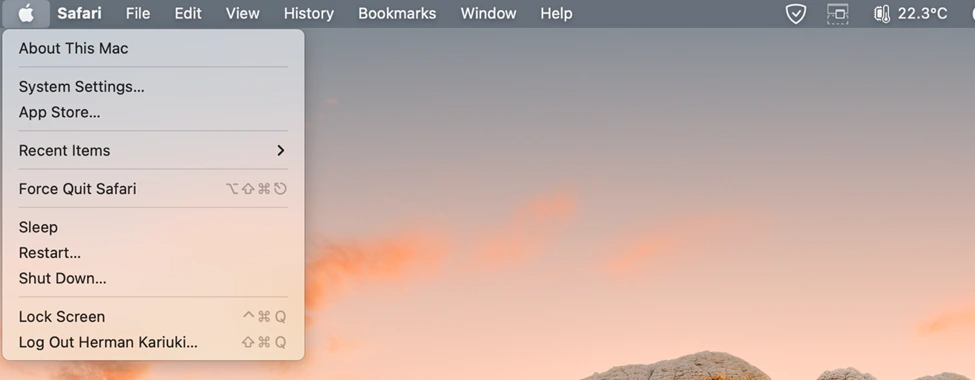
    • Open the Apple menu.

    Click on Apple Menu to enter Settings

    • Go to System Settings and select General.
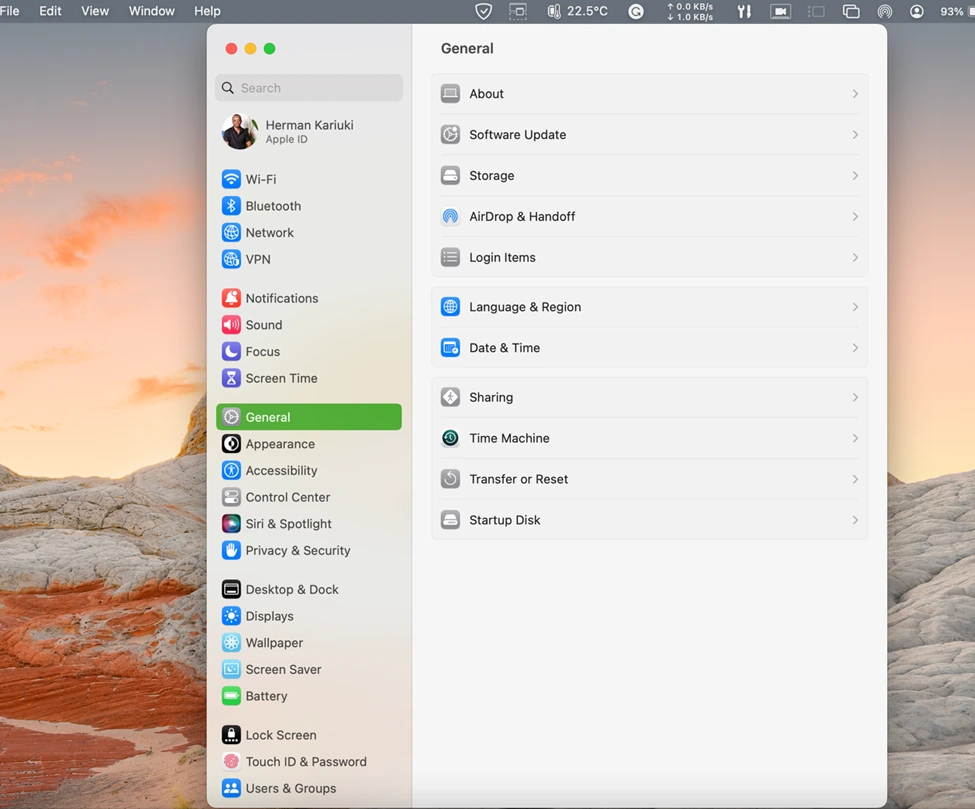
    Go to Genaral Settings Menu

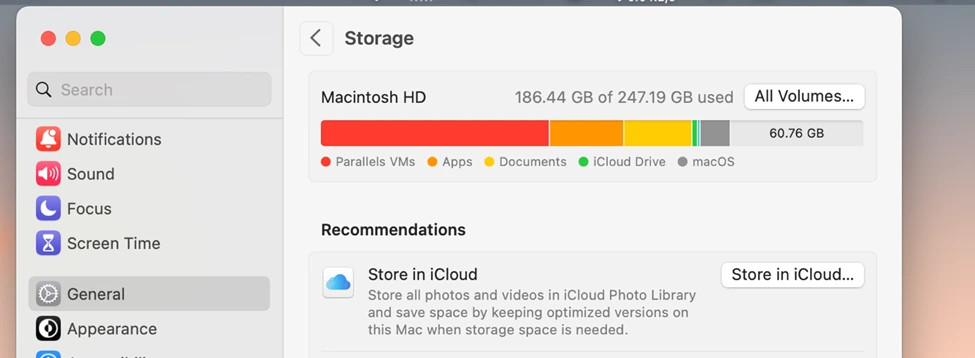
    • Click the Storage tab.

    Click on Storage button

    You’ll see a color-coded bar and a detailed list of categories where you can find the biggest storage drains.

    Use macOS Built-In Optimization Tools

    macOS includes automated storage tools that handle cleanup tasks many users never get around to. They can remove unused files, upload media to iCloud, and delete temporary items.

    To open them:

    • Click on the Apple icon to open the menu.
    • Go to System Settings > General > Storage.
    • Review the recommendations at the top of the window.
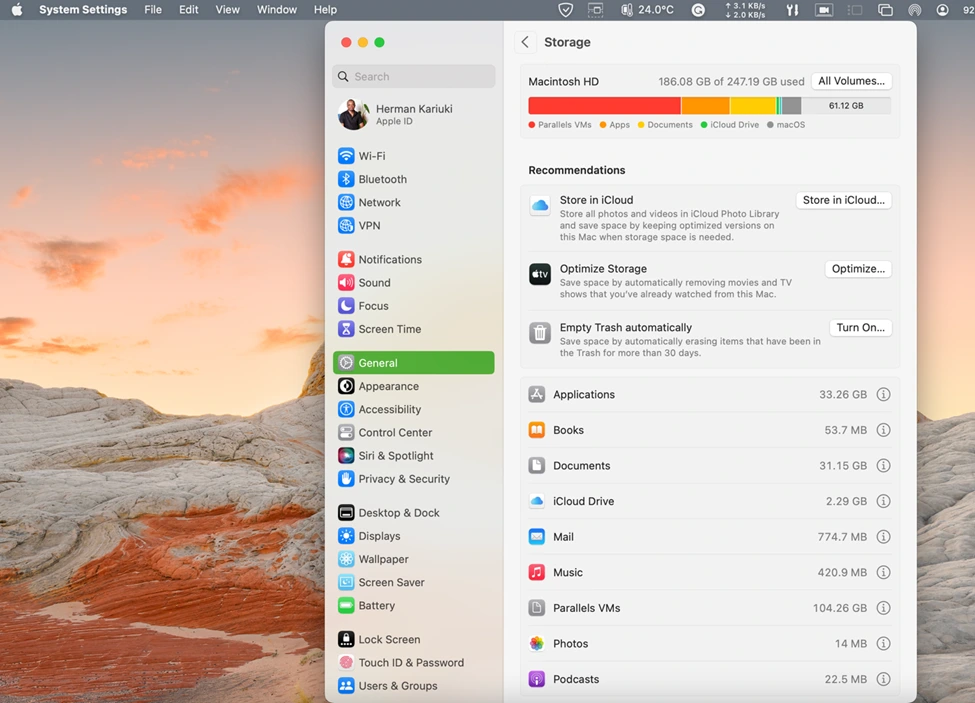
    Mac Apps Storage Options

    Depending on your setup, you may see options such as empty trash automatically, reduce local clutter, clear Apple TV downloads, or offload content to iCloud. These features are a great way to free space with no need for a manual search through your files.

    • Related: How to Fix Corrupt Video Files on Windows and Mac

    Clear Browser Cache and Other Temporary Data
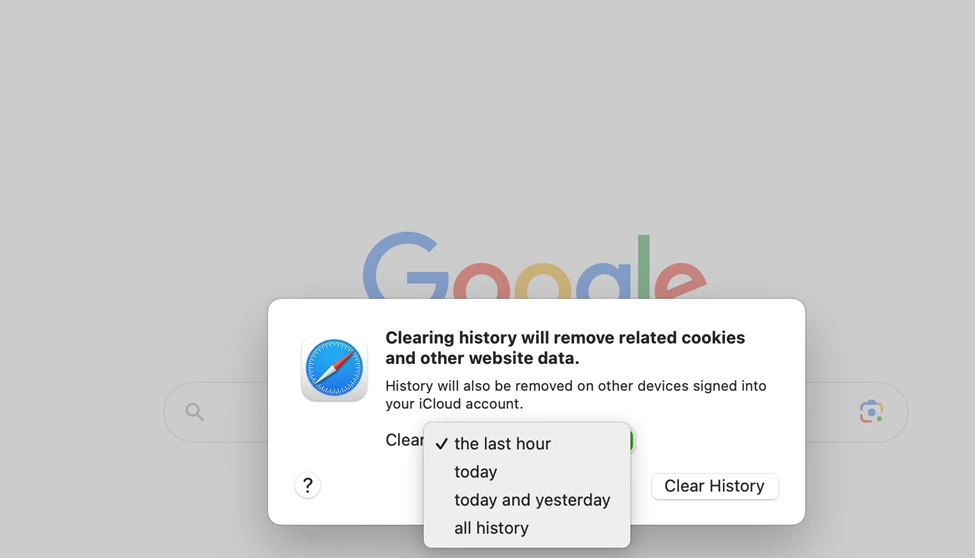
    Clear the Mac browser history and cache

    Every browser, like Safari, Chrome, and Firefox, stores caches and cookies in your system to improve overall browsing speed. Over time, these files grow large enough to impact available disk space. Clearing them won’t affect your actual documents or bookmarks, as you only delete temporary web data. Open your browser’s settings, go to the History or Privacy section, and delete all cached files and cookies. If you browse heavily, this alone can reclaim a surprising amount of storage.

    Move Large Files to iCloud

    If your Mac is packed with photos, videos, or documents you don’t want to delete, iCloud is an easy offload choice. macOS can automatically store originals in the cloud and keep small, optimized versions locally.

    Enable it by heading to: Apple menu > System Settings > Apple ID > iCloud and then turn on iCloud Drive and, if required, Optimize Mac Storage. The only limitation is that you’ll need to buy more iCloud space if the data you want to store contains a large media library.

    Remove Duplicate Files
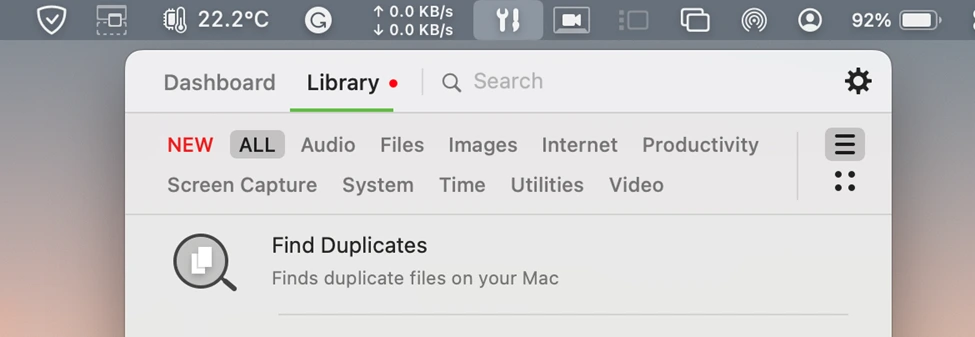
    Find the dublicate files on your Macbook

    Duplicate files accumulate easily—multiple downloads of the same attachment, repeated exports, or manually saved copies in different folders. These duplicates mostly take far more space than users realize. You can search these files yourself, but dedicated cleanup tools are very effective to scan and find duplicate files across your drive, and they also keep your data clean and managed.

    Archive or Offload Large Media Files
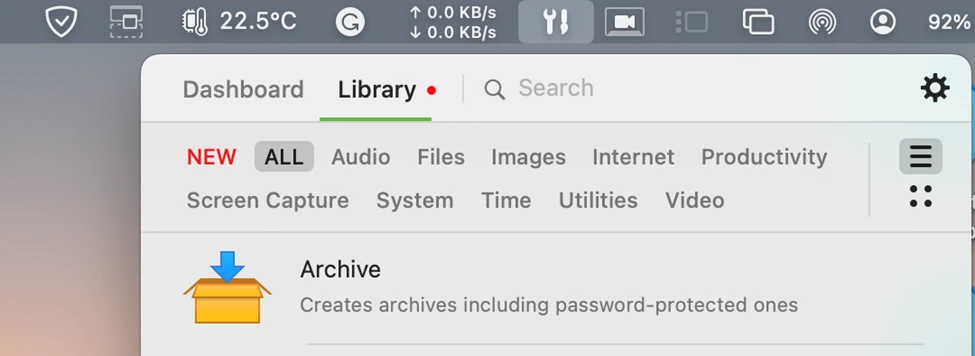
    Archive large size files on your Mac to save space

    High-resolution photos, 4K video, and large project files consume a lot of space. If you don’t want them every day, move all the media to an external drive or a cloud archive to give your Mac companion breathing room. You can later access your files whenever you need. It’s especially a better way for creators, photographers, and anyone who has to deal with big size project files.

    Support Technical Master and add us as your preferred source on Google.

    Add Source
    Follow Us on Google News Follow Us on Flipboard
    Ali Usama
    • Website
    • LinkedIn

    Ali Usama is the Content Editor and Manager at Technical Master at Technical Master. He writes about hardware in a way people can understand. No jargon. Just clear explanations of what your gadgets really do. When he's not writing, he tries to clear a gaming backlog that somehow keeps growing. He can spend an afternoon breaking down processor specs, then spend his evening getting destroyed by a Souls boss. Both feel natural to him. He has been covering tech since cloud storage was something out of a sci-fi novel. His philosophy hasn't changed: every device needs to answer one question. Can it run Doom? That's the benchmark. Always has been.

    Related Posts
    How to Solve the Postulant’s Parlor Chessboard Puzzle - Remnant 2
    How to Solve the Postulant’s Parlor Chess Puzzle in Remnant 2
    Remnant 2
    How to Change the DNS Server on Your Windows PC and Mac
    How to Change Your DNS Server on Windows and Mac
    How To
    How to Clear Cache on Roku TV and Get Rid of Slow Performance
    How To
    How to Fix Spotify Error Code 18
    Can’t Install Spotify? Fix Error Code 18
    Streaming
    How to Restart Your Android Phone Without the Power Button - Alternative Ways
    How to Restart Your Android Phone Without the Power Button: 3 Alternative Ways
    How To
    How to Turn Off PS4 Controller
    How to Turn Off a PS4 Controller
    How To

    When you buy anything through links on our site, we may earn an affiliate commission. Learn more

    Trending Now

    Remnant 2 Council Chamber Guide: All Puzzles, Secrets, & Choices

    How to Get Stone of Malevolence in Remnant 2

    How to Switch to Bluesky from Twitter

    How to Hide Photos and Videos on Samsung Galaxy Phone

    AMD Brings XDNA 2 NPU to Ryzen AI Pro 400 Desktop Processors — Your Next Work PC Might Actually Think for Itself

    Remnant 2: Should You Kill Faelin or Faerin?

    Technical Master – Expert Tech News, Insights & How-Tos
    Facebook X (Twitter) Instagram YouTube Vimeo SoundCloud
    • About Us
    • Privacy Policy
    • Terms of Use
    • Editorial Ethics & Guidelines
    • Contact Us
    • Write for Us
    © 2026 Technical Master, Inc. All Rights Reserved.

    Type above and press Enter to search. Press Esc to cancel.